Recommended Free Tools
If your Philips Hue Bridge shows an internet error, start by checking its Ethernet connection—not Wi‐Fi. The standard Hue Bridge connects to your router with a network cable, while your phone may connect to the same router over Wi‐Fi. Check the three Bridge LEDs, connect the Bridge directly to a primary LAN port, restart the router and Bridge, then verify that your phone is on the main household network.
A missing internet connection does not always mean the Bridge or bulbs are broken. Local lighting may continue to work even when remote control, cloud services, updates, voice assistants, or Matter integrations do not.
As an Amazon Associate I earn from qualifying purchases.
Fastest fix checklist
- Check whether the power, network, and internet LEDs are lit.
- Reseat the Ethernet cable at both ends.
- Try a known-good Ethernet cable and another primary LAN port.
- Connect the Bridge directly to the main router, bypassing switches and secondary routers.
- Confirm that the router itself has internet access.
- Restart the modem/router, then reconnect the Bridge.
- Connect your phone to the main Wi‐Fi network, not guest Wi‐Fi.
- Temporarily disable VPNs, DNS filters, parental controls, and network-isolation features.
- Update the Hue app and Bridge software if the app can detect the Bridge.
- Factory-reset the Bridge only after these checks fail.
Philips’ setup guidance explains that the Bridge is connected to the router by Ethernet rather than joining the router’s Wi‐Fi network directly. See Philips Hue’s connection guidance.
Do these 3 things before closing this tab:
1Repair Windows errors before they cause bigger problems2Fix the driver behind crashes, sound loss and screen glitches3Clear out junk files and repair common Windows errorsWhat the three Bridge lights mean
| LED state | What it usually indicates | What to check |
|---|---|---|
| All LEDs off | The Bridge is not receiving power. | Outlet, power adapter, and the Bridge’s power connection. |
| Power LED only | The Bridge has power but has not established its local network connection. | Ethernet cable, router LAN port, DHCP, isolation, and router configuration. |
| Power and network LEDs lit, internet LED off or blinking | The Bridge can reach the local network but may not have internet access. | ISP service, DNS filtering, firewall rules, parental controls, and router restrictions. |
| All LEDs appear normal but the app cannot find the Bridge | Local discovery or phone-network problem. | Guest Wi‐Fi, VPN, VLAN separation, mesh isolation, or an outdated app. |
LED behavior can vary by product generation and support guidance. Use Philips’ current Hue support pages for model-specific information. The internet LED indicates internet connectivity; it does not prove that every Hue cloud service or third-party integration is operating normally.
#1 Best Overall
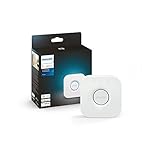
- WHAT’S IN THE BOX: Includes one Hue Bridge that unlocks the full potential of your Philips Hue system, including automations, smart control from anywhere in the world, and so much more
- SECURE AND STABLE CONNECTION: With Zigbee advanced technology, the bridge ensures a reliable connection that won't strain your Wi-Fi, Hue lights work when your Wi-Fi is down
- CONTROL LIGHTS FROM ANYWHERE: The Hue hub enables out-of-home control, control your lights with the Hue app anywhere you have an internet connection, with your home assistant
- ENJOY SMART LIGHTING FOR YOUR ENTIRE HOME, INDOORS AND OUT: Add up to 50 lights and accessories to your smart lighting system, a Hue Bridge is required to control Hue outdoor lights and accessories
- LEVEL UP YOUR MOVIES, MUSIC, AND GAMES WITH SURROUND LIGHTING: Make your lights dance, flash, dim and brighten along to your movies, TV shows, PC and music, the sync requires HDMI Sync Box
1. Check power first
Before changing router settings, make sure the Bridge is actually powered.
- Test the wall outlet with another device.
- Reseat the power connector at the Bridge.
- Use the original or a compatible power adapter.
- Wait for the LEDs to illuminate after reconnecting power.
If no LED appears with a known-good outlet and correct power supply, the problem may be the adapter or Bridge hardware.
2. Check the Ethernet connection
The standard Bridge does not connect directly to your Wi‐Fi network. It needs a wired connection to the router.
- Unplug and reconnect the Ethernet cable at the Bridge and router.
- Try another known-good Ethernet cable.
- Move the cable to another primary LAN port.
- Make sure it is connected to a LAN port, not the router’s WAN or Internet port.
- Temporarily connect the Bridge directly to the main router.
- Bypass a network switch, powerline adapter, wireless Ethernet bridge, or secondary router while testing.
Do not buy a premium “smart-home” Ethernet cable before testing one that already works. If the Bridge works when directly connected to the router, the bypassed device or its configuration is the likely cause.
3. Restart the network in the right order
- Close the Hue app.
- Restart the modem and router using the manufacturer’s normal procedure.
- Wait until the router is fully online and another device can browse the internet.
- Reconnect or restart the Hue Bridge.
- Wait several minutes for its LEDs to settle.
- Open the Hue app and test local control before testing remote access.
Unplugging for a short period is a common troubleshooting practice, but do not treat a specific unplug duration as an official Philips requirement unless your model’s current instructions state one.
Rank #2

- WHAT’S IN THE BOX: Includes one Hue Bridge and two Hue white and color ambiance LED smart 60W A19 E26 base light bulbs suitable for most fixtures; perfect for general lighting anywhere in your home
- UNLOCK THE POWER OF THE HUE BRIDGE: Enjoy automations, control from anywhere, a secure, stable connection that won’t drain Wi-Fi, use Matter to connect your devices to your Hue smart lighting system
- MILLIONS OF COLORS: The White & Color Ambiance range offers warm-to-cool white and millions of colors. Simply screw it in - our smart LED bulbs can dim, brighten, and set the mood instantly
- ENJOY PRESET SCENES: Light your routines with Hue lamps throughout the day; set a 24-hour natural light scene that mimics the sun or choose light to help you focus, unwind, and more
- VOICE CONTROL: Set up voice control in the Hue app and use simple voice commands to control your Hue lights with Alexa or Google Assistant
4. Fix Hue app discovery
The Bridge and phone must be able to communicate on the same local network. Your phone can use Wi‐Fi, but the Bridge remains Ethernet-connected.
For a clean test:
- Connect the phone to the main household Wi‐Fi SSID.
- Avoid guest Wi‐Fi.
- Turn off the phone’s VPN temporarily.
- Turn off cellular-only operation during setup or discovery.
- Connect the Bridge to the main router rather than a secondary router.
- Check the router’s client list to see whether the Bridge has received a local address.
Guest networks commonly block communication between wireless clients and wired devices. The same issue can occur with client isolation, AP isolation, VLAN separation, mesh-network policies, or managed apartment, hotel, dormitory, and enterprise networks. Router menu names vary, so look for settings involving guest access, device isolation, LAN access, firewall rules, or client separation.
VPNs, DNS filters, parental-control systems, and security appliances may also interfere with local discovery or cloud access. Temporarily disable one restriction at a time for testing, then restore protection after identifying the cause.
5. If the Bridge has a local connection but no internet
If the power and network LEDs are lit but the internet LED is not, first determine whether the issue affects the whole home network.
- Test a laptop or phone on the same router.
- Check whether the router reports an ISP outage.
- Review DNS filtering, firewall, parental-control, and device-blocking rules.
- Check whether the router has reached its device limit or requires MAC-address approval.
- Temporarily test without advanced security filtering.
If lights work from the Hue app while your phone is at home but remote control fails away from home, the lighting system is probably functioning locally. Focus on internet access, Hue account sign-in, remote-access status, VPNs, filtering, and router firewall rules rather than replacing the bulbs.
Rank #3

- WHAT'S IN THE BOX - Includes one Hue Bridge and four Hue White and Color Ambiance smart 75W A19 light bulbs suitable for most fixtures; Perfect for decorative and general lighting anywhere in your home
- UNLOCK THE FULL POWER OF HUE WITH THE INCLUDED BRIDGE - Enjoy automations control from anywhere in the world, and a secure, stable connection that won't drain your Wi-Fi. Use Matter to connect smart home devices to your Hue smart lighting system.
- ENJOY PRESET SCENES - Light your routines throughout the day; Set a 24-hour natural light scene that mimics the sun or choose light to help you focus unwind, and more
- VOICE CONTROL - Convenient smart control; Set up voice control in the Hue app and use simple voice commands to control your lights with Alexa or Google Assistant
- PERSONALIZE YOUR LIGHT - Create the ultimate mood lighting with dynamic light effects that show subtle changes in brightness and color; Customize in the app
Philips describes the Bridge as supporting local functionality without Wi‐Fi, while internet access is needed for remote and cloud-dependent features. See the official Hue Bridge support page.
Free tools Windows power users keep installed
One-click scans. No signup required.
6. If you changed routers or internet providers
A router or ISP change normally does not require rebuilding your Hue rooms, scenes, accessories, or automations because the system configuration is stored on the Bridge.
- Connect the Bridge to a LAN port on the new router.
- Wait for the network and internet indicators.
- Connect your phone to the new router’s main Wi‐Fi.
- Open the Hue app and select the existing Bridge if it appears.
- If it does not appear, use the app’s add or select Bridge workflow.
Do not factory-reset the Bridge immediately after changing routers. First test the cable, router port, local network, and phone connection. With apartment, hotel, dormitory, or enterprise Wi‐Fi, you may not control the isolation rules required for wired-to-wireless discovery. Contact the network administrator or use a personally controlled router if the provider’s terms allow it. Adding another router can create double NAT, so configure it carefully.
Independent reader supportYour contribution helps us test, update, and keep practical guides available for everyone.7. Update the Hue app and Bridge
Update the Philips Hue app through your phone’s official app store. If the app can see the Bridge, open its system or software-update area and allow any Bridge update to finish completely before restarting the device again.
If the app cannot find the Bridge at all, firmware updating may not be available through the normal interface. Return to the physical connection and local-network checks first. App labels and menu locations can change between releases, so use the current instructions in Philips’ Hue system support area.
Rank #4

- WHAT'S IN THE BOX - This starter kit includes one Hue Bridge and four E26 smart light bulbs; to get started, install your Bridge and color changing light bulb using the Hue app, and you’re ready to go
- CREATE AMBIANCE WITH COLOR - Set the mood with millions of colors and a library of preset light scenes designed by Hue’s lighting experts—with special holiday scenes and the option to create your own
- DIM EASILY - Adjust from full brightness all the way down to 2% using the Hue app to achieve the right level of lighting with your smart light bulb, whether you’re reading or unwinding before bed
- CONTROL WITH YOUR VOICE - Connect to your preferred home assistant and control your led light bulb effortlessly with voice commands—compatible with Alexa, Google Assistant, and Apple Home
8. Factory-reset only as a last resort
A reset may help with corrupted configuration or a used Bridge that remains associated with another setup, but it will not fix a bad cable, blocked guest network, router isolation, or an ISP outage.
Before resetting:
- Photograph or document rooms, scenes, automations, accessories, and integrations.
- Check whether the working app offers a migration, backup, or transfer option.
- Confirm that direct-router testing and network troubleshooting have failed.
- Use the reset control on the rear of the Bridge according to the current Philips instructions.
A reset can remove stored system configuration. You may need to recreate rooms, scenes, automations, accessory assignments, and third-party integrations. Do not rely on an exact button-hold time unless it is confirmed by the current instructions for your model. Philips publishes separate guidance for standard Bridge and Bridge Pro procedures; do not merge them.
When the Bridge is probably defective
Contact Philips Hue Support rather than opening the device or installing unofficial firmware if:
- No LED appears with a known-good outlet and compatible power adapter.
- The Bridge repeatedly loses power.
- Several known-good Ethernet cables and router ports fail.
- A direct connection to a normal router never produces a network connection.
- The router does not see the Bridge at all.
- The reset procedure has no observable effect.
- The Bridge is unusually hot, smells burnt, or has physical damage.
A replacement Bridge is appropriate only after eliminating cabling, router-port, LAN-isolation, ISP, app, and account causes. Bridge Pro is not a general cure for an internet-connection problem; consider it only for a deliberate feature, capacity, or migration upgrade.
Quick wins for a faster PC:
Fix the driver behind crashes, sound loss and screen glitchesFind Drivers →Clear out junk files and repair common Windows errorsFree Scan →Quick Recap
What not to assume
- The Bridge is not a Wi‐Fi client that needs a 2.4 GHz network password.
- A missing third LED does not automatically mean the Bridge is dead.
- Changing routers does not normally require deleting the Hue system.
- Bluetooth-capable bulbs do not provide the full Bridge feature set, including broad automation, remote access, and integrations.
- A Matter, Apple Home, Alexa, Google Home, or SmartThings error may originate with the underlying Hue Bridge connection. Fix the Bridge first, then troubleshoot the integration.
Product prices and availability are accurate as of the date/time indicated and are subject to change. Any price and availability information displayed on Amazon at the time of purchase will apply.