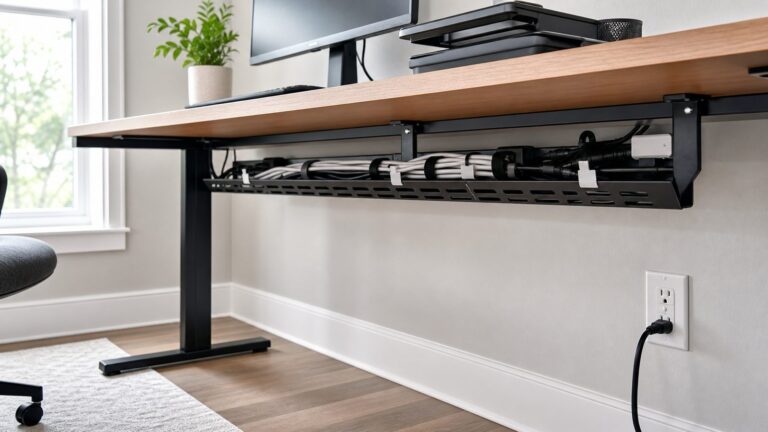
The best minimalist PC setup for a small desk is not the one with the fewest objects. It is the one that preserves comfortable screen height, usable keyboard and mouse space, clear airflow, and a serviceable cable route. Start by measuring the desk, choosing where the computer will live, and planning the monitor and cable path before buying accessories.
For most small desks, the practical formula is one 24- or 27-inch monitor, a mini PC, laptop, or compact desktop, a keyboard sized to your workflow, a mouse, and power and signal cables routed beneath or behind the desk. A monitor arm, USB-C monitor, dock, or under-desk mount can help—but only when it solves a specific space problem.
As an Amazon Associate I earn from qualifying purchases.
What counts as a small desk?
There is no universal width at which a desk becomes “small.” A 48-inch desk may feel generous with a laptop and one monitor but cramped with a tower, two displays, speakers, and paperwork. Depth can be the more important limitation: a deep monitor stand can consume the usable area of a shallow desk even when the desk is relatively wide.
What’s actually slowing this PC down?
Pick the symptom - the matching free tool is one click away.
Before buying anything, measure:
- Desk width and usable depth
- Rear clearance from the wall
- Desk thickness and load capacity
- Legs, drawers, and cable openings that affect mounting
- Whether the surface must also support writing, eating, crafting, or other activities
| Approximate desk width | Likely arrangement |
|---|---|
| 30–36 inches | Laptop or mini PC, one compact monitor, and a 60% or 65% keyboard |
| 40–48 inches | One 24–27-inch monitor, compact computer, and a standard or tenkeyless keyboard |
| 48–60 inches | A larger monitor, speakers, or an occasional second display |
These are planning ranges rather than ergonomic standards. A shallow 48-inch desk may need a more space-efficient layout than a deeper 36-inch desk.
#1 Best Overall

- Clean & Contemporary Design: You'll receive a side bag in either gray or black, chosen at random. Our desk blends seamlessly with any decor style. Its refined look enhances your space without clashing, making it a tasteful addition to your home office or bedroom
- Spacious & Sturdy Surface: Enjoy ample space on this work desk (available in 6 sizes from 31" to 63") for multiple monitors and essentials. The reinforced structure with sturdy steel tubes ensures reliable support for intensive work or long gaming sessions
- Versatile for Multiple Uses: This simple desk seamlessly serves as a large office desk, a small compact computer desk, a gaming table, or a student desk. It's the perfect work-from-home solution that adapts to your lifestyle, fitting effortlessly into bedrooms or small spaces
- Integrated Side Storage Bag: Stay organized with the added convenience of a reversible side pocket. This unique storage feature can be mounted on either side of the desk to hold your pens, notebooks, or chargers, keeping your work table tidy and efficient
- Quick & Easy Assembly: Get your new pc desk ready in a few minutes. Its simple structure, clear instructions, and all provided tools make setup straightforward, so you can quickly enjoy your new bedroom desk or home office setup without hassle
Choose the computer footprint first
The computer is often the largest item on a small desk, so decide whether it belongs on the surface, behind the monitor, beneath the desk, or somewhere beside it.
Laptop plus external monitor
A laptop is usually the easiest option when portability matters. It can be disconnected and removed from the desk, used as a second screen, or stored vertically when the desk needs to serve another purpose.
For a clean closed-lid workstation, use an external keyboard and mouse. Raising a laptop screen without moving the keyboard and mouse can create an uncomfortable reach and wrist position. A USB-C monitor with charging and a built-in hub can reduce the visible connection to one cable, but the laptop must support video over USB-C and the monitor must provide enough power for that particular computer.
Recommended Free Tools
Mini PC
A mini PC is a strong choice for office work, study, browsing, coding, media, and light creative work when you already want a separate monitor. It can often sit behind the display, attach to a VESA mount, or occupy an under-desk shelf.
The trade-off is expansion. Mini PCs commonly offer less internal upgradeability than conventional desktops, and ports can become difficult to reach after mounting. Check display outputs, USB ports, Ethernet, Wi-Fi, storage, memory, power-brick size, and mounting options before choosing one. Dell’s compact-desktop guidance specifically recommends checking those connectivity details before purchase (Dell’s mini-desktop guidance).
Apple’s current Mac mini is a particularly compact example. Apple lists the M4 and M4 Pro designs at a 5-by-5-inch footprint and 2 inches high, with model-dependent Thunderbolt or USB-C connectivity, HDMI, Ethernet, and a headphone jack. Display support and port arrangements vary by configuration, so verify the specifications for the exact model (Apple Mac mini; technical specifications).
Small-form-factor desktop
A small-form-factor desktop is more appropriate for gaming, heavier creative applications, or anyone who needs a discrete graphics card and more upgrade potential. It can save substantial surface area compared with a full tower, especially when placed beneath or beside the desk.
Compact gaming hardware brings compromises: higher heat output, more fan noise, tighter internal clearances, larger power cables, and more difficult maintenance. Do not place a high-performance PC inside a sealed drawer or cramped cabinet merely to hide it. The case manufacturer’s intake, exhaust, and clearance requirements take priority over appearance.
Rank #2

- [ All-in-One Compact Gaming Desk ]: 33.5 inch space-saving gaming desk integrates 6 essential features: ✅ Remote RGB LED lights (256 colors) ✅ 3-in-1 power hub (2 AC + USB/Type-C) ✅ Ergonomic monitor stand (used as monitor stand or storage shelf) ✅ Fabric storage drawer (hidden compartment) ✅ Reversible CPU stand (fits PC case, books) ✅ Headphone hooks. Perfect as a small desk for home office or gaming desk for bedroom corners.
- [ Pro-Level LED Lighting System ]: The Gaming Table Dominate the game atmosphere with: ✨ 22 dynamic modes (pulse/starlight/wave) ✨ 20 static colors + 256 PWM fine-tuning ✨ 5 brightness levels & 10 speed controls. Create immersive RGB gaming desks ambiance while reducing eye strain during marathon sessions.
- [ Smart Power Outlets for Multi-Device Charging ]: The Gamer Desk come up with Power Outlets: 🔌 2 AC outlets (laptop/monitor) 🔌 1 USB port (phone/controller) 🔌 1 Type-C port (fast-charge devices) 🔌 1.5M extended cord for flexible placement. Ideal computer desk with power outlet for gaming setups or home office desks
- [ Health-Focused Monitor Stand ]: The Gaming desk with monitor stand meets ergonomics 📏 Lifts screens to eye level to prevent neck pain 📏 Frees 30% desktop space for keyboard/mouse. A must-have computer desk with monitor stand for long work/gaming sessions in small spaces.
- [ Maximized Storage Solutions ]: Organize the clutter in tight spaces: 🗄️ Fabric drawer – anti-scratch & private (documents/accessories) 🖥️ Reversible metal shelf – use as CPU stand or book organizer 🎧 Side hooks – hang headsets or small bags. The ultimate desk with shelves and drawers for compact computer desk users.
Use one monitor unless your workflow earns a second
One monitor is the minimalist default because it leaves room for the keyboard, mouse, notebook, controller, or other work. A single 27-inch display can sometimes replace two smaller screens, reducing stands, bezels, and cables, although it may require more viewing distance and desk depth.
A 24-inch monitor is often easier to position on a very shallow desk. A 27-inch monitor can be a useful compromise on a desk around 40–48 inches wide. Neither size is universally ideal: viewing distance, resolution, text scaling, eyesight, and the rest of the workspace matter.
Add a second display only when the workflow clearly benefits from it—for example, coding beside documentation, video editing, data work, streaming, or communication-heavy work. A vertical second monitor can reduce horizontal width, but it adds weight, visual complexity, and another arm or stand. It is not automatically more minimalist.
Quick wins for a faster PC:
Clear out junk files and repair common Windows errorsFree Scan →Fix the driver behind crashes, sound loss and screen glitchesFind Drivers →Free surface area with a monitor arm or raised stand
When a monitor arm makes sense
A monitor arm removes the supplied stand’s footprint and can let the keyboard slide beneath the display. It is especially useful on shallow desks or when the monitor needs frequent height, tilt, or rotation adjustments.
Before installing one, check:
- Monitor weight without its original stand
- VESA mounting pattern, commonly 75 × 75 mm or 100 × 100 mm
- Desk thickness and the clamp’s supported range
- Rear clearance and arm reach
- Whether the desk is hollow-core, thin, glass, or otherwise vulnerable to clamp pressure
An arm improves adjustability, not automatically ergonomics. A poorly matched arm can wobble, damage the desk, or become unstable. A reinforcing plate can distribute pressure on some surfaces, but it cannot make every desk suitable for a heavy arm.
When a monitor stand is better
Use the supplied stand or a compact raised stand when the desk cannot safely accept a clamp, the monitor rarely moves, or you prefer a simpler installation. A stand with open space underneath can provide a useful shelf for a keyboard, headphones, or notebook. Guides from DeskFinds and iBUYPOWER both highlight under-monitor storage as a practical small-desk benefit.
Set the monitor for comfortable use
As a starting point, position the top of the display slightly below eye level when seated. The correct position varies with chair height, monitor size, prescription lenses, and personal comfort. Apple’s ergonomics guidance gives an approximate preferred viewing distance of 18–28 inches, or 45–70 cm, for many users and recommends reducing glare from windows and overhead lighting (Apple’s ergonomics guidance).
Free tools Windows power users keep installed
One-click scans. No signup required.
Your shoulders should remain relaxed, your upper arm and forearm should form an angle slightly greater than 90 degrees, and your wrist and hand should stay roughly straight. Keep the mouse or trackpad at the same height as the keyboard and within comfortable reach.
Rank #3

- A-FRAME WORKSTATION: Need a desk that gives you storage without a bulky footprint? This compact computer desks option features A-frame legs, a 31.6-inch wide rectangular tabletop, a hutch shelf, and a lower shelf to keep work essentials close in smaller rooms
- SIZE & WEIGHT CAP: This home office desk measures 17.9 (D) x 31.6 (W) x 35.5 (H) inches and supports up to 30 lbs (13.6 kg) on the tabletop and 10 lbs (4.5 kg) on each shelf, with the whole unit supporting up to 50 lbs (22.7 kg). Its compact profile fits smaller work areas
- SHELF STORAGE: This practical option for computer desks uses a hutch shelf above the main work surface and a lower shelf below, giving books, notebooks, and daily supplies a defined spot. The tiered layout helps keep items sorted in home offices or study rooms
- STURDY BUILD: Made from FSC-certified particle board, this gaming desk features a Dark Mocha finish for a clean, practical look that works with home decor. The A-frame legs, rectangular tabletop, and lower shelf structure help add stability on a flat surface
- EASY ASSEMBLY DETAILS: This compact gaming desk is designed with an easy assembly structure, helping setup stay straightforward for daily use. The package includes easy-to-follow instructions and labeled parts. Assembly can be completed in about 30 minutes
Choose the smallest keyboard that still works for you
Keyboard size affects horizontal space, but missing keys can create workflow friction. Choose by function rather than appearance:
- 60%: Maximum space saving, but omits the function row, arrow keys, and navigation cluster.
- 65%: Retains dedicated arrow keys while staying compact.
- 75%: Keeps a function row in a reduced layout.
- Tenkeyless: Removes the number pad while preserving a familiar main layout.
- Full-size: Best for frequent numerical entry, but consumes the most width.
Ask whether you need dedicated arrows, function keys, navigation keys, a number pad, backlighting, low-profile keys, or multi-device switching. A compact keyboard can reduce reach and free mouse room, but it is not automatically more comfortable or ergonomic. Logitech describes the MX Keys Mini as a compact wireless keyboard; that is a manufacturer product description, not independent ergonomic proof.
A compact mouse saves little space if it causes hand discomfort. Prioritize grip, hand size, sensor behavior, side buttons, charging, and whether Bluetooth or a receiver is required. Wireless peripherals remove visible signal cables, but they still require charging, batteries, or a receiver.
Plan the cable path before attaching anything
Cable management is a layout problem, not a finishing touch. Decide where the display, computer, power strip, and frequently used ports will go before securing bundles.
- Place the monitor in its final position.
- Decide where the PC or laptop will live.
- Route the display cable first.
- Route power cables second.
- Add keyboard, mouse, Ethernet, audio, and USB cables afterward.
- Bundle only cables that travel together.
- Leave a small service loop near devices that move.
- Label both ends of unfamiliar cables.
- Secure the bundle beneath or behind the desk.
- Test every connection before tightening or hiding the final route.
Useful hardware includes an under-desk cable tray, adhesive clips, Velcro ties, a desk grommet, a monitor-arm cable channel, a wall-mounted or under-desk power-strip mount, short cables matched to the route, and a USB hub mounted beneath the desk. Prefer reusable Velcro ties over permanent zip ties where equipment may need service.
Do not hide the power strip so thoroughly that it cannot be reached quickly. Do not run cables across the front edge of the desk, coil large excesses beside the monitor, or bundle everything so tightly that a single replacement requires dismantling the entire setup. Keep all computer intakes and exhausts unobstructed. As HYTE’s minimalist gaming guidance and iBUYPOWER’s small-desk coverage emphasize, cable routing and designated storage are central to a clean setup—but serviceability and airflow matter just as much as appearance.
USB-C monitor, hub, or dock?
| Need | Best starting point | Watch for |
|---|---|---|
| Laptop plus display only | USB-C monitor | Video support and adequate power delivery |
| Laptop plus several peripherals | Monitor hub or dock | Port count, data speed, display protocol, and power |
| Mini PC plus USB accessories | Compact hub | Whether a bus-powered hub can handle the devices |
| Multiple computers | Dock or KVM-capable monitor | Switching, compatibility, and extra cables |
| Gaming desktop | Conventional video and USB connections | Do not add a dock unless it solves a real problem |
A USB-C cable can carry video, data, and power only when both devices support the necessary standards and wattage. Check the laptop’s USB-C capabilities, the monitor’s power-delivery rating, the number and speed of its USB ports, Ethernet support, and whether the laptop requires more power than the monitor can supply.
The Tool Desk
Outbyte Driver Updater FREEFix the driver behind crashes, sound loss and screen glitchesFind Drivers →Outbyte PC Repair FREEClear out junk files and repair common Windows errorsFree Scan →A dock is useful for Ethernet, external storage, webcams, microphones, card readers, several peripherals, or multiple computers. It also adds another device, power brick, cable, and possible failure point. If the monitor already provides enough charging and USB connectivity, a dock may make the setup less minimalist rather than more so. Dell’s current product page gives an example of the category: a 27-inch USB-C hub monitor listed with 90 W power delivery and a separate dock listed with up to 130 W. Those are vendor specifications and can vary by model, region, promotion, and availability (Dell desktop solutions).
Rank #4

- Premium Materials: Looking for a computer desk that's both stylish and strong. You're in the right place. Sweetcrispy use premium MDF and solid steel tubing to make sure this table can easily handle up to 200 lbs. It's built to last—so you can work or play with confidence
- Sturdy X-Frame Support: Shaky writing desks are a thing of the past. Thanks to our reinforced X-frame base, which adds triangular support where it matters most, this computer desk stays firm and steady. No more wobbles—just solid performance
- Flexible Drawer Setup: Your desk, your rules. Feel free to attach the drawer on the left or right—or take it off completely when you want more room. We designed it to adapt to your life, perfect for home use
- Handy Side Hooks: Keep your things tidy and within arm's reach. These little hooks on the side are perfect for hanging headphones, your favorite bag, or an organizer pouch. A clutter-free space helps you stay focused
- Easy Assembly: We get it—nobody likes complicated setup. That's why everything you need is in the box: parts, tools, and a clear manual. Prefer watching over reading. Click the link to see how it's done. We'll have you set up in no time
Five complete minimalist setup ideas
1. Smallest practical office setup
- 24-inch monitor
- Mini PC behind or beneath the display
- 65% keyboard
- Compact wireless mouse
- Under-desk power strip and cable tray
- Headphones or monitor audio instead of speakers
This suits email, documents, browsing, and study. Its compromises are limited screen area and fewer immediately accessible ports.
2. Laptop one-cable workstation
- Laptop in a vertical stand or closed-lid position
- 27-inch USB-C monitor with power delivery
- Compact keyboard and mouse
- One USB-C connection to the laptop
- Monitor-mounted or wireless webcam
Add a dock only if the monitor lacks the required ports. This is particularly useful for remote workers who frequently take the laptop away, but the one-cable result depends on exact device compatibility.
3. Compact Mac mini setup
- Current Mac mini
- One 27-inch display
- Compact Bluetooth keyboard and mouse
- Monitor arm or raised stand
- Small hub mounted behind or beneath the desk if needed
- Headphones rather than desktop speakers
Apple’s current Mac mini has a 5-by-5-inch footprint and supports multiple displays depending on whether it uses the M4 or M4 Pro configuration (Apple Mac mini). Select memory and storage carefully because future internal upgrades may be limited. This setup is a good fit for macOS office, coding, creative, and general-purpose work, but it does not include a display or input devices.
4. Compact gaming desk
- Small-form-factor gaming PC beneath or beside the desk
- One high-refresh-rate monitor on an appropriate arm
- 65% or 75% gaming keyboard
- Lightweight mouse
- Headset hook beneath the desk
- One controller stand or drawer
- Hidden power and network cables
Confirm GPU dimensions, case clearance, cooling, noise, monitor refresh rate, Ethernet access, and power requirements. A small gaming PC can save desk space but may cost more, run hotter, be louder, or offer less upgradeability than a larger case with similar components.
5. Shared desk that converts quickly
- Adjustable monitor arm
- Laptop or mini PC stored off the surface
- Wireless keyboard and mouse
- Small monitor stand or rear shelf
- Clearly accessible disconnect point
- Drawer or basket for peripherals
This arrangement works well in bedrooms and shared rooms. Keep the cable bundle short enough to disconnect easily without pulling on ports.
Lighting and audio without reclaiming the desk
A monitor light bar can preserve desk depth compared with a large lamp, but a small adjustable lamp may provide better room illumination and less screen reflection. Prioritize glare control, adjustable brightness, and a position that does not consume keyboard or mouse space.
For audio, use monitor speakers, headphones, a compact USB microphone, or small speakers placed behind the display. A microphone arm can free surface area, but it adds clamp pressure and visual bulk. Avoid a full audio interface or large speaker system unless your work or hobby genuinely requires it.
Do these 3 things before closing this tab:
1Clear out junk files and repair common Windows errors2Fix the driver behind crashes, sound loss and screen glitches3Repair Windows errors before they cause bigger problemsCommon mistakes to avoid
- Buying before measuring: A monitor arm, keyboard, or shelf can fail because of desk depth, thickness, rear clearance, or leg placement.
- Blocking airflow: A mini PC may be small without being cool. Do not seal a computer in a drawer or crowded cubby.
- Using a keyboard that is too small: Missing keys can slow navigation, shortcuts, or numerical work.
- Mounting heavy gear to a weak desk: Thin, hollow, glass, or unstable surfaces may not safely support an arm or under-desk PC mount.
- Hiding power too well: Keep the power strip reachable and leave service slack.
- Adding a dock unnecessarily: A USB-C monitor may already provide the charging and ports you need.
- Assuming wireless means cable-free: Wireless devices still need charging and sometimes a receiver.
- Raising a laptop without external input devices: Screen height and keyboard position must be solved together.
- Prioritizing decoration over working space: RGB lighting, large speakers, figurines, and multiple displays are optional, not requirements.
A practical upgrade order
- Remove unused items and identify the actual bottleneck.
- Reposition the monitor for comfortable height and viewing distance.
- Move the PC, power brick, or dock off the desktop where ventilation and access remain safe.
- Route cables beneath or behind the desk.
- Replace oversized peripherals only if they are consuming needed space.
- Add a monitor arm or dock only when the remaining problem justifies it.
- Add lighting and decorative items last.
For a full desk replacement, integrated products can combine mounting and routing. CORSAIR’s Platform:4, for example, lists a 47-by-30-inch surface, an included monitor arm, in-desk USB charging, VESA support for 75-by-75 mm and 100-by-100 mm mounts, and an integrated cable-management tray (CORSAIR Platform:4). The captured U.S. listing showed a dated sale and stock signal, so verify current price, availability, dimensions, and replacement support before treating it as a buying option.
Replacing the whole desk is rarely the first solution. Reorganizing the equipment you own can recover more usable space at no cost, while a cable tray, shorter cables, or a raised monitor stand may solve the problem more effectively than a new desk.
Quick Recap
Final checklist
- Does the desk have enough depth for the monitor at a comfortable distance?
- Can the keyboard and mouse remain on the same level with relaxed shoulders?
- Is the computer cool and reachable in its proposed location?
- Does the desk safely support the monitor arm or mount?
- Does USB-C actually support the required video, data, and charging functions?
- Can the power strip and important ports be reached?
- Have you left service loops instead of permanently trapping cables?
- Does every item on the desk provide a necessary function, improve comfort, or remove another item?
Product prices and availability are accurate as of the date/time indicated and are subject to change. Any price and availability information displayed on Amazon at the time of purchase will apply.