The Samsung Galaxy Tab A9+ is the best overall tablet for a Home Assistant wall panel. It combines an 11-inch-class screen, standard Android flexibility, broad accessory availability, and support for kiosk tools such as Fully Kiosk Browser. The Lenovo Tab M11 is the better value for mixed household use, the Amazon Fire Max 11 is the lowest-cost option for technically comfortable buyers, the iPad is the polished premium choice, and the Samsung Galaxy Tab Active5 is the right tool for rugged or commercial installations.
One important distinction: the tablet is normally a Home Assistant dashboard, not the Home Assistant server or smart-home hub. Home Assistant continues running on a separate machine, appliance, Raspberry Pi, NAS, or virtual machine. The tablet simply displays and controls your lights, climate, cameras, scenes, alarms, and sensors.
As an Amazon Associate I earn from qualifying purchases.
Quick picks
| Tablet | Best for | Main strengths | Main weaknesses |
|---|---|---|---|
| Samsung Galaxy Tab A9+ | Most buyers | Large display, standard Android, kiosk flexibility, mainstream accessories | Consumer-grade construction and ordinary long-term battery limitations |
| Lenovo Tab M11 | Value and mixed use | 11-inch-class screen, conventional Android, suitable for dashboards and family use | Performance is adequate rather than exceptional; configurations vary |
| Amazon Fire Max 11 | Budget dedicated panel | Large screen and attractive hardware when discounted | Fire OS compromises, possible app workarounds, more maintenance |
| Apple iPad | Premium iOS experience | Responsive display, mature software, official Home Assistant kiosk mode | Higher installed cost and less device-level flexibility |
| Samsung Galaxy Tab Active5 | Rugged or commercial installations | Durable design and better tolerance for demanding environments | Excessive and expensive for an ordinary hallway or kitchen |
These rankings are use-case recommendations, not a claim that one tablet is universally superior. A permanently powered wall panel has different priorities from a portable tablet used for streaming, gaming, or schoolwork.
1. Samsung Galaxy Tab A9+: best overall Android wall panel
The Galaxy Tab A9+ is the safest all-round recommendation for most Home Assistant users. Its large screen gives household members enough space to read room temperatures, tap lighting controls, view energy data, and open camera feeds without requiring flagship performance.
#1 Best Overall
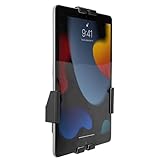
- Secure, anti-theft tablet mount – Lockable, tamper-proof design prevents theft and unauthorized removal, ideal for high-traffic public areas like retail stores, offices, hotels, and trade shows.
- Universal tablet compatibility – Adjustable clamps fit tablets from 7.9" to 11", including iPad Pro, iPad Air, iPad 10, Samsung Galaxy Tab, and others, ensuring flexibility for a variety of devices.
- Full motion swing arm – Tilt (+/-15°), swivel (+/-90°), rotation (180°), and extension range (3.5" – 16.1") allow for easy adjustment, ensuring the best viewing angles for digital signage, POS systems, or smart home control.
- Portrait & landscape rotation – Easily switch between portrait and landscape orientations with the rotating enclosure, offering optimal positioning for both content display and user interaction.
- Durable steel construction – Crafted from cold-rolled steel for long-lasting reliability, this mount is built to withstand the demands of busy commercial environments and public-facing setups.
Why it works
- Standard Android supports the official Home Assistant app, browser dashboards, and Android kiosk utilities.
- The screen size suits a shared kitchen, entryway, bedroom, or living-room dashboard.
- Samsung’s mainstream ecosystem makes mounts, cables, cases, and replacement accessories easier to source.
- Android provides more options for screen control, motion detection, full-screen browsing, and remote administration than most iPad setups.
Samsung’s March 2026 U.S. MSRP sheet listed the Wi-Fi model at $219.99 for 64GB and $269.99 for 128GB. Those are MSRP signals, not guaranteed retail prices; sale pricing, availability, and the exact RAM/storage configuration can change. See Samsung’s March 2026 tablet MSRP sheet and confirm the exact SKU on Samsung’s U.S. tablet page.
Best buyer
Choose it if you want one tablet that can serve as a Home Assistant panel but remain useful for recipes, browsing, video, or occasional general-purpose use. Skip it if the installation needs ruggedization, cellular service, or a device designed for harsh commercial environments.
2. Lenovo Tab M11: best value for mixed household use
The Lenovo Tab M11 is a strong value candidate when the tablet will be both a dashboard and an ordinary family device. Its 11-inch-class format provides the physical space that matters most for a room control panel, while conventional Android gives it a smoother software path than Fire OS hardware.
The Tool Desk
Outbyte Driver Updater FREEScan for outdated or missing drivers - takes under a minuteDriver Scan →Outbyte PC Repair FREEClear out junk files and repair common Windows errorsFree Scan →It is well suited to dashboards containing lights, scenes, climate controls, sensors, recipes, and occasional video. Performance should be described as adequate for Home Assistant dashboards, not high-end. A complicated layout or several live camera streams can demand more from any inexpensive tablet.
Lenovo sells multiple M11 configurations and bundles. Do not combine the specifications or price of one SKU with another. Before buying, confirm the exact model’s RAM, storage, display specification, charger, included accessories, and software-support expectations on the Lenovo Tab M11 U.S. product page.
Best buyer
The M11 is the practical choice for someone who wants a readable wall panel without paying for premium hardware, and who may remove the tablet from its mount for browsing, recipes, or entertainment. Skip it if a rugged enclosure, enterprise management, or unusually complex camera dashboard is central to the project.
3. Amazon Fire Max 11: best budget experiment
The Fire Max 11 can make sense as an inexpensive dedicated display, particularly when discounted. A browser-based Home Assistant dashboard does not require a gaming-class processor, so the large screen can be attractive for a simple panel controlling lights, scenes, climate, and sensors.
Do these 3 things before closing this tab:
1Clear out junk files and repair common Windows errors2Fix the driver behind crashes, sound loss and screen glitches3Repair Windows errors before they cause bigger problemsThe trade-off is Fire OS. It should not be treated as interchangeable with a standard Android tablet. Google Play and some Android applications may require workarounds, while companion-app features, kiosk tools, notifications, and custom dashboard cards may behave differently. Amazon software updates can also change the experience.
Use it only if you accept the maintenance
- Test the exact Home Assistant dashboard before mounting the tablet.
- Test the browser or kiosk application you intend to use.
- Check camera cards, custom cards, notifications, and sign-in behavior.
- Include possible accessory costs, ad removal, setup time, and future troubleshooting in the budget.
- Do not assume that instructions written for standard Android apply unchanged to Fire OS.
Current Fire Max 11 pricing was not verified in the supplied evidence. Check the live Amazon Fire tablet listings for the exact storage tier, lock-screen-ad configuration, charger, and price on the day of purchase.
Best buyer
Choose the Fire Max 11 for a low-cost dedicated panel if you are comfortable testing and maintaining it. Skip it if you expect standard Android compatibility, the official app ecosystem without workarounds, or a maintenance-free installation.
Rank #2
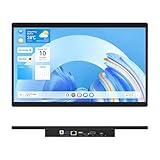
- 【High Reliability in Demanding Conditions】Ideal for demanding industrial settings, this fanless 15.6-inch panel PC runs on Android 12 and the RK3399 platform, offering robust reliability. Its 4GB memory and 64GB storage ensure seamless multitasking and data handling
- 【Full HD Visuals with Precision Touch】Designed for industrial versatility, this 15.6-inch PC combines a 1920×1080 Full HD 16:9 display for sharp visuals and software compatibility with a durable G+G 10-point capacitive touchscreen. It ensures accurate, smooth interaction and fast response even with wet or gloved hands, supporting reliable operation in demanding environments
- 【Rugged & Quiet Sealed Operation】Featuring a fanless construction for quiet performance, this Android 12 panel PC is built with a sealed waterproof front and a fully integrated, moisture-resistant rear enclosure. The lightweight aluminum alloy frame enhances durability against vibrations and shocks, perfectly suited for extreme industrial computing
- 【Stable & Efficient, Wireless & Wired Reliability】Equipped with enhanced Wi-Fi 5 and Bluetooth 4.2, this industrial touchscreen PC delivers strong signal reception, low-latency data transfer, and stable long-range communication. Its integrated 1000M LAN port further ensures consistent connectivity across diverse operating conditions
- 【Flexible Mounting for Multiple Scenarios】This industrial touch panel PC offers versatile installation options. It comes with standard PPC mounting hooks for seamless integration into cabinet equipment, while the rear cover includes standard VESA mounting holes for wall-mounting or desktop setups, easily adapting to diverse application environments
4. Apple iPad: best polished, long-lived iOS option
An iPad is the premium choice when display quality, touch responsiveness, mainstream software support, and a polished user experience matter more than maximum kiosk customization. It is especially sensible if the household already owns an iPad or uses Apple devices.
Crashes, No Sound, or Screen Glitches?
Random freezes, missing sound and display glitches usually trace back to one bad driver. Find and replace yours safely.Free scan · under a minutePC Slower Than It Used to Be?
A free scan shows the junk files, broken settings and background clutter dragging Windows down - then fixes them in one click.Free scan · Windows 10 & 11Home Assistant provides an iOS kiosk mode designed for dedicated wall displays. The documented feature set includes keeping the screen awake, hiding sidebar and top-bar controls where supported, auto-reloading, and screensaver behavior. The current documentation lists iOS/iPadOS 2026.7.0 or newer for the documented kiosk mode. The exact requirements and labels are version-sensitive, so check the current Home Assistant iOS Kiosk Mode documentation before installation.
Important iPad limitations
- Use the current iPad model and generation appropriate for your budget; “iPad” alone does not identify a specific device.
- Older iPads may not support the same current Home Assistant app or kiosk features.
- Split View and Slide Over prevent iPadOS from hiding the status bar. Full-screen use gives the cleanest kiosk presentation.
- A suitable mount, charging cable, and recessed or carefully routed power can materially increase the total cost.
- iPadOS is less open than Android for device-level kiosk controls and automation.
Check Apple’s current iPad range for the exact model, storage, and U.S. price. Those details should be date-stamped because Apple’s lineup and pricing can change.
Best buyer
Choose an iPad if you value a polished experience, already own compatible hardware, or prefer Apple’s software and security model. Skip it if the lowest installed cost or deep Android kiosk controls are more important.
5. Samsung Galaxy Tab Active5: best rugged tablet
The Galaxy Tab Active5 is justified when the installation faces drops, dust, moisture, gloves, tools, frequent handling, or public use. A garage, workshop, utility room, warehouse, rental property, or small business may benefit from rugged hardware in a way a normal consumer tablet cannot provide.
Samsung’s March 2026 U.S. MSRP materials listed the Tab Active5 at $499.99 for the Wi-Fi 6GB/128GB configuration and $599.99 for the 5G 6GB/128GB configuration. Confirm the exact edition, operating-system version, cellular status, charging accessories, and support terms before purchase using Samsung’s rugged and business tablet page and the MSRP sheet.
Best buyer
Choose it when durability is worth more than the price difference. For a normal kitchen or hallway, it is usually overqualified; a consumer Android tablet plus a proper mount is likely the more sensible installation.
What to look for in a Home Assistant tablet
Screen size and readability
For a general wall panel, prioritize an approximately 10- to 11-inch screen, good viewing angles, adequate brightness for the room, and a touch layer that remains usable in the chosen mount or case. Physical size and readable text matter more than a 120Hz refresh rate, HDR, stylus support, or gaming performance.
Design the dashboard for the distance and orientation in which it will be used. Large touch targets, short labels, high contrast, and a limited number of high-value controls are more useful than squeezing every entity onto one page.
Quick wins for a faster PC:
Repair Windows errors before they cause bigger problemsFix Now →Scan for outdated or missing drivers - takes under a minuteDriver Scan →Clear out junk files and repair common Windows errorsFree Scan →Kiosk and app support
The tablet should open a fixed Home Assistant URL or app, stay full-screen, resist accidental exits, recover from browser failures, and support the cards and camera streams on your dashboard.
Rank #3

- Universal Compatibility: Versatile tablet wall mount designed for devices from 4.7" to 12.9". Compatible with all iPhones, iPad Pro (12.9/11/10.5/9.7), iPad Air (5/4/3/2), iPad Mini (6/5/4), iPad (9th/10.2 generation), and Samsung tablets. This tablet wall mount holder is perfect for home, office, classroom, kitchen, or gym use.
- Fully Adjustable Viewing: This iPad wall mount features a 360° swiveling bracket and 30° horizontal/vertical tilt for optimal positioning. Ideal for video calls, recipe viewing, or as a digital display, enhancing your experience in any setting.
- Sturdy and Secure Design: This iPad wall mount holder is constructed with premium materials to ensure durability and stability. Firmly holds your device in place, providing safety for iPad Pro 12.9, iPad Air 2, iPad Mini 4, and other compatible models.
- Easy Installation: Experience a quick and hassle-free setup process. This practical wall mount for iPad allows for effortless installation, making it convenient to secure your tablet in any desired location.
- Enhance Your Space: Transform how you work, entertain, or display information with this versatile wall mount iPad holder. Suitable for various environments, it's the perfect solution to elevate your tablet usage and optimize your space.
On Android, Home Assistant officially documents the Fully Kiosk Browser integration. Fully Kiosk can expose or control brightness, screen state, screensaver, motion detection, URL loading, and screenshots. Its Remote Admin feature requires a paid Fully Plus license after the trial period. Do not expose Remote Admin to the public internet; use a strong password and restrict local-network access.
For the simplest Android setup, use the official Home Assistant Companion app. The current Android Companion documentation lists Android 6 or newer as supported for its documented app flavors, but the tablet’s actual Android version and current app compatibility still need checking.
Charging, heat, and battery health
Advertised battery life describes ordinary mixed use, not years of permanent wall-panel duty. A mounted tablet may remain plugged in while running a bright screen, Wi-Fi, animations, and camera streams. Heat, charging behavior, brightness, and battery-protection features matter more than the headline battery rating.
What’s actually slowing this PC down?
Pick the symptom - the matching free tool is one click away.
Before mounting, check that:
- The USB-C port remains accessible in the mount or case.
- The charger and cable are suitable for the tablet’s requirements.
- Airflow is not blocked behind the tablet.
- The operating system offers battery protection or charge-limit settings.
- You can schedule screen-off periods or lower brightness at night.
- The installation allows eventual cable, battery, or tablet replacement.
Wi-Fi and network reliability
Most tablets do not need Ethernet. They do need dependable Wi-Fi at the mounting location. Test the actual wall before installation, particularly if it is separated from the access point by masonry, appliances, or several rooms.
Check for guest-network isolation, local versus remote access, HTTPS certificates, and reverse-proxy behavior. A reserved DHCP address can make kiosk management easier, but the tablet should not be treated as a security boundary. Do not expose Home Assistant directly to the public internet.
Mounting and power
The tablet is only one part of the project. Budget for a wall mount or VESA-compatible case, a suitable USB-C cable, cable routing, and a safe power solution. A countertop panel may only need a kickstand and easily removable cable; a wall-mounted panel may require a recessed outlet, surface raceway, or professional electrical work that complies with local rules.
Check that the mount does not block the charging port, speakers, camera, ambient-light sensor, or physical buttons. Confirm portrait and landscape compatibility before buying the enclosure.
Free tools Windows power users keep installed
One-click scans. No signup required.
How to build the Home Assistant wall panel
Step 1: Confirm the Home Assistant installation
Home Assistant must already be running on its own server or appliance. Confirm that the dashboard works from a computer or phone before adding the tablet. A dashboard tablet cannot keep controlling the home when the Home Assistant server or network is unavailable.
Step 2: Create a dedicated user and dashboard
Create a separate Home Assistant user for the wall panel instead of signing in with your personal administrator account. Home Assistant warns that devices sharing the same user can revert to the same default dashboard. A separate profile gives the wall tablet its own default view and limits the damage if the device is lost or accessed by visitors. See Home Assistant’s dashboard documentation.
Create a focused dashboard for the room and audience. Home Assistant’s dashboard guidance supports separate interfaces for different contexts, such as a kitchen tablet. Put the most important lights, scenes, climate controls, cameras, and alerts on the first screen. Keep administrative controls away from casual household use.
Rank #4

- 【Android OS&RAM+ROM】Android 14 OS, RK3576S 8-core processor, 4GB RAM +64GB ROM,with Proximity Sensor,No Camera
- 【Screen Model】10.1 inch capacitive touch screen, 1280*800P resolution
- 【Network】Support WIFI 6 ,100/1000M, Ethernet /BLE 5.3;
- 【RJ45&POE Supported】Support RJ45 POE power supply
- 【Interfaces】Support I/O, IR, RS232, RS485 serial protocol supported
Step 3: Choose the display method
Android app: Use the official Companion app when you want the simplest supported route and do not need deep device control.
Recommended Free Tools
Android kiosk browser: Install Fully Kiosk Browser, set the Home Assistant dashboard URL as its start URL, and enable Remote Admin only if Home Assistant integration and device controls are required. Set a strong Remote Admin password. If automatic discovery fails, add the integration through Settings > Devices & services > Add Integration, then enter the tablet’s IP address or hostname and Remote Admin password. Do not disable SSL verification casually, especially when accessing Home Assistant through a self-signed certificate.
iPad: Install or update the Home Assistant Companion app, then open Settings > Kiosk mode in the app. Enable kiosk mode, select the server and dashboard, and configure options such as Keep screen on, hidden navigation controls, auto-reload, authentication for kiosk settings, and screensaver behavior. Use the app full-screen rather than Split View or Slide Over.
Step 4: Mount and power the device
Install the mount only after testing the tablet, dashboard, charger, Wi-Fi, and orientation. Route power safely and avoid pinching the cable. Renters may prefer a removable countertop stand or surface-mounted raceway; homeowners planning concealed power should use an installation compliant with local electrical requirements.
Step 5: Test failure and recovery cases
Before calling the installation finished, test:
- Loss and restoration of Wi-Fi.
- A Home Assistant restart.
- Screen wake and sleep behavior.
- Brightness changes and nighttime scheduling.
- Charging temperature.
- Accidental app exits.
- Camera cards and custom cards.
- Recovery after a tablet or browser reboot.
- Whether locks, alarms, garage doors, and other sensitive controls are restricted appropriately.
Android versus iPad for Home Assistant
| Consideration | Android | iPad |
|---|---|---|
| Kiosk flexibility | Broad choice of kiosk browsers and device controls | Strong official Home Assistant kiosk path, but tighter platform rules |
| App ecosystem | Standard Android is broad; Fire OS is more limited | Mature and polished iPadOS ecosystem |
| Maintenance | More control, but potentially more configuration | Generally polished, with version requirements to track |
| Installed cost | Wide range, including inexpensive options | Usually higher once mounting and power are included |
| Best fit | Dedicated panels and users wanting customization | Existing Apple households and users prioritizing polish |
Standard Android is generally the most flexible platform for a dedicated panel. Fire OS should be considered separately because its app and service compatibility differs. iPad is not a poor substitute: it can be the better choice when the buyer values a clean, mainstream experience and already owns suitable hardware.
Always-on or motion-activated?
An always-on display is simple, but it can increase heat, electricity use, and battery aging. It can also cause image retention on some displays and create an unwanted bright rectangle in a bedroom. Motion-activated or scheduled behavior is usually better for bedrooms and hallways.
Fully Kiosk supports motion and screen controls on compatible Android installations. Home Assistant’s iOS kiosk mode includes screen-keep-awake, auto-reload, and screensaver controls. Configure the display for the room rather than leaving maximum brightness active around the clock.
Camera dashboards need realistic expectations
A tablet can display Home Assistant camera cards, but responsiveness depends on the stream format, WebRTC or HLS support, local network quality, browser support, dashboard complexity, and hardware decoding. A low-cost tablet may be excellent for lights, climate, scenes, and sensors yet frustrating with several simultaneous live streams.
Test the exact camera cards on the exact tablet before building the installation around them. Processor specifications alone do not establish camera performance.
Security and privacy
- Use a separate, least-privileged Home Assistant account.
- Avoid storing an administrator session on a publicly accessible tablet.
- Protect the tablet with a PIN or biometric lock where practical.
- Keep Fully Kiosk Remote Admin on the local network and protect it with a strong password.
- Consider whether the tablet’s microphone or camera should remain enabled.
- Secure the mount if the device can operate locks, alarms, garage doors, or cameras.
- Use local Home Assistant access where possible and do not expose the installation directly to the public internet.
What the complete project really costs
Tablet MSRP is not the installed price. The project may also require a mount, case, charger, long or right-angle USB-C cable, cable raceway, in-wall-rated power solution, electrician, kiosk software, and eventual replacement or battery work. Fire tablets may add ad-removal or setup costs. A slightly more expensive standard Android tablet can be cheaper in practice if it reduces configuration and maintenance.
Which tablet should you buy?
- Choose the Samsung Galaxy Tab A9+ for the best balance of screen size, Android flexibility, ordinary tablet usefulness, and accessory availability.
- Choose the Lenovo Tab M11 when value and family use matter most, after confirming the exact configuration.
- Choose the Fire Max 11 only when the low price outweighs Fire OS limitations and you are willing to test and maintain it.
- Choose an iPad for the most polished iOS experience, especially if you already own one and it meets the current Home Assistant kiosk requirements.
- Choose the Galaxy Tab Active5 for garages, workshops, businesses, and other environments where rugged construction justifies the price.
For any choice, treat the tablet as a control panel rather than the home’s underlying hub. Keep physical switches and other fallback controls for entry doors, garage doors, heating and cooling, security systems, essential lighting, and safety-critical devices. If Home Assistant, Wi-Fi, or the tablet fails, the household should still have a way to operate essential equipment.
Quick Recap
Product prices and availability are accurate as of the date/time indicated and are subject to change. Any price and availability information displayed on Amazon at the time of purchase will apply.




