The correct way to install a Hiseeu camera depends on the system you bought: wireless NVR, PoE, standalone Wi-Fi or solar, 4G LTE, or older AHD. Identify that connection type first, test the complete system indoors, configure recording and alerts, and only then drill, route cable, and mount cameras. This approach prevents common construction-site problems such as inaccessible failed cameras, poor wireless coverage, uninitialized storage, and unsealed cable penetrations.
First, identify your Hiseeu system
Hiseeu does not use one universal installation method or app. Its manuals are separated into wireless-camera, Y-series wired/PoE, and X-series wired/PoE families, while its support library also distinguishes wireless NVR, PoE, battery, AHD, PTZ, and 4G LTE products. Find the exact model number and hardware revision, then use the matching Hiseeu manual and the app named by that manual, QR code, or recorder screen.
As an Amazon Associate I earn from qualifying purchases.
| System type | What it needs | Best suited to | Main limitation |
|---|---|---|---|
| Wireless NVR | Dedicated NVR, camera power, and usually a router connection for remote access | Installations where running Ethernet to every camera is difficult | Walls, metal, distance, and interference can cause dropouts |
| PoE IP | PoE NVR or switch plus one Ethernet cable per camera | Permanent home, shop, or construction-site installations requiring dependable recording | Requires cable routing, drilling, and weather sealing |
| Standalone Wi-Fi, solar, or battery | Correct app, Wi-Fi or battery/solar power, and possibly microSD or cloud storage | Locations without convenient Ethernet or mains power | Many battery models are motion-triggered rather than continuous-recording systems |
| 4G LTE | Compatible SIM, active data plan, cellular coverage, and the correct app | Remote sites without usable broadband | Performance and cost depend on coverage and data usage |
| AHD or older analog | Compatible DVR, coaxial video cable, and separate power | Replacing or extending an older analog installation | Its cabling and menus differ substantially from IP systems |
Do not assume that a Wi-Fi camera is wire-free. Many Wi-Fi cameras still need a permanent power adapter. Conversely, a solar camera may avoid cabling but may not support 24/7 recording.
Prepare before drilling
- Exact camera, NVR, and hardware revision numbers.
- Model-specific manual, app, and QR code.
- All cameras, antennas, power adapters, Ethernet cables, mouse, monitor, and mounting hardware.
- HDMI or VGA monitor for NVR setup.
- Hard drive or approved microSD card, if not already installed.
- Drill, suitable bits, anchors, screws, cable clips, labels, and a ladder.
- Outdoor-rated Ethernet cable, conduit, cable glands, junction boxes, and exterior sealant where required.
- Strong Wi-Fi or cellular signal at every proposed camera position.
- Permission to drill, route cable, or record areas if the property is rented, shared, or commercial.
Compare the contents of the box with the model-specific packing list. Hiseeu bundles vary; a quick guide may list an NVR, cameras, power supplies, antennas, network cable, mouse, screws, and storage components, but another package may differ. See the applicable Hiseeu quick guide rather than assuming every kit contains the same parts.
#1 Best Overall

- 【Local & Remote Control】 The home security camera system support local view & control, no need WiFi, true play & plug. For remote control, support dual-band WiFi 2.4GHz/5GHz connectivity. WiFi pro technology offers 100ft installation distance, suitable for indoor/outdoor use.
- 【Corded Powered, 24/7 Recording】 Hiseeu security camera system, 24/7 wired power of cameras and NVR support 24/7 recording, no dropouts or battery hassles. 3 recording modes (24/7 recording, motion-triggered recording, or customized recording ), total flexibility.
- 【1TB Storage, No Monthly Fee】 Security camera system pre-installed in 1TB hard drive, massive local storage (No subscription fee!) offering over 45 days of continuous 24-hour recording. H.265+ bandwidth optimization Delivers 50% bandwidth reduction compared to H.264 while maintaining 4K/8MP resolution, enabling stable transmission even in low-bandwidth environments.
- 【Expand to 10CH & IP66 Waterproof 】 The NVR security camera system is coming with 4pcs 5MP cameras+1pc 4K NVR with 10" Monitor, it supported to expand to 10CH, scalability to secure large homes or businesses. Operates flawlessly in heavy snow, high winds, and sub-zero temperatures
- 【Motion Sensor/AI Human Detection】 Motion detection of the wireless wifi security camera system give you 24/7 uninterrupted protection. Smartly distinguishes people from false alarms (like pets or shadows), sending alerts only for real threats by AI human detection
Test the complete system indoors first
This is the most important installation step. Test every camera and recording function while the equipment is accessible.
- Place all cameras close to the NVR or router.
- Connect the NVR to a monitor, mouse, and power supply.
- Connect each camera to its supplied power source, or connect each PoE camera to a known-good PoE port and cable.
- Wait for live images and confirm that every expected channel appears.
- Install or initialize the hard drive if the system requires it.
- Connect the NVR to the router if remote access is needed.
- Pair or add each camera.
- Set the time zone, administrator password, recording mode, and motion settings.
- Trigger motion and confirm that an alert arrives.
- Record a short clip and play it back from the NVR and app.
- Power-cycle one camera and the recorder to confirm that they reconnect normally.
Hiseeu documentation and support materials cover camera pairing, storage failures, recording plans, playback, and remote access. A live image alone does not prove that the system is recording, so always verify playback before permanent installation.
Install the NVR and storage
Place the NVR in a dry, ventilated, access-controlled location. Avoid a hot enclosed cabinet, dusty area, or position where someone can easily disconnect it. Connect the monitor, mouse, power, and router cable as applicable.
Quick wins for a faster PC:
Clear out junk files and repair common Windows errorsFree Scan →Scan for outdated or missing drivers - takes under a minuteDriver Scan →Repair Windows errors before they cause bigger problemsFix Now →If the hard drive is not preinstalled, fit one according to the model manual. Initialize or format it through the NVR interface, then confirm that its status shows normal or healthy. Some Hiseeu quick-guide material identifies 500 GB to 6 TB SATA-drive support for an applicable NVR family; that range is not a universal specification, so check your exact model before buying storage.
Immediately replace the default recorder password with a unique password and save it in a secure password manager. Do the same for the app account. Do not rely on an unverified default password or unofficial reset utility.
Rank #2

- 【Wireless Pro,More than 100ft Range】Our security system adopts wireless pro technology,which has enhanced stability, faster video transmission, and lower latency,to guard your safety and ensuring your peace of mind.It has a WiFi module that you can connect with both 2.4ghz & 5ghz WiFi easily.Please notice that NVR and cameras need to connect with12V DC adapter.
- 【Stunning 5MP Ultra-HD Video ,Color Night Vision】Experience crystal-clear footage with 5.0MP resolution (2560 x 1920) — delivering 2.5x the clarity of 1080p.Wireless IP Camera System is equipped with floodlights ,which can provide clear color night vision.Supports Sync-playback, Video Backup and Video detection.
- 【Two Way Audio,Real-Time Alerts】After you connect Hiseeu Wireless Surveillance Camera System to the internet, even if you travel on the other side of the earth,you can get real-time images of your home and talk with family through the “Hisee cloud” App.You can Receive Email Alerts upon Motion Detection or App Alert When Set it . Simply Record and Playback On Your Mobile Devices. Seamlessly Stream Video Directly to your Smartphone, Tablet and PC. Keep an Eye on Your Belongings Anywhere and Anytime.
- 【No Monthly Fees with 3TB HDD,Extenable to 10 Channel】 Enjoy secure, local storage with the built-in 3TB hard drive—no subscriptions or hidden fees. Powered by H.265 technology, it ensures stable, delay-free live streaming and efficient storage. Supports up to 2-channel non-stop recording for 180 days with endless loop overwriting, saving you from costly cloud payments. You can also add more Hiseeu Cameras up to 10 channel. Meet your needs to monitor more areas.
Installing a Hiseeu wireless NVR system
- Pair each camera near the recorder. Complete pairing before moving cameras to their final positions.
- Name the channels. Use clear labels such as Front Door, Loading Area, Garage, or Rear Gate.
- Connect the NVR to the network. Depending on the model, this may be by Ethernet or wireless networking. The exact menus vary; some models use a path such as
System Setup > Network Setup > Wireless Internet. - Move one camera at a time. Check live view and signal quality after each move.
- Test after dark. Confirm infrared illumination, exposure, and the useful viewing distance.
- Keep the NVR accessible. Do not hide it behind metal, inside a utility cabinet, or beside major sources of radio interference.
Advertised wireless distance is not a guarantee. Masonry, metal siding, foil-backed insulation, several walls, and electrical interference can reduce the usable range. If a camera goes offline, first move the NVR or camera temporarily to identify the coverage problem. Use only a manufacturer-supported repeater or antenna solution where the model provides one.
Installing a Hiseeu PoE system
PoE means Power over Ethernet: one Ethernet cable carries both data and power from a compatible PoE NVR or switch to the camera. A PoE camera is therefore not wireless, even if remote viewing later uses an internet connection.
What’s actually slowing this PC down?
Pick the symptom - the matching free tool is one click away.
- Connect each camera to the NVR with a short, known-good cable.
- Confirm live view and recording before pulling cable.
- Measure each route and label both ends of every cable.
- Use outdoor-rated Ethernet cable for exposed or damp runs.
- Keep low-voltage camera cable away from mains wiring where practical.
- Use suitable anchors for the wall, soffit, masonry, timber, or metal substrate.
- Create a drip loop before cable enters an exterior wall, junction box, or camera connection.
- Protect exposed runs with suitable conduit or cable protection.
- Seal wall penetrations and connectors with an appropriate exterior-rated sealant or cable gland.
- Connect each camera to its final PoE port and check link status, live view, recording, and night vision.
- Secure excess cable without sharply bending, crushing, or tightly kinking it.
Hiseeu markets selected PoE systems with continuous recording, expansion, remote access, and detection features, but those claims apply to particular bundles. Confirm the camera, NVR, port count, storage, and feature compatibility for your exact package.
Mount cameras for useful coverage
- Mount high enough to discourage tampering but low enough for safe maintenance and lens cleaning.
- At entrances, aim toward faces and approach paths rather than only at the tops of heads.
- Avoid pointing directly toward the sun or a bright exterior light.
- Use the field of view efficiently; a large empty driveway or sky wastes image area.
- Keep the lens away from nearby walls, eaves, and reflective surfaces that can bounce infrared light back into the image.
- Use overlapping views for critical entrances where practical.
- Check the view from the actual camera height before tightening the mount.
- Avoid recording neighboring private areas or more public space than necessary.
Resolution alone does not guarantee readable faces or license plates. Distance, camera angle, lighting, compression, motion blur, and night illumination all affect identification. Check local privacy, audio-recording, landlord, HOA, and workplace requirements before finalizing the field of view.
Installing a standalone Wi-Fi, solar, or battery camera
- Identify the exact app from the manual or camera QR code.
- Confirm whether the camera requires 2.4 GHz, 5 GHz, or another connection method.
- During setup, place the camera near the router and complete pairing before mounting.
- Insert and initialize compatible microSD storage if used, or configure the supported cloud option.
- Choose a solar position with adequate exposure throughout the day; solar does not mean maintenance-free.
- Check battery condition, temperature exposure, motion frequency, and expected runtime.
- Mount the camera only after verifying signal, live view, motion recording, and notifications.
One current Hiseeu 4MP solar/battery model explicitly requires 2.4 GHz Wi-Fi and does not support 5 GHz. That restriction must be checked against the exact model rather than generalized to every Hiseeu camera. Battery and solar systems are usually a poor fit where continuous recording, high-frequency motion capture, or dependable operation in shade is required.
Rank #3
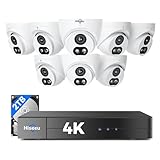
- 【2.8mm len & 121° Wider View Angle】121° Viewing Angle is the 1.5 times of other normal 78° Viewing angle (3.6mm len )
- 【Striking 4k 8MP HD Image in Day&Night】 Featured by vivid image and finest details in day&night, 4K 8MP (3840*2160p) is 4 Times of 2MP Resolution
- 【AI Tech for Human/Vehicle Detect 】Setting alarm rules like customizing area to catch suspicious person or protecting cars outdoor
- 【Instant Alarm messages to protect asset 7/24 】Ways: 1: Instant App push to notify users 2. Warning Light/Sound to eject suspicious person 3. NVR Buzzer beeping sound Reminder
- 【7/24 Record +Smart PlayBack】Playback Modes: ①Sync Playback (4 cams at most) ②Motion Detection Playback ③ Common Playback. Playback Ways:TV monitor /APP/ PC Client Software
Installing a Hiseeu 4G LTE camera
- Confirm that the camera supports the intended carrier and local cellular bands.
- Activate a compatible SIM and data plan before mounting the camera.
- Test signal strength at the proposed location, including the intended mounting height.
- Insert the SIM as directed and verify network registration.
- Pair the camera through the model-specific app.
- Configure motion, recording, notifications, and data-saving settings.
- Check data usage after live viewing and several motion events.
Live viewing, cloud uploads, high resolution, frequent motion, and long recordings can consume substantially more data than occasional event clips. Hiseeu maintains separate support topics for 4G network status, SIM issues, data usage, alarms, and notifications.
Do these 3 things before closing this tab:
1Fix the driver behind crashes, sound loss and screen glitches2Clear out junk files and repair common Windows errors3Scan for outdated or missing drivers - takes under a minuteConfigure recording, detection, and alerts
At minimum, configure:
- Date, time zone, and daylight-saving setting where applicable.
- Administrator and app passwords.
- Camera names and channel order.
- Resolution and frame rate where the model exposes those settings.
- Continuous, scheduled, motion, or event recording.
- Motion zones and sensitivity.
- Human or vehicle detection if supported by that model.
- Alarm schedule and push notifications.
- Audio recording and two-way audio where permitted and supported.
- Storage overwrite behavior.
- Privacy masking.
- Firmware updates through legitimate manufacturer channels.
- A procedure for exporting and protecting important footage.
For a permanent powered system, continuous recording is generally the simplest baseline for critical areas, with motion alerts layered on top. For a battery or solar camera, motion-triggered recording may be necessary to preserve battery life. The correct choice depends on the model and the security objective.
Add the system to the mobile app
Do not install an app solely because it carries the Hiseeu name. Depending on the product family and release, Hiseeu support materials reference Guard Viewer, Eseecloud, and Guard Live.
- Install the app named in the model manual, QR code, or recorder screen.
- Create an account if required.
- During initial setup, connect the phone to the network used by the device.
- Add the recorder or camera by QR code, cloud ID, serial number, or local discovery, depending on the model.
- Create a strong app password and rename the device.
- Enable push notifications in both the app and the phone operating system.
- Share access only with trusted users and use the least access the app permits.
- Test viewing on cellular data, not only while the phone is on home Wi-Fi.
- Before selling, returning, or disposing of the equipment, remove it from the app and reset account credentials according to the model procedure.
Final commissioning checklist
Before considering the installation complete, test every camera in the conditions in which it will actually operate:
- Daytime live view.
- Night-time live view.
- Motion detection in the intended zones.
- Push notification delivery.
- Continuous recording, if selected.
- Playback from the NVR.
- Playback from the mobile app.
- Remote viewing while away from the home or business network.
- Microphone, speaker, and two-way audio, if applicable.
- PTZ controls, if applicable.
- Camera tamper resistance.
- Weather sealing and secure cable entries.
- Storage overwrite when the drive becomes full.
- Recovery after power cycling the camera and recorder.
- Recovery after restarting the router.
- Correct date and time on exported footage.
Document the final layout, camera names, cable routes, recorder location, storage details, account owner, and password-recovery method. This record is particularly useful on construction projects where equipment may be handed from an installer to a property owner or facilities manager.
Free tools Windows power users keep installed
One-click scans. No signup required.
Rank #4

- Note: "Wireless" refers to WiFi connection only. The camera still needs to be plugged in. Please confirm before ordering.
- 【All-in-One, Plug and Play】The WiFi security cameras are auto-paired during factory setup. Simply connect your TV monitor to the NVR using HDMI cable, and you can view everything right away. Designed for easy outdoor installation, just plug in the DC12V 1A cord for the cameras, DC12V 2A cord for NVR and secure them in place.
- 【Dual Lens Liew,Wider 360°】Each dual lens camera includes one fixed camera and one PTZ camera, ensuring comprehensive surveillance from every angle. The dual-camera setup provides two separate views, capturing every detail without blind spots—making it a cost-effective choice for security.
- 【WiFi Pro,100ft Coverage】This system offers an extended connection range of up to 100ft. Enjoy a stable and smooth signal, ensuring you never miss a moment. Wireless means it supports 2.4ghz & 5ghz wifi,not wire-free, it needs to plug in DC 12V cord.
- 【App Alerts & Motion Tracking】This dual-lens outdoor wireless security camera features a built-in PIR motion sensor for highly accurate motion detection, even in the dark—eliminating false alarms on the EseeCloud app. The PTZ camera automatically tracks and follows moving individuals, while the fixed top camera maintains its set view for continuous monitoring.
Troubleshooting common installation failures
The camera will not power on
- Check the outlet, power adapter, connector, and cable.
- For PoE, test another known-good cable and port.
- Check status LEDs, battery switches, or shipping tabs.
- Test the camera beside the NVR before blaming the final location.
The camera is offline or says “IPC disconnected”
- Reboot the camera and NVR.
- Try a short known-good cable for a PoE camera.
- Move a wireless camera near the NVR.
- Re-pair or add the camera again.
- Check that the channel limit has not been reached.
- Confirm that the camera and NVR are compatible Hiseeu products.
There is live video but no recording
- Check that the hard drive is present and initialized.
- Review the recording schedule and selected channel.
- Check the overwrite setting.
- Verify the system date and time.
- Determine whether the system is set to motion-only recording.
Mobile notifications do not arrive
- Confirm motion detection, detection type, and alarm schedule.
- Allow notifications in the phone operating system.
- Check app account and device pairing.
- Verify network connectivity and remote status.
- Review notification filters and battery-saving restrictions.
Remote viewing works at home but not away
Check the NVR network status, router connection, cloud or device-ID status, app permissions, and whether the model requires a wired NVR-to-router connection. Test on cellular data rather than the same Wi-Fi network. Local viewing and remote viewing are separate tests.
Wi-Fi setup fails
Possible causes include a 2.4-GHz-only camera, a phone connected to 5 GHz during onboarding, weak signal, guest-network isolation, an incorrect pairing mode, an unsupported Wi-Fi password character, or a camera already bound to another account. The exact restriction is model-specific, so follow the applicable manual.
Night images are washed out or too dark
Inspect for infrared reflections from walls, soffits, windows, or nearby objects. Also check the lens, protective film, lighting direction, subject distance, and whether a color-night mode requires visible light.
The wrong camera appears on a channel
Use the recorder’s camera-management or channel-management function to exchange or reassign positions where supported. Hiseeu support materials include channel-display and camera-position functions for applicable systems.
The password is forgotten
Use the model-specific Hiseeu reset procedure or official support channel. Do not guess default passwords or use unofficial reset tools. Hiseeu maintains separate support topics for forgotten NVR and app passwords.
Wireless NVR, PoE, solar, or 4G: which should you choose?
- Choose wireless NVR when you want a bundled recorder and can provide power at each camera but want to minimize Ethernet runs.
- Choose PoE when reliability, continuous recording, and a permanent installation matter more than avoiding cable work.
- Choose solar or battery when running power or Ethernet is impractical and motion-triggered recording is acceptable.
- Choose 4G LTE when the site lacks usable broadband but has compatible cellular coverage and an affordable data plan.
- Choose AHD when extending an existing compatible analog cabling system is more practical than replacing it with IP equipment.
Security and privacy checklist
- Change all default passwords immediately.
- Use unique, strong passwords for the recorder and app.
- Limit shared users and remove former contractors or tenants.
- Update firmware only through legitimate Hiseeu channels.
- Avoid unnecessary router port forwarding.
- Use a protected home or business network rather than an open guest arrangement unless the system specifically supports it.
- Restrict camera angles to the property and areas that genuinely need monitoring.
- Check rules governing audio, workplace surveillance, neighbors, public areas, landlords, and shared buildings.
- Protect exported footage because it may contain personal, visitor, employee, or customer information.
- Reset and unlink the system before resale, return, or disposal.
For model-specific manuals, videos, and recovery procedures, use Hiseeu’s support library and official video list. The exact app labels, storage limits, wireless requirements, and available features can change by product family and hardware revision.
Quick Recap
Product prices and availability are accurate as of the date/time indicated and are subject to change. Any price and availability information displayed on Amazon at the time of purchase will apply.

