The Tool Desk
Outbyte PC Repair FREEClear out junk files and repair common Windows errorsFree Scan →Outbyte Driver Updater FREEScan for outdated or missing drivers - takes under a minuteDriver Scan →gSender is a free, open-source desktop G-code sender and machine-control interface for CNCs running Grbl or grblHAL. It connects to a compatible controller, displays and streams G-code, provides jogging, homing, zeroing and probing tools, and helps you monitor and troubleshoot jobs. It is not CAM software: create toolpaths in Fusion, VCarve, Carbide Create, Estlcam, LightBurn or another suitable application, then load the resulting G-code into gSender.
As of the latest repository release information available on July 23, 2026, the current release shown is gSender 1.6.3. Use the official GitHub repository and release page for the current download rather than relying on older documentation that still refers to version 1.5.0.
As an Amazon Associate I earn from qualifying purchases.
What gSender does
A CNC system has four distinct layers:
- CAM software creates toolpaths and exports G-code.
- gSender sends that G-code to the controller and provides the machine interface.
- Firmware, such as Grbl or grblHAL, interprets commands on the controller board.
- Machine hardware includes the frame, motors, switches, spindle or router, probe, laser and other accessories.
gSender sits between your computer and the CNC controller. It can load and preview G-code, show dimensions and job information, jog the machine, set work coordinates, run probing routines, execute macros, display alarms and status, and stream a job while showing its progress.
Recommended Free Tools
The project originated within Sienci Labs, began development in 2019, and is released under the GNU GPLv3 licence. It is not limited to Sienci machines. The project lists compatibility with many Grbl-based machines, including Shapeoko, X-Carve, Genmitsu, FoxAlien, 3018 machines, OpenBuilds, Onefinity, RatRig and BobsCNC.
#1 Best Overall

- MKS DLC32 MAX
- CNC 4 axis card
- GRBL controller
- GRBL 32 bit ESP32 controller
Will gSender work with your CNC?
The central requirement is a controller running Grbl or grblHAL. gSender supports imperial and metric workflows and can identify the controller type in supported configurations. Connection is commonly through USB serial, although particular network, Ethernet or SD-card functions depend on the controller, firmware and installed gSender version.
“Grbl-compatible” does not mean that every machine-specific function will work automatically. Check all of the following before relying on a feature:
- The controller board and firmware family.
- Whether it uses standard Grbl, grblHAL or a manufacturer-modified derivative.
- The number and mapping of axes.
- Whether probing, rotary motion, laser mode, spindle control or automatic tool changing is implemented.
- How limit switches, probes and accessories are wired.
- Whether the manufacturer provides a gSender profile or requires a generic configuration.
Sienci provides documented profiles for the LongMill MK1, MK2 and MK2.5, AltMill MK1 and MK2, and Mill One V1, V2 and V3. For an unlisted machine, select Generic CNC unless the manufacturer provides a more suitable profile. Do not pretend an unsupported machine is a LongMill, AltMill or another listed model simply to obtain its defaults.
Download and install gSender
Official builds are provided for Windows x64, macOS, Linux Intel, Linux ARM and 64-bit Raspberry Pi systems. Older builds exist for some legacy operating systems, including 32-bit Windows, Windows 7/8 and older macOS versions, but those builds do not provide the current feature set. See the official installation documentation and current GitHub releases.
- Identify your operating system and processor architecture.
- Download the matching installer from the official release page.
- Install gSender.
- Connect the CNC with a known data-capable USB cable.
- Power the controller and launch gSender.
Apple-silicon support needs particular care because the official materials are inconsistent: the installation page has recommended the Intel build through Rosetta, while newer release notes mention Mac silicon support and signing improvements. Check the asset name and release notes for the exact version you are installing.
Rank #2
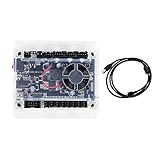
- Model: Upgraded 3 Axis GRBL 1.1F USB Port GRBL Control Board; Input voltage: 24VDC
- Support software: GRBL Contol/Candle(3 axis)/Universal Gcode Sender; Support System: Windows XP/7/8/10
- Support Motor: Support XYZ three-axis control, spindle.Support stepper motor: 12V, maximum current of 2A or less is recommended within 1.5A and additional heat. (Any stepper motor Nema17,Nema23);Support spindle: Support 24VDC Spindle PWM speed 0%-100%,also support 3-pin PWM/TTL signal control module
- New functions: Add 2-pin emergency stop button port,probe port,XYZ limit port and add the power button switch;Applications: The control board can be used with the 1310,1610-PRO, 3018,3018-PRO and 3018-PRO MAX etc engraving machines
- IMPORTANT: This is a control board, NOT plug-and-play. Pls Connect 24VDC to board, then connect USB to PC. Driver: Install your CH340 driver. In Device Manager > "Ports", verify "USB-SERIAL CH340 (COMx)" appears. Software: Use GrblControl/Candle. Select same COM port, set baud rate to 115200, click "Connect".Unlock: After connect, click "Unlock" or send $X command Final Check: If connected but no movement, release emergency stop, ensure limit switches off, then click "Reset" & "Unlock"
Raspberry Pi support is officially available, but only 64-bit Pi builds are supported and success depends heavily on the operating-system image, libraries and configuration. It is not the best route if you want a plug-and-play installation.
Windows may display a security warning during installation. Do not disable security protection globally. If you decide the downloaded installer is trustworthy, follow the operating system’s temporary exception or “Run anyway” process at your own risk.
Connect the CNC for the first time
Before connecting
- Confirm that the controller is Grbl or grblHAL based.
- Power the controller.
- Use a short, reliable data USB cable.
- Remove unnecessary hubs and extension cables while troubleshooting.
- Keep the emergency stop accessible.
- For initial motion tests, remove the cutting tool or disable router and spindle power.
- Record or export the controller’s existing settings if possible.
- Close other CNC senders or serial-terminal applications.
- Connect the CNC and start gSender.
- Select the detected serial port.
- Connect to the controller.
- Check the reported firmware and machine state.
- Select the manufacturer profile if one exists; otherwise use Generic CNC.
- Jog each axis a small distance and verify the direction before attempting a job.
Do not move the machine merely because a port appears. Confirm that the axes, units, firmware identification and displayed state make sense first.
Understanding the interface
The current layout is organized around a top toolbar, a left sidebar and a main workspace. The sidebar includes:
- Helper for guided setup and machine utilities.
- Carve for the main operating view.
- Stats for job and machine statistics.
- Tools for maintenance and machine functions.
- Config for controller and application configuration.
The Carve tab combines the toolpath visualizer, job controls, DRO, jogging, zeroing, homing, probing, macros and manual spindle or laser controls. Labels and menu locations can change between releases, so use the documentation matching your installed version.
Rank #3

- Product: 4 Axis USB Mach3 Control Board; Port:USB interface is applicable to any netbook, notebook, desktop, tablet and other PC compatible computers with USB interface; As long as Mach3 can run,the control card can be used; Support computer system:Windows XP/7/8/10
- 4 Axis Linkage:Support for 4 Axis linkage, you can connect four stepper motor drives or servo drives; Maximum step-pulse frequency is 100KHz,which is suitable for the servo or stepping motor; One status LED, indicate connection status on the board
- Output Signal Ports:Have 0-10V signal output,you can use mach3 software to control the spindle motor speed; 4 general-purpose isolated relay drive output interface, can drive four relays for controlling the spindle starts, forward rotating and reverse rotating, pumps and other device; Support for connecting electronic handwheel; Handwheel interface: 2x5P row needle
- Input Signal Ports:4 general-purpose inputs, you can connect the limit switch, estop switch, probe , back to zero and other device; Need use external 24V DC power supply to isolate USB and external port, and to make the system more stable
- Applications:CNC Router,Milling Machine,Engraving Machine,Carving Machines,Cutting industry,Medical equipment,industrial equipment and automation devices etc
The console is especially useful when diagnosing a problem. It shows commands, controller responses, alarms and errors, and allows manual G-code entry. For example, entering:
Quick wins for a faster PC:
Repair Windows errors before they cause bigger problemsFix Now →Scan for outdated or missing drivers - takes under a minuteDriver Scan →Clear out junk files and repair common Windows errorsFree Scan →$$requests the controller’s stored Grbl settings.
Run a first G-code job safely
- Create compatible G-code. Use a CAM post processor intended for Grbl or grblHAL and confirm the units, work origin, tool and coordinate assumptions.
- Load the file. Open it in gSender and wait for the visualizer and file information to populate.
- Inspect the preview. Check the toolpath shape, orientation, dimensions, estimated time, feed range, spindle range and tools used where available.
- Confirm the origin. Make sure the CAM origin matches where you intend to set work zero on the stock.
- Home if appropriate. Homing establishes the machine position using the limit switches; it does not set the work zero for your job.
- Position the machine. Jog to the intended work origin and set X, Y and Z zero, or use a suitable probing routine.
- Check the probe. Confirm the selected probe type, wiring, plate geometry and electrical continuity before a downward move.
- Outline the job. Use the outline function when supported and confirm that the tool will remain within the stock and machine travel.
- Dry-run when practical. An air cut or motion test can reveal an origin, scale or clearance mistake before material is cut.
- Start and monitor. Verify workholding, tool sharpness, spindle or router settings, dust collection and emergency-stop access.
gSender’s visualizer cannot detect every real-world hazard. It cannot guarantee correct workholding, tool condition, machine calibration, stock thickness, wiring, collision clearance or the safety of the selected feeds and speeds.
Machine coordinates, work coordinates and probing
Many beginner mistakes come from treating these operations as interchangeable:
- Jogging manually moves an axis.
- Homing moves the machine toward its limit-switch-defined machine origin.
- Zeroing defines the current position as the job’s work coordinate.
- Probing uses a conductive plate, switch or other sensor to locate a surface or edge.
Machine coordinates describe the controller’s machine reference. Work coordinates describe where your current job begins. A DRO can show a plausible position while the work zero is still wrong for the loaded G-code.
Before probing, verify the probe selection and physical geometry. Confirm that the probe is connected, test continuity, ensure the bit and plate can make contact, and keep one hand near the emergency stop. After probing, inspect the resulting Z or XY zero before starting the job. Probe routines reduce measuring work; they do not remove the need for supervision.
What’s actually slowing this PC down?
Pick the symptom - the matching free tool is one click away.
Rank #4

- This controller has burned grbl1.1 firmware, Due to trade secrets, the controller cannot brush firmware
- All-optical isolation immunity
- Can be connected to a high-power driver
- Support 48V 500W DC spindle work
- 16 times motor subdivision
Firmware settings versus gSender preferences
gSender’s configuration view presents controller settings in a more visual form, but not all settings belong to gSender.
- Firmware settings are stored on the CNC controller. They include values such as maximum axis speed, acceleration, travel limits, axis direction and limit-switch configuration. gSender marks these with a microchip indicator.
- gSender preferences are stored on the computer. They include units, jog presets, keyboard mappings, probe choice, macros and other interface preferences.
Use $$ to request the controller’s stored Grbl settings. Do not apply a universal settings table: safe values depend on the exact machine, motors, steps per millimetre, travel, acceleration, spindle and firmware build. Obtain manufacturer values before changing any $ setting.
Import and export settings before making changes. Avoid using Defaults or Flash on an unsupported machine unless the manufacturer specifically instructs you to do so. Flashing or applying the wrong profile can make a machine move incorrectly or become unusable.
Features beyond basic G-code sending
gSender’s practical features include:
- 3D toolpath visualization and file insight.
- Job outlining, feed override and status reporting.
- Start-from-line assistance for some interrupted jobs.
- Sleep prevention, plus lightweight visualization modes.
- A built-in G-code editor in newer releases.
- Four-axis DRO readouts and multidirectional jogging.
- Jog presets, keyboard shortcuts and gamepad support.
- Zeroing, safe-height moves, Go To positions and park positions.
- Homing and probing in multiple directions.
- Macros with keyboard shortcuts.
- Wasteboard surfacing, XY squaring and axis movement tuning.
- Firmware flashing and machine-settings import/export where the selected profile supports them.
- Maintenance reminders, job statistics, alarm history and diagnostic-file generation.
- Rotary, spindle, laser, coolant, tool-change, ATC, SD-card and Ethernet-related features where the compatible firmware and hardware implement them.
These are not universal guarantees. A menu item or workflow may depend on the gSender version, controller, firmware options, wiring and machine profile.
Free tools Windows power users keep installed
One-click scans. No signup required.
Troubleshooting common problems
| Symptom | First checks | Next step |
|---|---|---|
| gSender does not see the CNC | Controller power, data-capable cable, another USB port, no hub or extension, correct driver | Check whether the serial port appears in the operating system, then review the console and diagnostics |
| The port is busy | Close other senders, serial terminals and controller utilities | Restart gSender and power-cycle the controller |
| Controls are disabled | Inspect alarm status, firmware identification and connection state | Reconnect and diagnose the alarm instead of changing settings immediately |
| The machine moves in the wrong direction | Stop immediately and use the emergency stop if needed | Check the manufacturer’s axis-direction settings; do not guess at firmware values |
| Probing fails | Selected probe type, wiring, continuity, plate position and stock geometry | Correct the probe configuration and test again under supervision |
| The visualizer is blank | WebGL and browser hardware acceleration | Enable hardware acceleration, check WebGL settings or try lightweight mode |
| A long job stops | Computer sleep, USB selective suspend, loose cable, updates, battery or thermal issues | Use a stable power plan, inspect the connection and generate diagnostics |
| The application opens to a blank or broken screen | Corrupted local configuration | Back up and rename the configuration file, then allow gSender to create a fresh one |
If no serial port appears
- Close all other CNC software.
- Power-cycle the controller.
- Disconnect and reconnect the USB cable.
- Try a different data cable and USB port.
- Remove hubs and extension cables.
- Check the operating system’s device list and required USB-serial driver.
- Restart gSender.
On Linux, the official installation documentation gives this command for adding the current user to the serial-port group:
Best Value

- 32 bits ESP32 MCU,wifi inbuilt
- X,Y1,Y2,Z axis, Support TTL and PWM
- TS35 offline control
- Support Web,APP control
- Power DC 12-24V
sudo usermod -a -G dialout <user>Restart the computer before trying again.
If the machine is in alarm
Do not blindly click Unlock. An alarm may mean the machine has not been homed, a limit switch is active, soft limits are wrong, the controller started in an invalid state, a probe is still active or a move exceeded a configured boundary. Read the alarm and console output, inspect the machine physically, and clear or unlock it only when the cause and safe recovery are understood.
If an update breaks the interface
Export gSender preferences and controller settings before updating, and avoid updating immediately before an important carve. Preserve macros, keyboard shortcuts, gamepad profiles, probe settings, start/stop code, local preferences and firmware settings.
For a blank or broken interface, the official recovery documentation recommends renaming the local configuration file on macOS or Linux:
Do these 3 things before closing this tab:
1Fix the driver behind crashes, sound loss and screen glitches2Clear out junk files and repair common Windows errors3Scan for outdated or missing drivers - takes under a minutemv ~/.sender_rc ~/.sender_rc_oldIn some cases it also recommends deleting the .sienci-sessions directory. The renamed file may contain macros and other settings that you can recover later. A downgrade may be preferable when a known-good version is needed for an important job.
gSender compared with OpenBuilds CONTROL and CNCjs
| Option | Best fit | Important difference |
|---|---|---|
| OpenBuilds CONTROL | OpenBuilds users and those wanting a straightforward desktop controller | Strong OpenBuilds integration, calibration, probing, macros and firmware tools; available for Windows, macOS and Linux |
| CNCjs | Browser-based, Raspberry Pi, server or remote-access workflows | Web interface, multiple-client communication, responsive views and network-oriented operation; more technical to install and maintain |
| Manufacturer-provided sender | Machines with heavily customized controllers | Usually provides the safest machine-specific defaults and support, but may be less portable across machines |
Choose gSender when you want a capable desktop interface focused on Grbl and grblHAL, with visual previews, probing, jog control, macros, diagnostics and machine setup in one application. Consider OpenBuilds CONTROL when OpenBuilds profiles and a simpler workflow matter most. Consider CNCjs when remote browser access or a dedicated server is more important than the simplest local installation.
Network control should never replace a reliable local emergency-stop arrangement. A sender cannot compensate for incorrect CAM output, poor workholding, bad firmware settings, incorrect wiring or unsafe machine operation.
Quick Recap
Is gSender right for your machine?
- Beginner with a standard Grbl CNC: Usually a good fit, provided you learn the coordinate system and use the correct profile.
- Sienci machine owner: A particularly natural fit because documented LongMill, AltMill and Mill One profiles are available.
- OpenBuilds owner: gSender may work, but compare its workflow with OpenBuilds CONTROL and its machine-specific tools.
- Raspberry Pi or remote-control user: CNCjs may be more natural; gSender Pi support exists but is more configuration-sensitive.
- Advanced grblHAL, rotary or ATC user: gSender can be attractive, but verify that the controller and firmware implement the required feature.
- Custom or unsupported machine owner: Use Generic CNC, export settings and avoid firmware flashing until the controller documentation confirms the procedure.
Product prices and availability are accurate as of the date/time indicated and are subject to change. Any price and availability information displayed on Amazon at the time of purchase will apply.

