Windows Errors? Fix Them Before They Spread
Repair common Windows errors and clear accumulated junk for a smoother, more stable PC - no reinstall needed.Free scan · no reinstallCrashes, No Sound, or Screen Glitches?
Random freezes, missing sound and display glitches usually trace back to one bad driver. Find and replace yours safely.Free scan · under a minuteSamsung does not use one clock-setting sequence for every appliance. The right method depends on whether your range or wall oven has a conventional keypad, a Smart Dial, or a touchscreen. Identify the control panel below, then follow the matching steps. These procedures are based on Samsung’s support guidance, but your exact model manual takes precedence.
Find your Samsung oven’s clock method
| What you see | Use this method |
|---|---|
| Clock button or clock icon with number keys | Standard keypad procedure |
| Clock/Setting button | Clock/Setting procedure |
| Clock with Up and Down buttons but no number pad | Directional-button procedure |
| Large rotary knob and a Menu (three-line) icon | Smart Dial procedure |
| Full touchscreen with a Settings menu | Touchscreen Date & Time procedure |
Samsung groups these products as ranges, wall ovens, Smart Dial models and touchscreen models rather than one universal “smart oven” category. Its general instructions confirm that controls vary by model: Samsung clock-setting support.

Before you start
- Have the current time and, if applicable, AM or PM ready.
- Wake the display if it is asleep, especially on Smart Dial models.
- Finish or stop an active cooking, delay, self-cleaning or Sabbath operation if the controls reject clock changes. Restrictions are model-dependent; applicable Samsung/Dacor documentation describes limits during some timed functions: HIPR36S user manual.
- Do not confuse the clock with Timer, Cook Time or Delay Start. The clock shows time of day; those functions control cooking or count down.
Method 1: Standard Samsung oven with Clock and a number pad
- Press Clock or the clock icon.
- If the display prompts for it, press Clock again to choose AM or PM. Models using 24-hour time will not show this prompt.
- Enter the current time with the number pad. For example, some keypads accept 1, 3, 0 for 1:30; others require four digits or a different entry format.
- Press Clock or START/SET to save.
- Check that the time remains on the display.
Some numeric-keypad ranges omit the second Clock press and use Clock → enter time → START/SET, as shown in Samsung’s model guidance for NX60*63**S* ranges: Samsung NX60*63**S* support.
Method 2: Samsung range with Clock/Setting
- Press Clock/Setting briefly.
- Press it again to select AM or PM if the display asks.
- Enter the time on the number pad.
- Press START/SET.
Do not hold Clock/Setting unless your manual specifically tells you to; a long press can open a broader settings menu. See Samsung’s NX60*851 instructions: Clock/Setting procedure.
Quick wins for a faster PC:
Repair Windows errors before they cause bigger problemsFix Now →Fix the driver behind crashes, sound loss and screen glitchesFind Drivers →#1 Best Overall

- SAVE TIME W/ DUAL CONVECTION: Dual convection saves you time by cooking food quickly and more evenly, ensuring that your food is cooked evenly and to perfection
- CRISP FOOD W/ STEAM COOK: Elevate your cooking game with the Steam Cook feature, which delivers precise amounts of moisture at the right times to create dishes with a perfectly crisp, golden-brown exterior and tender, juicy interior
- ALL SHINE & LARGE CAPACITY: Fingerprint resistant, for an everyday beautiful finish; This large 5.1 cu. ft. wall oven fits multiple meals at one time, or it can easily accommodate big casserole dishes or roasting pans
- WI-FI CONNECTIVITY: Monitor and adjust cook time and temperature of your oven, right from your smartphone through the SmartThings App**
- VOICE CONTROL: Control your oven by voice when you’re busy doing other things by using your favorite virtual assistant, whether it’s Bixby, Alexa or Google***
Method 3: Samsung oven with Up and Down controls
- Press Clock.
- Use Up and Down to select the hour.
- Press START/SET to confirm the hour.
- Use Up and Down to select the minutes.
- Press START/SET again to save.
This sequence applies to the directional-button layout documented for NX60*81**S* ranges: Samsung Up/Down clock support.
Method 4: Samsung Smart Dial oven
- Wake the panel by pushing or turning the dial if the display is in Sleep mode.
- Tap Menu, shown as three horizontal lines.
- Turn the dial to Set time, then select it.
- Turn the dial to enter the current time.
- Push the dial knob to confirm.
If the panel appears unresponsive, wake it before opening Menu. Smart Dial models may sleep after inactivity.
Method 5: Samsung touchscreen wall oven
Set time automatically
- Enable the oven’s Wi-Fi connection and ensure it has internet access.
- Tap Settings.
- Tap Date & Time.
- Turn the automatic date-and-time option ON.
The oven obtains the date and time through its network connection on supported models.
Set time manually
- Open Settings > Date & Time.
- Turn automatic date and time OFF.
- Set the time zone, date and time manually.
Labels can differ by model or software version. Some model-specific instructions use Options > Set time instead of Date & Time; follow the wording shown on your screen.
The Tool Desk
Outbyte Driver Updater FREEFix the driver behind crashes, sound loss and screen glitchesFind Drivers →Outbyte PC Repair FREEClear out junk files and repair common Windows errorsFree Scan →Rank #2

- SENSOR COOKING: Samsung Sensor Cook automatically adjusts cooking time for optimal results. From soup to frozen dinners, you'll get great results every time.
- LARGE CAPACITY: With 1.9 cu. ft. of space, Samsung's largest capacity countertop microwave gives you plenty of room for any food you need to heat.
- CERAMIC INTERIOR: This durable ceramic enamil interior is scratch resistant, easy to clean and maintain.
- COOKING PRESETS: A variety of preset cooking options puts convenient meals with fresh ingredients at your fingertips.
- OPTIONAL TRIM KIT: Made from high-quality stainless steel, the Trim Kit accessory (sold seperately) gives you the flexibility to install the microwave oven in a wall or cabinet space.
Change between 12-hour and 24-hour time
Smart Dial models
- Tap Menu.
- Select Time format with the dial.
- Choose 12hr or 24hr.
- Push the dial to save.
This changes how the same time is displayed; it does not by itself change the time zone or current time.
Other models
On touchscreen ovens, the format may be under Date & Time or a related settings screen. Conventional ranges may have no user-selectable format, and 24-hour displays do not use AM/PM.
Why the clock is flashing after an outage
A flashing or incorrect clock commonly means the oven lost power or has never been set. Reset it with the procedure for your control panel after a power outage, tripped breaker, installation, move or electrical service. A single flashing clock does not by itself indicate an appliance failure. An accurate clock is used by time-dependent features such as delayed cooking and, on applicable models, Sabbath mode; it does not change the temperature performance of ordinary manual baking.
Independent reader supportYour contribution helps us test, update, and keep practical guides available for everyone.If the clock will not set
The instructions do not match the panel
Stop and identify the interface. A Smart Dial or touchscreen cannot be configured with a keypad sequence. Search Samsung Support by the complete model number instead of trying a similar-looking procedure.
Rank #3
The controls appear asleep or locked
Wake the display first. If your model has Control Lock, unlock the panel before changing settings.
A long press opened another menu
Press Clock or Clock/Setting briefly. Some models assign a long press to general settings.
The time disappears instead of saving
Use the required confirmation: START/SET, Clock or the Smart Dial knob. Enter AM or PM when prompted; a 24-hour model will not offer that choice.
An oven function is running
Some models block clock changes during active timers, delayed cooking, Self-Clean or Sabbath operations. Finish or cancel the function only if it is safe to do so, then retry. This is not a universal restriction across every Samsung model.
Recommended Free Tools
Rank #4
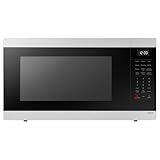
- SENSOR COOKING: Samsung Sensor Cook automatically adjusts cooking time for optimal results. From soup to frozen dinners, you'll get great results every time.
- LARGE CAPACITY: With 1.9 cu. ft. of space, Samsung's largest capacity countertop microwave gives you plenty of room for any food you need to heat.
- CERAMIC INTERIOR: This durable ceramic enamil interior is scratch resistant, easy to clean and maintain.
- COOKING PRESETS: A variety of preset cooking options puts convenient meals with fresh ingredients at your fingertips.
- OPTIONAL TRIM KIT: Made from high-quality stainless steel, the Trim Kit accessory (sold seperately) gives you the flexibility to install the microwave oven in a wall or cabinet space.
The clock keeps resetting
If it repeatedly resets without another power interruption, use Samsung troubleshooting or arrange appliance service. Do not assume a particular component has failed without model-specific diagnosis.
Find the exact manual for your model
Locate the model number on the appliance frame, around the control-panel area or in the original documentation; placement varies by product. Enter it on Samsung’s support site to open the matching manual and troubleshooting instructions. Examples of model-support pages with manuals include NV31T4551SS and NV51K7770SG.
If the buttons or menu names on your appliance do not match this guide, use the manual for the exact model rather than forcing a similar sequence.
Quick Recap
Product prices and availability are accurate as of the date/time indicated and are subject to change. Any price and availability information displayed on Amazon at the time of purchase will apply.
Do these 3 things before closing this tab:
1Clear out junk files and repair common Windows errors2Fix the driver behind crashes, sound loss and screen glitches3Repair Windows errors before they cause bigger problems