Some links on this page are affiliate links: if you buy through them we may earn a commission, at no extra cost to you.
If Alexa says your smart plug is “not responding,” do not factory-reset it first. Press the plug’s physical button, then test it in the manufacturer’s app. If the button and native app work, the problem is usually Alexa’s skill, account link, device record, or name. If the plug fails in both places, investigate power, Wi-Fi, the router, or the plug itself.
Work through these seven fixes in order. This approach separates an Alexa integration problem from a failed outlet, incompatible appliance, network fault, or defective plug while preserving schedules and settings whenever possible.
As an Amazon Associate I earn from qualifying purchases.
Start with this quick diagnosis
| What happens | Most likely cause |
|---|---|
| The physical button works, but Alexa does not | Alexa, the manufacturer skill, cloud service, account, or device record |
| The manufacturer app works, but Alexa does not | Skill authentication, a stale Alexa entry, duplicate names, or account mismatch |
| The plug fails in the manufacturer app too | Wi-Fi, router, vendor service, firmware, or plug hardware |
| The physical button does not work | Outlet power, overload protection, appliance load, or failed hardware |
| Several smart devices fail | Router, internet connection, Alexa account, or wider service problem |
“Not responding” does not always mean the plug is dead. Alexa may be contacting an obsolete device entry, a disabled endpoint, or a device connected to a different account. It can also report an error after the plug has successfully changed state.
Unplug the appliance before testing if it is a heater, motor, compressor, refrigerator, air conditioner, cooking appliance, or other high-load device. Check the plug’s electrical rating and the appliance manufacturer’s instructions first.
Popular on Amazon

- Stability Upgrade Quick Connection:Supports Bluetooth or WiFi connection.The improved WiFi technology let you quick connection and stay stable,no disconnection worries. Please keep the smart plug connected to your stable 2.4GHz network.(Note: Only 2.4Ghz WiFi)
- Hand-Free Voice Control:Smart plugs that work with Alexa and Googel Assistant. Just give a simple voice command to Alexa or Google Assistant to control your connected home devices. Enjoy the joy of smart home devices.
- APP Remote Control From Anywhere:You also can control your outlet timers anywhere anytime via the APP directly when you are away. Monitor and control connected electrical equipment in your home.The smart outlet plug compatible with GHome APP, Smart Life App and Tuya App.
- Schedules and Timer Function:Easy to set timers and add schedules to connected smart home devices circularly or randomly, making them work as scheduled like auto-off and auto-on to save energy and money. Such as lamps, fan, humidifier, Christmas light timers etc.
- Group Control and Sharing:You can set a group for some wifi smart plugs and control connected appliances with one tap. Also you can share your wifi outlet plug by App with your families and enjoy the smart life together.
1. Power-cycle the plug, Echo, router, and appliance
Restart the plug
- Unplug the smart plug from the wall.
- Wait at least 30 seconds.
- Plug it back in.
- Wait for its status light to stabilize.
- Press the physical button and see whether the relay clicks or the connected appliance responds.
Amazon recommends restarting a third-party smart plug before resetting it. See Amazon’s third-party smart plug reset guidance.
Restart Alexa and your network
Unplug the Echo for about 30 seconds, reconnect it, and wait until it is fully online. If several devices are affected, restart the network:
- Unplug the modem and router.
- Wait approximately 30–60 seconds.
- Reconnect the modem first and wait for its internet connection.
- Reconnect the router and wait for Wi-Fi to return.
Amazon’s Echo Wi-Fi troubleshooting guidance also recommends checking interference, distance, credentials, and connected-device load.
Check the appliance
The plug may be switching power correctly while the appliance remains off. Some appliances require their own power switch to remain on, while others have thermal or overload protection. Do not exceed the plug’s rating, and do not use an ordinary smart plug as a fail-safe control for medical equipment, heating systems, cooking appliances, sump pumps, or other safety-critical loads.
2. Test the plug outside Alexa
Use this order:
- Press the plug’s physical power button.
- Open the manufacturer’s app, such as Kasa, Tapo, Meross, or Smart Life/Tuya.
- Test control while your phone is on home Wi-Fi.
- If possible, switch the phone to cellular data and test again.
- Check whether the app reports the plug as online, offline, or in an error state.
If the physical button works but the native app fails, focus on Wi-Fi, the plug’s account, firmware, or the manufacturer’s service. If the native app works but Alexa fails, do not reset the plug yet: the likely fault is the skill, account link, Alexa device record, or device name.
Most conventional Wi-Fi plugs are configured in their manufacturer app before Alexa can control them. Matter devices can follow a different commissioning path and may be paired directly through Alexa; use the setup method in the exact model’s current manual.
Also popular on Amazon

- 【Multi-function USB Wall Outlet】: 3 USB fast charging ports(1 USB C Port), 3-sided Power Strip, with 6 Adapter Spaced Outlets, and LED night light around the edges. Taking the place of a standard socket, but instead offering you many more plugs. Can be used in any room or public areas indoor. Save space with unique 3D design.NOTE: The UCB-C port doesn't support any other devices which need 9~22V charging voltage.
- 【Wide Space Outlets】: 6 AC outlets built-in 1680 Joules surge protector with 2.1 inches long space in between, larger than standard 1.5-inch socket. Larger spacing makes it easier to use for all kinds of equipment. 3 Smart USB ports can charge your smart device quickly.Ideal room/home/bedroom decor.
- 【Smart Night Light】: With Dusk-To-Dawn Sensor, automatically turns on only when ambient lighting becomes insufficient. With touch sensor, three levels of adjustable brightness let you choose the right amount of light for your own needs. You could also choose to turn on/off the nightlight manually.The night light is soft, warm and comfortable, great for bedroom, bathroom, nursery, hallway, kitchen and more.
- 【Reliable Surge Protector Circuit】: This Outlet Extender provides 1680 joules of surge protection for electronic devices and serves as a reliable Power Strip Multi Plug Adapter.combined with fire-resistant casing(fire-resistant 1382℉)- keeping you and your devices completely safe.
- 【POWRUI After Sale Service】: ETL Certified, Our friendly and reliable customer service will respond to you within 24 hours. You can purchase with confidence, with our 30-day return and 12-month warranty.
3. Check Wi-Fi, range, and recent network changes
Confirm all of the following:
- The plug still has power and has not been moved beyond reliable range.
- The Wi-Fi name or password has not changed.
- The plug is not isolated on a guest network.
- Router access controls, MAC filtering, captive portals, or enterprise Wi-Fi are not blocking it.
- The plug supports the router’s security mode and wireless band.
- The phone, Echo, and plug are being set up under the intended home network and Amazon account.
Do not assume every smart plug requires 2.4-GHz Wi-Fi. Many traditional Wi-Fi models do, but requirements vary. Matter-over-Wi-Fi products may support 5 GHz, while Zigbee plugs communicate through a compatible hub rather than directly through ordinary home Wi-Fi. Amazon’s Zigbee documentation explains that Zigbee operates at 2.4 GHz and requires compatible hub hardware.
A mesh system may show one network name while steering devices between access points or bands. Avoid permanently splitting networks or disabling 5 GHz unless the plug’s documentation calls for it; those changes can affect every device in the home. Amazon’s 30-foot/10-meter guidance applies to Echo Wi-Fi troubleshooting, not a universal maximum range for smart plugs.
4. Check the Alexa device, name, group, and account
In the Alexa app, open Devices, select the plug, and check whether it says Offline or Unresponsive. Open its settings and verify its name, room, and group.
Give the plug a distinctive temporary name, such as Desk Plug, then say:
What’s actually slowing this PC down?
Pick the symptom - the matching free tool is one click away.
“Alexa, turn on Desk Plug.”
Avoid names that sound like commands or overlap with other devices, including “Light,” “TV,” “Kitchen,” or “Plug.” Also check that:
- The manufacturer app and Alexa skill use the same manufacturer account.
- The Echo is registered to the intended Amazon account and household.
- The correct Alexa home or location is selected.
- There is not an old duplicate entry with the same name.
- Routines refer to the current plug rather than a deleted endpoint.
Amazon’s Alexa smart-home troubleshooting documentation identifies naming, account, discovery, disabled-device, and deleted-endpoint problems as common causes of control failures.
Also popular on Amazon

- 3 Smart Outlets + 2 USB Ports: Power up to five devices at once with three individually controlled smart outlets and two always-on USB ports for charging phones, tablets, and accessories.
- Voice Control with Alexa and Google Assistant: Works with Alexa and Google Assistant for hands-free control of connected devices using simple voice commands.
- Surge protection: ETL-certified surge protection shields sensitive electronics and appliances from sudden power surges.
- Control from anywhere: Use the intuitive Kasa smart app to remotely control connected devices through your mobile device. For best performance, keep firmware updatig by checking the Tapo or Kasa app.
- Set Schedules and Timers: Create custom schedules or timers to automatically turn each smart outlet on or off at specific times, helping you manage energy use and device operation efficiently.
5. Relink the manufacturer skill and rediscover the plug
Use this fix when the plug works in its native app but not in Alexa.
- Open the Alexa app.
- Go to More → Skills & Games.
- Search for the plug manufacturer’s skill.
- Open it and choose to disable it.
- Enable it again and sign in with the same manufacturer account used during setup.
- Approve device access if prompted.
- Say, “Alexa, discover my devices.”
- Wait for discovery to finish, then test direct on/off control.
Labels can vary by Alexa app version, phone operating system, and region. Relinking a skill can temporarily affect multiple devices and routines, so do this only after confirming that the native app controls the plug.
Do these 3 things before closing this tab:
1Clear out junk files and repair common Windows errors2Fix the driver behind crashes, sound loss and screen glitches3Repair Windows errors before they cause bigger problemsKasa and Tapo
TP-Link recommends disabling and re-enabling the appropriate skill, then asking Alexa to discover devices. If a Kasa device was added through Tapo, the Kasa account may need to be linked separately. TP-Link also recommends starting account linking from Tapo/Kasa app → Me → Third-Party Services if linking from Alexa fails. See TP-Link’s Alexa troubleshooting guide.
6. Remove the stale Alexa entry and add it again
If relinking leaves a duplicate or obsolete device, remove that Alexa entry without assuming the physical plug has been reset.
- Open Devices in Alexa.
- Select the old plug.
- Open Settings.
- Tap the trash or delete icon and confirm.
- Verify that the plug still exists in the manufacturer app.
- Use Devices → + → Add Device, or say, “Alexa, discover my devices.”
Amazon’s published device-removal guidance uses this general path, although labels may change. See Amazon’s removal and rediscovery instructions.
Deleting an Alexa entry does not necessarily remove the plug from the manufacturer app, erase Wi-Fi credentials, or factory-reset the hardware. If Alexa will not open or delete the old record, try More → Settings → Device Settings, disable and re-enable the relevant skill, and check the manufacturer account. Clearing Alexa’s app storage or reinstalling the app is not the same as deleting a cloud-side device record.
Quick wins for a faster PC:
Clear out junk files and repair common Windows errorsFree Scan →Fix the driver behind crashes, sound loss and screen glitchesFind Drivers →Also popular on Amazon

- 【10 IN 1 USB Wall Outlet Extender】- 6 AC outlet adapter (3 side, 15A/125V/1875W) with built-in 1800 Joules surge protector and 4 USB charging ports (2 USB C, total output DC 5V/3.1A), 180 degree rotating AC plug. The grounded indicator light that assures your devices are secure. WARNING: Please read the user manual before use.
- 【Wide Space & Rotating AC plug】 - Unique 3-Side space-saving design surge protector, 6 AC outlets with wide space in between, are separated enough to fit big plugs without blocking each other. The swivel power strip can turn left and right 90 degrees, no worry for horizontal or vertical sockets. Compact design (5.7*1.9*1.7 Inch), easy to carry.
- 【USB-C Smart Charging Ports】- With built-in smart IC technology, high-speed USB ports automatically detect charging devices and deliver optimal charging speed, USB A up to 2.4A/5V per port, USB C up to 3A/5V max. One is enough.
- 【1800J Outlet Surge Protector】- The multiple plug outlet provide surge protector electrical spikes. 3 complementary Surge Protection Circuits, TVS(transient voltage suppressor) MOV(metal oxide varistor) GDT(gas discharge tube), with response speed less than 1Ns, and minimum energy-absorbing capacity of 1800 Joules, much more quickly and reliably than the traditional MOV surge protector circuit.
- 【Multi Safety Protection】 - Certified by ETL. USB outlet splitter prevent your electric devices from over-current/over-charge/ short circuit/over-heated. Fire-resistant ABS shell (1382℉), and high-quality component can improve durability and safety. For your safety, ensure that the current power DO NOT exceed the rated power of 1875W/15A, or it may cause short circuit and fire explode hazards
7. Reset the plug only when necessary
Factory reset is a last software fix because it can erase Wi-Fi credentials, schedules, scenes, and other settings. Use the exact instructions for the brand and model; reset timings are not interchangeable.
Amazon Smart Plug
Amazon’s current support instruction is to press and hold the side button for 12 seconds, then set up the plug again. Follow Amazon’s Amazon Smart Plug discovery instructions.
TP-Link Tapo and Kasa
TP-Link distinguishes between:
- Soft reset: hold the power button for 5 seconds; existing settings are preserved.
- Factory reset: hold the power button for 10 seconds; custom settings are erased.
These instructions come from TP-Link’s Tapo and Kasa reset guide. App-based removal or reset may work only while the plug is online.
Meross
Meross says its smart plugs generally reset by holding the power button for 5 seconds, but the model-specific manual takes priority. The Meross app may also offer Remove Device. See Meross’s reset FAQ.
Recommended Free Tools
Set it up again
- Remove the old Alexa entry.
- Add the plug to its native app first, unless the model is being commissioned directly as a Matter device.
- Install firmware updates if offered.
- Relink the skill or complete Matter pairing.
- Discover the device in Alexa.
- Give it a unique name.
- Rebuild routines only after direct Alexa on/off control works.
Troubleshooting by symptom
The plug works in its own app but not Alexa
Relink the skill, confirm the manufacturer account, remove duplicate Alexa entries, rediscover the plug, and test with a unique name. A temporary manufacturer-cloud or Alexa integration problem is also possible.
The plug is offline in every app
Power-cycle it, verify the outlet, check Wi-Fi credentials and range, and restore its network connection in the native app. Reset only if the app cannot recover it. For Zigbee models, check the compatible hub instead of treating the plug as a direct Wi-Fi device.
Also popular on Amazon
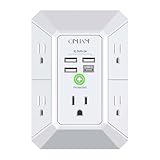
- 【 Multi Function USB Outlet】- Securing onto the wall design. Fit duplex outlet perfectly, just plug in to use. You get 5 AC outlet splitter (3 sides) with wide space in between; 4 USB charger ports; using the screw at the middle to secure it onto the wall for duplex outlet, so it is not pulled out when pulling the plugged in devices and loss power. Note: this works on duplex outlet only, other types of outlet like GFCI outlet cannot be secured onto the wall. Best Ideal Stocking Stuffers for Adults.
- 【The Groove Design on The Back and Wide space 】- 5 AC outlets with 2.1 inches long space in between, larger than standard 1.5-inch socket. Larger spacing makes it easier to use for all kinds of equipment. The groove at the back make it flush against the wall perfectly, good for all Duplex Receptacle Outlet. NOTE: This product can be used on wall outlet with space lager than 1 inches in between, This product cannot be used on outlets with more than 2 set of parallel sockets.
- 【 Smart Charge with USB A & USB C 】- 4 USB Charging ports, Each USB A port features 5V/2.4A Max output. USB C charging port features 5V/3A MAX. Built in smart technology, detecting charging devices and deliver optimal charging speed automatically, compatible with Kindle and most USB devices. NOTE: The UCB-C port is not Quick Charger 3.0, doesn't support any other devices which need 9~22V charging voltage.
- 【Reliable Surge Protector Circuit】: This Outlet Extender provides 1680 joules of surge protection for electronic devices and serves as a reliable Power Strip Multi Plug Adapter(The “Protected” indicator light turns on to indicate that your devices are protected).
- 【 Our After Sale Service 】- ETL Certified, Our friendly and reliable customer service will respond to you within 24 hours. You can purchase with confidence, with our 30-day return and 12-month warranty.
The physical button does nothing
Test the wall outlet with a known-working device, disconnect the appliance, and inspect the plug for overheating, burning, sparks, or damage. If the outlet works but the plug remains unresponsive, hardware failure or overload protection is more likely.
Alexa reports failure, but the appliance changed state
The command may have completed while Alexa received confirmation too late. Amazon’s developer documentation discusses delayed smart-home responses, including an approximately eight-second response window in its technical context; this is not a guaranteed consumer timer. Check the physical state before repeating a command.
Free tools Windows power users keep installed
One-click scans. No signup required.
Only routines fail
Confirm direct Alexa control first. Then inspect the routine’s device, name, room, schedule, and time zone. A routine may still point to an old device record after the plug was reset or renamed.
The device disappeared after resetting
Add it to the manufacturer app again, update its firmware if offered, relink the skill or complete Matter pairing, and rediscover it. A factory reset intentionally removes the old network association.
The plug will not enter pairing mode
Confirm the outlet works, use the model’s exact reset procedure, and watch for the specified status-light pattern. If the light never enters pairing mode after a correct reset, contact the manufacturer or replace the device.
When replacement or support makes sense
Stop troubleshooting and seek manufacturer support or replacement when:
- The outlet works but the physical button does nothing.
- The plug repeatedly drops offline after a factory reset.
- The status light never enters pairing mode.
- The plug overheats, smells burnt, sparks, or has physical damage.
- The connected load exceeds the plug’s rating.
- The native app reports a hardware or unrecoverable error.
- The plug works only intermittently and controls a safety-critical appliance.
If buying a replacement, check the exact model’s Alexa or Matter compatibility, electrical rating, indoor or outdoor certification, suitability for motors or heaters, energy monitoring, local-versus-cloud control, physical reset method, firmware support, and whether its body blocks the neighboring outlet. Do not assume a Matter model supports every advanced Alexa feature, and do not assume a similarly named Kasa, Tapo, Meross, or Smart Life model uses the same reset procedure.
For support, collect the exact model and hardware revision, phone operating system, Alexa and native-app status, router model and network type, approximate failure time, physical-button result, affected devices, and status-light behavior after reset.
Quick Recap
Product prices and availability are accurate as of the date/time indicated and are subject to change. Any price and availability information displayed on Amazon at the time of purchase will apply.

