Do these 3 things before closing this tab:
1Fix the driver behind crashes, sound loss and screen glitches2Repair Windows errors before they cause bigger problems3Scan for outdated or missing drivers - takes under a minuteShort answer: no—not for all smart devices. The Xiaomi Smart Home Hub 2 is a capable gateway for a Xiaomi Home installation, supporting compatible Xiaomi devices over Wi-Fi, Zigbee 3.0, Bluetooth 5.0 and Bluetooth Mesh. It is a sensible choice for a Xiaomi-centred home, but it is not a universal hub for arbitrary brands, Apple HomeKit, Thread or fully local Home Assistant setups.
What the Xiaomi Smart Home Hub 2 does
The Hub 2 is the central controller for compatible Xiaomi and Mijia devices. It connects to your home network by Wi-Fi or Ethernet, then communicates with lower-power child devices such as sensors, switches and Bluetooth Mesh products.
As an Amazon Associate I earn from qualifying purchases.
Through the Xiaomi Home app, it can provide remote control, schedules, scenes and automations. Xiaomi also advertises local operation for some preset scenes, although it warns that local control is not available for every scene or network environment.
Quick wins for a faster PC:
Repair Windows errors before they cause bigger problemsFix Now →Fix the driver behind crashes, sound loss and screen glitchesFind Drivers →That distinction matters: the Hub 2 is best viewed as a Xiaomi Home gateway, not as an open, brand-neutral radio bridge.
#1 Best Overall
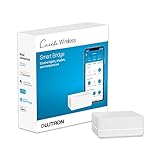
- CONNECTS WITH MORE LEADING SMART HOME BRANDS THAN ANY OTHER SMART HOME BRAND: Including Amazon Alexa, Apple HomeKit, the Google Assistant, Ring, Serena shades, and Sonos to manage lights, voice assistants, cameras, temperature, shades, and music
- WORKS WITH: Alexa Smart Home to support dimming or switching the lights on/off through voice control (Alexa device and Caséta dimmers/switches sold separately) for your home lighting
- INCLUDES: (1) Lutron Caséta Smart Hub for Alexa Home and other smart home devices; coordinating accessories sold separately
- Smart HUB: Clear Connect Technology does not interfere or compete with Wi-Fi connected devices
- EASY TO USE: Smart home gadgets are easy to use and simple to set up; just connect to your router, download the Lutron App, and follow app instructions
Key specifications
| Specification | Details |
|---|---|
| Model | ZNDMWG04LM |
| Dimensions | 95 × 95 × 26 mm |
| Network | 802.11 a/b/g/n Wi-Fi on 2.4 GHz and 5 GHz; 10/100 Mbps Ethernet |
| Other radios | Zigbee 3.0 and Bluetooth 5.0, including Xiaomi Bluetooth Mesh support |
| Processor and memory | 1 GHz dual-core processor; 128 MB memory |
| Power | 5 V, 1 A through USB-C |
| Operating conditions | −10°C to 50°C; 0–95% RH, non-condensing |
| Mobile compatibility | Android 5.0 or later; iOS 12.0 or later |
| Published child-device capacity | Up to 100 combined Bluetooth and Zigbee child devices |
These specifications come from Xiaomi’s official specifications. The 100-device figure is a published maximum for combined Bluetooth and Zigbee child devices. It is not a guarantee that a large installation with heavy Bluetooth traffic and numerous automations will perform identically to a smaller one.
Protocol support—and what it really means
| Technology | What to expect |
|---|---|
| Wi-Fi 2.4 GHz | Used for the hub’s network connection and compatible Wi-Fi devices. Wi-Fi devices still need a router. |
| Wi-Fi 5 GHz | Provides a dual-band connection option for the hub; individual smart devices may have different Wi-Fi limitations. |
| Zigbee 3.0 | Supports compatible Xiaomi Zigbee child devices. Do not assume that every third-party Zigbee product will pair. |
| Bluetooth 5.0 | Supports compatible Xiaomi Bluetooth devices through Xiaomi Home. |
| Bluetooth Mesh | Supports Xiaomi Bluetooth Mesh products, subject to model and regional compatibility. |
| Matter | The Connectivity Standards Alliance lists a Matter-certified software component dated December 4, 2023. This does not mean every attached device is exported to every Matter platform. |
| Thread | Thread is not listed in Xiaomi’s published radio specifications. Do not buy the Hub 2 expecting it to be a Thread border router. |
| Apple HomeKit | Xiaomi support documentation states that the Hub 2 does not support Apple HomeKit connectivity. |
See the CSA Matter certification record and Xiaomi’s HomeKit support article for the relevant qualifications.
Does it support all smart devices?
No. Having several radios does not make a hub universally compatible. There are four separate questions:
- Does the protocol match? The Hub 2 has Wi-Fi, Zigbee and Bluetooth radios, but no listed Thread radio.
- Does Xiaomi Home support the device? The app needs a device profile and an approved onboarding path.
- Does your region support it? Xiaomi devices and servers can be region-sensitive.
- Can another platform control it? A device working inside Xiaomi Home may not appear in Apple Home, Google Home, SmartThings or Home Assistant.
Xiaomi’s product page illustrates compatibility with products including the Mi Door and Window Sensor 2, Mi Temperature and Humidity Monitor 2, Mi Motion Sensor, Mi Wireless Switch, Mi Smart LED Desk Lamp 1S and Mi LED Smart Colour Bulb. Examples are not a guarantee that every product in Xiaomi’s wider catalogue works with this particular hub.
Matter certification should be treated just as carefully. The certification is real, but it should not be translated into “every Xiaomi Zigbee or Bluetooth accessory can be bridged to every Matter controller.” Device type, firmware, region and target ecosystem all matter.
Rank #2
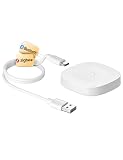
- 【2 Modes in 1 Gateway】Support MOES/Tuya Bluetooth mesh (SIG) + Zigbee3.0 multi-protocol communication. Only one gateway is needed to connect devices of different protocols to the 2.4Ghz network.
- 【Support 128 Devices】 Support up to 128 Tuya smart home devices, such as Bluetooth Door Lock, ZigBee Light Switch No Neutral, Bluetooth Finger, Zigbee Power Monitor Plug, Bluetooth Thermometer, ZigBee Window Gate Sensor, etc.
- 【Sound & Light Alarm】 Support sound and light alarm.Support Local Scenario / Support Local Automation / Support Security Function and be integrated into the Tuya Security Saas Platform.
- 【Voice & App Remote Control】 No matter where you are, you can control the connected smart devices through the MOES/Smart Life App on your mobile phone. Support voice control of Alexa, and Google Assistant.
- 【ESAY SET-UP】Designed for quick and easy set-up with absolutely no wiring or technical skills required.Quickly and easily add, reset, and group devices via the hub.
Ethernet or Wi-Fi?
Ethernet is preferable when reliability is the priority. A wired connection avoids dependence on local Wi-Fi coverage and is useful when the hub can sit near a router or network switch. It does not increase the physical range of the hub’s Zigbee or Bluetooth radios.
Wi-Fi makes placement easier. It avoids an Ethernet cable and may let you position the hub closer to sensors or Bluetooth devices. Xiaomi recommends placing it approximately 2–6 metres from the router during Wi-Fi setup and avoiding metal obstructions.
The Tool Desk
Outbyte PC Repair FREEClear out junk files and repair common Windows errorsFree Scan →Outbyte Driver Updater FREEScan for outdated or missing drivers - takes under a minuteDriver Scan →In practice, choose a location that balances a stable network connection with good coverage of the actual child devices. Placing the hub directly beside the router is not automatically best if sensors are elsewhere in the building.
Local automation: useful, but not fully offline
Xiaomi says some preset automatic scenes can continue during a network error. However, its product information also states that local control may not work for some scenes depending on the network environment.
“Local” therefore does not necessarily mean:
- every trigger, condition and action runs without internet access;
- remote access continues during an outage;
- the Xiaomi account and cloud services are unnecessary; or
- the complete Xiaomi Home ecosystem becomes an offline controller.
Before relying on a motion-triggered light, leak alert or other important automation, disconnect the internet and test the exact trigger-and-action combination you intend to use.
Rank #3
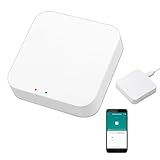
- 2 MODES IN 1 GATEWAY: This Smart home hub support Bluetooth mesh (SIG) + Zigbee3.0 multi-protocol communication. Only one gateway is needed to connect devices of different protocols to the 2.4Ghz network.
- APP REMOTE CONTROL: Smart Bluetooth Zigbee hub works with smart life/Tuya App, Support Adding devices, device reset, third-party control and group control. You can manage and remotely control the device through the Smart Life App. You can manage and remotely control your lights, fingerbot and other smart devices via the app, even when you're not home.
- VOICE CONTROL: The smart hub Support voice control, Simply give a voice command to Alexa or Google home to control devices(such as turn on/off the smart plug, turn on/off the Finger Bot).
- SMART HOME AUTOMATION: Sub-devices of the gateway act as trigger conditions for Interacting with devices such as ZigBee, Bluetooth, Wi-Fi, for device linkage. Featured as one powerful network bridge for whole house linkage in a real sense for all smart home devices.
- SUPPORT 128 DEVICES: Support up to 128 Tuya smart home devices, such as ZigBee Motion Sensor, Leak Detector, BLE Finger Bot, Zigbee Door Sensor, BLE Thermometer, ZigBee Window Gate Sensor, etc. NOTE: Supports Tuya/SmartLife devices only.
Installation guide
- Place the hub away from metal cabinets and dense electronic equipment.
- For Wi-Fi setup, position it roughly 2–6 metres from the router. For wired setup, connect Ethernet to a router LAN port.
- Connect the USB-C cable to a suitable 5 V power adapter. Xiaomi’s UK FAQ lists a Type-C cable but says the power adapter must be purchased separately.
- Wait for the indicator to blink orange.
- Open Xiaomi Home/Mi Home and sign in.
- Tap the + button in the upper-right corner and choose Add a device, or scan the hub’s QR code.
- Select the network-access method and follow the app’s instructions.
- Add compatible child devices from their relevant device pages, then create scenes and automations.
App labels can change after updates, so follow the closest equivalent wording shown in your installed version. Xiaomi’s product page provides the official setup overview.
Free tools Windows power users keep installed
One-click scans. No signup required.
Indicator lights
| Indicator | Meaning |
|---|---|
| Blinking orange | Not connected to Wi-Fi or Ethernet and not paired with the account. |
| White | More than 30 minutes after startup without connecting to the network. |
| Blinking blue | Connecting or reconnecting, waiting to add a child device, or manually updating firmware. |
| Solid blue | Connected to the network and paired with the account. |
These meanings are documented in Xiaomi’s user manual and support information.
Recovery and reset
If network configuration is broken or the hub cannot be added, hold the reset button for more than 10 seconds. Release it when the indicator begins blinking orange, then add the hub again in Xiaomi Home.
For a factory reset, press the reset button continuously more than 10 times and wait for the orange blinking indicator. Xiaomi says this deletes network settings and related child-device settings and data. Resetting can remove automations and device relationships, so use it as a recovery step rather than routine troubleshooting.
Independent reader supportYour contribution helps us test, update, and keep practical guides available for everyone.Common connection problems
Xiaomi’s FAQ says the hub does not support WPA/WPA2 Enterprise Wi-Fi. It also warns that unsupported special characters in a network name or password, AP isolation and bridged networks can prevent pairing or discovery.
Recommended Free Tools
Rank #4

- Reliable Long-Range Connections: The Tapo Hub operates on a lower frequency broadband, resulting in fewer signal interferences and ensuring stable connectivity for all your devices throughout your home. With a maximum connection distance of up to 30m, the Tapo Hub outperforms wireless network systems in the 2.4 GHz band. Our internal laboratory tests confirm the coverage and range of the Tapo Hub, but keep in mind that actual results may vary depending on environmental conditions.
- A Low-Power Way to Connect Everything- The Tapo Hub serves as the central hub for your Tapo smart home, linking smart sensors, switches, and buttons via an ultra-low power wireless protocol. This technology extends the battery life of devices by up to 10 times, in contrast to devices powered by the Wi-Fi protocol.
- Smart Action- With Tapo Smart Hub H100, you can trigger a Shortcut or control Tapo devices (such as smart plugs, smart lights and smart switches) based on sensor detection or with a button press. (Tapo H100 cannot directly connect to Tapo smart plugs or smart lighting, 2.4GHz Wi-Fi is required.)
- All Devices in One Hub- Each Tapo Hub can connect up to 64 Tapo devices throughout your home. Build and manage your smart home ecosystem with ease.
- Protect Your Home Day and Night- By integrating with Tapo motion sensors, door/window sensors, and other devices, the Tapo Hub can activate a high-decibel siren (up to 90 dB) to alert of potential hazards or discourage intruders.
- Temporarily use a conventional Wi-Fi name and password.
- Disable client or AP isolation during pairing.
- Confirm that the phone and hub are on the same local network.
- Try Ethernet if a LAN connection is available.
- Reset the network configuration for more than 10 seconds and re-add the hub.
- Check the Xiaomi Home app, phone operating system and hub firmware for updates.
The hub also needs both power and a network connection to connect with Zigbee or Bluetooth child devices. It is not a completely standalone offline controller.
Regional compatibility is a buying issue
Before ordering the hub or accessories, check the regional model, the Xiaomi Home server selected in the app and the market in which each child device was sold. A device purchased in one market may not appear or pair correctly when the app is configured for another region.
Do not assume that a global-labelled hub supports every Xiaomi product sold worldwide. The same caution applies to warranty coverage and official availability. No current official US product page or US price is established here, so US buyers should verify Xiaomi’s current US site, storefront and warranty terms before purchasing from a reseller.
Who should buy the Hub 2?
Buy it if
- Most of your devices are compatible Xiaomi or Mijia products.
- You need one Xiaomi gateway for Zigbee, Bluetooth and Bluetooth Mesh devices.
- You want Ethernet as an option.
- You are comfortable managing the installation through Xiaomi Home.
- You have checked the correct region and server for your intended accessories.
Skip it if
- Apple HomeKit is a requirement.
- You need Thread support.
- You expect arbitrary Zigbee devices to pair as they would with an open coordinator.
- You require a strongly local-first platform with minimal cloud dependence.
- You want predictable cross-brand compatibility.
- You are buying it mainly because “Matter” sounds like universal support.
Alternatives
| Alternative | Better suited to | Main trade-off |
|---|---|---|
| Aqara Hub M3 | Aqara-focused buyers wanting a newer multi-protocol ecosystem with stronger Matter/Thread positioning. | It is not a guaranteed drop-in replacement for Xiaomi/Mijia accessories. |
| SmartThings or Aeotec | Multi-brand households wanting broader mainstream integration and cloud-plus-local automations. | It is not a direct replacement for Xiaomi Bluetooth Mesh support. |
| Home Assistant Green | Advanced users wanting local control, dashboards and extensive multi-brand integrations. | It is more complex and may require separate Zigbee, Thread or Bluetooth hardware. |
| Apple Home infrastructure | Apple households prioritising HomeKit, Siri and Thread-enabled Apple Home equipment. | It does not replace the Xiaomi gateway for Xiaomi-specific Zigbee or Bluetooth accessories. |
| Google Nest Hub | Google Home users wanting a familiar voice-control or display interface. | Google Home support depends on the individual Xiaomi device and integration path. |
Final verdict
The Xiaomi Smart Home Hub 2 is a good compact gateway for a compatible Xiaomi Home installation. Its Zigbee, Bluetooth, Bluetooth Mesh, dual-band Wi-Fi and Ethernet support make it practical for Xiaomi sensors, switches and other approved devices.
It is not, however, a perfect gateway for all smart devices. Apple HomeKit is explicitly unsupported, Thread is not listed, arbitrary third-party Zigbee compatibility should not be assumed, and Matter certification does not guarantee universal device bridging. Buy it when Xiaomi Home is your intended ecosystem; choose a different foundation when your priorities are open multi-brand support, Apple Home, Thread or rigorous local-first control.
Quick Recap
Product prices and availability are accurate as of the date/time indicated and are subject to change. Any price and availability information displayed on Amazon at the time of purchase will apply.

