What’s actually slowing this PC down?
Pick the symptom - the matching free tool is one click away.
TV pixelation is usually caused by a problem with the signal or video data reaching the television—not by the individual pixels in the screen. The fastest way to find the cause is to determine whether the breakup appears on every source or only on one antenna channel, cable or satellite channel, streaming app, or HDMI-connected device.
Try another channel or app, check the TV’s menus, reseat the relevant cables, restart the affected equipment, and run the television’s built-in picture test. A clean internal test with pixelation on only one source usually points to the source, cable, network, or service rather than a failed TV panel.
As an Amazon Associate I earn from qualifying purchases.
What TV pixelation actually means
Digital television does not normally fail with the gradual white “snow” associated with older analog broadcasts. Instead, when the receiver cannot reliably reconstruct the incoming video data, the picture may break into square or rectangular blocks, freeze, show intermittent black frames, lose audio, or disappear completely.
That is why pixelation is best treated as a signal or video-data integrity problem. Depending on the source, the damaged or incomplete data may come from:
#1 Best Overall

- Top Technology--8K@60HZ: This 8K Ultra-High Speed 2.1 HDMI Cable uses the most cutting-edge technology, which is compatible with 8K@60HZ,4K@240HZ and 4K@120HZ clearly displays every particle, and accurately processes every signal source.
- Upgrade Revolution: Highwings Ultra High Speed HDMI Cable 2.1 8K supports 48Gbps (6GB/s) which can will no longer be stuck or dropped frames when watching video. It is also backward compatible with HDMI 2.0b/2.0a/1.4/1.3/1.2/1.1 versions.
- For Game Enthusiasts: This 8K Ultra High Speed HDMI Cable 2.1 can achieve a super smooth picture of 4K@120HZ. Its latest game mode supports variable refresh rate, maximizes the value of the graphics card and CPU to obtain a smoother and more detailed picture.
- Reinforced high-quality materials: This 8K HDMI Cord uses Highwings' most popular classic style. The tail's anti-bending design has been upgraded to make it more durable. The military grade tensile nylon material also greatly extends its life.
- The ultimate perfectionist: Highwings every parts of the cable has been put through rigorous the performance tests in the laboratory. After we've combined every flawless part into a perfect 8K cable and it can be presented to you.
- An antenna signal weakened by distance, obstructions, reflections, weather, or poor cabling
- A cable or satellite feed, wall outlet, splitter, receiver, or provider-side fault
- An unstable internet connection or congested Wi-Fi network
- An HDMI cable, input, or external device
- The TV’s own video-processing electronics or display panel
A single bright dot or dark dot that stays fixed in exactly the same place is different. That may be a stuck or dead display pixel. Pixelation, by contrast, usually moves with the picture, appears in blocks, and comes and goes as the signal recovers.
The quickest way to identify the failing part
Before buying a new television, answer this question:
Does the problem happen on every source, or only on one source?
| What you observe | Most likely area to investigate |
|---|---|
| Only one channel pixelates | Antenna reception, one broadcaster, or a cable/satellite service issue |
| Several broadcast channels pixelate | Antenna, coaxial cable, splitter, wall outlet, receiver, or incoming service |
| Only one streaming app or title pixelates | The app, title, streaming service, device, or internet connection |
| All streaming apps pixelate, but broadcast channels are clear | Wi-Fi, router, internet connection, streaming device, or TV network software |
| Only one HDMI device pixelates | That device, its output settings, HDMI cable, or HDMI input |
| Menus, built-in apps, and every input are affected | The TV’s settings, power environment, video electronics, or panel |
| One fixed dot or line remains in one location | A possible display-panel defect rather than video-signal pixelation |
Test one variable at a time. For example, if a cable box is pixelating, do not simultaneously replace the HDMI cable, reset the TV, change the router, and move the antenna. A controlled comparison tells you which part of the chain is actually failing.
Follow this troubleshooting order
- Try another source. Change channels, open another streaming app, select a different HDMI input, and open the TV’s settings menu.
- Check whether the problem follows a program or device. If only one channel, title, app, or external device is affected, the TV itself is less likely to be the cause.
- Inspect and reseat the appropriate cables. Check coaxial, HDMI, Ethernet, and power connections for looseness, damage, corrosion, bent pins, or mechanical strain.
- Restart the affected equipment. Reboot the TV, receiver, streaming device, router, and modem as appropriate.
- Run the TV’s internal picture test or self-diagnosis. A clean test image shifts suspicion away from the panel and toward the incoming signal, external device, cable, or service.
- Test the signal path directly. Remove an unnecessary splitter, try a known-good HDMI cable, or compare Wi-Fi with a wired connection.
- Escalate to the correct party. Contact the broadcaster, cable or satellite provider, internet provider, antenna installer, or TV manufacturer based on the test results.
1. Run the TV’s picture test before assuming the panel is bad
Most major television platforms provide a built-in picture test, screen self-diagnosis, signal-information screen, or HDMI troubleshooting tool. The exact menu path and wording vary by manufacturer, model year, operating system, and region, so look in the TV’s Support, Self Diagnosis, Picture, or Device Care settings.
On supported Samsung models, relevant tools can include Picture Test, Signal Information, and HDMI troubleshooting. On supported LG models, look for Picture Test, screen self-diagnosis, and RF or HDMI inspection options. The test displays an image generated by the television rather than by your antenna, cable box, streaming app, or HDMI source.
- If the test image is clean: the screen is probably capable of displaying a normal picture. Investigate the source, cable, receiver, network, or service.
- If the test image is also pixelated or visibly abnormal: the TV’s electronics or panel becomes more likely, particularly if the defect appears across menus and internal apps as well.
- If the test offers signal information: compare readings when the picture is stable and when it is breaking up, if the TV allows that comparison.
Do not confuse a clean TV picture test with proof that the whole television setup is healthy. It only shows that the TV can generate and display its own test image. A weak broadcast signal, failing cable box, bad HDMI connection, or unstable internet connection can still be the problem.
2. If you use an antenna or receive over-the-air channels
Over-the-air pixelation usually means the tuner is receiving a marginal or impaired signal. Possible causes include weak signal strength, an antenna in a poor location, damaged coaxial cable, too much cable length, excessive splitting, an obstruction between the antenna and transmitter, weather-related variation, electrical interference, or multipath reflections.
Rank #2

- 【HDMI 2.1 Certification】Only 1% of HDMI cables on the market have passed HDMI 2.1 certification. Scan with the QR code Scanner app for verification
- 【120Hz/144Hz Gaming Excellence】Elevate your gaming experience with smooth 4K@120Hz gameplay for PS5 and Xbox, and ultra-responsive 4K@144Hz for PC. Whether you’re pushing your console or PC to the limit, enjoy unparalleled performance across all platforms(Requires game to support 4K@120Hz)
- 【Exclusive "E-Braid" Technology】Experience unprecedented durability with our unique double-layer fishnet winding and nylon braiding techniques. Copper cores and ferrite magnetic beads ensure uninterrupted signals, eliminating black screens and flickering
- 【HDMI 2.1-48Gbps Bandwidth】Unleash the full potential of your devices with lightning-fast data transfer rates, ensuring seamless connectivity for all your high-definition needs
- 【Next-Level Resolution Support】Dive into the future with support for mind-blowing resolutions, including 10K 8K@60Hz, 12-bit; 5K@120Hz/90Hz, 12-bit; 4K@144Hz/120Hz, 12-bit; and 2K@240Hz/165Hz
Multipath occurs when reflected versions of a broadcast signal arrive at the antenna at different times. Buildings, terrain, trees, nearby structures, and indoor surfaces can contribute to reflections. In analog television, similar conditions could create ghost images. In digital television, they may instead produce blocks, freezes, audio dropouts, or a complete failure to decode.
Practical antenna checks
- Confirm the selected input. Make sure the TV is using its antenna or tuner input rather than an unused HDMI input or another source.
- Run a channel scan. Scan again if you moved the antenna, changed its orientation, connected it to a different TV, or changed the installation.
- Move the antenna. For an indoor unit, test a higher position, an exterior wall, or a window-facing location. Rescan after each meaningful placement change.
- Reseat the coaxial connector. The connector should be firmly attached at both the antenna and TV. Look for a loose fitting, crushed cable, corrosion, or a jacket damaged by staples, sharp bends, or furniture.
- Temporarily remove splitters and amplifiers. Connect the antenna directly to the TV if possible. An amplifier cannot create a missing broadcast signal, and in some setups it can introduce noise or overload the tuner.
- Check the TV’s signal screen. Supported TVs may show signal strength or quality during manual tuning. Compare a stable channel with a channel that breaks up.
- Compare channels. If only one station or one group of stations is affected, the issue may be specific to that station’s transmission or reception path rather than the TV.
The FCC’s reception maps can help you plan an over-the-air setup, but they are predictions, not guarantees for a particular room. Indoor reception can differ substantially because of walls, windows, building materials, terrain, trees, weather, antenna placement, and the TV’s tuner.
If your existing antenna is damaged, poorly positioned, or unsuitable for your location, an indoor TV antenna may be reasonable for readers intentionally receiving local over-the-air channels. It is not a solution for pixelation in Netflix, YouTube, a cable box, or an HDMI-connected game console.
Persistent over-the-air breakup after checking the antenna position, cable, scan, and splitter path may justify a professional antenna installation or local signal assessment. A local installer can evaluate the actual location and distribution wiring; do not assume that a larger antenna or amplifier is automatically the answer.
3. If you use cable or satellite television
With cable or satellite service, the fault can be anywhere from the provider’s network to the TV’s input:
- The provider’s incoming signal or a local outage
- The outside line or satellite reception equipment
- A wall outlet, coaxial cable, splitter, or home distribution panel
- The cable or satellite receiver/set-top box
- The HDMI cable or HDMI input carrying decoded video from the box to the TV
Compare several channels. Include channels from different tiers or channel groups where possible. If multiple televisions connected to the same service show the same breakup, a provider-side problem or shared home wiring becomes more likely. If only one television is affected, test that TV’s wall outlet, coaxial lead, receiver, HDMI cable, and input.
Restart the receiver according to the provider’s instructions. If the picture continues to freeze or cut out, contact the cable or satellite provider and report the exact channels, times, frequency, and whether another television is affected.
Do not treat HDMI and coaxial cables as interchangeable fixes. Coaxial wiring carries the incoming RF signal to the receiver or tuner. HDMI carries already-decoded video from a receiver or other device to the TV. A new HDMI cable cannot repair signal loss before the cable box, while a new coaxial cable will not normally correct a faulty HDMI connection between the box and display.
If inspection shows a loose or damaged coaxial run, replacing it with an RG6 coaxial cable can be a sensible repair for many home antenna and cable-TV installations. Replace or test the cable only after the coaxial path is implicated; it cannot fix a provider outage, a misaligned satellite dish, or a weak signal caused by the wider installation.
4. If Netflix, YouTube, YouTube TV, or another app is pixelating
Streaming pixelation is usually a delivery or playback problem rather than a broadcast-reception problem. Streaming services adjust picture quality as available bandwidth changes. A slow or unstable connection may cause lower-quality blocks, pauses, audio dropouts, or repeated quality changes even when a speed test looks acceptable at another moment.
Rank #3

- Top Technology----8K@60HZ: This 8K Ultra High Speed HDMI Cable uses the most cutting-edge technology, is compatible with 8K@60HZ and 4K@120HZ, clearly displays every particle, and accurately processes every signal source
- Upgrade Revolution: Highwings Ultra High Speed HDMI Cable supports 48Gbps (6GB/s) which can will no longer be stuck or dropped frames when watching video. It is also backward compatible with HDMI 2.0b/2.0a/1.4/1.3/1.2/1.1 versions
- For Game Enthusiasts: This 8K Ultra High Speed HDMI Cable can achieve a super smooth picture of 4K@120HZ. Its latest game mode supports variable refresh rate, maximizes the value of the graphics card and CPU to obtain a smoother and more detailed picture
- Reinforced high-quality materials: This 8K HDMI Cord uses Highwings' most popular classic style. The tail's anti-bending design has been upgraded to make it more durable. The military grade tensile nylon material also greatly extends its life
- Clear Size Information: This HDMI cable has a total length of 4.99ft (151cm) and a middle cable length of 4.63ft (141cm). Please note that the cable is relatively short, making it ideal for devices that are placed close to each other, Our products are guaranteed for one year. If there are any problems within one year, we offer free returns or replacement. Whether you need setup advice or troubleshooting, our team responds within 13 hours!
Potential causes include:
- Weak or interfering Wi-Fi near the TV
- Network congestion from several devices using the connection
- Brief packet loss or unstable latency
- A router or modem problem
- An outdated app, TV operating system, or streaming device
- A problem limited to one service, title, or playback device
- Insufficient sustained bandwidth for the selected quality
Streaming diagnostic sequence
- Try another title in the same app. If one movie or show is distorted but others play normally, the issue may be limited to that title or service.
- Try another streaming app. If Netflix is clear but YouTube pixelates, investigate the affected app or service before changing TV hardware.
- Play a downloaded or locally stored video, if available. A clean local file helps separate display problems from internet delivery problems.
- Run a speed test close to the TV. A test beside the router may not represent the connection at the television. Consider both the measured speed and whether the connection fluctuates.
- Pause other high-bandwidth activity. Stop large downloads, cloud backups, game updates, and other streams, then retry the same content.
- Restart the app and device. Fully close and reopen the app, then restart the TV or streaming device.
- Restart the network equipment. Reboot the router and modem as appropriate. A TV-connected device can also be unplugged, left disconnected for at least 30 seconds, and reconnected.
- Try Ethernet. To compare wireless and wired performance, test the TV with Ethernet or connect the streaming device directly to the router for a controlled trial.
- Lower video quality temporarily. If the stream becomes stable at a lower setting, the problem is more likely connection capacity or stability than the display panel.
- Install available updates. Update the app, streaming device, and TV software where supported.
Netflix’s published guidance gives approximate sustained-speed targets of 3 Mbps for HD, 5 Mbps for Full HD, and 15 Mbps for Ultra HD. These are service-specific recommendations, not guarantees. A connection can meet an average speed target and still suffer brief interference, congestion, packet loss, or latency spikes that produce breakup.
PC Slower Than It Used to Be?
A free scan shows the junk files, broken settings and background clutter dragging Windows down - then fixes them in one click.Free scan · Windows 10 & 11Crashes, No Sound, or Screen Glitches?
Random freezes, missing sound and display glitches usually trace back to one bad driver. Find and replace yours safely.Free scan · under a minuteIf wired playback is stable while Wi-Fi playback pixelates, investigate the wireless path. Reduce walls and metal obstructions between the router and TV, try the intended Wi-Fi band, and check whether another device or nearby equipment is creating interference. Only after those tests should you consider whether you need to improve Wi-Fi near the TV with different equipment or a changed router location.
5. If the source is an HDMI-connected device
This branch applies to cable boxes, satellite receivers, game consoles, Blu-ray players, laptops, and streaming sticks.
- Select the correct input. Confirm that the TV is displaying the HDMI port connected to the device.
- Reseat both ends of the HDMI cable. Push the connector firmly into the device and TV without forcing it.
- Inspect the cable and ports. Look for a damaged jacket, bent or loose connector, debris, or a port under strain.
- Restart both devices. Turn off or restart the source device and TV, then test again.
- Try another HDMI port. If the picture becomes normal, the original port or its connection may be involved.
- Try a known-good HDMI cable. Use a cable that works reliably with another compatible device. If the problem disappears, replace the suspect cable with a suitable high-speed HDMI cable.
- Test the source on another TV, if possible. If it pixelates there too, the external device or its output is more likely than the original TV.
- Check source settings and updates. A device with unusual output settings, outdated firmware, or overheating can behave abnormally. Test a standard supported resolution and refresh setting where the device provides those controls.
If the TV’s internal picture test and built-in apps are normal but one HDMI device remains abnormal, focus on that device, its output, the HDMI cable, and the selected input. Manufacturer HDMI troubleshooting tools can also help on supported Samsung and LG models.
If every HDMI input is affected while the TV’s own apps and menus are clear, investigate common settings, power, and connected equipment before concluding that the panel has failed. If the internal test is also abnormal, manufacturer service becomes more appropriate.
Do these 3 things before closing this tab:
1Clear out junk files and repair common Windows errors2Scan for outdated or missing drivers - takes under a minute3Repair Windows errors before they cause bigger problems6. Consider interference, power, and recent changes
Environmental clues often reveal the cause. Think back to what changed immediately before the pixelation began:
- The antenna was moved or turned
- A splitter, amplifier, wall plate, or longer cable was added
- The TV or receiver was relocated
- A router or other powered device was moved nearby
- New HDMI equipment was connected
- Cables were routed under furniture, sharply bent, or pulled tight
Reverse one change at a time. A direct antenna-to-TV connection, a different HDMI port, or a temporarily wired network connection can identify the failing segment more effectively than repeated factory resets.
RF interference and multipath can affect broadcast reception. For broader display flicker—not just one channel breaking into blocks—Samsung recommends testing the TV on its own circuit and disconnecting other devices one at a time. This is most relevant when menus and internal sources flicker too. It is less relevant when only one broadcast channel pixelates.
Rank #4

- Top Technology----8K@60HZ: This 8K Ultra High Speed HDMI Cable uses the most cutting-edge technology, is compatible with 8K@60HZ and 4K@120HZ, clearly displays every particle, and accurately processes every signal source.
- Upgrade Revolution: Highwings Ultra High Speed HDMI Cable supports 48Gbps (6GB/s) which can will no longer be stuck or dropped frames when watching video. It is also backward compatible with HDMI 2.0b/2.0a/1.4/1.3/1.2/1.1 versions.
- For Game Enthusiasts: This 8K Ultra High Speed HDMI Cable can achieve a super smooth picture of 4K@120HZ. Its latest game mode supports variable refresh rate, maximizes the value of the graphics card and CPU to obtain a smoother and more detailed picture.
- Reinforced high-quality materials: This 8K HDMI Cord uses Highwings' most popular classic style. The tail's anti-bending design has been upgraded to make it more durable. The military grade tensile nylon material also greatly extends its life.
- The ultimate perfectionist: Highwings every parts of the cable has been put through rigorous the performance tests in the laboratory. After we've combined every flawless part into a perfect 8K cable and it can be presented to you.
Do not open the television or alter household electrical wiring to investigate interference. If you suspect a grounding or electrical fault, have the installation checked by a qualified professional.
Recommended Free Tools
When the TV itself may be failing
The television becomes the leading suspect when:
- The menus, built-in apps, and internal picture-test image all show the same artifact
- The problem persists across known-good sources, cables, inputs, and connections
- Fixed lines, permanent dots, uniform color abnormalities, or physical damage are visible
- The picture is abnormal even when no external device is connected
- The TV’s self-diagnosis reports an abnormal test image
Samsung and LG recommend service when their internal picture tests or self-diagnosis remain abnormal. At that point, document the defect with a photo or video, record the model and serial number, and check warranty or service options.
A factory reset should be a late troubleshooting step. It erases settings, accounts, and customized preferences, but it cannot repair a weak antenna signal, damaged coaxial cable, bad HDMI connection, failing set-top box, unstable Wi-Fi, or provider-side outage. Reset only after source isolation and manufacturer guidance indicate that settings or software may be involved.
Use the symptom to choose the next test
Pixelation appears on one antenna channel
Rescan, check the antenna position, compare signal information with another channel, and inspect the coaxial connection. If only that station is affected, contact the station or an antenna professional before replacing the TV.
All antenna channels break up
Connect the antenna directly to the TV, remove unnecessary splitters or amplifiers, check the cable, move the antenna, and rescan. Consider the local building and terrain environment rather than relying solely on a reception-map prediction.
Free tools Windows power users keep installed
One-click scans. No signup required.
Only cable or satellite channels pixelate
Restart the receiver, compare several channels and another television, and test the coaxial and HDMI sections separately. Contact the provider if multiple TVs or channels show the same fault.
Only streaming apps pixelate
Try another app and title, pause other network activity, restart the network equipment, test near the TV, and compare Wi-Fi with Ethernet. A wired comparison is more informative than guessing that the TV needs replacement.
Only one HDMI device pixelates
Restart the device, test another input, inspect the ports, and substitute a known-good HDMI cable. If the issue follows the device to another TV, the source device is the stronger suspect.
Best Value
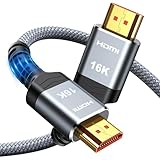
- [Future-Proof 16K Clarity & Excellent Performance]: Experience the pinnacle of home entertainment with our HDMI 2.2 cable.While current 8K content is stunning, this cable is engineered for the future, fully supporting a potential 16K resolution. Delivering a massive 96Gbps bandwidth, it ensures flawless playback for 12K 120Hz, 8K 240Hz, and even 4K 480Hz for ultra-smooth gaming. Rest assured, you're investing in a cable that won't become obsolete
- [Ultimate Gaming & Movie Experience with Dynamic HDR]: Get ready to game and stream like never before. This cable unlocks the full potential of your PS5/PS4, supporting Variable Refresh Rate (VRR) to eliminate screen tearing and Auto Low Latency Mode (ALLM) for lag-free inputs. Combined with Dynamic HDR and Dolby Vision, it provides breathtaking color, contrast, and clarity, making every scene in movies and every moment in games incredibly vivid and immersive
- [Superior Build Quality & Reliable Connectivity]: Durability meets performance. The flexible double-braided nylon jacket protects against daily wear, tear, and tangles, while the corrosion-resistant 24K gold-plated connectors ensure a pure, stable signal and maximum conductivity.Enhanced with advanced aluminum foil shielding,it effectively rejects electromagnetic interference (EMI) and radio frequency interference (RFI) for the clearest picture and sound possible
- [Advanced Features: eARC & Ethernet Channel]: Simplify your home theater setup. The enhanced Audio Return Channel (eARC) simplifies your audio system by transmitting high-quality, uncompressed audio like Dolby Atmos directly from your smart TV to your soundbar or AV receiver. Plus, the built-in Ethernet channel allows you to share an internet connection between compatible devices, reducing cable clutter and network congestion
- [Wide Compatibility & Unmatched Value]: Designed to work seamlessly with all your HDMI-enabled devices. Whether you're connecting a 8K/16K Smart TV, Roku TV, gaming PC, or a high-end home theater projector, this cable delivers peak performance. We stand behind the quality and longevity of our product with friendly customer service, ensuring your complete satisfaction with your advanced audio-visual setup
Everything, including menus, pixelates or flickers
Run the internal picture test, disconnect external devices, check power-related clues, and contact the manufacturer if the test image is abnormal or the fault persists across all sources.
Quick wins for a faster PC:
Clear out junk files and repair common Windows errorsFree Scan →Scan for outdated or missing drivers - takes under a minuteDriver Scan →Repair Windows errors before they cause bigger problemsFix Now →What not to do
- Do not replace the TV first. A clean internal picture test often means the panel is not the problem.
- Do not use an HDMI cable to solve an antenna-signal problem. They carry different parts of the signal chain.
- Do not add an amplifier automatically. More amplification does not compensate for poor placement, multipath, bad cable, or an absent signal and may make some installations worse.
- Do not assume an internet speed test proves stability. Brief packet loss and Wi-Fi interference may not appear in a single average-speed result.
- Do not factory-reset before isolating the source. Resetting settings cannot repair outside wiring or service outages.
- Do not repeatedly change several variables at once. Controlled comparisons produce a more reliable diagnosis.
How to report the problem to support
When contacting a provider or manufacturer, give them information that narrows the fault:
- Whether the issue affects one source or every source
- The exact channel, app, title, HDMI device, or input affected
- Whether the TV’s internal picture test is clean
- Whether another TV has the same problem
- Whether restarting equipment changes the symptom
- Whether a known-good cable or Ethernet connection changes it
- Whether the problem began after a move, installation change, storm, outage, or new equipment
- Whether the picture freezes, loses audio, goes black, or simply becomes blocky
This information helps separate a provider-side fault from a home cable problem, wireless issue, external device failure, and TV hardware defect.
Sources and scope
This troubleshooting approach reflects reception and digital-TV guidance from the FCC and ATSC, along with manufacturer diagnostics and support guidance from Samsung and LG. Streaming-specific checks are consistent with published troubleshooting guidance from Netflix, YouTube, and Google TV. Menu names and available diagnostic tools vary by TV model, software version, country, and service provider.
Frequently Asked Questions
Can a bad HDMI cable cause pixelation?
Yes, if the pixelation is limited to an HDMI-connected device. Reseat the cable, try another HDMI input, and test with a known-good high-speed HDMI cable. An HDMI cable will not repair pixelation caused by an antenna, coaxial RF signal, or Wi-Fi connection.
The Tool Desk
Outbyte PC Repair FREERepair Windows errors before they cause bigger problemsFix Now →Outbyte Driver Updater FREEScan for outdated or missing drivers - takes under a minuteDriver Scan →Can weather cause a TV to pixelate?
Weather can contribute to over-the-air reception changes, but buildings, trees, terrain, antenna placement, multipath, cabling, and local interference can also be responsible. If only one station is affected, compare it with other channels before replacing equipment.
Why does my TV pixelate only at night?
A time-related pattern may reflect changing reception conditions, temperature, atmospheric effects, household electrical activity, or evening internet congestion. Test the same source at different times, compare antenna reception with streaming, and use Ethernet to distinguish wireless or internet congestion from broadcast reception.
Will a factory reset fix TV pixelation?
Usually not. A reset may help with an unusual software or settings problem, but it cannot repair weak reception, damaged coaxial or HDMI cables, a failing set-top box, Wi-Fi interference, or a provider outage. Use it late in the process, after isolating the source and following manufacturer guidance.
Is pixelation the same as a dead pixel?
No. Pixelation is a moving or intermittent blocky distortion in the video. A dead or stuck pixel is generally a fixed dot that remains in the same location regardless of the displayed content.
Free tools Windows power users keep installed
One-click scans. No signup required.
The Bottom Line
Pixelation usually means the signal reaching the TV is unreliable. Identify whether it affects antenna or cable channels, streaming, one HDMI device, or every source. Then test that specific path—cables, receiver, antenna placement, network connection, or internal picture test—before spending money on a replacement television.
Quick Recap
Product prices and availability are accurate as of the date/time indicated and are subject to change. Any price and availability information displayed on Amazon at the time of purchase will apply.




