Some links on this page are affiliate links: if you buy through them we may earn a commission, at no extra cost to you.
A good home office should make work easier, keep the house livable, and still make sense for resale. That means thinking beyond the desk. The best spaces we build on job sites solve four problems at once: power, lighting, storage, and quiet.
Remote and hybrid work are not temporary habits anymore. BLS reported that 22.6% of U.S. workers teleworked or worked at home for pay in March 2026, and Gallup’s 2026 hybrid work indicator found that remote-capable employees are heavily concentrated in hybrid and fully remote arrangements. For homeowners, that makes a real workspace worth planning properly.
As an Amazon Associate I earn from qualifying purchases.
Recommended Free Tools
Use these 70 home office ideas as a construction-minded checklist. Some are low-cost weekend upgrades. Others belong in a contractor-led remodel because they involve wiring, framing, HVAC, moisture control, egress, or custom cabinetry.
Start With the Right Project Level
Before choosing finishes, decide what kind of office you are actually building. A furniture-only setup may cost $500 to $3,000. A contractor-led refresh in an existing room often runs $5,000 to $10,000. A professional remodel commonly lands around $2,000 to $20,000, or roughly $50 to $200 per square foot depending on scope. High-end built-ins, soundproofing, electrical upgrades, basement finishing, attic work, or additions can push projects to $25,000 to $50,000 or more.
Popular on Amazon

- Great Adaptability: This HUANUO single monitor arm fits 13-32 inch monitors, holds 4.4-19.8 lbs, suitable for VESA patterns of 75x75mm & 100x100mm. This monitor mount is specially designed for ergonomics, aiming to help people work comfortably, and to help people have a better viewing experience.
- Full Adjustable: This PC monitor stand can remain completely stable at any angle without any extra work. Compared with other single monitor arm adjustment methods, huanuo can make you adjust screws repeatedly, this monitor arm is easy to use and has a tilt range from -50°to +85°, ±90 ° swivel, and 360°rotation, so your screen can be lifted up to 39.6cm from desktop with one hand.
- 80% Sturdier Than Others: At HUANUO, we focus on improving the strength and stability of our single monitor stand. The single desk monitor mount uses automotive-grade components and has undergone 20,000 motion tests, which means it can be used continuously for more than 5 years without issue.
- Installed In 3 Minutes: The 1-piece design monitor arm simplifies the installation, so all necessary hardware is included; The setup can be completed in 3 minutes. Step 1: Affix the bracket to your table; Step 2: Attach your monitor to the VESA plate; Step 3: Adjust tension according to your monitor weight.
- Two mounting options : You may choose to use either a C-clamp or grommet mount. For best results, make sure your table meets the following criteria: wood tabletop is recommended; the underside of the tabletop should ideally be free of any beams or panels that may interfere with the installation; the tabletop thickness and grommet mounting can support 0.59"-3.54”.
| Project Type | Typical 2026 Cost | Permit Likely? | Best For |
|---|---|---|---|
| Furniture-only office | $500-$3,000 | No | Renters, spare bedrooms, quick upgrades |
| Existing-room refresh | $5,000-$10,000 | Maybe, if electrical changes are included | Paint, lighting, flooring, trim, storage |
| Built-in office wall | $10,000-$25,000 | Electrical permit likely if wiring is integrated | Libraries, executive offices, storage-heavy rooms |
| Basement or attic office | $15,000-$50,000+ | Building permit likely | Quiet separation, added finished space |
| Office addition | $80-$200 per sq. ft. or more | Yes | Homes without usable interior space |
1. Convert the best existing room first
The lowest-risk office is usually an existing bedroom, den, dining room, or bonus room with heat, ventilation, windows, and outlets already in place. Keep the layout flexible enough that the room can become a bedroom or guest room later.
2. Choose a room with a door
A door is one of the cheapest productivity upgrades. If the room has a hollow-core door, upgrading to a solid-core door can noticeably reduce household noise.
3. Keep the office near daily circulation, but not inside it
A desk in the middle of a kitchen path rarely works long term. Aim for a location close enough to the household to feel convenient, but outside the main traffic lane.
4. Plan for a 30-inch by 60-inch desk zone
A comfortable primary workstation usually needs at least 30 inches of depth and 48 to 60 inches of width. Add 36 inches behind the chair where possible so you can roll back without hitting a wall or bed.
5. Preserve future bedroom use
Built-ins are useful, but avoid boxing the room into a single-purpose office. Leave a normal furniture wall open when possible.
Small-Space Home Office Ideas
6. Build a closet office
A reach-in closet can become a compact workstation with a 20- to 24-inch-deep desktop, upper shelves, task lighting, and a nearby outlet. If you add outlets inside the closet, expect an electrical permit in many jurisdictions.
7. Use an under-stair workstation
Under-stair spaces can work for laptop tasks, bill paying, or homework. Have a contractor review headroom, wiring routes, and whether stair structure is being altered.
8. Install a wall-mounted desk
A fold-down or wall-mounted desk works well in apartments, guest rooms, and landings. Use blocking or proper anchors; drywall alone is not enough for a loaded desk.
9. Use vertical storage instead of wide furniture
In a small office, go up before going wider. Tall shelves, rail systems, and wall cabinets save floor area.
10. Mount the monitor
A wall-mounted or arm-mounted monitor frees 8 to 12 inches of desktop depth. Confirm the wall can support the arm and movement load.
11. Choose a shallow built-in
A 16- to 18-inch-deep cabinet wall can hold files, chargers, supplies, and books without taking over a small room.
12. Use pocket or French doors where appropriate
A swinging door can waste 8 to 10 square feet of usable space. Pocket doors require wall work, so they are usually a remodel item, not a quick swap.
13. Paint small offices with light-reflective finishes
Matte or eggshell walls in warm white, muted green, pale blue, or soft gray can brighten a compact office without glare.
14. Add a window treatment that controls glare
Adjustable blinds, solar shades, or lined curtains help manage morning and afternoon glare. Place monitors perpendicular to windows when possible.
15. Use a rolling file cabinet as a secondary surface
A 15-inch-wide rolling file cabinet can support a printer or scanner and tuck under the desk when not in use.
Built-In Office Ideas
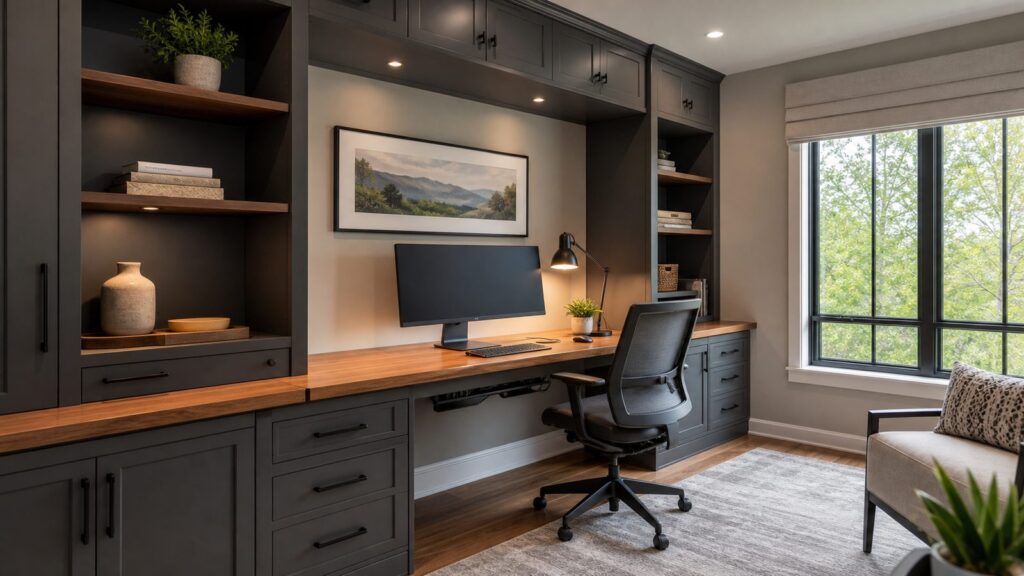
Built-ins are where a home office starts to feel permanent. They also drive cost. Built-in bookshelves commonly run around $300 to $850 per linear foot installed, with many projects totaling $2,000 to $7,500. Larger office walls with drawers, doors, lighting, and hidden wiring can reach $10,000 to $25,000.
Also popular on Amazon

- Keep Your Desk Organized: By lifting screen off the desktop, this monitor arm opens up valuable space for your keyboard, notebook, docking station or a simple, clutter-free work area. Built-in cable management guides wires along the arms, keeping cords out of sight and out of the way. Enjoy a tidy, modern workstation that looks as good as it feels to use.
- Wide Compatibility: WALI single monitor arm is designed to fit most flat or curved LCD/LED screens up to 34", regular screen up to 32 inch, max load capacity 26.4 lbs for flat screens and 19.8 lbs for curved screens, with standard Mounting Pattern mounting holes 75x75mm and 100x100mm. Be sure to verify your monitor’s VESA pattern, size, and weight before purchasing to ensure a perfect fit.
- Full Motion for Ergonomic Comfort: WALI single vesa monitor mount allows to extend your screen out by 19.3" and raise the arm up to 17.3" above the desktop. It swivels +180°/-180°, tilts +70°/-45°and rotates 360°. Whether you’re working from home, gaming through the night, or switching between video calls and documents, getting the screens to your natural line of sight helps relieve neck, shoulder and back strain so you can stay focused longer with less fatigue.
- Engineered for Lasting Performance: This adjustable monitor stand features wider VESA head and tighter-fitting VESA panel to enhance stability and keep your monitor firmly in place. The high-performance durable core has been tested through 20,000+ cycles, delivering smooth, effortless adjustments and dependable performance for years of daily use.
- Two Ways to Install: We offer two desk mounting options: C-clamp mounting for desks 0.39″–2.76″ thick, or grommet base mounting for desks 0.39″–2.76″ thick. With straightforward instructions, you can set up your monitor arm effortlessly, making it a hassle-free addition to your desk. We only recommend installing it on a wooden desk, preferably with no crossbeam blocking the underside.
16. Build wall-to-wall storage
A full office wall with lower cabinets, open shelves, and a centered desk creates a clean, efficient workspace. We usually recommend closed lower storage because office supplies rarely look good all day.
17. Use adjustable shelves
Fixed shelves look clean, but adjustable shelves age better. They let the office handle books, binders, printers, decor, and future storage needs.
Free tools Windows power users keep installed
One-click scans. No signup required.
18. Add closed cabinets below desk height
Lower doors and drawers hide paper, cords, tax files, batteries, and supplies. This is one of the most useful upgrades in real homes.
19. Include grommets in the desktop
A simple 2- to 3-inch grommet keeps monitor, lamp, and charger cords from spilling over the front edge.
20. Use removable back panels
If a cabinet hides outlets, ethernet, or low-voltage gear, removable panels save headaches later.
21. Vent equipment cabinets
Printers, modems, routers, and battery backups generate heat. Use vent slots, grille panels, or open backs so equipment does not cook inside a closed cabinet.
What’s actually slowing this PC down?
Pick the symptom - the matching free tool is one click away.
22. Add integrated shelf lighting
low-voltage LED strips can make built-ins look finished and improve video-call backgrounds. Plan wiring before cabinets are installed.
23. Mix paint-grade and stain-grade materials carefully
Paint-grade MDF and plywood are common for built-ins. Stain-grade hardwood costs more and requires better material selection because grain and seams are visible.
24. Use wall blocking for heavy shelves
If walls are open, add blocking where shelves, rails, and upper cabinets will land. It is cheap during framing and expensive later.
25. Avoid odd custom dimensions that hurt resale
A built-in designed only for one unusual desk chair, printer, or monitor size can become a liability. Keep openings generous.
Do these 3 things before closing this tab:
1Scan for outdated or missing drivers - takes under a minute2Clear out junk files and repair common Windows errors3Fix the driver behind crashes, sound loss and screen glitchesLighting and Electrical Ideas
Lighting and power are the parts homeowners underestimate most. OSHA’s computer workstation guidance cites general office lighting around 20 to 50 foot-candles for many tasks, with higher levels often needed for LCD monitor work. In practice, we layer light so the room works in morning, afternoon, evening, and on camera.
26. Place monitors perpendicular to windows
This reduces glare and eye strain. Avoid placing the screen directly in front of a bright window or with a bright window behind you.
27. Layer ambient, task, and background light
Use ceiling lighting for general brightness, a desk lamp for paperwork, and softer background light for video calls.
28. Add dimmers
Dimmers help balance screen brightness and room light throughout the day. Use dimmer-compatible LED fixtures.
Crashes, No Sound, or Screen Glitches?
Random freezes, missing sound and display glitches usually trace back to one bad driver. Find and replace yours safely.Free scan · under a minutePC Slower Than It Used to Be?
A free scan shows the junk files, broken settings and background clutter dragging Windows down - then fixes them in one click.Free scan · Windows 10 & 1129. Install desk-height outlets
Outlets 30 to 42 inches above the floor behind a desk reduce cord clutter. Adding or relocating outlets usually requires an electrical permit.
30. Add more outlets than minimum code
Printers, monitors, chargers, speakers, task lights, standing desks, and network gear add up quickly. When walls are open, extra receptacles are cheap insurance.
31. Plan a charging drawer
A drawer with a listed power unit keeps phones, tablets, and headphones off the work surface. Use products designed for enclosed furniture, not loose extension cords.
Also popular on Amazon

- Ultrawide Compatibility: The ErGear heavy-duty monitor arm is compatible with most 13″–34″ flat or curved monitors up to 19.8 lbs with VESA mounting patterns 75x75mm or 100x100mm. Please verify the screen size, weight, and VESA pattern of your monitor before purchase.
- Engineered for Lasting Performance: This adjustable monitor arm features a 40% wider VESA head and a tighter-fitting VESA panel to enhance stability and keep your monitor firmly in place. The high-performance durable core has been tested through 20,000+ cycles, delivering smooth, effortless adjustments and dependable performance for years of daily use.
- Full Motion Flexibility: This premium VESA monitor mount delivers precise height adjustment up to 17.5″ and reach up to 18.1″, helping you achieve the perfect eye-level position to reduce neck and shoulder strain. It features +80°/-50° tilt, ±90° swivel, and 360° rotation, so you can always find your ideal viewing angle.
- Streamlined Finish with Cable Management: The upgraded cable clips open easily with no tools required, making cable organization faster and more convenient. This monitor arm lifts your screen to free up desk space while keeping cables tidy, helping you stay focused and productive in a clean, clutter-free workspace.
- Quick Setup with Tool-Free VESA Mounting: Set up in just three easy steps! Our computer monitor mount upgraded VESA plate enables tool-free mounting, saving time and avoiding complex installation. We offer two desk mounting options: C-clamp mounting for desks 0.39″–2.56″ thick, or grommet base mounting for desks 0.39″–2.95″ thick.
32. Add ethernet for stable calls
Wi-Fi is convenient, but hardwired ethernet is still better for video calls, large uploads, and basement offices.
Quick wins for a faster PC:
Scan for outdated or missing drivers - takes under a minuteDriver Scan →Repair Windows errors before they cause bigger problemsFix Now →Fix the driver behind crashes, sound loss and screen glitchesFind Drivers →33. Consider a dedicated circuit
A high-load office with multiple monitors, printer, shredder, networking gear, and supplemental lighting may justify a dedicated circuit. Space heaters are a warning sign that comfort and electrical load both need review.
34. Use floor outlets carefully
Floor outlets can work for floating desks, but they must be listed for floor use and installed correctly. This is a licensed-electrician item.
35. Hide cables with real pathways
cable trays, raceways, grommets, and in-wall rated wiring all beat a tangle of cords. Do not run standard power cords inside walls.
Ergonomic Home Office Ideas
A beautiful office that hurts your neck is a failed office. Mayo Clinic recommends the monitor directly behind the keyboard, roughly an arm’s length away, about 20 to 40 inches from the face, with the top of the screen at or slightly below eye level.
The Tool Desk
Outbyte PC Repair FREEClear out junk files and repair common Windows errorsFree Scan →Outbyte Driver Updater FREEFix the driver behind crashes, sound loss and screen glitchesFind Drivers →36. Size the desk to the work
For laptop-only work, 24 by 48 inches may be enough. For dual monitors and paperwork, 30 by 60 inches is more realistic.
37. Use an adjustable chair
Budget at least $250 to $800 for a quality ergonomic chair. It matters more than most decorative upgrades.
38. Keep feet supported
Your feet should rest flat on the floor or on a footrest. This is especially important with built-in desks that are not adjustable.
39. Build the desktop at the right height
Standard desk height is about 29 to 30 inches, but the best height depends on the user. For custom built-ins, measure before construction.
The Tool Desk
Outbyte PC Repair FREEClear out junk files and repair common Windows errorsFree Scan →Outbyte Driver Updater FREEScan for outdated or missing drivers - takes under a minuteDriver Scan →40. Add a sit-stand option
A sit-stand desk or desktop riser can reduce long static posture. Make sure nearby outlets and monitor cables allow movement.
41. Leave enough chair clearance
Plan at least 30 inches of width for the chair opening and 36 inches behind the chair where possible.
42. Use keyboard trays only when they fit the user
Keyboard trays can help, but cheap trays wobble and steal knee space. Test dimensions before committing to a built-in.
43. Reduce hard reflections
Glossy desktops and bright white walls can bounce light into your eyes. Use softer finishes near the monitor.
Do these 3 things before closing this tab:
1Repair Windows errors before they cause bigger problems2Scan for outdated or missing drivers - takes under a minute3Clear out junk files and repair common Windows errors44. Keep frequently used items within reach
Place printer paper, chargers, notebooks, and reference files within one turn of the chair. The office should support repeated daily motion.
45. Add a secondary reading chair
If space allows, a lounge chair and small table create a useful zone for calls, reading, or reviewing plans away from the screen.
Quiet Office and Video-Call Ideas
46. Seal air gaps first
Sound travels through gaps. door sweeps, weatherstripping, and sealed penetrations are inexpensive first moves before opening walls.
47. Upgrade to a solid-core door
A solid-core door can make a noticeable difference for calls and concentration. It is often the best cost-to-benefit sound upgrade.
48. Add soft finishes
Rugs, curtains, upholstered chairs, fabric panels, and bookshelves reduce echo. They do not fully soundproof a room, but they improve call quality.
49. Use acoustic panels where calls happen
Place panels on the wall opposite the desk or beside the speaking position. Avoid turning the room into a recording booth unless that is truly the use.
Also popular on Amazon

- Ergonomic Design: This Acer monitor mount supports monitors 17"-34", weighing 4.4–19.8 lbs (2–9 kg), compatible with VESA 75×75mm & 100×100mm. Perfect for home or office setups, this monitor arm is ergonomically designed to improve posture, reduce eye and neck strain, and enhance your viewing comfort.
- Full Motion Adjustability: Enjoy tilt -60° to +90°, swivel ±90°, and 360° rotation for total flexibility. The monitor can be raised up to 18.1" from the desk with our acer adjustable monitor mount, allowing one-hand adjustment without repeated screwing. Our single monitor mount works comfortably in any position, from sitting to standing. 📌𝐍𝐨𝐭𝐞: 𝐆𝐚𝐬 𝐬𝐩𝐫𝐢𝐧𝐠 𝐚𝐫𝐦𝐬 𝐚𝐝𝐣𝐮𝐬𝐭 𝐡𝐞𝐢𝐠𝐡𝐭 𝐛𝐲 𝐭𝐮𝐧𝐢𝐧𝐠 𝐭𝐡𝐞 𝐭𝐞𝐧𝐬𝐢𝐨𝐧 𝐬𝐜𝐫𝐞𝐰—𝐢𝐧𝐜𝐫𝐞𝐚𝐬𝐞 𝐭𝐞𝐧𝐬𝐢𝐨𝐧 𝐟𝐨𝐫 𝐡𝐞𝐚𝐯𝐢𝐞𝐫 𝐦𝐨𝐧𝐢𝐭𝐨𝐫𝐬, 𝐝𝐞𝐜𝐫𝐞𝐚𝐬𝐞 𝐟𝐨𝐫 𝐥𝐢𝐠𝐡𝐭𝐞𝐫 𝐨𝐧𝐞𝐬.
- Superior Strength & Stability: Made with automotive-grade pneumatic spring cores, this monitor arms has passed 20,000 motion tests and is 80% sturdier than typical arms, ensuring stability for years of daily use. Heavy-duty construction prevents sagging or wobbling, even with larger monitors. Balance Your Monitor Easily – Use the tension screw to fine-tune the gas spring. Tighten if the monitor drops, loosen if it rises, ensuring smooth and stable positioning.
- Flexible Mounting Options: Choose between a C-clamp or grommet mount. The computer monitor arm is compatible with 𝐝𝐞𝐬𝐤𝐬 𝟏𝟓–𝟖𝟎 𝐦𝐦 𝐭𝐡𝐢𝐜𝐤 (𝟎.𝟓𝟗"–𝟑.𝟏𝟓"), and wood desktops are recommended. This setup is perfect for various office and gaming environments. 📌 𝐍𝐨𝐭𝐞: 𝐍𝐨𝐭 𝐫𝐞𝐜𝐨𝐦𝐦𝐞𝐧𝐝𝐞𝐝 𝐟𝐨𝐫 𝐝𝐞𝐬𝐤𝐬 𝐰𝐢𝐭𝐡 𝐝𝐨𝐮𝐛𝐥𝐞 𝐬𝐡𝐞𝐥𝐯𝐞𝐬, 𝐞𝐧𝐜𝐥𝐨𝐬𝐞𝐝 𝐛𝐚𝐜𝐤 𝐩𝐚𝐧𝐞𝐥𝐬, 𝐨𝐫 𝐜𝐮𝐫𝐯𝐞𝐝 𝐞𝐝𝐠𝐞𝐬 𝐰𝐡𝐞𝐫𝐞 𝐭𝐡𝐞 𝐜𝐥𝐚𝐦𝐩 𝐜𝐚𝐧𝐧𝐨𝐭 𝐟𝐮𝐥𝐥𝐲 𝐠𝐫𝐢𝐩.
- Quick & Easy Installation: The one-piece design allows installation in just 5 minutes. Hardware is included: First, mount the Base to your desk. Second, mount the lower and upper arm. Third, attach your monitor to the VESA plate and adjust the tension according to the monitor's weight. No extra tools or repeated adjustments needed. 📌𝐍𝐨𝐭𝐞: 𝐌𝐚𝐤𝐞 𝐬𝐮𝐫𝐞 𝐭𝐡𝐞 𝐣𝐨𝐢𝐧𝐭𝐬 𝐚𝐧𝐝 𝐭𝐞𝐧𝐬𝐢𝐨𝐧 𝐚𝐫𝐞 𝐚𝐝𝐣𝐮𝐬𝐭𝐞𝐝 𝐚𝐟𝐭𝐞𝐫 𝐦𝐨𝐮𝐧𝐭𝐢𝐧𝐠 𝐟𝐨𝐫 𝐛𝐞𝐬𝐭 𝐬𝐭𝐚𝐛𝐢𝐥𝐢𝐭𝐲.
50. Consider wall and ceiling assemblies for serious isolation
If the office shares a wall with a playroom, media room, or garage, real sound control may involve insulation, resilient channel, double drywall, acoustic sealant, and door upgrades. This is contractor-level work.
51. Design a camera-ready background
Place the desk so the camera sees shelves, art, paneling, or a clean wall instead of a closet, bed, or kitchen traffic.
52. Add front-facing light for video
A soft light in front of your face looks better than a bright ceiling light overhead. Built-in shelf lights should support the shot, not dominate it.
53. Keep the background 4 to 8 feet behind you
A little distance creates depth on camera and reduces the cramped look common in small offices.
54. Use a matte wall finish behind the desk
Matte paint, wood slats, wallpaper, or panel molding reads better on camera than glossy paint.
55. Add a privacy lock where appropriate
For client calls, payroll work, legal documents, or telehealth appointments, privacy matters. A simple lockset can make the office feel more professional.
Recommended Free Tools
Guest Room, Family, and Shared Office Ideas
56. Use a Murphy bed in a guest office
A Murphy bed keeps the room useful most of the year. Confirm wall attachment, floor clearance, and electrical conflicts before installation.
57. Choose a daybed instead of a full bed
A daybed can preserve more office floor space while still handling overnight guests.
58. Build a two-person desk wall
For two users, plan at least 48 inches of width per station. More is better if both people use monitors.
59. Separate work zones by task
Instead of assigning every inch by person, create a focus desk, printer station, file area, and storage landing zone.
60. Add a kitchen command center
A 30- to 42-inch-wide command center near the kitchen can handle calendars, school forms, mail, and bill paying without pretending to be a full-time office.
61. Use lockable storage
Shared offices need a place for tax files, business paperwork, passports, and client documents. Lockable drawers are inexpensive compared with replacing lost records.
62. Include a printer alcove
Printers are bulky and noisy. Give them a dedicated surface, paper storage, and an outlet instead of sacrificing the main desk.
63. Add a homework bar
A counter-height or desk-height run with two stools can support kids’ homework without taking over the main office.
Basement, Attic, Garage, and Addition Ideas
These projects are where permit and code review matter most. The 2024 IRC includes habitable-room provisions that can affect finished basements, attics, and enclosed rooms, including ceiling height, light, ventilation, heat, emergency escape and rescue openings, and local amendments. Requirements vary by jurisdiction, so confirm before building.
64. Finish a basement office with moisture control first
Do not install flooring, drywall, or cabinets until water issues are solved. Look for seepage, condensation, grading problems, and sump reliability.
Also popular on Amazon

- 2026 New-Generation Mechanical Spring: Upgraded from traditional gas spring arms to a precision mechanical spring system for smoother movement, stable support, and long-term daily use. No gas leakage concern and less sagging over time.
- Supports Monitors up to 32 Inches: Designed for most flat and curved monitors up to 32 inches with standard VESA 75x75mm and 100x100mm mounting patterns. A slimmer arm design helps save desk space and reduce wall-blocking issues.
- Easy 3-Step Installation: No complicated assembly required. Includes C-clamp and grommet mounting options, making it easy to install on most desks and set up your monitor arm in minutes.
- Smooth & Flexible Screen Adjustment: Enjoy ±90° rotation, -25° to 90° tilt, swivel adjustment, and 230mm height travel. Easily move your screen to the ideal position for working, studying, gaming, or home office use.
- Ergonomic Viewing Comfort: Lift your monitor to a more natural eye level to help improve posture and create a cleaner workspace. Ideal for home offices, business workstations, study rooms, and multi-screen desk setups.
65. Add basement egress when required
If a basement office is part of a larger finished space or could be used as sleeping space later, egress rules may apply. This is not a guesswork item.
66. Improve basement ceiling acoustics
Insulation between joists, sealed gaps, and a finished ceiling can reduce noise from the floor above. Recessed lights and ductwork need careful detailing.
67. Convert an attic only after checking structure and HVAC
Attics often need structural review, insulation, ventilation, stairs, ceiling-height confirmation, and heating and cooling upgrades.
68. Treat garage conversions as major remodels
Garage offices can require slab moisture work, insulation, electrical upgrades, HVAC, fire separation review, windows, and sometimes zoning approval.
69. Add a detached office for true separation
A backyard office can work well for client calls or focused work, but utilities, foundation, setbacks, permits, insulation, and internet service make it a real construction project.
70. Build an addition only when interior options fail
An office addition can cost roughly $80 to $200 per square foot or more. It makes sense when the home lacks a spare room and the new space improves the overall floor plan.
Quick wins for a faster PC:
Clear out junk files and repair common Windows errorsFree Scan →Scan for outdated or missing drivers - takes under a minuteDriver Scan →Repair Windows errors before they cause bigger problemsFix Now →When to DIY vs. When to Hire a Pro
DIY is reasonable for furniture, paint, freestanding shelves, cord organizers, curtains, rugs, basic acoustic panels, lamps, monitor arms, and storage bins. Most homeowners can handle these upgrades in a weekend or two with a budget under $3,000.
Hire a licensed electrician for new circuits, relocated outlets, desk-height receptacles, floor outlets, hardwired lighting, panel concerns, and in-wall cable routing. Offices often combine monitors, printers, chargers, standing desks, lighting, and network equipment, so old rooms with limited receptacles can become overloaded.
Bring in a contractor for framing, wall removal, basement finishing, attic conversions, garage conversions, door or window changes, HVAC changes, custom cabinetry tied into wiring, soundproof wall assemblies, and any project that may affect fire separation, structure, moisture, or egress. On our job sites, the smoothest office remodels happen when the electrical plan, cabinet plan, lighting plan, and furniture dimensions are coordinated before rough-in.
Final Planning Checklist
Measure the room before buying furniture. Confirm desk width, chair clearance, outlet locations, monitor placement, window glare, door swing, storage needs, and camera background. Then decide whether the work is a refresh, a built-in project, or a true remodel.
Free tools Windows power users keep installed
One-click scans. No signup required.
The best home office ideas are not just attractive. They make the room easier to work in every day, safer to power, quieter to use, and flexible enough to serve the next homeowner. That is where good design and good construction meet.
Frequently Asked Questions
How much does it cost to remodel a home office in 2026?
A simple existing-room setup often costs $500 to $3,000 for furniture, paint, lighting, storage, and cord management. Contractor-led home office remodels commonly range from about $2,000 to $20,000, or $50 to $200 per square foot. Built-in office projects often run $10,000 to $25,000, while complex basement, attic, garage, soundproofing, or addition projects can reach $25,000 to $50,000 or more.
Do I need a permit to build or remodel a home office?
Furniture, paint, curtains, freestanding shelves, and most decor changes usually do not need a permit. Electrical work, new circuits, relocated outlets, hardwired lighting, framing, basement finishing, attic conversion, garage conversion, window changes, HVAC work, and additions often require permits. Local rules vary, so check with your building department before construction.
What is the best size for a home office desk?
For laptop work, a 24-by-48-inch desk can work. For dual monitors, paperwork, and daily professional use, a 30-by-60-inch desk is usually more comfortable. Leave about 36 inches behind the chair where possible, and plan at least a 30-inch-wide knee opening for built-in desks.
PC Slower Than It Used to Be?
A free scan shows the junk files, broken settings and background clutter dragging Windows down - then fixes them in one click.Free scan · Windows 10 & 11Crashes, No Sound, or Screen Glitches?
Random freezes, missing sound and display glitches usually trace back to one bad driver. Find and replace yours safely.Free scan · under a minuteWhere should I place my desk in a home office?
Place monitors perpendicular to windows when possible to reduce glare. Avoid facing a bright window directly or sitting with a bright window behind you during video calls. Also consider outlet locations, door swing, camera background, and whether the chair has enough room to move.
Are built-ins worth it for a home office?
Built-ins are worth it when you need durable storage, a polished video background, or a permanent work zone. They are less ideal if they make the room hard to reuse as a bedroom or guest room. The best built-ins include adjustable shelves, closed lower cabinets, vented equipment storage, grommets, and access panels for wiring.
How can I make a home office quieter?
Start by sealing air gaps, adding a door sweep, and upgrading to a solid-core door. Then add soft finishes such as rugs, curtains, upholstered furniture, bookshelves, and acoustic panels. For serious isolation, hire a contractor to evaluate wall and ceiling assemblies, insulation, resilient channel, double drywall, and acoustic sealant.
Quick Recap
Product prices and availability are accurate as of the date/time indicated and are subject to change. Any price and availability information displayed on Amazon at the time of purchase will apply.
What’s actually slowing this PC down?
Pick the symptom - the matching free tool is one click away.

