Free tools Windows power users keep installed
One-click scans. No signup required.
If your Ring Doorbell is making an unwanted sound indoors, first identify which device is producing it. The noise may come from a traditional wired chime, a plug-in Ring Chime, an Amazon Echo, or the Ring app on a phone. Each has a separate control.
For a compatible wired installation, open the Ring app → Menu → Devices → your doorbell → Device Settings → In-home Chime Settings. Select the correct chime type, turn off the in-home doorbell chime, tap Save, wait a few minutes, and test the doorbell.
As an Amazon Associate I earn from qualifying purchases.
Find the source of the sound first
| Sound source | Use this control |
|---|---|
| Wall-mounted mechanical or digital chime | In-home Chime Settings in the Ring app |
| Plug-in Ring Chime, Chime Pro, or Chime (3rd Gen) | Chime Snooze or Linked Chimes |
| Phone or tablet | App Alert Tones or the device’s notification settings |
| Amazon Echo | Doorbell Press Notifications in the Alexa app |
Turning off one source does not automatically silence the others. Ring documents these as separate settings in its in-home chime guidance and alert settings guidance.
The Tool Desk
Outbyte Driver Updater FREEFix the driver behind crashes, sound loss and screen glitchesFind Drivers →Outbyte PC Repair FREEClear out junk files and repair common Windows errorsFree Scan →Turn off a traditional wired indoor chime
Use these steps when the sound comes from a mechanical or digital chime physically connected to the doorbell wiring:
#1 Best Overall
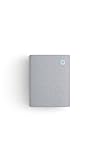
- Hear when someone's there — Receive notifications when motion is detected by your cameras or someone rings your doorbell.
- Real-time alerts, clear as a bell — With an upgraded speaker, get notified throughout your home with louder, clearer alerts.
- Set up in a snap — Simply plug Chime (3rd Gen) into a standard wall outlet for easy setup.
- Sleek, elegant design — Curved edges and slim profile create a modern look that fits your space.
- Customizable sound profiles — Personalize tones, volume, and snooze settings.
- Open the Ring app.
- Tap ☰ Menu.
- Tap Devices.
- Select the relevant doorbell.
- Tap Device Settings.
- Tap In-home Chime Settings.
- Choose the actual Chime Type: Mechanical, Digital, or None.
- Turn off the in-home doorbell chime toggle.
- Tap Save.
Allow several minutes for the setting to reach the doorbell. Then press the doorbell once and check that the wall-mounted chime remains silent. Also confirm that the doorbell still sends the alerts you want, such as phone notifications, recording, motion detection, and Live View.
Do not select a random chime type
Choose the setting that matches the hardware actually installed. Ring warns that an incorrect mechanical or digital configuration can cause buzzing, partial ringing, or failure to ring. Do not choose None merely because you want silence; use it only when the installation has no compatible in-home chime or Ring’s model-specific instructions require it.
Temporarily silence a Ring Chime or Chime Pro
A plug-in Ring Chime is separate from the wired chime inside the wall. To silence it temporarily:
Windows Errors? Fix Them Before They Spread
Repair common Windows errors and clear accumulated junk for a smoother, more stable PC - no reinstall needed.Free scan · no reinstallCrashes, No Sound, or Screen Glitches?
Random freezes, missing sound and display glitches usually trace back to one bad driver. Find and replace yours safely.Free scan · under a minute- Open the Ring app and tap the Chime or Chime Pro tile.
- Tap Device Settings.
- Tap Chime Snooze.
- Choose a preset Snooze Duration and save it.
To restore the sound, return to Device Settings → Chime Snooze, tap Turn off Snooze, and save. Snooze is intended for temporary quiet—for example, during a meeting or overnight—not necessarily for permanently removing the Chime’s alert relationship. See Ring’s instructions for linking and snoozing Chimes.
Stop one Ring Chime from responding to a particular doorbell
To keep a Chime active for other devices but stop it responding to one doorbell:
Rank #2
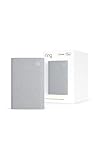
- Sound the alarm on all your devices — Sync Chime Plus with Ring sensors built on Amazon Sidewalk, cameras, and doorbells for comprehensive security you can hear from anywhere. (Coverage may vary by location and is subject to change or interruption.) (Chime Plus is designed to integrate with Ring Sensors connected to Amazon Sidewalk. Please verify your Ring device compatibility before purchase.)
- Set custom schedules for Chime audio alerts and lighting — Control when you hear alerts and when the night-light activates to match your daily routine.
- Personalized tones. Precision audio alerts. — Set a custom tone for each of your Ring devices so you know exactly which one was triggered the moment your Chime Plus sounds.
- Enhanced audio for true sound — Hear every alert no matter where you are with improved audio for crisp clarity and loudness.
- A guiding light that’s easy on the eyes — Illuminate hallways, rooms, and more with the built-in night-light.
- Open the Ring app and tap ☰ Menu → Devices.
- Select the doorbell.
- Open Linked Chimes.
- Remove or disable the doorbell’s Rings alert for that Chime.
- Save the change.
Depending on the app version, you may reach the same controls by starting from the Chime device tile. Ring allows separate controls for doorbell-ring and motion events, so you can stop motion sounds while retaining doorbell-ring sounds.
Stop an Echo from announcing the doorbell
If an Echo is speaking or playing a tone, change Alexa’s settings—not the Ring doorbell’s in-home chime setting:
Do these 3 things before closing this tab:
1Clear out junk files and repair common Windows errors2Fix the driver behind crashes, sound loss and screen glitches3Repair Windows errors before they cause bigger problems- Open the Alexa app.
- Tap Devices.
- Select the relevant Ring doorbell or camera.
- Turn off Doorbell Press Notifications.
- If motion announcements are also unwanted, turn off Motion Announcements.
Alexa announcements are managed separately, and each Echo may need its own configuration. If the Ring device does not appear, check that Alexa is signed in with the Amazon account linked to the Ring account. Ring’s guidance is available for Alexa announcements and account linking.
Turn off the Ring app’s sound on a phone
If the unwanted noise comes from your smartphone:
- Open the Ring app.
- Tap ☰ Menu → Alert Settings.
- Tap App Alert Tones.
- For a doorbell, choose Ring Alerts.
- Change the tone or disable the relevant notification in the phone’s operating-system settings.
This affects that phone only. Other household members’ phones, physical chimes, Echo devices, and Ring Chimes can continue to alert unless you change their settings separately.
When there is no in-home chime setting
The missing toggle may be normal for your model or installation. Ring’s current support information identifies these products as not supporting a traditional in-home chime:
Rank #3

- Hear doorbell alerts throughout your home — Bundle Battery Doorbell (2nd Gen), Speckled Gray and Chime (3rd Gen), White, to get notified inside when someone rings your doorbell or motion is detected.
- Retinal 2K with up to 6x Enhanced Zoom — From wide views to tighter focus, clarity stays intact with every pinch and zoom.
- Connect to who’s there — See, hear, and speak to anyone at your front door in real time with Live View and Two-Way Talk.
- Easily recharge your front door security — Simply insert the included removal tool to detach your Battery Doorbell (2nd Gen) from the wall, then recharge the built-in battery via USB-C.
- Real-time alerts, clear as a bell — With Chime’s upgraded speaker, get notified throughout your home with louder, clearer alerts.
- Video Doorbell Wired
- Wired Doorbell Plus (2nd Gen)
- Wired Doorbell Pro (3rd Gen), except when powered by PoE
- Peephole Cam / Door View Cam
These installations may use a Ring Chime, Chime Pro, Alexa, or, where applicable, Chime Kit Mini. Battery-powered doorbells can sometimes connect to an existing chime, but Ring does not expose the same documented on/off flow for every battery model. Identify the exact model in the Ring app before changing settings or wiring.
Chime Kit Mini installations
Ring says the Wired Doorbell Plus (2nd Gen) and wired Wired Doorbell Pro (3rd Gen) require the included Chime Kit Mini or a bypassed existing chime. The kit replaces the original in-home chime functionality and provides a single preset ringtone. The PoE version of the Wired Doorbell Pro (3rd Gen) can connect to an existing internal chime and does not require Chime Kit Mini.
Read Ring’s Chime Kit Mini requirements and wiring guidance for your model. A Ring Chime (3rd Gen) may be a suitable dedicated indoor alert where the existing chime is incompatible; Chime Pro is mainly worthwhile when you also need its Ring-device Wi-Fi coverage extension or nightlight. Neither product creates complete silence unless the other alert sources are disabled.
Troubleshooting: the chime still rings
- Check the selected device. Make sure you changed the settings for the doorbell that is actually connected to the chime.
- Check the setting. App Alert Tones affect a phone; they do not necessarily disable a wired chime.
- Check the chime type. Confirm that Mechanical or Digital matches the hardware.
- Confirm that you saved. Wait several minutes after saving before testing.
- Check connectivity. The doorbell should be online, and Live View should work.
- Look for another sound source. Test every Ring Chime, Echo, phone, and tablet separately.
- Check for multiple physical chimes. One setting may not explain every wall-mounted chime in the property.
- Check the model and power method. A newer wired model may require Chime Kit Mini, while a Plug-In Adapter or direct-transformer installation may not have a traditional chime to control.
If the chime buzzes, rings only partially, or stops working after configuration, recheck the chime type and installation instructions. Do not keep experimenting with wiring to solve what may be an app-setting issue.
Independent reader supportYour contribution helps us test, update, and keep practical guides available for everyone.Safety before touching doorbell wiring
Muting a compatible chime should normally be done in the app. If your installation requires a bypass or Chime Kit Mini wiring, turn off power at the circuit breaker first and follow the instructions for the exact model. Ring’s documented bypass involves disconnecting the TRANS and FRONT wires and connecting them with the included wire nut. If you are unsure about the transformer, voltage, wiring, multiple chimes, or power isolation, use a qualified electrician. This is especially important for renters or unfamiliar installations.
Quick wins for a faster PC:
Repair Windows errors before they cause bigger problemsFix Now →Fix the driver behind crashes, sound loss and screen glitchesFind Drivers →Rank #4

- Hear doorbell alerts throughout your home — Bundle Battery Doorbell (2nd Gen), Matte Mocha and Chime (3rd Gen), White, to get notified inside your house when someone rings your doorbell or motion is detected.
- Retinal 2K with up to 6x Enhanced Zoom — From wide views to tighter focus, clarity stays intact with every pinch and zoom.
- Connect to who’s there — See, hear, and speak to anyone at your front door in real time with Live View and Two-Way Talk.
- Easily recharge your front door security — Simply insert the included removal tool to detach your Battery Doorbell (2nd Gen) from the wall, then recharge the built-in battery via USB-C.
- Real-time alerts, clear as a bell — With Chime’s upgraded speaker, get notified throughout your home with louder, clearer alerts.
What remains active after muting?
The result depends on the control you change:
- Turning off a compatible wired in-home chime normally silences that physical chime, not the doorbell itself.
- Chime Snooze silences the selected Ring Chime for the chosen period.
- Unlinking a Chime affects that Chime’s alerts for the selected doorbell.
- Disabling Alexa notifications affects Echo announcements, not necessarily physical or phone alerts.
- Changing App Alert Tones affects the selected phone, not other household devices.
After every change, press the doorbell once and identify which sources still respond. That confirms whether you muted the intended device without disabling the features you want to keep.
Frequently Asked Questions
Will turning off the Ring indoor chime stop recording?
No. Turning off the compatible wired in-home chime is intended to silence that sound source; it does not by itself turn off the doorbell, recording, motion detection, Live View, or every other alert source.
Can I silence a Ring Chime only at night?
Yes. Use Chime Snooze on the Chime or Chime Pro and select the available snooze duration. Other phones, Echo devices, or physical chimes may still sound.
Why does my Echo still announce the doorbell?
Alexa announcements are controlled separately. In the Alexa app, open Devices, select the Ring device, and turn off Doorbell Press Notifications and, if needed, Motion Announcements.
Recommended Free Tools
Why is there no in-home chime toggle?
Your model or installation may not support a traditional chime, or the sound may come from a Ring Chime, Alexa, or phone. Identify the exact model and power method before changing wiring.
Quick Recap
Product prices and availability are accurate as of the date/time indicated and are subject to change. Any price and availability information displayed on Amazon at the time of purchase will apply.

