You can turn a usable old tablet into a smart-home display hub by running a dedicated Home Assistant dashboard on it. The tablet provides the screen and touch controls; Home Assistant continues to run on a separate server. For a dependable result, test the tablet first, create a restricted room-specific dashboard, choose Android or iPad kiosk controls, and install safe power and mounting hardware.
Yes—you can turn a usable old tablet into a practical smart-home display hub, but the tablet is only the screen and touch-control endpoint. Home Assistant still needs to run on separate hardware such as Home Assistant Green, a Raspberry Pi, a small computer, a NAS, or another supported host. The most reliable general-purpose setup is a dedicated Home Assistant dashboard, a restricted user account, safe continuous power, and a kiosk-style configuration that prevents the tablet from wandering into other apps.
As an Amazon Associate I earn from qualifying purchases.
For most homes, Android offers the most flexible dedicated-wall-panel setup. The Home Assistant Companion app can become the tablet’s default home app, and Android also supports app pinning and optional kiosk software. An iPad is still a good control panel, particularly when Guided Access and Home Assistant’s iOS kiosk features meet your needs.
Windows Errors? Fix Them Before They Spread
Repair common Windows errors and clear accumulated junk for a smoother, more stable PC - no reinstall needed.Free scan · no reinstallCrashes, No Sound, or Screen Glitches?
Random freezes, missing sound and display glitches usually trace back to one bad driver. Find and replace yours safely.Free scan · under a minuteBefore you mount the tablet: check whether it is suitable
Do not begin by buying a mount. First test the exact tablet you plan to reuse. A device that works for occasional browsing may be a poor permanent wall panel if it cannot stay connected, charge safely, or run the required Home Assistant software.
#1 Best Overall

- Stronger & Sturdy: Our tablet wall mount base and arm are high-strength aluminum alloy, and the bracket clamp is made of ABS materials. It makes the tablet wall mount holder stronger and more sturdy, ensuring your tablet remains securely anchored. Note: Please use the hexagonal screws in the accessories to lock the 3 shafts, which can strengthen the stability of the product.
- Adjustable & 360° Rotating: The wall tablet holder with 360 degree metal swivel ballhead, allow you to easily adjust the tablet phone to hotizontal or vertical screen. Adjust and personalize your viewing preference with 360° rotation capability, allowing you to choose between portrait and landscape modes.
- Easy Installation: Depending on the installation method. Our wall bracket tablet holder can be adjusted at any Angle on the wall from left to right or from top to bottom 180°. The design of the steering ball allows our wall mount holder to hover according to any 360° you like. (Our product packaging includes two packs of screws and a small wrench to help you install, and you need to prepare your drilling tools.)
- Universal: The aluminum tablet wall mount is compatible with 4.7-13 inch mobile phones and tablet devices, such as iPad, iPad Pro, iPad Air, iPad Mini, iPhone 11/12/13/14/15/ProMax, Samsung Galaxy, Surface, Surface pro, Amazon Fire, Kindle Fire HD, Kindle Paper White, Switch, e-Readers, and so on.
- Mounted Places: The tablet holder wall mount installation method, choose the most ideal place to install, and use a pencil to mark the empty space at the hole of the wall mount. Take out the complimentary screws and expansion screws.Align the hole and hammer the expansion screw into the hole, and finally tighten the screw with a Phillips screwdriver to complete the installation. Don't forget to use the Allen wrench to adjust your favorite stance.
- Boot reliability: It should start consistently and recover after a restart or brief power interruption.
- Wi-Fi: Confirm that it can remain connected in the intended room, not just next to the router.
- Operating-system support: Check whether the tablet’s Android or iPadOS version can run the current Home Assistant Companion app or a supported browser.
- Touchscreen and charging port: Test every area of the screen and confirm that the charging connection does not disconnect when the cable is gently moved.
- Battery condition: Do not mount a tablet with a swollen, damaged, or unusually hot battery.
- Brightness: A dim display may be acceptable beside a bed but unreadable in a bright kitchen or hallway.
- Network access: Load your Home Assistant internal URL, or the remote URL you intend to use, from the tablet.
- Ownership status: Remove the former owner’s account and confirm that the device is not locked to an organization’s mobile-device-management profile.
Very old hardware can still handle a simple page of lights and temperature readings, but it may struggle with live camera feeds, animated cards, frequent reloads, or demanding custom browser components. Test your actual dashboard on the actual tablet before permanently mounting it.
What the finished system looks like
The tablet does not replace the Home Assistant server. Home Assistant runs the integrations, automations, device communication, and dashboards elsewhere; the tablet displays the result and sends touch commands back to the server.
If you do not already have a Home Assistant installation, you will need a supported host and compatible smart-home devices. Home Assistant Green is one possible dedicated host, but it is not required if Home Assistant already runs on a Raspberry Pi, small computer, NAS, or another supported system. The tablet project only makes sense once the tablet can reach that installation reliably.
Do these 3 things before closing this tab:
1Clear out junk files and repair common Windows errors2Scan for outdated or missing drivers - takes under a minute3Repair Windows errors before they cause bigger problemsBuild a dashboard specifically for the tablet
A wall-mounted control panel should not expose the full administrative interface. Create a dedicated Home Assistant user for the tablet and give it a dashboard designed for the room where it will live. This reduces clutter, makes controls easier to hit, and limits the consequences if someone gains physical access to the panel.
A useful room dashboard
Put the most important information and controls where a person can reach them without navigating through several screens:
- Status: Time, weather, alarm state, network connectivity, and urgent alerts.
- Lighting: The room’s lights, brightness controls, scenes, and perhaps a whole-home off button.
- Climate: Current temperature, humidity, thermostat target, operating mode, and fan status where applicable.
- Security: Lock status, doors, windows, motion sensors, and alarm state.
- Media: Now-playing information and basic playback controls if the room has a media player.
- Cameras: Only where the placement is appropriate and the display cannot be viewed by people who should not see the feed.
- Utilities: Energy consumption, solar generation, water-leak sensors, or appliance status.
Use large controls and avoid filling the first view with every entity in the house. A person standing in a hallway should be able to identify the room’s lights or door status immediately.
Choose a layout that suits the location
Home Assistant dashboards can contain multiple views and support layouts such as Sections, Masonry, Panel, and Sidebar. Use the layout according to the job:
| Layout approach | Good use | Watch out for |
|---|---|---|
| Sections | Grouped lights, climate, security, and utility controls on a modern tablet. | Too many cards can still make the page visually busy. |
| Masonry | A flexible collection of cards with different heights. | Controls may not appear in the same visual position on every screen size. |
| Panel | A single full-width card, such as a large camera, floor plan, or room control. | It is less suitable when you need several independent groups visible at once. |
| Sidebar | A wider tablet where persistent navigation is useful. | It consumes screen space and may be unnecessary for a simple kiosk. |
Configure the view’s title, icon, background, visibility rules, and subviews around the room rather than around Home Assistant’s internal organization. A kitchen display might prioritize scenes, lights, timers, and climate; an entryway display might prioritize locks, doors, cameras, and alarm status.
Rank #2

- ✅Install on any surface: Place your tablet or mobile phone in the most convenient location you want, no need to consider whether the surface is flat to meet your location requirements.
- ✅360° Rotation: The ball head of the tablet wall holder has a 360° rotation function and can be adjusted to the best viewing angle. The anti-slip rubber pad of the iPad wall holder protects your tablet from scratches and sliding, keeping your device safe.
- ✅Universal: Tablet wall mount is compatible with 5-13 inch devices, such as iPad Pro 12.9, iPad Pro 11, iPad 10.9/iPad 10th generation, iPad Air 5/4, iPad Pro 10.5/9.7, iPad Mini 6/5, Galaxy Tab S8 /S7, Kindle, Fire HD, iPhone 17 Pro Max, 16, 15, and other smartphones and tablets. 🚗The clip sides are 0.78 in (20mm) thick, allowing use without removing the tablet case.
- ✅Sturdy Wall Mount Tablet Holder: Mounts with screws (included), can be mounted on all vertical surfaces, walls, tables, shelves, cabinets, etc. 🚗You need to prepare your own drilling tools.
- ✅Multi-functional use: This iPad wall mount can be installed in classrooms, conference rooms, recording studios, food delivery, restaurant takeout orders, medical institutions to provide user-friendly interaction, virtual offices, gyms and other places. It is very convenient for both commercial and personal use.
Security warning: Hiding a dashboard tab does not make its URL inaccessible. Treat visibility settings as an interface convenience, not as a complete security boundary. Sensitive entities still need proper user permissions, and a wall tablet should not use an administrator account.
Android: the simplest dedicated-panel setup
Android is generally the most flexible choice for a permanent Home Assistant kiosk because the Companion app can be configured as the device’s default home app. That makes the tablet behave more like a dedicated appliance than a general-purpose tablet.
Basic Android setup
- Install the Home Assistant Companion app from the tablet’s supported app store.
- Connect the app to your Home Assistant instance and verify that the dashboard loads.
- Create a restricted Home Assistant user for the tablet. Do not use your administrator account.
- Choose or create the dashboard and view that should open on this device.
- Set that dashboard as the default dashboard for the tablet’s Home Assistant user.
- Set Home Assistant as the Android device’s default home app if the tablet and Android version support that option.
- In the Companion app, enable Keep screen on if you want the display continuously available.
- Set brightness and system screen-timeout behavior for the room. A permanently bright screen may be distracting at night and may increase heat and power use.
With Home Assistant set as the default home app, pressing the Home button returns to Home Assistant instead of the normal app drawer. The exact settings names and locations vary by Android version and tablet manufacturer.
Recommended Free Tools
Local push notifications
The Android and iOS Companion apps can use Local Push to deliver notifications over the local network through a persistent WebSocket connection rather than relying on Google Firebase Cloud Messaging or Apple Push Notification Service. This is useful for a local wall panel, but it requires the tablet to be connected through the configured internal URL. The persistent connection can use slightly more battery.
If local push is not working, first confirm that the tablet is on the expected Wi-Fi network and that the internal Home Assistant URL works in the app. Local push is not available when the necessary internal connection is not active.
Screen-on automations and their limitation
Home Assistant notification commands can turn an Android screen on or toggle Keep screen on. These commands do not remove the Android lock screen. That distinction matters: an automation can wake the display, but it should not be treated as permission to bypass device security.
Android app pinning
Android’s built-in app pinning can keep Home Assistant on screen until an authorized user unpins it. Depending on the Android release and manufacturer interface, the setting may be under a Security, Privacy, or Other security settings menu. Enable the option, launch Home Assistant, open the recent-apps screen, and select the pin option if it is available.
Configure Android to require the tablet’s PIN, pattern, or password before unpinning. App pinning is useful for light-duty kiosk use, but it does not provide motion wake, remote administration, custom screensavers, or full device-management controls.
Rank #3

- Tablet Wall Mount - Transform your tablet or phone into a mini TV by securely mounting it on the wall! This iPad wall mount meets all the requirements for convenient video viewing, saving space and effortlessly securing your tablet on the wall.
- Rotational & Adjustment - The ball head of the iPad wall holder offers a 360° rotation function, with both portrait and landscape modes available, allowing you to adjust the iPad wall mount holder to the viewing angle you want to meet your different needs.
- Universal - Compatible with 4.7-12.9-inch screen devices, including iPad Pro, iPad Air, iPad Mini, iPad, Galaxy Note Pro 12.2, Galaxy Tab 4, Galaxy Tab Pro 12.2, iPhone 17 Pro Max/ Pro/ air, 16 15 14 13 12 Pro Max/ Pro, iPhone 11, Galaxy S20, e-Readers, and more.
- Mount Anywhere - Tablet stand mount is designed with a 4-hole metal drilled base and uses screws for installation. It can be used for multifunctional installation in various locations such as walls, bathrooms, kitchens, conference rooms, warehouses, offices, gyms, etc.
- Sturdy Ipad Wall Mount Holder - The robust metal base provides a reliable foundation, and the non-slip, low-friction foam pads on the tablet holder ensure that your device stays securely in place.
Fully Kiosk Browser: when Android needs appliance-style controls
For a permanently mounted Android panel, Fully Kiosk Browser is an optional advanced route rather than a requirement. Its documented features include full-screen display, kiosk lockdown, motion detection, screensavers, remote administration, launch-on-boot behavior, JavaScript and REST interfaces, MQTT support, and controls that can restrict access to selected apps or a single app.
Fully is worth considering when you need:
- the screen to wake when someone approaches;
- a screensaver or scheduled screen-off period;
- remote administration of a mounted tablet;
- stronger blocking of settings, notifications, navigation controls, and other apps;
- launch-on-boot behavior after a restart; or
- JavaScript, REST, or MQTT integration with the surrounding system.
Fully’s documentation currently lists support for Android 6 through Android 16, but individual features can vary by device and Android release. Camera-based motion detection can increase battery use and may have problems on some devices, including certain devices running Android 14 or newer. Do not promise reliable motion wake until it has been tested on the exact tablet, camera, lighting conditions, and mounting position.
For one basic tablet, the free Home Assistant Companion approach and Android home-app mode may be enough. Fully Kiosk adds capability, but also another application, permissions, configuration layer, and potentially a license cost. The vendor describes its PLUS license as a one-time, per-device purchase and offers a separate optional Fully Cloud subscription; verify current pricing and terms before buying.
iPad: use Guided Access or iOS kiosk features
An iPad can work well as a Home Assistant display if its model and iPadOS version still support the required app or browser. Do not assume every old iPad can run the newest Home Assistant features; check the exact model first.
Recommended iPad setup
- Install or open the Home Assistant app, or load the dashboard in Safari if that is more suitable for the device.
- Sign in with a restricted Home Assistant user.
- Open the intended dashboard and view, then test the controls from the location where the iPad will be mounted.
- Open Settings > Accessibility > Guided Access and enable Guided Access.
- Set a Guided Access passcode or an authorized biometric exit method.
- Start Guided Access from the Home Assistant app or browser and test the exit procedure before installation.
Apple’s Guided Access can restrict the iPad to one app, set a time limit, and disable selected hardware buttons or touch areas. This is useful when the iPad should remain on the dashboard but still needs a controlled, documented exit method for an authorized adult.
Home Assistant’s iOS kiosk features can also open a chosen server and dashboard, hide the sidebar and dashboard controls, hide the iOS status bar, keep the screen awake, schedule dashboard reloads, and show a screensaver after inactivity where supported. Test these options on the particular iPadOS version; older devices may not expose every current capability.
Mounting the tablet safely
A wall mount is the accessory that turns a spare tablet into a real household interface. Select one that matches the tablet’s dimensions and case, leaves the charging port accessible, supports the desired portrait or landscape orientation, and does not cover speakers, cameras, buttons, or ventilation openings.
Before drilling, use painter’s tape to mark the proposed position and have someone hold the tablet there while you test viewing angles, reach, glare, cable routing, and nearby door or cabinet swings. A display placed too high is uncomfortable to operate; one placed in direct sunlight may be unreadable and hotter than expected.
Rank #4
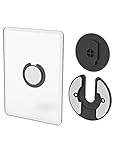
- Rotating Design: The tablet mount can rotate 90 degrees to adjust the angle according to your needs. Easily adjust the Angle of the screen to suit your vision.
- Broad Compatibility: ipad wall mount Compatible With E-reader/Kindle/iPad Air Mini Pro/WIFI Router /Cable Box/ tv box/ipad Accessories.
- Hidden Storage Mount: Backpack of iMac&laptop display hidden storage for hard drive/wi-fi router/power bank/cell phone&other device,or hidden the cable box/ wi-fi router on the back of the tv.
- Two Kinds of Installation Methods: screw and adhesive,the tablet holder that you can choose which way to install according to your requirements. Tips: If you choose to use adhesive to install the bracket, please wait for 24-48 hours after installation before using the bracket, the adhesive works best.
- Multiple Usage Scenarios: ipad accessories fits on kitchen/bathroom/bedroom/readingroom/living room and More. What do you get:Tablet wall mount*2(set), Round adhesive*3, Crescent shaped adhesive*6, Screw*4, Rubber plug*4, The bracket is made of plastic.
For a rental or reversible installation, use a countertop stand, an adhesive-compatible mount rated for the tablet’s weight, or a mount attached to existing hardware. For a permanent installation, fasten the mount to an appropriate substrate using hardware suited to the wall construction and the mount’s instructions. Do not rely on an unsuitable drywall anchor simply because the tablet is light: repeated touch pressure can work a mount loose.
Route the cable so it cannot be snagged, pulled, or caught by a door. A short raceway or carefully placed clips can keep the cable aligned. If you plan to conceal wiring inside a wall, use only an appropriate low-voltage method and follow local electrical and building requirements. Do not bury a mains power adapter or extension cord in a wall; use a qualified electrician when the installation involves line-voltage wiring, a new receptacle, or uncertainty about code compliance.
What you may need
- A tablet wall mount sized for the exact tablet, with enough clearance for its case and charging connector.
- A USB-C tablet charging cable if the device uses USB-C, or a micro-USB tablet charging cable if it uses micro-USB.
- A right-angle charging cable when the connector would otherwise press against the wall or bend sharply.
- Cable clips or a short raceway for tidy, strain-relieved routing.
- A compatible wall charger or existing outlet located close enough to avoid a long, loose cable run.
Power, heat, and charging details
Match the charger and cable to the tablet’s connector and supported charging standard. A USB-C connector does not guarantee fast charging, and two USB-C devices may support different power modes. Likewise, an older micro-USB tablet needs a compatible micro-USB cable and may have modest charging requirements.
The Tool Desk
Outbyte Driver Updater FREEScan for outdated or missing drivers - takes under a minuteDriver Scan →Outbyte PC Repair FREEClear out junk files and repair common Windows errorsFree Scan →Use a cable long enough to reach without tension but not so long that it forms a loop that can be pulled. A right-angle connector can reduce strain on a tablet mounted close to the wall. Secure the cable near the mount rather than allowing the charging port to carry the cable’s weight.
Continuous charging can increase heat and battery wear, especially when the display remains bright. Check the tablet after several hours in its final position. If it becomes unusually hot, charging repeatedly disconnects, the battery swells, or the screen begins separating from the frame, stop using it and have the hardware inspected or replace it. Never continue operating a visibly swollen battery behind a wall mount.
Independent reader supportYour contribution helps us test, update, and keep practical guides available for everyone.Privacy and security for a permanent wall display
- Use a dedicated, restricted Home Assistant account rather than an administrator account.
- Keep camera feeds away from public-facing areas unless everyone who can see the panel is permitted to view them.
- Think carefully before putting door locks, alarm controls, garage controls, or personally identifying information on a display visible to visitors, contractors, children, or people outside the home.
- Keep the tablet’s operating system and kiosk application as current as the hardware allows.
- If the tablet is too old for security updates, limit it to low-risk status information and avoid treating it as a trusted device for sensitive controls.
- Do not use a hidden dashboard tab as the only protection for a sensitive page; a person who knows or discovers the URL may still be able to reach it.
- Document the authorized exit procedure for Android app pinning, Fully Kiosk, or Guided Access before the tablet is mounted.
Test the installation before calling it finished
A wall panel is successful only if it recovers from ordinary household failures. Test each of these while the tablet is still easy to remove:
- Restart the Home Assistant server and confirm the tablet reconnects.
- Turn Wi-Fi off briefly, restore it, and check whether the dashboard reloads without manual intervention.
- Restart the tablet and confirm that Home Assistant or the kiosk app launches automatically.
- Reload the dashboard and test the most important controls, not just the status cards.
- Disconnect and restore charging power.
- Allow the screen to sleep, then verify that it wakes as intended.
- Test touch controls with the tablet actually secured in the mount.
- Exit app pinning, Guided Access, or the kiosk app, then confirm an authorized adult can restore the display.
- Check that the tablet can reach the Home Assistant internal URL from its final Wi-Fi location.
Choose the right build level
| Build | What to use | Best for |
|---|---|---|
| Lowest-cost | Existing tablet, a simple dashboard, Home Assistant Companion, compatible cable, and a stand or basic mount. | A household display where users do not need strict lockdown. |
| Recommended Android wall panel | Dedicated Home Assistant user and dashboard, Home Assistant as the default home app, Keep screen on, secure mount, and durable charging cable. Add app pinning if needed. | Most Android tablets used as a fixed room controller. |
| Advanced Android kiosk | Fully Kiosk Browser with the features you actually need, such as motion wake, screensaver, remote administration, launch on boot, or stronger lockdown. | A permanent appliance-style panel or multiple managed panels. |
| iPad wall panel | Home Assistant app or browser, restricted user, iOS kiosk features where supported, and Guided Access. | iPad owners who prefer Apple’s built-in single-app controls. |
Troubleshooting common problems
The dashboard loads, but controls are slow
Check Wi-Fi signal at the mount, the Home Assistant server’s responsiveness, and the number of cards on the view. Remove unnecessary animated cards, camera feeds, and rapidly updating entities. A simpler room dashboard is usually a better fix than trying to make obsolete hardware render a full house overview.
Quick wins for a faster PC:
Repair Windows errors before they cause bigger problemsFix Now →Fix the driver behind crashes, sound loss and screen glitchesFind Drivers →The tablet returns to the launcher or another app
On Android, confirm that Home Assistant is still selected as the default home app and that the kiosk application has launch-on-boot enabled if you use one. On iPad, restart Guided Access or the selected kiosk mode. Also check whether a system update reset the default-app setting.
The screen does not wake on motion
Screen wake depends on the selected kiosk software, the tablet’s sensors or camera, permissions, lighting, power settings, and Android version. Test the exact combination in the final mount. Fully’s own documentation identifies device- and version-specific limitations, so motion wake should be treated as an optional feature, not a guaranteed result.
The tablet disconnects while charging
Try a known-good compatible charger and cable, inspect the port for looseness or debris, and remove cable tension from the connector. Verify that the charger’s output is appropriate for the tablet. If the tablet is hot or the battery is swollen, stop troubleshooting by substitution and stop using the device until it is inspected.
Best Value

- Universal Compatibility: Versatile tablet wall mount designed for devices from 4.7" to 12.9". Compatible with all iPhones, iPad Pro (12.9/11/10.5/9.7), iPad Air (5/4/3/2), iPad Mini (6/5/4), iPad (9th/10.2 generation), and Samsung tablets. This tablet wall mount holder is perfect for home, office, classroom, kitchen, or gym use.
- Fully Adjustable Viewing: This iPad wall mount features a 360° swiveling bracket and 30° horizontal/vertical tilt for optimal positioning. Ideal for video calls, recipe viewing, or as a digital display, enhancing your experience in any setting.
- Sturdy and Secure Design: This iPad wall mount holder is constructed with premium materials to ensure durability and stability. Firmly holds your device in place, providing safety for iPad Pro 12.9, iPad Air 2, iPad Mini 4, and other compatible models.
- Easy Installation: Experience a quick and hassle-free setup process. This practical wall mount for iPad allows for effortless installation, making it convenient to secure your tablet in any desired location.
- Enhance Your Space: Transform how you work, entertain, or display information with this versatile wall mount iPad holder. Suitable for various environments, it's the perfect solution to elevate your tablet usage and optimize your space.
Notifications or local push do not arrive
Verify the internal URL, local-network connection, app permissions, and that the tablet is not asleep or restricted by battery-optimization settings. Local Push requires the configured internal connection; it is not a substitute for making the Home Assistant server reachable through the network path the tablet actually uses.
Free tools Windows power users keep installed
One-click scans. No signup required.
What this project cannot guarantee
Not every old tablet can run the newest Home Assistant app, display live cameras smoothly, wake reliably from motion, or charge continuously without heat and battery wear. Do not describe the tablet as the Home Assistant server unless that particular hardware and software arrangement genuinely performs that role. The safest expectation is a responsive, low-complexity touchscreen for status and a carefully selected set of room controls.
If the tablet passes the hardware checks, has a safe power path, and can run the required app or browser, repurposing it is a useful small construction and smart-home project. Start with a simple dashboard and a reversible mount, test the complete setup, and only then invest in a permanent wall finish or advanced kiosk features.
Frequently Asked Questions
Does the tablet replace the Home Assistant server?
No. The tablet is the display and touch-control endpoint. Home Assistant still needs to run on separate hardware such as Home Assistant Green, a Raspberry Pi, a small computer, a NAS, or another supported host.
Is Android or iPad better for a Home Assistant wall panel?
Android is usually more flexible for a dedicated kiosk because Home Assistant can be set as the default home app, Android supports app pinning, and Fully Kiosk Browser is available as an optional advanced layer. iPad works well with Guided Access and Home Assistant’s iOS kiosk features.
What’s actually slowing this PC down?
Pick the symptom - the matching free tool is one click away.
Can any old tablet be used as a smart-home display?
Not automatically. Confirm the exact tablet’s operating-system support, Wi-Fi reliability, touchscreen, charging port, battery condition, brightness, and ability to load your Home Assistant URL. Very old tablets may struggle with cameras, animation, or complex dashboards.
What accessories are needed for a mounted smart-home tablet?
A wall mount is usually the most useful accessory, followed by a charging cable that matches the tablet’s connector and a way to secure the cable. Check the mount’s dimensions, case clearance, orientation, ventilation, and charging-port position before installing it.
Can the tablet automatically wake without compromising security?
No. Android screen-on commands can wake the display but do not remove the lock screen. Similarly, dashboard visibility settings are not a complete security boundary because a hidden view’s URL may still be accessible.
The Bottom Line
The best old-tablet smart-home hub is a dedicated Home Assistant display, not a replacement for the Home Assistant server. Use a restricted user, a room-specific dashboard, safe connector-specific power, and a secure mount. Choose Android for the most flexible kiosk options; choose iPad when Guided Access and the available iOS kiosk features are sufficient.
Quick Recap
Product prices and availability are accurate as of the date/time indicated and are subject to change. Any price and availability information displayed on Amazon at the time of purchase will apply.




