Do these 3 things before closing this tab:
1Clear out junk files and repair common Windows errors2Fix the driver behind crashes, sound loss and screen glitches3Repair Windows errors before they cause bigger problemsThe simplest way to set up a smart home is to choose one primary platform, prepare your home network and any required hub, buy devices that support that platform, and add them one at a time. Start with a low-risk device such as a smart plug, light, or motion sensor. Confirm that it works before expanding. For cross-platform flexibility, Matter is usually the best starting point—but Matter certification does not guarantee that every device feature will appear in Apple Home, Google Home, Alexa, SmartThings, or another ecosystem.
What you need to set up a smart home
A smart home does not have to mean a fully automated house. It can be one smart plug controlled from a phone, several lights operated by voice, or a whole-home system with thermostats, locks, shades, cameras, sensors, energy monitoring, and scheduled automations.
As an Amazon Associate I earn from qualifying purchases.
Most DIY smart homes have four practical layers:
- Network: Wi-Fi, Ethernet, or Thread connects devices.
- Controller or ecosystem: Apple Home, Google Home, Alexa, SmartThings, Home Assistant, or another platform commissions and controls devices.
- Devices: Lights, switches, plugs, sensors, thermostats, locks, cameras, and appliances perform tasks.
- Automations: Rules connect triggers, conditions, and actions.
You will generally need:
- A smartphone or tablet.
- A reliable home network and an updated router.
- One primary smart-home app.
- A hub or controller if your platform or device requires one.
- A Thread Border Router for Matter-over-Thread products.
- Compatible devices, their setup codes, and sometimes the manufacturer’s app.
- Time to update firmware, pair each device, and test it before installing more.
Decide what you want to automate first
Before buying anything, write one specific outcome. Good first projects include:
- Turn the porch light on at sunset.
- Notify you if the basement door opens.
- Turn off an office lamp when everyone leaves.
- Turn on a hallway light when motion is detected after dark.
- Set the thermostat back at night.
Avoid starting with automate everything. A narrowly defined project makes it easier to choose compatible products and find the cause of a problem if something fails.
#1 Best Overall
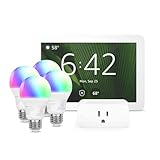
- Getting started with smart home has never been easier - An all-in-one kit with a quick guided setup makes starting your smart home easy.
- A setup so easy, it feels like magic - Just unbox, plug it in, and tap to get started.
- One hub with endless possibilities - the Echo Hub works with thousands of connected cameras, lights, locks, plugs, thermostats, speakers, and more—bringing your smart devices together in one convenient hub.
- Peace of mind, anytime - The included four lights can be easily set to make it look like you’re home when you’re away.
- Works with thousands of Alexa-compatible devices like Ring security cameras to build a smarter, safer home.
Also decide whether you need remote control while away, whether the system must continue working during an internet outage, whether you are renting, and how comfortable you are placing cameras, microphones, locks, or other privacy-sensitive equipment in your home. A renter will usually favor bulbs, plugs, wireless buttons, and sensors. A homeowner remodeling a room may get better long-term results from properly installed smart switches, deeper electrical boxes, and a planned network.
Choose one primary smart-home platform
Choose the platform that fits the devices your household already uses. Compatibility badges are useful, but check the exact model and the features you need—not merely whether the box says it works with a particular assistant.
| Household priority | Sensible default | Main trade-off |
|---|---|---|
| iPhone, Apple Watch, HomePod, Apple TV, or Siri | Apple Home | Some device categories and advanced features are more selective. |
| Android, Nest speakers or displays, or Google Assistant | Google Home | Matter setup has important network requirements, including IPv6. |
| Echo speakers, Echo displays, or eero equipment | Amazon Alexa | Capabilities vary by Echo or eero model, software version, and region. |
| Samsung devices, Zigbee, or Z-Wave equipment | Samsung SmartThings | It supports more protocols, but hubs and integrations add complexity. |
| Maximum customization and local control | Home Assistant or a similar local system | More configuration, maintenance, backups, and troubleshooting. |
| Several platforms in one household | Matter with one primary ecosystem | You need compatible controllers, sharing codes, and feature checks in each platform. |
Apple Home
Apple Home is a natural fit for an iPhone-centered household. With an iPhone running iOS 18 or later, Apple says Matter accessories can be added and controlled in the Home app without a home hub. A hub is still recommended for the best experience, including remote control, sharing, and automations. Thread-based accessories have additional requirements and generally need a Thread-enabled home hub such as a HomePod mini, HomePod, or supported Apple TV, subject to the device, operating system, and firmware combination.
Recommended Free Tools
Apple’s current Matter accessory support includes categories such as lights, outlets, switches, locks, thermostats, blinds and shades, bridges, air conditioners, and several sensor types. Check Apple’s current Matter accessory setup guidance and home hub requirements before purchasing.
Setup path: Open Home, tap Add, choose Add Accessory, scan the Matter QR code or use the nearby-device flow, then assign a room and name.
Google Home
Google Home is a strong choice for Android users, Google Assistant users, and households with Nest speakers or displays. Google’s current Matter documentation lists an IPv6-enabled home network, a Matter-enabled Google Home hub, a compatible Matter device, Bluetooth Low Energy 4.2 or higher, the current Google Home app, and a Thread Border Router for Thread devices. It lists Android 8.1 or later with Google Play services 22.48.14 or later, or iOS/iPadOS 16.5 or later; these software requirements can change.
IPv6 is especially important. Google warns that setup may appear to succeed and then fail during control if IPv6 is unavailable or malfunctioning. IPv6 also helps Matter-over-Thread devices communicate with the Wi-Fi portion of the home network. See Google’s Matter preparation requirements and setup and control instructions.
Setup path: Turn on the device and place it in pairing mode. In Google Home, tap Add → Device → Matter-enabled device. Scan the QR code or choose the setup-code option and enter the numeric code. Select the home and room, give the device a name, and test it from the app and by voice.
Amazon Alexa
Alexa suits households already using Echo speakers, Echo displays, or eero equipment. Amazon’s Matter support documentation identifies Matter-capable Echo and eero families, but the exact Thread and device capabilities vary by model and software version. A Matter-over-Thread device needs a Thread-enabled Echo or eero device.
Typical setup path: Open the Alexa app, choose Devices, tap +, select Add Device, choose Matter, and scan the QR code or enter the pairing code. App labels can vary by country and app release; Amazon’s Matter support documentation and consumer setup instructions are the useful references.
Samsung SmartThings
SmartThings is a practical choice if your household uses Samsung products or you want one hub to work with Matter alongside Zigbee and Z-Wave devices. Its current setup flow is + → Add device, followed by scanning the QR code or selecting the brand and device. Choose the hub and room, select the Wi-Fi or Thread network if prompted, rename the device, and save it.
To share a Matter device with another ecosystem, open the device in SmartThings, choose More → Share with other services, generate the sharing code, and enter it in the other platform. SmartThings documents a possible limit of five connected services in its current support material; verify the current app documentation rather than treating that number as permanent. See SmartThings’ Matter and Multi-Admin guidance.
Rank #2
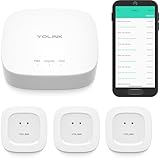
- "SMART WATER STARTER KIT" YoLink Hub Leak Detection Starter Kit, including one hub and quantity three Water Leak Sensor 1. Hub supports ethernet and/or WiFi (2.4GHz, only). Connect to your router's ethernet port for our "Plug, Plug & Play" easiest set-up - be up and running in just minutes!
- SET IT & FORGET IT! Installs in seconds! The YoLink wireless Water Sensor could not be easier to install; just place near or under the equipment you wish to monitor. Suggested uses are near or under, toilets, water heaters, laundry machines, dishwashers, sinks, fish tanks, in or near sump pumps, and by any other location subject to water leaks and flooding.
- EXTREME LONG RANGE! Powered by LoRa technology, the long-range yet low-power system offers the industry’s longest receiving range in the market (2034 feet). Our long-range coverage enables its use in areas challenging for most residential Wi-Fi systems, such as basements, outdoor porch/patio areas, sheds, free-standing garages, even remote outbuildings on your property.
- NO WIFI, NO INTERNET, NO POWER? NO PROBLEM! Our patented Control-D2D device-to-device pairing, over our LoRa-based wireless network, allows for devices to be paired to each other, in such a way they will continue to operate, even if WiFi is flaky, the internet goes down, or the AC power goes out!
- UNLOCK YOUR SMART HOME! The YoLink Hub can support more than 300 devices and is compatible with the entire line of YoLink smart products, including security, environmental, power & lighting, smart locks, and cameras (coming soon!).
Home Assistant and other local systems
Home Assistant and similar systems can combine Matter, Zigbee, Z-Wave, Wi-Fi, and vendor integrations, often with more local control and customization than mainstream platforms. They are better suited to a technically confident user who is willing to maintain compatible radios, integrations, backups, firmware, and remote access.
Local does not automatically mean easier, cheaper, or completely private. A locally controlled system may still depend on a cloud service for a particular device, voice assistant, remote access, AI feature, or firmware update. Treat it as a more flexible ownership model, not a guarantee that every part of the system works offline.
Understand Matter, Thread, Wi-Fi, Zigbee, and Z-Wave
These terms describe different parts of the system:
Quick wins for a faster PC:
Repair Windows errors before they cause bigger problemsFix Now →Scan for outdated or missing drivers - takes under a minuteDriver Scan →- Matter
- An application-layer standard intended to let compatible devices work across certified ecosystems.
- Wi-Fi
- A common network for powered devices and products that need more bandwidth, such as many cameras and appliances.
- Thread
- A low-power IPv6 mesh network commonly used by battery sensors, buttons, and locks.
- Thread Border Router
- A device that connects the Thread network to the home IP network. It is not the same thing as a Matter controller.
- Hub or controller
- The hardware or software that commissions and controls devices in an ecosystem.
- Bridge
- A device that exposes products using another protocol, such as Zigbee or Z-Wave, to Matter or another platform.
- Commissioning or pairing
- Adding a device to a smart-home network.
- Multi-Admin
- Matter’s ability to share one device with multiple certified ecosystems.
- Local control
- Commands handled inside the home network.
- Cloud control
- Commands routed through an internet service or manufacturer’s cloud.
Smart-home platform
↓
Matter, proprietary integration, or bridge
↓
Wi-Fi, Ethernet, Thread, Zigbee, or Z-Wave
↓
Device
Matter runs over Wi-Fi, Ethernet, and Thread. Bluetooth Low Energy is commonly used during initial commissioning, but it is not normally the network that controls the device afterward. Thread is generally suited to low-power mesh products; Wi-Fi and Ethernet are generally better for permanently powered or higher-bandwidth products. The Thread Group’s Matter explanation and the Connectivity Standards Alliance’s Matter overview explain the relationship.
Matter improves interoperability; it does not guarantee universal feature parity. A certified device may work in several ecosystems while exposing different controls, triggers, sensor history, energy data, or advanced modes in each one. Google maintains a supported-device list and notes that certified platforms add device categories at different times.
As of August 10, 2026, the latest Connectivity Standards Alliance release identified in the supplied research is Matter 1.6, released June 17, 2026. It adds features including NFC-based commissioning, Joint Fabric multi-ecosystem administration, thermostat suggestions, improved capability reporting, and security-sensor history. Matter 1.5.1, released March 31, 2026, refined cameras, doorbells, chimes, intercoms, multi-stream video, image formats, and recorded-video interoperability. Certification and ecosystem implementation are separate timelines, so a product certified against a Matter version may not immediately expose its newest capabilities in every app. See the Matter 1.6 release and Matter 1.5.1 release.
Prepare the Wi-Fi and smart-home network
Do this before pairing a large number of devices:
- Update the router, phone, hub, smart speaker, and device firmware.
- Change the router’s default administrator credentials and confirm that the main Wi-Fi network is working.
- Use the normal home LAN during setup, not a guest network with client isolation.
- Keep the phone and hub on the same network as the device during commissioning.
- Enable Bluetooth on the phone.
- Enable IPv6 if the selected platform requires it; Google Home explicitly identifies it as important for Matter.
- Temporarily disable a VPN or third-party security software if it blocks local discovery.
- Do not change the Wi-Fi name or password halfway through a large installation.
- Begin with the first device near the router or hub, then test it at its intended location.
- For Thread products, confirm that a compatible Thread Border Router is online.
- Check whether an older Wi-Fi product requires 2.4 GHz. Some accessories do not support 5 GHz.
A mesh Wi-Fi system can improve coverage and reroute traffic, but it does not eliminate every network problem. The primary router or gateway connected to the modem remains a single point of failure: if it goes offline, the whole network goes offline. Google explains this distinction in its mesh-network guidance.
Do not assume that an isolated IoT VLAN is automatically better. Segmentation can improve security, but Matter, HomeKit, device discovery, and local control may require carefully configured communication between networks. If you use VLANs or a guest network, verify that the selected platform supports the arrangement before pairing.
Choose compatible devices
For every product, check:
- The exact platform compatibility, not just the manufacturer name.
- Whether it is Matter-certified if cross-platform use matters to you.
- The exact Matter device type and the features supported by your chosen ecosystem.
- Whether it uses Wi-Fi, Thread, Ethernet, Zigbee, or Z-Wave.
- Whether a hub, bridge, or Thread Border Router is required.
- Whether basic control works without the manufacturer’s cloud.
- Firmware-update and end-of-support policies.
- Account, subscription, and remote-access requirements.
- Privacy practices, data retention, and recording controls.
- Physical installation requirements and a manual fallback.
Smart bulbs versus smart switches
Smart bulbs are easy for renters because they require no electrical-box work and can provide dimming or color control. They must remain powered, however. If an ordinary wall switch cuts electricity to the bulb, the bulb cannot respond to the app or an automation. A wireless scene controller or a switch designed to keep smart bulbs powered may be a better solution.
Smart switches preserve familiar wall control and are usually better when you want to automate a whole room or circuit. They require electrical-box compatibility and may require a neutral wire. Check the exact model for single-pole, 3-way, 4-way, load, dimming, LED, companion-switch, and box-depth requirements. Neutral-based dimmers generally provide better performance across loads and can reduce LED flicker or ghosting, but the correct choice remains model-specific. Lutron’s neutral-wire guidance, multi-location guidance, and Leviton’s 3-way installation guidance illustrate why products cannot be treated as interchangeable.
Rank #3

- Comprehensive Leak Detection Kit: Get started with the YoLink Hub Leak Detection Starter Kit, featuring one hub and three Water Leak Sensor 4. The hub seamlessly connects via ethernet and/or 2.4GHz WiFi, offering an easy "Plug, Plug & Play" setup that has you up and running within minutes.
- Effortless Installation: Experience hassle-free setup with the YoLink wireless Water Sensor. Simply place it near or under the equipment you want to monitor. Ideal for toilets, water heaters, laundry machines, dishwashers, sinks, fish tanks, sump pumps, and other potential water leak areas.
- Unmatched Long Range: Powered by LoRa technology, our system provides an industry-leading receiving range of up to 2034 feet. Perfect for challenging Wi-Fi environments like basements, outdoor areas, sheds, and remote outbuildings.
- Powerful Audio Alert: Stay informed about potential leaks with the robust 105dB audio alarm of our water leak detector. React quickly to emergencies and safeguard your space from water damage.
- Rugged Waterproof Design: With an impressive IP66 waterproof rating, our water leak detector is built to withstand various conditions.
Turn off the circuit breaker, follow the exact manufacturer instructions, comply with local electrical code, and hire a licensed electrician if you are not certain which conductor is line, load, neutral, ground, or traveler. Never generalize wiring instructions from one smart-switch model to another.
Smart plugs
A smart plug is often the best first device because installation is simple and the control is easy to understand. Check the current and load rating. Do not use one for a heater, cooking appliance, pump, or other high-load device unless the manufacturer explicitly supports that application. Avoid automating equipment that must not restart automatically after power is restored. A physical manual override is useful.
Sensors
Thread or another low-power mesh protocol can be a good choice for battery-powered sensors when your platform supports it well. Thread is designed for low-power devices, and powered Thread devices can help extend the mesh. A Thread Border Router is required to connect that Thread network to the home IP network; Matter itself is not a replacement for the border router.
Placement matters as much as protocol:
- Metal, concrete, appliances, and outdoor locations can reduce wireless range.
- Door and window sensors need their two halves correctly aligned.
- Motion sensors can false-trigger because of pets, sunlight, HVAC airflow, or reflective surfaces.
- Battery reports may arrive late, so inspect battery status periodically.
- Test a sensor for several days before using it in an important automation.
Thermostats
Check the HVAC system before purchasing. Verify whether it is conventional or a heat pump, the number of heating and cooling stages, auxiliary or emergency heat, existing wiring, common-wire or power-adapter requirements, platform support, and any subscription needed for remote access or advanced scheduling. Thermostat wiring is system-specific; do not rely on generic wire-color advice.
The Tool Desk
Outbyte Driver Updater FREEScan for outdated or missing drivers - takes under a minuteDriver Scan →Outbyte PC Repair FREERepair Windows errors before they cause bigger problemsFix Now →Smart locks
Smart locks are safety- and security-sensitive. Keep a physical key or another fallback, review guest permissions and access logs, and test operation when the internet is unavailable. Do not rely on a single phone, cloud account, or presence automation. If voice unlocking is available, require a PIN where the platform supports that option. Google says remote unlock is disabled for Matter door locks that do not mandate a PIN, and voice unlock is disabled in that ecosystem; behavior differs by platform and product.
Cameras and doorbells
Compare local recording with cloud recording, subscription cost, remote access, encryption, AI and facial-recognition features, retention and deletion controls, privacy zones, physical camera-off controls, and household sharing. Avoid cameras in bedrooms or other highly private areas. Disable audio when it is unnecessary and explain recording behavior to people who live in or visit the home.
Matter 1.5 and 1.5.1 expand standardized camera and doorbell capabilities, but that does not mean every current camera can be added natively to Apple Home, Google Home, Alexa, SmartThings, and every manufacturer app. Confirm the exact camera model and platform support before buying. The relevant standards updates are the Matter 1.5 camera announcement and the Matter 1.5.1 refinements.
Zigbee and Z-Wave
Matter is not mandatory. Zigbee remains a low-power mesh technology with broad smart-home use. Z-Wave is a low-power, sub-GHz technology generally controlled through a compatible hub. Either can be sensible when a hub provides better range, reliability, local automation, or device selection than the available Matter products. A bridge can expose older devices to Matter or another ecosystem, but feature parity and end-to-end behavior may differ. See the Zigbee overview and Z-Wave consumer information.
Crashes, No Sound, or Screen Glitches?
Random freezes, missing sound and display glitches usually trace back to one bad driver. Find and replace yours safely.Free scan · under a minutePC Slower Than It Used to Be?
A free scan shows the junk files, broken settings and background clutter dragging Windows down - then fixes them in one click.Free scan · Windows 10 & 11Set up your first smart device
Phase 1: Prepare the device
- Read the installation and reset instructions.
- Install batteries or connect power.
- Use the manufacturer’s app to update firmware if required.
- Photograph or save both the original Matter QR code and numeric setup code.
- Identify the reset procedure before mounting the device.
- Put the device into pairing mode.
Phase 2: Pair it with the primary platform
- Open the platform app.
- Choose Add device or Add accessory.
- Select Matter where necessary, then scan the setup code or enter it manually.
- Approve the request to add the device.
- Wait for commissioning to finish.
- Assign a room.
- Give it a short, unique name.
- Test app control.
- Test the physical control on the device.
- Close the manufacturer app and test again from the primary platform.
For Apple Home, the documented flow is Home → Add → Add Accessory, followed by scanning or nearby-device setup. For Google Home, use Add → Device → Matter-enabled device. Alexa and SmartThings use their respective Matter or add-device flows. Labels can change with app releases and country-specific versions.
Phase 3: Organize the home
Use consistent room names and short, unique device names. Create groups for whole-room lighting and scenes for routines such as Movie, Good night, or Away. Avoid names such as Light 1, New Device, or several nearly identical voice names. A name should describe either the location or the function clearly enough that every household member can use it.
Add one Matter device to multiple ecosystems
Matter’s Multi-Admin feature allows a compatible device to be shared with more than one certified platform. For example, you might use Google Home as the primary system while also making a light available in Apple Home.
Rank #4
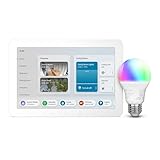
- SMART HOME STARTER KIT WITH CENTRAL CONTROL: Echo Hub + Smart Color Bulb bundle gives you a dedicated smart home controller plus your first connected device - the foundation for expanding your smart home.
- 2-MINUTE SETUP, READY TO EXPAND: Set up your Echo Hub, screw in the bulb, say "Alexa discover devices" - your hub instantly connects and controls your smart light, with room to add more devices later.
- VOICE CONTROLLED: Change lighting with simple voice commands through your Echo Hub, plus set automatic schedules and create custom routines via the Alexa app.
- REMOTE CONTROL + SECURITY AUTOMATION: Control lights from anywhere, create away-from-home lighting schedules for security, and use your Echo Hub as command center for future smart home additions.
Do not reset the device or repeatedly scan the original QR code if it is already paired. The original code is normally for initial commissioning. Use the primary ecosystem to create a secondary sharing code or QR code:
What’s actually slowing this PC down?
Pick the symptom - the matching free tool is one click away.
- Open the primary platform app.
- Select the Matter device.
- Choose the sharing, linked-services, or multi-admin option.
- Generate the temporary sharing code.
- Open the second ecosystem’s app.
- Choose to add a Matter device.
- Scan or enter the new sharing code.
- Assign the device to the correct room and test control in both platforms.
Each ecosystem needs its own compatible Matter controller. The device may also expose different features in each app. Google documents this sharing process, while SmartThings documents its own Multi-Admin flow. Matter 1.4 also added enhanced multi-admin capabilities, but implementation remains dependent on products and platforms.
Create your first safe automation
Use this structure:
- Trigger: What starts the rule?
- Condition: When is it allowed to run?
- Action: What should happen?
- Fallback: What happens if the network, device, or cloud service fails?
- Manual control: Can someone override it?
A good first example is:
When the hallway motion sensor detects motion after sunset, turn on the hallway light at 35 percent brightness for five minutes, but only if someone is home.
Test the trigger, condition, timing, and manual override separately. Check for duplicate rules and conflicts if you use more than one platform. Google’s documentation describes supported automation starters, conditions, and actions at this automation reference.
Do not use a general smart-home automation as the sole protection against fire, flooding, burglary, overheating, or another hazard. Google warns that automations depend on Wi-Fi, internet access, and third-party service availability and should not be relied on for safety- or security-critical use cases. A smart lock should not unlock solely because presence sensing says you arrived, and a smart plug should not be the only safeguard for a heater.
Free tools Windows power users keep installed
One-click scans. No signup required.
Secure and maintain the system
Router and network
- Change default router administrator credentials.
- Use a unique Wi-Fi name and strong password.
- Enable modern wireless encryption supported by the router.
- Install router firmware updates.
- Review connected devices regularly.
- Use a guest or IoT network only when it does not block required discovery and local control.
- Document network changes so you can reconnect devices after replacing a router.
Accounts and access
- Use unique passwords and enable two-factor authentication.
- Give household members only the access they need.
- Remove former residents, old phones, unused integrations, and abandoned voice assistants.
- Review linked services periodically.
Devices and privacy
- Install device firmware updates.
- Check how long the manufacturer provides security updates.
- Turn off unused remote-access features.
- Review camera retention, privacy zones, audio, and sharing permissions.
- Keep physical keys and manual controls for locks, garage doors, and essential equipment.
- Reset devices before selling, returning, or giving them away.
- Remove unsupported or abandoned products instead of leaving them connected indefinitely.
The Federal Trade Commission recommends changing default credentials, enabling encryption, updating routers and devices, using two-factor authentication, disabling unused features, and removing older unsupported products. Its connected-device security guidance and camera security guidance are useful for reviewing an existing installation. NIST’s consumer IoT cybersecurity baseline provides additional context.
Troubleshoot common setup failures
The device is not discovered
Work through this order:
- Confirm that the device has power and is genuinely in pairing mode.
- Move the phone and device close together.
- Turn Bluetooth on.
- Confirm that the phone and hub are on the normal home network.
- Disable a VPN temporarily.
- Update the manufacturer app and device firmware.
- Restart the device and platform app.
- Restart the hub and router.
- Try the numeric setup code instead of scanning.
- Factory-reset the device only after saving any needed sharing codes and following the manufacturer’s reset procedure.
The QR code is rejected or setup freezes
Confirm that you selected the correct Matter flow, the code belongs to that exact device, and the device has not already been commissioned. If it is already in another ecosystem, generate a sharing code from the first ecosystem instead of using the original setup code. Also check that the controller supports that device category and that a Thread Border Router exists if the product uses Thread.
Setup succeeds, but control later fails
Likely causes include missing or unstable IPv6, a guest or isolated network, an offline Thread Border Router, a router or mesh failure, outdated hub firmware, a cloud outage for a non-Matter integration, or an unsupported Matter feature. Check whether the device is reachable from the primary app, whether other devices work, and whether the problem affects only one platform.
The device works in the manufacturer app but not the platform app
It may be a proprietary cloud integration rather than a Matter device, or it may be a Matter bridge that exposes only some legacy-device features. A product can work in a manufacturer app while the selected ecosystem supports only basic on/off control or does not support that category yet.
Free tools Windows power users keep installed
One-click scans. No signup required.
The device appears but lacks expected controls
Certification and app representation are not identical. The platform may support the device category but not its advanced modes, color controls, energy reporting, schedules, sensor history, or proprietary settings. Check the platform’s supported-device list and the manufacturer’s feature notes before replacing working hardware.
A smart bulb goes offline
The wall switch may have cut power. A smart bulb cannot communicate while electrically off. Keep the bulb powered and use a compatible smart switch, wireless button, or scene controller if you need physical control.
Best Value

- 𝐀𝐝𝐝𝐞𝐝 𝐒𝐞𝐜𝐮𝐫𝐢𝐭𝐲 𝐟𝐨𝐫 𝐲𝐨𝐮𝐫 𝐓𝐚𝐩𝐨 𝐒𝐦𝐚𝐫𝐭 𝐇𝐨𝐦𝐞 - This purchase includes 3x Tapo T110 Contact Sensors and 1x Tapo H100 Smart Hub with Chime. The sensors require the Tapo Hub to operate and use Sub-G protocol for extended range and longer battery life.
- 𝐇𝐨𝐦𝐞 𝐄𝐧𝐭𝐫𝐲 𝐏𝐫𝐨𝐭𝐞𝐜𝐭𝐢𝐨𝐧 - Receive real-time notifications when doors or windows open or close, and check their status from anywhere with the Tapo App. Also great for monitoring cabinets, refrigerators, mailboxes, and other items that open and close.
- 𝐈𝐧𝐬𝐭𝐚𝐧𝐭 𝐀𝐥𝐚𝐫𝐦𝐬 𝐟𝐨𝐫 𝐇𝐨𝐦𝐞 𝐒𝐞𝐜𝐮𝐫𝐢𝐭𝐲 - Activate a 90dB customizable alarm to deter intruders and review full activity history in the Tapo App.
- 𝐓𝐚𝐩𝐨 𝐇𝐮𝐛 - 𝐂𝐞𝐧𝐭𝐫𝐚𝐥𝐢𝐳𝐞𝐝 𝐒𝐦𝐚𝐫𝐭 𝐇𝐨𝐦𝐞 𝐂𝐨𝐧𝐭𝐫𝐨𝐥 - Connect up to 64 sensors, switches, and buttons using a low-power wireless protocol that extends connected device battery life by up to 10x compared to Wi-Fi based devices. 2.4 GHz Wi-Fi required.
- 𝐈𝐧𝐭𝐞𝐠𝐫𝐚𝐭𝐞𝐝 𝐒𝐞𝐜𝐮𝐫𝐢𝐭𝐲 𝐰𝐢𝐭𝐡 𝐓𝐚𝐩𝐨 𝐂𝐚𝐦𝐞𝐫𝐚𝐬 - Sync the contact sensors with Tapo pan/tilt cameras to detect intruders early, sound alarms, and capture footage when doors or windows are opened.
A Thread device is unavailable
Confirm that the Thread Border Router is powered and online, the device is within range, and the mesh has enough powered Thread devices or extenders. Update hub firmware. After restarting a router or border router, give the Thread network time to rejoin and stabilize. Apple’s Matter and HomeKit troubleshooting guidance includes additional steps for third-party Thread accessories.
An automation runs unpredictably
Look for conflicting rules, duplicate triggers, incorrect time-zone or daylight-saving settings, presence-sensing errors, repeated sensor events, unexpected device behavior after a power loss, and cloud dependencies. Simplify the rule, test it manually, and add conditions one at a time.
Do these 3 things before closing this tab:
1Scan for outdated or missing drivers - takes under a minute2Repair Windows errors before they cause bigger problems3Fix the driver behind crashes, sound loss and screen glitchesWhen to call an electrician or installer
DIY pairing is straightforward; line-voltage work and whole-home integration are not always. Stop and call a licensed electrician when:
- You cannot confidently identify line, load, neutral, ground, or traveler wires.
- The wiring does not match the manufacturer’s approved diagrams.
- You are working with a 3-way or 4-way circuit that the product does not clearly support.
- The electrical box is crowded, shallow, damaged, or missing required grounding.
- The load is high-voltage, high-current, or permanently installed.
- Thermostat wiring or HVAC compatibility is uncertain.
- Local electrical code or permitting requirements are unclear.
For new construction or remodeling, decide the smart-home plan before walls are closed. Confirm switch-box depth and neutral requirements, plan network coverage, identify circuits, and decide where cameras, sensors, thermostats, locks, and hubs will go. A construction professional or low-voltage installer can help with structured wiring and whole-home systems, while an electrician should handle line-voltage devices. Professional installation costs more but can be worthwhile for integrated HVAC, shades, security, access control, and complex multi-location lighting.
Frequently asked questions
Do I need a hub for a smart home?
Not always. Some Apple setups with an iPhone running iOS 18 or later can add and control Matter accessories without a home hub. A hub may still be required or strongly recommended for remote access, sharing, automations, Thread devices, or the requirements of another platform. Check the exact device and ecosystem before buying.
Is Matter the same as Thread?
No. Matter is an application-layer standard; Thread is one low-power network transport. A Matter device may use Wi-Fi, Ethernet, or Thread. A Matter-over-Thread device needs a Thread Border Router, while a Matter-over-Wi-Fi device does not.
What’s actually slowing this PC down?
Pick the symptom - the matching free tool is one click away.
Will Matter devices work offline?
Matter is designed to support local control, but offline behavior varies. Local commands may continue while internet access is down, while remote access, voice services, manufacturer features, firmware updates, and some automations may still require the cloud. Test the failure behavior of important devices rather than assuming.
Can one Matter device work with Apple Home, Google Home, Alexa, and SmartThings?
Often, if the device category and each ecosystem support it. Add it to one platform first, then use that platform’s Multi-Admin or sharing function to create a secondary code for another platform. Each platform needs a compatible controller, and the available features may differ.
Should I start with a smart lock or camera?
Usually not. Start with a plug, light, or sensor to learn the platform and troubleshoot the network. Add locks and cameras after reviewing fallback access, privacy, subscriptions, recording, account security, and behavior during internet or power failures.
Frequently Asked Questions
What is the easiest first smart-home device?
A smart plug, smart bulb, or basic motion sensor is usually the easiest starting point. These devices require little or no permanent installation and let you test the app, voice control, network, and first automation before moving to switches, thermostats, locks, or cameras.
Do Matter devices need Wi-Fi?
No. Matter devices can use Wi-Fi, Ethernet, or Thread. Wi-Fi and Ethernet are generally suited to powered or higher-bandwidth products, while Thread is commonly used for low-power sensors, buttons, and locks. A Matter-over-Thread device needs a Thread Border Router.
Why does a smart device work in its manufacturer app but not my smart-home app?
The manufacturer app may use a proprietary cloud integration, or the platform may support only part of the device’s Matter feature set. Check the exact device type and platform support. If the device is already paired with another Matter ecosystem, use its sharing or Multi-Admin function instead of scanning the original QR code again.
Can I install a smart light switch myself?
Only if you are confident working with line-voltage wiring and the product’s exact diagrams match your circuit. Neutral-wire needs, load ratings, LED compatibility, 3-way wiring, companion controls, box depth, grounding, and local code all matter. Turn off the breaker and hire a licensed electrician if anything is uncertain.
Will my smart home work when the internet goes out?
Some local device control may continue, but the result depends on the platform, device, automation, and cloud dependencies. Remote access, voice assistants, manufacturer features, updates, and some automations may stop working. Test important devices during an outage and keep manual fallbacks.
The Bottom Line
Start small and verify every layer. Choose one primary ecosystem, confirm the network and required hub or Thread Border Router, buy devices for their exact compatibility and features, and pair and test them one at a time. Matter is the best route to future multi-platform flexibility for many buyers, but it is not a promise that every feature works everywhere. Keep manual controls and fallbacks for locks, heating, appliances, and safety-related equipment.
Quick Recap
Product prices and availability are accurate as of the date/time indicated and are subject to change. Any price and availability information displayed on Amazon at the time of purchase will apply.




