The usual fix is in your TV’s Picture menu. Open Picture Size, Aspect Ratio, Screen Format, or Display Mode, then try Screen Fit, Just Scan, Fit to Screen, Original, Native, 1:1, or Auto.
Use a zoom mode only if you accept cropping. A picture that fills every corner is not necessarily the most accurate: the correct setting should show the entire image, preserve its proportions, and avoid cutting off subtitles, menus, faces, or text.
As an Amazon Associate I earn from qualifying purchases.
First, identify what is wrong
“Full screen” can mean several different things. Before changing settings, check which symptom you have:
Quick wins for a faster PC:
Repair Windows errors before they cause bigger problemsFix Now →Scan for outdated or missing drivers - takes under a minuteDriver Scan →| Symptom | Likely cause | Best first step |
|---|---|---|
| Black bars at the top and bottom | Widescreen or cinematic content | Keep the original ratio unless you accept cropping |
| Black bars at the left and right | 4:3 or another narrow source | Keep the original ratio or use a crop mode |
| Bars on all four sides | Underscan, incorrect resolution, or a smaller image inside the video frame | Check the source device and display scaling |
| Edges, subtitles, or menus are missing | Zoom or overscan | Choose a fit-to-screen or native mode |
| People look unusually wide or thin | Stretching or an incorrect aspect ratio | Choose Original, Auto, or the source’s correct ratio |
| Only one app or HDMI device has the problem | Source-specific settings or app restrictions | Adjust that input or device separately |
The quickest method for most smart TVs
- Press Settings, Menu, Home, or the gear button on the remote.
- Open Picture.
- Find Picture Size, Aspect Ratio, Screen Format, Display Mode, or Zoom.
- Try the non-cropping option first: Auto, Original, Screen Fit, Just Scan, Fit to Screen, Native, or 1:1.
- Test the result using a scene with faces, subtitles, and text close to the edges.
- If any edge is missing, turn off Zoom, Wide Zoom, or a similar enlargement mode.
- If the entire picture is visible but bars remain, they may be part of the source’s aspect ratio rather than a TV fault.
Menu names vary by model, operating system, country, and input. Some remotes include a direct Aspect, P.Size, Format, or Zoom button; others require the settings menu. A universal remote may not include the relevant control.
#1 Best Overall

- Universal TV Wall Mount: TV bracket fits most 32-70" TVs up to 110 lbs, with max VESA of 400mm x 400mm / 16" x 16" mounting hole spacing, designed for standard 16" studs. If your wood stud spacing exceeds 16 inches, please refer to the 16", 18", 24" wood stud full motion TV mount MD2380-24K
- Enhance Viewing Experience: This full motion TV wall mount tilts TV up 5° and down 15° to reduce glare, and swivels TV left or right according to your seat position. Pull out to 17.5" and retract back to 3.4", making your TV alive to move
- Easy Installation: TV mount comes with clear instructions and hardware in pre-labeled bags. +/-3° post-installation adjustment allows TV leveling after installation. The paper template makes the installation of the TV wall mounting bracket easier. Considerate design for Allen key storage
- Heavy-Duty Unit: TV wall mount swivel and tilt are designed with 6 articulating arms. The technology of robot welding makes this TV mount sturdy and safe
- US-based Customer Support: We are glad to help solve your pre-purchase, installation, or missing-parts questions about TV wall mounts. Please note: Mounting Dream wall mount TV brackets are NOT FOR DRYWALL INSTALLATION. (Concrete anchors are available upon request. Anchor specifications: Φ10×50mm)
How to make a Samsung TV fill the screen
- Open Settings.
- Go to Picture.
- Open Picture Size Settings or Picture Size.
- Try Fit to Screen or Screen Fit first. Depending on the model, you may also see 16:9, 4:3, Custom, or Zoom and Position.
Use Zoom and Position only when you deliberately want to enlarge the image and are willing to lose some of its edges. Selecting 16:9 is not automatically correct: it can stretch 4:3 material or crop content that is wider than the panel.
Samsung notes that picture-size choices can vary by signal and input, and some built-in apps may restrict picture-size changes. If the setting works on live TV but not in an app, the app or the video itself may control the formatting. See Samsung’s picture-size guidance for model-specific details.
How to adjust an LG TV
- Press the Settings button.
- Select All Settings.
- Open Picture.
- Select Aspect Ratio.
- Open User Selection.
- Try Original Ratio or 16:9, depending on the source.
Avoid Zoom, Cinema Zoom, All-Direction Zoom, or Vertical Zoom when the problem is missing edges. These modes enlarge the image and can cut off captions, logos, and scene details.
Do these 3 things before closing this tab:
1Scan for outdated or missing drivers - takes under a minute2Repair Windows errors before they cause bigger problems3Fix the driver behind crashes, sound loss and screen glitchesLG picture settings may be stored separately for different inputs. If the issue affects only a cable box, console, or other HDMI device, change the setting while that input is selected. LG’s support pages explain the Aspect Ratio menu and cropped-image troubleshooting, along with when Original Ratio may help.
Rank #2
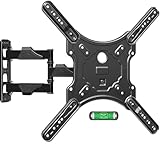
- Universal TV Mount - This full motion TV mount fits most 26-60 inch TVs with vesa patterns range from 100x100mm(4x4”) to 400x400mm(16x16”) and holds up to 77 lbs./35kg. Please check TV weight, size, vesa, and input access before purchase.
- Optimize Viewing Experience - The single stud swivel design is great for wall corners. It gives you the maximum flexibility in positioning your TV to fit your environment for a comfortable view. The mount can swivel left or right 90°, tilts up 5°, tilts down 10°, and has +5°/-5° screen level adjustment capability.
- Heavy Duty & Durable & Sturdy - The strong articulating 3-arm structure with cold-rolled steel ensures reliable strength and provides you sufficient swivel angle. Automatic robot welding technology makes the whole TV mounting bracket unit sturdy and has a good appearance.
- Easy and Quick Installation - Our wall mount is easy to install and comes with a clear step-by-step installation instruction, bubble level, and necessary standard mounting kit. Note: Do Not install into drywall alone.
- Cable Management - Comes with three cable covers to better manage cables and keep the space neat and organized.
How to adjust a Sony TV
On relevant Sony Android TV and Google TV software, try this route:
- Open Quick Settings.
- Select TV options.
- Choose Picture.
- Open Display Mode.
- Try Full, Wide, or Normal, depending on the source and model.
Avoid Wide Zoom or other enlargement modes if the edges are already cut off. Sony explains that these modes can enlarge the image, alter its proportions, or crop part of the original picture. Its documentation also notes that black bars can be normal when widescreen material is shown on a 16:9 television. See Sony’s Display Mode guide and information about wide-zoom behavior.
Other TV brands: search by function, not just brand
For Vizio, TCL, Hisense, Philips, Panasonic, and other brands, look in the Picture menu for one or more of these labels:
Outdated Drivers Are Slowing You Down
One free scan finds every outdated or missing driver and matches the right update for your exact hardware.Free scan · exact hardware matchWindows Errors? Fix Them Before They Spread
Repair common Windows errors and clear accumulated junk for a smoother, more stable PC - no reinstall needed.Free scan · no reinstall- Picture Size
- Aspect Ratio
- Screen Format
- Display Mode
- Overscan
- Underscan
- Fit to Screen
- Screen Fit
- Just Scan
- Original
- Native
- 1:1
- Dot by Dot
- Computer Mode
The exact path cannot safely be generalized across every model. If the option is missing or greyed out, check the TV’s manual for the model number and select the affected input before opening the menu.
Rank #3

- Important: Watch the video and learn the”Designed for" details listed below!
- Designed for concrete, brick and wood studs wall (single stud).
- Designed for TVs up to 80 lbs (36.3 KG) and display sized 26" - 55" (66 CM - 140 CM).
- Designed for VESA sized from 3.9'' x 3.9'' through 15.7'' x 15.7''.
- Comfortable View with tilt range from +10° to -5°.
When the problem comes from an HDMI device or computer
With a computer, Apple TV, cable box, game console, or other external device, the TV and source can each scale the image. Check both ends.
- Set the device to a resolution appropriate for the TV, commonly 1920×1080 or 3840×2160 where supported.
- On the TV, select Native, Fit to Screen, Screen Fit, Just Scan, or 1:1.
- On a computer or Mac, check display scaling, resolution, and underscan.
- On an Apple device, look for Underscan, Zoom, Aspect Ratio, Screen Fit, Screen Fill, Format, or Computer Mode.
- Run the console’s display calibration tool if game menus or HUD elements are cut off.
Apple’s display troubleshooting guidance explains that manufacturers use different names for equivalent controls. If a resolution change makes the display unusable, restore the previous resolution or reconnect the device to another display so you can change it back.
Why black bars can be normal
Bars at the top and bottom
These usually mean the video is wider than 16:9, as with many cinematic films. Zooming can remove the bars, but it normally crops the left and right edges or enlarges the picture enough to lose content.
Bars at the left and right
These commonly appear when 4:3 material is shown on a 16:9 screen. Stretching fills the panel but makes people and objects look wider. Zooming can preserve proportions while cutting off the top and bottom.
Rank #4

- Universal TV Mount: The TV wall mount fits for most 32-70 inch TVs up to 99 lbs, with VESA of 75x75mm - 400x400mm. The TV mount can be mounted to 12/16 Inch wood studs, concrete, or brick walls. Please verify the size, weight, and VESA pattern of your TV before purchase. For other screw sizes, please contact us.
- Upgrade Your Viewing: This swivel TV mount tilts -12°/+5°to reduce glare, and swivels the TV left or right according to your seat position for the best viewing angle. The full motion TV wall mount with dual articulating arms provides a smooth 13.89" extension and retract back to 2.59", making your TV alive to move
- Sturdy and Safe Design: Made of sturdy cold-rolled steel, the wall mount TV bracket with dual articulating arms is designed with extra strong load-bearing structure to support up to 99 pounds of TV, which holds the TV securely and keeps the TV and your family safe
- Easy Installation: Installing a TV wall mount has never been easier. Quick 3-Step Process: First, screw the brackets to your TV, then bolt the wall plate to the wall, and finally, attach your TV to the wall plate.
- Customer Support: Need concrete anchors, M8x50mm screws, or missing parts? Don’t run to Home Depot or Lowe’s—we’ll send them to you directly. Just reach out to our US-based support team (available daily) and we’ll get it taken care of quickly.
Bars on all four sides
This can indicate an image embedded inside a larger video frame, an incorrect output resolution, source underscan, TV overscan, computer scaling, app-specific formatting, or an unusual aspect ratio. Diagnose the source before repeatedly changing the TV’s zoom setting.
Overscan and underscan explained
Overscan means the TV enlarges the picture and cuts off its outer edges. Missing subtitles, menu text, or logos are common clues. Underscan means the source sends an image smaller than the usable display area, leaving a border around an otherwise correctly proportioned picture.
Display a screen with small text or a calibration pattern. If the letters touch the edges and are cut off, the picture is too large. If a thin border surrounds a sharp, correctly shaped image, the source may be underscanning.
What’s actually slowing this PC down?
Pick the symptom - the matching free tool is one click away.
Streaming apps and gaming
A built-in streaming app may control the video’s aspect ratio independently of the TV. Some apps do not allow the TV’s picture-size setting to override their formatting, and black bars may be encoded into the program. Switching to an HDMI streaming device can produce different behavior, but it will not remove bars that are part of the content.
Best Value
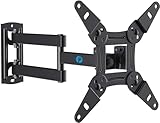
- TV Mount Compatibility - The swivel TV wall mount is compatible with most LED LCD flat or curved 13″-43″ TVs/Monitors up to 44 lbs with VESA mounting patterns 75x75 to 200x200mm. The single TV mount for 24 30 32 39 40 42 43 Inch can be installed on single wood studs, concrete, or brick walls, perfectly compatible with SAMSUNG, SONY, LG, VIZIO, TCL, ELEMENT, SCEPTRE, HISENSE and other TV brands. Please confirm your screen size and TV/monitor VESA before ordering.
- Full Motion for Optimal Viewing - Our articulating arm small tv mount tilts +9°/-11° for anti-glaring, max swivels 90° display left or right according to your seats position (note: max. swivel angle depends on screen size) and rotates 360° for landscape and portrait orientation. It extends 14.59" and retracts back to 2.7" to save space. Makes your viewing or working feel more enjoyable!
- Universal Monitor Wall Mount - ideal for large computer monitors, especially monitors sizes 13, 17, 19, 21, 24, 27, 32, 34, 35 inch ultrawide monitors with VESA patterns from 75x75mm to 200x200mm. Use it as a full motion monitor wall mount to clear up desktop space and for ergonomic computer screen installation to improve your posture.
- Easy Installation - step-by-step instructions and all the necessary hardware is provided, single stud installation simplifies the placement of the TV/monitor on the wall. Removable TV plate designed for single-person installation which helps you to install this full motion TV wall mount without any hassle.
- Friendly After-sales Service - our corner tv wall mount 40 inch is constructed from high quality steel materials, we are so confident in the construction, strength and durability of this wall bracket that we are provide 5-year friendly customer service. Please feel free to contact us anytime, rain or shine:-)
For games and text-heavy interfaces, prefer Screen Fit, Just Scan, Original, Native, or 1:1. Avoid zoom because it can crop HUD elements, menus, and subtitles. Game picture modes may use different scaling behavior, so test the console’s own display-adjustment screen after changing the TV setting.
What to do when the setting does not work
- The option is greyed out: The app, input, or signal may not permit resizing.
- The setting keeps resetting: Picture size may be saved separately for each input or picture mode.
- Only one HDMI device is affected: Check the device’s resolution, aspect ratio, and calibration settings.
- Everything is cut off: Disable zoom or overscan and select a native or fit-to-screen mode.
- Everything has a border: Check for underscan, incorrect source resolution, or computer scaling.
- Bars remain after correct setup: They may be encoded into the video or required by its aspect ratio.
- The picture looks stretched: Return to Original, Auto, or the correct source ratio.
- Text becomes blurry: The source may be using a non-native resolution or being scaled twice.
- Apps behave differently: Built-in applications may format content independently.
Power-cycle the TV and source after changing display settings, try another HDMI input, and test a built-in app against an external source. Update software only when the manufacturer’s instructions recommend it; an update is not guaranteed to add a missing picture-size option.
Which setting should you leave on?
For the most accurate result, leave the TV on Original, Native, Fit to Screen, Screen Fit, Just Scan, or the equivalent non-cropping mode. It is usually best for films, games, subtitles, menus, and computer text.
Choose Zoom only when removing bars matters more to you than preserving every edge of the picture. Use Stretch or Wide modes only when you accept altered proportions. The right result is not always the largest possible image; it is the largest image that keeps the source’s geometry and important content intact.
Quick Recap
Final checklist
- Open the TV’s Picture or Aspect Ratio menu.
- Try Original, Native, Auto, Screen Fit, Just Scan, or Fit to Screen.
- Disable Zoom or Wide Zoom if edges are missing.
- Check the correct input and source device.
- Correct computer or Apple-device underscan and scaling.
- Test subtitles, edge text, faces, and game menus.
- Confirm whether remaining bars are part of the original content.
Product prices and availability are accurate as of the date/time indicated and are subject to change. Any price and availability information displayed on Amazon at the time of purchase will apply.




