To fix a smart thermostat that won’t connect to Wi-Fi, first identify where the connection is failing: finding your network, joining it, registering in the app, or staying online. Then check internet service and follow the instructions for your thermostat’s exact model. Wi-Fi bands, router settings, and extender support differ by device, so don’t apply one brand’s fix to every thermostat.
First identify what “won’t connect” means
Note the thermostat’s exact model, what appears on its screen, and any error or help code. The next step depends on which stage has failed:
- No networks appear: the thermostat cannot detect nearby Wi-Fi.
- Your network appears, but joining fails: check the selected network, password, and model-specific router requirements.
- The thermostat joins Wi-Fi, but setup in the app fails: troubleshoot app or account registration rather than repeatedly changing Wi-Fi settings.
- It connected before but is now offline or disconnecting: check signal strength, interference, and router or access-point compatibility.
Google provides separate instructions for these Nest setup, app, and offline situations; other brands may use different steps. Start with the manufacturer’s support page for your model.
Check the internet connection before changing thermostat settings
- Use another device near the thermostat to check that your home Wi-Fi has internet access. If you use a phone for this test, Google advises turning off cellular data so the phone does not mask a home internet outage.
- If other devices also lack internet, contact your internet service provider. The problem may be with the service rather than the thermostat.
- If internet access works, follow the thermostat maker’s instructions to restart the modem and router. Wait for both to restart fully, then try the thermostat connection again.
Google’s official setup troubleshooting includes a modem-and-router restart before retrying setup.
Outdated Drivers Are Slowing You Down
One free scan finds every outdated or missing driver and matches the right update for your exact hardware.Free scan · exact hardware matchWindows Errors? Fix Them Before They Spread
Repair common Windows errors and clear accumulated junk for a smoother, more stable PC - no reinstall needed.Free scan · no reinstall#1 Best Overall

- An Alexa thermostat - Amazon Smart Thermostat is an easy way to switch from a traditional thermostats for homes and help reduce energy usage.
- Create comfort zones throughout your home by connecting to select Alexa devices to automatically adjust heating and cooling based on temperature readings or presence detection.
- Save money and energy - After purchase, Amazon will send you an email with details about home thermostat rebates that may be available from energy providers in your area.
- Save energy - According to EPA estimates, ENERGY STAR certified thermostats save an average of $90 on yearly energy bills.
- Programmable thermostat and automatic control - Create your own home, away and sleep schedules, or have Alexa automatically control the temperature with Alexa+ advanced features.
If the thermostat cannot find your Wi-Fi network
For a Nest thermostat, Google advises allowing a few minutes for the network scan, restarting the router, and restarting the thermostat if needed. Check whether the thermostat displays a help code, and follow the instructions for that code rather than treating it as a universal Wi-Fi error.
Check hidden network names and interference
If your router hides its network name (SSID), Google’s Nest instructions say to enter the network name manually during setup. Nearby devices, walls, and router placement can also affect detection; check for interference and consult your router’s settings if the network still does not appear.
Rank #2

- PRIVACY PROTECTION*: Sensi won’t sell your personal information to third parties
- EASY DIY INSTALLATION: Use the built-in level and step-by-step app instructions for a quick installation. Works with HVAC equipment found in most homes. Common wire (c-wire) is not required in most applications
- SAVE ABOUT 23% ON HVAC ENERGY*: The ENERGY STAR-certified Sensi smart thermostat can help you save energy with features like flexible scheduling, remote access and usage reports
- SIMPLE CONFIGURATION: Looks and feels like a thermostat. Has buttons and fits the same space as a traditional thermostat so you don’t have to patch and paint your walls
- SMART MAINTENANCE: Sensi can help monitor the performance and efficiency of your HVAC system by delivering valuable usage reports, alerts about your equipment, and maintenance reminders like filter replacement
Take a W5 code seriously, but keep it model-specific
Google associates a W5 issue with a Nest thermostat that cannot detect nearby Wi-Fi networks. Its guidance identifies the Nest Learning Thermostat (3rd gen) and Nest Thermostat E in this context and directs users with the code to support. Do not apply this code or its diagnosis to another brand or model. See Google’s Nest network troubleshooting.
If your network appears but the thermostat will not join
Confirm that you selected the correct network and entered its current password. Then check the thermostat’s own documentation for supported Wi-Fi bands and router settings. Requirements are model-dependent: for relevant Nest connection problems, Google mentions enabling 2.4 GHz and, with an 802.11 ac router, enabling 802.11 b/g/n. Honeywell also describes 2.4 GHz requirements for some devices and notes that a router may need separately named 2.4 GHz and 5 GHz networks. These are examples for particular device families, not universal router settings.
What’s actually slowing this PC down?
Pick the symptom - the matching free tool is one click away.
Rank #3

- COMPATIBILITY: Works with Conventional Single-Stage 1 Heat/1 Cool systems (Gas, Oil, or Electric) and Air Conditioning, C-Wire Required. Does not work with Multi-stage Systems and Heat Pumps systems, Incorrect system match will lead to abnormal working
- Compatible Wiring Terminals: RH, RC, W, Y, G, C. The C common wire is a must for normal use. Does not support W2, Y2, O/B, E, L, AUX, ACC+, ACC-, S, X, X2. Requires 24V C-wire power supply and cannot run on batteries
- Incompatible Systems: Does not work with 2H/1C, 2H/2C, 3H/2C, 4H/2C multi-stage systems and heat pumps systems, heat-only systems, cool-only systems, 120-240V line voltage systems, PTAC units, line voltage heaters, mini splits, or RV air conditioners
- WiFi Connectivity: Works only with 2.4GHz home WiFi, 5GHz network is not compatible. Connect it to your phone app to adjust temperatures remotely, set up 7-day schedules and monitor your HVAC system in real time anywhere you go
- 7-Day Programmable Scheduling: This thermostat supports easy 7-day programming. You can set different temperature periods to match your daily routine. It helps save electricity and reduce unnecessary unit operation while keeping your home comfortable all day long
Honeywell notes that a guest network can behave differently from a home network. Router firewalls or parental controls may also block setup or device communication. If you test a restriction, change only what is needed, follow your router maker’s directions, and restore the security setting afterward. Google also identifies restrictive firewall or parental-control settings as a possible obstacle during app setup; see its connection troubleshooting.
If the thermostat keeps disconnecting or shows offline
Check the thermostat’s signal-strength information, if available, and consider whether the router is too far away or separated by obstacles. Interference and incompatible router or access-point settings can cause dropouts. Google also lists low thermostat battery as a possible cause of offline problems. Use the manufacturer’s guidance to check the battery and network status for your model.
Rank #4
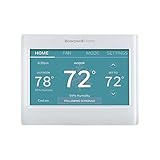
- ENERGY STAR certified to help save energy, track your heating and cooling and send personalized tips on reducing energy use..Includes : Thermostat, Wall Plate, Screws, Anchors, Quick Start Guide, Thermostat ID Card, Wire Labels, User Guide
- SAVE ENERGY AND GET REWARDED by checking with your energy provider about available energy savings rebates to save on your purchase (rebate finder link above). Plus, eligible customers can enroll in ongoing energy savings incentives with their energy provider to keep saving all year long.
- CONTROL FROM ANYWHERE by using the app or compatible smart home partners including AMAZON ALEXA, GOOGLE ASSISTANT, MICROSOFT CORTANA, and more. Flexible programming options are also available if you'd rather set it and forget it but still benefit from energy savings.
- CUSTOMIZABLE COLOR SCREEN: Easily change the high-definition display of the Wi-Fi thermostat to any color you choose.
- ON-SCREEN COMFORT INFORMATION: See indoor and outdoor temperature and humidity information right on the home screen, plus daily weather forecast available on the smart thermostat.
Consider coverage equipment only after checking the signal
Google suggests moving the router closer or using an extender when weak signal is the problem. That does not make an extender a general fix for an incorrect password, an app-registration failure, or an incompatible router setting. Honeywell’s WiFi 9000-specific instructions prefer a direct router connection and do not recommend extenders or satellites for that model. Check the exact model instructions before buying or installing coverage equipment.
Independent reader supportYour contribution helps us test, update, and keep practical guides available for everyone.If Wi-Fi works but the app cannot add the thermostat
Separate network access from app registration. If the thermostat is already connected to Wi-Fi but does not appear in the app, confirm internet access, follow the app’s setup instructions, and check whether firewall or parental-control rules block communication. Google’s app setup troubleshooting also recommends restarting the modem and router. Avoid changing Wi-Fi bands or passwords when the fault is limited to adding the device in the app.
Quick wins for a faster PC:
Fix the driver behind crashes, sound loss and screen glitchesFind Drivers →Repair Windows errors before they cause bigger problemsFix Now →Scan for outdated or missing drivers - takes under a minuteDriver Scan →Best Value

- EASY DIY INSTALLATION: Do it yourself fast with a built-in level and simple step-by-step instructions. Works with the HVAC equipment found in most homes
- COMMON WIRE REQUIREMENTS: Common wire(C-Wire) required for heat pump and heat/cool only systems. C-wire not required on most systems
- SAVE ABOUT 23% ON HVAC ENERGY: ENERGY STAR-certified and packed with features that help you save money, including flexible scheduling, geofencing, remote access and usage reports
- PRIVACY PROTECTION: Sensi won’t sell your personal information to third parties or leverage your thermostat activity data for targeting or advertising purposes
- CONTROL FROM ANYWHERE: The top-rated mobile app for Android and iOS devices makes it easy to control your comfort from a smartphone or tablet
When to contact support
- Contact the internet provider if service is unavailable on other devices too.
- Follow the thermostat maker’s exact instructions for any displayed error or help code.
- Contact the thermostat manufacturer if its troubleshooting steps do not resolve the issue or its documentation directs you to support.
Do not assume a factory reset, replacement thermostat, or new router is necessary; the steps that are appropriate depend on the model and the fault identified.
Quick Recap
Product prices and availability are accurate as of the date/time indicated and are subject to change. Any price and availability information displayed on Amazon at the time of purchase will apply.




