Some links on this page are affiliate links: if you buy through them we may earn a commission, at no extra cost to you.
Choose a dash cam by starting with coverage, then verify how it protects incident footage and how you can retrieve a saved clip. A front-and-rear system records more surrounding context than a forward-only camera, but neither view guarantees that every collision is captured or proves who was at fault. Before installation, confirm local rules for video, audio, storage, sharing and windshield mounting.
This guide explains the decisions that matter when the camera’s purpose is documenting a traffic collision, including continuous recording, overwrite behavior, storage, manual saving, privacy and the difference between dash-camera video and a vehicle’s event data recorder.
As an Amazon Associate I earn from qualifying purchases.
What a collision dash cam can—and cannot—establish
A dash cam creates a time-stamped visual record from the camera’s position. It may show traffic signals, lane position, vehicle movements, road conditions and what happened immediately before or after an impact. That context can help drivers, insurers, fleet managers or investigators understand an event.
It is not a complete reconstruction system. A camera may not see a vehicle approaching from outside its field of view, may lose critical detail in darkness or glare, and may not record if power, storage or the camera itself fails. A manufacturer’s Genesis GV80 owner manual warns that its impact-triggered recording may not activate for minor shocks and that the system is not guaranteed to detect and record every situation. Treat those limitations as a reminder to verify the behavior of the particular model you buy.
#1 Best Overall

- UPSCALED 4K FRONT + 1080P REAR DUAL DASH CAM: The ROVE R2-4K DUAL records the road ahead and behind at the same time. The front camera captures at 2.5K (QHD) and intelligently upscales to 4K (2160P) for higher-detail playback, while the rear camera records at Full HD 1080P. This is upscaled 4K, not native 4K, engineered to show sharper everyday detail than standard 1080P dash cams, so you can read license plates, signs, and surroundings in front and rear footage.
- SONY STARVIS 2 IMX675 SENSOR + SUPER NIGHT VISION: The front camera uses a Sony STARVIS 2 IMX675 5MP image sensor with a wide F1.5 aperture (F1.8 rear) and HDR to pull in more light for clearer low-light footage. This advanced sensor enhances nighttime clarity, helping capture license plates, road signs, and surrounding vehicles with greater reliability when driving after dark, through tunnels, or in dusk and dawn conditions.
- ULTRA FAST 5.8GHz WIFI/ UP TO 20MB/s DOWNLOAD SPEED: With its built-in dual-band 5.8GHz and 2.4GHz WiFi, you can use the ROVE dash cam app to view and manage dash cam recordings instantly on your iPhone and Android smartphone. Using the ROVE app, download your recorded videos directly to your smartphone at up to 20 MB/sec, then easily share them on social media with friends and family. Additionally, manage camera settings and update the latest firmware over-the-air via the ROVE App.
- CAR CAMERA WITH GPS: The new front and rear dashcam comes with built-in GPS, which enables you to view real-time live speed and compass on the 3” IPS wide camera screen. It records precise driving routes, locations, and speed stamps directly on the video so you can watch dashcam videos with GPS data using ROVE's free GPS Player on your PC or Mac & get additional evidence when you need it.
- FEATURES WITH STATE-OF-THE-ART TECHNOLOGY INCLUDED: Experience peace of mind with this front and rear car dash cam. It comes with a free 128GB microSD card and offers advanced features such as an f1.5 aperture, motion detection, G-sensor, seamless loop recording, emergency video lock, screen saver, live speed and compass direction, voice guidance, ring of threads for optional CPL filter, a built-in supercapacitor for extended product life, support for up to 1TB microSD cards, and many more.
Video is also not automatically proof of fault or legally admissible evidence. The same manual says admissibility depends on the country or jurisdiction. A clip can support a version of events, but other evidence—statements, photographs, road markings, vehicle damage, police records and the vehicle’s own data—may still matter.
Start with the view you need
Forward-facing camera
A forward-facing camera records the road ahead. It is the simplest installation and usually the least intrusive choice when your main concern is documenting vehicles in front of you, signals, signs and lane movements. It does not show what happens behind your vehicle or provide a side view unless those areas enter the lens.
Front-and-rear system
A front-and-rear system adds a camera aimed through the rear window. That second angle can provide context for a rear-end impact, following distance or a vehicle leaving the scene. The Genesis GV80 manual describes front and rear cameras recording high-definition video for accident capture; that is a manufacturer description of that system, not an independent performance test or a guarantee that every collision will appear on both views.
What extra coverage does not solve
- Neither front-only nor front-and-rear cameras guarantees a view of side impacts, blind spots or an obscured signal.
- A rear camera may be blocked by tint, cargo, a rear wiper path, condensation or a damaged window.
- Additional cameras add wiring, mounting points and more files to identify after an incident.
- Cabin-facing or side cameras may capture passengers and bystanders, creating additional privacy obligations.
Choose the view based on the collisions and driving environments you actually face. If rear impacts and disputes about following distance are common concerns, front-and-rear coverage is the more direct fit. If simplicity, minimal wiring and a single file stream matter more, a forward-facing camera may be sufficient.
Verify how recording is retained
Continuous recording and overwrite
Most collision-oriented systems record in a loop. When the storage card fills, the oldest files are deleted first so new footage can continue. The Genesis manual documents this oldest-first behavior for its SD-card system; do not assume every camera uses identical file lengths, folder names or protection rules.
Ask these questions in the specific model’s manual:
Do these 3 things before closing this tab:
1Scan for outdated or missing drivers - takes under a minute2Repair Windows errors before they cause bigger problems3Fix the driver behind crashes, sound loss and screen glitches- Does recording begin automatically when the vehicle starts?
- Does the camera continue recording without gaps between files?
- How long is each file, and are front and rear views saved separately?
- What happens when the card is full?
- Does an impact sensor protect a file, and how much footage before and after the trigger is retained?
- Can you press a button to protect the current clip manually?
- Can protected files eventually fill the card and stop normal loop recording?
Impact-triggered protection
An impact sensor can mark or lock a clip when the camera detects a shock. It is useful, but it is not a guarantee. A low-speed contact, a glancing strike, a shock absorbed by another vehicle or an incorrectly adjusted sensitivity setting may not trigger protection. Learn the manual-save control before you need it.
Manual saving is a practical safeguard
After a collision, use the camera’s physical save or emergency-lock control if it is safe to do so. A protected file is less likely to be overwritten during the rest of the journey. This is practical handling advice, not a universal legal chain-of-custody procedure; follow any instructions from your insurer, police or lawyer.
Rank #2
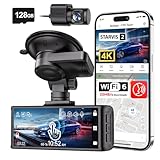
- [4K+1080P Dual Recording] REDTIGER F7N TOUCH captures your drive journey in stunning 4K UHD resolution with STARVIS 2 sensor 170° wide-angle view for the front dash cam and 1080P FHD resolution 140° wide-angle for the rear car camera. Equipped with WDR and HDR technology, the enhanced super night vision ensures better visibility even in low-light situations, providing you with reliable recordings day and night.
- [Voice Control & Touch Screen] F7NTOUCH dashcam features voice commands, allowing for hands-free control of your 4K car camera, which enhances safety by minimizing distractions. The dual camera dash cam also has smart touchscreen that can lock emergency video, turn on wifi, and capture scenery with one click. Redtiger also retains the buttons, multiple control methods are integrated.
- [Built-in GPS & 5.8GHz WiFi] Both Android and IOS users can connect to dashcam WiFi via the REDTIGER Cam app. Although the dash cam is installed wired, you can enjoy wireless control on your smartphone, faster 20MB/s download speed and share your driving experiences in real-time with friends and insurance companies. Car recorder built-in GPS provides traceable location, speed, and accurate route in the recordings.
- [Loop Recording & G-Sensor] REDTIGER F7N TOUCH dual channel dash cam automatically overwrites the oldest footage when the memory is full, ensuring endless recording with the included 128GB card. With a built-in G-sensor that detects sudden movements or impacts, it automatically locks and protects the associated footage when an event is detected on the road, ensuring it won't be overwritten during loop recording.
- [24-hour Parking Monitoring*] REDTIGER Car dashboard camera offers G-Sensor Parking Mode that automatically record when it detects any collisions or sudden motion while vehicles is parked. Time Lapse Parking Mode provides continuous surveillance by offering a condensed overview of any events that may occur during parking periods. *Please note that the parking monitoring function requires a separate hardwire kit.
Storage is part of the camera, not an afterthought
Confirm the supported card format and capacity in the camera’s own documentation. The Genesis system described in the owner manual uses an SD card, but that does not establish compatibility across consumer dash cams. Other products may require a microSD card, a particular speed class or a capacity limit.
| Storage question | Why it matters after a collision | What to verify |
|---|---|---|
| Card type | An incompatible card can cause recording errors or missing files. | Exact SD or microSD format and any required speed rating in the model manual. |
| Maximum capacity | A card larger than the supported limit may not work reliably. | Manufacturer-stated capacity, not a retailer assumption. |
| Loop behavior | Unprotected footage may disappear as new video is recorded. | Oldest-first deletion, file length and whether locked clips are excluded. |
| Export method | You need a usable copy for an insurer, police report or solicitor. | Card reader, USB connection, mobile app or another documented method. |
| File integrity | Interrupted power or a failing card can corrupt the last file. | Safe shutdown behavior, formatting instructions and error warnings. |
Use the camera’s recommended formatting procedure and replace a card when the manufacturer specifies a service interval or when errors appear. Keep an appropriate spare card available if your operating procedure allows swapping one after an incident. Do not format or edit the original card before preserving the relevant files.
Free tools Windows power users keep installed
One-click scans. No signup required.
Compare image usefulness without inventing a specification threshold
Resolution labels alone do not tell you whether a plate, signal or vehicle movement will be visible. Lens quality, exposure control, dynamic range, compression, vibration, rain, darkness and the angle through the windscreen all affect the usable image. The available evidence does not establish a universal resolution requirement, night-performance score or plate-reading distance.
When comparing specific models, use reliable model-level tests and inspect sample day and night footage. Look for:
- Readable scene detail at the distances relevant to your roads.
- Controlled highlights when headlights or a low sun enter the frame.
- Shadow detail under bridges, at junctions and in unlit areas.
- Stable footage despite windscreen vibration and road surfaces.
- Accurate date and time settings, with a clock that remains correct after power loss.
- A field of view wide enough for your lane and nearby traffic without excessive distortion.
Do not buy on a claimed “impact sensor” alone. Confirm how the sensor is adjusted, what it protects and how you can recover the resulting files.
Choose local storage, connected features and privacy deliberately
Local-only recording
A camera that stores files on a card keeps the primary recording in the vehicle. The Genesis manual documents local SD storage for its vehicle system. Local storage avoids an automatic cloud upload, but you still need a reliable way to remove the card or connect the camera and copy files.
Audio, cabin video and GPS
Features that improve context can also collect more personal data. Audio may record conversations; a cabin lens may capture passengers; GPS can embed location and speed information. Decide whether each feature is necessary, and disable it where appropriate and lawful.
Cloud or app-connected systems
Connected cameras may make retrieval easier, but they introduce accounts, network transfers, retention settings and another service provider handling the footage. Read the product’s privacy and deletion controls. Do not assume that an app copy replaces the original card file.
Rank #3
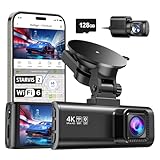
- [4K+1080P Front & Rear Recording] REDTIGER F7NP dash cam captures every detail with stunning 4K front and 1080P rear video. Featuring the advanced STARVIS 2 sensor plus the 170° front and 140° rear wide-angle lens, this dash camera delivers sharper images, balanced lighting, and reliable evidence day or night. Ideal for commuting, road trips, rideshare drivers, and new drivers.
- [STARVIS 2 Sensor & WDR Night Vision] Equipped with the advanced STARVIS 2 sensor, F1.5 large aperture, and 6-layer optical lens, F7NP 4K dual dash cam delivers clear, high-contrast footage in any lighting. WDR and HDR technology balance highlights and shadows, ensuring sharp night vision and crisp details day or night, providing reliable evidence and enhanced safety for every drive.
- [Built-in 5.8GHz WiFi & Smart App] Connect your smartphone to the dashcam’s built-in 5.8GHz WiFi to enjoy ultra-fast downloads up to 20MB/s. Using Redtiger Cam app, you can preview, download, and replay videos in real time, check GPS ata (route, speed, and location), and manage settings effortlessly, making it simple to review footage and share important moments.
- [Loop Recording & Free Memory Card] This car camera supports seamless loop recording to ensure continuous coverage without interruption. Older files are automatically overwritten when storage is full, while important events are safely locked. A free memory card is included, giving you ample space for 4K recordings and allowing you to use the camera right out of the box.
- [24/7 Parking Mode* & G-Sensor] Enjoy round-the-clock protection with two parking modes: time-lapse recording for continuous low-bitrate monitoring and G-sensor mode that records when collision is detected. The car security camera with G-sensor automatically locks important clips, ensuring crucial evidence is safely preserved even while your vehicle is parked.(*Hardwire kit needed.)
Check the law where the vehicle operates
Recording rules differ by country, state and circumstance. Check current requirements before mounting the camera, especially for audio, people inside or outside the vehicle, retention, disclosure and windshield placement.
Ireland
The Irish Data Protection Commission notes that dash cams can record road users or occupants and that data-protection implications may arise. Establishing liability after an accident is one reason it identifies for installing a dash cam. That guidance concerns Ireland and should not be treated as a worldwide rule.
Crashes, No Sound, or Screen Glitches?
Random freezes, missing sound and display glitches usually trace back to one bad driver. Find and replace yours safely.Free scan · under a minuteWindows Errors? Fix Them Before They Spread
Repair common Windows errors and clear accumulated junk for a smoother, more stable PC - no reinstall needed.Free scan · no reinstallLower Saxony, Germany
Lower Saxony’s state data-protection authority says short, occasion-related recording may be permissible under its approach, while recording without an occasion is generally impermissible. Its FAQ expressly warns that the conclusions are not directly transferable to other authorities. Drivers elsewhere must check their own regulator and courts.
United States distinctions
U.S. rules can differ by state, including consent requirements for audio and restrictions on windshield-mounted equipment. The U.S. Driver Privacy Act language cited in the source material concerns vehicle event-data-recorder information: it states that EDR data belongs to the owner or lessee and limits retrieval in specified circumstances. That statute does not automatically govern every consumer dash-camera video file.
Before use, verify:
- Whether audio recording requires consent.
- Whether recording people or number plates creates data-protection duties.
- How long footage may be retained and when it must be deleted.
- When footage may be shared with police, insurers, employers or other parties.
- Where a camera may be mounted without obstructing the driver’s view.
Do not confuse a dash cam with the vehicle’s EDR
The National Highway Traffic Safety Administration uses “event data recorder” for a vehicle system that may record pre-crash dynamics and system status, driver inputs, crash signature, restraint status and some post-crash data. NHTSA explicitly excludes devices that make audio or video records from that EDR definition.
NHTSA’s final rule published December 18, 2024 amended covered EDR pre-crash timed-data capture from five seconds at 2 Hz to 20 seconds at 10 Hz. Those are EDR requirements, not dash-camera video resolution, frame rate or clip duration. A dash cam supplies visual context; an EDR may supply vehicle dynamics and system-status data. Neither is a substitute for the other.
What’s actually slowing this PC down?
Pick the symptom - the matching free tool is one click away.
Product paths that match common needs
| Path | Best fit | Trade-offs to check |
|---|---|---|
| Forward-facing dash camera | Drivers who primarily need the road-ahead view and want simpler installation. | No rear view; confirm loop recording, manual save and card compatibility. |
| Front-and-rear dash camera | Drivers who want additional context for rear impacts and following-distance disputes. | More wiring and files; rear-window visibility and mounting quality matter. |
| Camera with cabin view or audio | Users with a specific, lawful need for interior context. | Greater privacy exposure and potentially stricter consent rules. |
| Camera with parking recording | Owners who also need coverage while parked and have a supported power arrangement. | May require a compatible hardwire kit, battery protection and separate legal review; it is not essential for documenting collisions while driving. |
“Front-and-rear dash camera” is a precise buying phrase for the two-view setup. Add a compatible SD or microSD card only after confirming the camera’s requirements.
Selection procedure: from requirement to installed system
- Define the incident scenarios. Decide whether your priority is forward traffic, rear impacts, work-vehicle use, night driving, or occasional parked coverage.
- Select the camera layout. Choose front-only for a simpler road-ahead record or front-and-rear when the second view addresses a realistic risk.
- Read the exact manual. Confirm automatic start, continuous recording, file length, overwrite behavior, incident protection, manual save and export steps.
- Check storage compatibility. Buy only the card type and capacity the manufacturer supports. Plan how a full or failing card will be identified.
- Assess real footage. Review trustworthy day and night samples for the model rather than relying on a resolution label.
- Decide on data features. Enable or disable audio, cabin video, GPS and cloud upload according to your actual need and local rules.
- Confirm mounting legality. Place the camera where it does not obstruct the driver and complies with local windshield rules.
- Test retrieval before driving. Record a short clip, trigger a manual save, remove or connect the storage, copy the file and play it on another device.
- Document your settings. Record the camera model, card type, date/time setting, firmware version if shown, and the location of the save button.
Installation and operating checks
Mounting
- Position the lens where it sees the intended lane and signal area without placing the camera in the driver’s sightline.
- Clean the glass and ensure the mount is secure; vibration can make footage less useful.
- For a rear camera, check the cable route, window tint, defroster lines and wiper-cleared area.
- Keep cables away from airbags and pedals, following the vehicle and camera installation instructions.
Power and time
Confirm that the camera starts and stops as intended with the vehicle. Check the displayed date and time after the vehicle has been parked overnight. An incorrect clock does not necessarily invalidate footage, but it complicates reconstruction and comparison with other records.
Rank #4
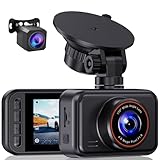
- 2.5K Front + 1080P Rear Recording: S60 records 25601440P front video and 1080P rear video to help capture what happens ahead of and behind your car. The front 170 wide-angle lens helps cover more of the road during daily drives or unexpected events
- WDR Night Vision: The starlight night vision sensor and 6-layer glass lens help improve video clarity in low-light conditions. WDR helps balance bright headlights and darker areas, making footage easier to review at night, in tunnels, parking lots, and other changing light conditions
- Loop Recording & G-Sensor Lock: Loop recording replaces older unprotected clips when the card is full. SD card is not included, and the dash cam supports cards up to 256GB. If a sudden impact, hard braking, or collision is detected, the G-sensor locks the current clip to help protect important footage
- Optional 24-Hour Parking Monitor: S60 supports a 24-hour parking monitor with time-lapse recording. This feature requires a compatible Type-C hardwire kit, not included
- 2" IPS Screen & 360 Suction Mount: The 2" IPS screen lets you check the camera view and adjust basic settings directly on the device. The 360 suction mount makes it easier to adjust the camera angle and remove or reinstall the unit
Routine checks
- Inspect the lens and windscreen for dirt, condensation and glare.
- Check for storage-card warnings and confirm that new clips are being created.
- Verify that protected clips can still be opened and copied.
- Review privacy settings after firmware or app changes.
- Keep the camera manual and export instructions accessible in the vehicle or a controlled digital location.
What to do immediately after a collision
- Prioritize safety. Stop where lawful and safe, check for injuries and contact emergency services when required.
- Protect the current file. If it is safe, press the camera’s manual-save or emergency-lock control. Do not operate the device while driving.
- Prevent unnecessary overwrite. Once the scene is safe, stop recording or remove power according to the manual, without damaging the storage card.
- Make independent notes. Record the time, location, direction of travel, weather, visible damage and witnesses. Take scene photographs if lawful and safe.
- Preserve the original. Copy the relevant front and rear files without editing them. Keep the original card or source file unchanged and make a working copy for viewing or sharing.
- Use the documented export route. Follow the camera’s instructions for card-reader, USB or app export. Note which files were copied and when.
- Share selectively. Provide footage to the insurer, police or legal adviser through their requested channel, respecting local privacy and disclosure rules.
Do not crop, enhance, rename over the original or combine clips in a way that removes metadata before preserving the source. If a professional requests a particular format or handling method, follow that request.
Troubleshooting common failures
The camera did not save an impact clip
Check whether the shock was too minor to trigger the sensor, whether sensitivity was reduced, whether the camera had power, and whether the card was full or faulty. Search the normal loop-recording folders as well as protected folders; a clip may exist without an incident flag.
Recommended Free Tools
Files are missing or corrupted
Stop using the card to avoid overwriting data. Use the manufacturer’s recovery or export instructions, and do not repeatedly format the card. If the camera lost power during writing, the last file may be incomplete even when earlier files remain usable.
The rear view is unusable
Inspect the lens position, cable connection, window contamination, tint and glare. Confirm that the camera records a separate rear file and that you are opening the correct channel.
The date or time is wrong
Correct the clock through the camera or app settings, then verify it after a full power cycle. Preserve the original file and note the discrepancy when reporting the event.
Storage fills too quickly
Check whether protected files are accumulating, whether parking footage is enabled, and whether the camera’s loop function has been disabled. Export important clips, then use the documented formatting procedure and confirm that continuous recording resumes.
Quick wins for a faster PC:
Scan for outdated or missing drivers - takes under a minuteDriver Scan →Clear out junk files and repair common Windows errorsFree Scan →A decision checklist before purchase
- Which directions must be visible for your normal driving and collision risks?
- Does the exact model record continuously and overwrite the oldest unprotected files?
- How are impact clips protected, and where is the manual-save control?
- What card format, capacity and maintenance procedure does the manual specify?
- Can you export and play a front and rear clip without a subscription?
- Have you assessed actual day and night footage rather than choosing by resolution alone?
- Will audio, cabin video, GPS or cloud upload create unnecessary privacy exposure?
- Is the mounting position legal and unobstructive where the vehicle operates?
- Have you tested the complete save-and-retrieval process before relying on it?
Bottom line
For collision documentation, buy the simplest camera that gives you the necessary view, protects important footage from loop overwrite and lets you retrieve a clip reliably. Front-and-rear coverage adds useful context but does not guarantee a complete record. Storage compatibility, manual saving, local law and a practiced export procedure matter as much as the camera itself.
Quick Recap
Product prices and availability are accurate as of the date/time indicated and are subject to change. Any price and availability information displayed on Amazon at the time of purchase will apply.

