Outdated Drivers Are Slowing You Down
One free scan finds every outdated or missing driver and matches the right update for your exact hardware.Free scan · exact hardware matchWindows Errors? Fix Them Before They Spread
Repair common Windows errors and clear accumulated junk for a smoother, more stable PC - no reinstall needed.Free scan · no reinstallRing has separate sound controls for your phone, a Ring Chime or Chime Pro, and an existing wired indoor chime. To change the sound on your phone, open Ring → Menu (☰) → Devices → your doorbell → Alert Settings → App Alert Tones. To change a Ring Chime sound, open the Chime device and go to Device Settings → Audio Settings → Chime Tones.
First, identify which Ring sound you want to change
“The Ring doorbell sound” can mean several different alerts:
As an Amazon Associate I earn from qualifying purchases.
- Phone alert: the sound played by your iPhone or Android phone.
- Ring Chime or Chime Pro: the plug-in indoor speaker.
- Existing wired chime: a traditional mechanical bell or digital chime connected to the doorbell wiring.
- Alexa or another smart-home device: a separate alert system with its own settings.
Changing one does not automatically change the others.
Change the sound on your phone
- Open the Ring app.
- Tap the menu icon ☰.
- Tap Devices, then select your Ring doorbell.
- Tap Alert Settings.
- Tap App Alert Tones.
- Choose the sound for Ring Alerts, which are triggered when someone presses the doorbell.
- Choose the sound for Motion Alerts, which are triggered when the doorbell detects motion.
- Preview a tone if a preview control is shown, then return to the previous screen to retain the selection.
Ring documents separate tones for doorbell presses and motion events. If you press the doorbell to test the change, you are testing Ring Alerts, not Motion Alerts.
#1 Best Overall
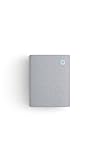
- Hear when someone's there — Receive notifications when motion is detected by your cameras or someone rings your doorbell.
- Real-time alerts, clear as a bell — With an upgraded speaker, get notified throughout your home with louder, clearer alerts.
- Set up in a snap — Simply plug Chime (3rd Gen) into a standard wall outlet for easy setup.
- Sleek, elegant design — Curved edges and slim profile create a modern look that fits your space.
- Customizable sound profiles — Personalize tones, volume, and snooze settings.
Menu names can differ by Ring model, app version, region, and phone operating system. If App Alert Tones is missing, check the doorbell’s Alert Settings and your phone’s notification settings.
Change the sound on a Ring Chime or Chime Pro
- Open the Ring app and select your Chime, Chime (3rd Gen), or Chime Pro device.
- Tap Device Settings.
- Tap Audio Settings.
- Tap Chime Tones.
- Select Doorbell Rings or Motion Detected.
- Choose an available tone.
- Tap Save.
Ring’s Chime controls also let you adjust volume and use Chime Snooze to silence Chime alerts temporarily. These settings apply to the Chime device you are editing, not automatically to every Chime in the account. See Ring’s guidance on linking a Chime to a doorbell.
If your Ring Chime makes no sound
Selecting a tone and enabling the alert are separate steps. Check the following:
Rank #2
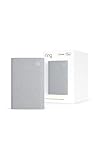
- Sound the alarm on all your devices — Sync Chime Plus with Ring sensors built on Amazon Sidewalk, cameras, and doorbells for comprehensive security you can hear from anywhere. (Coverage may vary by location and is subject to change or interruption.) (Chime Plus is designed to integrate with Ring Sensors connected to Amazon Sidewalk. Please verify your Ring device compatibility before purchase.)
- Set custom schedules for Chime audio alerts and lighting — Control when you hear alerts and when the night-light activates to match your daily routine.
- Personalized tones. Precision audio alerts. — Set a custom tone for each of your Ring devices so you know exactly which one was triggered the moment your Chime Plus sounds.
- Enhanced audio for true sound — Hear every alert no matter where you are with improved audio for crisp clarity and loudness.
- A guiding light that’s easy on the eyes — Illuminate hallways, rooms, and more with the built-in night-light.
- In the Ring app, open Menu → Devices → your doorbell → Linked Chimes.
- Select the Chime for Rings if you want an alert when someone presses the doorbell.
- Select the appropriate Chime for Motion Detected if you want motion alerts.
- Use the music-note preview control where available, then tap Save.
- Confirm that the Chime is online, has sufficient volume, and is not using Chime Snooze.
Test a doorbell press and a motion event separately. A Chime can have the correct tone selected but still remain silent if the doorbell is not linked to that event.
Changing an existing wired indoor chime
An existing wired chime is different from a Ring Chime. A mechanical chime uses a physical bell and hammer; a digital chime uses an electronic speaker and prerecorded sounds.
Ring’s in-home chime settings may let you identify the installation as:
Rank #3

- 1. Wide Compatibility - Works seamlessly with most eufy video doorbells, offering reliable ringing and notifications throughout your home. For a detailed compatibility list, please refer to the FAQ.
- 2. Multiple Chime Options - Comes with 10 pre-installed tones that suit various preferences and occasions, so you can find the right one for you.
- 3. Stable Dual-Band Connection - Enjoy faster speeds, reduced network congestion, and smooth performance at all times with advanced 2.4 GHz and 5 GHz dual-band Wi-Fi connectivity.
- 4. Quick and Easy Setup - Supports auto-discovery and effortless network integration with Bluetooth auto-pairing, allowing fast installation within minutes.
- 5. Loud and Reliable Alerts - Volume can be adjusted to up to 80 dB for powerful and dependable alerts, letting you hear visitor notifications clearly even from the second floor or across larger spaces.
- None
- Mechanical
- Digital Type 1
- Digital Type 2
These settings configure compatibility and behavior. They are not the same as choosing a library tone for a Ring Chime, and they generally do not let you upload or select an arbitrary sound for a traditional wired chime.
Check your exact Ring model and wiring before changing these settings. Ring’s current guidance identifies the following as unsupported for use with an in-home chime in the referenced configurations: Video Doorbell Wired, Wired Doorbell Plus (2nd Gen), Wired Doorbell Pro (3rd Gen) except when powered by PoE, and Peephole Cam or Door View Cam. Compatibility can vary by model, region, power method, and firmware.
Can you upload a custom ringtone or MP3?
Ring’s documented controls allow you to choose from the available Ring tones. The official instructions do not document uploading an MP3 or assigning any arbitrary custom audio file, so do not assume that a song or personal recording can be used as the Ring tone.
Rank #4
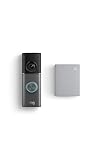
- This bundle contains 1 Wired Doorbell Pro (3rd Gen) and 1 Chime (2nd Gen), White.
- Capture it all with Retinal 4K video —See your home or business in the ultimate clarity with Retinal 4K.
- Zoom in up to 10x — Catch details at a distance and inspect faces or license plates with wide-angle up to 10x Enhanced Zoom.
- True color, even in low light — With Low-Light Sight, just a little ambient light gives you true color video. In total darkness, your camera switches to crisp black-and-white to keep details sharp.
- See in the near-dark — With Low-Light Sight on both your doorbell and camera, get a full-color view in the near-dark. Nearby street lighting is all you need.
Why does the old sound still play?
| What you hear | Likely explanation |
|---|---|
| The phone still plays the old sound | The phone tone was not saved, or the wrong Ring device or event was edited. |
| The Chime still plays the old sound | The Chime’s own Chime Tones setting was not changed. |
| The doorbell sound changed but the motion sound did not | Ring Alerts and Motion Alerts use separate tone controls. |
| The phone changed but the indoor sound did not | Phone alerts and Chime alerts are independent. |
| There is no sound anywhere | Notifications may be disabled, the Chime may be offline or snoozed, or the doorbell may not be linked to the Chime event. |
| The wired chime behaves incorrectly | The mechanical/digital/none setting may be wrong, or the Ring model may not support that chime configuration. |
| Multiple indoor speakers behave differently | Each Chime can have its own settings and may be linked to different doorbells or events. |
Check your phone’s notification settings
If the selected phone tone does not play, check:
- Ring’s notification permission.
- Phone volume, silent mode, and media or notification volume.
- Android notification-channel settings.
- iPhone Focus or Do Not Disturb settings.
- That you changed the event you are testing.
- That you are signed in to the correct Ring account and location.
Ring has also documented an iOS-specific issue in which some longer alert tones could be cut off on iOS 16. Ring attributed that behavior to an Apple limitation and said iOS 17 resolved it for individual notifications, although repeated notifications could still be cut off. Operating-system behavior may change with later updates.
Do you need a Ring subscription?
No subscription requirement is identified in Ring’s tone-selection instructions. Choosing an app or Chime tone is separate from subscription-dependent features such as video history, some Smart Alerts, and other premium security functions. A Ring Protect plan is therefore not generally needed just to change the sound.
The Tool Desk
Outbyte PC Repair FREEClear out junk files and repair common Windows errorsFree Scan →Outbyte Driver Updater FREEScan for outdated or missing drivers - takes under a minuteDriver Scan →Which indoor alert option is right for you?
- Phone-only alerts: best if you do not need additional hardware, but they depend on phone permissions, volume, connectivity, and Focus or Do Not Disturb settings.
- Existing wired chime: useful when your Ring model and wiring support it; the available behavior depends on the installation.
- Ring Chime (3rd Gen): a plug-in indoor alert with selectable tones, adjustable volume, and snooze controls. Ring lists it for indoor use.
- Chime Pro: adds a nightlight and Wi-Fi extension for Ring devices, but it is not a replacement for a general-purpose whole-home mesh system.
Ring says multiple Chimes can be connected around the home, with individual Ring doorbells and cameras selected as triggers. If you have several doorbells or Chimes, repeat the relevant settings process for each device.
For the most reliable result, change the control that matches the sound you actually hear: App Alert Tones for the phone, Chime Tones for a Ring Chime, and model-specific In-home Chime Settings for compatible wired installations.
Quick Recap
Product prices and availability are accurate as of the date/time indicated and are subject to change. Any price and availability information displayed on Amazon at the time of purchase will apply.




