Free tools Windows power users keep installed
One-click scans. No signup required.
The reliable way to start 3D CNC carving is to treat it as a complete pipeline: prepare a machinable model, reproduce the real stock and work coordinate system in CAM, rough with a robust cutter, rest-machine or semi-finish where necessary, finish with a geometry-appropriate toolpath, simulate the cutter and holder, post-process for the actual controller, and supervise a conservative test cut.
For a first project, choose a shallow relief plaque that can be cut from one top-side setup. It teaches the essential 3D operations without pretending that a 3-axis router can reach hidden faces or undercuts.
As an Amazon Associate I earn from qualifying purchases.
What makes a CNC project 3D?
A CNC project is genuinely 3D when the toolpath follows continuously changing Z-heights across a shaped surface. Relief carvings, bas-relief artwork, topographic maps, rounded trays, molded forms, figurines, and sculptural contours all fit that description. A sign with a few pockets or engraved letters may contain different depths, but it is still mostly 2D-style machining when its features have vertical walls and constant depths.
Quick wins for a faster PC:
Clear out junk files and repair common Windows errorsFree Scan →Fix the driver behind crashes, sound loss and screen glitchesFind Drivers →Repair Windows errors before they cause bigger problemsFix Now →There is an important limitation for beginners: 3D does not automatically mean machining every side of an object. A typical 3-axis router can carve the surfaces visible from the top setup. It cannot reach hidden faces, true undercuts, or the underside of a form without another setup, an indexed or rotary axis, 3+2 positioning, or a different machine strategy. A shallow top-side relief is therefore a better first project than a deep figurine with overhanging features.
#1 Best Overall
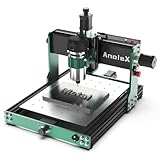
- Small home machine for light-duty work, with a robust and rigid structure. Repeatability accuracy ±0.01mm and cutting accuracy of 6061 aluminum plate ±0.05mm
- [800w Trim Router & Upgradeable 1.5kw Spindle ] Comes with 800W trim router & Er11-1/8" collet with 6-speed settings (8000-24000 RPM). Can easily cut metals such as aluminum, copper, etc. Software-controlled run/stop functionality, with speed adjustment requiring manual dial control. Comes with ⌀65mm spindle mount, it can be directly upgraded to our 1.5kw spindle kit for greater cutting capacity, precision and improved efficiency
- [Dual Linear Guides & Upgradeable Ball Screws] Each axis (X, Y, Z) is equipped with MGN-15 dual linear guides and T8 lead screws. It has high precision, high rigidity and high load for metal cutting, and improved dust protection for X and Y axes. 1204 ball screw kit available for upgrade.
- [Nema 17 stepper & Upgradable Closed-loop Motor] The 3030-Evo Max employs a higher-torque 650mN·m stepper motor compared to the common Nema17 motor (420mN·m), significantly enhancing its capability to process metallic materials. Upgradeable Nema17 closed-loop motor to obtain greater torque and achieve no step loss.
- [Easy Assembly & Upgradeable 3060 Table] Major components pre-assembled with clear cable management, accompanied by a detailed paper user manual and assembly/demo video for quick setup. The 3060 extension table base can be upgraded. The steps are simple, just remove the original base and replace it.
The complete 3D-carving workflow
- Design or prepare the model. Establish the finished dimensions and remove geometry the machine cannot reach.
- Represent the real stock in CAM. Set the stock size, orientation, origin, machining boundaries, and work coordinate system.
- Secure and reference the stock. Make the physical setup repeatable and keep every clamp and fastener outside the tool and holder envelope.
- Rough the bulk material. Use a robust cutter and a controlled-engagement strategy, leaving deliberate material for later operations.
- Rest-machine or semi-finish. Use a smaller tool to reach material left in valleys, corners, and other restricted areas.
- Finish the surfaces. Match parallel, contour, scallop, or combined steep-and-shallow passes to the model geometry.
- Simulate and verify. Check the model, remaining stock, holder, fixtures, retracts, machine travel, and bottom clearance.
- Post-process for the actual machine. Generate controller-specific NC code, review the setup sheet, and confirm units, offsets, tools, and spindle commands.
- Run conservatively and inspect. Air-cut when possible, watch the beginning of the job, then inspect and clean up the finished part.
This sequence matters because a visually convincing toolpath can still be unsafe or unusable if the model, stock, work offset, post processor, or physical workholding does not match the machine.
1. Choose a machinable first project
Start with a shallow relief plaque or rounded panel that can be cut from one top-side setup. It should have broad surfaces, modest depth, no hidden undercuts, and enough material around the relief to remain firmly held. This type of project visibly demonstrates roughing, rest machining, and finishing without adding the alignment problems of a multi-sided job.
Before creating toolpaths, decide the finished X, Y, and Z dimensions. Then check all three against the machine’s usable travel, not merely the advertised travel. Include the space required for workholding, the tool holder, safe retracts, and any probing or touch-off routine. The stock should be larger than the finished part wherever you need a margin for clamping, trimming, or registration.
Prepare the model
Use a watertight solid or a clean, machinable mesh. Look for gaps, self-intersections, flipped mesh normals, duplicate surfaces, paper-thin walls, and details that do not have a practical cutter path. Establish which surface is the finished top and which areas are sacrificial stock. If the model is imported from a 3D marketplace or another CAD program, do not assume that it is ready for machining simply because it looks correct on screen.
Model resolution and CAM tolerance are separate from physical detail. A very dense mesh may create a large file and lengthy code without improving the part if the selected cutter cannot reproduce the detail. Conversely, a coarse mesh or overly loose toolpath tolerance can produce visible faceting. The smallest practical feature is limited by the cutter diameter and tip radius, tool runout, machine rigidity, material, tool reach, and the amount of finishing work you are willing to do.
A useful rule is to choose the tool family early enough that you can test the model against its actual reach and tip geometry. A narrow groove that appears in CAD may disappear under a ball-nose cutter, while a deep narrow recess may be inaccessible even when its opening seems large enough.
2. Make the CAM setup match the physical setup
In your CAM program, create a setup that represents the actual stock rather than the finished model alone. Autodesk Fusion, for example, places this work in the Manufacture workspace under Setup; operation names and panel locations can change between releases, but the underlying decisions are the same. Autodesk’s Fusion documentation covers the operation, simulation, setup-sheet, and post-processing workflow.
Recommended Free Tools
| CAM decision | Physical question to answer |
|---|---|
| Stock dimensions | What are the measured X, Y, and Z dimensions of the material after surfacing or preparation? |
| Model orientation | Which face is up, and where is the intended finished top relative to the stock? |
| Origin or WCS | Can you reproduce this zero reliably with an edge finder, probe, touch plate, or measured corner? |
| Machining boundary | Where is the cutter allowed to travel, and does the boundary include enough room for the tool radius? |
| Fixture clearance | Will the cutter, shank, holder, and machine spindle clear every clamp, screw, vise jaw, and fixture? |
| Safe heights | Are retract and clearance heights above the tallest stock, workholding, and any other obstruction? |
A stock-corner origin is often easy to reproduce. A center origin can also be convenient for symmetric models, but it requires a dependable way to locate the center physically. Whichever method you use, document it in the setup sheet and do not assume that the machine’s previous zero is still valid.
Workholding is part of the toolpath
3D machining can leave less material at the perimeter than a flat pocketing job, and changing side engagement can put additional load on the work. Use clamps, screws, a vise, double-sided tape, a vacuum setup, or a spoilboard method appropriate to the material, part size, and cutting forces. Adhesive alone is not automatically sufficient for a heavy workpiece or aggressive roughing pass.
Rank #2

- All-Aluminum Structure & Enhanced Stability: Engineered with an all-metal framework and linear rail Z-axis, the FoxAlien Masuter Pro offers superior precision, durability, and stability for detailed engraving and cutting on wood, acrylic, MDF, nylon, and more.
- Upgraded Dust-Proof Controller & User-Friendly Design: Features a compact, dust-resistant controller box with easily accessible emergency stop and home buttons for safer, more convenient operation.
- Versatile Spindle Compatibility & Customization: Includes two spindle clamps (52mm & 65mm) compatible with 60W and 300W spindles, as well as custom upgrade options like 65mm router or 1.5KW spindle for advanced carving needs. It also supports the 69mm spindle clamp, please buy separately.
- Quick Assembly & Pre-Wired Components: Main parts are pre-assembled with pre-wired wiring to the controller, plus a detailed step-by-step manual—set up in just 10-15 minutes, ideal for hobbyists and DIY enthusiasts.
- Large Working Area & Expandability: Features a generous 15.75” x 15.75” x 2.36” (400 x 400 x 60mm) engraving surface, with optional Y-axis extension kit, perfect for larger projects and versatile woodworking applications.
Draw or otherwise account for the workholding in the CAM view. A clamp that clears the cutter tip may still collide with the larger tool holder. Fasteners must remain outside every possible toolpath, including lead-ins, ramping moves, and retracts. If the project needs more than one face, use separate, clearly documented setups. Assign unique work-coordinate offsets where the controller and CAM workflow support them, and create a repeatable locating scheme such as dowel pins or a fixed fixture.
3. Choose tools as a sequence, not a single magic bit
Most successful 3D jobs use at least two tool geometries. Roughing is about removing material safely and efficiently; finishing is about reproducing the surface with acceptable scallop height and detail.
| Operation | Common tool category | What matters most |
|---|---|---|
| Bulk roughing | Flat end mill, bull-nose cutter, or another robust roughing tool | Strength, controlled engagement, chip evacuation, and enough reach |
| Rest machining or semi-finishing | Smaller flat, bull-nose, or ball-nose tool as appropriate | Reaching valleys and corners without overloading a small cutter |
| Curved-surface finishing | Ball-nose end mill | Tip radius, stepover, surface angle, tool reach, and finish time |
| Deep or detailed carving | Tapered ball-nose cutter where the geometry and machine clearance permit | Rigidity, flute length, taper, tip diameter, and holder clearance |
Flat and bull-nose end mills are commonly suitable for adaptive roughing, while ball-nose cutters are the natural category for contouring and finishing curved 3D surfaces. Tapered ball-nose tools can provide a stronger body and useful reach for some deep relief work, but they are not automatically safer or better. Their actual cutting length, taper, shank size, and holder clearance must match the machine and model.
If you are buying a finishing tool, a ball-nose CNC router bit is the relevant category for curved relief surfaces. A beginner who needs both roughing and detail options may consider a 3D carving CNC bit set, but a larger assortment is not automatically a better choice. Verify the shank diameter, collet compatibility, tip diameter, flute length, maximum RPM, usable reach, material compatibility, and clearance between the holder and the work before ordering or loading any cutter.
Small cutters can reproduce finer detail, but they are generally more fragile and take longer to cover the same area. A large ball nose may be efficient over broad curves but leave details and tight valleys untouched. The right choice depends on the model, material, spindle, rigidity, stick-out, and the surface quality you need.
Set cutting conditions from the tool and machine
Do not copy a feed, speed, stepdown, or stepover from a random project and treat it as universal. Cutting conditions change with tool diameter, flute count, tool material and coating, workpiece material, spindle power, machine rigidity, stick-out, workholding, and chip evacuation. Manufacturer charts are starting points for the specific cutter, not guarantees for every router.
When the tool supplier provides chip-load data, the basic feed-rate relationship is:
feed rate = spindle speed × number of flutes × chip load
That calculation is useful only when the chart’s definitions, units, flute count, and machine limits are understood. Start within the supplier’s recommended range, make a small test cut in the actual material, inspect the chips and surface, and adjust conservatively. A router that cannot maintain the commanded speed, a flexible gantry, excessive tool stick-out, or poor dust and chip evacuation can make an otherwise reasonable chart unsuitable.
Rank #3

- Engineered for Precision: The 3020 Nova features an industrial-grade drive system, each axis (X, Y, Z) is equipped with 1204 ball screws and HG-15 linear guides that eliminate backlash, ensuring every engraving is perfectly precise. The max movement speed can reach 5000mm/min, and the accuracy is±0.05mm.
- 800W Spindle: An all-metal frame provides superior durability, enhanced stability, and reliable performance over time. The LUNYEE 3020 Nova is equipped with 800W spindle, from solid wood, to metal, acrylic, Plastics, and beyond—the spindle handles it all with ease. With a 6,000–30,000 RPM range, six speed settings, and constant torque control, the spindle ensures stable and accurate performance.
- Unleash Your All-Material Creativity: The LUNYEE 3020 Nova can bring your ideas to life on any material, metal, wood, acrylic, PCB, leather, and more. Endless materials, endless possibilities.
- Wide Software Support: Works with all GRBL firmware software such as ugs, fusion 360, easel, candle, turn your ideas into precise creations across all materials.
- Versatile & Powerful: Supports engraving modules and works seamlessly with a 20×10 cm CNC vise for all your desktop projects.
4. Rough the 3D form
The roughing operation should remove most of the stock while intentionally protecting the final surface. In Fusion, 3D Adaptive Clearing is the commonly used operation for this purpose. Autodesk describes adaptive clearing as a high-speed roughing strategy that aims to maintain relatively controlled tool engagement and avoid abrupt direction changes. That can reduce sudden loading compared with less controlled paths, but it does not remove the need for correct feeds, depths, workholding, and supervision.
Do these 3 things before closing this tab:
1Clear out junk files and repair common Windows errors2Scan for outdated or missing drivers - takes under a minute3Repair Windows errors before they cause bigger problems- Face the stock if necessary. Create a flat reference only when the material needs it or the chosen zeroing method depends on it.
- Create a 3D adaptive or comparable roughing operation. Select a robust cutter and define the model, stock, and machining boundary.
- Set the vertical cutting limits. Confirm the top and bottom heights, maximum stepdown, ramping behavior, and clearance planes. Do not allow the operation to cut below the intended bottom or into the spoilboard.
- Decide whether to leave stock. Leave a small, deliberate amount for finishing when the roughing ridges or tool size make that appropriate.
- Simulate the operation. Inspect the remaining stock, not just the colored tool motion. Look for uncut masses, excessive thin walls, and unexpected cuts outside the boundary.
Stock-to-leave is a CAM decision, not a universal number. Leaving too little can make a roughing operation behave like an unpredictable finishing pass and can overload a cutter in areas where the model differs from the stock assumption. Leaving too much increases the time and load of the finishing operations. The correct amount depends on the roughing tool, model detail, material, machine, and desired finish.
Use a machining boundary when the model contains nearby areas that should remain untouched. Check whether the CAM system interprets the boundary as the tool center limit or the cutter edge limit; confusing those two can cause either uncut margins or an unintended overcut.
5. Use rest machining and semi-finishing intelligently
After roughing, inspect the simulated remaining material. Large cutters commonly leave stock in narrow valleys, inside corners, around steep walls, and between separated details. Rest machining uses the result of an earlier operation to focus a later toolpath on material the previous tool could not reach. In many CAM systems, you select the earlier operation or use a stock-recognition setting so the smaller cutter does not repeatedly cut air.
A rest pass is not simply a smaller copy of the roughing path. Its purpose is to target the remaining stock while respecting the smaller tool’s strength and reach. Simulate it carefully because a smaller tool may enter a valley that looks open in plan view but does not provide adequate holder or shank clearance.
Windows Errors? Fix Them Before They Spread
Repair common Windows errors and clear accumulated junk for a smoother, more stable PC - no reinstall needed.Free scan · no reinstallCrashes, No Sound, or Screen Glitches?
Random freezes, missing sound and display glitches usually trace back to one bad driver. Find and replace yours safely.Free scan · under a minuteA semi-finishing pass can be useful between roughing and final finishing. It evens out pronounced roughing steps so the final small ball nose removes a more consistent amount of material. This can reduce localized tool loading and shorten the time spent using a delicate finishing tool. On a simple, shallow relief, you may not need a separate semi-finish operation; on a deep or highly contoured model, it can make the final result more predictable.
6. Match the finishing strategy to the surface
There is no universally best 3D finishing toolpath. Select the path according to whether the surface is shallow, steep, mixed, open, enclosed, or dominated by a particular grain direction.
| Surface or need | Possible strategy | Trade-off |
|---|---|---|
| Broad, shallow areas | Parallel finishing | Simple, evenly spaced rows; less suitable by itself for steep walls |
| Steep walls | Contour-style finishing | Follows the wall effectively but may need another strategy on shallow regions |
| Continuous curved surfaces | Scallop-style finishing | Can maintain a more consistent surface pattern, but time and clearance still depend on geometry |
| Mixed steep and shallow model | Steep and shallow or a manually divided strategy | Uses different paths for different angles and usually needs more setup checking |
Parallel finishing creates equally spaced rows that follow the surface and is generally most useful on shallow areas. Contour passes are often more appropriate for steep regions. A steep-and-shallow strategy divides the model by angle and applies contour-like passes to steep areas while using parallel or scallop-style passes on shallower areas. The exact operation names and controls vary by CAM system.
Stepover controls visible scallops
A ball-nose cutter does not leave a mathematically flat surface between passes. It leaves scallops whose height depends strongly on stepover and tool geometry. Reducing stepover generally reduces scallop height but increases machining time and code size. Increasing it shortens the job but makes the ridges more visible and may require more sanding.
What’s actually slowing this PC down?
Pick the symptom - the matching free tool is one click away.
Rank #4

- START YOUR CNC JOURNEY – The Genmitsu 3018-PRO is a compact desktop CNC router machine designed for beginners, makers, and DIY projects. Its upgraded assembly reduces setup complexity while the raised base improves stability, giving you an approachable way to learn CNC carving, engraving, and milling
- CREATE WITH MULTIPLE MATERIALS – Take on CNC projects in wood, acrylic, PVC, plastic, PCB, and soft aluminum with the right bits and cutting settings. From signs and custom parts to circuit board prototypes, this 3-axis CNC milling machine gives makers room to explore different applications
- PROVEN GRBL CONTROL – Built around open-source GRBL control for a flexible CNC workflow with extensive community resources. Use Candle to control movement and run G-code files, making it easier to learn the fundamentals of CNC machining and move from your first test cut to custom projects
- COMPACT SIZE, PRACTICAL WORKSPACE – The 300 x 180 x 45 mm XYZ working area provides useful capacity for small woodworking, engraving, PCB milling, and prototype projects without taking over your workbench. A practical mini CNC machine for home workshops, classrooms, and maker spaces
- WORK WITH OR WITHOUT A COMPUTER – The included offline controller lets you operate basic CNC functions and run compatible G-code files without keeping a computer connected. Use computer-based GRBL control when you want a more complete workflow, giving you flexibility for different projects and setups
Choose a moderate, machine-appropriate starting stepover, simulate the expected finish, and test it on scrap when appearance matters. Consider the tool’s tip radius, the steepest areas, machine rigidity, material grain, cutter condition, and finishing direction. A smaller stepover cannot compensate for chatter, runout, a dull tool, a loose workpiece, or a toolpath that is unsuitable for the surface.
For wood, the direction of the finishing passes can affect tear-out and the appearance of the grain. For plastics, foam, composites, or nonferrous metals, chip evacuation and heat management may dominate instead. Sanding, scraping, sealing, and painting are post-processing choices; a fine toolpath does not guarantee a finished product directly off the machine.
7. Simulate more than the cutter tip
Simulation is a verification step, not a decoration or a substitute for supervision. Before posting code, check all of the following:
- The simulated stock is the same size and orientation as the real stock.
- The model is cut to the intended bottom and no operation reaches the table or spoilboard unexpectedly.
- Every target surface is reached, including valleys, corners, and the edges of the relief.
- The cutter, shank, holder, spindle, clamps, screws, vise, fixture, and machine limits remain clear.
- Lead-ins, lead-outs, ramps, linking moves, and retracts are safe rather than only the cutting passes.
- The remaining stock after roughing and rest machining is reasonable for the finishing cutter.
- Tool changes and work offsets correspond to the physical setup.
Use stock comparison or a material-removal view if your CAM program provides one. A toolpath can be syntactically valid while still using the wrong origin, wrong stock thickness, wrong tool number, or wrong boundary. If the machine supports it, perform an air cut or dry run above the workpiece with the spindle off or under the machine’s approved procedure. Then make a conservative first cut in inexpensive material and watch the first few minutes closely.
8. Post-process machine-ready code
CAM toolpaths are not universal G-code. Post-processing converts the operations into NC code for a particular machine and controller. Autodesk’s NC Program workflow connects operation organization, simulation, setup-sheet creation, and post-processing; its post library can be filtered by machine vendor and capabilities. The same principle applies in other CAM systems.
Before running the file, confirm:
- the selected post processor is intended for the actual controller and machine configuration;
- the units are correct;
- the work offset matches the offset physically set at the machine;
- tool numbers and lengths match the tools loaded;
- the code’s tool-change behavior matches whether your machine changes tools automatically or requires a pause;
- spindle start, stop, direction, and speed commands are appropriate;
- safe-height and retract conventions clear the real fixture;
- the code does not contain unsupported cycles, probing commands, or axis motions.
Do not hand-edit unfamiliar NC code as a shortcut. If a post is wrong, correct the post or have a qualified machine operator review it. Save the original model, CAM file, post-processed code, setup sheet, tool list, and a note describing the actual material, zeroing method, and any changes made at the machine.
Independent reader supportYour contribution helps us test, update, and keep practical guides available for everyone.9. Run the job safely
A CNC router or mill combines a rotating cutting tool, moving machinery, flying chips, dust, noise, electrical energy, and sometimes combustible material. OSHA identifies woodworking-router hazards including point-of-operation contact, rotating parts, tool projection, flying chips, kickback, wood dust, noise, vibration, electrical hazards, maintenance, and fire or explosion risks. Review the OSHA woodworking hazard guidance and applicable local requirements; the correct controls depend on the machine and shop.
Use this preflight checklist:
- Wear appropriate eye protection and hearing protection. Use other personal protective equipment required by the material and shop procedure.
- Control dust and chips with suitable extraction, guarding, and cleanup. A useful accessory category is CNC dust collection accessories, such as a compatible dust shoe and extraction arrangement, but no accessory by itself guarantees safe exposure levels or compliance.
- Keep hands, hair, jewelry, loose clothing, cords, and other objects away from the cutter and moving axes.
- Confirm the cutter is fully seated, undamaged, and tightened according to the tool and collet manufacturer’s instructions.
- Secure the stock and verify that clamps, screws, and fixtures cannot enter the tool or holder envelope.
- Confirm guards, enclosure doors, interlocks, and other protective features are in place and functioning where provided.
- Know the emergency-stop location and what it actually stops. Do not rely on it as a substitute for correct setup.
- Prevent unexpected restart when the machine, controller, or local rules require it. Disable controls and isolate energy before maintenance, clearing a jam, or reaching into the work area.
- Stay with an active cut. Be ready to stop the machine if the work shifts, the cutter breaks, chips stop evacuating, or the sound changes.
Consumer-sized machines are not exempt from guarding, dust control, workholding, or safe operating procedures. Never clear chips by hand while the spindle or axes can move, and never assume that simulation makes an unattended cut safe.
The Tool Desk
Outbyte PC Repair FREEClear out junk files and repair common Windows errorsFree Scan →Outbyte Driver Updater FREEScan for outdated or missing drivers - takes under a minuteDriver Scan →10. A practical first-project recipe: shallow relief plaque
- Select the design. Choose a low-detail relief with no hidden undercuts and enough border material for secure workholding.
- Set finished dimensions. Confirm the model fits the usable machine travel and decide whether the stock will be surfaced before carving.
- Prepare the stock. Measure it, flatten the reference face if needed, and secure it with a method suitable for the material and cutting forces.
- Create the setup. Enter the measured stock, orient the model, choose a reproducible origin, and define a safe machining boundary.
- Rough with a larger cutter. Use a flat or bull-nose cutter and a 3D adaptive or comparable controlled-engagement operation. Leave deliberate finishing stock where appropriate.
- Review the roughing simulation. Check the remaining stock, perimeter, clamps, bottom height, and holder clearance.
- Rest-machine if needed. Use a smaller cutter to reach valleys and details left by the roughing tool. Add semi-finishing if the roughing steps are substantial.
- Finish with a ball nose. Select parallel passes for broad shallow areas, contour-style passes for steep areas, or a combined strategy for mixed geometry.
- Choose the stepover for the result you need. Balance scallop height, surface appearance, available machine time, tool strength, and the amount of sanding you will perform.
- Simulate the complete job and post it. Confirm the controller-specific code, tools, units, offsets, and safe moves.
- Air-cut or test-cut. Run a dry check where permitted, then use inexpensive material before committing the final stock.
- Inspect and finish. Look for missed valleys, ridges, tear-out, chatter, and movement. Scrape or sand carefully, then seal or paint if desired.
Common problems and what they indicate
| Observed result | Likely causes to investigate | Useful correction |
|---|---|---|
| Regular ridges across a curved surface | Stepper is too large for the desired finish, or the finishing geometry is unsuitable | Reduce stepover, choose a better surface strategy, and confirm the cutter is sharp and running true |
| Chatter or repeating waves | Excessive stick-out, weak workholding, machine flex, tool loading, or unsuitable cutting conditions | Shorten reach, improve fixturing, reduce engagement conservatively, and use the supplier’s data as the starting point |
| Small finishing cutter breaks | Too much remaining stock, an overly aggressive stepdown or stepover, poor chip evacuation, or a collision | Use rest machining or semi-finishing, reduce load, improve clearance, and verify the simulation |
| Details are missing | The cutter tip is too large, the model resolution is insufficient, or the tool cannot reach the feature | Use a suitable smaller or tapered tool only after checking strength, reach, and holder clearance |
| Part is shifted or cut in the wrong place | Physical zero does not match the CAM origin or the wrong work offset was selected | Stop, re-establish the coordinate system, and verify the post and controller offset before cutting again |
| Unexpected cuts near a clamp or border | Boundary interpretation, stock dimensions, lead-in, or fixture geometry was not checked | Model the fixture, review the tool-center boundary, and simulate linking moves as well as cutting passes |
What to keep for the next project
Keep a small job record with the model version, stock measurements, material, workholding method, origin location, tool numbers, cutter diameters, supplier cutting data, CAM operations, post processor, work offset, and the actual changes made during the cut. Note what the surface looked like before and after sanding or finishing. This turns a first project into useful machine-specific knowledge instead of another unrepeatable collection of settings.
Best Value
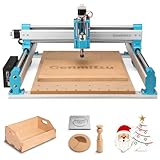
- MORE CONSISTENT CUTS, LESS BED FLEX - The upgraded 4040-PRO CNC router machine features a reinforced hybrid spoilboard with a center aluminum support bar to reduce sagging and maintain a flatter work surface, helping deliver more consistent cutting and carving depth across larger projects.
- RIGID MOTION FOR STABLE MACHINING - Dual 16mm HSS steel tubes on each axis and lead-screw drives create a rigid motion system for smooth, accurate movement. A 32-bit controller with silent Toshiba drivers provides stable, quieter operation for detailed carving, engraving, and CNC milling projects.
- MORE ROOM FOR CREATIVE PROJECTS - A 435 x 400 x 80mm (17.13 x 15.75 x 3.15 in) working area gives this desktop CNC machine room for signs, reliefs, prototypes, and woodworking projects. Machine wood, acrylic, MDF, nylon, and carbon fiber composites with the appropriate bits and cutting settings.
- FROM ASSEMBLY TO CNC FASTER - Pre-assembled modules let you build the 4040-PRO in about 15 minutes, while the relocated Z-probe port provides easier access during setup. GRBL control gives makers a flexible, widely supported workflow for learning CNC, preparing jobs, and running G-code projects.
- UPGRADE AS YOUR SKILLS GROW - Expand your CNC machine instead of outgrowing it. The redesigned Z-axis carriage supports 65mm or 69mm spindle mounts with an additional mount, while dedicated 3-pin ports support compatible accessories such as air assistance and MPG controllers for more advanced projects.
Once the plaque is reliable, increase only one difficulty at a time: more relief depth, a smaller feature, a harder material, a second setup, or a tighter finish requirement. Treat each new constraint as a new setup and verification problem rather than assuming that a successful recipe transfers unchanged.
Operation names and controls vary by CAM release and machine. For Autodesk-specific adaptive, finishing, simulation, setup-sheet, and post-processor documentation, consult the Autodesk Fusion help library. For shop controls and woodworking-router hazards, consult OSHA guidance and the rules applicable to your location.
Frequently Asked Questions
Can a 3-axis CNC machine carve any 3D model?
Usually, no. A 3-axis CNC router can generally carve the geometry visible from one top-side setup, including many reliefs and rounded surfaces. Hidden faces, undercuts, and underside features require another setup, an indexed or rotary axis, 3+2 positioning, or a different machine strategy.
Why use a ball-nose cutter for 3D CNC carving?
Ball-nose tools are well suited to curved-surface finishing because their rounded ends follow changing Z-heights. Roughing usually benefits from a stronger, more efficient flat or bull-nose cutter. The best tool depends on the material, model depth, detail size, machine rigidity, tool reach, and desired finish.
What does stepover change in a 3D finish?
Stepper controls the height of the ridges left between adjacent finishing passes. A smaller stepover generally produces smaller scallops but increases machining time and code size. Tool radius, rigidity, runout, material, tool condition, and finishing direction also affect the visible result.
Is there a universal feed and speed for 3D CNC carving?
No. Feed and speed depend on the exact cutter, flute count, material, spindle, machine rigidity, stick-out, workholding, and chip evacuation. Start with the cutter manufacturer’s data, verify the units and definitions, test in the actual material, and adjust conservatively.
Does simulation make a CNC job safe to run unattended?
Simulation can reveal incorrect stock removal, missed surfaces, holder or fixture collisions, unsafe retracts, and incorrect depths, but it cannot replace physical inspection and supervision. A controller-valid program can still be wrong for the machine’s actual zero, fixture, tool, or post processor.
The Bottom Line
A dependable first 3D CNC project is not made by choosing one special bit or copying one feed-rate chart. Prepare a machinable model, match the CAM setup to the real stock and workholding, rough with controlled engagement, rest-machine where needed, finish with a geometry-appropriate ball-nose strategy, simulate the entire machine envelope, post for the actual controller, and supervise a conservative test cut.
Quick Recap
Product prices and availability are accurate as of the date/time indicated and are subject to change. Any price and availability information displayed on Amazon at the time of purchase will apply.

