Yes—an Android phone can control many air conditioners. The correct method depends on the equipment: use the manufacturer’s app for an AC with built-in Wi-Fi, add a Wi-Fi infrared controller to an AC operated by a handheld remote, or install a compatible smart thermostat for central HVAC.
Your phone does not automatically make every air conditioner smart, and smartphone control does not guarantee lower bills. The potential savings come from schedules, occupancy controls, remote shutoff, and better setpoint management.
As an Amazon Associate I earn from qualifying purchases.
Identify your AC before choosing a solution
| AC type | Android control method | Additional hardware |
|---|---|---|
| Wi-Fi-enabled window, portable, mini-split, or heat-pump AC | Manufacturer’s Android app | Usually none |
| AC with a handheld infrared remote | Wi-Fi-to-infrared smart controller | Required |
| Central HVAC with a wired wall thermostat | Compatible smart thermostat | Usually required |
| Old mechanical AC with no remote | Limited power switching only | A smart plug may be possible, but it is not equivalent to thermostat control |
Do not assume that a smart plug is a universal AC controller. Cutting and restoring power may not reproduce the previous operating state, and repeated power interruption may be unsuitable for some equipment.
Quick wins for a faster PC:
Repair Windows errors before they cause bigger problemsFix Now →Fix the driver behind crashes, sound loss and screen glitchesFind Drivers →Clear out junk files and repair common Windows errorsFree Scan →Option 1: Use the AC’s built-in Wi-Fi
This is usually the simplest and most capable option when the AC already supports Wi-Fi. Install the manufacturer’s official Android app, create an account if required, and add the exact model.
#1 Best Overall

- EASY DIY INSTALLATION: Do it yourself fast with a built-in level and simple step-by-step instructions. Works with the HVAC equipment found in most homes
- COMMON WIRE REQUIREMENTS: Common wire(C-Wire) required for heat pump and heat/cool only systems. C-wire not required on most systems
- SAVE ABOUT 23% ON HVAC ENERGY: ENERGY STAR-certified and packed with features that help you save money, including flexible scheduling, geofencing, remote access and usage reports
- PRIVACY PROTECTION: Sensi won’t sell your personal information to third parties or leverage your thermostat activity data for targeting or advertising purposes
- CONTROL FROM ANYWHERE: The top-rated mobile app for Android and iOS devices makes it easy to control your comfort from a smartphone or tablet
Typical setup
- Find the AC’s model number and confirm that it supports Wi-Fi.
- Install the manufacturer’s official app from Google Play.
- Sign in or create the manufacturer account.
- Put the AC into Wi-Fi pairing mode.
- Connect your Android phone to the Wi-Fi network required by the manufacturer. Many appliances still require a 2.4 GHz network during setup; Midea’s instructions, for example, specifically direct users to use 2.4 GHz Wi-Fi (Midea setup guidance).
- Choose an option such as Add device or Add AC in the app.
- Enter the Wi-Fi password and wait for the AC to appear online.
- Give it a useful name, such as “Bedroom AC,” then test power, temperature, mode, and fan controls.
- Turn off Wi-Fi on the phone and test control over cellular data.
Available controls vary by model. The app may offer cooling, heating, dry, fan, auto mode, swing, timers, weekly schedules, humidity readings, filter reminders, energy history, or household sharing—but no single app provides all of these features for every AC.
Option 2: Add a Wi-Fi infrared controller
If the AC responds to a handheld infrared remote but has no network connection, a Wi-Fi infrared controller can relay commands from an Android app. This approach is common for window units, portable ACs, mini-splits, cassettes, and some remote-controlled central systems. Sensibo describes its controllers as compatible with many infrared-remote ACs and lists a line-of-sight range of up to 6 meters (20 feet) for relevant products (Sensibo compatibility information).
What you need
- An AC that uses infrared rather than a proprietary radio remote.
- A compatible Wi-Fi infrared controller.
- A nearby power outlet.
- A clear path between the controller and the AC’s infrared receiver.
- Compatible Wi-Fi, commonly 2.4 GHz during onboarding.
Typical setup
- Install the controller’s Android app.
- Plug the controller in near the AC.
- Add it in the app and connect it to Wi-Fi.
- Select the AC brand or let the app identify the unit.
- Test power, temperature, mode, and fan commands.
- Place or mount the controller facing the AC’s infrared receiver.
- Test operation while standing near the unit, then test it remotely over cellular data.
- Keep the original remote as a manual backup.
An infrared controller is renter-friendly because it does not require HVAC wiring. Its limitations are equally important: furniture or walls can block the signal, the controller must remain powered, and the app may not know what happened if someone uses the original remote.
Sensibo supports Android, Google Home, schedules, timers, and other integrations depending on the model (Sensibo Air details; Sensibo Sky details). tado° offers a similar Smart AC Control approach, but supported functions depend on the AC and remote model (tado° control documentation).
Option 3: Use a compatible smart thermostat for central HVAC
A central air-conditioning system connected to a wall thermostat needs a different solution. A smart thermostat communicates with the HVAC control wiring; it does not imitate an infrared remote.
Before purchasing, verify compatibility for:
- Conventional versus heat-pump equipment.
- Heating and cooling stages.
- Auxiliary or emergency heat.
- Fan-control wiring.
- Common-wire or power requirements.
- Multi-zone systems.
- Manufacturer-specific control buses.
Photograph the existing wiring before removal, switch off HVAC power at the appropriate disconnect or breaker, and follow the thermostat manufacturer’s installation instructions. If the system is unfamiliar, multi-stage, zoned, or professionally installed, use the manufacturer’s compatibility checker or consult an HVAC technician.
Rank #2

- PRIVACY PROTECTION*: Sensi won’t sell your personal information to third parties
- EASY DIY INSTALLATION: Use the built-in level and step-by-step app instructions for a quick installation. Works with HVAC equipment found in most homes. Common wire (c-wire) is not required in most applications
- SAVE ABOUT 23% ON HVAC ENERGY*: The ENERGY STAR-certified Sensi smart thermostat can help you save energy with features like flexible scheduling, remote access and usage reports
- SIMPLE CONFIGURATION: Looks and feels like a thermostat. Has buttons and fits the same space as a traditional thermostat so you don’t have to patch and paint your walls
- SMART MAINTENANCE: Sensi can help monitor the performance and efficiency of your HVAC system by delivering valuable usage reports, alerts about your equipment, and maintenance reminders like filter replacement
Google says current Nest Thermostat and Nest Learning Thermostat (4th gen) models are controlled through the Google Home app, while older Nest models have different app requirements (Google’s model guidance).
Windows Errors? Fix Them Before They Spread
Repair common Windows errors and clear accumulated junk for a smoother, more stable PC - no reinstall needed.Free scan · no reinstallOutdated Drivers Are Slowing You Down
One free scan finds every outdated or missing driver and matches the right update for your exact hardware.Free scan · exact hardware matchWhat Android control can actually do
Depending on the equipment and integration, you may be able to:
- Turn cooling on or off.
- Change the target temperature.
- Select Cool, Dry, Fan, Heat, or Auto mode.
- Change fan speed and airflow direction.
- Set one-time timers or weekly schedules.
- View indoor temperature or humidity.
- Receive filter-cleaning reminders.
- Use geofencing or presence detection.
- Review energy history where supported.
- Share control with household members.
Manufacturer apps generally expose more AC-specific controls than third-party platforms. An infrared system may show an assumed state rather than confirming that the AC received the command.
Adding the AC to Google Home
Google Home is usually a control layer, not the system that makes a conventional AC smart. Set up the AC in its manufacturer app first, then connect the account to Google Home.
- Open Google Home on Android.
- Tap Devices or the device-management area.
- Choose Add, then Works with Google Home or the relevant integration.
- Sign in to the manufacturer account.
- Assign the AC to the correct home and room.
- Test the controls and add the device to Favorites if desired.
Compatible integrations may support commands such as “Hey Google, turn on the bedroom AC” or “Set the bedroom AC to 74 degrees.” Exact commands vary. Google Home may provide only power and temperature controls even when the manufacturer app also supports dry mode, swing, fan speed, or advanced scheduling. Use the original app for functions Google Home does not expose.
Recommended Free Tools
Google Assistant routines can combine AC commands with other actions, such as changing the temperature at sunset (Google routine guidance).
Rank #3

- Save up to 23% every year on heating and cooling costs, adjusts to your set schedule to save energy when you’re gone and optimize comfort when you’re home. Compared to a hold of 72
- Compatible with 85% of systems, check your system’s compatibility with our online ecobee Compatibility Checker on the ecobee support page
- Change your temperature by easily tapping the color touchscreen or using the ecobee app. Plus, free software upgrades ensure you get the best out of your Smart Thermostat Essential, for years to come
- Automatically adjusts to your set schedule to save energy when you’re gone and optimize comfort when you’re home. Keep track of your energy consumption when you're on the go on the ecobee app
- Easy DIY install. No C Wire, no problem. Get the ecobee Power Extender Kit (PEK) for homes without a C-Wire and keep your walls looking nice with our trim kit – both sold separately
Automations that can reduce wasted runtime
The phone is not inherently more efficient than an ordinary remote. Savings come from preventing unnecessary operation.
Useful automations
- Departure: turn the AC off when the household leaves, provided conditions are safe for pets, plants, humidity-sensitive materials, and the building.
- Arrival: start cooling shortly before the expected arrival instead of running all day.
- Sleep: use a modestly warmer cooling setpoint or a sleep schedule if comfortable.
- Open-window response: pause cooling when a compatible sensor detects a window left open.
- Runtime warning: receive a notification if cooling is still running after departure.
- Vacation mode: use a longer absence schedule rather than leaving the normal daily program active.
Schedules should reflect real occupancy. A rigid schedule can waste energy if plans change. Geofencing also depends on location permissions, presence settings, internet access, household members, and correctly configured automations.
How much energy can you save?
There is no universal percentage. Results depend on climate, insulation, equipment efficiency, indoor humidity, occupancy, setpoints, maintenance, and whether the AC was previously running unnecessarily.
Do these 3 things before closing this tab:
1Fix the driver behind crashes, sound loss and screen glitches2Repair Windows errors before they cause bigger problems3Scan for outdated or missing drivers - takes under a minuteSensibo advertises savings of up to 40% on AC energy costs, but that is a maximum company claim—not a guaranteed household result (Sensibo’s explanation). Google likewise presents remote adjustment, schedules, Eco Temperatures, and energy history as tools that can help reduce energy use, while noting that results depend on settings and home conditions (Google energy guidance). The U.S. Department of Energy describes connected thermostats as supporting remote control, schedules, and energy information, but those capabilities should not be treated as a guaranteed bill reduction (DOE Energy Saver Guide).
Start with a comfortable occupied setting, then raise the cooling setpoint modestly during sleep or absence. Compare runtime or energy history over similar weather periods. Google notes that a 1°F (0.5°C) change may be difficult for many people to notice; treat that as guidance, not a promise for every home.
Comfort is more than temperature. Humidity, air movement, solar gain, insulation, and airflow affect how a room feels. An aggressive setting may save runtime but create discomfort, excessive humidity, or long recovery periods.
Rank #4
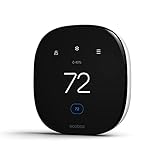
- Saves you energy automatically — Save up to 26% per year on heating and cooling costs.* The Smart Thermostat Enhanced automatically adjusts your home’s temperature when you’re away or asleep, helping reduce energy use without sacrificing comfort.
- Smart comfort for everyday life — Built-in occupancy sensing detects when people are home and can preheat or precool your home before you arrive. It also learns your temperature preferences and schedule and adjusts for humidity to help keep your home comfortable.
- Compatible with 90% of HVAC systems: Use the Compatibility Checker on the ecobee support page to confirm. ecobee.com/compatibility/thermostat.
- Easy DIY installation right out of the box: Includes the Power Extender Kit (PEK) for homes without a C-wire, a Trim Kit for a clean finished look, and everything needed for most installations.
- Control from anywhere — Adjust your thermostat remotely using the ecobee app on your smartphone, tablet, or Apple Watch.
Product categories and trade-offs
| Solution | Best for | Main advantages | Main limitations |
|---|---|---|---|
| Manufacturer Wi-Fi app | ACs with built-in Wi-Fi | Broadest model-specific controls; no extra controller | Separate account, cloud dependence, changing app support |
| Wi-Fi infrared controller | Window, portable, or mini-split ACs with IR remotes | Renter-friendly; no HVAC wiring; adds schedules and remote access | Line of sight, continuous power, imperfect state synchronization |
| Smart thermostat | Compatible central HVAC | Direct thermostat control; better for stages, zones, and system schedules | Wiring and compatibility checks; possible professional installation |
| Google Home | Compatible connected devices | One Android interface, routines, rooms, and voice commands | May expose fewer controls than the manufacturer app |
Prices, subscriptions, Android requirements, and regional availability change. For example, Sensibo’s official pages and Google Play listing have displayed promotional hardware and subscription prices, while tado° lists an optional Auto-Assist subscription in euros; verify current U.S. pricing and features before buying.
Troubleshooting Android AC control
The AC does not appear during setup
- Connect the phone to the required Wi-Fi band, often 2.4 GHz.
- Enable location, Bluetooth, and nearby-device permissions if the app requests them.
- Confirm that the AC is in pairing mode.
- Check the Wi-Fi password and signal strength.
- Temporarily disable a VPN.
- Check whether router client isolation or a guest network blocks setup.
- Confirm that the app matches the exact AC model.
- Reset the AC’s Wi-Fi according to its manual and retry.
The app works at home but not away
Disable Wi-Fi on the Android phone and test over cellular data. If remote control fails, check the AC or controller’s internet connection, router status, cloud-service availability, account session, remote-access setting, and whether the device is connected to a guest network. A switched outlet can also remove power from an infrared controller.
The infrared controller shows the wrong state
This commonly happens after someone uses the original remote, the controller misses a signal, or the AC uses full-state infrared commands rather than simple toggles. Point the original remote at the AC, set a known state such as Cool at 74°F, reopen the app, and resend or resynchronize the command. Reposition the controller so it faces the AC’s infrared receiver.
Google Home shows limited controls
This is normally an integration limitation, not an Android fault. Use the manufacturer app for functions that Google Home does not expose.
The AC turns on unexpectedly
Review schedules, geofencing, presence routines, Google Home automations, vacation modes, shared accounts, and manufacturer comfort features. Disable automations one at a time to identify the trigger.
The AC runs too long
Smart controls cannot repair a mechanical problem. Long runtime may result from outdoor heat, solar gain, poor insulation, an undersized system, dirty filters, high humidity, open doors or windows, sensor placement, low refrigerant, or equipment faults. Check basic maintenance and seek HVAC service when performance has changed.
Privacy, security, and outage planning
- Use a strong, unique vendor-account password and two-factor authentication where available.
- Review which household members can control the AC.
- Understand whether location, presence, temperature, or runtime data is sent to a cloud service.
- Keep the home Wi-Fi secured and update the router and app.
- Grant Google Home only the integrations and permissions you need.
- Do not assume an app provides local control unless current manufacturer documentation confirms it.
- Keep the original remote or local thermostat available for internet, cloud, phone, or app failures.
During an internet outage, a physical remote or wired thermostat may continue working locally while smartphone access and cloud automations stop. Test your manual fallback before relying on remote control during a heat wave or extended absence.
Quick Recap
Final buying checklist
- Built-in Wi-Fi? Start with the manufacturer’s Android app.
- Handheld infrared remote? Choose a compatible Wi-Fi IR controller and plan its line of sight.
- Wall thermostat? Check smart-thermostat compatibility, wiring, stages, zones, and heat-pump requirements.
- Need Google Home? Confirm that the manufacturer integration supports the controls you actually need.
- Want lower bills? Prioritize occupancy schedules, away controls, realistic setpoints, maintenance, and energy-history checks.
- Need reliability? Keep the physical remote or local thermostat as a backup.
Product prices and availability are accurate as of the date/time indicated and are subject to change. Any price and availability information displayed on Amazon at the time of purchase will apply.

