Free tools Windows power users keep installed
One-click scans. No signup required.
A DIY retro arcade is easiest to build when treated as a modular construction project, not as a single kit. Start with a current Raspberry Pi 5, suitable power, storage, display, arcade controls, audio, and a serviceable enclosure; then bench-test the software before permanently installing anything.
What you are actually building
A DIY retro arcade is not one product or one kit. It is a small computer, display, arcade controls, audio system, storage, power system, software, and cabinet that you design to work together.
For a current build, use a Raspberry Pi 5 as the computer, a suitable 27W USB-C power supply, reliable microSD storage, an HDMI display, a two-player joystick-and-button set with a USB encoder or equivalent interface, speakers, and an enclosure with proper ventilation and service access. The Pi 5 is the recommended core computer; it is not, by itself, a complete arcade machine.
The most successful approach is modular: choose the cabinet size first, select the display and controls around the games you want to play, configure the electronics on a workbench, and only then install everything permanently.
As an Amazon Associate I earn from qualifying purchases.
Choose the cabinet size before buying materials
| Format | Best for | Advantages | Trade-offs |
|---|---|---|---|
| Micro-arcade | A desk, shelf, or small child-sized project | Small footprint, less material, compact electronics | Limited control-panel space, smaller display and speakers, more difficult servicing |
| Bartop | Most home builders | Recognizable arcade shape without the weight and floor space of a full cabinet | Still requires careful planning for screen depth, controls, cooling, and cable routing |
| Full-size cabinet | A dedicated games room or the strongest original-arcade effect | Large screen, wide two-player panel, marquee, larger speakers, and easier internal access | More expensive, heavier, harder to build and move, and more demanding to design |
A compact build can follow the general approach used by Adafruit’s Cupcade projects: a small display, joystick, buttons, speaker, Raspberry Pi, and compact case. A full-size build needs a different planning model, with a larger display, MDF or plywood enclosure, monitor bezel, control panel, rear access, ventilation, and possibly a marquee. A bartop sits between these extremes and is the best default choice for many first-time builders.
Parts list for a current DIY retro arcade
1. Raspberry Pi 5
The Pi 5 is a current, high-performance single-board computer with a 64-bit quad-core Arm Cortex-A76 processor, dual 4Kp60 display capability, USB 3 bandwidth, and wireless connectivity. Those specifications make it a strong foundation for a modern emulation cabinet.
#1 Best Overall

- Quality Components: Excellent Control USB Encoder with high quality 8 way joystick and LED buttons featuring good lighting effects for enhanced gaming experience
- Advanced Functionality: DC 5V Arcade Illuminated Pushbutton with 8 ways joystick using microswitch with gilded contact leg, excellent electronic performance, long life, reliability tested to 1,000,000 cycles
- Mounting Specifications: Joystick requires 24mm mounting hole while large buttons require 30mm mounting holes for proper installation
- Package Details: Compact package dimensions of 175 x 95 x 115mm with each button and joystick individually packaged and includes 1 year warranty for quality assurance
- Wide Compatibility: LED Kit supports Windows Arcade Games, PC Games, DIY Projects, Arcade Raspberry Pi for RetroPie system and MAME applications
Do not interpret the hardware specification as a promise that every emulator, console, or game will run identically. Performance depends on the operating-system image, emulator or core, game, resolution, and configuration. RetroPie documentation demonstrates setup using Raspberry Pi hardware including the Pi 4, so verify that the particular image and emulator combination you choose supports your selected Pi model rather than assuming every image is interchangeable.
For the recommended build, the Raspberry Pi 5 is only the computer. You still need the power supply, storage, display, controls, cabinet, audio, cooling, cables, and legally obtained game files.
2. Power supply and cooling
Use a suitable 27W USB-C power supply for a Pi 5 build. Raspberry Pi specifies 5V at 5A for the board and warns that a lower-current supply can restrict power available to peripherals.
Plan the cabinet’s complete low-voltage load, not just the Pi’s nominal requirement. The USB encoder, storage devices, cooling accessories, display accessories, speakers, and any other powered hardware all belong in the power plan. Symptoms of inadequate power can include instability, warnings, USB devices disconnecting, or unexplained resets.
Do not improvise with an undersized supply. Also do not casually route exposed mains voltage through a wooden cabinet. Keep mains components enclosed and strain-relieved, and have an adult experienced with electrical safety handle any mains-side work. The Pi’s power specification does not certify a particular cabinet wiring design.
The Tool Desk
Outbyte PC Repair FREERepair Windows errors before they cause bigger problemsFix Now →Outbyte Driver Updater FREEScan for outdated or missing drivers - takes under a minuteDriver Scan →3. Boot media and storage
You need a reliable microSD card and another computer or card adapter to prepare it. The operating-system image and game files share the card unless you use additional storage, so capacity and backup planning matter.
Make a backup of the configured card before the cabinet is closed. A USB flash drive is also useful for moving files during setup. A practical workflow is to format the drive, copy the required files, connect it to the Raspberry Pi, and transfer the game files through the front end or the method supported by your chosen image.
Storage is not a substitute for lawful game ownership. Use only game files you have the legal right to use; do not download or distribute unauthorized ROM collections.
Rank #2
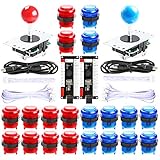
- New Style DIY Arcade Kit, LED arace game DIY MAME parts DIY Accessories.
- 100% Zero Delay Encoder and USB work perfectly all Windows systems.
- 2 Player Arcade MAME DIY Accessories, DIY Your Own Arcade Game Console.
- Use the highest quality materials! Made of high temperature resistant plastic.
- Perfect LED Kit Arcade PC Games DIY Choice! Easy to install!
4. Display
An HDMI monitor sized to the enclosure is the simplest choice for a bartop or full-size cabinet. A compact custom arcade can instead use a small Pi-compatible display, such as the type used in compact Cupcade-style projects.
Choose the display before finalizing the cabinet dimensions. Measure:
- the visible screen area and bezel;
- mounting points and the thickness of the display;
- HDMI and power connector locations;
- cable clearance behind the screen;
- viewing angle and control-panel height; and
- ventilation space around the display and computer.
A monitor with built-in speakers can simplify the build. Separate speakers or a compact sound bar may produce a more arcade-like result, but they need space, mounting points, wiring, and access for volume adjustment.
5. Joysticks, buttons, and the interface
A typical two-player panel includes two digital joysticks, action buttons for each player, start buttons, optional coin or menu buttons, wiring, and a USB encoder or dedicated interface board.
A USB encoder is often the simplest beginner route because the controls connect to an interface that the Raspberry Pi sees through USB. A GPIO interface board is another option for compact custom builds or makers who want direct button connections. The choice affects wiring, configuration, serviceability, and the number and type of controls supported.
Recommended Free Tools
Design the layout around the games you expect to play:
- A minimalist panel suits simple arcade games and uses less space.
- A four- or six-action-button layout is more flexible for fighting, platform, and console-style games.
- Extra buttons increase panel width, wiring, drilling, and software configuration.
- Two-player controls require substantially more room than a one-player micro-arcade.
Do not copy a generic drilling diagram without checking it against your actual hardware. Button hole diameter, joystick mounting pattern, spacing, panel angle, and joystick shaft clearance vary by product. Mark the real controls on cardboard first and test the reach before cutting MDF, plywood, or acrylic.
6. Audio
You can use the display’s built-in audio, a compact enclosed speaker, or a separate sound bar. Small Cupcade-style builds commonly use a compact mono speaker, while larger cabinet installations have room for stereo speakers or a sound bar.
Rank #3
- Beautiful LED Arace Game DIY Parts for MAME JAMMA Project!
- 100% Zero Delay USB Encoders and Perfect work for all windows systems!
- Perfect Parts for 2 Player Arcade MAME DIY Project!
- Made with highest quality materials!Heat resistant plastic!
- Perfect LED Kit for Arcade PC Game DIY Project! Easy Install!
Test the speaker location before closing the cabinet. Leave access to the volume control, secure the speaker so it cannot vibrate loose, and keep audio wiring physically separated from noisy power wiring where practical. The best solution depends on the enclosure, display, desired volume, and available space—not on a universal component recommendation.
7. Cabinet materials and tools
A bartop or full-size cabinet can be made from MDF, plywood, acrylic, or a purchased enclosure. A useful design normally includes a control panel, monitor bezel, rear access panel, ventilation openings, and—on larger cabinets—a marquee area.
Typical tools include:
- drill and a hole saw or Forstner bit sized for the selected buttons;
- saw or CNC router;
- measuring tools, square, clamps, and straightedge;
- screwdrivers, wire cutters, and crimpers;
- connectors and labels for organizing wiring; and
- a soldering iron if the selected interface requires soldered connections.
The project is beginner-accessible, but it is not tool-free. Compact builds can combine Linux configuration, soldering, electronics, and craft work. If you do not own the tools, buying a pre-cut cabinet or control-panel kit may reduce woodworking without eliminating the need to configure and test the electronics.
Plan the cabinet around the actual hardware
Do not begin with an attractive cabinet drawing and force the components into it. Begin with the display and control panel, then build the enclosure around their verified dimensions.
- Select the display. Record its visible dimensions, outer dimensions, thickness, mounting points, connector locations, and power requirements.
- Lay out the controls. Place the actual joysticks and buttons on cardboard or a temporary panel. Check player reach, wrist clearance, joystick movement, and the control-panel angle.
- Reserve internal space. Allow room for the Pi, cooling, power supply, USB encoder, audio, cable bends, and ventilation.
- Design access. Add a removable rear panel or hinged control panel. The microSD card, USB ports, power connection, encoder, and display cables should be reachable without destroying the cabinet.
- Plan airflow. Provide ventilation around heat-producing components and do not trap the Pi or power hardware in a sealed pocket.
- Decide on the finish. Paint, laminate, trim, artwork, and a marquee are easier to install before delicate electronics are mounted.
For a bartop, the monitor and control panel usually determine width and depth. For a full-size cabinet, also plan the standing height, viewing distance, control-panel angle, transport route, and floor footprint. A full-size cabinet should be based on the actual display and controls rather than an unverified dimension sheet.
Do these 3 things before closing this tab:
1Scan for outdated or missing drivers - takes under a minute2Clear out junk files and repair common Windows errors3Fix the driver behind crashes, sound loss and screen glitchesSoftware setup: configure everything on the bench
Use an emulation-focused operating-system image compatible with the Raspberry Pi model you selected. RetroPie is one documented route, but image support and emulator behavior can change, so check the current instructions for the chosen image.
- Prepare the boot media. On another computer, write the selected operating-system image to the microSD card using the image writer recommended by that software.
- Connect temporary equipment. Before installing anything in the cabinet, connect a monitor, keyboard, network connection, controller, power supply, and the Raspberry Pi.
- Complete first boot. Allow the image to expand or finish its first-run setup, then configure regional, network, and display settings as required.
- Configure the controller. Map every joystick direction, action button, start button, and menu or coin button you installed. Record the mapping so it can be repeated after a card replacement.
- Transfer lawful game files. Use the image’s supported network or USB workflow. Do not include game files you do not have permission to use.
- Test representative systems. Check the games and emulators you actually plan to use. Do not assume that success with one system proves universal compatibility.
- Test shutdown. Use the software’s shutdown function rather than repeatedly unplugging the Pi. Sudden power removal can corrupt storage.
Controller mappings, emulator settings, display scaling, audio output, and individual game compatibility may require adjustment. A current Pi board is not proof that every emulator performs the same way at every resolution.
Independent reader supportYour contribution helps us test, update, and keep practical guides available for everyone.Recommended construction sequence
Phase 1: Design and measure
Choose micro, bartop, or full-size. Select the display and controls, draw the control panel around the real hardware, and reserve internal volume for the computer, power, encoder, audio, cooling, and cable routing. Confirm that the cabinet can pass through doors and reach its final location.
Rank #4

- When receiving the package. Have any questions. Please contact us first
- Perfect Parts for 4 Player Arcade MAME DIY Project!
- Made with highest quality materials!Heat resistant plastic!
- 100% Zero Delay USB Encoders and Perfect work for all windows systems!
- Beautiful LED Arace Game DIY Parts for MAME JAMMA Project!
Phase 2: Bench-test the complete electronics
Install the image, configure the controller, connect audio and display, transfer a small set of lawful game files, and test the intended games. This catches incompatible hardware, incorrect mappings, insufficient power, audio problems, and display issues while every component is easy to reach.
Crashes, No Sound, or Screen Glitches?
Random freezes, missing sound and display glitches usually trace back to one bad driver. Find and replace yours safely.Free scan · under a minutePC Slower Than It Used to Be?
A free scan shows the junk files, broken settings and background clutter dragging Windows down - then fixes them in one click.Free scan · Windows 10 & 11Phase 3: Cut and finish the enclosure
Transfer the verified dimensions to MDF, plywood, acrylic, or the selected cabinet kit. Cut the monitor opening and button holes only after confirming the screen and control specifications. Sand, paint, laminate, or apply artwork before installing the electronics.
Phase 4: Wire the controls and audio
Label both ends of each wire. Use the connectors appropriate for the selected encoder, protect wires from sharp edges, and secure the encoder and power hardware so they cannot move during transport. If soldering is required, follow the interface board’s documentation rather than relying on a generic wiring diagram.
Phase 5: Install, close, and retest
Mount the display, controls, speakers, Raspberry Pi, storage, and power system. Test every button and joystick direction, game launch, menu function, audio channel, display mode, network function, and shutdown behavior. Leave enough slack to remove the control panel and enough clearance to reach the board and connections without dismantling the cabinet.
Common mistakes and their fixes
| Mistake | Better approach |
|---|---|
| Choosing the cabinet before the display | Buy or select the display first, then design the bezel, depth, viewing angle, and ventilation around it. |
| Underestimating power | Use a suitable Pi 5 supply and account for USB peripherals, storage, cooling, audio, and display accessories. |
| Skipping the bench test | Configure and test the complete electronics before mounting or sealing them inside the cabinet. |
| Using an unverified button layout | Make a cardboard mock-up with the actual controls and verify hole sizes and spacing before drilling. |
| Forgetting service access | Use a hinged control panel or removable rear panel and keep the microSD card, USB ports, encoder, and power connection accessible. |
| Sealing in heat | Provide airflow around the Pi and power hardware; do not bury them in a tight, unventilated compartment. |
| Assuming every ROM is legal to share | Use only game files you legally obtained and avoid promoting unauthorized ROM collections. |
| Assuming Pi 5 guarantees every emulator | Test the particular image, emulator, game, resolution, and settings you intend to use. |
| Installing mains wiring casually | Keep mains components enclosed and strain-relieved, and have qualified adult help with mains-side work. |
Which build should you choose?
- Choose a micro-arcade if desk space, portability, or a small display matters more than two-player flexibility and easy maintenance.
- Choose a bartop if you want the best balance of arcade appearance, usable controls, cost, floor space, and manageable woodworking.
- Choose full-size if you have a permanent location and want a wide two-player panel, larger screen, marquee, stronger speakers, and the most convincing arcade presence.
For a first project, a bartop with a carefully measured HDMI monitor and a USB-encoder control panel is usually the least complicated route. The same Pi-and-software workflow can later move to a larger cabinet.
What’s actually slowing this PC down?
Pick the symptom - the matching free tool is one click away.
Optional post-build showcase
After the cabinet works, you may want to broadcast a cabinet tour, build-progress video, or gameplay demonstration. A cloud streaming service can be relevant for that separate publishing task, but it is not required to build or operate the arcade. Stream only video and game footage that you own or are authorized to use; do not stream copyrighted gameplay or ROMs without the necessary permission.
Frequently Asked Questions
For a current build, the Raspberry Pi 5 is the recommended core computer. Pair it with a suitable 27W USB-C power supply, but verify that your chosen operating-system image and emulator configuration support the Pi model and games you plan to use.
What Raspberry Pi should I use for a DIY retro arcade?
No. It is only the computer. You still need a power supply, microSD card, display, joysticks, buttons, encoder or interface board, audio, cabinet, wiring, cooling, and legally obtained game files.
Is a Raspberry Pi 5 a complete arcade machine?
A micro-arcade saves space but limits controls and service access. A bartop offers the best balance for many home builders. A full-size cabinet provides the strongest arcade experience but requires more material, woodworking, floor space, money, and planning.
Should I build a micro, bartop, or full-size arcade cabinet?
Bench-test the complete system first. Configure the operating system and controller, test the display, audio, storage, games, and shutdown behavior, then mount the working components in the finished enclosure.
When should I install the electronics in the cabinet?
Use only game files you legally obtained or are otherwise authorized to use. Do not distribute or promote unauthorized ROM collections.
Can I use any ROM collection in my arcade?
The Bottom Line
Build the arcade as a sequence of decisions: choose the cabinet format, select the display and controls, use a properly powered Raspberry Pi 5, configure the software on the bench, and install only after every component works together. The computer is just one part of the machine; the cabinet, controls, display, storage, audio, power, cooling, and lawful game files still need to be designed and tested.
Quick Recap
Product prices and availability are accurate as of the date/time indicated and are subject to change. Any price and availability information displayed on Amazon at the time of purchase will apply.

