A reliable security-camera system is more than a camera and a phone app. It needs a clear surveillance goal, suitable power and network connectivity, dependable recording, secure remote access, and careful placement.
For most beginners, choose Wi-Fi cameras for one or two simple installations, especially in rentals. Choose PoE cameras with an NVR when you need multiple cameras, continuous recording, local storage, or fewer recurring fees. Whichever system you choose, test it near the router or recorder before drilling, configure privacy and security settings, and export a test clip before considering the installation complete.
As an Amazon Associate I earn from qualifying purchases.
1. Define what the system must do
Start with the risk you are trying to manage rather than with camera resolution or brand names. Mark the locations that matter and decide whether you need deterrence, live monitoring, evidence after an incident, package monitoring, or remote verification.
Free tools Windows power users keep installed
One-click scans. No signup required.
- What must be visible: a front door, driveway, side gate, garage, hallway, cash register, or inventory area?
- Do you need continuous recording, or are motion-triggered clips sufficient?
- Is nighttime identification important?
- Do you need two-way audio?
- Is reliable Wi-Fi available at each camera location?
- Is power available, or will the camera use a battery or solar accessory?
- How long must footage be retained?
- Who should be able to view, download, or share recordings?
More megapixels do not automatically produce useful evidence. Field of view, mounting angle, subject distance, lighting, night vision, motion blur, compression, and glare often matter just as much.
#1 Best Overall
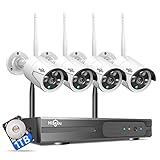
- 【Local & Remote Control】 The home security camera system support local view & control, no need WiFi, true play & plug. For remote control, support dual-band WiFi 2.4GHz/5GHz connectivity. WiFi pro technology offers 100ft installation distance, suitable for indoor/outdoor use.
- 【Wired Plug-in Powered, 24/7 Recording】 Hiseeu security camera system, 24/7 wired powered of cameras and NVR support 24/7 recording, no dropouts or battery hassles. 3 recording modes (24/7 recording, motion-triggered recording, or customized recording ), total flexibility.
- 【1TB Storage, No Monthly Fee】 Security camera system pre-installed in 1TB hard drive, massive local storage (no cloud fees!) offering over 45 days of continuous 24-hour recording. H.265+ bandwidth optimization Delivers 50% bandwidth reduction compared to H.264 while maintaining 4K/8MP resolution, enabling stable transmission even in low-bandwidth environments.
- 【Expand to 10CH & IP66 Waterproof 】 The NVR security camera system is coming with 4pcs 3MP cameras+1pc 4K NVR, it supported to expand to 10CH, scalability to secure large homes or businesses. Operates flawlessly in heavy snow, high winds, and sub-zero temperatures.
- 【Motion Sensor/AI Human Detection】 Motion detection of the wireless wifi security camera system give you 24/7 uninterrupted protection. Smartly distinguishes people from false alarms (like pets or shadows), sending alerts only for real threats by AI human detection.
2. Choose the right camera architecture
| Priority | Usually favor | Main caution |
|---|---|---|
| Easiest setup | Wi-Fi or cloud camera | Wi-Fi, internet, account, and subscription dependence |
| Continuous recording | PoE camera with NVR | Requires cabling, storage, and more installation work |
| Rental property | Battery or plug-in Wi-Fi camera | Obtain permission before drilling or changing wiring |
| No recurring fee | Local microSD or NVR system | You manage storage, backups, and security |
| Existing Ethernet | PoE system | Verify cable condition, PoE standard, and compatibility |
| Existing coax | DVR or analog upgrade path | Camera, recorder, cable, and video-standard compatibility is not universal |
| Strong privacy preference | Local storage with restricted outbound access | Remote viewing may require more networking work |
Wi-Fi cameras
Wi-Fi cameras are usually the fastest route for an apartment, rental, or one- to two-camera installation. They still need reliable power unless they are battery-operated. Weak wireless coverage can cause delayed live view, missed clips, and failed notifications. Battery models may sleep between events and are generally not equivalent to wired cameras for continuous recording.
PoE cameras and NVRs
Power over Ethernet sends power and network data through one Ethernet cable. A typical layout is:
Camera → PoE switch or PoE NVR → router/network → phone, computer, or monitor
PoE is usually the stronger choice for several cameras, exterior coverage, or continuous recording. It requires cable routing, weatherproofing, storage planning, and often a UPS for the router, PoE switch, NVR, and modem.
For example, Ubiquiti’s UniFi Protect documentation describes compatible consoles, cameras, PoE connectivity, local storage, and adoption through the Protect app or web interface. Protect itself has no licensing fee according to that documentation, but the required hardware and networking infrastructure still create an upfront cost.
Cloud-first systems
Cloud systems simplify remote access and software management, but extended history and advanced detection may require a subscription. Cloud availability also depends on the vendor account, internet connection, and service availability. Before canceling a plan, save important clips; Google specifically warns that cancellation can affect access to historical footage.
Rank #2

- Outdoor 4 is our most affordable wireless smart security camera yet, offering up to two-year battery life for around-the-clock peace of mind. Local storage not included with Sync Module Core.
- See and speak from the Blink app — Experience 1080p HD live view, infrared night vision, and crisp two-way audio.
- Two-year battery life — Set up in minutes and get up to two years of power with the included AA Energizer lithium batteries and a Blink Sync Module Core.
- Enhanced motion detection — Be alerted to motion faster from your smartphone with dual-zone, enhanced motion detection.
- Person detection — Get alerts when a person is detected with embedded computer vision (CV) as part of an optional Blink Subscription Plan (sold separately).
Local-storage systems
Local footage may be stored on a microSD card, NVR, home server, or camera hub. It can continue recording during an internet outage if the camera, local network, and recorder remain powered. However, theft, drive failure, corruption, or physical damage can destroy footage. Important clips should be exported to a separate device.
The Tool Desk
Outbyte Driver Updater FREEFix the driver behind crashes, sound loss and screen glitchesFind Drivers →Outbyte PC Repair FREEClear out junk files and repair common Windows errorsFree Scan →3. Plan camera locations
Make a simple property map. Mark entrances, vehicle approaches, realistic access points, blind spots, lighting, power outlets, Ethernet paths, and areas that should not be recorded.
| Location | Main purpose | Common mistake |
|---|---|---|
| Front door | Face and package identification | Aiming too wide or mounting too high |
| Driveway | Vehicle and approach monitoring | Headlight glare |
| Side gate | Detecting access around the building | Fence, foliage, or poor night lighting blocking the view |
| Backyard | General activity detection | False alerts from trees and shadows |
| Garage | Door and vehicle monitoring | Unusable night image |
| Indoor entry hall | Confirming entry | Capturing private living areas unnecessarily |
- Mount high enough to reduce tampering, but not so high that faces become unidentifiable.
- Aim entry cameras toward the expected approach instead of straight down.
- Avoid pointing directly at the sun or a bright light.
- Test the view from the intended mounting height before drilling.
- Do not rely on digital zoom to compensate for poor placement.
- Use physical repositioning or privacy masks to exclude neighboring property and sensitive areas. Reolink documents privacy-mask configuration in its official setup support.
4. Select the hardware
Camera specifications that matter
Check the exact model—not merely the product family—for:
- Resolution, sensor size, field of view, frame rate, and bitrate.
- Low-light, infrared, and wide-dynamic-range performance.
- Person, vehicle, animal, package, or face detection.
- MicroSD, NVR, cloud, ONVIF, or RTSP support.
- Weather rating and operating temperature.
- Microphone, speaker, privacy shutter, and electronic privacy mode.
- Mounting hardware, cable design, firmware-update policy, and support lifespan.
Compatibility is model-specific. Do not assume that every camera in a product line supports ONVIF or RTSP. Reolink’s D400/B400 support material, for example, documents a model family with protocol limitations.
Power options
- AC power: Reliable, but requires a safe outlet and cable route.
- PoE: One Ethernet cable carries power and data.
- Battery: Easy to install, but affected by temperature, activity, signal strength, and recording mode.
- Solar: Useful only where the panel receives sufficient sunlight; it does not eliminate the need to check battery capacity and winter performance.
- UPS: Helps keep the modem, router, PoE equipment, and recorder operating during short outages.
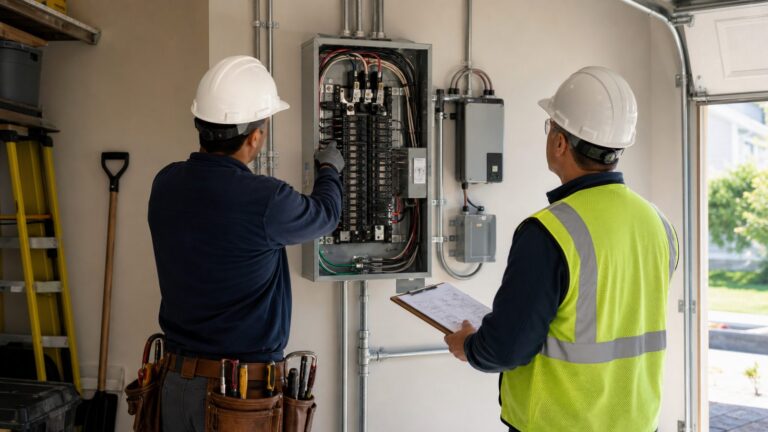
Do not modify mains wiring yourself. Use a licensed electrician for new circuits, exterior electrical work, or unsafe existing wiring.
5. Prepare before installation
- Camera manual and exact model number.
- Manufacturer app and account.
- Wi-Fi name and password.
- Charged battery, if applicable.
- Correct microSD card or surveillance-rated recorder drive.
- Ethernet cables, PoE switch or NVR, anchors, screws, drill, ladder, cable clips, labels, and weatherproof glands.
- Phone Bluetooth, location, and app permissions if required.
- A temporary test location near the router or recorder.
Set up the camera before mounting it. Current vendor flows commonly require a QR code, temporary setup connection, home Wi-Fi credentials, and a firmware update. Ring’s setup guide uses this general pattern and warns users not to remove power during firmware updates. Google’s setup documentation likewise recommends adding the camera in the appropriate app before mounting it and retaining the QR-code sticker.
Rank #3

- One Unified Security System, Powered by 1st-Gen aosuBase: 32GB of local storage comes ready to use, holding about 120 days of loop recording. No subscription required. Connect up to 4 cameras to one base with a stable wireless connection and centralized local storage. Recordings saved to aosuBase are event-based, triggered by detected activity.
- Multi-Cam Live View for All-at-Once Monitoring: Watch up to four live camera feeds simultaneously in the aosu app and monitor multiple areas on one screen without opening each camera individually. Live View is available through the aosu app only; the base does not support HDMI or TV output.
- 360° Coverage with Pan, Tilt, and Smart Auto Tracking: Pan and tilt to see all around your property. When activity is detected, the camera automatically follows people and other movement to keep the action in view while recording, giving you a more complete view of what happens around your home.
- 2K (3MP) Clarity with Full-Color Night Vision: Capture clear details in 2K and zoom in up to 6x for a closer look. Built-in spotlights enable full-color night vision, helping you see important color details like clothing and vehicles after dark. For more discreet monitoring, switch to infrared mode for black-and-white night vision without visible lighting.
- Quick Setup with a Pre-Paired System: Connect aosuBase to your router's LAN port with the included Ethernet cable. Cameras connect wirelessly to aosuBase instead of your home Wi-Fi. The system comes pre-paired, so simply power on the cameras and complete setup in the app without pairing each camera one by one. The cameras are designed to work with the included aosuBase, and add-on cameras connect through the base as well.
6. Set up a Wi-Fi camera
- Install the manufacturer app from the official iOS or Android store.
- Create an account with a unique password and enable two-step verification.
- Charge or power the camera.
- Factory-reset a previously owned camera before adding it to a new account.
- Add the camera by scanning its QR code or entering its setup code.
- Keep it temporarily near the router.
- Choose the correct Wi-Fi network and confirm whether the model requires 2.4 GHz, supports 5 GHz, or supports both.
- Keep the camera powered while firmware updates complete.
- Name it by location, such as “Front Door,” rather than “Camera 1.”
- Test live view, audio, motion, night view, recording, and notifications.
- Configure activity zones and privacy zones.
- Mount the camera only after the temporary test succeeds, then test again from the final position.
The expected result is a stable live view, recording under the selected rules, a notification when a test subject crosses the intended zone, and a retrievable, exportable clip.
7. Set up a PoE/NVR system
- Choose an integrated PoE NVR, a separate PoE switch and NVR/server, or a manufacturer hub.
- Install and format the recorder drive if necessary.
- Connect the NVR or console to the router.
- Connect one camera at a time to the PoE NVR or switch.
- Wait for power, network link, discovery, or adoption.
- Change default credentials immediately.
- Update the recorder and camera firmware.
- Set the correct time zone and daylight-saving behavior.
- Select continuous, event-based, scheduled, or hybrid recording.
- Set resolution, frame rate, bitrate, and retention.
- Create users with appropriate permissions.
- Configure detection zones and sensitivity.
- Test playback, scrubbing, and export.
- Label every cable and camera.
- Weatherproof outdoor connections and protect cable runs.
- Back up a test clip to a separate device.
Reolink’s setup library separates PoE, Wi-Fi, NVR, storage, recording schedules, playback, backup, and network procedures—an important reminder that initial installation and ongoing administration are separate tasks.
For third-party cameras in UniFi Protect, Ubiquiti says the camera must be prepared according to its manufacturer’s instructions, have an accessible IP address and credentials, and be able to communicate with the UniFi NVR. Multiple VLANs can prevent adoption or viewing if the network does not permit the required communication.
Do these 3 things before closing this tab:
1Fix the driver behind crashes, sound loss and screen glitches2Clear out junk files and repair common Windows errors3Scan for outdated or missing drivers - takes under a minute8. Plan recording and storage
These terms are different:
- Live view: The current camera image.
- Event recording: Clips triggered by motion or object detection.
- Continuous recording: A configured timeline recorded throughout the schedule.
- Pre-event and post-event recording: Extra footage before and after a trigger.
- Cloud history: Remote storage governed by the vendor’s retention policy.
- Local recording: Footage stored on a card, NVR, hub, or server at the property.
Storage capacity depends on camera count, bitrate, resolution, frame rate, codec, audio, scene complexity, recording mode, motion frequency, and retention period. A useful estimate is:
storage bytes ≈ total bitrate in bits/second × recording seconds ÷ 8Use the manufacturer’s calculator where available, then confirm the estimate with an actual test recording. Verify whether the system overwrites the oldest footage automatically and how it behaves when storage is full.
9. Configure useful alerts
- Enable person or vehicle detection if supported.
- Draw an activity zone instead of monitoring the entire image.
- Exclude roads, sidewalks, trees, flags, reflective surfaces, and moving shadows.
- Set a reasonable notification cooldown.
- Test in daylight and darkness.
- Change sensitivity only after observing real false positives.
- Use separate settings for indoor and outdoor cameras.
- Consider continuous recording without push alerts for low-priority areas.
Detection is not identification. A “person detected” alert does not prove who the person is or what they did.
Rank #4

- Outdoor 4 is our most affordable wireless smart security camera yet, offering up to two-year battery life for around-the-clock peace of mind. Local storage not included with Sync Module Core.
- See and speak from the Blink app — Experience 1080p HD live view, infrared night vision, and crisp two-way audio.
- Two-year battery life — Set up in minutes and get up to two years of power with the included AA Energizer lithium batteries and a Blink Sync Module Core.
- Enhanced motion detection — Be alerted to motion faster from your smartphone with dual-zone, enhanced motion detection.
- Person detection — Get alerts when a person is detected with embedded computer vision (CV) as part of an optional Blink Subscription Plan (sold separately).
10. Secure the system
- Replace default passwords.
- Use unique credentials for the camera, recorder, router, and cloud account.
- Enable two-factor or two-step authentication.
- Install firmware updates from the manufacturer.
- Remove former household members, employees, contractors, and other old users.
- Use least-privilege permissions.
- Disable unused services.
- Avoid exposing cameras directly to the public internet.
- Prefer the manufacturer’s secure remote-access method or a properly configured VPN instead of casual port forwarding.
- Consider an IoT or guest VLAN if you understand the networking implications.
- Disable microphones where they are unnecessary.
- Review account login history and shared-device access.
- Protect the NVR and maintain a separate export procedure.
NIST’s smart-home IoT research identifies privacy and security risks associated with sensitive household data. Vendor security claims must be read narrowly: for example, Google describes encryption and two-step verification for Nest systems, but that does not establish equivalent protection for every camera brand.
Outdated Drivers Are Slowing You Down
One free scan finds every outdated or missing driver and matches the right update for your exact hardware.Free scan · exact hardware matchWindows Errors? Fix Them Before They Spread
Repair common Windows errors and clear accumulated junk for a smoother, more stable PC - no reinstall needed.Free scan · no reinstall11. Respect privacy and local law
Do not aim cameras into bedrooms, bathrooms, or other private areas. Avoid recording neighbors’ homes and private yards where possible. Inform household members, guests, employees, contractors, tenants, or other affected people when appropriate.
Audio recording can create additional legal issues because consent rules differ by state. Business surveillance may involve employee notice, retention, and access obligations. Residential installations can also be affected by landlord, tenant, HOA, and local rules. A visible camera is not automatically lawful in every location.
Check current state and local requirements, or consult a qualified attorney for audio, workplace, tenant, disputed-property, or commercial situations. Retain only footage serving a defined purpose, set a deletion period, and secure exported clips because they may contain faces, license plates, routines, and sensitive household information.
Independent reader supportYour contribution helps us test, update, and keep practical guides available for everyone.12. Commission and test the finished system
Before calling the installation complete, verify:
- Live view inside and outside the local network.
- Recording during the selected schedule.
- Motion, person, or vehicle alerts.
- Nighttime image quality at the expected subject distance.
- Accurate date, time, and time zone.
- Playback and timeline scrubbing.
- Clip export to a phone or computer.
- Behavior after an internet disconnection.
- Behavior after a router reboot.
- Behavior after a power interruption.
- Battery warnings, if applicable.
- Microphone and speaker operation.
- Privacy-mask operation.
- User sharing and access revocation.
- Storage-full and overwrite behavior.
- Tamper or cable-disconnection response.
Save the model numbers, firmware versions, storage device, installation date, account owner, and reset procedure. Most importantly, export a test clip immediately after setup.
Recommended Free Tools
Common problems and recovery steps
Camera will not join Wi-Fi
Check the password, supported Wi-Fi band, distance from the access point, captive-portal or enterprise authentication, phone permissions, and whether the phone is leaving the camera’s temporary setup network. Move the camera near the router, reboot the camera, phone, and router, temporarily disable cellular data if needed, factory-reset the camera, update the app, and consult the exact model’s support page.
Best Value

- 【2K Ultra HD & Full Color Night Vision - 4 Cam Kit】Upgrade your home security with this 4 pack security cameras wireless outdoor system. Delivering 2K 3MP ultra-clear live video, these cameras for home security feature advanced color night vision and infrared modes, ensuring vivid details even in pitch black. Equipped with a 3.3mm focal length lens, this porch camera set provides a wide-angle view for your front door, backyard, garage, or driveway. See every detail in full color and protect your property with the ultimate outdoor camera wireless solution. (*Not support 5GHz WiFi)
- 【Wire-Free Battery Powered & Easy 3-Minute Setup】Experience a truly wireless security system with no messy cables. This rechargeable battery operated camera features an exceptional battery life, providing 1-6 months of standby time for home security system. and supporting up to 3,000+ motion triggers on a single charge. With a quick charging time of 6-8 hours, it ensures long-term performance for indoor pet/baby monitoring or outdoor garden farm security. Portable and easy to install, this WiFi camera can be moved anywhere, from your apartment hallway to a remote warehouse, providing wireless monitoring.(*Only work with 2.4GHz WiFi)
- 【Smart AI PIR Motion Detection & Instant Mobile Alerts】 Never miss a moment with smart PIR motion detection and AI cloud analysis. This IP camera accurately triggers instant alerts to your cell phone when movement is sensed, acting as a reliable motion sensor camera. Customize your motion alerts to monitor specific zones like your patio, office, or store. As a top-rated surveillance camera, it ensures real-time notifications are pushed via the remote smartphone app, keeping you connected to your home security no matter where you are.
- 【Two-Way Talk & Intelligent Siren Alarm System】This WiFi camera features a high-fidelity built-in microphone and speaker for seamless two-way audio. Use the remote access app to speak with delivery drivers or warn off intruders directly from your phone. For active deterrence, the intelligent alarm triggers flashing white lights and a siren to drive away unwanted visitors. Whether it's a house camera for greeting guests or a security camera outdoor for catching package thieves, the real-time intercom and live view provide peace of mind.
- 【IP65 Weatherproof & Flexible Dual Storage Modes】Secure your footage with dual storage options: insert memory card for free local storage, or opt for our encrypted cloud service. New users receive a 7-day free trial of advanced AI features and cloud storage. This IP65 waterproof wireless camera is a rugged weatherproof camera designed to withstand rain, snow, and extreme heat, making it the perfect outside camera for house security. Protect your yard, deck, or pool area even chicken coop with this durable battery camera that keeps your home security intact year-round.(*Only 2.4GHz WiFi supported)
Camera works near the router but fails after mounting
Walls, brick, metal siding, foil insulation, distance, and interference may weaken the signal. Test signal at the final mounting location, relocate the access point, use wired backhaul, or switch to Ethernet/PoE rather than extending an unreliable wireless connection.
PoE camera has no image
Confirm that the switch or port supplies PoE, test a known-good cable, check the switch’s power budget, inspect link indicators, verify that camera and recorder can communicate, and confirm model-specific ONVIF or RTSP support. The camera may already be adopted elsewhere or may have an IP conflict.
Alerts are excessive
Narrow the activity zone, exclude roads and vegetation, reduce sensitivity, use object detection instead of generic motion, adjust the angle, add lighting, or create separate day and night schedules.
No footage exists after an incident
Check whether recording was event-only, whether the event met the detection threshold, whether storage was full or disconnected, whether power failed, whether cloud retention expired, and whether the correct camera and time zone were selected. Perform and export a deliberate test recording after installation.
Remote access fails
Begin with local access. Check camera and recorder power, LAN connectivity, router internet access, account status, two-step verification, time settings, VLAN isolation, app updates, and vendor service status. Do not open arbitrary inbound ports as a default fix.
Night footage is unusable
Look for infrared reflection from walls, windows, eaves, or spiderwebs; headlights and porch-light glare; excessive subject distance; filming through glass; or poor exposure. Reposition the camera, clean the lens, avoid glass, add controlled lighting, and test at the distance that matters.
When to hire a professional
Professional help is sensible for new electrical circuits, extensive attic or crawlspace cable runs, high mounting locations, exterior penetrations, multi-building coverage, commercial installations, difficult VLAN or network designs, evidence-retention requirements, or systems requiring guaranteed uptime. Use a licensed electrician for electrical work and a qualified low-voltage or security installer for complex camera and network deployments.
Quick Recap
Product prices and availability are accurate as of the date/time indicated and are subject to change. Any price and availability information displayed on Amazon at the time of purchase will apply.