Recommended Free Tools
The first Ring settings to change are Privacy Zones, audio recording, Motion Zones, motion sensitivity, Smart Alerts, recording behavior, Device Modes, and account security. Start by blocking areas you should not capture and turning off audio if you do not need it. Then tune detection and recording from the camera’s actual location, because the right configuration depends on the model, power source, Wi-Fi, plan, and surroundings.
Ring does not expose the same controls on every camera. Some features also depend on Ring Protect or Ring Home, your operating system, and regional availability. Use the paths below as a guide, but confirm the exact menu labels shown in your Ring app.
As an Amazon Associate I earn from qualifying purchases.
1. Create Privacy Zones first
Privacy Zones are the most important privacy setting to configure. They permanently block selected areas of the camera’s image in both Live View and recorded video. Use them to cover a neighbor’s window, a shared walkway, a public area, an adjoining yard, or any part of the scene you have no legitimate reason to monitor.
The Tool Desk
Outbyte PC Repair FREERepair Windows errors before they cause bigger problemsFix Now →Outbyte Driver Updater FREEScan for outdated or missing drivers - takes under a minuteDriver Scan →In the Ring app, try Devices → select your camera → Device Settings → Privacy Settings, then choose the Privacy Zone option. Draw the zone over the unwanted area and save it. Ring documents up to two Privacy Zones per device, although the exact controls can vary.
#1 Best Overall

- Capture it all with Retinal 2K video — From wide views to tighter focus, it’s easy to see your home or business in crisp clarity with Retinal 2K.
- Zoom in up to 6x — Catch details at a distance, inspect faces, and more with up to 6x Enhanced Zoom.
- Connect to who’s there — See, hear, and speak in real time with Live View and Two-Way Talk.
- Get real-time alerts — Receive real-time notifications on your phone when motion is detected.
- Easily recharge — Simply insert the included removal tool to detach your doorbell from the wall, then recharge the built-in battery via USB-C. (Cable not included.)
This is not the same as hiding alerts. A Privacy Zone removes the image itself, so it cannot be recovered later from a recording. Before saving one, check that it does not cover an entrance, gate, driveway approach, or other area where you may need evidence.
For an indoor Ring camera, consider masking doors, windows, work areas, or rooms that should not be visible when the camera is active. A physical privacy cover may also be useful for a compatible indoor model, but compatibility must be checked before purchase.
2. Turn off audio if you do not need it
Video and audio are separate privacy decisions. In Device Settings → Privacy Settings, look for Audio Streaming and Recording. Turning this control off means the camera’s videos will have no sound.
What’s actually slowing this PC down?
Pick the symptom - the matching free tool is one click away.
Disabling audio is a sensible default when a camera faces a shared space, sidewalk, neighboring property, or an indoor area where conversations are not relevant to security. It also limits the amount of personal information captured if the camera is triggered.
Recording laws and consent requirements differ by jurisdiction. This is not legal advice, but you should consider local law and the reasonable expectations of people who may be recorded before leaving audio enabled. If you only need to see whether someone approached a door or vehicle, sound may provide little practical benefit.
3. Redraw the Motion Zones
Motion Zones determine where the camera looks for movement. They do not hide portions of the picture; that is the job of Privacy Zones. A Motion Zone can include a visible sidewalk while telling the camera not to react to it, whereas a Privacy Zone makes part of the image unavailable altogether.
Open the camera’s motion settings and redraw the zones around the area that actually matters: a porch, driveway, gate, path to a side entrance, or approach to a detached structure. Ring documents up to three Motion Zones per device.
Free tools Windows power users keep installed
One-click scans. No signup required.
Exclude predictable sources of false alerts, such as:
- busy roads and sidewalks;
- swaying trees, flags, and shrubs;
- reflective windows, shiny vehicles, and bright surfaces;
- moving shadows and areas affected by headlights; and
- neighboring properties or spaces outside your security concern.
Do not make the zone so narrow that a person can approach from outside it. Walk the actual approach route and look at the camera’s perspective. If someone can reach the porch, gate, or side door without entering the zone, expand or reposition it.
4. Balance Motion Sensitivity and Motion Frequency
There is no universally correct sensitivity level. A camera watching a quiet side yard needs a different setting from one pointed at an urban sidewalk. Change sensitivity only after checking that the Motion Zones are drawn correctly; an oversized zone is often the real cause of excessive alerts.
Rank #2

- Capture it all with Retinal 2K video — From wide views to tighter focus, it’s easy to see your home or business in crisp clarity with Retinal 2K.
- Zoom in up to 6x — Catch details at a distance, inspect faces, and more with up to 6x Enhanced Zoom.
- Connect to who’s there — See, hear, and speak in real time with Live View and Two-Way Talk.
- Get real-time alerts — Receive real-time notifications on your phone when motion is detected.
- Easily recharge — Simply insert the included removal tool to detach your doorbell from the wall, then recharge the built-in battery via USB-C. (Cable not included.)
If important movement is being missed, increase sensitivity gradually and test again. If you receive constant irrelevant alerts, reduce sensitivity after confirming that the important approach path remains inside the zone.
Battery-powered cameras also commonly offer Motion Frequency. Ring describes the Frequently option as checking for motion more often, with the shortest expected battery life. Regularly and Periodically conserve more battery but create longer gaps between detection checks.
Choose based on the risk and the power source:
- Use a more frequent setting where missing an event matters more than battery life.
- Use a conserving setting for a low-risk area, a rarely used side path, or a camera that is difficult to recharge.
- Do not judge battery performance immediately. High traffic, frequent Live View use, weak Wi-Fi, cold weather, and long recordings can all increase power consumption.
5. Enable only useful Smart Alerts
On compatible cameras and plans, Smart Alerts can classify motion into categories such as people, vehicles, and packages. Enable notifications and recording only for categories that help you make a decision.
For example, a driveway camera may benefit from person and vehicle alerts. A front-door camera may benefit from person and package alerts. A camera facing a garden may need ordinary motion detection but no vehicle notifications at all.
Package Alerts are not a guarantee that every delivery will be identified. Ring says the feature works best with medium-to-large shipping boxes and may not detect envelopes, tubes, small boxes, or food deliveries. Treat package detection as an additional notification, not as a replacement for checking deliveries yourself.
Do these 3 things before closing this tab:
1Scan for outdated or missing drivers - takes under a minute2Clear out junk files and repair common Windows errors3Fix the driver behind crashes, sound loss and screen glitchesIf Smart Alerts are unavailable, check the camera model, Ring plan, app version, operating system, and regional availability before assuming the camera is malfunctioning. The option may simply not be supported on that setup.
6. Add Motion Schedules for predictable activity
Motion Schedules suppress motion notifications during recurring periods when alerts are expected to be unhelpful. They are useful when a dog walker, lawn service, school traffic, business next door, or another predictable activity triggers alerts at the same time every day.
Find the schedule under the camera’s motion controls and set the days and times that match the recurring activity. Start with a short schedule and review the result rather than disabling alerts for an entire day.
Be clear about what you are changing. A schedule may suppress notifications, while recording behavior can depend on the device, plan, and current Ring controls. Do not assume that a Motion Schedule automatically creates separate day and night Motion Zones. Review the app’s confirmation screen and test the camera during a scheduled period.
Rank #3

- Outdoor Cam (Stick Up Cam) Battery is a battery-powered camera that’s built for outside, but ready for anywhere.
- Live View and Two-Way Talk - See, hear, and speak to people on camera and can check in on your home any time through the Ring app.
- Place almost anywhere - Place on a flat surface or mount to a wall with the versatile mounting bracket. Add-on the Mount for Outdoor Cam (Stick Up Cam) for ceiling mount (sold separately).
- Cover every corner - Watch over your entire home by connecting one or multiple Outdoor Cams (Stick Up Cams) to the Ring app.
- Rechargeable Battery - Easily setup Outdoor Cam (Stick Up Cam) Battery by inserting the battery pack and connecting to Wi-Fi.
7. Choose recording length or recording mode deliberately
Under the camera’s video settings, look for Video Recording Length. Available choices differ between battery-powered and wired cameras. Longer clips can preserve more context, but on a battery-powered camera they can reduce battery life.
Many wired cameras offer an Auto option that continues recording while motion continues, subject to the device and feature limits. A short fixed recording can save power or storage but may end before a person reaches the door. A longer clip can show where someone went afterward but may consume more battery, bandwidth, and storage.
Some eligible cameras also offer 24/7 Recording. This is fundamentally different from motion-based recording:
- Motion-based recording captures events when the camera detects qualifying movement.
- 24/7 Recording provides continuous coverage but increases storage, bandwidth, and privacy considerations.
Where supported, Ring’s Video Settings allow owners to switch between 24/7 Recording and Motion-Based Recording. Choose continuous recording only when the additional coverage justifies its costs and privacy implications. It is not a universal upgrade, and availability depends on the camera and plan.
Outdated Drivers Are Slowing You Down
One free scan finds every outdated or missing driver and matches the right update for your exact hardware.Free scan · exact hardware matchWindows Errors? Fix Them Before They Spread
Repair common Windows errors and clear accumulated junk for a smoother, more stable PC - no reinstall needed.Free scan · no reinstall8. Keep Live View enabled and use HDR only when supported
If you want to check the camera remotely, Live View must be enabled. Live View lets you see what is happening now; it does not by itself mean that the video will be stored as a recording.
If Live View will not load, the picture is poor, or the camera repeatedly goes offline, check Wi-Fi before changing every detection setting. A weak or unstable connection can cause buffering, low-quality video, missed events, and offline status. Test the camera from its installed location rather than relying only on the signal shown near the router.
On selected Ring models, HDR can improve detail when bright and dark areas appear in the same frame—for example, a shaded porch facing a sunny driveway. HDR is device-specific and Ring says it automatically disables at night, so treat it as a conditional image-quality option rather than a setting every owner should turn on.
If the image remains poor, inspect the lens and placement, look for glare or direct sunlight, check the Wi-Fi connection, and confirm that the model supports HDR. Changing HDR will not solve a camera aimed through a dirty window or installed where strong reflections obscure the scene.
9. Configure Home, Away, and Disarmed Modes
Device Modes let you define how Ring devices behave in different situations. Depending on the device and account, per-mode controls can include recording, Motion Warning, and Live View.
Rank #4
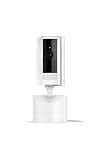
- See all around — Control your view with Pan-Tilt Indoor Cam, featuring a smooth 360° view you control from your phone.
- Find your perfect angle — Pan 360° around your home and tilt up and down, all in the Ring app.
- Know and respond in real time — View and respond to activity with Live View and Two-Way Talk.
- See clearly, day or night — Get a clearer picture at any hour with HD Video and Color Night Vision.
- Easy DIY install — Easy to install and use. Just plug and place to secure any space.
A privacy-conscious example for a household with an indoor and outdoor camera might be:
- Home: stop the indoor camera from recording while keeping exterior coverage active.
- Away: enable broader recording and monitoring when nobody is present.
- Disarmed: disable selected camera activity when privacy is more important than coverage.
That is an example, not a universal recommendation. Your household may need a different arrangement, and the exact mode controls can vary. After saving the settings, switch modes deliberately and confirm which devices record, send alerts, or remain available in Live View.
Review shared-user permissions as well. In a household, each person should have the access they need without everyone using the owner’s credentials. Mode changes can affect the privacy of every person in the home, so make sure the arrangement is understood by other authorized users.
Quick wins for a faster PC:
Repair Windows errors before they cause bigger problemsFix Now →Scan for outdated or missing drivers - takes under a minuteDriver Scan →10. Secure account access and consider encryption
Turn on two-step verification
Enable two-step verification in Control Center. Ring documents text-message and authenticator-app verification, along with push approval and WhatsApp options in applicable contexts. An authenticator app is worth considering if you want an option that does not depend on receiving a text message, but use whichever method you can reliably access when signing in.
Two-step verification helps protect the account if someone obtains the password. It does not make a weak or reused password safe, so use a unique password and update it if you suspect that it has been exposed.
Use Shared Users instead of sharing your password
Invite other household members through Ring’s Shared Users feature rather than giving them the owner’s login. Ring says Shared Users can receive alerts and access recordings, but they do not receive the owner’s credentials and cannot change device settings or delete devices and videos.
This creates a cleaner boundary when a family member, tenant, caretaker, or contractor needs limited access. Remove users who no longer need access and avoid treating a shared password as a substitute for account management.
Evaluate Video End-to-End Encryption
Video End-to-End Encryption is an optional higher-security feature. Ring says it protects video and audio recordings with a passphrase created by the user and limits access to enrolled devices, with support for up to five Ring devices. The passphrase is important: losing it can affect access to encrypted recordings, so store it securely.
Encryption is a trade-off, not an automatic best setting for every household. Ring notes that it can reduce convenience and may conflict with features such as Video Preview Alerts. Check the current compatibility list and the features you use before enrolling devices. If instant previews and maximum convenience matter more than the additional protection, the standard configuration may be more practical.
Best Value

- Capture it all with Retinal 2K video — From wide views to tighter focus, it’s easy to see your home or business in crisp clarity with Retinal 2K.
- Zoom in up to 6x — Catch details at a distance, inspect faces, and more with up to 6x Enhanced Zoom.
- Connect to who’s there — See, hear, and speak in real time with Live View and Two-Way Talk.
- Get real-time alerts — Receive real-time notifications on your phone when motion is detected.
- Easily recharge — Simply insert the included removal tool to detach your doorbell from the wall, then recharge the built-in battery via USB-C. (Cable not included.)
A practical setup order
- Create Privacy Zones so unwanted areas are excluded before any testing.
- Disable audio if you do not need it, while considering local requirements.
- Draw Motion Zones around the actual approach path.
- Adjust sensitivity and Motion Frequency based on observed misses, false alerts, and battery use.
- Enable only the Smart Alert categories that matter.
- Add schedules for predictable activity.
- Choose recording length or continuous recording based on the camera’s power, storage, and coverage needs.
- Confirm Live View and address Wi-Fi or placement problems.
- Set Home, Away, and Disarmed behavior for each camera.
- Enable two-step verification, replace password sharing with Shared Users, and then consider encryption.
Test the camera after changing settings
Do not assume the configuration works because the app accepted it. Test from the real approach path during both daytime and nighttime.
- Walk toward the monitored entrance from each likely direction.
- Confirm that the camera detects the approach before the person reaches the door or gate.
- Check that Privacy Zones remain blocked in Live View and in saved video.
- Verify whether audio is present or absent as intended.
- Check that Smart Alerts classify only the categories you enabled.
- Test the camera while each relevant Device Mode is active.
- Review the recording length and whether the clip includes enough context.
- Check battery consumption and Wi-Fi reliability over several days.
Revisit the configuration after about a week of normal use. Reduce noisy alerts, increase detection only when necessary, and reassess battery life on wireless cameras. A reliable setup is usually the result of small adjustments rather than one perfect sensitivity or recording setting.
When the problem is not a setting
Settings cannot compensate for every installation problem. If the camera is offline, Live View is unreliable, recordings are missing, or video quality is consistently poor, check the fundamentals:
- Confirm the camera has power and, for battery devices, that the battery is charged.
- Check Wi-Fi strength and stability at the camera’s actual location.
- Inspect the lens for dirt, condensation, glare, or an obstruction.
- Review the camera’s model, plan, app, and operating-system compatibility.
- Confirm that the feature you want—such as Smart Alerts, 24/7 Recording, HDR, or encryption—is supported in your region and on that device.
- Check whether a Motion Schedule or Device Mode is suppressing behavior you expected to see.
If several cameras have the same connectivity symptoms, investigate the home network rather than repeatedly changing camera sensitivity. A suitable Wi-Fi mesh system, router, or professional network installation may be relevant for difficult properties, but it is not required for every Ring setup.
Frequently Asked Questions
What is the difference between a Ring Privacy Zone and a Motion Zone?
No. Privacy Zones permanently block parts of the image in Live View and recordings. Motion Zones only define where the camera detects movement and sends or creates motion-related events; they do not hide the area from view.
Do all Ring cameras have these settings?
No. Ring features vary by model, power source, subscription, app and operating system, and geography. If a setting is missing, check compatibility and the exact controls displayed for that camera.
Do these 3 things before closing this tab:
1Scan for outdated or missing drivers - takes under a minute2Clear out junk files and repair common Windows errors3Fix the driver behind crashes, sound loss and screen glitchesHow do I reduce false Ring alerts without missing important activity?
Use Motion Zones to exclude irrelevant movement, then adjust sensitivity gradually. On battery-powered cameras, choose Motion Frequency based on the trade-off between detection gaps and battery life. Also check Wi-Fi, because poor connectivity can look like missed detection.
Can Ring Package Alerts detect every delivery?
No. Package Alerts work best with medium-to-large boxes and may miss envelopes, tubes, small boxes, or food deliveries. Treat the feature as an aid rather than proof that a delivery occurred.
What is the most important Ring account security change?
Two-step verification protects account sign-in, while Shared Users provide access without giving away the owner’s password. Video End-to-End Encryption can add protection for recordings but may limit convenience and conflict with some features.
The Bottom Line
Start with privacy: mask areas you should never record, disable audio when it is unnecessary, and use Shared Users and two-step verification instead of sharing credentials. Then tune Motion Zones, alerts, schedules, recording, and Device Modes through real-world testing. The best Ring configuration is the one that protects the areas you need, avoids collecting what you do not need, and remains reliable on your particular model, network, and power source.
Quick wins for a faster PC:
Repair Windows errors before they cause bigger problemsFix Now →Fix the driver behind crashes, sound loss and screen glitchesFind Drivers →Clear out junk files and repair common Windows errorsFree Scan →Quick Recap
Product prices and availability are accurate as of the date/time indicated and are subject to change. Any price and availability information displayed on Amazon at the time of purchase will apply.




