Recommended Free Tools
The light ring on a screenless Amazon Echo, Echo Plus, or Echo Dot is a status indicator. To identify it correctly, look at both the color and the animation: is the ring solid, pulsing, spinning, or showing a moving spotlight?
The fastest way to identify an unfamiliar light is to ask: “Alexa, what does your light mean?” Amazon’s exact behavior can vary by model, generation, firmware, and feature.
As an Amazon Associate I earn from qualifying purchases.
Quick reference: Echo light-ring meanings
| Appearance | Likely meaning | What to do |
|---|---|---|
| Blue ring with a cyan spotlight | Alexa is listening | Finish speaking and wait for the response |
| Spinning, moving, or alternating blue and cyan | Startup, processing, responding, or update activity | Wait briefly; troubleshoot if it remains indefinitely |
| Spinning orange | Setup mode or an attempt to connect to the internet | Complete setup or check Wi-Fi |
| Pulsing yellow | Notification, message, or possibly a missed reminder | Ask, “Alexa, what are my notifications?” |
| Solid red | The microphones are turned off | Press the microphone button |
| Pulsing green | Incoming call or Drop In | Answer or decline it |
| Spinning or cycling green | Active call or Drop In | End the call or Drop In |
| Brief purple flash after a request | Do Not Disturb is enabled | Disable Do Not Disturb or check its schedule |
| Purple during setup | Possible Wi-Fi or setup problem | Check the network and restart setup |
| White segments | Current volume level | Adjust the volume or wait for the light to disappear |
| Spinning or cycling white | Away mode or an Alexa Guard-related state on supported configurations | Check the relevant Alexa settings |
These descriptions are intended for screenless Echo speakers. Echo Show models use a light bar and on-screen indicators instead of the same ring behavior. See Amazon’s device-light guidance if you have a screen-equipped Echo.
Free tools Windows power users keep installed
One-click scans. No signup required.
Blue and cyan: listening, thinking, responding, or starting up
Cyan spotlight on a blue ring
A blue ring with a moving cyan section usually means Alexa is listening. The moving section can indicate the direction from which the Echo detects your voice.
#1 Best Overall

- Your favorite music and content – Play music, audiobooks, and podcasts from Amazon Music, Apple Music, Spotify and others or via Bluetooth throughout your home.
- Alexa is happy to help – Ask Alexa for weather updates and to set hands-free timers, get answers to your questions and even hear jokes. Need a few extra minutes in the morning? Just tap your Echo Dot to snooze your alarm.
- Keep your home comfortable – Control compatible smart home devices with your voice and routines triggered by built-in motion or indoor temperature sensors. Create routines to automatically turn on lights when you walk into a room, or start a fan if the inside temperature goes above your comfort zone.
- Do more with device pairing – Fill your home with music using compatible Echo devices in different rooms, or create a home theatre system with Fire TV.
- Say goodbye to drop-offs and buffering - With eero Built-in, Echo Dot doubles as a mesh wifi extender, adding up to 1,000 sq. ft. of wifi coverage to your existing eero network.
Speak normally, then wait for Alexa to answer. If the ring activates when nobody says the wake word, check for an accidental button press, a false wake-word detection, or another person using Alexa.
Moving or alternating blue and cyan
Blue is not limited to one state. Depending on the animation, Alexa may be processing your request, preparing a response, responding, starting up, restarting, or carrying out software activity.
Amazon’s developer guidance distinguishes listening, thinking, and responding animations, but exact effects differ across device categories and generations. That is why “blue means listening” is an incomplete explanation. The timing matters:
The Tool Desk
Outbyte Driver Updater FREEFix the driver behind crashes, sound loss and screen glitchesFind Drivers →Outbyte PC Repair FREEClear out junk files and repair common Windows errorsFree Scan →- After you say the wake word: Alexa is likely listening or processing.
- Immediately after a request: Alexa may be thinking or responding.
- After plugging in or restarting: the Echo may be starting up.
- During brief software activity: the device may be updating or completing background work.
Consult Amazon’s current Echo light-ring guide and its indicator taxonomy for the most model-specific description available.
When the blue light never stops
Do not assume a persistent blue ring immediately means the hardware has failed. Try these steps in order:
- Wait several minutes if the Echo has just restarted or may be updating.
- Check whether Alexa responds to a simple request.
- Unplug the Echo for about 30 seconds, then reconnect it.
- Open the Alexa app and check whether the device is shown as online.
- Check your router and Wi-Fi connection.
- If the light continues indefinitely, use Amazon’s instructions for your exact model before deregistering or resetting it.
Orange: setup mode or internet connection
An orange, usually spinning, ring means the Echo is in setup mode or is attempting to connect to the internet. A new or factory-reset Echo commonly shows orange while it is ready to be configured.
Rank #2

- Your favorite music and content – Play music, audiobooks, and podcasts from Amazon Music, Apple Music, Spotify and others or via Bluetooth throughout your home.
- Alexa is happy to help – Ask Alexa for weather updates and to set hands-free timers, get answers to your questions and even hear jokes. Need a few extra minutes in the morning? Just tap your Echo Dot to snooze your alarm.
- Keep your home comfortable – Control compatible smart home devices with your voice and routines triggered by built-in motion or indoor temperature sensors. Create routines to automatically turn on lights when you walk into a room, or start a fan if the inside temperature goes above your comfort zone.
- Do more with device pairing – Fill your home with music using compatible Echo devices in different rooms, or create a home theatre system with Fire TV.
- Say goodbye to drop-offs and buffering - With eero Built-in, Echo Dot doubles as a mesh wifi extender, adding up to 1,000 sq. ft. of wifi coverage to your existing eero network.
To set it up:
- Open the Alexa app.
- Choose More → Add a Device.
- Select Amazon Echo and the applicable model.
- Follow the Wi-Fi setup prompts.
- Keep the Echo reasonably close to the router while setup is running.
If setup fails, restart both the Echo and router, verify the Wi-Fi password, and repeat the setup flow. App labels can change, so use the app’s current device-setup option if the wording differs. Amazon’s setup documentation is available at Amazon Developer.
Yellow: a notification, message, or reminder
A pulsing yellow ring normally means something is waiting for you: a notification, message, missed reminder, or in some cases a shopping or delivery notification.
Start with:
- “Alexa, what are my notifications?”
- “Alexa, what are my messages?”
- “Alexa, read my notifications.”
The yellow light may continue until the notification is heard, dismissed, or cleared. If it remains unexpectedly, check reminders and alarms in the Alexa app, along with shopping, delivery, communication, and skill notifications. Restart the Echo if the light does not match anything shown in your account.
Yellow is the normal notification and message indicator. Green, by contrast, is associated with calls and Drop In.
Red: the microphones are muted
A solid red ring means the Echo’s microphone-off button has been pressed. The microphones are disabled, so Alexa will not listen for the wake word or respond to voice requests.
Quick wins for a faster PC:
Clear out junk files and repair common Windows errorsFree Scan →Scan for outdated or missing drivers - takes under a minuteDriver Scan →Repair Windows errors before they cause bigger problemsFix Now →Press the microphone button once to restore the microphones. This is a deliberate privacy state, not necessarily a fault.
Rank #3

- Your favorite music and content – Play music, audiobooks, and podcasts from Amazon Music, Apple Music, Spotify and others or via Bluetooth throughout your home.
- Alexa is happy to help – Ask Alexa for weather updates and to set hands-free timers, get answers to your questions and even hear jokes. Need a few extra minutes in the morning? Just tap your Echo Dot to snooze your alarm.
- Keep your home comfortable – Control compatible smart home devices with your voice and routines triggered by built-in motion or indoor temperature sensors. Create routines to automatically turn on lights when you walk into a room, or start a fan if the inside temperature goes above your comfort zone.
- Do more with device pairing – Fill your home with music using compatible Echo devices in different rooms, or create a home theatre system with Fire TV.
- Say goodbye to drop-offs and buffering - With eero Built-in, Echo Dot doubles as a mesh wifi extender, adding up to 1,000 sq. ft. of wifi coverage to your existing eero network.
If the red light will not turn off:
- Press the microphone button again and confirm that it physically changes state.
- Restart the Echo.
- If the device is not responding, try another compatible power adapter.
- Use model-specific reset or support instructions only after confirming that the Echo is not simply muted.
The red indicator on a screenless speaker should not be confused with red privacy indicators on Echo devices that have cameras or screens, where red can also relate to camera privacy.
Green: an incoming call or an active call
Pulsing green
A pulsing green ring indicates an incoming Alexa call or Drop In. Answer or decline it using the device or the available Alexa controls.
Spinning or cycling green
A spinning or cycling green ring indicates that a call or Drop In is active. End the call or Drop In to stop the light.
If green appears unexpectedly, another household member or an approved contact may have initiated a call or Drop In. Check calling and Drop In settings in the Alexa app. Green is not the standard indicator for a normal message notification.
Purple: Do Not Disturb or a setup problem
Purple has more than one important meaning, so the timing and context are essential.
Brief purple flash after a request
A brief purple indication after you speak usually means Do Not Disturb is enabled. It is an acknowledgment of that setting, not necessarily a Wi-Fi failure.
Rank #4

- Meet Echo Dot Max: Experience rich room-filling sound that automatically adapts to your space and fine-tunes playback. Features a built-in smart home hub and Omnisense technology for highly personalized experiences.
- Music to your ears: With nearly 3x the bass versus Echo Dot (2022 release), it fits beautifully in any space, delivering your personal sound stage with deep bass and enhanced clarity. Listen to streaming services, such as Amazon Music, Apple Music, Spotify, and SiriusXM. Encore!
- Do more with device pairing: Connect compatible Echo smart speakers and smart displays in different rooms, or pair with a second Echo Dot Max to enjoy even richer sound
- Simple smart home control: Set routines, pair and control lights, locks, and thousands of smart home devices that work with Alexa without needing a separate smart home hub. With Omnisense technology, you can activate routines via temperature or presence detection.
- Say goodbye to drop-offs and buffering - With eero Built-in, Echo Dot Max doubles as a mesh wifi extender, adding up to 1,000 sq. ft. of wifi coverage to your existing eero network.
Disable Do Not Disturb by voice if that command is available on your device, or open the Alexa app and check the Echo’s Do Not Disturb settings. Also check whether a Do Not Disturb schedule is turning it back on automatically.
Purple during setup
Purple during initial setup can indicate a Wi-Fi or setup problem. Confirm the selected network and password, move the Echo closer to the router, restart the router and Echo, and re-enter setup mode if necessary.
Amazon also documents quickly pulsing purple as an error indicator in some guidance. Do not collapse every purple light into one explanation: a brief flash after a request and purple during setup point to different actions.
Independent reader supportYour contribution helps us test, update, and keep practical guides available for everyone.White: volume or Away mode
White segments
White segments around the ring show the current volume level. More illuminated white indicates a higher volume.
Press the volume buttons or say, “Alexa, set volume to five.” The light should disappear after the volume interaction ends.
Windows Errors? Fix Them Before They Spread
Repair common Windows errors and clear accumulated junk for a smoother, more stable PC - no reinstall needed.Free scan · no reinstallOutdated Drivers Are Slowing You Down
One free scan finds every outdated or missing driver and matches the right update for your exact hardware.Free scan · exact hardware matchSpinning or cycling white
A spinning or cycling white ring may indicate Away mode or an Alexa Guard-related state on devices and software versions that support it. Alexa Guard branding, features, and availability have changed over time, so do not assume every Echo has the same controls or that every white animation means exactly the same feature.
Best Value
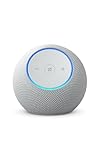
- Meet Echo Dot Max: Experience rich room-filling sound that automatically adapts to your space and fine-tunes playback. Features a built-in smart home hub and Omnisense technology for highly personalized experiences.
- Music to your ears: With nearly 3x the bass versus Echo Dot (2022 release), it fits beautifully in any space, delivering your personal sound stage with deep bass and enhanced clarity. Listen to streaming services, such as Amazon Music, Apple Music, Spotify, and SiriusXM. Encore!
- Do more with device pairing: Connect compatible Echo smart speakers and smart displays in different rooms, or pair with a second Echo Dot Max to enjoy even richer sound
- Simple smart home control: Set routines, pair and control lights, locks, and thousands of smart home devices that work with Alexa without needing a separate smart home hub. With Omnisense technology, you can activate routines via temperature or presence detection.
- Say goodbye to drop-offs and buffering: With eero Built-in, Echo Dot Max doubles as a mesh wifi extender, adding up to 1,000 sq. ft. of wifi coverage to your existing eero network.
What to do when the light will not go away
Use the least destructive fix that matches the pattern instead of resetting the Echo immediately.
- Identify the pattern: note the color, movement, timing, and whether the entire ring or only part of it is illuminated.
- Ask Alexa: say, “Alexa, what does your light mean?”
- Clear a notification: ask what notifications or messages are waiting.
- Restore the microphones: press the microphone button if the light is solid red.
- End communications: answer, decline, or end a call or Drop In if the light is green.
- Check Do Not Disturb: investigate a purple flash that appears after requests.
- Check setup and Wi-Fi: investigate orange or setup-related purple.
- Restart the Echo: unplug it for about 30 seconds and reconnect it.
- Refresh the app: update or reopen the Alexa app and check the device’s connection and settings.
- Reset only as a last resort: reset procedures vary by model and generation, and a reset can erase the device configuration and require setup again.
Do not use one universal button combination for every Echo. Find Amazon’s reset instructions for the exact Echo, Echo Plus, or Echo Dot generation you own.
Does the meaning vary between Echo, Echo Plus, and Echo Dot?
The basic status categories are broadly shared across screenless Echo-family speakers, but exact animations, available features, and setup behavior can vary by model, generation, firmware, and account settings. Older Echo and Echo Plus models may not expose the same features as newer devices.
If you do not know which generation you have, check the Alexa app’s device details or compare the model with Amazon’s device-specific support information. Model generation matters particularly when troubleshooting setup, resetting the device, or checking features such as calling, Guard-related modes, and smart-home support.
Use movement and context if you cannot distinguish colors
Color alone is unreliable for color-blind readers and in bright rooms. Describe the light by motion and timing instead:
- Moving spotlight after the wake word: likely listening.
- Alternating or spinning blue: processing, responding, or starting up.
- Slow yellow pulses: notification or message.
- Solid ring that appears when the microphone button is pressed: muted microphones.
- Pulsing green: incoming communication.
- Cycling green: active communication.
- Brief purple after speaking: Do Not Disturb.
- White segments during a volume change: volume level.
One final identification checklist
Before changing settings or resetting the device, record:
- the color or approximate brightness;
- whether the light is solid, pulsing, flashing, spinning, or a moving spotlight;
- whether it appears after a voice request, button press, restart, or volume change;
- whether Alexa responds;
- whether the Echo is in initial setup;
- whether someone might be calling or using Drop In; and
- whether Do Not Disturb, Away mode, or another optional feature is enabled.
That combination of color, movement, and context usually identifies the state more accurately than the color name alone.
Do these 3 things before closing this tab:
1Repair Windows errors before they cause bigger problems2Scan for outdated or missing drivers - takes under a minute3Clear out junk files and repair common Windows errorsQuick Recap
Product prices and availability are accurate as of the date/time indicated and are subject to change. Any price and availability information displayed on Amazon at the time of purchase will apply.




