Outdated Drivers Are Slowing You Down
One free scan finds every outdated or missing driver and matches the right update for your exact hardware.Free scan · exact hardware matchWindows Errors? Fix Them Before They Spread
Repair common Windows errors and clear accumulated junk for a smoother, more stable PC - no reinstall needed.Free scan · no reinstallYes—Samsung The Frame can display your own photographs in Art Mode. You can import images wirelessly through SmartThings or transfer them from a USB storage device connected to the One Connect Box, then present them as a single image, a slideshow, or a matted artwork-style composition.
The best results depend less on an artistic filter than on preparation: crop the photograph for a widescreen display, use the highest-quality original available, and test the finished image in the actual lighting of the room. Menu names vary by model, region, app version, and firmware, so the paths below reflect Samsung’s current U.S. support instructions while noting common variations.
As an Amazon Associate I earn from qualifying purchases.
What you need before you begin
- A Samsung The Frame television. Samsung says SmartThings support applies to Frame TVs from 2018 onward, although features and menus vary by model and region.
- The SmartThings app on a compatible iOS or Android phone, if you want to transfer photos wirelessly.
- A Samsung Account and internet-connected home network for network-based smart features.
- A compatible USB mass-storage device connected to the TV’s One Connect Box, if you prefer a wired transfer.
- Photographs edited and cropped in advance. Samsung states that photos cannot be edited on the television itself.
For model-specific differences, consult Samsung’s Art Mode guide and your television’s manual. Samsung’s Canadian documentation also warns that available screens and settings can differ by region and model.
Prepare your photos for The Frame
Crop deliberately for a widescreen display
Most Frame models are designed around a 16:9 presentation. Crop your photographs before uploading instead of leaving the television to make an unwanted crop. Keep faces, pets, and important architectural details away from the edges of the frame.
#1 Best Overall
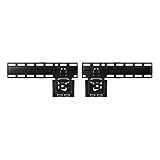
- SLIM FIT WALL MOUNT: Made specifically for Samsung TVs 42”-85”¹, the Slim Fit Wall Mount brings your TV nearly flush² against the wall for a low-profile look that blends into any interior. Transform your space and upgrade today
- A FIT THAT’S NEARLY FLUSH² TO THE WALL: Leaving a seamless, ultra-slim gap between the TV and the wall, our Slim Fit Wall Mount delivers a distraction-free mounting solution and viewing experience
- HOW TO CENTER YOUR TV: Mount your TV easily, even without a level, thanks to the self-correcting hanger structure on our Slim Fit Wall Mount. Simply hang it on the wall, and then adjust it in 10mm increments until it's perfectly horizontal
Prepare more than one version when necessary:
- Full-bleed 16:9: Suitable for landscapes and photographs composed for a television screen.
- Subject-centered 16:9: Useful when the original image has important details near an edge.
- Portrait with negative space: Better suited to a mat layout than forced full-screen enlargement.
- Square or near-square: Can work well when the available mat leaves the image breathing room.
Samsung regional product material recommends 3,840 × 2,160 pixels or higher for best results on certain Frame generations. Treat that as a practical recommendation rather than a universal minimum: confirm the specifications for your particular model. More pixels cannot restore detail lost through blur, poor focus, or heavy compression.
Use the cleanest original file
Use the original photograph rather than a compressed social-media download. Correct exposure, white balance, and distracting color casts before transferring the image. Consider exporting a Frame-specific copy so your original archive remains untouched.
Art Mode and room lighting can make colors appear different from those on a phone or computer. Slightly restrained saturation and controlled highlights often look more natural than an aggressively edited image.
Upload photos with SmartThings
SmartThings is the most convenient option for photographs stored on your phone. Samsung’s current U.S. support paths are:
- Open SmartThings.
- Open the Devices tab.
- Select the location containing your Frame TV.
- Select the television.
- Open Art Mode.
- Choose Add Your Photos or Add Your Photos +.
- Select the photographs on your phone.
- Tap Save on The Frame.
- Select the saved image to display it in Art Mode.
- Choose an available artistic effect if you want to stylize the photograph.
Samsung presents the shorter path as Devices > TV > Art Mode > Add Your Photos > Save on The Frame. If your app shows slightly different labels, look for the same functions rather than assuming the feature is unavailable.
After several images are saved, select the personal-photo collection and choose Slideshow where that control is offered. SmartThings can also apply effects intended to make a photograph resemble a painting or drawing, although the result is a stylized screen image—not a replacement for a physical print or original artwork.
If the Frame does not appear in SmartThings
- Confirm that the phone and television are connected to the same Wi-Fi network.
- Check that the TV has been added to the correct SmartThings location.
- Update SmartThings and restart the app.
- Restart the television.
- If pairing remains incomplete, remove and re-add the TV.
- Use USB transfer as a fallback.
The registration process can differ between phone operating systems, TV generations, and app versions. Samsung model materials document the same-network requirement for some phone-to-TV transfer workflows, but not every workflow is identical.
Quick wins for a faster PC:
Repair Windows errors before they cause bigger problemsFix Now →Scan for outdated or missing drivers - takes under a minuteDriver Scan →Clear out junk files and repair common Windows errorsFree Scan →Rank #2

- Thinnest TV Mount: Our space-enhancing slim fit TV wall mount gives your home a modern minimalist look. Your TV stays extra tight against the wall, leaving only an 0.31” gap between the TV and wall. Looks like a picture frame!(Please check if your TV has included a TV mount)
- Rock-Solid Support: Compared to similar items, this flush TV wall mount has an improved panel structure and reinforced edges, allowing for a better weight capacity of 176LBS (330LBS extreme tested without damage). Solid like a rock!
- Wider Compatibility: Fits for 42" to 100" LED/LCE/OLED flat/frame TVs of any brand, this low profile TV mount supports TV VESA from 200x100mm to 1200x800mm (and larger VESA as long as your TV is within the load-bearing range).
- Safe & Convenient: Fitted with 4x N52 super-strong magnets, the flat TV mount will securely hold the TV in place without any movement. And the magnetic catch can be easily pulled down for quick wiring, connection checks, and maintenance.
- Simplified Installation: Comes with every accessories, no professional needed, you can hang your TV in just 10 minutes follow the instruction. Works on concrete, brick and wood studs. (NOTE: Please measure your wood stud spacing first before purchase, TV VESA pattern must match wood stud spacing if installed on studs).
Upload photos with a USB drive
USB is useful for computer-edited photographs, larger batches, or situations where SmartThings pairing is unreliable.
- Copy the photographs to a compatible USB storage device.
- Connect the USB device to the One Connect Box.
- Put The Frame in Art Mode.
- Press Select on the OneRemote.
- Navigate to My Collection.
- Select the connected USB device.
- Browse to the desired images.
- Choose Save at the top of the screen.
- Select the photographs to import.
- Choose Save Selected.
- Return to My Collection > My Photos to view the imported files.
Some Samsung support pages begin with My Collection > USB device > Save; the labels may differ slightly. Do not disconnect the drive while the images are being saved.
Use an ordinary USB mass-storage device rather than assuming that every external drive, smartphone, or camera will be recognized. Samsung’s regional guidance identifies USB Mass Storage Class devices as the supported category, but compatibility and formatting can vary by model.
If USB transfer fails
- Try another USB port on the One Connect Box.
- Copy files locally to the drive rather than relying on cloud-only storage.
- Reformat or replace the drive if the television cannot read it.
- Try a smaller batch of photographs.
- Use simpler filenames if files appear on the drive but will not import.
- Leave the USB device connected until the import is complete.
- Switch to SmartThings if the problem appears limited to USB indexing.
Make a photograph look more like framed art
After selecting a personal photograph:
- Press Up on the OneRemote.
- Select Matte.
- Choose a matte style.
- Choose a matte color.
- Press Select to save the presentation.
The exact styles and colors depend on the model and software version. Samsung confirms the matte controls but does not provide one universal set of options for every Frame.
Do these 3 things before closing this tab:
1Fix the driver behind crashes, sound loss and screen glitches2Repair Windows errors before they cause bigger problems3Scan for outdated or missing drivers - takes under a minuteChoose the presentation around the photograph
- Use a white or warm-neutral matte for colorful family and travel photographs.
- Try a dark matte for black-and-white images, night scenes, or dramatic landscapes.
- Match the matte to the wall, furniture, or surrounding physical frames.
- Keep the matte restrained when the photograph already contains a busy composition.
- Use more negative space around portrait images so they do not look awkwardly enlarged or tightly cropped.
- Use full-bleed display when the image has a strong edge-to-edge composition.
A mat can improve the framed-art illusion, but it cannot correct a photograph whose subject has already been cropped out. Always prepare the image first.
Build a useful personal gallery
A slideshow is usually more successful when it is curated rather than packed with every photograph on your phone. Group images by trip, season, family member, or color palette. A short sequence of related photographs feels intentional; a random mixture of screenshots, portraits, and unrelated snapshots can make the display feel like a file browser.
For a room with colorful furnishings, try black-and-white photographs or images with a limited palette. In a neutral room, travel landscapes, architectural photographs, or muted abstracts can add color without overwhelming the space. Rotate seasonal collections rather than changing individual images constantly.
Rank #3

- TV WALL MOUNT COMPATIBLITY: This Ultra slim TV wall mount fits for most of 43-90 inch LCD/LED/OLED TVs with VESA patterns 100x200 mm up to 600x400 mm and up to 132 lbs. Designed for installation on 16"/18" wood studs, concrete, and brick walls. (Do not install the mount on drywall alone!) Perfect for TV installation in living room, kitchen, bedroom, office or any other place
- ULTRA SLIM & DISCREET DESIGN: This thin tv wall mount has been cleverly designed to retract to a mere 1.1 inches from the wall, ensuring a super slim profile that merges flawlessly with your living space. Its design leaves ample room for your creative home décor and with a velcro for cable management, all your cables are neatly organized and hidden, enhancing the neatness and elegance of your space
- COMFORTABLE VIEWING EXPERIENCE: The monTEK full motion TV wall mount tilts +3°/-12° without tools to reduce glare, extend your TV 16.5″ from the wall and swivel +/-60° for dynamic adjustability to achieve an optimal viewing experience (note that maximum rotation depends on screen size). Level your screen +/-3° after installation to fine tune the TV's position
- SECURE TV MOUNT: Choose our TV Wall Mount for reliable TV stability. With 6 tilt and swivel arms, enjoy smooth, optimal viewing angles. Capable of holding up to 132lbs, it's built from heavy-duty steel and features a durable faceplate and secure screws. Having passed a rigorous 4x max load test, this low profile tv wall mount combines strong construction and articulating arms for unmatched safety
- QUICK & EASY INSTALLATION: monTEK slim tv mount comes with decent instruction, bubble level and necessary hardware in pre-labeled bags for easier installation. Simply attach the TV brackets, mount the wall plate, then hang your TV. Choose correct mounting holes based on your TV’s VESA pattern to ensure a proper fit. Designed for durability, this TV mount offers reliable after-sales service and technical support. Feel free to reach out with any queries
You can combine personal photos with Samsung Art Store artwork, but the two are separate:
- Personal photos are images you upload from a phone or USB device.
- Art Store content is Samsung’s licensed artwork service, with availability, pricing, and free-content terms that vary by model, region, and date.
An Art Store subscription is not required to display your own photographs. Samsung currently markets access to more than 3,000 works and refreshed free content, but those service claims can change; check the current Samsung information for your region.
Viewing from a phone is not the same as saving to The Frame
Casting or viewing a photograph from a phone can show it temporarily without importing it into the television’s collection. To use the image later in Art Mode, choose the workflow that saves it to The Frame—such as SmartThings’s Save on The Frame command or the USB import process.
This distinction matters if you want the TV to continue displaying the image after the phone disconnects.
Independent reader supportYour contribution helps us test, update, and keep practical guides available for everyone.Tune Art Mode for everyday use
The Frame does not behave exactly like paper, canvas, or glass. In Art Mode, brightness and color tone can respond to ambient conditions, and a motion sensor can turn the display on or off when movement is detected.
Check the result in both daylight and evening conditions. Reflections, direct sunlight, wall color, viewing angle, and the room’s artificial lighting can change how the image appears.
- Keep the front sensor clear of a soundbar, decoration, trim, or custom installation element.
- Review Night Mode if the display behaves differently after dark.
- Review Sleep After if Art Mode turns off sooner than expected.
- Adjust motion-detector sensitivity if the TV responds to pets, passing headlights, or moving light sources.
- Avoid judging brightness from one lighting condition only.
Sensor performance depends on installation height and the surrounding environment. If the display switches off while someone is still in the room, inspect the sensor and these settings before assuming the photograph or TV is defective.
Rank #4
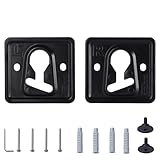
- 1. Compatible models: QN32LS03BBFXZA QN32LS03BDFXZA QN32LS03CBFXZA QN32LS03CDFXZA QN32LS03TBFXZA QN32LS03TDFXZA QN43LS03AAFXZA QN43LS03ADFXZA
- 2. Appearance design: The product has a small thickness, which can reduce the gap between the TV and the wall and save space
- 3. Raw material: Made of metal raw materials, the material is hard and not easy to damage, can provide long-term support for the TV, strong safety, and the special material is not easy to rust
- 4. Space-saving design: The TV can be fixed on the wall, saving desktop space and making your room tidier and cleaner
- 5. Easy to install: It comes with installation tutorials, gaskets and screws, which can make it easy for you to install at home
Samsung states that Art Mode cannot be permanently disabled. Holding the remote’s Power button turns the television completely off rather than leaving artwork displayed.
Understand storage limits
Storage capacity is model-dependent. Samsung’s current U.S. design information lists 4GB or 6GB depending on the model. Older materials may mention approximately 1,200 images based on an assumed file size of about 5MB, but that is not a safe universal limit.
Free tools Windows power users keep installed
One-click scans. No signup required.
For an accurate expectation, check the specifications for your exact model and remember that file size—not just pixel dimensions—affects how many photographs fit. A smaller, carefully selected gallery is generally easier to manage than a maximum-capacity archive.
Troubleshoot common problems
| Problem | Likely cause | What to try |
|---|---|---|
| The TV is missing from SmartThings | Pairing or network issue | Put both devices on the same Wi-Fi, update SmartThings, restart both devices, and re-add the TV. |
| “My Photo Album” is missing | Samsung changed the ART interface | Look under ART > My Art Store > My Photos and Favorites. |
| The USB drive is not recognized | Unsupported drive, formatting, or connection | Try another USB port or a standard mass-storage drive, then test a smaller batch. |
| The image is cropped | Aspect-ratio mismatch | Crop and export a deliberate 16:9 version before importing. |
| The photograph looks soft | Low-resolution source or compression | Use the original high-resolution file rather than a downloaded or compressed copy. |
| The image looks too dark | Art Mode settings or room conditions | Adjust brightness and evaluate the image in daylight as well as at night. |
| Art Mode switches off unexpectedly | Motion sensor, Night Mode, or Sleep After | Unblock the sensor and review motion and sleep settings. |
| An upload appears stuck | Large batch, app, or network issue | Import fewer files at a time or switch between SmartThings and USB. |
What changes after a Samsung update?
Samsung periodically changes the ART interface. Older tutorials may refer to rows that no longer exist on a particular model. Samsung says rows such as My Photo Album, My Shelf, and some third-party-app rows may become unavailable after updates.
Your photos are not necessarily gone because an older row has disappeared. Samsung’s current troubleshooting route points users to ART > My Art Store > My Photos and Favorites. Free artwork may also appear through an Art Streams row rather than an older complimentary-content row. If the labels on your TV differ, search the ART interface for the personal-photo or favorites location.
See Samsung’s ART-row troubleshooting guidance when a collection appears to be missing.
Recommended Free Tools
Is The Frame worth buying for personal photos?
The Frame makes sense when you want one wall-mounted television to function as both a conventional TV and a coordinated room feature. It offers a convenient Art Mode, personal-photo support, mat controls, sensor-based behavior, and the option to use Samsung’s licensed artwork service later. A separately sold bezel may help the screen coordinate with the room, but verify compatibility with the exact model and size through Samsung’s design information.
It is a less compelling purchase if you mainly want the cheapest possible digital photo display, require a completely offline device, dislike app and account ecosystems, or want a screen devoted primarily to portrait photography. Conventional framed prints use no electricity and have no software menus or interface changes. A standard TV paired with a separate digital photo frame may also cost less, although it will not necessarily provide The Frame’s integrated wall-display design.
Prices and availability change. For example, Samsung’s U.S. product information showed a 55-inch 2025 The Frame at $1,299.99 during the research period; treat that as a dated price signal, not a permanent price. Check the current product page before buying.
Quick Recap
A practical setup sequence
- Identify your exact Frame model and confirm its current storage and Art Mode options.
- Choose five to 20 photographs that suit the room instead of uploading an unedited camera roll.
- Crop each image deliberately, keeping faces and key details away from the edges.
- Export clean, high-resolution copies while preserving your originals.
- Use SmartThings for quick phone transfers.
- Use USB when SmartThings pairing fails or when transferring computer-edited batches.
- Apply a matte and color that support the photograph rather than competing with it.
- Test brightness, motion behavior, and reflections during both day and night.
- Save a smaller curated slideshow and revise it seasonally.
Product prices and availability are accurate as of the date/time indicated and are subject to change. Any price and availability information displayed on Amazon at the time of purchase will apply.
What’s actually slowing this PC down?
Pick the symptom - the matching free tool is one click away.

