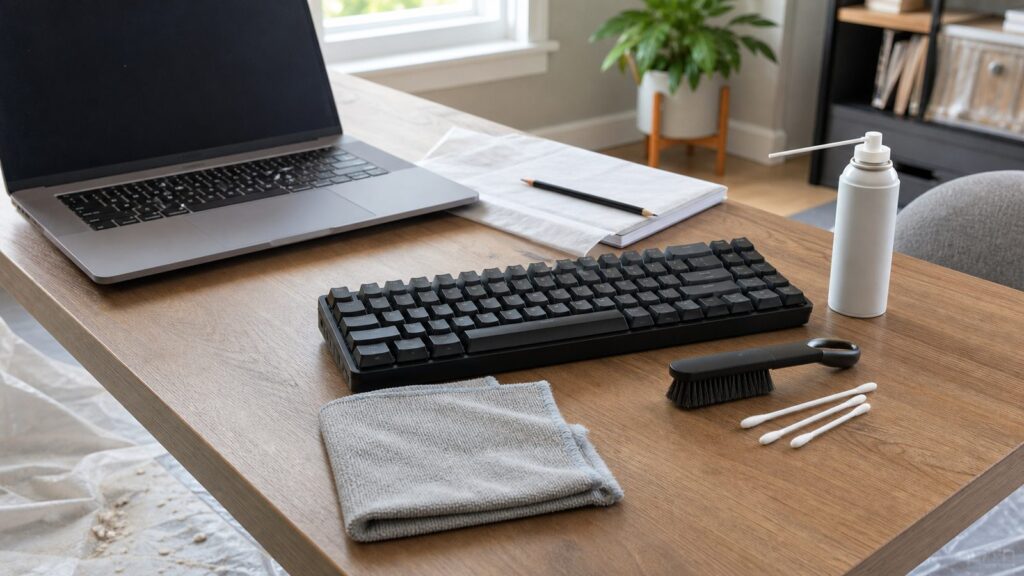
A dirty keyboard is usually easy to fix, but it is also easy to damage if you treat it like a countertop. The safe method is simple: power it down, remove loose debris first, use air at an angle, wipe with very little liquid, and let it dry fully before turning it back on. Do not spray cleaner directly into the keys. Do not soak anything. Do not pull laptop keycaps unless the manufacturer specifically supports it.
On our job sites and in our office trailers, keyboards pick up more than normal household dust. Drywall dust, sawdust, insulation fibers, food crumbs, pet hair, and grit from work clothes all migrate under keys and into laptop vents. Fine construction dust is especially frustrating because it does not stay on the surface. It gets into key gaps, USB ports, cooling intakes, trackpads, and hinges. A five-minute light clean once a month is better than waiting until keys stick.
As an Amazon Associate I earn from qualifying purchases.
For most homeowners, a safe keyboard clean costs about $10 to $20 if you need basic supplies, $8 to $16 if you are buying canned air, and $25 to $50 if you want a reusable electric air duster. Professional laptop or computer cleaning commonly starts around $50 for basic dust removal and can rise into the $80 to $150 per hour repair-shop range when disassembly, spill damage, corrosion, or diagnostics are involved.
What You Need Before You Start
Keep the kit simple. The best keyboard-cleaning supplies are gentle, dry, and easy to control. You are not scrubbing tile grout; you are working around small switches, clips, membranes, circuit boards, and ports.
- Microfiber cloths: 2 or 3 cloths, preferably lint-free.
- Cotton swabs: standard swabs for key edges and sticky spots.
- Soft brush: a clean paintbrush, electronics brush, or keyboard brush.
- Compressed air: one 8 oz can usually costs about $8 to $10; two 10 oz cans often run about $13 to $16.
- 70% isopropyl alcohol: useful for oily residue and sticky key edges when applied to a cloth or swab, not sprayed.
- Electronics-safe disinfecting wipes: only when compatible with the device maker’s instructions.
- Keycap puller: for many external mechanical keyboards only, not for most laptop keyboards.
- Small bowl or tray: useful for holding removed mechanical keycaps in order.
A basic do-it-yourself setup usually lands around $10 to $20 if you are buying cloths, swabs, and alcohol. Small keyboard cleaning kits with a brush, microfiber pad, keycap puller, and small bottle generally cost about $8 to $25. Premium kits can cost more, but most homes do not need them.
If you clean several computers, office equipment, gaming keyboards, or workshop electronics, a reusable electric air duster may make sense. In 2026, common consumer models run about $25 to $50. Look at battery size, motor speed, nozzle options, and whether the tool can deliver short, controlled bursts instead of one uncontrolled blast.
#1 Best Overall

- Powerful Turbo Fan:WOLFBOX MegaFlow 50 electric air duster reaches speeds of up to 110,000 RPM, effectively removing dust and debris. It features three adjustable speed settings to suit different cleaning tasks.
- Economical and Reusable: Built from durable materials with a long-lasting battery, the WOLFBOX MegaFlow 50 is a sustainable alternative to disposable air cans, enhancing your cleaning experience.
- Portable and Lightweight: Weighing only 0.45 lb, this compact air duster is easy to carry. The included lanyard ensures convenient use both indoors and outdoors.
- Wide Application: WOLFBOX MegaFlow 50 electric air duster comes with 4 nozzles, making it suitable for a variety of scenes, such as pc, keyboards, or other electronic devices. It also serves well for home clean and car duster.
- 3.5 Hours Fast Charging: WOLFBOX MegaFlow 50 electric air duster recharges in just 3.5 hours with a type-C cable. Enjoy up to 240 minutes of use on the lowest setting, with four charging options to suit your needs.To ensure optimal performance of your MF50, please fully charge the battery before use.
Before Cleaning: Identify the Keyboard Type
The right cleaning method depends on the keyboard. A removable full-size keyboard gives you more room to work. A laptop keyboard gives you much less margin for error. A mechanical keyboard may allow keycap removal, while a low-profile laptop mechanism may break if you treat it the same way.
Recommended Free Tools
Laptop Keyboards
Laptop keyboards are the highest-risk category. The keyboard sits above sensitive electronics, and the keys often use delicate scissor mechanisms or proprietary clips. Many modern laptops also have very tight tolerances around the keys, trackpad, speakers, and vents. For a laptop, stay with surface cleaning unless the manufacturer provides clear key-removal instructions or a repair technician is already servicing the machine.
Shut the laptop down completely, unplug the charger, remove any connected accessories, and keep liquid away from openings. If the laptop has been exposed to remodeling dust, clean the keyboard and vents more often during the project. Drywall sanding residue is fine enough to drift into cooling intakes and can contribute to fan noise, heat buildup, and poor performance.
External Membrane or Low-Profile Keyboards
Most inexpensive wired and wireless keyboards are safer to clean than laptops because they are separate from the computer. Still, they are not waterproof unless the manufacturer says so. Unplug wired models, turn off wireless models, and remove batteries if the design allows it. Use dry cleaning first, then a barely damp cloth for the surface.
Mechanical Keyboards
Mechanical keyboards are usually the easiest to deep clean because many keycaps can be removed with a keycap puller. That does not mean the whole board can get wet. The keycaps can often be washed separately, but the switch plate, circuit board, USB port, and case seams should stay dry. Before removing keycaps, take a clear photo of the layout. It saves time when reinstalling keys, especially around the function row, arrows, and modifier keys.
The Tool Desk
Outbyte Driver Updater FREEFix the driver behind crashes, sound loss and screen glitchesFind Drivers →Outbyte PC Repair FREEClear out junk files and repair common Windows errorsFree Scan →The Safe Cleaning Process
Plan on 10 to 20 minutes for a normal keyboard and 45 to 90 minutes for a deeper mechanical keyboard cleaning where keycaps are removed and dried. If the keyboard has sticky residue from soda, coffee, juice, or a sugary snack, slow down. Sugar and moisture are what turn a simple cleaning task into a repair issue.
Step 1: Power Down and Disconnect
For a wired keyboard, unplug it from the computer. For a wireless keyboard, turn it off and remove the batteries if practical. For a laptop, shut it down completely and unplug the charger. Do not clean while the keyboard is awake, charging, or responding to keystrokes.
This is not just about avoiding accidental typing. Moisture plus power increases the risk of short circuits. Even a small amount of liquid can wick under a key and reach places you cannot dry with a cloth.
Step 2: Remove Loose Debris Dry
Turn the keyboard upside down over a trash can or towel and gently shake it. Do not pound it on the desk. A few light taps are enough. For a laptop, hold it securely and tilt it so debris can fall out naturally.
Do these 3 things before closing this tab:
1Scan for outdated or missing drivers - takes under a minute2Repair Windows errors before they cause bigger problems3Fix the driver behind crashes, sound loss and screen glitchesRank #2

- POWERFUL DUST REMOVAL FOR ELECTRONICS – Removes dust, dirt, and debris from keyboards, computers, laptops, printers, gaming consoles, and other sensitive electronics for optimal performance.
- PRECISION CLEANING WITH EASY-TO-USE NOZZLE – Provides controlled airflow to reach tight spaces, vents, ports, and hard-to-clean areas in office equipment and electronics.
- VERSATILE CLEANING SOLUTION – Ideal for cleaning computers, keyboards, printers, cameras, office equipment, gaming systems, workstations, and other electronic devices.
- SAFE FOR HOME AND OFFICE USE – Contains bitterant to discourage inhalant misuse and provides a safer alternative to liquid cleaners that may damage electronic components.
- VERSATILE CLEANING SOLUTION – Ideal for cleaning computers, keyboards, printers, cameras, office equipment, gaming systems, workstations, and other electronic devices.
Next, use a soft brush to sweep between rows. Work from the back edge toward the front edge so crumbs, hair, and grit move out of the keyboard instead of deeper into it. This dry-first approach matters. If you wipe oily or dusty debris with a damp cloth too early, you can turn it into paste around the key edges.
Step 3: Use Air Correctly
Use compressed air in short bursts with the can upright. Aim across the keyboard at a shallow angle rather than straight down. The goal is to move debris out, not drive it into the switch cavity or laptop body.
For laptops, use extra restraint. Keep the nozzle a short distance away from the keys and work across the rows. Do not turn a canned-air duster upside down. That can discharge cold propellant onto the keyboard, which may leave moisture or residue and can be hard on plastics and coatings.
A reusable electric air duster avoids disposable cans and is useful in dusty homes, workshops, and shared workstations. Use the lower nozzle or speed setting first. More force is not always better around low-profile keys.
What’s actually slowing this PC down?
Pick the symptom - the matching free tool is one click away.
Step 4: Wipe the Surface With Minimal Liquid
Dampen a microfiber cloth with a small amount of water or 70% isopropyl alcohol, depending on the device guidance and the residue you are removing. The cloth should feel barely damp. If you can squeeze it and produce a drip, it is too wet.
Wipe the key tops, palm rest, and outer case. Do not spray liquid directly onto the keyboard. Do not let liquid pool around the key stems, ports, speaker grilles, seams, or trackpad edges. For tight spots, lightly dampen a cotton swab and work around the sides of individual keys.
Avoid bleach, ammonia glass cleaner, hydrogen peroxide, acetone, abrasive pads, scouring powders, and general household multipurpose sprays. Those products can damage lettering, coatings, plastics, adhesives, and internal components.
Step 5: Disinfect Only After Cleaning
Cleaning and disinfecting are not the same job. Cleaning removes dust, crumbs, oils, and visible soil. Disinfecting targets germs on a surface. If grime is left in place, disinfecting wipes do not work as well because the soil interferes with surface contact.
Crashes, No Sound, or Screen Glitches?
Random freezes, missing sound and display glitches usually trace back to one bad driver. Find and replace yours safely.Free scan · under a minuteWindows Errors? Fix Them Before They Spread
Repair common Windows errors and clear accumulated junk for a smoother, more stable PC - no reinstall needed.Free scan · no reinstallRank #3

- POWERFUL DUST REMOVAL FOR ELECTRONICS – Removes dust, dirt, and debris from keyboards, computers, laptops, printers, gaming consoles, and other sensitive electronics for optimal performance.
- PRECISION CLEANING WITH EASY-TO-USE NOZZLE – Provides controlled airflow to reach tight spaces, vents, ports, and hard-to-clean areas in office equipment and electronics.
- VERSATILE CLEANING SOLUTION – Ideal for cleaning computers, keyboards, printers, cameras, office equipment, gaming systems, workstations, and other electronic devices.
- SAFE FOR HOME AND OFFICE USE – Contains bitterant to discourage inhalant misuse and provides a safer alternative to liquid cleaners that may damage electronic components.
- VERSATILE CLEANING SOLUTION – Ideal for cleaning computers, keyboards, printers, cameras, office equipment, gaming systems, workstations, and other electronic devices.
For shared family computers, home office workstations, and jobsite trailer desks, disinfecting may be worth doing after the visible dirt is gone. Use wipes that are appropriate for electronics and allowed by the manufacturer. Many device makers permit 70% isopropyl alcohol wipes on hard, nonporous surfaces, but they still warn against soaking, aerosol sprays, abrasives, ammonia, solvents, hydrogen peroxide, and moisture in openings.
If several people use the same keyboard, consider a washable keyboard cover. It is not elegant, but it is practical in dusty rooms, schoolwork stations, workshops, and homes where people eat near the computer.
Step 6: Let It Dry Before Reconnecting
Give the keyboard time to dry before reconnecting power. For a light wipe with a barely damp cloth, 10 to 15 minutes is usually reasonable. If you cleaned sticky residue around several keys, wait longer. If keycaps were washed separately, let them dry for several hours or overnight before reinstalling them.
Do not use a hair dryer on high heat. Heat can warp thin plastic keycaps and soften adhesives. If you need airflow, use room-temperature air and patience.
How to Clean Sticky Keys Without Making It Worse
Sticky keys usually come from sugar, skin oils, snack residue, or fine dust mixed with moisture. The fix depends on whether the keyboard is a laptop, membrane keyboard, or mechanical keyboard.
Start with power off. Brush and air-clean the area first. Then use a cotton swab lightly dampened with 70% isopropyl alcohol around the edge of the sticky key. Press and release the key several times while cleaning the sides, but do not flood it. Repeat with a dry swab to pick up loosened residue.
For an external mechanical keyboard, remove the affected keycap with a keycap puller if the keyboard design allows it. Clean the keycap separately with mild soap and water, rinse it, and dry it completely. Wipe the exposed area around the switch with a barely damp swab. Keep liquid out of the switch stem and plate openings.
For a laptop, do not pry up the key unless the manufacturer provides instructions for that model. Laptop key mechanisms can break at the clips, and one broken scissor hinge can turn a cleaning job into a keyboard replacement. If a sticky laptop key does not improve after careful edge cleaning, professional service is the safer next step.
Free tools Windows power users keep installed
One-click scans. No signup required.
After a sugary spill, act fast. Shut the machine down, unplug it, turn the keyboard or laptop so liquid can drain away from electronics, and stop using it. Dried sugar can glue switches and corrode contacts. Coffee, soda, sports drinks, and sweetened tea are much worse than plain water because they leave residue behind. If the device matters, get it evaluated rather than repeatedly powering it on to see whether it still works.
Cleaning During and After Remodeling Work
Construction dust is different from ordinary household dust. Drywall dust is powdery, sawdust can wedge into key gaps, and grit from a renovation area can scratch glossy surfaces. If your home office is near a remodel, treat the keyboard like a small mechanical assembly, not a washable surface.
During active work, clean lightly once a week if the computer is in or near the work zone. That means power down, brush, use angled air, and wipe the surface. After sanding drywall, cutting trim, refinishing floors, or running demolition nearby, clean the keyboard and laptop vents the same day. Do not wait until keys start binding.
Better prevention is cheaper than repair. Keep laptops out of the work area, close them when not in use, and store external keyboards in a drawer or covered bin overnight. A washable keyboard cover is worth considering for jobsite trailer desks, workshop computers, and home offices that share space with tools, pets, or craft materials.
Quick wins for a faster PC:
Scan for outdated or missing drivers - takes under a minuteDriver Scan →Clear out junk files and repair common Windows errorsFree Scan →Our crews follow a basic rule with electronics near dust: cover it before the dusty work starts, clean dry before wiping, and keep airflow paths clear. The same rule applies at home. If dust is settling on the desk, it is also settling into the keyboard.
Rank #4

- 110,000 RPM Power Air Duster: Engineered with a brushless motor reaching up to 110,000 RPM in third gear. This electric air duster blasts away microscopic dust and crumbs from keyboards, computer cases, and radiator fans. "1-min maintenance, 10-min deep clean" for PC gamers and tech enthusiasts.
- 3 Speeds & Long Runtime: Features 3-speed settings: Gear 1 (25K RPM) for delicate electronics, Gear 2 (60K RPM) for daily dusting, Gear 3 (110K RPM) for tough debris. With 2*2500mAh batteries, it runs up to 240 mins on Gear 1 and fully charges in 3.5 hours.
- Lightweight & Portable Design: Weighing only 0.5 lbs.Our mini air blower is exceptionally easy to handle and carry. Its compact size fits perfectly in a camera backpack or car glove box, making it ideal for on-the-go photographers and campers who need to clean lenses or clear campsite debris quickly .
- Reusable & Cost-Effective Investment: Replaces disposable canned air that run out quickly and freeze up. This cordless air blower is rechargeable and designed for repeated use, saving money in the long run by eliminating the need to constantly buy canned air . It serves as a sustainable cleaning partner for electronics, home surfaces, keyboards, and delicate gadgets.
- Versatile Cleaning Tool: The WOLFBOX MF60 Electric Air Duster comes with 5 nozzles: a flat nozzle for blowing dust off PC cases and desks, a long nozzle for deep cleaning computer keyboards and car vents, a round all-purpose nozzle, and a swim ring/air mattress nozzle for outdoor inflation and camping. From electronics to car care and outdoor life, it's an all-in-one solution.
Cost Comparison: DIY Supplies vs Professional Cleaning
Most keyboard cleaning is a low-cost DIY task. The money changes when the device needs disassembly, internal dust removal, spill cleanup, or diagnostic work. A $20 external keyboard may not justify paid repair. A $1,200 laptop used for work probably does.
| Option | Typical 2026 US Cost | Best For | Watchouts |
|---|---|---|---|
| Basic DIY cleaning | $10-$20 | Monthly dust, oils, crumbs, light residue | Requires careful liquid control |
| Canned air | $8-$16 | Loose debris between keys and vents | Use upright in short bursts; do not blast propellant |
| Keyboard cleaning kit | $8-$25 | External keyboards, gaming keyboards, light maintenance | Keycap tools are not automatically safe for laptop keys |
| Electric air duster | $25-$50 | Frequent cleaning, dusty offices, workshop computers | Too much force can damage delicate keys |
| Professional laptop/computer cleaning | About $50 starting point | Internal/external dust removal, ports, keyboard, screen | Component removal, thermal paste, and repairs may cost extra |
| Repair-shop labor | $80-$150 per hour | Spills, corrosion, diagnostics, keyboard replacement | Get a quote before authorizing deep disassembly |
Whole-home cleaning services often average about $100 to $300 nationally, but standard house cleaning usually does not include careful electronics cleaning unless you ask for it specifically. A house cleaner may dust the desk and wipe surfaces, but keyboard-safe work requires electronics-safe products and a light hand.
Independent reader supportYour contribution helps us test, update, and keep practical guides available for everyone.When to DIY vs When to Hire a Pro
DIY Is Usually Fine When
- The keyboard only has dust, crumbs, pet hair, or normal skin oils.
- The keyboard is external and easy to disconnect.
- You are doing surface cleaning only.
- A few mechanical keycaps need cleaning and the manufacturer allows removal.
- The device is inexpensive enough that replacement would be cheaper than repair.
For normal home office maintenance, DIY cleaning every month and a deeper clean every 3 to 6 months is enough. Clean more often if you have pets, kids, smokers, shared workstations, workshop dust, or active renovation work nearby.
Hire a Pro When
- A laptop key remains sticky after careful surface cleaning.
- You spilled coffee, soda, juice, sports drink, or another sugary liquid.
- The keyboard stops responding, repeats keys, or triggers random keystrokes.
- Liquid reached the laptop body, ports, trackpad, or vents.
- The device is under warranty and key removal could void coverage.
- The laptop is overheating or the fan is loud after dust exposure.
Professional service makes the most sense when the keyboard is attached to an expensive laptop or when the problem may extend beyond the key tops. Spill damage can involve the keyboard, motherboard, battery connector, trackpad, and corrosion on internal contacts. That is not a surface-cleaning problem.
If an external Windows keyboard still malfunctions after physical cleaning and basic connection, battery, hardware, spill, and manufacturer checks, Outbyte Driver Updater is an optional way to check for a possible driver issue, not a fix for dirt or liquid damage.
Safety, Warranty, and Common Mistakes
There is no building permit issue with cleaning a keyboard, and OSHA rules for home users are not the practical driver here. The safety concern is basic electrical and chemical safety: power down, avoid liquid intrusion, use compatible cleaners, and do not breathe concentrated dust or aerosol propellant. If you are cleaning several dusty devices after remodeling, work in a ventilated area and wash your hands afterward.
The most common mistake is spraying cleaner directly onto the keyboard. Liquids follow gravity and capillary action. They can wick under keys, into seams, and toward the circuit board. Apply cleaner to the cloth or swab instead.
The second mistake is treating every keyboard like a mechanical keyboard. Laptop keycaps, low-profile scissor switches, and some Apple-style mechanisms are more damage-prone than full-height mechanical keycaps. Pulling them up can break clips that are not meant for repeated removal.
Other mistakes include using paper towels on screens or glossy surfaces, using a household vacuum directly on sensitive electronics, cleaning while powered on, and reconnecting the keyboard before it is dry. A household vacuum can create static and may pull loose keys or small parts out of place. If you use suction at all, keep it away from exposed components and use an electronics-safe approach.
Best Value

- Powerful Turbo Fan:CAGIWIRU Electric Air Duster have reached speed up to 130000RPM,Can efficient remove dust and debris.With LED light and Three Adjustable Speed to meet with different cleaning tasks.
- With Attached USB C Fasting Charging cable.Charing 3 hours,Enjoy up to 240 minutes of use on the lowest setting, For third speed can use for 25mins.with four charging options to meet with your needs.
- Wide Application: attached 5 different nozzles,making it suitable for a variety of scenes, such as car,pet, pc, keyboards, and other electronic devices. It also serves for office and home clean duster.
- Handy Design & Portable:Cordless air duster electric nozzle is Light weight and small size, design and comfortable to hold and space saving, convenient to carry around. You can put it in your room or inside the car without taking up space.
- Economical &Reusable: Built durable materials with a long-lasting battery,our CAGIWIRU air duster it's a sustainable alternative to disposable air cans.
Check the device maker’s instructions before using disinfecting wipes or alcohol. Manufacturer guidance is generally consistent: use a soft lint-free cloth, avoid spraying liquids directly, keep moisture out of openings, and avoid harsh household cleaners.
A Practical Maintenance Schedule
For a normal home office keyboard, use this schedule:
The Tool Desk
Outbyte PC Repair FREEClear out junk files and repair common Windows errorsFree Scan →Outbyte Driver Updater FREEScan for outdated or missing drivers - takes under a minuteDriver Scan →- Weekly: wipe key tops with a dry microfiber cloth if the keyboard is used daily.
- Monthly: power down, invert gently, brush between keys, use angled air, and wipe with a barely damp cloth.
- Every 3 to 6 months: do a deeper clean, including keycap removal only on compatible external mechanical keyboards.
- During remodeling: clean weekly near the work area and after every major dust event.
- After a spill: power down immediately and stop using the device until it is dry or professionally evaluated.
Prevention is the cheapest part of keyboard care. Keep food away from the desk, wash hands before long work sessions, cover keyboards in dusty rooms, and close laptops when not in use. Those habits cost nothing and reduce the chance of sticky keys, clogged vents, and repair bills.
The bottom line: clean dry first, use liquid sparingly, respect the keyboard type, and stop before you force a small maintenance task into an electronics repair. Most keyboards can be cleaned safely at home in under 20 minutes. The exceptions are laptops, sugary spills, warranty-sensitive devices, and anything that needs internal disassembly.
Frequently Asked Questions
Can I use 70% isopropyl alcohol to clean my keyboard?
Yes, on many hard, nonporous keyboard surfaces, but apply it to a microfiber cloth or cotton swab first. Do not spray alcohol directly onto the keyboard, and keep moisture out of openings, ports, and key mechanisms.
Is compressed air safe for laptop keyboards?
Compressed air can be safe if used carefully. Power the laptop down, hold the can upright, use short bursts, and aim across the keys at an angle instead of straight down. Do not blast cold propellant into the keyboard.
Can I remove laptop keycaps to clean underneath?
Usually, no. Laptop keycaps often use delicate scissor clips or low-profile mechanisms that can break during removal. Only remove them if the manufacturer provides instructions for your exact model.
What should I do after spilling coffee or soda on a keyboard?
Power it off immediately, unplug it, and stop using it. Sugary drinks can glue switches and corrode contacts as they dry. For laptops or expensive keyboards, professional service is the safer choice.
How often should a home office keyboard be cleaned?
Do a light dry wipe weekly if it is used daily, a fuller clean monthly, and a deeper clean every 3 to 6 months. Clean more often around pets, kids, shared computers, smoking, workshop dust, or remodeling debris.
Should I use a vacuum, canned air, or an electric air duster?
Use a brush and angled air for most debris. Canned air costs about $8 to $16 and works well when used upright. Electric air dusters cost about $25 to $50 and make sense for frequent cleaning. Avoid household vacuums directly on sensitive electronics unless the setup is electronics-safe.
Quick Recap
Product prices and availability are accurate as of the date/time indicated and are subject to change. Any price and availability information displayed on Amazon at the time of purchase will apply.

