What’s actually slowing this PC down?
Pick the symptom - the matching free tool is one click away.
Google Home now supports everyday monitoring and control for Nest Protect smoke and carbon-monoxide alarms. But the Nest app is not obsolete: Google still requires it for initial setup, factory resets, and several Protect features. Confirm your alarms and notifications work in Google Home before uninstalling Nest.
What Google Home can do with Nest Protect
Google’s current support documentation covers Nest Protect in Google Home as an available feature, beyond the earlier Public Preview announcement. In the documented management flow, Google Home supports second-generation Nest Protect units associated with a Nest-managed home and a Google Account or migrated Nest account. See Google’s Nest Protect and Google Home requirements and its announcement of smoke-and-CO support.
As an Amazon Associate I earn from qualifying purchases.
For supported devices, Google Home can show alarm and device status, battery and sensor status, and the date and time of the last test and internet connection. It also supports notifications, settings, alarm silencing, Nightly Promise, Pathlight, and Sound Check. Google says setting changes can take up to 24 hours to update; consult its Protect controls and status guide for details.
Google’s documented Home-app management requirements specifically name the second-generation Protect. Google provides installation instructions for both first- and second-generation units, but that does not establish identical Google Home functionality across generations. Check the installation guidance for your model.
#1 Best Overall

- Compatible with Google's Nest Protect Alarm
- Sends alerts to your phone if smoke and CO are detected through the First Alert app
- Interconnect so when one alarm sounds, all compatible alarms in the home sound
- Notifies when the batteries are low, eliminating late night chirps
- Voice alerts with Heads-Up warning tells you the type and location of danger in your home
Which app handles each task?
| Task or feature | Google Home | Nest app |
|---|---|---|
| View device and alarm status | Yes | Yes |
| Notifications | Yes | Yes |
| Change settings | Yes | Yes |
| Silence an alarm from the app | Yes | Yes |
| Nightly Promise, Pathlight, Sound Check | Yes | Yes |
| Initial Protect setup | No | Yes |
| Factory reset and re-pairing | No | Yes |
| Protect Video Capture | No | Yes |
| Emergency Shutoff | No | Yes |
| Emergency contacts and “What to do” information | No | Yes |
Google lists the Nest-app-only features and setup limitation in its Nest Protect support page. Its app setup guide also directs users to set up Nest Protect in the Nest app before linking it to Google Home.
How to switch everyday monitoring to Google Home
- Check the app and device requirements. Install the latest Google Home app and sign in with the Google Account associated with the home. Google’s current listed minimums are Android 9 or later or iOS 17 or later; a Google Account and home Wi-Fi are also required. Requirements can change, so check Google Home’s device requirements.
- Confirm setup and account association. The Protect must first be set up in the Nest app. For Google Home management, Google specifies a second-generation Protect in a home managed in Nest, using a Google Account or a Nest account migrated to Google.
- Open Google Home and check the home. Use the Google Account tied to the Nest home and look for each Protect in the home’s smoke-and-CO devices. App labels and screen layout may vary by platform, account state, or rollout.
- Inspect each device. Open its tile and check alarm, battery, and sensor status, then review settings and available controls. Google says Protect settings may take up to 24 hours to update after a change.
- Test notifications before changing anything. Google says both Nest and Google Home may send notifications. Verify that Google Home alerts reach the phone, then review notification permissions for both apps. Only after confirming Home notifications should you disable Nest alerts or consider uninstalling the app.
Google’s Nest Protect setup instructions state that the six-digit entry key is printed beside the device’s QR code. Keep it somewhere safe for future setup or Wi-Fi reconfiguration.
If a Protect is missing from Google Home
Check whether the Nest account was migrated
- Open the Nest app and tap Settings.
- If Migrate to a Google Account appears, migration has not been completed. Follow the prompts and choose the Google Account you use for this home.
- If that option does not appear, the account has already been migrated. Confirm that Google Home is signed in to the same Google Account used for the Nest home.
These are Google’s stated migration checks in its Protect-to-Home guidance. A mismatched Google Account can leave an alarm working physically but absent from the Home app.
Recommended Free Tools
Reset and set up again only if needed
If migration and account checks do not resolve the problem, Google says a factory reset and re-add may be necessary. A reset erases the Protect’s settings and requires setup again through the Nest app:
Rank #2

- Real-Time Ring App Notifications: Home or away, get smoke or low battery warnings (no subscription required)
- Over 25% faster smoke detection (based on internal testing vs a leading competitor)
- Optional Ring subscription (sold separately) with 24/7 smoke monitoring for $5/month
- No Wiring Needed: Operates on 2-AA alkaline batteries (included) for simple use throughout your home
- Whole Home Smart Connectivity: Get mobile alerts for every Kidde alarm in your home through wire-free interconnectivity — when one alarm sounds, they all do. (Check the user guide for more information)
- Press and hold the Protect button.
- Wait for it to chime and glow blue, then keep holding until it announces its software version.
- Release the button when the verbal countdown begins.
- Let the device erase its settings.
- Set it up again in the Nest app, then check whether it appears in Google Home.
Use Google’s reset and migration instructions for the exact recovery process. Do not reset a device casually: it removes its configuration and requires re-pairing.
Uninstalling the app is not the same as removing the alarm
Uninstalling Nest from a phone does not itself remove a correctly configured Protect from its account or turn off its local smoke and CO alarm. It does, however, leave you without the Nest app for initial setup, factory reset and re-pairing, or the features Google still reserves for Nest.
Removing the Protect from the account is different and has more serious consequences. Google says the device will still sound locally when it detects smoke or carbon monoxide, but account removal ends app notifications, status access, settings changes, and software updates. See Google’s guidance on removing a Protect from an account.
Free tools Windows power users keep installed
One-click scans. No signup required.
App connection is separate from alarm-to-alarm interconnect
Google Home is the app layer for monitoring, notifications, settings, and control. It does not replace the Protects’ wireless interconnect with one another. Google says Nest Protect uses its Weave protocol, built on 802.15.4 and Wi-Fi 802.11 b/g/n, and that the interconnect can operate without an active Wi-Fi connection. Remote monitoring and phone notifications, by contrast, depend on the connected service. Details are in Google’s wireless interconnect explanation.
Rank #3
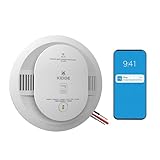
- Double the Detection: Alerts you to both smoke and carbon monoxide (CO)
- Real-Time Ring App Notifications: Home or away, get smoke, CO or low battery warnings (no subscription required)
- Over 25% faster smoke detection (based on internal testing vs a leading competitor)
- Optional Ring subscription (sold separately) with 24/7 smoke and CO monitoring for $5/month
- Whole Home Smart Connectivity: Get mobile alerts for every hardwired alarm in your home by adding just one Kidde smart detector; check the user guide for more information
A Protect not connected to an account still functions as a local smoke and CO alarm, but app notifications and connected benefits are lost. Google identifies interconnected behavior, remote status monitoring, mobile notifications, and advanced settings such as Pathlight as connected-device benefits; see setup guidance and its advice for Protects left by a previous homeowner.
Independent reader supportYour contribution helps us test, update, and keep practical guides available for everyone.Should you keep the Nest app?
- Every Protect appears in Google Home, status is current, notifications work, and you do not use Nest-only features: You may be able to stop using Nest for routine monitoring. Keep in mind that you will need it again for a reset or new setup.
- You may reset, move, or add a Protect: Keep Nest installed or readily available; Google requires it for setup and re-pairing.
- You use Video Capture, Emergency Shutoff, emergency contacts, or “What to do”: Keep using Nest for those functions.
- A device is missing, the home has mixed generations, or the account status is uncertain: Do not uninstall Nest until you have resolved the account and device checks.
Keeping the app available is the safer choice for owners who may need its setup and recovery tools. If duplicate alerts are the only problem, confirm Google Home notifications first and then adjust Nest’s notification permissions rather than removing the Protect from the account.
This is an app update, not a Nest Protect relaunch
Google says Nest Protect is no longer available for sale, while existing devices remain supported. Its Google Home support does not mean the alarm has returned to retail. Google’s current documentation directs US customers to a third-party partner device, the First Alert SC5, but that reference does not establish feature-for-feature equivalence with Nest Protect. See Google’s Protect control page and its device portfolio announcement.
If replacing an alarm, check its end-of-life date, smoke and CO detection, power type, interconnect behavior, required certifications, and local code. App compatibility alone does not determine whether a device is suitable. Follow local regulations and fire-department or safety-agency guidance for alarm placement and installation; Google’s installation guide also directs users to local requirements.
Quick Recap
Product prices and availability are accurate as of the date/time indicated and are subject to change. Any price and availability information displayed on Amazon at the time of purchase will apply.

