If a smart plug, camera, thermostat, light, or hub keeps going offline, first check whether another device can reach the internet on the same home Wi‑Fi. If phones and computers also fail, troubleshoot the router or internet service. If only one smart device disconnects, work through that device’s power, software, radio signal, Wi‑Fi-band requirements, and compatibility with the router. The sequence below separates a broad outage from a local device fault without changing advanced settings unnecessarily.
1. Establish whether the problem is the home network or one device
Use a phone or laptop connected to the same wireless network and open a few ordinary websites or cloud services. This simple comparison prevents you from resetting a device when the router or internet connection is the real cause.
As an Amazon Associate I earn from qualifying purchases.
| What you observe | Most useful starting point |
|---|---|
| Several devices cannot get online | Check the router, modem, cabling, and internet-service status. Google’s Nest guidance says to test another device and contact the ISP when none can connect. Google Home and Nest Help |
| Only one smart device is offline | Inspect that product’s power, firmware, app, signal, Wi‑Fi-band support, and router compatibility. |
| The device works locally but the app says “offline” | Investigate cloud access, DNS, firewall, or vendor-service reachability rather than assuming the radio has disconnected. |
| The device disconnects in one room or at certain times | Look for weak coverage, walls and floors, interference, or channel congestion at that location and time. |
Record the exact symptom: does the device disappear from the router’s client list, stop responding only in the app, reboot, or show a particular LED pattern? Those distinctions make later support conversations much faster.
PC Slower Than It Used to Be?
A free scan shows the junk files, broken settings and background clutter dragging Windows down - then fixes them in one click.Free scan · Windows 10 & 11Outdated Drivers Are Slowing You Down
One free scan finds every outdated or missing driver and matches the right update for your exact hardware.Free scan · exact hardware match2. Check power, physical condition, and the product software
Confirm stable power
Make sure the plug, power strip, breaker, battery, and USB adapter are secure. A camera or hub that repeatedly reboots can look like a Wi‑Fi dropout. Try the manufacturer-approved outlet or adapter and watch whether the device’s status light changes when the failure occurs. For battery products, charge fully and check whether a low-power mode disables wireless functions.
#1 Best Overall

- Powered by SmartThings: Connect, monitor, and automate your home through the SmartThings app. Build a reliable, unified smart home using Samsung's proven ecosystem
- Matter + Zigbee Smart Home Hub: Supports the newest Matter standard plus Zigbee for lighting, sensors, plugs, switches, thermostats, and more - thousands of compatible devices. PLEASE NOTE: Z-Wave not supported
- Easy Setup with Wi-Fi or Ethernet: Get started in minutes using Wi-Fi or a wired Ethernet connection for apartments, houses, and expanding smart home systems - Z-Wave not supported
- Automations That Work for You: Create custom routines for security, lighting, comfort, and energy savings. Many local automations continue working even if your internet goes offline
- Wide Device Compatibility: Connect compatible smart devices from Aeotec and many other brands to build a unified system for lighting, voice control, energy management, and climate settings
Restart in the documented order
Use the device maker’s manual or support page for its restart procedure, then restart the router according to the router maker’s instructions. Avoid repeatedly factory-resetting before you know whether the router is healthy; a reset erases configuration and can create a second problem. After each restart, allow the device to complete its normal boot and reconnect before changing another variable.
Install pending updates
Update the companion mobile app and the device firmware where the product supports those updates. Also check the router’s firmware. Release notes sometimes address reconnection bugs, security requirements, or compatibility with newer encryption modes. If an update fails, keep the device powered and follow the vendor’s recovery instructions rather than interrupting it.
Look for an address conflict
A duplicate IP address can make a device appear intermittently offline. TP‑Link’s Tapo troubleshooting guidance includes checking for an IP-address conflict. The exact diagnostic screen and remedy vary by router and firmware, so do not assign a static address as a universal fix. First inspect the router’s client list or event log, and ask the router or device maker for model-specific steps.
The Tool Desk
Outbyte PC Repair FREEClear out junk files and repair common Windows errorsFree Scan →Outbyte Driver Updater FREEScan for outdated or missing drivers - takes under a minuteDriver Scan →3. Test signal strength and physical placement
Wireless reliability depends on the path between the device and the access point, not just the internet speed shown by a speed test. Move the device temporarily closer to the router, or move the router to a more open, central position where practical. If the dropouts stop after the move, coverage or interference is more likely than a defective device.
Account for walls, floors, and materials
Concrete, brick, stone, metal cabinets, foil-backed insulation, mirrors, and large appliances can absorb or reflect radio energy. A basement thermostat, detached-garage camera, or device behind a utility enclosure may have a much weaker link than a phone in the same house. Test from the device’s actual installed position; a strong signal beside the router does not prove the installed location is usable.
Rank #2
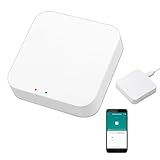
- 2 MODES IN 1 GATEWAY: This Smart home hub support Bluetooth mesh (SIG) + Zigbee3.0 multi-protocol communication. Only one gateway is needed to connect devices of different protocols to the 2.4Ghz network.
- APP REMOTE CONTROL: Smart Bluetooth Zigbee hub works with smart life/Tuya App, Support Adding devices, device reset, third-party control and group control. You can manage and remotely control the device through the Smart Life App. You can manage and remotely control your lights, fingerbot and other smart devices via the app, even when you're not home.
- VOICE CONTROL: The smart hub Support voice control, Simply give a voice command to Alexa or Google home to control devices(such as turn on/off the smart plug, turn on/off the Finger Bot).
- SMART HOME AUTOMATION: Sub-devices of the gateway act as trigger conditions for Interacting with devices such as ZigBee, Bluetooth, Wi-Fi, for device linkage. Featured as one powerful network bridge for whole house linkage in a real sense for all smart home devices.
- SUPPORT 128 DEVICES: Support up to 128 Tuya smart home devices, such as ZigBee Motion Sensor, Leak Detector, BLE Finger Bot, Zigbee Door Sensor, BLE Thermometer, ZigBee Window Gate Sensor, etc. NOTE: Supports Tuya/SmartLife devices only.
Remove common sources of interference
Google identifies cordless phones, Bluetooth equipment, baby monitors, wireless cameras, microwaves, and neighboring Wi‑Fi networks as possible interferers. Its wireless-interference guidance emphasizes that “Every network is different, and every home experiences unique difficulties caused by wireless interference.” Turn off or relocate one suspected source at a time, then observe the device through the period when it usually fails. Testing one change at a time tells you which change mattered.
Use product-specific readings correctly
For the Nest thermostat covered by Google’s troubleshooting instructions, signal strength is reported from 1 to 100; Google describes a value below 50 as weak and advises investigating nearby 2.4 GHz interference when ping exceeds 1,000. These are Nest guidance values, not general thresholds for every smart-home product. Do not label another brand’s reading “bad” solely because it falls below those numbers.
4. Verify the device’s Wi‑Fi band and security requirements
Open the product’s support page and confirm which bands, security modes, and network names it supports. Many small smart-home products use 2.4 GHz because it travels farther through walls, while some newer products support both 2.4 and 5 GHz. A device that cannot use 5 GHz will not connect simply because the 5 GHz signal is stronger near the router.
When a combined network name causes pairing trouble
Dual-band routers often advertise 2.4 and 5 GHz under one SSID and use band steering, Smart Connect, or channel optimization to choose a band automatically. That behavior is convenient for phones but can confuse products whose setup process expects the phone and device to be on 2.4 GHz. Wyze says most of its devices require 2.4 GHz for setup and recommends a temporary test in which the bands are separated or 5 GHz is disabled; restore the normal configuration after pairing. Follow that procedure only when the product’s own instructions support it. Wyze’s dual-band troubleshooting page explains the applicable models and steps.
Use a separately named 2.4 GHz network only when required
Honeywell Home’s guidance for its security and camera products recommends a separately named 2.4 GHz network and DHCP. That is a product-family recommendation, not a requirement for every thermostat, plug, or camera. Before renaming networks, note which household devices will need to be rejoined and confirm that the router can broadcast the required security mode.
Rank #3

- Ultimate Connectivity: Seamless integration with various YoLink smart home devices, ensuring reliable and fast communication. Experience robust connections across a wide area, making your home smarter and more efficient. The X3 Hub provides exceptional coverage and performance, allowing you to control and monitor your devices effortlessly, enhancing your overall smart home experience.
- EXTREME LONG RANGE: Powered by LoRa technology, the long-range yet low-power system offers the industry’s longest receiving range in the market (up to 2034 feet). Our long-range coverage enables its use in areas challenging for most residential Wi-Fi systems, such as basements, outdoor porch/patio areas, sheds, free-standing garages, and even remote outbuildings on your property.
- Backup Battery Feature: Equipped with a reliable backup battery that automatically maintains itself, ensuring uninterrupted operation during power outages. The battery provides up to 8 hours of backup power, allowing your smart home devices to remain connected and secure even during prolonged power failures. Enjoy peace of mind knowing your home automation system is always operational.
- Power Outage and Offline Alerts: Receive instant notifications when your hub switches to battery power, serving as a power outage alert. Additionally, get alerted if your hub goes offline for more than five minutes, ensuring you stay informed about the status of your smart home system at all times.
- Effortless Setup with Plug & Play: Get your smart home running in minutes with our user-friendly app and easy-to-follow setup guide. Simply connect your Hub to your internet router for a hassle-free "plug & play" setup, avoiding complex WiFi settings and credential updates.
Check encryption, DHCP, and filtering
Some devices cannot use the newest security mode, enterprise authentication, hidden SSIDs, or captive-portal login pages. Google’s Nest troubleshooting discusses router compatibility, DHCP lease behavior, firewall and parental-control restrictions, and router firmware. Inspect those settings only after basic placement and power checks, and use the router and device documentation for the exact supported combinations. Disabling a firewall or parental control should be a short, controlled test followed by re-enabling the protection.
Do these 3 things before closing this tab:
1Repair Windows errors before they cause bigger problems2Fix the driver behind crashes, sound loss and screen glitches3Clear out junk files and repair common Windows errorsTry channel settings only as a documented test
TP‑Link’s Tapo guide suggests, for compatible 2.4 GHz networks, a 20 MHz channel width and channels 1, 6, or 11; it also notes that turning off Smart Connect or channel optimization may help. These are Tapo troubleshooting suggestions, not universal best settings. If you change a channel, record the original value and change only one setting so you can undo it when the result is worse. A Wi‑Fi analyzer can reveal congestion, but no particular paid analyzer is necessary.
5. Separate Wi‑Fi association from internet or cloud access
An app’s “offline” label does not prove that the device has lost its local Wi‑Fi connection. Some devices remain reachable on the home network while their cloud connection, DNS lookup, or vendor service is unavailable. Where the manufacturer provides a local-control screen, try it while the app reports an outage. You can also check the router’s connected-device list at the same moment.
- Present in the router list and locally responsive: investigate cloud access, DNS, firewall, parental controls, or a vendor-service incident.
- Absent from the router list: concentrate on power, radio signal, band compatibility, authentication, and IP addressing.
- Present but repeatedly changing addresses: inspect DHCP behavior and possible conflicts with router-specific guidance.
Do not expose a device directly to the public internet to work around a cloud problem. Keep router protections enabled and use the vendor’s supported remote-access method.
6. Use an alternate network as a controlled isolation test
If the device supports it, connect it temporarily to another router’s 2.4 GHz network or a mobile-phone hotspot. Keep the test short and use a secure password. Google, Honeywell Home, and TP‑Link all describe alternate-network testing in their support material.
Rank #4

- Stability Upgrade Quick Connection:Supports Bluetooth or WiFi connection.The improved WiFi technology let you quick connection and stay stable,no disconnection worries. Please keep the smart plug connected to your stable 2.4GHz network.(Note: Only 2.4Ghz WiFi)
- Hand-Free Voice Control:Smart plugs that work with Alexa and Googel Assistant. Just give a simple voice command to Alexa or Google Assistant to control your connected home devices. Enjoy the joy of smart home devices.
- APP Remote Control From Anywhere:You also can control your outlet timers anywhere anytime via the APP directly when you are away. Monitor and control connected electrical equipment in your home.The smart outlet plug compatible with GHome APP, Smart Life App and Tuya App.
- Schedules and Timer Function:Easy to set timers and add schedules to connected smart home devices circularly or randomly, making them work as scheduled like auto-off and auto-on to save energy and money. Such as lamps, fan, humidifier, Christmas light timers etc.
- Group Control and Sharing:You can set a group for some wifi smart plugs and control connected appliances with one tap. Also you can share your wifi outlet plug by App with your families and enjoy the smart life together.
- Write down the current SSID, security mode, and device settings so you can restore them.
- Prepare the alternate network with the band and password format the device supports.
- Reconnect the device using the manufacturer’s normal setup flow.
- Observe whether it stays connected long enough to reproduce the original failure.
- Restore the normal home network after the test and remove any temporary credentials.
If the device is stable on the hotspot or alternate router, investigate the home router’s settings, interference, DHCP behavior, or compatibility. If it fails in exactly the same way on the alternate network, the device, its power source, or its firmware becomes more suspect; contact the device maker before buying networking hardware.
Independent reader supportYour contribution helps us test, update, and keep practical guides available for everyone.7. Apply the manufacturer guidance that fits your product
| Product guidance | What it establishes | How to use it |
|---|---|---|
| Google Nest thermostat troubleshooting | Check another device, power, router compatibility, DHCP, restrictions, firmware, and interference. A signal reading below 50 or ping above 1,000 is a Nest-specific prompt to investigate. | Use the readings and menu paths shown for the covered Nest thermostat only; do not generalize them to plugs or cameras. |
| Google wireless-interference guidance | Walls, floors, electronics, and neighboring networks can create location-specific drops. | Move one component or remove one interferer at a time and retest. |
| Honeywell Home security and camera guidance | Recommends checking a separately named 2.4 GHz network, DHCP, and an alternate network test for its products. | Confirm the exact model’s supported band and security mode before changing the SSID. |
| TP‑Link Tapo offline guidance | Covers power, app and firmware updates, router restart, IP conflicts, alternate-network testing, and optional 2.4 GHz channel experiments. The page was last updated August 18, 2026. | Use its channel-width and channel suggestions only for compatible Tapo setups, and preserve the original router settings. |
| Wyze dual-band camera guidance | Most Wyze devices require 2.4 GHz for setup; band steering and a combined SSID can interfere with pairing. | Temporarily separate bands or disable 5 GHz only as the documented setup test, then restore the preferred router configuration. |
8. Decide whether an extender is justified
A range extender or repeater is appropriate only when your tests show weak coverage in the device’s room or floor. It cannot repair a failed power adapter, incompatible security mode, DHCP conflict, defective radio, or cloud-service outage. Place the extender where it still receives a reliable signal from the router—not in the dead zone itself—and verify that the smart device can use the extender’s band and network name.
Check these points before purchasing
- Router compatibility: confirm the extender supports your router’s Wi‑Fi generation, security mode, and backhaul arrangement.
- Coverage: match the claimed coverage to the actual wall, floor, and material obstacles between router, extender, and device.
- Device compatibility: verify whether the device needs 2.4 GHz, a particular SSID, or a non-isolated network.
- Setup and placement: ensure you can position and configure it where the router signal is still usable.
Retest the original device after installation. If it remains offline on a strong extender signal, return to the band, authentication, addressing, and device-fault branches rather than adding more repeaters.
9. Prepare an efficient support request
Escalate after the basic checks and alternate-network test, or sooner if the device is unsafe, overheating, repeatedly rebooting, or unable to complete a firmware update. Give support evidence they can act on instead of only saying “Wi‑Fi is not working.”
- Exact device model, hardware revision, and firmware version.
- Router and modem model, firmware version, and whether the network uses one SSID or separate bands.
- A simple layout: router location, device location, floors and major walls, and any extender or mesh node.
- When the failure occurs, how often it repeats, and whether it follows a reboot or a particular time of day.
- Device LED or display status and whether it remains in the router’s client list.
- Whether local control works while the companion app reports “offline.”
- Results on the normal network and on the temporary hotspot or alternate router.
- Any setting changed, including channel, security mode, SSID, DHCP, firewall, or parental-control rules.
Contact the ISP or router maker for line, WAN, firewall, or advanced DHCP problems. Contact the device maker when the product also fails on a known-good alternate network, shows a hardware symptom, or needs model-specific firmware recovery. Share the failure details without posting your Wi‑Fi password or other credentials.
10. Prevent repeat dropouts
After the device is stable, document the working SSID, band, security mode, and firmware versions. Keep the router and device software current, leave the router in an open ventilated position, and avoid placing wireless devices directly beside microwaves, cordless-phone bases, metal enclosures, or dense masonry. Recheck the client list after future router changes, and change one network setting at a time so a new failure has a traceable cause.
The most reliable troubleshooting path is diagnostic rather than speculative: prove whether the outage is broad or local, stabilize power and software, test placement and interference, verify the product’s Wi‑Fi requirements, isolate the home router with an alternate network, and buy coverage equipment only when the evidence points to coverage.
Quick Recap
Product prices and availability are accurate as of the date/time indicated and are subject to change. Any price and availability information displayed on Amazon at the time of purchase will apply.
Free tools Windows power users keep installed
One-click scans. No signup required.

