Outdated Drivers Are Slowing You Down
One free scan finds every outdated or missing driver and matches the right update for your exact hardware.Free scan · exact hardware matchPC Slower Than It Used to Be?
A free scan shows the junk files, broken settings and background clutter dragging Windows down - then fixes them in one click.Free scan · Windows 10 & 11Some links on this page are affiliate links: if you buy through them we may earn a commission, at no extra cost to you.
Choose a front-facing dash cam that records continuously at a useful resolution, shows enough of the road to put a hazard in context, stamps each file with the correct date and time, and preserves location data when available. The camera is only half of the system: use a manufacturer-approved, high-endurance microSD card, learn how loop recording and event locks work, and copy important files before normal recording overwrites them.
No single resolution or model guarantees that a pothole, temporary barrier, fallen load, muddy lane or impact mark will be visible. Framing, focus, exposure, weather, lighting and vehicle motion matter just as much as the headline pixel count. The right choice depends on the hazards you need to document, whether you need rear coverage, and whether the vehicle must record while parked.
As an Amazon Associate I earn from qualifying purchases.
Start with the evidence you need to capture
For construction and road-condition disputes, useful footage normally has to show more than a close-up of damaged asphalt. It should place the vehicle, lane, signs, cones, barriers, work vehicles and surrounding traffic in the same time and location context. A front camera is the essential starting point because it records what the driver approaches. Add a rear camera only when damage may be caused from behind, when reversing incidents matter, or when a project creates hazards in both directions.
Road hazards
A pothole, raised utility cover, loose aggregate, unmarked lane change or fallen object may appear for only a few seconds. A wide enough view can show the hazard and the lane position together, but an excessively wide lens makes distant details smaller. Compare horizontal and vertical field of view alongside resolution rather than choosing on resolution alone.
#1 Best Overall

- UPSCALED 4K FRONT + 1080P REAR DUAL DASH CAM: The ROVE R2-4K DUAL records the road ahead and behind at the same time. The front camera captures at 2.5K (QHD) and intelligently upscales to 4K (2160P) for higher-detail playback, while the rear camera records at Full HD 1080P. This is upscaled 4K, not native 4K, engineered to show sharper everyday detail than standard 1080P dash cams, so you can read license plates, signs, and surroundings in front and rear footage.
- SONY STARVIS 2 IMX675 SENSOR + SUPER NIGHT VISION: The front camera uses a Sony STARVIS 2 IMX675 5MP image sensor with a wide F1.5 aperture (F1.8 rear) and HDR to pull in more light for clearer low-light footage. This advanced sensor enhances nighttime clarity, helping capture license plates, road signs, and surrounding vehicles with greater reliability when driving after dark, through tunnels, or in dusk and dawn conditions.
- ULTRA FAST 5.8GHz WIFI/ UP TO 20MB/s DOWNLOAD SPEED: With its built-in dual-band 5.8GHz and 2.4GHz WiFi, you can use the ROVE dash cam app to view and manage dash cam recordings instantly on your iPhone and Android smartphone. Using the ROVE app, download your recorded videos directly to your smartphone at up to 20 MB/sec, then easily share them on social media with friends and family. Additionally, manage camera settings and update the latest firmware over-the-air via the ROVE App.
- CAR CAMERA WITH GPS: The new front and rear dashcam comes with built-in GPS, which enables you to view real-time live speed and compass on the 3” IPS wide camera screen. It records precise driving routes, locations, and speed stamps directly on the video so you can watch dashcam videos with GPS data using ROVE's free GPS Player on your PC or Mac & get additional evidence when you need it.
- FEATURES WITH STATE-OF-THE-ART TECHNOLOGY INCLUDED: Experience peace of mind with this front and rear car dash cam. It comes with a free 128GB microSD card and offers advanced features such as an f1.5 aperture, motion detection, G-sensor, seamless loop recording, emergency video lock, screen saver, live speed and compass direction, voice guidance, ring of threads for optional CPL filter, a built-in supercapacitor for extended product life, support for up to 1TB microSD cards, and many more.
Construction-related damage
For damage allegedly caused by a work zone, look for footage that records the approach, the condition of the road, the point of contact and the immediate aftermath. Signs, temporary markings and barriers can establish which route was open. A camera cannot prove every part of a claim, and a blurred or poorly exposed frame may not identify a surface defect even when the camera was recording.
Events while the vehicle is unattended
Parking-mode recording is a separate use case. It may use motion or impact triggers and often needs power after the engine is switched off. Do not assume that a camera that records reliably while driving will continue recording after shutdown.
Specification checklist: what to compare
| Specification | Why it matters for road and construction evidence | What to verify before buying |
|---|---|---|
| Front-camera resolution and frame rate | Higher detail can make signs, lane markings and surface damage easier to inspect, while frame rate affects how smoothly a moving hazard is captured. | Check the actual recording modes, not only the maximum advertised number. Confirm the resolution and frame rate can be used together. |
| Horizontal and vertical field of view | Determines whether the file includes the hazard, lane position and nearby context. | Look for separate horizontal and vertical figures. A wide view can reduce the apparent size of distant details. |
| Low-light performance | Construction routes and collisions can occur at dawn, dusk, night or under work-zone lighting. | Check how the camera handles exposure and focus in low light; do not infer night clarity from daytime specifications. |
| Date, time and time zone | Accurate timing helps place a road condition and the resulting damage in sequence. | Set the clock and time zone before use, and verify the timestamp on a test file. |
| GPS data | Location information can help establish where a file was recorded. | Confirm whether GPS is embedded in file metadata, displayed as an overlay, or both. |
| Manual and impact-triggered locking | Locking can keep an important event from being treated like ordinary loop footage. | Learn the button or app action, the G-sensor behavior and the retention limits for protected files. |
| microSD type and capacity | Continuous writing, heat and vibration are demanding. Capacity controls how far back footage remains available. | Use the card type, speed and maximum capacity specified for the exact camera. Prefer a high-endurance card designed for continuous writes. |
| Rear-camera support | Provides evidence of rear impacts, reversing incidents or hazards behind the vehicle. | Check whether the rear camera is included, optional, and recorded to the same card. |
| Parking-mode trigger and power | Determines whether unattended impacts or motion are recorded after shutdown. | Verify trigger settings and the required power arrangement; ordinary driving footage does not require a parking-mode installation. |
Resolution and field of view: balance detail with context
Resolution is the number of pixels in each frame, but pixels do not compensate for a poorly aimed or poorly exposed camera. A high nominal resolution can still miss a pothole if the lens is dirty, the road is outside the frame, headlights wash out the image, or motion blur removes edge detail. Mount the camera high enough to see the lane and horizon while keeping the lens behind a clean part of the windshield.
Use the field of view to match the road environment. A narrower view can make a distant sign or defect occupy more of the frame; a wider view captures adjacent lanes, barriers and merge points. For construction routes, horizontal coverage is useful for cones and shifting lanes, while vertical coverage helps show the road surface close to the vehicle. Review sample clips from the exact camera and mounting position when possible, because lens specifications alone do not describe distortion or usable detail.
Frame rate is relevant when the vehicle is moving past a hazard. A higher frame rate can provide more moments to inspect, but it may change the available resolution or increase storage use. The DOD IS420W specification illustrates why modes must be compared together: it lists 1920×1080 at 30 frames per second and 1280×720 at 60 frames per second, along with a 140-degree lens. That dated product page is an example of reading specifications, not a current recommendation or evidence of present availability.
Make the footage identifiable: clock, GPS and file context
Before regular driving, set the date, time and time zone in the camera. Then record a short test, stop safely, and inspect the file on a computer or the camera interface. A clock that is wrong by an hour, or set to the wrong date after a battery loss, can make an otherwise useful sequence difficult to explain.
Do these 3 things before closing this tab:
1Scan for outdated or missing drivers - takes under a minute2Repair Windows errors before they cause bigger problems3Fix the driver behind crashes, sound loss and screen glitchesGPS is not the same on every camera
GPS support may put coordinates in the file’s metadata, display speed and position as an on-screen overlay, or do both. Verify the behavior in an exported original file rather than assuming that a map appears in every player. If location is important to a construction claim, keep the original file and note which camera generated it.
Rank #2
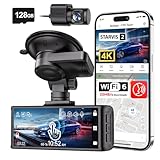
- [4K+1080P Dual Recording] REDTIGER F7N TOUCH captures your drive journey in stunning 4K UHD resolution with STARVIS 2 sensor 170° wide-angle view for the front dash cam and 1080P FHD resolution 140° wide-angle for the rear car camera. Equipped with WDR and HDR technology, the enhanced super night vision ensures better visibility even in low-light situations, providing you with reliable recordings day and night.
- [Voice Control & Touch Screen] F7NTOUCH dashcam features voice commands, allowing for hands-free control of your 4K car camera, which enhances safety by minimizing distractions. The dual camera dash cam also has smart touchscreen that can lock emergency video, turn on wifi, and capture scenery with one click. Redtiger also retains the buttons, multiple control methods are integrated.
- [Built-in GPS & 5.8GHz WiFi] Both Android and IOS users can connect to dashcam WiFi via the REDTIGER Cam app. Although the dash cam is installed wired, you can enjoy wireless control on your smartphone, faster 20MB/s download speed and share your driving experiences in real-time with friends and insurance companies. Car recorder built-in GPS provides traceable location, speed, and accurate route in the recordings.
- [Loop Recording & G-Sensor] REDTIGER F7N TOUCH dual channel dash cam automatically overwrites the oldest footage when the memory is full, ensuring endless recording with the included 128GB card. With a built-in G-sensor that detects sudden movements or impacts, it automatically locks and protects the associated footage when an event is detected on the road, ensuring it won't be overwritten during loop recording.
- [24-hour Parking Monitoring*] REDTIGER Car dashboard camera offers G-Sensor Parking Mode that automatically record when it detects any collisions or sudden motion while vehicles is parked. Time Lapse Parking Mode provides continuous surveillance by offering a condensed overview of any events that may occur during parking periods. *Please note that the parking monitoring function requires a separate hardwire kit.
Use a consistent file routine
Record the camera model, memory-card capacity and the vehicle in your notes. When an incident occurs, record the approximate date, time, route and direction of travel while those details are fresh. These notes supplement the file; they do not replace the original recording.
Understand loop recording and event locks before an incident
In loop recording, the camera records continuously and replaces the oldest ordinary clips when the card fills. This is convenient for daily driving but means that an important file can disappear if it is not copied promptly. Garmin describes continuous recording for the dash cams covered by its support documentation; that statement applies to those cited devices, not to every dash cam or to every parking mode.
Manual locking
Learn the physical button, touchscreen action or app command that marks the current clip. Practice while parked so you can use it without reaching for the camera while driving. A manual lock is a request to protect a file, not proof that it will remain forever.
Recommended Free Tools
Impact-triggered locking
A G-sensor can mark a clip when it detects a shock. Its threshold matters: a rough road, bridge joint or construction plate may create false triggers, while a light contact may not cross the threshold. Transcend’s DrivePro 250 manual warns that even early emergency files can later be overwritten by newer emergency recordings. Consult the exact manual to learn how many protected files the camera retains and how it handles a full emergency folder.
Do not rely on the lock alone
As soon as it is safe, stop further writing and copy the relevant original. A locked file can still be vulnerable to capacity limits, card failure, formatting or a manufacturer’s retention rules. Treat locking as a short-term aid while you complete preservation.
Choose a card for continuous recording
Use a microSD card that the camera manufacturer lists as compatible, with the required speed rating and maximum capacity. High-endurance cards are designed for repeated write cycles and are especially relevant to a vehicle exposed to heat, vibration and daily recording. Garmin’s compatibility guidance emphasizes cards intended for continuous writing and vehicle conditions and lists high-endurance card families for its cameras. The correct capacity and speed still depend on the exact camera.
Capacity changes how far back you can retrieve footage
Manufacturer recording estimates show the trade-off. Garmin’s table for the automotive devices it covers estimates the following:
Rank #3
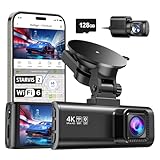
- [4K+1080P Front & Rear Recording] REDTIGER F7NP dash cam captures every detail with stunning 4K front and 1080P rear video. Featuring the advanced STARVIS 2 sensor plus the 170° front and 140° rear wide-angle lens, this dash camera delivers sharper images, balanced lighting, and reliable evidence day or night. Ideal for commuting, road trips, rideshare drivers, and new drivers.
- [STARVIS 2 Sensor & WDR Night Vision] Equipped with the advanced STARVIS 2 sensor, F1.5 large aperture, and 6-layer optical lens, F7NP 4K dual dash cam delivers clear, high-contrast footage in any lighting. WDR and HDR technology balance highlights and shadows, ensuring sharp night vision and crisp details day or night, providing reliable evidence and enhanced safety for every drive.
- [Built-in 5.8GHz WiFi & Smart App] Connect your smartphone to the dashcam’s built-in 5.8GHz WiFi to enjoy ultra-fast downloads up to 20MB/s. Using Redtiger Cam app, you can preview, download, and replay videos in real time, check GPS ata (route, speed, and location), and manage settings effortlessly, making it simple to review footage and share important moments.
- [Loop Recording & Free Memory Card] This car camera supports seamless loop recording to ensure continuous coverage without interruption. Older files are automatically overwritten when storage is full, while important events are safely locked. A free memory card is included, giving you ample space for 4K recordings and allowing you to use the camera right out of the box.
- [24/7 Parking Mode* & G-Sensor] Enjoy round-the-clock protection with two parking modes: time-lapse recording for continuous low-bitrate monitoring and G-sensor mode that records when collision is detected. The car security camera with G-sensor automatically locks important clips, ensuring crucial evidence is safely preserved even while your vehicle is parked.(*Hardwire kit needed.)
| Card and recording mode | Estimated maximum recording time | Qualification |
|---|---|---|
| 32 GB at 1080p, 30 fps | 4.2 hours | Garmin estimate for listed devices |
| 32 GB at 720p, 30 fps | 8.7 hours | Garmin estimate for listed devices |
| 128 GB at 1080p, 30 fps | 16.9 hours | Garmin estimate for listed devices |
| 16 GB at 1080p | Up to 2.1 hours | Garmin model-family example |
| 256 GB at 1080p | Up to 33.8 hours | Garmin model-family example |
These are manufacturer estimates, not a universal bitrate or guaranteed duration. Resolution, frame rate, audio, file structure and camera firmware can change the result. Never infer that a card size supported by one camera is accepted by another.
Format and replace the card correctly
Format the card using the procedure in the camera manual before first use and at the interval the manufacturer recommends. Replace a card when the camera reports errors, clips become unreadable, recording stops unexpectedly or the card has reached its expected endurance. Keep a spare compatible card if the vehicle is used for long routes or remote work sites.
Set up the camera before driving
- Install the camera securely. Place it where it has a clear view through the windshield without obstructing the driver’s sightline. Clean the glass in front of the lens and check the view from the driver’s seat.
- Insert the specified card. Confirm the card type, speed and capacity against the exact camera manual, then format it as directed.
- Set date, time and time zone. Save the settings and make a short recording. Check that the displayed or embedded time is correct.
- Enable GPS information if needed. Determine whether the camera stores location in metadata, shows it on screen, or uses both methods.
- Select the recording mode. Choose a resolution and frame rate that preserve useful detail while leaving a practical amount of card capacity. Do not assume a lower setting is better simply because it stores more hours.
- Test loop recording. Confirm that the camera starts recording automatically when powered and that ordinary clips are created. Review how the oldest files are replaced.
- Practice saving an event. Learn manual-lock and emergency-lock controls while parked. Find out where protected files are stored and what happens when that folder fills.
- Check the power path. Ensure the camera remains on during normal driving and shuts down according to the manual. If parking mode is required, test it separately with the intended power arrangement.
- Review a test file. Open the original file on a computer or the manufacturer’s viewer. Check focus, exposure, audio if used, timestamp, GPS behavior and whether the road surface is visible at the chosen mounting angle.
Preserve footage immediately after a hazard or impact
Preservation is a procedure, not an afterthought. The Digital Forensics Research Workshop’s 2023 dashcam guidance includes stopping recording, powering down and removing the SD card as preservation steps. Perform them only when the vehicle is safely stopped and doing so will not create another hazard.
- Stop safely. Pull over where permitted and safe. Do not handle the camera or card while moving.
- Stop further recording. Use the camera’s normal stop or shutdown process. If the manual requires the device to finish writing before power is removed, follow that instruction.
- Remove and protect the card. After shutdown, remove the card as directed. Keep it separate from a working card and avoid formatting it.
- Make an original-preserving copy. Copy the complete relevant files to separate storage before viewing or editing. Keep the card and the first copy unchanged; make another working copy for playback, cropping or sharing.
- Record handling notes. Note the incident date and time, location, camera, card and each transfer step. Include whether a file was manually locked or triggered by impact.
- Check surrounding clips. Save the clip before the event and the clip after it when available. Construction hazards can be easier to understand from the approach and aftermath than from one short file.
An app or cloud copy may be lower quality or may not preserve the camera’s original metadata. Export the original file from the card or camera when possible. Careful handling is prudent evidence practice, not a legal guarantee of authenticity or admissibility.
Parking mode requires a separate decision
Parking mode can record motion or impacts after the engine is switched off, but implementations differ. Some cameras remain in a low-power state and wake when a trigger is detected; others use time-lapse or a buffered event. Check which trigger types the camera supports, how sensitive the impact threshold is, and whether the feature records continuously or only around an event.
Power after shutdown
A standard accessory socket may lose power when the ignition is off. A parking-mode setup may therefore require a dedicated power arrangement compatible with the camera and vehicle. Do not imply that hardwiring is necessary for ordinary driving footage; it is relevant only when the chosen parking function needs power after shutdown. Any installation must also account for battery protection and the vehicle’s electrical system as specified by the camera and installer.
Test before relying on it
Park in a safe location, switch the vehicle off and verify that the camera enters the expected mode. Walk through the detection area or apply a controlled, non-damaging test rather than striking the vehicle. Confirm that the resulting file is saved, timestamped and retrievable.
Rank #4
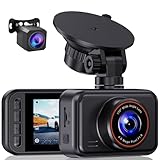
- 2.5K Front + 1080P Rear Recording: S60 records 25601440P front video and 1080P rear video to help capture what happens ahead of and behind your car. The front 170 wide-angle lens helps cover more of the road during daily drives or unexpected events
- WDR Night Vision: The starlight night vision sensor and 6-layer glass lens help improve video clarity in low-light conditions. WDR helps balance bright headlights and darker areas, making footage easier to review at night, in tunnels, parking lots, and other changing light conditions
- Loop Recording & G-Sensor Lock: Loop recording replaces older unprotected clips when the card is full. SD card is not included, and the dash cam supports cards up to 256GB. If a sudden impact, hard braking, or collision is detected, the G-sensor locks the current clip to help protect important footage
- Optional 24-Hour Parking Monitor: S60 supports a 24-hour parking monitor with time-lapse recording. This feature requires a compatible Type-C hardwire kit, not included
- 2" IPS Screen & 360 Suction Mount: The 2" IPS screen lets you check the camera view and adjust basic settings directly on the device. The 360 suction mount makes it easier to adjust the camera angle and remove or reinstall the unit
Use a decision framework instead of chasing a headline specification
If your priority is potholes and surface defects
Favor a clear front view with enough vertical coverage to include the pavement ahead, reliable daylight exposure and a card large enough to preserve the route until you can stop. Review the camera’s mounting angle after loading the vehicle; a lens aimed too high may show signs but not the point of contact.
What’s actually slowing this PC down?
Pick the symptom - the matching free tool is one click away.
If your priority is work-zone layout and temporary traffic control
Favor balanced horizontal coverage, accurate time and GPS behavior, and files that can be locked quickly. The ability to show cones, lane shifts and adjacent traffic may be more valuable than an extreme resolution mode that sharply reduces recording time.
If your priority is proving an impact
Favor a dependable mount, a G-sensor with understandable settings, manual locking and a preservation routine you can perform safely. Add rear coverage if the likely impact direction is behind the vehicle.
If the vehicle is left near construction activity
Evaluate parking mode, trigger behavior and post-shutdown power first. A camera that excels only while driving will not document an overnight event.
Common failure modes and fixes
- The card fills before the route is finished. Use a camera-supported higher-capacity card, reduce the interval between stops and preservation, or select a mode that the manufacturer supports for longer retention. Do not exceed the camera’s stated maximum capacity.
- The camera stops recording. Check power connections, card errors, temperature warnings and whether the device requires an in-camera format. Replace a suspect card with a compatible high-endurance card.
- Important footage is missing after a rough road. Review how the G-sensor classifies emergency files. Rough roads can create false triggers, and protected-file folders can have their own limits. Copy files promptly rather than assuming a lock is permanent.
- The hazard is outside the frame. Reposition the mount and make a test clip. Confirm that the windshield area in front of the lens is clean and that the camera has not shifted on its mount.
- The image is washed out or too dark. Clean the lens and windshield, inspect exposure in the actual lighting conditions and avoid judging performance from a single daytime clip.
- The timestamp is wrong. Reset the date, time and time zone, then verify a new file. Record the correction in your incident notes if earlier footage may be relevant.
- GPS appears in the app but not in the exported file. Check whether the camera embeds location metadata or merely displays an overlay in its viewer. Preserve the original file and document which software displayed the information.
- Parking mode never activates. Confirm that the camera supports the selected trigger, that the vehicle supplies power after shutdown and that battery-protection settings have not disconnected it.
Privacy and legal limits
Rules for recording roads, audio, personal information and vehicle interiors vary by jurisdiction. The available manufacturer and forensic guidance does not establish admissibility, disclosure duties or privacy requirements for any particular location. Before sharing footage publicly or submitting it in a dispute, check the rules that apply where the recording was made and where it will be used. Keep the unedited original even if you create a redacted copy for others.
The Tool Desk
Outbyte Driver Updater FREEFix the driver behind crashes, sound loss and screen glitchesFind Drivers →Outbyte PC Repair FREEClear out junk files and repair common Windows errorsFree Scan →Pre-drive and incident checklist
- Front camera aimed at the lane and road surface, with a clear windshield area.
- Manufacturer-compatible high-endurance microSD card installed and formatted as directed.
- Date, time and time zone correct on a verified test file.
- GPS behavior understood: metadata, overlay or both.
- Resolution, frame rate and field of view selected for the hazards you need to show.
- Manual lock and G-sensor behavior practiced while parked.
- Loop-recording overwrite and protected-folder limits understood.
- Parking mode and post-shutdown power tested separately if required.
- Safe process ready for stopping, powering down, removing the card and making a separate copy.
The strongest setup is the one you can operate consistently: a properly aimed front camera, a supported endurance card, trustworthy time and location context, and a preservation habit that happens before the next loop cycle overwrites the evidence.
Quick Recap
Product prices and availability are accurate as of the date/time indicated and are subject to change. Any price and availability information displayed on Amazon at the time of purchase will apply.

