Digital drawing for landscape architecture is not one application or a single visual style. It is a connected workflow: sketch an idea, establish a measured base, draft or model the site, add raster or vector graphics, and coordinate plans, sections, perspectives and diagrams into a consistent set. Choose each tool for the drawing task and the required handoff, rather than expecting a tablet, CAD package or 3D modeler to do everything.
What digital drawing means in landscape architecture
Landscape projects communicate at several levels. A loose concept sketch tests circulation and character; a scaled plan locates work precisely; a section explains grade and construction relationships; a perspective helps a client understand experience; and a diagram isolates a system such as water movement, planting structure or access. Digital drawing is the practice of moving among those representations while preserving design intent and, where required, measurable information.
As an Amazon Associate I earn from qualifying purchases.
Digital tools extend drawing principles rather than replacing them. Wiley’s Digital Drawing for Landscape Architecture: Contemporary Techniques and Tools for Digital Representation in Site Design, Second Edition, presents digital rendering as grounded in hand-rendering principles and organized around plans, perspectives and diagrams. That distinction matters: software can produce clean lines, editable layers and repeatable views, but it cannot decide which spatial idea deserves emphasis or whether a drawing communicates the design.
The Tool Desk
Outbyte Driver Updater FREEFix the driver behind crashes, sound loss and screen glitchesFind Drivers →Outbyte PC Repair FREEClear out junk files and repair common Windows errorsFree Scan →A practical workflow normally combines several tool types:
#1 Best Overall

- PLEASE NOTE: The XPPen Artist 15.6 Pro needs to connect with a computer to use. You need to use it with your Computer or Laptop. It is NOT a standalone drawing tablet
- Outstanding Visuals: The immersive 15.6 inch large screen with 1920x1080 p full HD resolution presents your creation in the depth of detail, provides you with clarity to see every detail of your work
- 8 customized express keys: The Artist 15.6 Pro monitor features 8 fully customizable shortcut keys and puts more customization options at your fingertips to suit you preferred work style, allowing you to capture and express your ideas easier and faster for optimized workflow
- Full-laminated Technology: XPPen Artist15.6 Pro art tablet is adopting full-laminated technology, seamlessly combines the glass and the screen, to create a distraction-free working environment that's also easy on the eyes
- Advanced Pen Performance: With up to 16384 levels of pressure sensitivity, the Battery-free Stylus provides you with increased accuracy and enhanced performance to create the finest sketches and lines
- Stylus or paper sketching for rapid alternatives, annotation and review.
- CAD linework for measured plans, dimensions, coordinates and documentation.
- Raster editing for aerial imagery, textures, shadows, collage and pixel-based painting.
- Vector graphics for crisp diagrams, symbols, line weights and scalable presentation graphics.
- 3D terrain and site modeling for grades, spatial relationships, views and shadow studies.
- Layout and presentation tools for assembling a coordinated drawing set or presentation board.
The right question is therefore not “Which program is best?” but “What must this drawing prove, at what scale, and in which file format will the next person use it?”
A complete digital drawing workflow
1. Start with concept sketches and markups
Begin with fast, low-commitment marks. A paper sketch or stylus-enabled tablet is useful for testing paths, outdoor rooms, planting masses, drainage ideas and view corridors before investing time in precise geometry. Keep several alternatives and label the design question each one addresses; this prevents a polished graphic from hiding an unresolved planning decision.
A tablet is especially helpful when reviewing photographs or drawings on site, circling conflicts and recording dimensions or observations. It is only one part of the workflow, however. UCLA Extension’s digital-workflow course lists an iPad Pro with Apple Pencil or a Surface tablet with stylus alongside a MacBook Pro or PC laptop. Those are requirements for that particular course, not a universal minimum for professional practice. Detailed drafting, file management, model coordination and large-format output usually still require a desktop or laptop environment.
PC Slower Than It Used to Be?
A free scan shows the junk files, broken settings and background clutter dragging Windows down - then fixes them in one click.Free scan · Windows 10 & 11Outdated Drivers Are Slowing You Down
One free scan finds every outdated or missing driver and matches the right update for your exact hardware.Free scan · exact hardware match2. Build a trustworthy base plan
Before adding design graphics, establish what is known about the site and how it is measured. A base may begin with a survey, aerial photograph, GIS export, consultant CAD file or a combination. Record the source, date, coordinate reference if available, north direction and units. Keep an untouched copy of the source files so later edits can be traced.
When an aerial image is used, scale it against a known dimension rather than aligning it by eye. Wiley’s contents describe scaling aerial photographs with a reference method or pixel conversion and exporting CAD linework as a PDF. In practice, choose a measured distance visible in both the image and the survey, calculate the scale factor, apply it, and verify with at least one independent dimension. A visually convincing overlay can still be wrong if the image has been cropped, rotated, stretched or captured with lens distortion.
Separate existing conditions from proposed work with layers or groups. Typical categories include property and easements, buildings, hardscape, contours, utilities, vegetation, water, proposed grading and annotation. Lock the base before tracing so accidental edits do not quietly change the measured foundation.
Rank #2

- PLEASE NOTE:XPPen Artist13.3 Pro drawing tablet Need to connect with computer,you need to use it with your computer or laptop, the 3 in 1 cable is included
- Drawing Tablet with Screen: Tilt Function- XPPen Artist 13.3 Pro supports up to 60 degrees of tilt function, so now you don't need to adjust the brush direction in the software again and again. Simply tilt to add shading to your creation and enjoy smoother and more natural transitions between lines and strokes
- Graphics Tablets: High Color Gamut- The 13.3 inch fully-laminated FHD Display pairs a superb color accuracy of 88% NTSC (Adobe RGB≧91%,sRGB≧123%) with a 178-degree viewing angle and delivers rich colors, vivid images, and dazzling details in a wider view. Your creative world is now as powerful as it is colorful
- Drawing Pad: One is enough- The sleek Red Dial on the display is expertly designed with creators in mind, its strategic placement allows for natural drawing postures. With just one wheel, you can effortlessly zoom in and out, adjust brush sizes, and flip the canvas—all tailored to suit the habits of everyday artists. The 8 customizable shortcut keys allow you to personalize your setup, streamlining your workflow and enhancing creative efficiency
- Universal Compatibility & Software Support:supports Windows 7 (or later), Mac OS X 10.10 (or later), Chrome OS 88 (or later), and Linux systems. Fully compatible with major creative software including Photoshop, Illustrator, SAI, and Blender 3D. Register your device to access additional programs like ArtRage 5 and openCanvas for expanded creative possibilities.
3. Draft measured geometry in CAD
Use CAD when the drawing must carry dimensions, alignments, coordinates, schedules or construction information. Autodesk describes landscape software around 2D drawings and 3D models, and describes AutoCAD as 2D/3D computer-aided design and documentation software. Verify the current edition and feature set before specifying a product for a project because licensing and capabilities change.
Draft with a documented unit system and a consistent layer convention. Draw at real size in model space, then control sheet scale through viewports or layout settings. Establish line-weight hierarchy early: property and primary construction edges should not compete visually with planting symbols, hatches or secondary annotations. Use blocks or reusable symbols for repeated elements, but keep their insertion units and origin points consistent so exchanges do not shift objects.
Exporting a PDF can be the correct handoff for review, but it is not a substitute for preserving the native CAD file when another practitioner must edit geometry. Include a scale bar and north arrow on review sheets, and state whether the PDF is for information, coordination or construction.
4. Add raster and vector representation
Raster images are grids of pixels. They are suited to photographs, aerial bases, scanned sketches, textured materials, atmospheric effects and painted shadows. Their quality depends on resolution and output size: enlarging a low-resolution image produces blur, while an unnecessarily huge file slows editing and export.
Vector graphics describe lines, curves and fills mathematically. They remain crisp when scaled and are effective for diagrams, symbols, labels, line-weight systems and clean plan graphics. A mixed workflow is often strongest: use CAD or vector geometry for boundaries and annotations, raster imagery for context and texture, and masks or adjustment layers to control how the two combine. Wiley’s contents specifically address raster resolution, vector images, masks, color, adjustment layers and the use of raster images in vector programs.
Quick wins for a faster PC:
Scan for outdated or missing drivers - takes under a minuteDriver Scan →Repair Windows errors before they cause bigger problemsFix Now →Keep editable layers until the design is approved. Name layers by function rather than by appearance, for example existing_contours, proposed_paving and planting_mass. At export, check that transparency, color profile, line weights and image resolution survive the chosen PDF or image format.
Rank #3
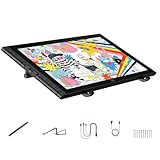
- Revolutionary 16K Magnetic Stylus: Say goodbye to pen wobble and lag. The Artist 16 3rd features the upgraded X4 smart chip stylus. It delivers an unprecedented 16,384 levels of pressure sensitivity with an ultra-low 2g initial activation force and a mere 0.3mm retraction, ensuring smooth, precise lines with zero delay. Plus, the built-in magnetic design allows you to easily attach the pen to the tablet, preventing loss and keeping your workspace tidy
- Anti-Glare Etched Glass and No Parallax: Unlike traditional scratch-prone plastic films, this drawing display features premium AG+AF nano-etched glass. It effectively reduces glare and resists fingerprints while providing a natural, paper-like drawing friction. The fully laminated 15.4-inch FHD display minimizes parallax to almost zero, ensuring the cursor aligns perfectly with your pen tip for true what you see is what you draw accuracy
- Stunning Color Accuracy and OSD Control: Elevate your digital art with a brilliant 99% sRGB, 98% Adobe RGB, and 97% Display P3 color gamut coverage, alongside 16.7 million colors. Enjoy vibrant, true-to-life hues without the color shifting common in other tablets. The built-in OSD (On-Screen Display) color space management allows you to quickly switch profiles and fine-tune colors for professional illustration and animation
- Dual Scroll Wheels and Effortless Workflow: Revolutionize your creative process with 8 customizable shortcut keys and 2 independent scroll wheels. Easily adjust brush sizes, zoom in on the canvas, or scroll through layers without constantly reaching for your keyboard. Furthermore, it includes the S20 foldable stand right out of the box, providing comfortable ergonomic support to prevent neck pain during long drawing sessions
- Clutter-Free Setup and Broad Compatibility: Keep your desk neat by connecting with just one full-featured USB-C to USB-C cable, or use the included 3-in-1 cable for older PCs. This pen tablet is highly versatile, supporting Windows 7 or later, macOS 10.13 or later, Android 10.0 or later, ChromeOS 88 or later, and Linux. It works seamlessly with leading software like Photoshop, Illustrator, Clip Studio Paint, and SAI
5. Model terrain and spatial relationships in 3D
Move into 3D when terrain, grade transitions, visibility, shadow, volume or spatial sequence is difficult to judge in plan alone. SketchUp documents creating terrain from contour lines and importing CAD files, scan data or terrain imagery; it also documents geolocation workflows. These capabilities make a model useful for testing a landform, placing a building or wall, and checking how a view changes with elevation.
Rhino’s landscape-design documentation describes terrain tools, 2D drafting, section generation, layouts and rendering. A model can therefore serve both exploration and documentation: generate a section from a chosen view, refine it for graphic clarity, and place it on a sheet with the corresponding plan. Complex geometry may require separate plugins or specialized workflows, so confirm that dependencies can be opened by collaborators.
A 3D model is not automatically a survey. Use reliable elevation data, label assumptions and avoid presenting approximate terrain as construction-grade information. If contours were interpolated from sparse points or an image, state that limitation on internal coordination drawings.
6. Coordinate plans, sections, elevations and perspectives
A drawing set becomes persuasive when each view describes the same design. Align the origin, units and key reference lines across files. Name view exports systematically and maintain a simple revision log. When a path moves in plan, update the section and perspective that show it; when a grade changes, check drainage diagrams and accessible routes.
Use each representation for a distinct question:
- Plan: Where are elements located, and how do circulation, materials and planting relate?
- Section: How do grade, soil depth, walls, trees, structures and people relate vertically?
- Elevation: What is the visible face of a wall, fence, planting edge or built element?
- Diagram: What system or sequence should the reader understand without construction detail?
- Perspective: What will the space feel and look like from a chosen viewpoint?
Rhino’s ability to generate 2D drawings from model views can reduce repetitive drafting, but generated linework still needs cleanup, hierarchy and annotation. Automation accelerates production; it does not replace editorial judgment.
7. Prepare sheets and move them to the field
For reviews, issue a predictable PDF set with sheet numbers, revision dates, scale information and contact details. Test the PDF on the device that will be used in the meeting or on site. Land F/X’s “Digital Design Tools on the Go Part 2,” published June 25, 2021, describes preparing drawings on a computer and transferring PDF sheets to a tablet for field use. Treat that webinar as a workflow reference, not as current purchasing advice.
Rank #4

- Word-first 16K Pressure Levels: The upgraded stylus features 16,384 levels of pressure sensitivity and supports up to 60 degrees of tilt, delivering smoother lines and shading for a natural drawing experience. With no battery or charging needed, it operates like a real pen, making it easy for beginners to create effortlessly. This functionality helps novice artists develop their skills and explore their creativity without the intimidation of complex tools
- Designed for Beginners: This drawing pad desinged with 8 customizable shortcuts for both right and left-hand users, express keys create a highly ergonomic and convenient work platform
- Perfectly Adapted for Android: The XPPen Deco 01 V3 art tablet supports connections with Android devices running version 10.0 and above. It is recommended to download the XPPen Tools Android application, which adapts to your smartphone's screen aspect ratio, ensuring accurate mapping. It also supports mapping on Android screens with different aspect ratios in portrait mode
- Large Drawing Space, Bigger Bold Inspiration: This expansive drawing pad has10 x 6.25-inch helps you break through the limit between shortcut keys and drawing area
- Easy Connectivity for Beginners: The Deco 01 V3 offers USB-C to USB-C connectivity, plus adapters for USB C. This ensures easy connection to various devices, allowing beginner artists to set up quickly and focus on their creativity without compatibility concerns. Whether using a laptop, tablet, or desktop, the Deco 01 V3 provides a seamless experience, making it an ideal choice for those just starting their digital art journey
On a tablet, keep a read-only issued set separate from an annotated working copy. Sync before leaving a reliable connection, download files for offline access, and record which sheet revision was used for each field note. After returning, transfer markups into the authoritative drawing system rather than leaving decisions trapped in a tablet annotation layer.
Free tools Windows power users keep installed
One-click scans. No signup required.
How to choose tools by drawing task
| Need | What to compare | Practical implication |
|---|---|---|
| Sketching and markups | Stylus support, portability, pressure response, file handoff and annotation export | A tablet can accelerate ideas and field review, but detailed drafting and coordination still need a desktop workflow. |
| Scaled drafting | CAD documentation, units, layer controls, dimensions, layouts and file compatibility | Choose a system that preserves measured geometry and can exchange the formats your consultants use. |
| Terrain modeling | Contour-to-surface tools, geolocation, survey or scan imports and terrain-image handling | Confirm how source elevations enter the model and how approximate data will be identified. |
| Complex geometry and visualization | Surface and terrain tools, section generation, layouts, rendering and plugin dependencies | Check whether collaborators can open the model and whether additional plugins are required. |
| Rendered communication | Raster resolution, vector editability, masks, color management, image handling and output size | Keep an editable mixed workflow until approval, then export a controlled issue set. |
This task-based comparison avoids a misleading universal ranking. A tool that is excellent for a perspective collage may be inefficient for dimensioned construction details; a precise CAD file may be the wrong format for a quick client concept.
Hardware and course requirements: what the numbers actually mean
Hardware should follow the largest files, display requirements and field conditions in your workflow. A stylus-enabled tablet supports handwriting and portable review. A laptop or workstation provides larger screens, keyboard shortcuts, storage, external displays and the processing headroom often needed for CAD, image editing and 3D models.
UCLA Extension’s An Introduction to Digital Workflow for Designers listing is a concrete, course-specific example: it names an iPad Pro with Apple Pencil or a Surface tablet with stylus, plus a MacBook Pro or PC laptop, and lists a minimum of 32 GB RAM for the laptop requirement. The listing also states a duration of as few as nine weeks and a starting fee of $764 in 2026. Those figures describe that course at the time listed; they are not universal specifications, duration or cost for digital drawing. Recheck the official course page before enrolling because requirements and fees can change.
For any setup, check four constraints before starting a project:
What’s actually slowing this PC down?
Pick the symptom - the matching free tool is one click away.
- Can the device open the largest native CAD, raster and model files without exhausting memory?
- Does the stylus or input method support accurate zooming, panning and annotation?
- Can files be synchronized and backed up without relying on an unreliable field connection?
- Can the final display and printer reproduce the intended line weights, colors and sheet size?
A repeatable project sequence
- Define the communication goal. Decide whether the next output is a concept alternative, measured plan, coordination drawing, client perspective or field markup.
- Collect and document inputs. Save survey, imagery, CAD, photographs and notes with source dates, units and known limitations.
- Sketch alternatives. Use paper or a stylus to test circulation, program, landform and planting ideas before detailed drafting.
- Calibrate the base. Scale imagery or imported linework against known dimensions, verify with an independent check, and lock existing conditions.
- Draft the measurable structure. Establish units, layers, line weights, dimensions and reference grids in CAD or another precise system.
- Model only what earns its cost. Build terrain, structures and key vegetation when a 3D view, section, shadow or spatial check will answer a real question.
- Apply graphic hierarchy. Combine vector linework with raster context, masks, color and adjustment layers while keeping editable source layers.
- Coordinate views. Update plans, sections, elevations, diagrams and perspectives from the same geometry and revision record.
- Issue and archive. Export a controlled PDF, preserve native files and assets, record the revision, and separate issued sheets from working markups.
- Review in the actual use environment. Open the set on the field tablet, presentation display or printer that will be used, then correct scale, legibility or missing fonts before the meeting.
Common failure modes and fixes
A beautiful overlay is not to scale
Symptom: paths and planting appear aligned with the aerial image, but dimensions disagree. Fix: return to a surveyed distance, recalculate the image scale, check rotation and cropping, and place a visible scale bar on the sheet.
Best Value

- PLEASE NOTE: The XPPen Artist 15.6 Pro V2 needs to connect with a computer to use. You need to use it with your Computer or Laptop. The 3 in 1 cable is included
- 16K Pressure Sensitive: XPPen Artist 15.6 Pro V2 drawing tablet introducing X3 Pro smart chip stylus, which has 16384 pressure levels, 100%* higher than that of its peers. It delivers much more precise and smoother lines than ever before, excelling at hyper-nuanced creation, a game-changer in details
- Easy Control, One Red Dial for All: The innovative Red Dial interface is designed for a smooth workflow and optimal efficiency, allowing illustrators or designers to master essential controls such as brush size, navigation, and zoom In/Out. It fits comfortably in your hand and ensures a natural hand position, reducing wrist strain during prolonged use
- Full Laminated Anti-glare Screen: The 15.4-inch graphic art tablet adopts full laminated technology, anti-glare etched glass, and a wide angle of 178°, which will help you avoid parallax errors between the stylus nib and cursor, precisely positioning every single one of your strokes
- 8 customized express keys: The Artist 15.6 Pro V2 drawing display features 8 fully customizable shortcut keys and puts more customization options at your fingertips to suit your preferred work style, allowing you to capture and express your ideas easier and faster for optimized workflow
The tablet sketch cannot become a drawing set
Symptom: ideas are trapped in a flattened image or an app-specific file. Fix: export a standard image or PDF for reference, then rebuild measured geometry in the shared CAD or model file. Keep the original sketch as a dated concept record.
Raster output looks soft or colors shift
Symptom: a board looks sharp on screen but blurry in print, or colors change between devices. Fix: set the intended output dimensions early, avoid enlarging low-resolution images, preserve editable adjustment layers, and test a representative PDF on the target printer or display.
Plan and section contradict each other
Symptom: a wall, tree or grade appears in one view but not another. Fix: use shared model references or a coordinated base, mark changes in a revision log, and perform a deliberate cross-view check before issuing.
The field team is using an obsolete sheet
Symptom: tablet markups cite different revisions. Fix: archive superseded PDFs separately, name issued files with sheet number and revision, download the current set before going offline, and import approved markups back into the authoritative project files.
Learning resources and a sensible progression
A structured sequence is more effective than trying to master every feature at once. Start with drawing conventions, scale, hierarchy and visual editing; then add CAD documentation; then terrain and 3D; finally integrate layouts and field review. Wiley’s second edition is organized as a tutorial resource covering plans, perspectives, diagrams, workflow integration and digital representation, making it a useful reference for that progression.
Practice on one small site rather than unrelated exercises. Produce the same design as a concept sketch, scaled plan, section, diagram and perspective. Compare what each view communicates, note where the base data is uncertain, and revise the graphic hierarchy. This builds judgment about representation—the transferable skill that remains valuable when software interfaces or file formats change.
Bottom line for a landscape architecture workflow
Use the simplest tool that can answer the immediate design question, but preserve a path to measured documentation. Sketch quickly on paper or a stylus tablet, verify the base plan before tracing, use CAD for precise geometry, raster and vector methods for controlled communication, and add 3D terrain when section, grade, view or shadow decisions require it. Coordinate every output from the same referenced information, and treat portability as a file-management problem as much as a hardware choice.
Recommended Free Tools
Quick Recap
Product prices and availability are accurate as of the date/time indicated and are subject to change. Any price and availability information displayed on Amazon at the time of purchase will apply.

