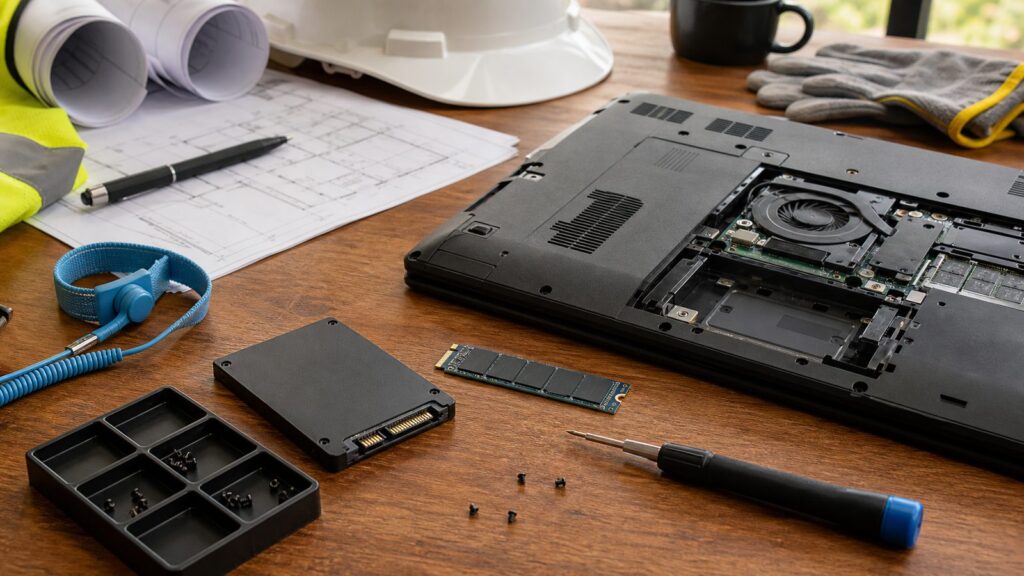
If your laptop is running out of room, taking five minutes to buy the fastest-looking drive online is the easiest way to waste money. The best internal hard drive for a laptop in 2026 is usually not a hard drive at all. For most homeowners, remote workers, and small contractors, the right upgrade is a compatible internal SSD: an M.2 NVMe SSD for newer laptops or a 2.5-inch SATA SSD for many older machines.
A traditional 2.5-inch laptop hard drive still has a place when you need cheap bulk storage and the laptop actually has a drive bay for it. But for a daily-use laptop, especially one that travels between a home office, truck, client meeting, and jobsite trailer, an SSD is the better tool. It is faster, quieter, more shock-resistant, and usually more efficient on battery.
As an Amazon Associate I earn from qualifying purchases.
On our job sites, laptops do not live easy lives. They get opened on folding tables, carried in trucks, connected to projectors, and used for estimates, change orders, inspection photos, scanned receipts, PDFs, and drawing sets. Storage upgrades are not construction work, but the same rule applies: measure first, buy once, and do not tear into anything until you understand what is behind the cover.
Do these 3 things before closing this tab:
1Repair Windows errors before they cause bigger problems2Fix the driver behind crashes, sound loss and screen glitches3Clear out junk files and repair common Windows errorsQuick Answer: The Best Internal Drive for Most Laptops
For most people upgrading a laptop in 2026, the best choice is a 1TB or 2TB SSD from a reputable brand with a 5-year warranty. If your laptop supports M.2 NVMe, choose an M.2 NVMe SSD in the correct physical length, usually 2280 but sometimes 2230, 2242, or 2260. If your laptop has an older 2.5-inch drive bay, choose a 2.5-inch SATA SSD.
#1 Best Overall

- MEET THE NEXT GEN: Consider this a cheat code; Our Samsung 990 PRO Gen4 SSD helps you reach near max performance with lightning-fast speeds; Whether you’re a hardcore gamer or a tech guru, you’ll get power efficiency built for the final boss
- REACH THE NEXT LEVEL: Gen4 steps up with faster transfer speeds and high-performance bandwidth; With a more than 55% improvement in random performance compared to 980 PRO, it’s here for heavy computing and faster loading
- THE FASTEST SSD FROM THE WORLD'S FLASH MEMORY BRAND: The speed you need for any occasion; With read and write speeds up to 7450/6900 MB/s you’ll reach near max performance of PCIe 4.0 powering through for any use
- PLAY WITHOUT LIMITS: Give yourself some space with storage capacities from 1TB to 4TB; Sync all your saves and reign supreme in gaming, video editing, data analysis and more
- IT’S A POWER MOVE: Save the power for your performance; Get power efficiency all while experiencing up to 50% improved performance per watt over the 980 PRO; It makes every move more effective with less consumption
For home-office use, 1TB is the practical baseline. It leaves room for Windows or macOS, applications, photos, tax records, videos, and several years of documents. For construction pros, real estate teams, designers, inspectors, or homeowners managing renovation files, 2TB is often the better value because photos, videos, CAD exports, plan sets, and scanned paperwork add up fast.
Here is the plain recommendation:
- Best value for newer laptops: 1TB or 2TB M.2 NVMe SSD.
- Best upgrade for older laptops: 1TB or 2TB 2.5-inch SATA SSD.
- Best low-cost bulk option: 2.5-inch laptop HDD only if the laptop supports it and speed is not the priority.
- Best jobsite choice: SSD, not HDD, because vibration and movement are part of the workday.
- When not to upgrade: if the laptop storage is soldered, the battery is failing, the machine is too old for your software, or company IT policy prohibits opening it.
Internal Laptop Drive Types Compared
The first decision is not brand. It is form factor and interface. A good drive that does not fit your laptop is just a return label waiting to happen.
| Drive Type | Common Size | Best For | Typical 2026 Cost | Main Caution |
|---|---|---|---|---|
| M.2 NVMe SSD | Usually 2280; also 2230, 2242, 2260 | Newer laptops, fast boot times, large file transfers | About $60-$130 for 1TB; $110-$250 for 2TB | Must match length, keying, PCIe generation, thermal clearance, and NVMe support |
| 2.5-inch SATA SSD | 2.5-inch, commonly 7mm thick | Older laptops that shipped with a 2.5-inch hard drive | About $45-$90 for 1TB; $90-$180 for 2TB | Slower than NVMe, but still much faster than a spinning hard drive |
| M.2 SATA SSD | Often 2280, but varies | Some 2012-2018 era laptops and compact systems | Often similar to SATA SSD pricing | M.2 shape does not automatically mean NVMe compatibility |
| 2.5-inch Laptop HDD | 2.5-inch, often 7mm or 9.5mm thick | Cheap bulk storage where speed and shock resistance matter less | Roughly $40-$80 for 1TB-2TB | Slower, more fragile, and less suitable for jobsite movement |
M.2 NVMe SSDs
M.2 NVMe drives are the fastest common internal laptop storage upgrade. They are small circuit-board-style drives that install into an M.2 slot and communicate over PCIe lanes. Many newer laptops use this format, but there are several traps. A laptop may support PCIe 3.0, PCIe 4.0, or newer standards, and a high-end PCIe 5.0 SSD can cost more while running at a lower capped speed in an older laptop.
Physical size matters too. The common 2280 size means 22mm wide and 80mm long. Some thin laptops use 2230 or 2242 drives. Some have no room for a tall heatsink. Some have a thermal pad designed for a bare drive only. Before buying, check the exact service manual for your laptop model number, not just the series name printed on the lid.
2.5-Inch SATA SSDs
A 2.5-inch SATA SSD is the cleanest upgrade for many older laptops that originally came with a spinning hard drive. It uses the same general bay and SATA connector, but replaces moving platters with flash storage. In real use, this can make an old laptop feel dramatically more responsive: faster startup, faster application launches, quieter operation, and fewer delays opening large folders.
Most 2.5-inch laptop SSDs are 7mm thick. Some older laptops were built around 9.5mm hard drives and may need a spacer so the thinner SSD sits correctly in the caddy. That is a small detail, but small details are how you avoid loose connections and rattles.
2.5-Inch Laptop Hard Drives
A traditional laptop HDD can still make sense for archived media, a rarely moved machine, or a very tight budget. The cost per terabyte can be attractive. But for a machine that is carried around, used on battery, or expected to open project files quickly, it is usually the wrong compromise. Hard drives have moving parts. Drops, vibration, and bumps are not their friend.
Recommended Free Tools
For a contractor, the price difference between a cheap HDD and a decent SSD can be less than one hour of lost time. That matters when the laptop has estimates, plans, client messages, and accounting files on it.
How Much Laptop Storage Do You Need?
Capacity should be based on your real files, not just the operating system minimum. Current mainstream laptop upgrade sizes are 500GB, 1TB, 2TB, and 4TB.
Rank #2

- PCIe Gen 3x4 interface with read speeds up to 2,200MB/s and write speeds up to 1,600MB/s
- TBW=1200
- The warranty terms on all of its SSDs are based on whether the warranty length or TBW limit occurs first.
- To support a Silicon Power PCIe SSD, the system must have an M. 2 connector with only an M key. The Silicon Power PCIe SSD does not have a b notch and therefore, the b key on the SSD connector will prevent it from being inserted
- Need Help? Contact U.S. Tech Support First! If your device isn’t recognized, can’t be formatted, or stops working. Our U.S. tech team can help fix the issue quickly. Email: [email protected] We support common problems like: Drive not showing up, Formatting errors, Device stopped working after short use, etc.
A 500GB drive can work for a basic household laptop used for email, web browsing, banking, and light document storage. But once you add years of phone photos, videos, tax PDFs, downloaded manuals, and application caches, 500GB gets tight. For most home-office users, 1TB is the value baseline in 2026.
For construction, remodeling, design, inspection, property management, and real estate work, 2TB is often the practical choice. Job photos, progress videos, drone clips, marked-up PDFs, drawing sets, estimating databases, accounting exports, and scanned receipts can fill a drive faster than expected. If your laptop is a primary work machine and you plan to keep it another 3 to 5 years, buying 2TB now is usually smarter than opening the machine twice.
A 4TB internal SSD is useful for heavy video work, large field documentation archives, and users who need many active projects stored locally. The cost is higher, commonly $220-$450 or more depending on speed class, brand, NAND type, endurance rating, and sale timing. For many users, 4TB is better handled with a disciplined mix of 2TB internal storage plus external backup and cloud storage.
Best Internal Drive Choices by Situation
There is no single best internal laptop drive for every machine. The best choice is the one that fits the laptop, fits the workload, and does not create avoidable heat, warranty, or data problems.
| Situation | Recommended Drive | Capacity Target | Why It Works |
|---|---|---|---|
| Newer laptop with M.2 NVMe slot | Reputable M.2 NVMe SSD | 1TB for home office; 2TB for project work | Fastest common upgrade and good value when matched to the laptop |
| Older laptop with 2.5-inch bay | 2.5-inch SATA SSD | 1TB or 2TB | Major speed and durability improvement over HDD without needing NVMe support |
| Jobsite laptop | SSD with solid warranty and health tools | 2TB if storing photos and video | Better shock resistance and battery behavior than a spinning drive |
| Budget household laptop | 1TB SATA SSD or entry NVMe SSD if compatible | 1TB | Enough room for everyday files without overspending |
| Archive-heavy laptop with drive bay | 2.5-inch HDD only if speed is secondary | 1TB-2TB | Lower upfront cost, but with durability and performance tradeoffs |
| Soldered-storage laptop | No internal drive upgrade | Use external SSD or cloud backup | Opening the laptop will not create an internal upgrade path |
Brands Worth Considering
Good consumer and professional laptop SSD lines commonly come from Samsung, Crucial, WD/SanDisk, Kingston, SK hynix/Solidigm, and Seagate. For SATA SSDs, Samsung, Crucial, WD, Kingston, and SanDisk are common dependable choices. The exact model matters less than compatibility, warranty, endurance, thermal behavior, and return support from a reputable retailer.
Do not buy only by the largest advertised peak speed. For most people, real-world value comes from the right capacity, stable firmware, a reasonable endurance rating in TBW, good sustained write performance, and a 3-year to 5-year warranty. DRAM cache or HMB support can also affect responsiveness, especially when copying large folders or working with many small files.
Compatibility Checklist Before You Buy
This is the part that prevents most mistakes. Start with the exact laptop model number and service manual. The marketing family name is not enough because storage options can vary inside the same product line.
Check these items before ordering:
- Drive format: M.2 NVMe, M.2 SATA, 2.5-inch SATA SSD, or 2.5-inch HDD.
- M.2 length: 2230, 2242, 2260, or 2280.
- Interface support: NVMe, SATA M.2, or both.
- PCIe generation: PCIe 3.0, 4.0, or newer. A faster drive may work, but the laptop can cap its speed.
- Thermal clearance: many laptops cannot accept a drive with a built-on heatsink.
- 2.5-inch bay thickness: commonly 7mm, sometimes older 9.5mm designs.
- Storage access: dedicated bottom panel, full bottom cover removal, or no user-replaceable storage.
- Warranty terms: some manufacturers allow user replacement; others restrict service.
- Business policy: company-owned laptops may be managed by IT and should not be opened without approval.
For laptops from roughly 2012-2018, expect a mix of 2.5-inch SATA, early M.2 SATA, and some NVMe support depending on model. Newer systems more often use M.2 NVMe or soldered storage. Thin premium laptops are more likely to have soldered storage that cannot be upgraded internally.
2026 Cost Guide for Laptop Drive Upgrades
Retail pricing changes with sales, supply conditions, tariffs, NAND type, warranty level, and brand. Still, these are realistic US ranges for planning a 2026 upgrade.
Rank #3

- This product has been replaced by our latest generation. Please search for the SANDISK Optimus GX 7100 NVMe SSD
- HIGH-OCTANE GAMING. Experience speeds up to 7,250MB/s read and 6,900MB/s write (1-2TB models), with up to 35% faster performance than previous generation.
- PURPOSE-BUILT. Designed for serious on-the-go gamers, with a PCIe Gen4 interface and SANDISK’s next generation TLC 3D NAND.
- MORE TIME TO CLEAR THAT CHECKPOINT. Built with laptops and handheld gaming devices in mind, with up to 100% more power efficiency over the previous generation.
- DO MORE WITH DASHBOARD. Ensure your drive is optimized for prime performance with the downloadable WD_BLACK Dashboard (Windows only).
| Item | Typical 2026 US Cost | Notes |
|---|---|---|
| 500GB internal SSD | $35-$70 | Fine for light use, but not much headroom for long-term storage |
| 1TB internal SSD | $55-$110 | Best baseline for most home-office laptops |
| 2TB internal SSD | $100-$200 | Best practical size for project photos, videos, plans, and scans |
| 4TB internal SSD | $220-$450+ | Useful for heavy local archives and media work |
| 1TB-2TB 2.5-inch laptop HDD | $40-$80 | Cheap bulk storage, but slower and more fragile |
| SATA USB cloning adapter or enclosure | $10-$35 | Useful for cloning an old 2.5-inch drive |
| NVMe USB enclosure | $15-$50 | Useful when the laptop has only one M.2 slot |
| Precision screwdriver kit | $10-$30 | Needed for many bottom covers, caddies, and brackets |
| ESD strap or mat | $5-$25 | Cheap insurance against static damage |
| Local computer repair labor | $75-$200 | Higher if cloning, encryption issues, OS reinstall, data recovery, or stripped screws are involved |
The hidden cost is downtime. A failed migration can cost far more than the drive itself if you lose access to estimates, project photos, design files, tax records, client files, or accounting records. That is why backup discipline matters more than benchmark speed.
What’s actually slowing this PC down?
Pick the symptom - the matching free tool is one click away.
Before Installation: Backups, Encryption, and Recovery Keys
Do not open the laptop until your data is protected. A storage upgrade is simple when it goes cleanly and expensive when it goes wrong.
Make a full backup first. For Windows, that may mean a full image backup, cloud sync verification, or a known-good external backup. For macOS, use Time Machine or another complete backup method before any hardware work. Then verify that the backup can actually be read. A backup you have never tested is just a hope with a progress bar.
Next, check encryption. Many Windows laptops use BitLocker or device encryption. Save the BitLocker recovery key before changing storage hardware. Many Macs use FileVault or secure storage tied to the device. Make sure you know the login credentials and recovery path before replacing anything. If you manage business files, also confirm whether the machine is enrolled in device management or endpoint security.
Clean up obvious junk before cloning. Empty downloads you do not need, remove large duplicate files, and uninstall software you no longer use. Then clone or migrate. After installation, verify that the new drive boots and that key files open before wiping the old drive.
DIY Installation: Tools, Steps, and Time
A careful DIYer can replace many laptop drives in 30 to 90 minutes, not counting backup and cloning time. Cloning can take 30 minutes to several hours depending on drive size, connection speed, and how much data is moving.
Typical tools and materials include the replacement drive, the laptop service manual, a precision screwdriver set, plastic pry tools, an ESD strap or mat, a clean tray for screws, and a USB adapter or enclosure for cloning. Keep screw lengths organized. Putting a long screw in a short location can puncture a board, battery, or case component.
Basic Upgrade Sequence
- Confirm the exact laptop model and supported drive type.
- Back up the machine and verify the backup.
- Save BitLocker, FileVault, or other recovery keys.
- Clone the old drive or prepare OS installation media.
- Shut down fully and unplug the laptop.
- Open the bottom cover using the service manual.
- Disconnect the battery if the manual instructs it and the connector is accessible.
- Remove the old drive without forcing clips, ribbon cables, or brackets.
- Install the new drive and secure it with the correct screw or caddy.
- Reassemble, boot, and confirm the system sees the correct capacity.
- Install the SSD maker’s dashboard or toolbox to check firmware, SMART status, temperature, and drive health.
Do not force anything. Laptop ribbon cables, battery connectors, plastic clips, and tiny screws are easy to damage. If the cover is not releasing, there is probably a hidden screw, clip direction, or rubber foot involved.
When to DIY vs When to Hire a Pro
This is consumer electronics work, not building construction work. There are no building permits involved for replacing a laptop drive. The real risks are data loss, device damage, battery safety, warranty terms, encryption lockout, and secure disposal.
Free tools Windows power users keep installed
One-click scans. No signup required.
Rank #4

- Fast NVMe performance for daily computing needs — up to 3,200MB/s.date transfer rate:3200.0 megabytes_per_second
- SSDs offer shock-resistance against accidental bumps and drops
- The slim M.2 2280 form factor is ideal for computers with an NVMe slot
- Downloadable Western Digital SSD Dashboard monitors the health and usage of your drive
- Rest assured with a Western Digital 3-year limited warranty
DIY makes sense when the laptop has user-replaceable storage, you have a verified backup, you are comfortable with small screws and connectors, and the data is not mission-critical. A 2.5-inch SATA SSD swap in an older laptop with an accessible drive bay is often straightforward. A simple M.2 replacement can also be manageable if the service manual is clear.
Hire a professional when the laptop is company-owned, under important warranty support, has swollen battery signs, contains business-critical data, uses encryption you do not fully understand, has stripped screws, or requires full motherboard access. Professional local computer-repair labor commonly runs about $75-$200 for cloning and drive replacement. That can be money well spent if one missed step could lock you out of files or damage a $1,200 laptop.
For a contractor, downtime has a hard cost. If the laptop runs estimating, scheduling, payroll, or project communication, schedule the upgrade when you can afford a half day of interruption and keep the old drive untouched for a short rollback window.
Independent reader supportYour contribution helps us test, update, and keep practical guides available for everyone.What to Do With the Old Drive
Do not toss the old drive in a drawer and forget about it. Internal drives can contain tax documents, client records, estimates, permits, drawings, inspection photos, passwords, accounting exports, and personal information even after files are deleted.
Quick wins for a faster PC:
Repair Windows errors before they cause bigger problemsFix Now →Scan for outdated or missing drivers - takes under a minuteDriver Scan →Once the new setup is confirmed, choose one of three paths. Keep the old drive untouched for a short rollback period, usually a few days to two weeks. Reuse it temporarily in an external enclosure for migration or non-sensitive scratch storage. Or securely erase, destroy, recycle, or use an electronics recycler.
If the drive held sensitive files, ordinary deletion is not enough. Secure erase tools, manufacturer utilities, encryption key destruction, or physical destruction may be appropriate depending on the data. For business records, follow company policy. For electronics disposal, use a reputable e-waste recycler or donation program that handles data-bearing devices responsibly.
Common Buying Mistakes to Avoid
The most common mistake is buying an M.2 NVMe SSD for a laptop that only supports 2.5-inch SATA or M.2 SATA. The second is assuming every M.2 SSD fits because the connector looks similar. Length, keying, protocol support, and thermal clearance all matter.
Another expensive mistake is buying a premium PCIe 5.0 drive for a laptop that only supports PCIe 3.0 or 4.0. It may work, but the laptop will cap the speed, and the drive may run hotter than necessary. Thin laptops can throttle very fast SSDs under sustained file transfers, which means the speed you paid for may not hold.
The Tool Desk
Outbyte PC Repair FREEClear out junk files and repair common Windows errorsFree Scan →Outbyte Driver Updater FREEScan for outdated or missing drivers - takes under a minuteDriver Scan →Do not treat every slow laptop as a storage problem. A failing battery, too little RAM, malware, overloaded startup apps, thermal throttling, or an aging CPU can also make a machine feel tired. Storage is one major piece, but it is not the whole system.
Best Value

- PCIe 4.0 Performance: Delivers up to 7,100 MB/s read and 6,000 MB/s write speeds for quicker game load times, bootups, and smooth multitasking
- Spacious 2TB SSD: Provides space for AAA games, apps, and media with standard Gen4 NVMe performance for casual gamers and home users
- Broad Compatibility: Works seamlessly with laptops, desktops, and select gaming consoles including ROG Ally X, Lenovo Legion Go, and AYANEO Kun. Also backward compatible with PCIe Gen3 systems for flexible upgrades
- Better Productivity: Up to 2x faster than previous Gen3 generation. Improve performance for real world tasks like booting Windows, starting applications like Adobe Photoshop and Illustrator, and working in applications like Microsoft Excel and PowerPoint
- Trusted Micron Quality: Built with advanced G8 NAND and thermal control for reliable Gen4 performance trusted by gamers and home users
Our Bottom Line
For most laptop upgrades in 2026, buy a compatible SSD, not a spinning hard drive. Choose 1TB for a normal home-office laptop and 2TB for construction files, project photos, videos, drawings, scans, and long-term local storage. Match the drive to the laptop before you match it to a brand.
If your laptop supports M.2 NVMe, a reputable 1TB or 2TB NVMe SSD with a 5-year warranty is usually the best value. If your older laptop has a 2.5-inch drive bay, a 1TB or 2TB SATA SSD is the smart upgrade. Use a 2.5-inch HDD only when low-cost capacity matters more than speed, shock resistance, and battery efficiency.
The right process is simple: verify compatibility, back up first, save encryption recovery keys, clone carefully, boot-test the new drive, keep the old drive for a short rollback window, then securely erase or recycle it. That is how you upgrade storage without gambling with the files that keep your household or business running.
PC Slower Than It Used to Be?
A free scan shows the junk files, broken settings and background clutter dragging Windows down - then fixes them in one click.Free scan · Windows 10 & 11Outdated Drivers Are Slowing You Down
One free scan finds every outdated or missing driver and matches the right update for your exact hardware.Free scan · exact hardware matchFrequently Asked Questions
How do I know whether my laptop needs a 2.5-inch SATA drive or an M.2 NVMe SSD?
Look up the exact laptop model number and service manual. Do not rely on the marketing name. The manual should list whether the laptop uses a 2.5-inch SATA bay, an M.2 SATA slot, an M.2 NVMe slot, soldered storage, or a combination.
Is an SSD better than a traditional hard drive for a laptop?
Yes, for most laptops. An SSD is faster, quieter, more durable under movement, and usually better for battery use. A 2.5-inch HDD is mainly worth considering when you need cheap bulk storage and the laptop supports it.
How much does it cost to upgrade laptop storage in 2026?
Most internal SSD upgrades cost about $55-$110 for 1TB or $100-$200 for 2TB. Professional cloning and installation commonly adds $75-$200. Adapters, enclosures, screwdrivers, and ESD gear can add another $15-$75 if you do the work yourself.
Can I replace my laptop hard drive myself?
Often, yes, if the laptop has user-replaceable storage and you are comfortable with small screws, connectors, backups, and cloning. Hire a pro if the laptop is company-owned, encrypted, under warranty, has critical business files, or shows battery damage.
Do I need to reinstall Windows or macOS after replacing the drive?
Not always. You can often clone the old drive to the new one, then boot normally. A clean operating-system installation is also an option, but it requires reinstalling applications and restoring files from backup.
What should I do with the old laptop drive after upgrading?
Keep it untouched for a short rollback window, then securely erase, destroy, recycle, or repurpose it only after sensitive data is handled. Deleted files can still leave recoverable personal, tax, client, project, and password data behind.
Quick Recap
Product prices and availability are accurate as of the date/time indicated and are subject to change. Any price and availability information displayed on Amazon at the time of purchase will apply.




