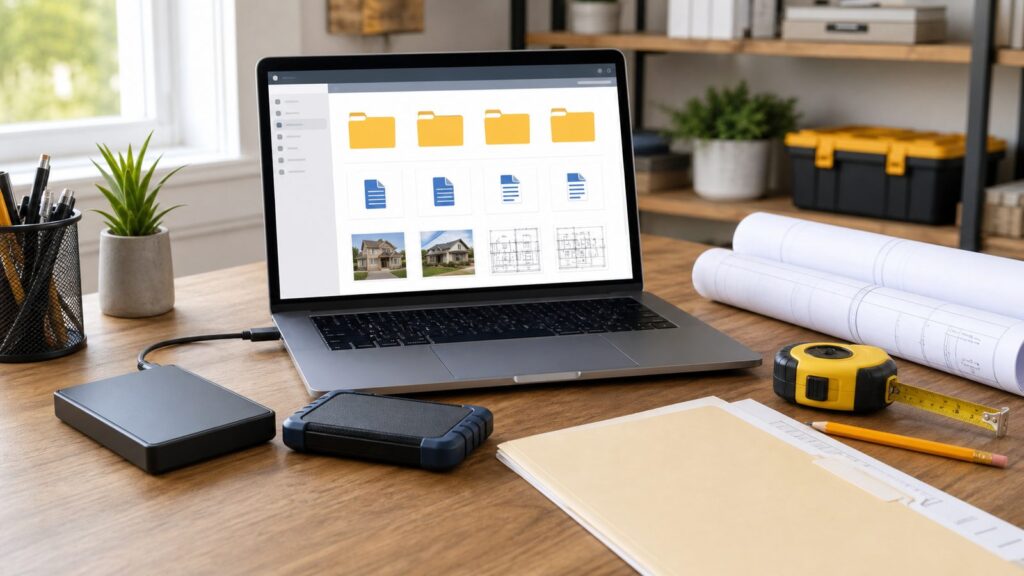
The best compact external hard drive for most homeowners in 2026 is a 4TB to 5TB portable HDD used as part of a two-copy backup plan. It gives the most storage for the money, fits in a drawer, and has enough room for family photos, renovation videos, permit PDFs, receipts, appliance manuals, inspection reports, insurance photos, and several computer backups. If you carry the drive daily, work from a laptop, shoot jobsite photos, or move large design files, buy a portable SSD instead. It costs more, but it is faster, quieter, and better at surviving bumps.
On our job sites, the storage problem is rarely just capacity. The problem is proof. A homeowner needs to find the signed contract, the paint color, the cabinet warranty, the inspection correction photo, the water heater serial number, or the before-and-after photo two years after the work is finished. A small external drive can solve that problem if it is chosen and organized properly. A single drive tossed in a desk drawer, however, is not a backup strategy.
As an Amazon Associate I earn from qualifying purchases.
For a practical buying decision, use this rule: choose an HDD for maximum storage at the lowest cost, choose an SSD for active files and travel, and always keep at least one additional copy off-site or in the cloud. In 2026, portable HDDs still win on cost per terabyte. SSDs win on speed and durability, but high-capacity SSD pricing remains steep.
Quick Recommendation: What Most Homeowners Should Buy
For a typical household, the best setup is two compact drives: one 4TB to 5TB portable HDD for local backup and either a second matching drive stored off-site or a cloud backup account. That gives you room to keep records for the house, vehicles, taxes, family photos, and renovation projects without micromanaging space every month.
#1 Best Overall

- Easily store and access 2TB to content on the go with the Seagate Portable Drive, a USB external hard drive
- Designed to work with Windows or Mac computers, this external hard drive makes backup a snap just drag and drop
- To get set up, connect the portable hard drive to a computer for automatic recognition no software required
- This USB drive provides plug and play simplicity with the included 18 inch USB 3.0 cable
- The available storage capacity may vary.
If you are actively remodeling, add a 1TB or 2TB portable SSD for working files. Use it for current project photos, videos, scanned permits, contracts, daily progress notes, finish selections, and design files. At the end of each week, copy that SSD into the larger archive drive and cloud backup. That is the same general workflow we use with jobsite documentation: fast storage for today’s work, bigger storage for the permanent record, and a second copy before anything gets deleted from a phone or camera.
Here is the simple buying map:
- 1TB HDD or SSD: enough for documents, PDFs, and a moderate photo library.
- 2TB drive: the practical minimum for family photos plus home-project records.
- 4TB to 5TB HDD: best value for maximum compact storage and long-term home archives.
- 2TB rugged SSD: best for daily carry, laptops, travel, garages, and active construction documentation.
- 4TB SSD: useful for heavy photo, video, CAD, or design work, but expensive in 2026.
HDD vs SSD: The Contractor’s Plain-English Difference
A portable HDD stores data on spinning platters. That is why it can offer 4TB or 5TB in a compact case for a reasonable price. It is also why you should not throw it into a tool bag, leave it loose in a truck console, or use it while it is bouncing around on a folding table. HDDs are excellent for shelf storage and scheduled backups. They are not the best choice for rough handling.
A portable SSD has no spinning platter. It uses flash storage, which makes it much better for bumps, vibration, and field use. SSDs are also much faster, especially when moving large batches of photos, 4K video, drone footage, scanned plan sets, or design files. They run silently and draw little power from a laptop. The tradeoff is cost. In 2026, a 5TB portable HDD commonly costs less than many 2TB rugged SSDs.
Quick wins for a faster PC:
Scan for outdated or missing drivers - takes under a minuteDriver Scan →Clear out junk files and repair common Windows errorsFree Scan →Fix the driver behind crashes, sound loss and screen glitchesFind Drivers →If you only back up documents once a week, an HDD is enough. If you edit video from the drive, travel with it, or carry it between a home office, truck, and jobsite, buy an SSD. The cheapest drive is not cheap if one drop ruins the only copy of your records.
2026 Cost Comparison for Compact External Drives
Prices move constantly, but the 2026 U.S. market has a clear pattern. Portable HDDs remain the value pick for capacity. Portable SSDs are faster and tougher, but high-capacity SSD prices are elevated, especially for rugged, USB4, Thunderbolt, or high sustained-write models.
| Drive Type | Typical 2026 U.S. Price | Best Use | Contractor Notes |
|---|---|---|---|
| 1TB budget portable HDD | $95-$185 | Documents, scanned records, light photo backup | Works for basic home archives, but may feel small after several years. |
| 2TB budget portable HDD | $170-$227 | Family photos, documents, home project records | A practical minimum for most households. |
| 5TB compact portable HDD | $219-$313 | Maximum storage in a small drive | Best cost per terabyte for home backups and renovation archives. |
| 4TB-5TB rugged portable HDD | $200-$300+ | Shelf storage with some added physical protection | Good for garages or mobile offices, but still protect it from drops. |
| 1TB-2TB mainstream portable SSD | $145-$300 | Daily carry, laptops, faster backups | Best balance for active project files. |
| 2TB rugged SSD | $300-$575 | Jobsite photos, travel, field documentation | Look for IP ratings, drop ratings, and a real warranty. |
| 4TB portable SSD | $450-$1,000+ | Large active media libraries and design files | Worth it only when speed and durability matter more than cost. |
| 4TB USB4 or Thunderbolt SSD | $1,000-$1,200 | Professional video, CAD, large creative workflows | Do not pay for this unless your computer supports the interface. |
The mistake we see homeowners make is buying the most expensive interface without checking the computer. A USB4 or Thunderbolt-class SSD can be very fast, but it will not deliver premium speeds through an older USB port. For normal document storage, permit records, and photo backups, that money is usually better spent on a second backup copy.
How Much Storage You Need for Home and Renovation Records
A construction project creates more digital material than most owners expect. A kitchen remodel can generate permit PDFs, bids, contract revisions, change orders, cabinet drawings, appliance manuals, tile selections, paint schedules, countertop invoices, inspection photos, and hundreds of progress pictures. Add short videos of framing, plumbing, electrical rough-in, waterproofing, attic conditions, drainage work, or slab prep, and storage grows fast.
For a single home, 2TB is a sensible floor. For a family that keeps years of phone photos and videos, 4TB to 5TB is better. If multiple computers back up to the same drive, start at 5TB or consider a NAS with cloud backup.
Capacity Guide by Household
- Documents only: 1TB is more than enough for PDFs, taxes, warranties, manuals, and scanned records.
- Documents plus photos: 2TB is a better starting point.
- Photos, videos, and renovation records: choose 4TB to 5TB.
- Multiple computers: choose 5TB minimum, or move to a NAS.
- Video, drone footage, CAD, or design files: use a 2TB SSD for active work and a larger HDD or NAS for archive storage.
Storage always looks large on purchase day and smaller after two years of phone videos. Buy enough capacity that you can keep old project records instead of deleting them to make room. A warranty claim, insurance claim, or resale disclosure may depend on a photo you forgot you had.
Best Compact Drive Types by Use Case
Best Value for Maximum Storage: 5TB Portable HDD
A 5TB portable HDD is the best compact storage solution for most homes. It is small enough to sit in a desk drawer, large enough for years of records, and typically costs around $219 to $313 in current 2026 U.S. retail listings. Mainstream WD and Seagate models dominate this category for good reason: they are widely available, reasonably priced, and supported by established warranties.
Rank #2

- Slim durable design to help take your important files with you
- Vast capacities up to 6TB[1] to store your photos, videos, music, important documents and more
- Back up smarter with included device management software[2] with defense against ransomware
- Help secure your important files with password protection and hardware encryption
- 3-year limited warranty
Use this drive for scheduled backups, home archives, renovation folders, old photos, and insurance documentation. Do not use it as your only copy. Do not store it permanently next to the computer it backs up. Fire, theft, flood, ransomware, and accidental deletion do not care that the drive has 5TB of space.
Free tools Windows power users keep installed
One-click scans. No signup required.
Best for Active Project Files: 1TB or 2TB Portable SSD
A portable SSD is the right tool when the drive travels. If you are moving between a home office, jobsite, truck, and laptop, SSD durability matters. A 1TB to 2TB mainstream SSD commonly costs about $145 to $300 in 2026. Rugged 2TB SSDs often run about $300 to $575 depending on speed, casing, IP rating, warranty, and seller.
For remodeling documentation, a 2TB SSD is a strong choice. It can hold current photos, videos, plan files, scanned permits, invoices, and daily logs without dragging transfer times. At the end of the project, copy the finished folder to a 5TB archive drive and a cloud backup.
Best for Harsh Use: Rugged SSD with IP Rating
For garages, workshops, travel, and jobsite use, look beyond the rubber shell. A real rugged drive should list a dust or water rating, such as IP65, a drop rating, and a warranty from a known manufacturer. SSDs are naturally better than HDDs for shock resistance because there is no spinning platter, but rugged claims are not all equal.
Use a padded case. Keep the cable with the drive. Label the case, not just the device. A rugged SSD can take more abuse than an HDD, but it is still an electronic device, not a hand tool.
Recommended Free Tools
Best for Heavy Video or Design Work: 4TB SSD
A 4TB SSD is expensive, but it can be justified for heavy photo, video, design, or CAD workflows. Current 2026 prices range from roughly $450 for slower models to $1,000 or more for high-performance USB 3.2 Gen 2×2, USB4, or Thunderbolt-class drives. Premium 4TB USB4 or Thunderbolt SSDs can sit around $1,000 to $1,200.
Before spending that money, check your computer’s ports. If the laptop only supports slower USB speeds, a premium SSD will still work, but you may not get the speed you paid for. For most homeowners, a mainstream SSD plus a larger HDD archive is a better-balanced setup.
The Backup Rule That Actually Protects Your Files
The best-known backup practice is 3-2-1: keep three copies of important data, on two types of media, with one copy off-site or cloud-based. A single external drive does not meet that standard. It is only one more place where the data lives.
For homeowners, a practical 3-2-1 setup looks like this:
Do these 3 things before closing this tab:
1Fix the driver behind crashes, sound loss and screen glitches2Clear out junk files and repair common Windows errors3Scan for outdated or missing drivers - takes under a minute- Copy 1: the files on your computer or phone.
- Copy 2: a local external hard drive stored at home.
- Copy 3: a cloud backup or second drive stored away from the house.
For remodeling records, we prefer a simple two-drive rotation when cloud storage is not practical. Keep one drive connected only during backups. Keep the second drive off-site with a trusted family member, in a secure office, or in another protected location. Swap them monthly or at major project milestones. That way, a house fire, burglary, power event, or ransomware incident does not take every copy at once.
Rank #3

- High capacity in a small enclosure – The small, lightweight design offers up to 6TB* capacity, making WD Elements portable hard drives the ideal companion for consumers on the go.
- Plug-and-play expandability
- Vast capacities up to 6TB[1] to store your photos, videos, music, important documents and more
- SuperSpeed USB 3.2 Gen 1 (5Gbps)
Schedule automatic backups, then test them. Once every quarter, restore a few files to a temporary folder and open them. Test a PDF, a photo, and one older project folder. A backup you have never restored is an assumption.
How to Organize Home Project Files So You Can Find Them Later
Drive capacity matters, but folder discipline matters more. A messy 5TB drive can waste hours when you need one inspection report. Use a structure that follows the way real houses are managed.
Start with the property address. Under that, create folders by year and project. Inside each project, use the same folder names every time:
Outdated Drivers Are Slowing You Down
One free scan finds every outdated or missing driver and matches the right update for your exact hardware.Free scan · exact hardware matchWindows Errors? Fix Them Before They Spread
Repair common Windows errors and clear accumulated junk for a smoother, more stable PC - no reinstall needed.Free scan · no reinstall- Permits
- Contracts
- Change Orders
- Plans and Drawings
- Photos
- Videos
- Receipts
- Warranties
- Inspection Reports
- Insurance
- Finish Selections
A good example is: 123-Main-Street / 2026 / Kitchen-Remodel / Inspection-Reports. Use dates at the front of file names: 2026-05-14-electrical-rough-in-approved.pdf. For photos, keep the phone’s original timestamp when possible, but add project folders so the images are not trapped inside a camera roll.
Keep original permit PDFs, contractor invoices, appliance manuals, warranty cards, paint schedules, finish selections, serial numbers, and before-and-after photos in the same archive. When you sell the home, file an insurance claim, call for warranty service, or plan a future remodel, that archive becomes valuable.
Security: Encrypt the Drive Before Sensitive Files Go On It
External drives often hold more sensitive information than people realize. Tax records, insurance paperwork, mortgage documents, contractor invoices, client files, permit scans, and photos of home interiors can all create privacy risk if the drive is lost or stolen.
Encrypt the drive before loading sensitive data. On Windows, many users choose BitLocker where available. On macOS, encrypted APFS works well for Mac-only use. Some drives include hardware encryption or password software, but make sure you understand the recovery process before trusting it.
What’s actually slowing this PC down?
Pick the symptom - the matching free tool is one click away.
Store the recovery key in a password manager. Do not tape it to the drive. Do not keep the only recovery key in the same drawer. If a family member may need the records during an emergency, include drive access in your household document plan.
File System Choices: Windows, Mac, or Both
File system format affects compatibility. The wrong format can turn a simple backup into a frustrating support problem.
- exFAT: works across Windows and macOS, useful for shared drives, but lacks some resilience features found in platform-specific formats.
- APFS: best for Mac-only use, especially Time Machine workflows.
- NTFS: best for Windows-only storage unless Mac write support is added.
If your household uses both Windows and Mac, exFAT is convenient for a transfer drive. For true automatic backups, use the format your backup software expects. Do not reformat a drive casually after you have loaded records onto it. Reformatting erases the file structure and can wipe the drive if you do not have another copy.
Rank #4

- Get NVMe solid state performance with up to 1050MB/s read and 1000MB/s write speeds in a portable, high-capacity drive(1) (Based on internal testing; performance may be lower depending on host device & other factors. 1MB=1,000,000 bytes.)
- Up to 3-meter drop protection and IP65 water and dust resistance mean this tough drive can take a beating(3) (Previously rated for 2-meter drop protection and IP55 rating. Now qualified for the higher, stated specs.)
- Use the handy carabiner loop to secure it to your belt loop or backpack for extra peace of mind.
- Help keep private content private with the included password protection featuring 256‐bit AES hardware encryption.(3)
- Easily manage files and automatically free up space with the SanDisk Memory Zone app.(5). Non-Operating Temperature -20°C to 85°C
Electrical Safety and Drive Placement in a Home Office
External drives are low-power devices, but the home-office setup around them still deserves care. We see too many desks with overloaded power strips, pinched cords, dust-packed chargers, and drives sitting near heat, coffee, or open windows.
Use a quality surge protector for the computer and backup drive. Do not daisy-chain power strips. Do not run extension cords under rugs or through doorways. Keep cords where chair wheels and feet will not crush them. If a plug, adapter, or cord runs hot, stop using it.
For a backup shelf, choose a dry, room-temperature location away from direct sun, laundry humidity, sawdust, paint storage, and garage heat. Do not store the only backup drive in a basement cabinet that has already taken water once. If the drive is for long-term archive storage, power it up periodically and verify that files still open. External drives are not permanent archive media. Replace heavily used or physically damaged drives proactively after several years instead of waiting for failure.
Independent reader supportYour contribution helps us test, update, and keep practical guides available for everyone.When to DIY vs When to Hire a Pro
Most homeowners can set up one or two external drives without hiring anyone. If you can plug in a USB cable, format a drive, turn on automatic backup software, and follow a folder naming system, this is a reasonable DIY task. Plan on 30 to 90 minutes for a basic setup, plus several hours for the first full backup if the computer has years of photos and videos.
DIY is appropriate when you have one or two computers, basic home records, and no special compliance requirements. Buy known-brand storage from a reputable retailer, avoid suspicious marketplace listings that promise impossible capacity for very low prices, encrypt the drive, and schedule automatic backups.
Hire a qualified IT professional when the storage system supports a small business, multiple employees, client files, payroll records, security camera footage, or several computers. Also bring in help if you want a NAS, remote access, encrypted cloud backup, ransomware protection, or shared folders with permissions. A small NAS plus cloud backup is often better than passing one portable drive around a household or office.
From a construction standpoint, no building permit is normally needed to place a portable hard drive on a desk or set up a basic home-office backup station. That changes if you are adding new receptacles, running low-voltage cabling through walls, installing a structured media panel, mounting network equipment, or modifying electrical circuits. Electrical work should follow local code, and many jurisdictions require licensed work for new circuits or concealed wiring.
Common Mistakes That Waste Money or Risk Data
The biggest mistake is buying one large drive and calling the job finished. One external drive can fail, be stolen, be damaged by water, or be encrypted by ransomware if it stays connected. Disconnect local backup drives when they are not actively backing up, and keep another copy away from the house.
The second mistake is using a cheap HDD as a travel drive. HDDs are good for shelf storage. For daily carry, field work, garages, and jobsite photography, use an SSD. The cost difference is easier to accept than losing a week of documentation.
The Tool Desk
Outbyte PC Repair FREEClear out junk files and repair common Windows errorsFree Scan →Outbyte Driver Updater FREEFix the driver behind crashes, sound loss and screen glitchesFind Drivers →Another common error is paying for speed the computer cannot use. Match the drive interface to your laptop. USB 3.2 Gen 2, USB 3.2 Gen 2×2, USB4, and Thunderbolt are not the same. Cable quality matters too. A charge-only USB-C cable may power a device but fail at proper data transfer. Keep the original cable with the drive, and replace damaged cables with data-rated cables.
Best Value
- Easily store and access 4TB of content on the go with the Seagate Portable Drive, a USB external hard drive.Specific uses: Personal
- Designed to work with Windows or Mac computers, this external hard drive makes backup a snap just drag and drop
- To get set up, connect the portable hard drive to a computer for automatic recognition no software required
- This USB drive provides plug and play simplicity with the included 18 inch USB 3.0 cable
- The available storage capacity may vary.
Finally, do not leave the backup drive plugged in forever. Constant connection exposes it to heat, power events, accidental deletion, and ransomware. A backup drive should be connected for the backup, verified periodically, and then stored safely.
Our Practical Buying Checklist
Before buying, answer five questions. First, is this drive for archive storage or daily carry? Archive storage points toward a 4TB to 5TB HDD. Daily carry points toward an SSD. Second, how much data do you have today? If you are already near 1TB, do not buy a 1TB drive. Third, do you use Windows, Mac, or both? Format accordingly. Fourth, do you have a second copy? If not, budget for one. Fifth, does the seller and warranty look legitimate? Counterfeit and misleading-capacity storage remains a real risk in online marketplaces.
For most households, the best compact external hard drive setup is not exotic. Buy a 5TB portable HDD for the archive, buy a 1TB or 2TB SSD if you work on active projects, encrypt both, label them clearly, keep a folder structure by property and year, and maintain an off-site or cloud copy. That setup protects the records that matter: permits, contracts, receipts, warranties, inspection reports, insurance photos, and the construction details you will wish you had saved later.
Frequently Asked Questions
Is an HDD or SSD better for home backup?
For maximum storage at the lowest cost, a portable HDD is better. For daily carry, jobsite files, laptop work, and faster transfers, an SSD is better because it has no spinning platter and handles bumps better.
How much external hard drive storage do I need for photos, documents, and renovation records?
Use 1TB for documents and light photos, 2TB as a practical minimum for most households, and 4TB to 5TB for long-term photo libraries, renovation videos, insurance records, and multiple computer backups.
What is the 3-2-1 backup rule?
The 3-2-1 rule means keeping three copies of important data, on two types of media, with one copy off-site or in the cloud. One external drive by itself is not a complete backup plan.
Should I encrypt an external hard drive used for home or construction documents?
Yes. If the drive contains tax records, insurance documents, permit scans, invoices, client files, or photos of home interiors, encrypt it before loading files and store the recovery key in a password manager.
Why is a 4TB SSD so much more expensive than a 5TB portable hard drive in 2026?
Portable HDDs use lower-cost spinning storage, while SSDs use flash memory and faster controllers. In 2026, SSD pricing is also elevated, so 4TB rugged or high-speed SSDs can cost several times more than 5TB portable HDDs.
Can I leave an external hard drive plugged in all the time?
You can, but it is not ideal for a backup drive. Leaving it connected exposes it to heat, power events, ransomware, and accidental deletion. Connect it for backups, verify files periodically, then store it safely.
Quick Recap
Product prices and availability are accurate as of the date/time indicated and are subject to change. Any price and availability information displayed on Amazon at the time of purchase will apply.

