The Tool Desk
Outbyte Driver Updater FREEScan for outdated or missing drivers - takes under a minuteDriver Scan →Outbyte PC Repair FREEClear out junk files and repair common Windows errorsFree Scan →Apple Home is a strong smart-home platform for households already using iPhone, Apple Watch, Siri, and iCloud. It is simple to share with family, emphasizes privacy and encrypted communication, and works with a growing range of Matter accessories. It is not the broadest or most customizable platform, however, and a serious installation needs more than an iPhone: plan on a compatible home hub, a reliable network, and careful checks for Wi-Fi, Thread, Matter, and bridge compatibility.
For most Apple households, the best starting point is a HomePod mini, two or three lights or plugs, and a motion or contact sensor. Add locks, thermostats, shades, cameras, and advanced bridges only after the basics work reliably.
As an Amazon Associate I earn from qualifying purchases.
What Apple Home is—and what HomeKit, Matter, and Thread mean
Apple’s current consumer smart-home experience is called Apple Home. The Home app is the control interface on iPhone, iPad, Mac, and Apple Watch, with additional access through Siri and Control Center.
HomeKit is Apple’s underlying smart-home framework and the compatibility label many products still use. Matter is a separate industry interoperability standard designed to let compatible accessories work across platforms. Matter is not simply “the new HomeKit,” and a Matter label does not guarantee that every feature will appear in Apple Home.
#1 Best Overall
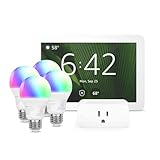
- Getting started with smart home has never been easier - An all-in-one kit with a quick guided setup makes starting your smart home easy.
- A setup so easy, it feels like magic - Just unbox, plug it in, and tap to get started.
- One hub with endless possibilities - the Echo Hub works with thousands of connected cameras, lights, locks, plugs, thermostats, speakers, and more—bringing your smart devices together in one convenient hub.
- Peace of mind, anytime - The included four lights can be easily set to make it look like you’re home when you’re away.
- Works with thousands of Alexa-compatible devices like Ring security cameras to build a smarter, safer home.
Thread is a low-power mesh networking technology used by some HomeKit and Matter accessories. It is different from Matter: Matter defines how compatible devices and platforms communicate, while Thread is one possible network transport. A product may use Matter over Thread, Matter over Wi-Fi, or another supported connection.
A home hub is a stationary Apple device—typically a HomePod, HomePod mini, or Apple TV—that enables remote access, sharing, and automations. A bridge is a vendor device that translates a product family into Apple Home. For example, a lighting or security bridge may connect several accessories to Apple Home, but it is not automatically an Apple home hub.
The basic structure looks like this:
Accessory → Wi-Fi, Thread, Ethernet, or vendor bridge → Apple home hub → Home app, Siri, or Control Center
Recommended Free Tools
Who should use Apple Home?
Apple Home is a good fit if you:
- Already use iPhone, Apple Watch, Siri, and iCloud.
- Want one family-friendly interface instead of several unrelated vendor apps.
- Prefer Apple’s stated privacy, local-control, and encryption model.
- Want straightforward control of lights, plugs, sensors, locks, thermostats, shades, and scenes.
- Value Apple-device integration more than the largest possible device catalog.
Consider another platform if you:
- Live in an Android-first household.
- Need unusual appliance categories or the widest third-party support.
- Want complex conditional logic, scripting, dashboards, or extensive device customization.
- Need professional alarm monitoring or a complete security service.
- Have weak Wi-Fi, restrictive router settings, or no suitable location for a powered hub.
Amazon Alexa generally offers broader device and integration support. Google Home is a natural choice for Android and Google-account households. Home Assistant offers much deeper local automation and scripting, but usually requires more networking knowledge and maintenance. Apple Home can also serve as the simple family-facing layer alongside a more advanced system.
What you need before buying accessories
- An iPhone or iPad running a currently supported operating system.
- An Apple Account with iCloud and two-factor authentication.
- A suitable home network. Avoid guest networks and client isolation for smart-home devices, and provide dependable Wi-Fi coverage.
- At least one compatible accessory. Check whether it is native HomeKit, Matter, or dependent on a vendor bridge.
- An Apple home hub. Apple says a hub is required for Matter accessories in Home, remote access, sharing, and automations. See Apple’s current home-hub requirements.
A Matter-over-Wi-Fi accessory and a Matter-over-Thread accessory do not have identical requirements. Thread accessories need a Thread-capable home hub or supported Thread border-router arrangement. A third-party Matter controller or border router does not automatically replace an Apple home hub for Apple Home remote access and automations.
Which Apple home hub should you buy?
HomePod mini: the simplest starter hub
The HomePod mini is the lowest-cost Apple-branded starting point and supports Thread-based setups. Apple’s US retail page listed it at $129 when checked August 18, 2026; prices vary by country and can change. Check the live Apple store page before purchase.
Choose it if you want a compact Siri speaker and a dedicated hub. It is a poor fit if you do not use Apple devices, want a screen, or specifically need Ethernet-first networking.
Rank #2

- Complete Project-Based Learning Path – Build 13 progressive projects (LED blink → button control → PIR motion sensor → music playback → motorized doors/windows → SK6812 RGB lighting → fan control → LCD display → gas alarm → temperature/humidity monitor → RFID door unlock → Morse code access → WiFi control → mobile APP remote control). Each project builds on the previous one, ensuring you understand both the electronics and the programming logic behind every smart home feature.
- Master Two Industry-Standard Languages – Learn to code in both Arduino C++ and MicroPython with 13 detailed tutorials for each language. Compare how the same hardware behaves under different programming approaches – a valuable skill for any aspiring engineer. Perfect for classrooms teaching multiple coding languages or self-learners who want flexibility.
- Build a Real WiFi-Controlled Smart Home – Assemble the wooden house structure and integrate sensors to create a functioning smart home system. Control lights, fans, door servos, and RGB lighting directly from your mobile APP (iOS/Android) . Experience how IoT works in real life – from manual control to automated responses based on temperature, humidity, motion, and gas detection.
- Comprehensive Online Wiki with No Guesswork – Our detailed online tutorials (also accessible via the packaging) include wiring diagrams, full code explanations, and step-by-step assembly guides for every project. Whether you're a complete beginner or a teacher preparing lessons, the structured content eliminates confusion and helps you succeed from project 1.
- Everything You Need to Get Started – (TIPS: Batteries are NOT Included)This kit includes the ESP32 development board, expansion board, wooden house parts, all sensors and modules (DHT11, PIR motion, gas sensor, RFID, SK6812 RGB, servo motors, fan, LCD1602, etc.), and connection cables. NOTE: 6x AA batteries are required (NOT Included). The kit is unassembled – you'll build it yourself following our online tutorials, making the learning experience truly hands-on.
HomePod: the higher-end speaker option
The full-size HomePod also functions as a home hub. Apple’s US retail page listed it at $349 on August 18, 2026. It makes sense when audio quality matters; it is unnecessary if you only need the least expensive hub.
Apple TV 4K: a hub that also replaces a streaming box
An Apple TV 4K can be a practical hub when you also want a living-room streamer or prefer a wired Ethernet connection. Not every Apple TV configuration has identical Thread capabilities, so verify the exact model and connection type on Apple’s current product and support pages before buying. Current pricing should likewise be checked on the Apple TV 4K store page.
For a larger or reliability-sensitive home, using both a HomePod mini and Apple TV can provide more than one possible hub. Leave hub selection on Automatic Selection unless you are troubleshooting a specific problem.
How to choose compatible accessories
Start with products marked Works with Apple Home or documented by the manufacturer as compatible with Apple Home. Then answer these questions:
Free tools Windows power users keep installed
One-click scans. No signup required.
- Is the device native HomeKit, Matter, Wi-Fi, Thread, Bluetooth, Ethernet, or bridge-based?
- Does it need a proprietary hub or account?
- Will it work if the vendor cloud is unavailable?
- Which controls actually appear in Apple Home?
- Does a Thread device require a Thread-capable Apple hub?
- Can other household members control it?
- Can firmware be updated without removing and re-adding the accessory?
Do not buy on the Matter label alone. Matter improves interoperability, but Apple Home may expose only basic controls while advanced features remain in the manufacturer’s app. A thermostat might provide temperature control but not every scheduling or air-quality option. A camera may provide live video and event notifications without offering every detection or recording feature available in its native app.
A sensible first installation
Build in stages rather than buying a whole houseful of devices at once:
- Install one home hub.
- Add two or three lights or smart plugs.
- Add one motion or contact sensor.
- Create a scene such as Good Night.
- Test remote access and automation for several days.
- Only then add locks, thermostats, shades, leak sensors, cameras, or vendor bridges.
Give rooms clear names before adding many accessories. Use names such as “Kitchen ceiling,” “Front door,” and “Hall motion.” Avoid duplicate names because Siri commands become ambiguous.
Rank #3

- WHAT'S IN THE BOX - This starter kit includes one Hue Bridge and four E26 smart light bulbs; to get started, install your Bridge and color changing light bulb using the Hue app, and you’re ready to go
- CREATE AMBIANCE WITH COLOR - Set the mood with millions of colors and a library of preset light scenes designed by Hue’s lighting experts—with special holiday scenes and the option to create your own
- DIM EASILY - Adjust from full brightness all the way down to 2% using the Hue app to achieve the right level of lighting with your smart light bulb, whether you’re reading or unwinding before bed
- CONTROL WITH YOUR VOICE - Connect to your preferred home assistant and control your led light bulb effortlessly with voice commands—compatible with Alexa, Google Assistant, and Apple Home
Apple Home setup walkthrough
1. Create and organize the home
Open the Home app, add or name your home, and create rooms before pairing a large number of accessories. Consistent room assignments make scenes, Siri commands, and troubleshooting easier.
2. Set up a HomePod or HomePod mini
Set up the HomePod normally with an Apple device. According to Apple’s current support instructions, it becomes a home hub automatically. Keep it powered on, connected to the household network, and updated.
3. Set up an Apple TV as a hub
- Open Settings on Apple TV.
- Select AirPlay and Apple Home.
- Select Room.
- Choose a room or add one.
4. Confirm the active hub
- Open Home.
- Open the More button.
- Select Home Settings.
- Select Home Hubs & Bridges.
- Review the active hub and leave Automatic Selection enabled unless troubleshooting.
The labels can vary slightly between operating-system releases. Apple’s home-hub support article is the best reference when your menu differs.
5. Add an accessory
In Home, use the add control and scan the HomeKit or Matter setup code when prompted. Keep the accessory near the iPhone and hub during pairing. For Matter, the iPhone provisions the accessory onto Wi-Fi or Thread as appropriate. Apple documents the QR-code setup and permission flow in its Matter documentation.
Scenes versus automations
A scene is a group of actions you trigger manually. “Good Night” might turn off lights, lock doors, close shades, and lower the thermostat.
An automation runs actions when something happens: a particular time arrives, someone comes home, a sensor detects motion, or an accessory changes state. Apple lists time, location, people, sensor, and accessory triggers in its Home automation guidance.
Create a scene
- In Home, tap or click Add.
- Select Add Scene.
- Choose a suggested scene or Custom.
- Name the scene and add accessories.
- Adjust each accessory and use Test This Scene where available.
- Select Done.
Create a sensor or accessory automation
- Select Add, then Add Automation.
- Choose An Accessory is Controlled or A Sensor Detects Something.
- Select the trigger accessory and condition.
- Choose the responding accessories or scene.
- Set the desired states, test the automation, and select Done.
Create a time automation
- Select Add Automation.
- Choose A Time of Day Occurs.
- Set the time and days.
- Optionally restrict it to when selected people are home.
- Choose the actions, test them, and save.
Create a location automation
Choose People Arrive or People Leave. Location sharing must be enabled for the primary controlling iPhone or iPad. Apple notes that a Mac cannot trigger a location-based automation. If you select a location other than home, invited users may be removed from that automation.
Rank #4

- WHAT'S IN THE BOX - Includes one Hue Bridge and four Hue White and Color Ambiance smart 75W A19 light bulbs suitable for most fixtures; Perfect for decorative and general lighting anywhere in your home
- UNLOCK THE FULL POWER OF HUE WITH THE INCLUDED BRIDGE - Enjoy automations control from anywhere in the world, and a secure, stable connection that won't drain your Wi-Fi. Use Matter to connect smart home devices to your Hue smart lighting system.
- ENJOY PRESET SCENES - Light your routines throughout the day; Set a 24-hour natural light scene that mimics the sun or choose light to help you focus unwind, and more
- VOICE CONTROL - Convenient smart control; Set up voice control in the Hue app and use simple voice commands to control your lights with Alexa or Google Assistant
- PERSONALIZE YOUR LIGHT - Create the ultimate mood lighting with dynamic light effects that show subtle changes in brightness and color; Customize in the app
Useful starter automations
- Turn entry lights on when a front-door contact sensor opens after sunset.
- Turn hallway lights on with motion and off after a delay.
- Use Good Night to turn off lights and lock doors together.
- Send a notification when a leak sensor detects water.
- Turn on a bathroom fan when humidity rises, if the accessory exposes that sensor.
- Set a thermostat setback when everyone leaves.
- Turn exterior lighting on at sunset.
- Notify the household when a garage door remains open too long.
- Close shades when everyone leaves, excluding rooms with pets, plants, or safety concerns.
Presence automations deserve caution. Guests, children, shared devices, and inaccurate location status can make “everyone has left” less reliable than a physical sensor or manually triggered scene.
Siri, Apple Watch, Control Center, and sharing
Once supported accessories are added to Apple Home, Apple says they can be controlled through the Home app, Siri, and Control Center. Apple Watch provides convenient access when you do not want to reach for your phone. Typical commands include:
Outdated Drivers Are Slowing You Down
One free scan finds every outdated or missing driver and matches the right update for your exact hardware.Free scan · exact hardware matchPC Slower Than It Used to Be?
A free scan shows the junk files, broken settings and background clutter dragging Windows down - then fixes them in one click.Free scan · Windows 10 & 11- “Turn on the kitchen lights.”
- “Set the thermostat to 20 degrees.”
- “Lock the front door.”
- “Run Good Night.”
- “Is the garage door open?”
Short, unique names and correct room assignments improve recognition. Vendor-specific functions may still require the manufacturer’s app, even when basic controls are available in Apple Home. Family sharing and permissions should be configured deliberately, especially for locks, garage doors, cameras, and remotely accessible homes.
Independent reader supportYour contribution helps us test, update, and keep practical guides available for everyone.Locks, thermostats, lighting, and sensors
Lighting
Smart lights, plugs, motion sensors, and contact sensors are the easiest place to begin. Bridge-based systems such as Philips Hue can provide a broader lighting ecosystem, but add another device, account, and possible failure point. Nanoleaf is relevant for decorative lighting and Matter or Thread models; verify the exact product’s requirements. Eve is particularly relevant to privacy-focused Apple users, but model-specific HomeKit, Matter, Thread, and battery requirements still matter.
Locks
Apple Home can make locks especially convenient, including Home Key on supported products. Apple highlights Level Lock+ as an example. Schlage Encode Plus may also be relevant, but check the regional model, deadbolt fit, and current Home Key support.
Check whether the lock fits the existing door, whether your building permits replacement, and whether renters can install it. A deadbolt product is not automatically suitable for a lever-lock door.
Do these 3 things before closing this tab:
1Scan for outdated or missing drivers - takes under a minute2Repair Windows errors before they cause bigger problems3Fix the driver behind crashes, sound loss and screen glitchesThermostats
ecobee is featured by Apple as an Apple Home-compatible thermostat option. Do not choose a thermostat solely because it supports Matter. Confirm HVAC wiring, system compatibility, remote sensors, and which controls Apple Home exposes.
Best Value

- 【Easy Setup, One Control】With Matter, Skip the step of downloading and registering multiple manufacturers' apps every time you buy a new device. Instead, head straight to certified smart home platforms like Apple Home, Alexa, Google Home, SmartThings, or AiDot to control all your Matter devices.【TIP】Matter-certified hub or controller (HomePod, Echo Dot, Nest, SmartThings Hub) is required for Apple Home/Alexa/Google Home/SmartThings platforms. Alternatively, the AiDot app can be used without hub
- 【Offline-Ready Control】Once you've set up your Matter-certified devices on your LAN, they'll be able to communicate with each other directly, using the Matter protocol. This means that if your home internet connection goes offline, your Matter-certified devices will still be able to communicate and be controlled within your LAN, without relying on the internet or cloud services.
- 【Remote Control from Anywhere】Use the app to turn electronics on before you arrive home and off after you leave, no matter where you are. Using the smart plug that work with alexa manage your power usage and save money.
- 【Hands-free Voice Control】Control linkind homekit plug using simple voice commands through Apple HomeKit, Siri, Amazon Alexa, Google Assistant, and SmartThings, without the need for physical input such as buttons or switches.
- 【Flexible Scheduling & Timer】Effortlessly reduce energy usage with automatic device shutdown after a set time. For example Chrismas Tree, TV, Lamp, Fan, Humidifier,Blenders, Lightbulbs
Sensors and bridges
Aqara offers a broad sensor range, often through a vendor hub or bridge. That can be useful for advanced sensing, but it means another account and another device to maintain. Eve sensors may suit buyers prioritizing local-control characteristics; check Thread coverage and exact model support.
Cameras and HomeKit Secure Video
HomeKit Secure Video is a privacy-oriented camera feature, not a professional security-monitoring service. Separate these questions when comparing cameras:
- Can Apple Home show a live feed?
- Does the camera record events?
- Where is video stored?
- What notifications and detection categories are supported?
- How many cameras and days of history does the current iCloud+ plan allow?
- Can household members access the camera as intended?
Apple promotes private camera monitoring and Activity History, while the Home App Store listing says HomeKit Secure Video requires a home hub and an iCloud+ plan and advertises up to 10 days of recording history. Limits and plan terms can change, so verify the current iCloud+ and camera documentation before purchase.
Logitech Circle View products are among the Apple Home camera examples. A camera may still be a poor fit if you need continuous recording, professional monitoring, broad independent access, or a system that works separately from Apple’s account and subscription model. Apple Home cameras do not automatically replace an alarm service.
Privacy and security: strong design, not a guarantee
Apple says Home data is stored in a way that Apple cannot read, accessories are controlled by Apple devices rather than exclusively through a cloud service, and communication is end-to-end encrypted. Matter pairing uses a setup-code flow and asks for permission. These are meaningful design advantages, but they do not make a smart home risk-free or completely independent of the internet.
Vendor clouds may still be needed for firmware updates, account functions, remote vendor features, or integrations. Security also depends on your Apple Account, phone, router, accessory accounts, and software updates. Use two-factor authentication, keep devices updated, secure the router, and avoid exposing management interfaces to the public internet.
Troubleshooting Apple Home
An accessory will not pair
- Confirm the setup code and reset state.
- Check whether it is already paired to another ecosystem.
- Keep the phone and accessory on a compatible network during setup.
- Confirm the product really supports Apple Home rather than only a vendor app with an Apple-related integration.
- Check whether a Matter accessory has reached a pairing or fabric limit.
- For Thread products, confirm that a Thread-capable hub or supported border-router arrangement is present.
The accessory appears, but an automation does not run
- Confirm that an Apple home hub is active.
- Update the hub and accessory firmware.
- Check that the intended trigger is exposed to Apple Home.
- Review time, day, and presence conditions.
- Check whether the accessory is reachable rather than merely showing a cached state.
- Look for a mode or schedule in the vendor app that overrides Apple Home.
- Make sure the automation does not depend on a feature Matter does not expose in Apple Home.
Automations are slow or unreliable
- Improve Wi-Fi coverage.
- Check router multicast behavior and disable client isolation for the relevant network.
- Review Thread mesh placement and the location of powered Thread devices.
- Check whether the preferred hub is offline or poorly located.
- Remember that battery sensors may sleep between events.
- Identify any vendor-cloud dependency.
Remote access fails
Check hub power and network connectivity, Apple Account two-factor authentication, iCloud Keychain, owner permissions, and software updates. Restarting the hub and reviewing the active hub in Home → More → Home Settings → Home Hubs & Bridges can help. Apple’s support guidance specifically addresses current software, hub restarts, network connectivity, iCloud Keychain, and two-factor authentication.
Quick wins for a faster PC:
Fix the driver behind crashes, sound loss and screen glitchesFind Drivers →Repair Windows errors before they cause bigger problemsFix Now →Apple Home compared with the alternatives
| Platform | Best for | Main trade-off |
|---|---|---|
| Apple Home | Apple households wanting simple family control, Siri, and privacy-focused design | Narrower device range and less automation depth than Home Assistant |
| Amazon Alexa | Broad device support and third-party integrations | Different privacy model and greater cloud dependence |
| Google Home | Android households and Google-account integration | Less natural integration with Apple devices; support varies by product |
| Home Assistant | Local control, scripting, dashboards, and unusual devices | More setup, networking knowledge, and ongoing maintenance |
| Vendor ecosystems | Deep features within one product family | Additional apps, accounts, bridges, or subscriptions |
Final recommendation
Choose Apple Home if your household already lives in Apple’s ecosystem and wants dependable everyday routines rather than an endlessly customizable automation laboratory. Start with a HomePod mini or suitable Apple TV, a few lights or plugs, and one sensor. Verify each product’s actual Apple Home path, transport, hub requirement, and exposed features before buying.
Matter makes the market more flexible, but it does not remove compatibility checks. Thread can improve low-power mesh connectivity, but it introduces another networking layer to plan. Apple’s privacy architecture is a major advantage, but vendor clouds, router security, account protection, and subscription terms still matter. For cameras, alarms, and advanced logic, treat Apple Home as one part of the system—not automatically the whole security or automation solution.
Quick Recap
Product prices and availability are accurate as of the date/time indicated and are subject to change. Any price and availability information displayed on Amazon at the time of purchase will apply.

