Start by separating the problem into one of three areas: chlorination, equipment control, or app/network access. Check the local OmniLogic panel and record the exact status or alarm before changing settings. Many apparent chlorinator faults are operating-condition issues, while a panel that still works locally but has lost remote access points first to network checks—not automatically to a failed controller.
First identify what has stopped working
Note the exact message on the display and whether the affected equipment responds at the local panel. Distinguish among a pump, heater, light or other controlled device that will not operate; chlorinator output that is off or seems low; and remote access through the app or web interface that has stopped working. Record current settings and readings before changing configuration or replacing parts.
| # | Preview | Product | Price | |
|---|---|---|---|---|
| 1 |

|
Hayward Wireless Network Connection for Omnilogic HLWLAN | $409.04 | Buy on Amazon |
| 2 |

|
GLX-PL-LOC-P-4 Local Display Controller Keypad Replacement | $78.00 | Buy on Amazon |
| 3 |
|
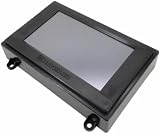
Hayward LCD W/O MSP,REPL,OMNILOGIC | $134.13 | Buy on Amazon |
- Local equipment control fails: check the equipment’s enabled status, schedule, configuration and displayed status.
- Chlorination is the concern: open Chlorinator Diagnostics and review pump, flow, setpoint, cell temperature and salt information.
- Only remote access fails: check the connection and network settings while confirming whether the local panel still works.
If chlorination is off or output seems low
Hayward lists the conditions required for chlorination in its OmniLogic Operation Manual: the filter pump must run, the flow switch must detect flow, the chlorinator setting must be above 0%, cell water temperature must be within the operating range, and salt must be within range. The manual gives a cell-temperature range of 10–60°C, with a superchlorination exception below 10°C except during freeze protection. These are manufacturer instructions in an Australian manual context; check the manual for the installed model and region before applying model-specific procedures.
Check diagnostics before suspecting the cell
In Chlorinator Diagnostics, inspect the pump state, actual water circulation, flow-switch status, chlorinator setting, cell temperature, salt reading, cell type, current and voltage. A displayed zero cell current alone does not establish a failed cell: Hayward notes that it can occur between chlorination cycles, depending on the setpoint.
Free tools Windows power users keep installed
One-click scans. No signup required.
#1 Best Overall
- Hayward Wireless Network Connection for Omnilogic HLWLAN
Verify salt independently
Hayward’s US OmniLogic Installation Manual, revision 1002784 Rev C, specifies 2700–3400 ppm for standard salt mode. In Low Salt mode it specifies 1200–1800 ppm, with 1500 ppm optimal. These are manufacturer-published ranges, not independent pool-chemistry findings. Test the water with an appropriate independent method before adding salt; do not add it merely to chase a fluctuating controller reading.
If salt is needed, the same manual advises sodium chloride purity greater than 99.0%. After adding salt and allowing circulation, the display may take up to 24 hours to respond. The average-salt restart control starts a new average calculation from the instant salt reading; it changes the controller’s calculated average, not the pool’s chemistry.
Inspect and clean only as directed
Hayward’s operation manual recommends visually inspecting the chlorinator cell every three months or after filter cleaning. The controller reminder appears after approximately 500 operating hours. Follow the installed cell’s manual for any cleaning procedure; do not infer that a reminder or low output by itself means the cell needs replacement.
If diagnostics and verified water conditions point to a cell fault, confirm the exact installed cell model and compatibility before considering a replacement. The installation manual identifies the TurboCell as the optional chlorination cell; a cell is not a remedy for a network problem, inadequate flow, an incorrect setting or unsuitable water conditions.
Windows Errors? Fix Them Before They Spread
Repair common Windows errors and clear accumulated junk for a smoother, more stable PC - no reinstall needed.Free scan · no reinstallOutdated Drivers Are Slowing You Down
One free scan finds every outdated or missing driver and matches the right update for your exact hardware.Free scan · exact hardware matchRank #2
- GLX-PL-LOC-P-4 Local Display Controller Replacement for Hayward Goldline PL-P-4 Pro Logic Automation and Chlorination, and for Hayward AquaPlus Automation systems PL-PLUS.
- The GLX-PL-LOC-P-4 local display part is designed For Use With Hayward Goldline PL-P-4 ProLogic Automation and Chlorination. It can control up to 16 pieces of equipment (4, 8 or 16 relays), two heaters and a solar system on any pool, spa or pool/spa with shared or dual appliance.
- High quality materials, high precision microprocessor structure. Stable operation, durable and reliable housing. Corrosion resistance, aging resistance, long service life.
- Features a LCD screen for clearly displaying status of your pool, and Control button with description for easier function adjust. By using this display, pool owners can conveniently control various pool functions, making it easy to maintenance your pool or spa.
- If you are not satisfaction or have any questions about our product. Please feel free to contact us. We will provide professional service to solve your problems.
If the app or remote access is failing
First establish whether the local panel still operates the equipment. If it does, check network connectivity and configuration before treating the controller as failed. Review the network settings and confirm that OmniLogic has an IP address.
For a wired connection
Check that the cable is connected securely, the router port is active and the connection is to a LAN port—not WAN or PoE. Hayward’s network instructions specify outdoor-rated Cat5e or Cat6 for wired setup. A temporary direct cable test can help isolate a home-network issue; it is a diagnostic check, not a permanent fix.
For Wi-Fi
Confirm that the Wi-Fi bridge has power and that the network name and credentials are correct. The Hayward installation manual specifies a 2.4 GHz connection. A temporary hotspot test, described in Hayward’s OmniLogic Network Troubleshooting Guide TSG-OLN144c, can help distinguish a home-router issue from an OmniLogic connection problem; do not treat it as a permanent network configuration.
Reboot and firmware checks
Use Hayward’s documented safe shutdown and reboot procedure for the installed system where available. Do not open the enclosure or casually reset network equipment to factory defaults. Hayward’s installation manual explains that firmware is the unit’s operating system and says technical support may advise an update when problems occur. Check with Hayward support for applicable update guidance rather than relying on an unverified firmware number.
Recommended Free Tools
Rank #3
- HAYWARD LCD W/O MSP,REPL,OMNILOGIC
If equipment behaves incorrectly
For a pump, heater, light, actuator or relay that does not behave as expected, check whether it is enabled, scheduled, represented in the system configuration and showing the expected status. OmniLogic’s Configuration Wizard depends on accurate knowledge of the connected pool equipment, so preserve or back up the existing configuration before making changes.
The manuals do not establish one universal fix for every equipment or configuration fault. If basic status and configuration checks do not explain the behavior, use a qualified pool automation technician rather than experimenting with wiring or making a factory reset.
When to call for help
- Network specialist or Hayward support: remote access remains unavailable after checking connection, router port, credentials, 2.4 GHz Wi-Fi where applicable, configuration and IP status.
- Qualified pool automation technician: the fault persists, equipment status does not match its behavior, or diagnosis may involve internal wiring or electrical components.
Hayward’s network guide warns of high-voltage and electrocution hazards and says only qualified technicians should remove the dead front. Do not work inside an energized panel; installation wiring must comply with applicable electrical codes.
Quick Recap
Product prices and availability are accurate as of the date/time indicated and are subject to change. Any price and availability information displayed on Amazon at the time of purchase will apply.
Quick wins for a faster PC:
Repair Windows errors before they cause bigger problemsFix Now →Fix the driver behind crashes, sound loss and screen glitchesFind Drivers →Clear out junk files and repair common Windows errorsFree Scan →



