Recommended Free Tools
Most myQ Wi‑Fi failures come from using an unavailable 2.4 GHz network, weak garage coverage, router settings that block the device, or saved credentials left behind after a router change. First identify whether you have a Wi‑Fi-enabled opener or a separate Smart Garage Hub/Smart Garage Control, then use the device’s LED and the exact failure stage to choose the least destructive fix.
First, identify what is failing
“myQ not connecting” describes several different problems. Your next step depends on which one you have:
- First-time setup fails: the opener or hub cannot join your home network.
- It went offline after a router, SSID, or password change: the device still has the old Wi‑Fi credentials.
- It joined Wi‑Fi but is offline in the app: it may be unable to reach myQ servers, or the app account association may be wrong.
- The app shows online but commands fail: investigate account status, stale app data, opener hardware, or safety sensors.
- The app cannot find or add the device: check compatibility, serial-number entry, and account ownership.
- A hub joins Wi‑Fi but will not pair with the opener or sensor: pairing, sensor position, or opener compatibility is the likely issue—not necessarily Wi‑Fi.
Identify your myQ product and compatibility
Built-in Wi‑Fi garage-door opener
The opener has its own Wi‑Fi radio and a motor-unit setup process. Do not use Smart Garage Hub instructions for it; buttons, LED meanings, and reset steps can differ by model.
Smart Garage Hub or Smart Garage Control
This is a separate accessory that connects to Wi‑Fi and then communicates with a compatible opener and door sensor. Start with the product-specific guides for the Smart Garage Hub or Smart Garage Control.
#1 Best Overall
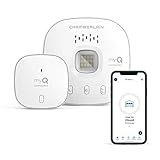
- “Did I shut the garage” No more worrying.
- Open or close your garage from anywhere. Simply download the free myQ app for iPhone or Android and get connected with your very own Smart Garage
- Works with Amazon Key In-Garage Delivery—an exclusive Prime member benefit that protects your Amazon packages.
- Give access to family or friends while on the go
- Never worry if the garage is closed at night by setting a close schedule
Camera, keypad, lock, or another accessory
These products have different network requirements and LED codes. Select the exact product in the myQ compatibility and setup tool. myQ says most opener brands made after 1993 may be compatible when they use standard safety sensors, but that is a general criterion, not a guarantee for every model.
Quick checks before changing router settings
- Install or update the myQ app and sign in to the correct account.
- Write down the exact home Wi‑Fi name (SSID) and password.
- Confirm that a visible 2.4 GHz network is enabled. Most myQ garage products require it, although the exact requirement is model-specific.
- Stand near the opener or hub during setup. Enable Bluetooth when the app requests it.
- Confirm the device has power and an illuminated or flashing LED. Test the outlet with another appliance if the LED is dark.
- Temporarily disable cellular-data fallback, Wi‑Fi Assist, or automatic network switching if the phone keeps leaving the home network during setup.
- Have a ladder available only if the app’s model-specific instructions require access to an adjustment or Learn button.
The highest-probability fix: provide 2.4 GHz Wi‑Fi
Most myQ garage openers and hubs use 2.4 GHz. A 5 GHz-only network generally will not work. Many modern routers combine both bands under one SSID, so you may not see separate network names.
- Open your router’s app or administration page.
- Confirm that 2.4 GHz is enabled and that the SSID is broadcast rather than hidden.
- If Smart Connect or band steering combines the bands, temporarily turn it off or create a distinct 2.4 GHz SSID.
- Connect your phone to that intended network.
- Run myQ setup again while close to the router and device.
Use the exact product requirements if your model supports a different band configuration. Chamberlain’s current router guidance is at Recommended router settings for myQ Wi‑Fi products.
Restart everything in the correct order
- Verify that another phone or computer can load a webpage over the home Wi‑Fi.
- Unplug the router or modem for about 30 seconds, reconnect it, and wait for internet service to return.
- Restart your phone.
- If you use a hub, unplug it for 30 seconds and reconnect it.
- Retry setup once, close to the router or device.
A Smart Garage Hub with a solid green LED generally indicates that it is online; flashing states remain model-specific. The hub troubleshooting flow is documented here.
Reconnect after replacing the router or changing its password
Smart Garage Hub or Smart Garage Control
Use the current app path (labels can vary by iOS, Android, and app version):
Rank #2

- Wide-Angle Surveillance Camera: Capture a comprehensive view of your garage area, from driveway to doorway.
- Advanced Motion Detection: Monitor unfamiliar activity in your garage area for peace of mind.
- Real-Time Notifications: Receive timely and meaningful notifications via the myQ app to ensure the safety of your loved ones.
- Premium Smart Features (Subscription Required): Upgrade to a myQ subscription for advanced AI-powered detection including people, cars, and packages with intelligent alerts, plus access to recorded video history and enhanced motion detection. Free trial included to experience premium features.
- Two-Way Audio: Engage in live conversations while also monitoring ambient sounds in the area around your garage.
- Open Settings.
- Select Devices.
- Under Hubs, select the relevant device.
- Tap Change Wi‑Fi Settings.
- Choose the visible 2.4 GHz network and enter its password.
- Complete setup and confirm that the device appears online.
Follow the official reconnection flow at How to reconnect to myQ after replacing the router.
Built-in Wi‑Fi opener
Some older models ask you to clear stored Wi‑Fi settings. If the app specifically instructs you to use the black adjustment button between the Up and Down arrows:
- Use a stable ladder to reach the motor unit.
- Press and hold the adjustment button until the LED turns off.
- Return to the app, tap Next, and continue.
Other models require pressing and releasing the Learn button three times before continuing. These are model-dependent procedures, not universal reset instructions. Use the exact steps in the official guide: router-change reconnection instructions.
Smart Garage Hub setup failures
A hub’s blinking blue LED commonly means it is ready for setup. The app may ask you to scan or enter the serial number and temporarily join a network such as myQ-NNN or “Chamberlain.” After Wi‑Fi setup, the hub still must be paired with the opener and door sensor.
- For setup guidance, keep the router within about 50 feet of the hub and move the hub closer if necessary.
- Mount the hub generally 4–6 feet from the opener, not directly on the opener or a metal surface.
- Install the door sensor vertically on the top door panel with its logo facing outward.
- A missing, incorrectly positioned, or unpaired sensor can prevent completion even when Wi‑Fi works.
- Hubs manufactured before February 4, 2021 may receive a firmware update during setup; the support page says that process may take 2–4 minutes.
See Smart Garage Hub network setup and hub and sensor troubleshooting.
Rank #3
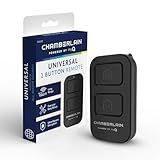
- Compatible with Leading Brands – Works seamlessly with Chamberlain, LiftMaster, Craftsman and most other garage door openers made after 1997.
- Long-Range Performance – Up to 1300 ft range for your garage door opener (conditions permitting) for smooth, reliable operation.
- Fast, Improved Programming – New setup process makes pairing with your garage door opener quick and frustration-free.
- Control Up to 2 Garage Doors or Gates – Each programmable button controls a different garage door openers or gate.
- myQ Smart Garage Control – Connect to the my Q app to manage access, receive notifications, and view garage door opener access history and more!
Fix weak Wi‑Fi in the garage
Concrete, brick, floors, metal garage doors, appliances, and long distances can weaken 2.4 GHz coverage. This is often a radio problem rather than an app problem.
- Move the router higher and closer to the garage where practical.
- Place a mesh node or extender between the router and garage, where it still receives a strong signal. An extender placed in the dead zone cannot amplify a usable connection.
- Use a phone hotspot only as an isolation test. If myQ connects to the hotspot but not the home router, the opener is probably functional and the home network, coverage, or security settings are the likely cause. Do not treat the hotspot as a permanent configuration unless the manufacturer supports it.
Chamberlain describes RSSI as a signal-strength measure and gives approximately –70 as weaker and –50 as stronger guidance. Those figures are a manufacturer rule of thumb, not a universal threshold for every model. See how to improve myQ signal strength.
The Tool Desk
Outbyte PC Repair FREEClear out junk files and repair common Windows errorsFree Scan →Outbyte Driver Updater FREEFix the driver behind crashes, sound loss and screen glitchesFind Drivers →Router settings to check after the basic fixes
Change advanced settings only when 2.4 GHz, power, distance, and a restart have not solved the problem. Preserve normal network security; do not use open Wi‑Fi.
| Setting | What to check | Why it matters |
|---|---|---|
| SSID | Broadcast enabled; avoid a hidden network during setup. | Hidden networks can prevent onboarding. |
| Band | 2.4 GHz enabled; avoid a 5 GHz-only configuration. | Most garage products require 2.4 GHz. |
| Security | WPA2 Personal is acceptable; WPA3 Personal may work with current firmware. Enterprise security is incompatible. | Legacy hardware may not support every mode. |
| Mixed security | Avoid mixed WPA/WPA2/WPA3 modes if your router or ISP requires a simpler configuration. | Some devices fail negotiation in mixed modes. |
| DHCP | Enabled. | The router must assign the device a local IP address. |
| Wireless mode | Support 802.11 b/g/n; avoid an 802.11ac-only setting. | Older myQ radios need legacy 2.4 GHz modes. |
| MAC filtering | Disable it temporarily or add the device to the allowed list. | Filtering can reject an otherwise valid device. |
| Channel | Leave Auto normally; if failures persist, test channels 1, 6, or 11. | These are the manufacturer’s suggested manual tests. |
| Firewall and restrictions | Check whether TCP port 8883 is blocked. | The port may be needed for device-to-server communication. |
| Encryption | Prefer AES rather than TKIP. | Chamberlain’s ISP guidance identifies AES as preferred. |
For router configuration, contact the router manufacturer or ISP. myQ support states that it does not troubleshoot customers’ third-party routers. See when to contact your ISP.
Independent reader supportYour contribution helps us test, update, and keep practical guides available for everyone.Use the LED as a decision aid
Record the exact color and pattern before contacting support. LED behavior is product- and model-specific, so do not apply one universal table to every myQ device.
Rank #4

- Wide-Angle Surveillance Camera: Capture a comprehensive view of your garage area, from driveway to doorway.
- Advanced Motion Detection: Monitor unfamiliar activity in your garage area for peace of mind.
- Real-Time Notifications: Receive timely and meaningful notifications via the myQ app to ensure the safety of your loved ones.
- Premium Smart Features (Subscription Required): Upgrade to a myQ subscription for advanced AI-powered detection including people, cars, and packages with intelligent alerts, plus access to recorded video history and enhanced motion detection. Free trial included to experience premium features.
- Two-Way Audio: Engage in live conversations while also monitoring ambient sounds in the area around your garage.
- No LED: check the outlet, adapter, and power connection. This is a power or hardware problem until proven otherwise.
- Blinking blue/green: a hub may have lost Wi‑Fi or be attempting to reconnect. Verify internet service, 2.4 GHz coverage, and the password, then power-cycle and retry.
- Blinking green: the device may have joined the router but cannot reach myQ servers. Investigate DHCP, security, firewall restrictions, and TCP 8883.
- Solid green: often indicates a successful connection, but a built-in opener may still need to be added to the correct myQ account. Some models use three long beeps with solid green to indicate server connection without account enrollment.
Compare the pattern with your exact product’s support article, including the Wi‑Fi opener guide and hub LED guide.
What’s actually slowing this PC down?
Pick the symptom - the matching free tool is one click away.
When Wi‑Fi works but myQ remains offline
- Confirm the home internet connection is working.
- Check whether firewall rules or TCP port 8883 prevent server communication.
- Update and restart the myQ app, then restart the phone.
- Verify that the device is enrolled in the intended myQ account.
- Check whether the device is associated with another account. “Error 310” or “already associated with another account” is an ownership problem, not a Wi‑Fi password problem.
- Wait for the app to refresh, then test a command. Success means the device appears online and responds to that command.
Clear Wi‑Fi settings or factory-reset only as a last resort
Warning: a Wi‑Fi-settings reset removes saved network credentials. A full factory reset may also erase door-sensor pairing and the opener’s association with your myQ account, requiring complete setup again.
For a Smart Garage Hub or Smart Garage Control, the documented reset is to hold the Settings button until the blue LED blinks, release it, then hold it again until the hub beeps. This instruction is specific to that hub workflow; do not apply it to an unrelated opener. Follow the hub setup page and your model’s instructions.
When to escalate the problem
- Router manufacturer or ISP: 2.4 GHz configuration, signal coverage, DHCP, firewall, MAC filtering, port rules, or an internet outage.
- myQ or Chamberlain support: app errors, firmware, device enrollment, account association, or a documented LED state that persists after network checks.
- Garage-door dealer: the opener will not operate locally, safety sensors or mechanics are involved, installation is required, or diagnostics show a hardware fault.
If the existing router cannot provide usable 2.4 GHz coverage, a correctly placed mesh node or extender may help. Certain older compatible Chamberlain/LiftMaster openers may instead use an Ethernet-connected Internet Gateway 828LM; confirm compatibility before buying. A Smart Garage Hub or Smart Garage Control adds myQ capability to a compatible opener—it is not a Wi‑Fi booster. Replacing the opener is a last option for obsolete or failing hardware, not a first response to a band or password error.
Safety and local operation
A Wi‑Fi outage does not necessarily disable the physical garage-door system. The door may still work from the wall control, remote, or keypad, depending on its condition. Do not bypass photo-eye sensors, repeatedly operate the door when installation instructions prohibit it, or use a reset procedure from another model. If local operation also fails, investigate electrical, mechanical, or safety-sensor causes rather than treating it as a Wi‑Fi problem.
Windows Errors? Fix Them Before They Spread
Repair common Windows errors and clear accumulated junk for a smoother, more stable PC - no reinstall needed.Free scan · no reinstallOutdated Drivers Are Slowing You Down
One free scan finds every outdated or missing driver and matches the right update for your exact hardware.Free scan · exact hardware matchQuick Recap
Final confirmation checklist
- The exact opener or hub model is compatible and has power.
- A visible, usable 2.4 GHz network reaches the garage.
- The router, phone, and device have been restarted.
- Old credentials were replaced through Settings → Devices → Hubs → Change Wi‑Fi Settings when applicable.
- The device’s LED pattern matches the product-specific guidance.
- The correct myQ account contains the device.
- The app shows the device online and a test command succeeds.
Product prices and availability are accurate as of the date/time indicated and are subject to change. Any price and availability information displayed on Amazon at the time of purchase will apply.