The Tool Desk
Outbyte PC Repair FREEClear out junk files and repair common Windows errorsFree Scan →Outbyte Driver Updater FREEFix the driver behind crashes, sound loss and screen glitchesFind Drivers →The simplest connection is projector HDMI ARC/eARC → soundbar HDMI OUT (ARC/eARC), but only when both ports are specifically labeled for audio return. A normal HDMI input carries video into a projector and does not automatically send sound back. If ARC/eARC is unavailable, use optical, 3.5-mm analog, source-first HDMI routing, an HDMI audio extractor, or Bluetooth.
Check the ports before connecting anything
Turn off both devices and identify the exact labels, not just the connector shape. BenQ notes that audio features vary by model, so confirm the specifications for your projector and soundbar at BenQ’s connection guide.
| Projector port | Soundbar port | Recommended method |
|---|---|---|
| HDMI ARC/eARC | HDMI OUT (ARC/eARC) or TV ARC/eARC | HDMI ARC/eARC |
| Optical out, Digital Audio Out or SPDIF | Optical in | Optical/TOSLINK |
| 3.5-mm audio out | AUX or analog in | 3.5-mm stereo cable |
| Bluetooth audio transmission | Bluetooth pairing mode | Bluetooth |
| HDMI input only | HDMI input and output, or optical input | Source-first routing or HDMI extractor |
| No usable audio output | Any compatible input | Extractor, source-device output, or different audio hardware |
- ARC means Audio Return Channel; eARC is the higher-bandwidth version.
- The soundbar socket must be its HDMI output marked ARC/eARC, not an ordinary HDMI input.
- Check whether the projector sends audio from built-in streaming apps, HDMI sources, or both.
- For 4K, HDR, 120 Hz, VRR, or immersive audio, verify pass-through support across every device and cable.
Best method: HDMI ARC or eARC
Use this wiring when both devices support audio return:
Source device → projector HDMI input
Projector HDMI ARC/eARC → soundbar HDMI OUT (ARC/eARC)
Epson documents dedicated ARC/eARC connections and HDMI control settings, while BenQ emphasizes the required port and cable specifications. See Epson’s ARC/eARC setup and BenQ’s ARC/eARC guidance.
Quick wins for a faster PC:
Scan for outdated or missing drivers - takes under a minuteDriver Scan →Clear out junk files and repair common Windows errorsFree Scan →Fix the driver behind crashes, sound loss and screen glitchesFind Drivers →#1 Best Overall
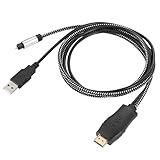
- HDMI eARC to Optical Cable(1.05m/41in): The eARC Audio Extractor connects to an eARC or ARC-compatible TV, allowing the TV's audio to be transmitted to a sound system via the converter's built-in optical SPDIF digital audio cable. The eARC audio converter Only for TV with “eARC” or ''ARC'' interface. Please make sure your TV supports the ARC feature and set the audio output to “ARC/EARC” and set the audio format to PCM
- Plug and Play: This eARC/ARC audio converter eliminates the need for additional cables or conventers, and serves as a bridge between the TV and sound system. Plug-and-Play. Easy to install and use. It is ideal for home theaters, meeting, conference rooms, and other settings.【Length Confirmation: This cable is 3 ft (approx. 41 inches) long. Please measure the distance between your TV and audio equipment.】
- Clear Sound Quality: Supports 24-bit/192kHz audio sampling rate. Ensures pure sound quality. Make the eARC Audio Connector a convenient option for your home entertainment by seamlessly connecting your TV to your soundbar
- Audio Formats Setting: Compatible with multiple audio Formats. Set the TV Audio Formats to PCM, Dolby 5.1 or DTS 5.1. Bringing you high-quality audio for an immersive entertainment experience. If using Dolby 5.1 or DTS 5.1 audio formats, the sound system also need support Dolby Audio or DTS
- Note: The optical connections do NOT support CEC volume control. Please adjust volume directly on your soundbar. Connect the eARC/ARC audio converter's USB cable to your TV's USB port or another USB-compatible port. LED indicator will lights up when HD interface is connected. Using eARC/ARC Audio Adapter Setting up the TV(1.Insert the HD plug of the eARC/ARC Audio Converter into the TV's eARC or ARC interface of the TV set. 2. Set the TV's audio output to ARC or eARC 3.Set Audio Format to PCM. 4.Turn on CEC 4.Refer to the TV's user manual for setup
- Switch off the projector and soundbar.
- Connect an HDMI cable to the projector’s port labeled ARC, eARC, or HDMI OUT/ARC.
- Connect the other end to the soundbar port labeled HDMI OUT (ARC/eARC) or TV ARC/eARC.
- Turn on the soundbar and select ARC, eARC, TV, or the equivalent input.
- In the projector’s audio menu, choose External Speaker, ARC, eARC, AV System, or Audio Return.
- Enable HDMI-CEC or HDMI control if required. Epson may call this HDMI Link; other brands use names such as LG SIMPLINK, Samsung Anynet+, Sony BRAVIA Sync, or Philips EasyLink.
- Set digital audio output to Auto, Bitstream, or Pass-through when supported. If silent, test PCM.
- Play a video and verify that audio comes from the soundbar. Test volume control from the projector remote if CEC is enabled.
Menu names differ by model and firmware. Epson examples include HDMI Link, HDMI2 ARC, Sound Output Device, ARC/eARC, and AV System; other projectors use different labels. Additional Epson examples are available at this model-specific ARC/eARC page and this ARC setup page.
ARC versus eARC
ARC is the older return-audio standard. eARC provides more bandwidth and may handle additional formats, but Dolby Atmos, lossless audio, and surround support still depend on the source, projector, soundbar, cable, and software. For example, one Epson model lists LPCM 2-channel, Dolby Digital, Dolby Digital Plus, Dolby Atmos through eARC, and DTS; that list is not universal.
Use the cable specified in the manuals. BenQ calls for a High Speed HDMI cable for its ARC guidance and an Ultra High Speed cable for its eARC guidance. An Epson eARC example specifies HDMI 2.0 with Ethernet or better. These are model-specific requirements, not a universal cable rule.
Rank #2
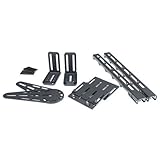
- Accommodates Broad Range of Sound Bars on Any MantelMount
- Includes Two Brace Extenders for Larger TVs
- Adjustable Depth for Flush Sound Bar-to-TV Fit
If the projector has no ARC/eARC
A regular HDMI input cannot return audio. Choose the next method that matches the available ports.
Optical audio (TOSLINK)
Projector optical/SPDIF out → soundbar optical in
- Remove the protective caps from the optical cable.
- Connect it to Optical Out, Digital Audio Out, or SPDIF on the projector.
- Connect the other end to Optical In on the soundbar.
- Select Optical, D.IN, or the equivalent soundbar input.
- Set the projector’s audio output to optical or external audio.
- If there is no sound, change digital output to PCM and disable internal speakers if that option exists.
Optical is usually a dependable fallback, but it does not provide all the formats or HDMI-CEC control functions of ARC/eARC. BenQ describes the trade-offs at its external-audio guide.
3.5-mm analog audio
Projector 3.5-mm audio out → soundbar AUX/analog in
Use a stereo 3.5-mm cable only when the projector socket is an audio output, not a microphone or service port. This connection is generally stereo. Volume may be variable or fixed depending on the projector, and a headphone-style output may mute the projector’s own speakers automatically.
Rank #3

- 【HDMI ARC to Toslink Converter Cable】Compatible with TVs equipped with ARC or eARC HDMI ports, directly converting digital audio return signals to toslink digital audio. It solves the problem of new TVs canceling traditional audio output ports. In the past, various audio cables or conversion boxes were needed between different interfaces to achieve signal conversion. We adopt an innovative integrated ARC/eARC split cable design: a multi-in-one combination of HDMI ARC/eARC plug, USB power cable, and toslink cable, resulting in neater wiring and higher stability.
- 【High-Definition Sound Quality】Supports a maximum audio sampling rate of 24-bit/192KHz and is backward compatible with 32/44.1KHz, delivering clear, transparent, and immersive stereo sound. Built-in audio processing PCBA module, compatible with PCM and LPCM audio formats (does not support Dolby 5.1 or DTS 5.1), reducing distortion and background noise. The output sound is clear and balanced, suitable for amplifiers, speakers, and home theater systems.
- 【Durable Material】Gold-plated HDMI/Toslink connectors effectively enhance anti-interference capability. The gray aluminum alloy shell of the connectors provides better heat dissipation and a longer service life. In-mold injection PCBA structure, OD4.0mm thickened wires with nylon braided jacket, making it sturdy and durable. The multi-functional integrated cable is compact and space-saving, easy to carry, and can be seamlessly integrated into various scenarios such as home theaters, meeting rooms, and living rooms.
- 【Plug and Play】No additional drivers or complex settings required. Connect the converter to the TV's ARC/eARC port via an HDMI cable, power it using a USB cable, and then set the TV's audio output to PCM/LPCM to use. Notes:Only Directional Conversion------ Supports HDMI ARC/eARC input to toslink output. Only TV with HDMI ARC/eARC Output -----Does not support direct connection to game consoles or set-top boxes. For other HDMI ARC-enabled devices, an extra HDMI cable is required. USB power ----- USB power supply must be connected; otherwise, the product will not work. You can use the TV's USB port for power supply or a USB adapter for power.
- 【Wide Compatibility】Compatible TV Devices: Suitable for most TV brands supporting HDMI ARC/eARC, including Samsung / LG / Sony / TCL / Hisense / Philips / Sharp, etc. Not restricted by TV operating systems, applicable to Android TV, WebOS, Tizen, etc. (provided that ARC/eARC is supported). ---Can connect to amplifiers, desktop speakers, active speakers, soundbars, AV receivers, headphones, game consoles, digital audio mixers, and more.---Ideal for TV audio upgrade in living rooms, connecting vintage amplifiers/audio systems, basic stereo home theater setups, and conference room audio systems.
Connect the source to the soundbar first
Streaming stick, console or Blu-ray HDMI out
        ↓
Soundbar HDMI in
        ↓ HDMI out
Projector HDMI in
This is useful when the projector has no audio output. It requires a soundbar with HDMI input and output and video pass-through matching the projector and source. Check resolution, HDR, HDCP, refresh rate, VRR, and audio-format support. The drawback is that sound from the projector’s built-in smart apps usually cannot travel through this source-only arrangement. BenQ describes this topology and its limitations at its projector audio guide.
Use an HDMI audio extractor
Source HDMI out → extractor HDMI in
                 ├─ HDMI out → projector HDMI in
                 └─ optical or 3.5-mm out → soundbar
An extractor is appropriate when the projector accepts HDMI video but lacks ARC/eARC and optical output. It separates the source’s video and audio paths. Do not assume a basic HDMI splitter does this; the product must explicitly provide an audio output.
Free tools Windows power users keep installed
One-click scans. No signup required.
- Match the required resolution and refresh rate, such as 1080p, 4K/60, or 4K/120.
- Check HDR and HDCP compatibility.
- Choose the required audio output: optical, 3.5-mm, RCA, or HDMI.
- Confirm whether it supports stereo PCM, Dolby Digital, or other formats.
- Look for EDID or audio-mode controls when a source has handshake problems.
- Verify support for gaming features such as VRR if they matter.
Connect wirelessly with Bluetooth
- Put the soundbar into Bluetooth pairing mode.
- Open the projector’s Bluetooth or audio-output settings.
- Search for devices and select the soundbar.
- Confirm that the soundbar has switched to Bluetooth input.
- Play a video and adjust lip-sync if either device offers a delay control.
Bluetooth availability is model-dependent: some projectors use Bluetooth only for headphones, remotes, keyboards, or other accessories. Epson documents this caveat at its Bluetooth audio-device page. Wireless transmission may introduce delay or intermittent disconnections, particularly noticeable in games and dialogue.
Rank #4
- 【HDMI ARC to Toslink Converter Cable】Compatible with TVs equipped with ARC or eARC HDMI ports, directly converting digital audio return signals to toslink digital audio. It solves the problem of new TVs canceling traditional audio output ports. In the past, various audio cables or conversion boxes were needed between different interfaces to achieve signal conversion. We adopt an innovative integrated ARC/eARC split cable design: a multi-in-one combination of HDMI ARC/eARC plug, USB power cable, and toslink cable, resulting in neater wiring and higher stability.
- 【High-Definition Sound Quality】Supports a maximum audio sampling rate of 24-bit/192KHz and is backward compatible with 32/44.1KHz, delivering clear, transparent, and immersive stereo sound. Built-in audio processing PCBA module, compatible with PCM and LPCM audio formats (does not support Dolby 5.1 or DTS 5.1), reducing distortion and background noise. The output sound is clear and balanced, suitable for amplifiers, speakers, and home theater systems.
- 【Durable Material】Gold-plated HDMI/Toslink connectors effectively enhance anti-interference capability. The gray aluminum alloy shell of the connectors provides better heat dissipation and a longer service life. In-mold injection PCBA structure, OD4.0mm thickened wires with nylon braided jacket, making it sturdy and durable. The multi-functional integrated cable is compact and space-saving, easy to carry, and can be seamlessly integrated into various scenarios such as home theaters, meeting rooms, and living rooms.
- 【Plug and Play】No additional drivers or complex settings required. Connect the converter to the TV's ARC/eARC port via an HDMI cable, power it using a USB cable, and then set the TV's audio output to PCM/LPCM to use. Notes:Only Directional Conversion------ Supports HDMI ARC/eARC input to toslink output. Only TV with HDMI ARC/eARC Output -----Does not support direct connection to game consoles or set-top boxes. For other HDMI ARC-enabled devices, an extra HDMI cable is required. USB power ----- USB power supply must be connected; otherwise, the product will not work. You can use the TV's USB port for power supply or a USB adapter for power.
- 【Wide Compatibility】Compatible TV Devices: Suitable for most TV brands supporting HDMI ARC/eARC, including Samsung / LG / Sony / TCL / Hisense / Philips / Sharp, etc. Not restricted by TV operating systems, applicable to Android TV, WebOS, Tizen, etc. (provided that ARC/eARC is supported). ---Can connect to amplifiers, desktop speakers, active speakers, soundbars, AV receivers, headphones, game consoles, digital audio mixers, and more.---Ideal for TV audio upgrade in living rooms, connecting vintage amplifiers/audio systems, basic stereo home theater setups, and conference room audio systems.
Troubleshoot common problems
No sound over ARC/eARC
- Confirm the cable is in the projector’s ARC/eARC port.
- Confirm the soundbar end is HDMI OUT/TV ARC/eARC, not HDMI IN.
- Select ARC/eARC/TV input on the soundbar.
- Enable CEC, HDMI control, HDMI Link, and ARC/eARC in the relevant menus.
- Set the projector to external speaker, ARC, or eARC output.
- Change Auto or Bitstream to PCM.
- Power-cycle both devices with the cable connected.
- Disconnect other HDMI devices temporarily and try another suitable cable.
- Test a basic stereo source and check whether the projector supports return audio from its built-in apps.
BenQ lists incorrect ports or cable specifications, disabled CEC or audio-return settings, unsupported formats, and missing ARC/eARC support as common causes. Epson also recommends PCM as a fallback in some models: Epson troubleshooting guidance.
Picture works, but sound does not
Video can work through an ordinary HDMI input even when no audio-return path exists. Also check the selected soundbar input, the projector’s internal-speaker setting, the source’s audio format, and any extractor’s HDCP, HDR, resolution, or refresh-rate compatibility. If necessary, route the source through the soundbar or use optical or an extractor.
Sound is delayed
Bluetooth, projector or soundbar processing, and some switches or extractors can add latency. Prefer HDMI ARC/eARC or optical, use the soundbar’s lip-sync control, try PCM, and disable unnecessary sound modes. Connecting the source directly to the soundbar can also reduce processing stages.
Best Value

- [Instantly Connect your USB A Devices to S/PDIF Sound System] – Cubilux USB A to S/PDIF Optical Audio Converter lets you easily connect your USB Type A laptop, computer or gaming console with sound bar, home audio system, external DAC, amplifier, preamp or speaker to enjoy lossless surround sound music, no need for bulky cable connection or set up.
- [Crystal Clean Hi-Res Sound] – The USB Type A to TOSLINK Connector delivers crisp and clear High-Resolution sound at 48KHz/24-bit, 96KHz/24-bit, 192KHz/24-bit with great clarity and rich audio details.
- [Plug & Play] – No need for a driver or external power. Works with Windows and Mac OS computer, laptop, PC with USB Type A port.
- [Compact and Durable] – Made with Aluminum alloy case and braided cable, the adapter isolates EM/RF interference and offers great durability as well. Measured at 0.6in x 0.6in x 8in (cable included), this adapter is super portable to carry.
- [Important Note] – This adapter is for computers ONLY and does NOT support TV, Xbox, or Switch for audio output.
Surround sound or Dolby Atmos is missing
Check the source, projector pass-through, cable, and soundbar decoder as one chain. Try Auto or Bitstream, then PCM to establish basic audio. If the projector limits the signal, connect the source to the soundbar first when its video pass-through supports the required format. An eARC label alone does not guarantee Atmos.
The projector remote will not change soundbar volume
Volume control depends on HDMI-CEC support and implementation on both devices. Enable CEC on each unit, but expect that audio can work even when remote control does not. LG’s ARC material illustrates the relationship between ARC input selection and CEC: LG support guidance.
Which connection should you choose?
| Situation | Best choice | Main trade-off |
|---|---|---|
| Both devices have ARC/eARC | HDMI ARC/eARC | Requires correct ports, settings, and compatible cable |
| Projector has optical out | Optical | Fewer format and control options than HDMI |
| Projector has only 3.5-mm out | 3.5-mm analog | Usually stereo |
| No projector audio output; one HDMI source | Soundbar-first routing | Does not normally carry built-in app audio |
| HDMI source and no ARC or optical | HDMI audio extractor | Must match video, HDCP, HDR, refresh, and audio specifications |
| Wireless installation is essential | Bluetooth | Possible lip-sync delay and connection instability |
Frequently asked questions
Can I connect a soundbar directly to a projector?
Yes, if the projector provides a compatible audio output such as ARC/eARC, optical, 3.5-mm, or Bluetooth transmission. Otherwise, connect the source to the soundbar first or add an extractor.
Can I use a normal HDMI port?
Not for audio return. The projector port must be labeled ARC, eARC, or an equivalent HDMI audio-return output.
Can I connect a Roku, Fire TV Stick, Apple TV, or game console?
Yes. Connect it to the projector for ARC/eARC, to the soundbar first when the soundbar passes through the required video, or through an extractor when separate audio and video paths are needed.
Can I connect more than one source?
Use the projector’s supported ARC/eARC arrangement, multiple soundbar HDMI inputs, or an HDMI switch with audio extraction. Confirm that the switch preserves each source’s video and audio requirements.
Quick Recap
Product prices and availability are accurate as of the date/time indicated and are subject to change. Any price and availability information displayed on Amazon at the time of purchase will apply.




