The fastest fix for poor Nest night vision is usually physical: clean the lens, move the camera away from nearby walls or glass that reflect infrared light, set Night Vision to Auto, and test a new recording in true darkness. A bright halo, white edge, or dark ring is more often an infrared-reflection problem than a Wi-Fi problem. If both live and recorded video remain defective after controlled placement, lighting, setting, and restart tests, the camera may have a power, temperature, software, or hardware fault.
Identify the night-vision symptom first
| What you see | Likely causes | First action |
|---|---|---|
| Bright white blob, halo, or washed-out edge | Infrared reflecting from a wall, window, soffit, doorframe, mount, cover, or other nearby object | Move or re-angle the camera away from the reflecting surface |
| Foreground is bright but the background is nearly black | A nearby surface is reflecting IR and causing the camera to reduce exposure for the distance | Keep the surface out of frame and move the camera farther away |
| Large dark or bright ring | Dirty lens, reflected IR, or glare | Clean the lens, then test another angle |
| Grainy or noisy video | Very low light, long subject distance, compression, or a weak stream | Add steady light, move closer, and compare a saved clip with local live view |
| Blurry or hazy video | Dirt, condensation, shipping film, a scratched lens, or a focus fault | Remove film, clean and inspect the lens, and test live and recorded video |
| Black-and-white video in daylight | Night Vision is set to Always On | Change Night Vision to Auto |
| Pink or purple tint | Heat, cold, or a Night Vision malfunction | Cool or reposition the camera, toggle Night Vision, and restart it |
| Pauses, pixelates, or looks worse remotely | Weak Wi-Fi, internet upload, phone connection, or stream quality | Test on the same local Wi-Fi and inspect a saved recording |
| Night Vision never activates | Setting, borderline lighting, power, or hardware issue | Check the mode, restart the camera, and test at genuine darkness |
Google specifically lists reflected infrared, dirty lenses, glare, and connectivity as causes of poor camera video. See Google’s Night Vision troubleshooting guidance and its general camera troubleshooting steps.
Why Nest Night Vision behaves this way
Nest cameras use high-power infrared LEDs to illuminate a dark scene. Night Vision footage is normally monochrome. In Auto, the camera switches between normal video and Night Vision as ambient light changes. In marginal light it can switch repeatedly, making the picture alternate between too bright and too dark. Always On can help a dim scene that does not trigger Auto, but it can also leave daytime video black and white. Off disables the infrared illumination, so the scene needs enough visible light to remain usable. Google explains these modes and the model-dependent Night Vision range at its Night Vision settings page.
Infrared is invisible to you but highly reflective from pale paint, glass, glossy trim, ceilings, shelves, and accessories. If a nearby wall becomes a bright patch, the camera’s automatic exposure can make the distant yard look much darker. A bright shape along one edge with an otherwise dark scene is therefore a strong placement clue, not proof that the sensor is failing.
What’s actually slowing this PC down?
Pick the symptom - the matching free tool is one click away.
#1 Best Overall

- Meet the smarter, sharper wired Google Nest Cam Indoor; with 2K HDR video and Gemini, it knows what to look out for and what to do next[1,2,3](Gemini features require a Google Home premium subscription; try it for 1 month at no cost to you)[4]
- With an Advanced subscription to Google Home Premium, know more about what’s happening with notifications like “Kids are playing soccer in the living room”[3]; and get even more detailed descriptions and tap to see a summary of what happened[3]
- Google Nest Cam Indoor keeps your data safe with encrypted video, two-step verification, and enhanced security through your Google Account; and a green LED light lets you know when it’s processing or streaming video
- Video is crisp and clear in 2K HDR, Nest Cam’s highest resolution yet[1,2]; see rich color and details, and see in the dark with night vision; and with a wider, taller field of view, you can see even more of a long hallway or large room[1]
- Search your video history with help from Gemini[3]; try something like “What happened to the vase in the living room?” to see a summary and relevant clips (subscription required)
One-minute fix
- Inspect and gently clean the lens.
- Remove clear shipping film and anything touching or close to the lens.
- Move the camera away from walls, corners, ceilings, windows, and reflective accessories.
- Set Night Vision to Auto.
- At night, make a short recording and check both the live view and the saved clip.
Make one change at a time so you can identify which adjustment solved the artifact.
Set Night Vision correctly
Google Home app
- Open Google Home.
- Tap Home, then Cameras.
- Select the camera and tap Settings.
- Tap Video.
- Under Night Vision, choose Always on, Auto, or Off.
Legacy Nest app
- Open the Nest app and select the camera.
- Tap Settings.
- Tap Night Vision.
- Select Off, Auto, or Always On.
Labels and compatibility vary by generation. Newer products may require Google Home and may not work in the legacy Nest app. For example, the current Nest Cam Indoor wired 3rd generation requires Google Home and is not compatible with the Nest app or home.nest.com.
Clean and inspect the lens
- Turn off or unplug the camera if practical.
- Inspect the lens in daylight.
- Remove any remaining protective shipping sticker.
- Use a clean, soft optical or microfiber cloth and wipe gently.
- Look for fingerprints, dust, cobwebs, water spots, condensation, scratches, or an accessory touching the lens.
- Test a live view and a new nighttime recording.
Do not press hard or use abrasive paper or household solvents. Cleaning will not cure a bright halo or white edge when the real cause is reflected IR; that shape calls for a placement change.
Stop infrared reflections with placement changes
This is the most important physical fix. Keep nearby walls, shelves, ceilings, window glass, doorframes, soffits, and light-colored objects out of the field of view where possible.
Quick wins for a faster PC:
Repair Windows errors before they cause bigger problemsFix Now →Fix the driver behind crashes, sound loss and screen glitchesFind Drivers →Clear out junk files and repair common Windows errorsFree Scan →- Move the camera farther from a side wall or corner.
- Rotate it slightly away from the wall.
- Angle it down if a ceiling or soffit is reflecting light.
- Relocate objects close to the lens.
- Temporarily remove third-party hoods, covers, anti-theft cages, or mounts if the issue began after installation.
- Make a small adjustment, wait for darkness, and test again.
For a Nest Doorbell, the included wedge can angle the camera away from a wall or obstruction. Google discusses doorbell and camera placement at its placement guide.
Rank #2

- Meet the smarter, sharper wired Google Nest Cam Outdoor; with 2K HDR video and Gemini, it knows what to look out for and what to do next[1,2,3](Gemini features require a Google Home premium subscription; try it for 1 month at no cost to you)[4]
- Stay in the know with always-on power: Nest Cam Outdoor keeps you plugged into home, day and night, with no need to recharge or replace batteries
- Google Nest Cam Outdoor keeps your data safe with encrypted video, two-step verification, and enhanced security through your Google Account; and a green LED light lets you know when it’s processing or streaming video
- With an Advanced subscription to Google Home Premium, know more about what’s happening with notifications like “Rabbits eating garden plants”[3]; get even more detailed descriptions and tap to see a summary of what happened[3]
- Video is crisp and clear in 2K HDR, Nest Cam’s highest resolution yet[1,2]; see rich color and details, and see in the dark with night vision; a wider, taller field of view means almost nothing’s out of frame[1] – even in a long driveway or big yard
Do not rely on an indoor camera through glass
A camera pointed through a window can illuminate the room instead of the outside scene. Infrared reflects from the glass, while screens and frames can obstruct the view and affect motion detection. If the camera must look through glass, mount it as flush to the window as practical and reduce room reflections. The reliable solution is an outdoor-rated camera installed outside the glass; an indoor model should not be installed outdoors. See Google’s window and placement guidance at support.google.com.
Give Night Vision enough useful light
Night Vision cannot reveal detail outside its effective illumination range. Aim at the actual detection zone rather than a broad, distant yard, move the camera closer where coverage allows, and add a steady porch or path light if appropriate. Keep a floodlight out of the lens; direct glare can wash out the image. Test with a moving person or vehicle, not only an empty wall.
Google’s placement example says an average-height adult should be no more than approximately 20 feet away for better detail. That is a placement guideline, not a guaranteed Night Vision range for every model. Battery Nest Cam guidance places the camera approximately 6 to 6.5 feet high for optimal detection. An external IR illuminator is an optional experiment, not a guaranteed or Google-endorsed fix: position it so light reaches the subject without shining back into the lens or creating a hot spot.
PC Slower Than It Used to Be?
A free scan shows the junk files, broken settings and background clutter dragging Windows down - then fixes them in one click.Free scan · Windows 10 & 11Crashes, No Sound, or Screen Glitches?
Random freezes, missing sound and display glitches usually trace back to one bad driver. Find and replace yours safely.Free scan · under a minuteSeparate camera quality from stream quality
- Connect your phone to the same local Wi-Fi network as the camera and view it.
- Compare that live view with a saved or recorded nighttime clip.
- Check whether another camera shows the same problem.
- Saved video is clear but live view is poor: investigate the app, phone connection, network congestion, or stream quality.
- Live and saved video are both poor: investigate the lens, placement, lighting, temperature, settings, power, software, or hardware.
- Only remote viewing is poor: check Wi-Fi upload speed and the internet path before changing the camera.
- Every camera worsens at once: suspect the network, app, service, or account rather than several simultaneous optical failures.
Internet conditions can affect Night Vision video quality, but they do not explain a fixed white halo or washed-out edge in a recording. Google’s guidance is available at support.google.com/googlehome/answer/9259738.
Restart and update before escalating
- Force-close and reopen Google Home or Nest.
- Confirm the app is current.
- Toggle Night Vision from Auto to Always On and back to Auto.
- Restart or power-cycle the camera.
- Wait for it to reconnect.
- Record a new nighttime clip and test live view.
- Note whether the problem began after a camera, app, network, mount, or lighting change.
Do not factory-reset first. Preserve the original symptom and reserve a reset for later troubleshooting or Google’s support instructions. Google identifies heat, cold, blur, spots, tint, glare, shipping film, and restart conditions in its general troubleshooting article. A software update is not a guaranteed cure for an optical or hardware defect.
Rank #3

- Meet the smarter, sharper wired Google Nest Cam Indoor; with 2K HDR video and Gemini, it knows what to look out for and what to do next[1,2,3](Gemini features require a Google Home premium subscription; try it for 1 month at no cost to you)[4]
- With an Advanced subscription to Google Home Premium, know more about what’s happening with notifications like “Kids are playing soccer in the living room”[3]; and get even more detailed descriptions and tap to see a summary of what happened[3]
- Google Nest Cam Indoor keeps your data safe with encrypted video, two-step verification, and enhanced security through your Google Account; and a green LED light lets you know when it’s processing or streaming video
- Video is crisp and clear in 2K HDR, Nest Cam’s highest resolution yet[1,2]; see rich color and details, and see in the dark with night vision; and with a wider, taller field of view, you can see even more of a long hallway or large room[1]
- Search your video history with help from Gemini[3]; try something like “What happened to the vase in the living room?” to see a summary and relevant clips (subscription required)
Temperature, weather, and accessory checks
- Direct sun and overheating can affect image quality and produce a pink or purple tint. Place outdoor cameras in shade, such as beneath an eave, where possible.
- Condensation, rain droplets, frost, or a fogged cover can mimic blur. Dry the exterior and inspect again when conditions change.
- Indoor cameras are not weatherproof outdoor cameras.
- If video returns to normal after the camera cools, investigate thermal placement or a hardware fault.
- Any hood, cover, screen, or anti-theft accessory can reflect IR and must be tested at night.
Camera-specific placement decisions
Battery cameras
Choose a position that balances coverage, charging access, and detection height. Moving closer improves detail but narrows the area covered. Cold, exposed locations can also make charging and operation less convenient.
Doorbells
Use the supplied wedge when a side wall or doorframe appears in the IR-illuminated view. Check that the wedge and mounting plate do not intrude into the lens area.
Outdoor cameras
Use an outdoor-rated model, provide shade where possible, and keep the lens clear of rain and condensation. Do not point directly toward a floodlight or bright reflective siding.
Older and newer app generations
Confirm which app your model supports before changing settings or buying accessories. Newer cameras can be Google Home-only, while older products may still use the Nest app.
Independent reader supportYour contribution helps us test, update, and keep practical guides available for everyone.When replacement or Google support is justified
Contact Google or consider replacement only after all of these conditions are met:
Rank #4
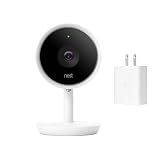
- Crystal-Clear 1080P HD VIDEO – Google Nest Cam IQ Indoor delivers sharp 1080P HD video with enhanced imaging for detailed live view and playback in your home or office.
- SMART ALERTS & MOTION DETECTION – Get mobile notifications when motion or activity is detected, so you can check in instantly from anywhere using the Nest app.
- NIGHT VISION & 2-WAY AUDIO – Built-in infrared LEDs provide clear night vision, while the integrated microphone and speaker let you hear and speak through the camera.
- INCLUDES 30W GOOGLE ADAPTER – Comes with a genuine 30 watt Google USB-C power adapter for reliable performance and continuous indoor surveillance.
- EASY WI-FI SETUP & GOOGLE ASSISTANT – Connects to your 2.4/5 GHz Wi-Fi network in minutes and works with Google Assistant for convenient smart home control.
- The lens is clean, dry, and undamaged.
- Nearby reflective surfaces and accessories have been removed or eliminated from the view.
- The camera has been tested at a better angle, distance, and light level.
- Night Vision is set appropriately and the camera has been restarted.
- The same defect appears in both live and recorded video.
- The defect persists under different nighttime conditions.
- There is persistent pink or purple tint, fixed bands, severe focus failure, or another sensor-like artifact.
Community reports can describe model-specific experiences, but they do not prove a universal firmware cause or a guaranteed fix. Google support is the appropriate next step when controlled tests point to the camera itself; see the community discussion alongside Google’s official troubleshooting page.
Do these 3 things before closing this tab:
1Repair Windows errors before they cause bigger problems2Scan for outdated or missing drivers - takes under a minute3Clear out junk files and repair common Windows errorsShould you buy a different Nest camera?
Buy only after fixing the environment. A new camera installed beside the same white wall, window, cover, or floodlight can reproduce the same reflection.
| Option | When it makes sense | Published US signals |
|---|---|---|
| Nest Cam Indoor wired 3rd gen | Old or damaged indoor camera; need a wired 2K HDR model and Google Home compatibility | 2K HDR, 152-degree diagonal field of view; $99.99 list price, with a $69.99 promotional price displayed on one retrieval (promotions change) |
| Nest Cam Outdoor wired 2nd gen | Outdoor or through-window use where continuous power is available | 2K HDR, 152-degree diagonal field of view; $149.99 displayed on the US Google Store page |
| Nest Cam indoor/outdoor battery | Flexible placement and battery operation matter more than maximum resolution or continuous wired recording | 1080p HDR, 130-degree diagonal field of view; $179.99 displayed in Google’s comparison |
Google Home Premium changes history and software features, not the sensor, lens, or infrared output. The listed US prices are Standard at $10 per month or $100 per year and Advanced at $20 per month or $200 per year. Standard offers up to 30 days of event-based history; Advanced offers up to 60 days of event history and up to 10 days of 24/7 history on compatible cameras. Newer cameras include six hours of event previews, with clips up to 10 seconds, before an upgrade. See the Google Home Premium information sheet and the relevant Google Store listings for current availability.
For installation that requires new outdoor wiring, drilling, a high mount, or a doorbell wedge, professional installation may be practical; availability and price vary locally. Camera use must also comply with applicable privacy, recording, and consent laws.
Controlled nighttime test
- Choose a night with no rain, fog, or condensation.
- Clean and inspect the lens.
- Set Night Vision to Auto.
- Record the original view, noting any halo, ring, tint, or pixelation.
- Move the camera several inches from the nearest wall or obstruction and re-angle it.
- Test with a person moving at the intended detection distance.
- View the clip locally, then remotely.
- Restart the camera and repeat once.
If the artifact changes when the angle or nearby geometry changes, keep working on placement. If it remains fixed in saved video after these tests, stop making random adjustments and contact Google or evaluate replacement.
Free tools Windows power users keep installed
One-click scans. No signup required.
Quick Recap
Product prices and availability are accurate as of the date/time indicated and are subject to change. Any price and availability information displayed on Amazon at the time of purchase will apply.