Windows Errors? Fix Them Before They Spread
Repair common Windows errors and clear accumulated junk for a smoother, more stable PC - no reinstall needed.Free scan · no reinstallOutdated Drivers Are Slowing You Down
One free scan finds every outdated or missing driver and matches the right update for your exact hardware.Free scan · exact hardware matchA Nest Temperature Sensor measures the temperature in a different room and lets a compatible Nest thermostat use that reading when deciding whether to heat or cool. It can improve comfort in a bedroom, nursery, office, or upstairs room that differs from the thermostat’s location.
It is not a second thermostat and does not create HVAC zones. A single-zone system still operates as one system, so changing the control temperature for one room may make other rooms warmer or cooler. Compatibility is also limited: the 2020 Nest Thermostat does not support Nest Temperature Sensors.
As an Amazon Associate I earn from qualifying purchases.
1. It solves a temperature-location problem—not a zoning problem
A thermostat measures the air around itself. If it is installed in a hallway, stairwell, entryway, or downstairs area, that reading may not represent the bedroom or living space where people spend most of their time.
A remote sensor gives the thermostat another control point. For example, if the thermostat reads 70°F but a bedroom is 67°F, selecting the bedroom sensor can keep the heating system running until that room reaches the target temperature.
#1 Best Overall

- The Google Nest Temperature Sensor (2nd gen) makes it easy to manage hot and cold spots throughout your home[1]; put it in any room to get the right temperature, right where you want it
- It’s simple to set up and control in the Google Home or Nest app; just use the app to set the temperature a room should reach at a certain time of day
- The battery lasts up to 3 years, so you can put it on a wall, shelf, or wherever you want[2]
- You can place Nest Temperature Sensors in up to six rooms for maximum comfort; prioritize the temperature of one room, or create an average temperature across them, like bedrooms[1,3]
- The Nest Temperature Sensor (2nd gen) works with the Nest Learning Thermostat (4th gen), Nest Learning Thermostat (3rd gen), and Nest Thermostat E[1,4]
However, the sensor cannot close vents, adjust dampers, or independently heat or cool one room. True room-by-room control requires compatible zoning equipment, ductwork, dampers, and separate thermostatic control. Google explains the distinction here.
2. Compatibility is limited
Do not assume that every product called a Nest Thermostat supports a remote sensor.
| Thermostat | Sensor compatible? |
|---|---|
| Nest Thermostat E | Yes |
| Nest Learning Thermostat, 3rd generation | Yes |
| Nest Learning Thermostat, 4th generation | Yes |
| Nest Thermostat, 2020 model | No |
Check the exact model before buying. The similarly named Nest Thermostat E and 2020 Nest Thermostat have different sensor support. See Google’s compatibility guidance and its 2020 Nest Thermostat documentation.
Recommended Free Tools
3. Both sensor generations work with compatible thermostats
Google identifies first- and second-generation Nest Temperature Sensors. Both generations work with the Nest Thermostat E and third- and fourth-generation Nest Learning Thermostats.
The second-generation sensor is bundled with the fourth-generation Nest Learning Thermostat. Owners of older compatible thermostats do not automatically need the newest sensor generation. Google’s published support material does not establish a comprehensive difference in accuracy, wireless performance, or battery longevity, so those differences should not be assumed.
4. Placement determines whether the reading is useful
Place the sensor where people spend substantial time, approximately chest height, and within Google’s recommended maximum distance of 50 feet (15 meters) from the thermostat. Walls, floors, appliances, furniture, and electronics can reduce the practical wireless range.
- Choose a representative occupied room.
- Avoid unusual drafts and heat sources.
- Test the connection before mounting it permanently.
- Use comfort and stable connection—not just the closest available shelf—as your final criteria.
Google recommends trying the sensor for a week or two before using the included screw hardware for permanent wall mounting. Review the placement recommendations.
Rank #2

- The Google Nest Temperature Sensor (2nd gen) makes it easy to manage hot and cold spots throughout your home[1]; put it in any room to get the right temperature, right where you want it
- It’s simple to set up and control in the Google Home or Nest app; just use the app to set the temperature a room should reach at a certain time of day
- The battery lasts up to 3 years, so you can put it on a wall, shelf, or wherever you want[2]
- You can place Nest Temperature Sensors in up to six rooms for maximum comfort; prioritize the temperature of one room, or create an average temperature across them, like bedrooms[1,3]
- The Nest Temperature Sensor (2nd gen) works with the Nest Learning Thermostat (4th gen), Nest Learning Thermostat (3rd gen), and Nest Thermostat E[1,4]
5. Avoid misleading locations
Do not place the sensor:
- Near heating vents, stoves, hot-water pipes, or appliances
- In direct sunlight or beside a window
- Against an uninsulated exterior or brick wall
- Inside a closet or other enclosed space
- Behind a painting, books, or furniture
- Outdoors, in an attic, or in a basement that is substantially hotter or colder than the rest of the home
The goal is to measure the room’s normal occupied temperature, not a local hot or cold pocket. A sensor in an unusually cold or hot room can make the system run longer, increase energy use, and make other rooms uncomfortable.
6. Older models generally use one active sensor at a time
On older compatible systems, the sensor schedule uses four standard time blocks:
| Period | Typical time |
|---|---|
| Morning | 7:00 a.m.–11:00 a.m. |
| Midday | 11:00 a.m.–4:00 p.m. |
| Evening | 4:00 p.m.–9:00 p.m. |
| Night | 9:00 p.m.–7:00 a.m. |
Only one sensor—including the thermostat’s built-in sensor—can generally be active for a thermostat during a period. You might prioritize a living-room sensor during the day and a bedroom sensor overnight, but the system is not continuously averaging every room on these older models.
Google’s controls can change with the thermostat generation and app version. In the Nest app, the general path is Settings → thermostat → Manage sensors, where you can configure the sensor schedule. A manual change may be replaced when the next scheduled period begins. See Google’s sensor-schedule instructions.
Do these 3 things before closing this tab:
1Repair Windows errors before they cause bigger problems2Fix the driver behind crashes, sound loss and screen glitches3Clear out junk files and repair common Windows errors7. The fourth-generation Learning Thermostat can average sensors
Google says the fourth-generation Nest Learning Thermostat can use multiple sensors together. When more than one is selected, it uses their average temperature rather than treating one room as the sole control point.
The fourth-generation product page says up to six Nest Temperature Sensors can be added per thermostat. That statement is specific to the fourth-generation product page and should not automatically be applied to every older compatible model. Averaging improves the control input; it still does not create separate HVAC zones.
8. Setup differs between Google Home and the Nest app
Google Home
- Open Google Home and tap Add → Device, or follow the setup prompt.
- Scan the sensor’s QR code. If scanning fails, choose Add a different way and search for the device.
- Pull out the battery tab, or tap Next if it has already been removed.
- Move the sensor to its intended room.
- Allow the app to test the connection; this can take up to one minute.
- Select the associated thermostat and room, then choose whether the sensor controls the thermostat, follows a schedule, or only reports temperature.
Nest app
- Open the Nest app and tap Settings → Add Product.
- Scan the QR code on the battery pull tab or inside the sensor.
- Remove the battery tab and choose a location.
- Select the thermostat, name the room, and open Manage sensors and Sensor schedule to configure operation.
The fourth-generation Learning Thermostat uses Google Home, while Google’s documentation continues to reference the Nest app for the Nest Thermostat E and third-generation Nest Learning Thermostat. App labels may vary by model, country, and software version. Use Google’s current setup guide.
Rank #3
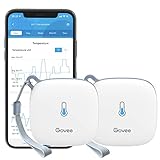
- Smart WiFi Control: Easily monitor temp and humidity data in real time from anywhere. With stable WiFi and Bluetooth connection via the Govee Home app, you'll have more opportunities to react to changes in your air quality (not support 5G WiFi).
- Fast & Accurate: Equipped with a Swiss made sensor, this WiFi thermometer provides precise readings. Temperature is accurate to ±0.54℉/±0.3℃, and humidity is ±3%RH. By refreshing every 2s, you'll stay regularly updated. Now supports widget function.
- Alert Function: Set preset temp and humidity ranges, and receive an app alert immediately whenever levels fall out of that range, which helps you react faster to sudden changes in your basement, greenhouse, etc. Only supports Bluetooth settings.
- Data Storage & Export: Our WiFi temperature sensor uploads data to the App when connected via Bluetooth or WiFi. Enjoy 20 days of online data storage view and export up to 2 years' worth of data seen through clear historical trends and graphs.
- Easy to Place: With the lanyard loop, you can easily place this room thermometer anywhere. Package contents: 2 x Govee WiFi Temperature Sensor wth 3 AA batteries, 2 x Lanyard Loop, 1 x User Manual.
9. It can monitor temperature without controlling the thermostat
You can disconnect a sensor from thermostat control while continuing to view its reported temperature. In Google Home, the general path is Home → Climate → thermostat → Settings → Associate with. Uncheck the associated thermostat, then use the back arrow to exit.
What’s actually slowing this PC down?
Pick the symptom - the matching free tool is one click away.
This can be useful for observing a nursery, basement, or storage room. It is not a certified medical, environmental, freeze, infant-safety, or equipment-protection alarm, so do not use it as a substitute for a dedicated safety monitor.
10. Most problems involve compatibility, connection, placement, or battery
| Problem | What to try |
|---|---|
| The sensor cannot be added | Confirm that the thermostat is a Nest E or third-/fourth-generation Learning Thermostat. |
| Setup cannot find the sensor | Enable Bluetooth and move the sensor closer to the thermostat. |
| A previously used sensor will not pair | Remove its battery for 48–72 hours, then retry. Insert a new battery if necessary. |
| The sensor disconnects | Move it closer and remove obstructions such as furniture, walls, or floors between devices. |
| The room becomes too hot or cold | Move the sensor away from vents, sunlight, windows, exterior walls, attics, basements, and appliances. |
| HVAC run time increases substantially | Reconsider whether the selected room is too different from the rest of the home; inspect airflow and insulation. |
| The app shows a low-battery warning | Replace the battery. The app can show battery status and connection information. |
| The sensor reports temperature but does not control HVAC | Re-associate it with a thermostat in Google Home or the Nest app. |
For official recovery steps, see Google’s sensor troubleshooting guide.
Who benefits most?
A sensor is a sensible first step when one room is consistently uncomfortable, the HVAC system otherwise works properly, and the thermostat is installed in an unrepresentative location. Common examples include an upstairs bedroom, nursery, large living room with windows, or home with uneven insulation.
Before buying several sensors, check filters, registers, blocked vents, return-air paths, duct balance, insulation, air leaks, windows, and HVAC capacity. A sensor can change the control point, but it cannot repair inadequate airflow, poor insulation, incorrect dampers, or failing equipment.
Free tools Windows power users keep installed
One-click scans. No signup required.
Is a Nest Temperature Sensor worth buying?
Use this decision test:
- Buy or use one: Your thermostat is compatible and one room needs priority at particular times.
- Test carefully: The target room is significantly warmer or colder than the rest of the home, because comfort gains may come with longer run times and higher energy use.
- Choose a different solution: You need independent room-by-room control or have a serious airflow, ductwork, insulation, or equipment problem.
- Do not buy one: You own the standard 2020 Nest Thermostat and expect it to work with the sensor.
For a new thermostat purchase, the fourth-generation Learning Thermostat may be more appropriate if you want current Nest remote-sensor support; Google says one second-generation sensor is included and that additional sensors can be added. Verify current compatibility and checkout pricing on the official product page.
Quick Recap
Product prices and availability are accurate as of the date/time indicated and are subject to change. Any price and availability information displayed on Amazon at the time of purchase will apply.

