Do these 3 things before closing this tab:
1Fix the driver behind crashes, sound loss and screen glitches2Clear out junk files and repair common Windows errors3Scan for outdated or missing drivers - takes under a minuteA paper jam is usually a symptom, not a single diagnosis. The sheet may have failed to separate from the stack, entered crooked, encountered a dirty roller, stopped in the duplexer, or failed to exit. In practice, the leading causes are damaged or damp paper, incorrect loading, mismatched paper settings, unsupported media, scraps left by an earlier jam, and worn or contaminated rollers.
The quickest path to a solution is to identify where the sheet stops, clear the path safely, then test with fresh paper that matches the printer’s specifications.
As an Amazon Associate I earn from qualifying purchases.
The short answer
- Use flat, clean, dry paper supported by the exact printer model.
- Load one paper size and type, below the fill line, with guides touching the stack lightly.
- Match the printer and driver settings to the paper’s size, type, and weight.
- Keep paper sealed and flat, especially in humid or rapidly changing conditions.
- Inspect the rear path, duplexer, cartridge area, and exit path for small scraps after every jam.
- If fresh compatible paper still jams repeatedly in the same location, suspect rollers, sensors, guides, or another hardware fault.
Manufacturer guidance from HP, Brother, and Xerox points to these same broad causes. “Extremely common” accurately describes the frustration many users experience, but there is no universal frequency figure that applies to every printer.
What’s actually slowing this PC down?
Pick the symptom - the matching free tool is one click away.
How a printer moves a sheet—and where jams occur
Paper travels through several stages:
- Pickup: A roller pulls a sheet from the tray.
- Separation: Pickup and separation components try to prevent two or more sheets entering together.
- Registration and alignment: The printer squares the sheet before it reaches the print area.
- Transport: Rollers move it through the inkjet carriage area or laser print path.
- Ink delivery or fusing: An inkjet moves paper beneath the printhead; a laser printer passes it through a heated fuser.
- Exit: Output rollers deliver the page to the tray.
- Duplexing: For two-sided printing, the sheet is redirected or reversed and sent through another path.
A jam can therefore occur at the input tray, feed rollers, registration area, print area, duplexer, rear door, or exit. The printer’s generic “paper jam” message is less useful than observing where the sheet stopped and whether it is skewed, creased, torn, or missing altogether.
#1 Best Overall

- 【Printhead Nozzles Cleaner 100mL for All Inkjet Printers】Absonic Inkjet Printer Cleaning Solution for Epson Inkjet Printer, Printer Nozzle Cleaning Kit Solution for HP Inkjet Printer, Printer Printhead Cleaning Kit for Canon Inkjet Printer, Printer Head Cleaning Kit for Brother Inkjet Printer, Printhead Cleaner Kit for Samsung Printer, Print Head Cleaner Kit for Lexmark Printer, Printer Head Cleaner Kit for DTF Printer (If you don't find your inkjet printer model, you can always contact us)
- 【Printer Cleaner Solution for All Inkjet Printers】Absonic Inkjet Printhead Cleaner Kit is suitable for Epson EcoTank/Epson WorkForce/Epson Expression/Epson Stylus Inkjet Printers, such as ET 2720 2750 2760 3760 2760 2800 4800 4850; WF 7710 7720 3820 3823 4820 4830; XP 4205 7100 970, Printer Head Cleaning Solution for Canon MegaTank/Maxify/Office and Business Inkjet Printers, such as MX492 MX922 MG2520 MG2522 MG2525 MG3620 GX5020 IP110 G3260 G3270 G6020 TS702a TS3520 TS5120 TS5320 TS6320
- 【Print Head Nozzles Cleaner with All Inkjet Printers】Print Head Cleaning Solution for Brother MFC Inkjet Printers, such as J825DW J1010DW J1205W J1170DW J4335DW J4535DW J4620DW J5340DW; Printer Printhead Cleaning for HP Officejet/HP Deskjet/HP Envy/HP Smart Tank Inkjet Printers, such as HP OfficeJet 3830 4650 7740 8015 8020 8035 8210 8600 6978 Pro 9015 9025 9018, HP Envy 4520 5055 6055e 6455e 7955e, HP DeskJet 2640 2700 2723e 2742e 2755e 3755e 4155 4158, HP Smart Tank 5101 6001 7001 7301 7602
- 【Ink Cleaner for Inkjet Printer】Ink Cartridge Cleaner Ink Jet Head Cleaner Ink Jet Printer Cleaner Kit Cleaner for Ink, Inkjet Printhead Cleaning Solution Print Head Cleaner for Sublimation Ink Printhead Nozzles Cleaner Kit Print Head Cleaner Set Inkjet Cleaning Solution Cleaning Printer Head Cleaning Printer, Ink Head Cleaning Kit Inkjet Cleaning Kit Inkjet Cleaning Solution Kit Inkjet Head Cleaner Ink Head Cleaner Kit Ink Cartridge Head Cleaner Kit
- 【Printhead Cleaning Solution for Inkjet Printer Easy to Operate】The Printer Printhead Nozzle Cleaning Kit includes 100mL Inkjet Print Head Cleaning Fluid, syringe, white nozzle, yellow nozzle, L-shaped tubes, silicone tubing, gloves, and instructions. Inkjet Printhead Cleaning Kit comes with different sizes of nozzles to fit different ink-filling ports. The yellow nozzle is for Epson and Brother Inkjet Printers; The white nozzle is for HP and Canon Inkjet Printers
Why paper condition matters
Paper is part of the printer’s mechanical system. Its stiffness, thickness, surface, moisture, and edge condition affect whether rollers can grip and separate it reliably.
- Moisture can make sheets cling together and change their stiffness.
- Curl or waves can cause the leading edge to strike an internal guide.
- Tears, folds, and creases create irregular or thicker sections.
- Dust and loose fibers can reduce reliable roller contact.
- Coatings and finishes behave differently from ordinary multipurpose paper.
- Thickness may require a manual-feed slot or straight-through rear path.
“Better paper” does not necessarily mean the most expensive or the printer manufacturer’s own brand. It means paper that meets the model’s stated size, weight, finish, and media-type requirements. Paper intended for inkjet printing is not automatically suitable for a laser printer, and vice versa.
Humidity, storage, and paper curl
Paper left exposed can absorb moisture, collect dust, or develop curl. A ream that fed well in one room may behave differently after sitting near a kitchen, basement, heater, vent, window, or other area with changing conditions.
Store paper flat and in its original packaging when possible. Open a ream only when needed and reseal unused stock. If paper has moved between substantially different environments, allow it to acclimate before loading it. If the printer is used infrequently, avoid leaving a large exposed stack in the tray indefinitely.
Rank #2

- Printhead Cleaning Kits for Inkjet Printers: Fosgoit Inkjet Printhead Cleaner for Epson Printer, Ink Jet Cleaning Solution for Canon Inkjet, Printer Printhead Cleaning Kit Cleaner for Print Head, Inkjet Cleaning Solution Kit for HP Printer Head, Inkjet Printhead Cleaning Kit Epson Eco Tank, Ink Cartridges Cleaning Solution for et-4800, Ink Cartridges Cleaner Solution for Epson, Printhead Cleaner for Print Head, Inkjet Cleaner Solution for Canon Print Head
- Cleaner for Inkjet Printers: Fosgoit Printhead Cleaning Solution for Inkjet Printers are Suitable for Epson EcoTank WorkForce Inkjet Printers, Print head Cleaner Solution for HP Officejet HP Deskjet Canon Inkjet Printers. Inkjet Cleaning Solution for Epson 2720 2750 2760 2800 2803 2850 3760 4700 4800 5170 8500 8550 15000 Inkjet Printers; Epson WF 7710 7720 110 2830 2860 3820 4820 4830 7310 7820 7840 Inkjet Printers; Epson XP 330 340 424 15000 4100 4105 7100 960 Inkjet Printers
- Compatible with HP Epson Canon Inkjet Printers: Print Head Nozzle Cleaning for HP OfficeJet 8600 8610 8620 8025 6835 3830 5255 6230 6700 6978 7740 8022 8710 Inkjet Printers HP Envy 4520 5055 6052 6055 6055e 6075 6452 HP DeskJet 2622 2752 2752e 2755 2755e Inkjet Printers, Inkjet Cleaning Solution for MFC J491DW J5845DW J995DW J1010DW J1170DW Inkjet Printers, Cleaning for Inkjet Printer for Canon MX492 MX922 MG2522 MG2525 MG3620 G3260 TS3520 TS5320 TS6320 Inkjet Printers
- Compatible Design of Printers Cleaning Solution: The yellow nozzle is for Epson and printers. The white is for HP and Canon printers. Each size of the nozzles is specifically designed to fit different ink fig port, which can avoid liquid leakage. Cleaning your inkjet printer with an effective printer head cleaner instead of discarding, it can bring your printer a brand new look and help you save money. Printer cleaning supplies protect the printhead and extend your printer life!
- Wide Applications of Printer Cleaner: Fosgoit printer head cleaning kit can be used for OEM factory ink, dye ink, pigment ink, sublimation ink, heat transfer ink. Our print head cleaning solution contains degradation factors, which can dissolve the hard block and other soluble impurities left after the ink hardens, making the ink flow more smoothly and wouldn't corrode the print head.
HP gives approximately 45%–55% relative humidity and normal room temperature as guidance for certain inkjet paper-storage situations, and recommends using opened paper within about three months. Brother likewise notes that heat and humidity can contribute to curl and publishes operating limits for particular machines. These are manufacturer-specific recommendations, not universal requirements for every printer.
How to load paper correctly
- Remove curled, torn, wrinkled, damp, dirty, folded, stapled, or clipped sheets.
- Check the manual for the supported size, weight, finish, and media type.
- Fan or flex the stack gently if the manufacturer recommends doing so. Do not bend it aggressively.
- Tap the stack on a flat surface to square its edges.
- Load it flat and in the orientation shown for the tray.
- Keep the stack below the fill line. Tray capacity is model-specific.
- Move the paper guides until they touch the stack lightly.
- Do not let the guides press hard enough to bow the paper.
- Do not mix Letter and Legal, A4 and Letter, plain paper and cardstock, or other different media in one tray.
- Do not add sheets while the printer is feeding unless the manual specifically permits it.
- Push the tray fully into the printer until it is seated and latched.
HP and Xerox both emphasize a single consistent media stack, correct guides, and avoiding overfilling. A stack can be below the capacity limit and still feed poorly if its edges are uneven or its guides are misadjusted.
Why paper settings can cause a mechanical jam
Paper settings are not merely labels. “Plain paper,” “heavy paper,” “envelope,” and “labels” can change feed speed, the route through the machine, fuser temperature, or whether duplexing is allowed.
Crashes, No Sound, or Screen Glitches?
Random freezes, missing sound and display glitches usually trace back to one bad driver. Find and replace yours safely.Free scan · under a minutePC Slower Than It Used to Be?
A free scan shows the junk files, broken settings and background clutter dragging Windows down - then fixes them in one click.Free scan · Windows 10 & 11Match these settings wherever they appear:
- Paper size, such as Letter, Legal, or A4.
- Paper type or media type.
- Weight or thickness, if the driver offers that option.
- Selected tray or manual-feed source.
- Simplex or duplex printing.
A mismatch can jam undamaged paper. Xerox identifies an incorrect driver paper type as a possible cause, while HP advises updating software settings when changing paper size or type.
Rank #3

- High Success Rate: Save hundreds of dollars with our best printing cleaning kit for restoring print quality on inkjet printers. Access additional video support of the best printers cleaning kit on YouTube Channel. Remember to run a printhead or power cleaning after use to bring ink back into the printhead
- User-Friendly Design: DIY Print Head Cleaning Kit for Epson. No expertise is required! This cleaning kit fixes common printing issues like discoloration, missing colors, low-quality prints, blank pages and streaks
- Wide Compatibility: Works with popular printer models, including Epson EcoTank, Epson WorkForce HP SmartTanks, HP OfficeJet, Canon Pixma, Brother MFC, DTF, Sublimation and many more.
- Complete Cleaning Solution: Includes a LARGE 20ml print head cleaner syringe and multiple attachments for hp officejet printhead cleaning kit. Our ionized cleaning solution is safe to use on all printer components
- Complete Printhead Cleaning Solution: Includes specialized cleaning fluid, syringes, and tools; printer cleaning kit flush cleaner removes dried ink buildup; extends printhead lifespan and delays replacement
What to do when a printer jams
Exact access points vary by model, so use the printer’s display and manual as the authority. This is a safe general sequence:
- Cancel the print job if possible.
- Turn the printer off. Unplug it if the manufacturer calls for that or if you need to work near heated components.
- Remove loose sheets from the input and output trays.
- Open only the access doors identified by the display or manual.
- Use a flashlight to inspect the entire path.
- Pull paper slowly, preferably in the direction of normal travel.
- Check carefully for small torn corners and fragments.
- Inspect the rear door, duplexer, cartridge area, and output path.
- Reinstall removable assemblies firmly.
- Reload fresh, compatible paper and restart the printer.
- Print a test page.
HP warns that pulling from the wrong direction can damage the print mechanism. Avoid yanking paper from the front when the model provides a safer rear or tray removal route.
Diagnosing repeated jams by symptom
| Symptom | Likely causes | First action |
|---|---|---|
| Jams immediately at pickup | Damp paper, overloaded tray, guides, or pickup roller | Reload fresh paper and check the guides and fill level. |
| Paper enters crooked | Skewed stack, guide position, or worn roller | Square the stack, adjust guides, and test again. |
| Jams during duplex printing | Excess thickness, curl, duplexer obstruction, or wrong setting | Test simplex printing and check duplex media limits. |
| Jams at the exit | Curl, full output tray, or exit rollers | Clear the output path and reduce curl or tray overfill. |
| Only envelopes jam | Wrong orientation or unsupported envelope | Use the specified envelope path and setting. |
| “Paper jam” with no paper visible | Fragment, sensor, roller, door, duplexer, or carriage fault | Inspect every access area and reseat removable assemblies. |
What the pattern tells you
- One-time or occasional jam: Often a damaged sheet, misloaded stack, mixed batch, or temporary curl problem.
- Same location repeatedly: More suspicious for a dirty or worn roller, damaged guide, hidden fragment, sensor, or poorly seated assembly.
- Only one paper type: Check its weight, coating, curl, and required media setting.
- Only duplex jobs: Confirm that the paper is supported for two-sided printing; simplex support does not guarantee duplex support.
- No paper visible: A tiny scrap, stuck sensor, failed feed, or misseated rear door can produce a false jam indication.
Maintenance that can help
Keep the printer and tray area free of dust and inspect accessible rollers after recurring jams. Look for glazing, cracking, contamination, or a roller that fails to rotate. Remove scraps after every jam and keep the output tray from becoming overfilled.
Clean rollers only according to the model’s instructions. For certain printers, HP specifies a lint-free cloth lightly dampened with distilled, filtered, or bottled water. That procedure should not be generalized to every model: do not assume alcohol, solvents, sprays, compressed air, or moisture are safe. Replace rollers or maintenance kits when the manufacturer’s service guidance calls for them.
Rank #4

- Item Model: B5L35A Fuser Maintenance Kit (100V-120V)
- OEM Number: B5L35-67901 B5L35-67902
- Page Yield: About 150000 pages
- Printer Compatibility: For MFP M552dn M553dh M553dn M553n M553x M553dnm M553xm M554dn M555dn M555x M577c M577z M577dn M577cm M577f M577dnm M578dn M578f M578c M578z Printer
- This is Fuser Maintenance Kit
Inkjet and laser printer differences
Inkjet printers
- Wet ink can increase curl or complicate output handling.
- Photo and coated papers have stricter compatibility requirements.
- A carriage obstruction may appear alongside a paper-related error.
- Small trays may be less tolerant of mixed or curled stock.
Laser printers
- The heated fuser can exaggerate curl after several pages.
- Paper may need to be rated for laser printing.
- Thick, coated, adhesive, or specialty media may be prohibited or limited.
- Duplexing adds a demanding reverse path, particularly for heavier stock.
These are practical tendencies, not rules for every machine. The model manual remains authoritative.
Independent reader supportYour contribution helps us test, update, and keep practical guides available for everyone.Specialty media needs special handling
- Envelopes: Use the supported orientation, flatten bent flaps, and select the envelope setting.
- Labels: Use labels rated for the printer technology. Do not reuse partially printed sheets unless the manufacturer explicitly permits it. A label that separates inside the printer can cause serious damage.
- Cardstock: Check the maximum supported weight and use manual feed or a straight-through path where specified.
- Photo paper: Confirm size, finish, printable side, and inkjet or laser compatibility.
- Recycled paper: Quality varies, so choose stock meeting the printer’s specification.
- Perforated or prepunched paper: Verify support and ensure holes will not interfere with sensors or rollers.
Limits are model-specific. For example, one Brother model documents 16–28 lb paper in its main tray, up to 43 lb through manual feed, and approximately 250 sheets of 20 lb plain paper. Those figures should never be treated as universal printer limits.
Paper recommendations without brand hype
Start with the printer’s support page and find its supported-media table. Choose paper that matches the documented size, weight, finish, and technology. A manufacturer-branded ream can be a convenient starting point, but compatible third-party paper may work equally well.
The Tool Desk
Outbyte Driver Updater FREEFix the driver behind crashes, sound loss and screen glitchesFind Drivers →Outbyte PC Repair FREEClear out junk files and repair common Windows errorsFree Scan →For everyday documents, ordinary 20 lb paper is widely available, while some printers feed better with higher-quality 24 lb multipurpose or laser stock. Heavier paper can feel better and sometimes handle more cleanly, but it can also jam if the printer or duplexer does not support it. Manual feed is often preferable for thick or specialty media, though it is slower.
Best Value
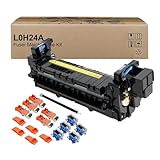
- Item Model: L0H24A L0H24A-67903 L0H24-67901 Printer Maintenance Kit (100V-120V)
- Page Yield: about 225000 pages
- Printer Compatibility: For HP M607 M608 M609 M610 M611 M612 M631 M632 M633 M634 M635 M636 E62555dn serise printer
- Product Advantages: Our L0H24A printer maintenance kit uses high quality raw materials to ensure an efficient and clear printing experience, and no longer need to worry about long printing times. You will enjoy the whole printing process
- Customer support: All products have undergone strict quality inspection before leaving the factory. If you have any questions, please feel free to tell us, we will reply you in 12 hours
If jams began after changing paper, buy a small pack of known-compatible stock and test simplex and duplex printing before purchasing a case. Official options include HP multipurpose paper and the Canon printer-paper catalogue; neither brand is inherently jam-proof, and prices and availability change.
Home and office prevention routines
At home
- Keep only a modest amount of paper in the tray.
- Protect unused stock from humidity and dust.
- Keep specialty sheets separate from everyday paper.
- If duplex printing repeatedly jams, test simplex printing and review the duplex limits.
In an office
- Standardize approved paper by printer model.
- Label trays by size and media type.
- Store paper in a stable indoor environment.
- Record recurring jams by tray and physical location.
- Set an escalation point for roller, sensor, and maintenance problems.
- Schedule maintenance-kit or roller replacement according to the printer’s service guidance.
When to stop troubleshooting
Arrange service when jams persist with fresh, known-compatible paper; occur repeatedly in the same location; continue after the path is inspected; or involve rollers that do not rotate or appear damaged. Service is also appropriate when a door or sensor will not reset, the printer makes grinding or clicking sounds, paper is scorched or shredded, or the machine is under warranty.
Roller replacement may be sensible for an older office printer with useful capacity, network setup, and available parts. For an inexpensive consumer printer, labor and parts may approach the cost of replacement. Compare the repair cost with the printer’s age, warranty, parts availability, workload, duplex and specialty-media needs, and cost per page rather than replacing every printer automatically.
Quick Recap
One-minute prevention checklist
- Paper is flat, dry, clean, and undamaged.
- Paper size, type, and weight match the printer and driver.
- Only one consistent media type is in the tray.
- The stack is below the fill line and guides touch lightly.
- The tray is fully seated.
- The output tray is not overfilled.
- Rear, duplex, and cartridge access areas are free of scraps.
- Specialty media uses the required tray and setting.
- Recurring jams are recorded by location and job type.
Product prices and availability are accurate as of the date/time indicated and are subject to change. Any price and availability information displayed on Amazon at the time of purchase will apply.

