The Tool Desk
Outbyte Driver Updater FREEFix the driver behind crashes, sound loss and screen glitchesFind Drivers →Outbyte PC Repair FREEClear out junk files and repair common Windows errorsFree Scan →Most Prestige A3 DTF printer faults come from white-ink settling, blocked or damaged nozzles, air entering the ink system, dirty maintenance parts, incorrect media settings, or a software queue problem. Start with a nozzle check and inspect the ink and waste paths before repeatedly running head cleans.
First confirm whether your machine is labelled Prestige A3, A3+, or A3+R. Current support material most often covers the A3+ and A3+R, while button layouts, error codes, and maintenance steps can differ between revisions. The instructions below identify model-specific guidance where necessary.
As an Amazon Associate I earn from qualifying purchases.
Safety note: Do not force the carriage, touch the printhead nozzle face, bypass safety sensors, or remove a printhead without instructions for the exact revision.
What’s actually slowing this PC down?
Pick the symptom - the matching free tool is one click away.
Quick troubleshooting table
| Symptom | Likely causes | First action | Stop and escalate when… |
|---|---|---|---|
| White ink is missing or very thin | Settled ink, air, damper fault, clog, low white-strength setting, incompatible ink or film | Mix the white ink as specified, inspect dampers and lines, then run one normal clean and a nozzle check | A damper leaks, air repeatedly returns, or cleaning does not improve the pattern |
| Banding or missing stripes | Missing nozzles, damper or ink problem, incorrect mode, dirty encoder strip or rollers | Run a nozzle check and check whether the banding repeats mechanically | The head has struck the film or alignment remains abnormal with a good nozzle check |
| Smearing or dragging | Wet ink, head strike, contaminated film path, incorrect height, dirty rollers | Stop the job, inspect the film path and clean the appropriate parts | The carriage strikes media or ink has reached electrical connectors |
| No ink through the waste line | Blocked tube, poor cap seal, failed pump, air leak, empty damper or severe clog | Check the tube, bottle, dampers and cap before another clean | There is still no flow after one normal cleaning and basic checks |
| CADLink does not recognize the printer | Connection, driver, queue or software issue | Restart CADLink, verify the connection and reset the queue | The correct queue and driver still fail with a known-good file |
| Red lights or startup error | Media obstruction, sensor, encoder, carriage or ink-level fault | Record the exact light pattern and error code before resetting | Lights blink together, a fatal error repeats, or the carriage cannot home |
| Transfer fails although the image looks good | Film coating, powder, moisture, curing or handling problem | Check powder and curing variables separately from printer output | The nozzle check and printed image are good but the process still fails |
Reference: Prestige A3+ and A3+R troubleshooting guidance.
#1 Best Overall

- ❤️❤️❤️ 2 YEARS of FREE Ink & Powder Starting from 2025, Get 5 bottles of 250ml ink + 500g powder every 2 months — just cover shipping (US only). Save over $1000 on supplies
- ✨【Intelligent Timed Anti-Clogging Cleaning】 Holiday Mode automatic cleaning helps prevent nozzle clogging during periods of inactivity. Adjustable cleaning intervals keep the print head in optimal condition. The 3-in-1 ink system continuously circulates, mixes, and filters ink for smoother printing performance and extended printhead life
- ⚡【High-Speed & High-Definition Printing】 Equipped with an upgraded F1080 printhead (XP600 Gen 2) and 33CM A3+ film printing width. Featuring ICC calibration curves and Variable Sized Droplet Technology (VSDT), it supports a maximum resolution of 2880×1440 dpi for ultra-fine detail reproduction. Print one A3-size film in just 4 minutes (up to 15 sheets/hour), providing significantly higher efficiency compared with L1800/R1390 models
- 📺【5" LED Touchscreen + High-Performance Motherboard】 Operate essential functions directly from the smart touchscreen, including nozzle checks, printhead cleaning, one-click ink filling, and layout adjustments—reducing the need for frequent computer operations and saving time. The upgraded Honsonsoft motherboard ensures stable data processing and consistent performance during extended operation, delivering reliable 24/7 printing support for busy workshops
- 🛡️【New Upgraded Dual Ink Monitoring System】 Stay informed with real-time ink level alerts. The system indicates when ink is low and helps identify the specific tank requiring a refill. The waste ink warning prevents overflow and keeps your workspace clean for a smoother, more reliable printing experience
Before troubleshooting
- Record the exact model and revision: A3, A3+, or A3+R.
- Save a photograph of the nozzle check.
- Write down when the problem began and whether it affects every job, one file, one side of the sheet, white ink only, or colour ink only.
- Note the ink, film, powder, print mode, RIP software and software version.
- Check ink levels, dampers, visible leaks, the waste bottle and the waste tube. The tube must not be kinked, clipped or blocked.
- Do not begin by removing the printhead.
1. Run and interpret a nozzle check
A nozzle check is the most useful first diagnostic because it separates an ink-delivery or printhead problem from a media, curing or software problem.
- Good pattern: clean, continuous segments for each channel. If the pattern is good but the print still looks wrong, investigate film, print mode, alignment, curing and powder rather than immediately cleaning the head.
- Missing horizontal segments: a partial clog, air or ink starvation is likely.
- One colour absent: inspect that channel’s damper and ink line first.
- Random gaps or a worsening pattern: suspect unstable ink flow, a cap-seal problem or contamination.
- No ink in a channel: check the damper, cap, waste path and pump before assuming the printhead has failed.
For the A3+ daily routine, All American Print Supply recommends a head cleaning followed by a nozzle check. If the check is poor, its model-specific instructions call for drawing approximately 2–5 mL through the waste-tank line, then repeating the cleaning and nozzle check. Treat that quantity as A3+ support guidance, not a universal instruction for every Prestige revision: Prestige daily maintenance.
2. White ink is not printing or is too thin
White ink is the most common source of DTF frustration because pigment can settle and separate. It can also expose faults in dampers, tubing, the capping station or the selected print mode.
- Gently mix or agitate the white ink according to the procedure for your model.
- Inspect the white dampers. They should contain ink, sit correctly, and show no leaking, collapse or unusually soft appearance.
- Look through the white-ink tubing for bubbles, kinks, cracks or dried pigment.
- Confirm that ink is moving through the waste line during a cleaning.
- Perform one normal head cleaning, then run a nozzle check.
- Verify white-ink strength or density and the selected print mode.
- If the issue started after changing supplies, test with ink and film confirmed as compatible with the exact printer and ink profile.
Increasing white density can add coverage, but it cannot repair a blocked nozzle, leaking damper, airlock, failed pump or damaged printhead. Pooling, bleeding and weak white can also result from incompatible ink or film, a defective PET coating, or expired or separated ink. See the A3+/A3+R common-issues reference and the A3+ troubleshooting page.
3. Banding, horizontal lines and missing stripes
Begin with the nozzle pattern. If it contains missing segments, address ink delivery before alignment or calibration.
- Run a nozzle check and photograph it.
- Perform one normal clean if the pattern is incomplete.
- Check the relevant damper, ink level and line for air.
- Notice whether the banding repeats at a regular mechanical interval. Repeating tracks point more strongly toward rollers, feeding or carriage movement.
- Inspect the encoder strip if feeding, carriage positioning or mid-print stopping is abnormal.
- Clean contaminated rollers using the approved procedure.
- Confirm the print mode, film profile, ink profile and resolution.
- Only calibrate or align after the nozzle pattern is acceptable.
Do not confuse a printer banding problem with a curing problem. If the image is sound before powdering but the finished transfer fails, investigate powder coverage, moisture, curing temperature and time, and film handling.
4. Smearing, dragging and streaks
- Ink smeared across the image: stop printing and check for wet ink, excessive coverage, incorrect head height, a head strike or contamination under the carriage.
- Repeated straight tracks: inspect rollers and the media path for dried ink, powder, scraps and residue.
- Shifted or misregistered output: check the encoder strip, carriage movement, alignment and software settings.
- White ink spreading or pooling: check film coating, white strength, print mode, ink age and curing.
Make sure the film is flat and loaded correctly. Current Prestige maintenance guidance distinguishes cleaning materials: it recommends high-percentage isopropyl alcohol for the encoder strip, but warns against using alcohol on media rollers or rubber components. Use a dry or lightly water-dampened cloth for rubber rollers where the model instructions permit it: DTF Station maintenance guidance.
Do these 3 things before closing this tab:
1Scan for outdated or missing drivers - takes under a minute2Repair Windows errors before they cause bigger problems3Fix the driver behind crashes, sound loss and screen glitches5. No ink through the waste line
No waste-line flow means the cleaning process may not be reaching the printhead correctly. Possible causes include an empty or damaged damper, air leak, blocked cap, poor cap seal, blocked tube, failed pump or severe printhead blockage.
- Check the waste tube for kinks, dried ink and blockages.
- Confirm the waste bottle is installed correctly and is not full.
- Inspect the dampers for leaks, emptiness or collapse.
- Perform one normal head cleaning.
- Check the waste-line flow again.
- If there is still no flow, stop repeating cleanings and arrange model-specific deep cleaning or service.
Repeated cleaning cannot fix a blocked waste path, failed pump, leaking damper or cap that cannot seal.
6. Damper faults
Suspect a damper when one colour repeatedly fails while others work, air keeps returning after cleaning, or the damper is visibly leaking, empty, collapsed or “deflated.” A3+ troubleshooting guidance says leaking or soft/deflated dampers should be replaced.
Rank #2

- ✅【Fast Speed & Auto-Cut DTF Printer】 Lancelot M1630 Pro DTF transfer printer delivers double the speed of L1800/R1390 models with smart auto-film-cutting system. Perfect for heat transfer projects in clothing studios, it handles single sheets & rolls effortlessly. Includes dtf printer bundle with high-compatibility laptop preloaded with drivers.
- ✅【Clog-Free DTF Printer Machine】 Patented Holiday Mode auto-cleaning prevents nozzle clogs during downtime. Advanced white ink circulation (A3 dtf printer compatible) extends print-head lifespan 40% longer than standard dtg printer t-shirt machines. Waste ink alerts save 30% consumables.
- ✅【Upgraded Film Feeding System】:Our DTF printer bundle has an upgraded film delivery system enables printing on single sheets of A3/A4 size DTF transfer film or rolls of DTF film, which cleverly circumvents the problem of paper jamming that is common with conventional DTF printer machine.
- ✅【Beginner-Friendly DTF Printer Bundle】 Designed for DIY enthusiasts and startups: Plug-and-play setup with pre-calibrated impresora dtf settings. Simply import designs and press print - no technical skills needed. Includes maintenance toolkit for easy DTF printers upkeep.
- ✅【Highly Compatible DTF Computer】: The package includes a highly compatible DTF computer, pre-installed with the necessary drivers and software. This ensures stable data transfer and continuous, efficient printing to keep your DIY T-shirt business running smoothly.
Do not use a universal replacement procedure. Damper types, connectors, access and printhead layouts can vary between A3 revisions. Confirm the part with the seller or manufacturer and investigate the cap, pump, tube and printhead before buying a replacement: A3+ damper guidance.
7. CADLink, queue and connection problems
If the printer works mechanically but will not receive a job, treat the problem as software or connectivity first.
- Power the printer on fully.
- Check the USB or network connection.
- Close and reopen CADLink.
- Confirm that the correct Prestige printer queue is selected.
- Reset or clear a stalled queue.
- Verify that the driver and software correspond to the model and operating system.
- Send a small, known-good file.
- Capture the exact error, including “Unknown Error,” before contacting support.
The A3+ troubleshooting source specifically recommends resetting queues when CADLink does not recognize the printer or reports an unknown error. Do not rely on an exact CADLink version unless it has been verified for your operating system and printer revision. Current setup and training links are indexed in the Prestige support centre.
8. Red lights and startup errors
Red paper or trash light
Check for film stuck inside the printer. The A3+ support sequence is to power the machine off from the front and rear, leave it off for approximately 10–15 minutes, and restart it: A3+ error guidance.
“2 R CR Load Position”
This error is associated with the carriage-load position. The referenced support procedure uses a manual CR-lock bypass or reset and may require head-height adjustment. Follow the linked video-assisted procedure for the exact model; do not improvise by forcing the carriage.
Quick wins for a faster PC:
Scan for outdated or missing drivers - takes under a minuteDriver Scan →Repair Windows errors before they cause bigger problemsFix Now →Fix the driver behind crashes, sound loss and screen glitchesFind Drivers →“61 H: PW sensor error”
Support guidance associates this with a sensor-reset procedure and encoder-strip cleaning. Some ink-level alerts may also require an ink-level reset even when containers are full. Identify the exact code and revision first.
Two red lights blinking together
Treat simultaneous blinking red lights as a potentially serious fault. Do not bypass safety sensors or continue printing without identifying the code and model. The All American Print Supply help centre lists a dedicated article for this condition.
9. A3+ daily startup and shutdown routine
The following routine is based on A3+ support instructions. Newer L2 and XL2 machines may use different automated circulation and cleaning systems, so do not transfer their routine automatically to an A3+.
Start of day
- Check the waste-tank level and remove any overnight clip from the waste tube.
- Check ink levels and gently mix white ink as specified.
- Confirm that dampers are seated and not leaking.
- Switch on the rear power switch, wait approximately five seconds, then switch on the front power switch.
- Perform a head cleaning and run a nozzle check.
- If the pattern is poor, follow the model-specific waste-line procedure rather than repeatedly running cleans.
End of day
- Move the carriage using the machine’s maintenance control.
- Clean the cap and wiper.
- Clean around the printhead without touching the nozzle face.
- Pull the amount of ink specified for your model through the waste line.
- Wet-cap the printhead with the approved cleaning solution and re-engage it with the capping station.
- Power off from the front, wait approximately five seconds, then power off from the rear.
- Close the covers and use an equipment cover.
See Prestige daily maintenance instructions. Do not wipe the nozzle face aggressively with tissues or paper towels.
Crashes, No Sound, or Screen Glitches?
Random freezes, missing sound and display glitches usually trace back to one bad driver. Find and replace yours safely.Free scan · under a minutePC Slower Than It Used to Be?
A free scan shows the junk files, broken settings and background clutter dragging Windows down - then fixes them in one click.Free scan · Windows 10 & 1110. Weekly and periodic maintenance
- Clean and inspect the encoder strip.
- Clean rollers and the film path according to the material-specific instructions.
- Inspect the wiper and capping station for dried ink.
- Empty the waste bottle before it becomes full.
- Look for dried ink below the carriage and remove contamination using approved materials.
- Remove film scraps, powder and residue from the printer bed and media path.
- Keep film and powder protected from moisture.
- Check the equipment cover and operating environment.
The current L2/XL2 guide recommends a lint-free cloth with 90% or higher isopropyl alcohol for the encoder strip, while warning against alcohol on rubber media rollers. This is L2/XL2 guidance, not proof that every A3+ revision uses identical materials or procedures: maintenance guide.
Rank #3
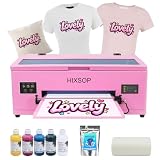
- 【Streamlined All-in-One Workflow】Experience effortless operation with our integrated cutter and upgraded roller feeder system. The automated cutter minimizes film waste while the enhanced feeder mechanism prevents jamming issues - delivering consistent, reliable prints with minimal intervention for true plug-and-play performance.
- 【White Ink Circulation System】The newly designed system integrates stirring, circulation, and filtration to enhance performance. It helps prevent printhead clogging and significantly extends the printhead's service life by ensuring consistent ink flow, allowing you to focus on unleashing your creativity.
- 【Smart Auto-Maintenance】The printer intelligently performs 10-hour cycle cleaning using only 1ml of ink per maintenance. This precision cleaning system maintains optimal printhead condition without manual intervention, significantly reducing ink waste compared to conventional printers.
- 【Precision Temperature Control】Advanced preheating with adjustable temperature settings ensures ideal ink viscosity for sharp detail reproduction. Combined with vacuum film adsorption and efficient ink collection, this dual-system guarantees consistent results across various materials and printing conditions.
- 【Multi-Pack Shipping】The complete DTF printing package includes main equipment (1*R1390 A3 DTF Printer Machine), printing supplies.
An older Prestige manual lists 20–30°C and 45–65% relative humidity, daily nozzle checks, clean encoder strips, regular rail and wiper cleaning, and moisture protection for unused film and powder. Treat those values as older manual guidance and confirm the current specification for your machine: Prestige manual, June 2023.
11. Ink, film and cleaning supplies
Use ink, film and cleaning solution approved or confirmed as compatible with the exact Prestige revision and warranty arrangement. A supply change that immediately causes pooling, bleeding, weak white, poor adhesion or inconsistent powder bonding should be investigated as a compatibility or coating issue before hardware is replaced.
- Approved ink: preferable when white ink settles, separates or repeatedly clogs. Unprofiled third-party ink can create compatibility and warranty problems.
- Compatible film: important when white coverage, adhesion or coating behaviour changes between rolls.
- Cleaning solution and lint-free materials: use approved products; avoid abrasive materials and household solvents.
- Dampers: replace only after confirming model compatibility and establishing that the damper is actually faulty.
- Printhead or professional deep cleaning: reserve for persistent failures, physical damage or confirmed ink-delivery problems.
Exact part fit, current prices, inventory and warranty terms vary and should be confirmed with the manufacturer or authorised reseller. Waste ink and contaminated cleaning liquid should be disposed of according to local regulations.
Free tools Windows power users keep installed
One-click scans. No signup required.
When to stop cleaning and call support
Stop the cleaning cycle if a reasonable basic sequence produces no improvement, ink will not move through the waste line, a damper leaks, the cap or pump appears faulty, the printhead has struck the film, ink has reached electrical connectors, the carriage cannot home, or a sensor or fatal error repeats.
Repeated cleaning wastes ink and may worsen an air leak, poor cap seal or mechanical contamination problem. Deep cleaning may help after basic checks, but it cannot repair damaged hardware.
Send support:
- Exact model and serial number
- Error code and light pattern
- Nozzle-check photograph
- Ink, film and powder brands
- Date and circumstances of the failure
- Photos of dampers, ink lines and waste-line flow where safe
- Software and queue details
- Every step already attempted
The A3+ troubleshooting page specifically requests the error code and serial number for fatal errors.
Long periods without use
Standing white ink can create serious recovery problems. Wet-capping or flushing may be required for extended storage, but the correct solution, flushing path and storage procedure depend on the ink system and printer revision. Do not flush every Prestige with distilled water; follow the manufacturer’s approved procedure.
Similarly, some newer Prestige models describe automated four-hour cleaning and overnight white-ink circulation. Those L2/XL2 instructions should not be assumed to apply to an A3+ desktop printer: DTF Station guide.
Frequently Asked Questions
Can I use third-party ink in a Prestige A3 printer?
Only after confirming compatibility, profiling, flushing requirements and warranty implications for the exact A3, A3+ or A3+R revision. A cheaper ink is a poor choice if it introduces settling, clogging or unsupported colour and white-ink behaviour.
Should I replace the printhead first?
No. Check the nozzle pattern, dampers, air leaks, waste flow, cap seal, rollers, encoder strip, film and software settings first. Replace or service the printhead only when the evidence points to physical damage or a persistent head fault.
What should I send technical support?
Provide the exact model, serial number, error code, nozzle-check image, ink and film details, the date the fault began, software information, photos where safe, and a list of troubleshooting steps already completed.
Recommended Free Tools
Quick Recap
Product prices and availability are accurate as of the date/time indicated and are subject to change. Any price and availability information displayed on Amazon at the time of purchase will apply.

