The Tool Desk
Outbyte PC Repair FREERepair Windows errors before they cause bigger problemsFix Now →Outbyte Driver Updater FREEFix the driver behind crashes, sound loss and screen glitchesFind Drivers →Some links on this page are affiliate links: if you buy through them we may earn a commission, at no extra cost to you.
Yes, you can manage Blink cameras at two separate properties from one account. The reliable setup is one Blink account with a separate Blink system for each location. Each property needs its own working internet connection and, for most battery-powered Blink cameras, its own Sync Module. You then switch between the systems in the Blink mobile app.
How Blink handles two locations
Blink uses three terms that are easy to confuse:
- Account: Your login identity for the Blink app. One account can contain multiple systems.
- System: A group of cameras managed together. Cameras in the same system share system-level controls such as arming and disarming. Blink allows up to 10 cameras in a system, subject to device and model limitations.
- Sync Module: The local hub that connects compatible cameras to the property’s Wi-Fi network, Blink’s servers, and the app.
A typical two-property arrangement looks like this:
One Blink account
├── System 1: Main Home
│   ├── Sync Module
│   └── Cameras at the main home
└── System 2: Vacation House
    ├── Sync Module
    └── Cameras at the vacation house
Blink specifically supports separate systems for different properties, including a home, office, or vacation house. See Blink’s multiple-system guidance.
Quick wins for a faster PC:
Fix the driver behind crashes, sound loss and screen glitchesFind Drivers →Clear out junk files and repair common Windows errorsFree Scan →One property versus two properties
A house and a detached garage or studio may be able to use one system if every camera can reliably communicate with the same Wi-Fi network and Sync Module. Blink says a Sync Module’s typical camera communication range is approximately 100 feet (30 meters) in a standard building, but walls, construction materials, interference, and layout can reduce it.
#1 Best Overall
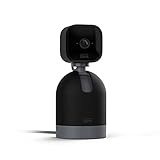
- See what's happening inside any room from corner to corner with 360° coverage from your smartphone, tablet, or compatible Alexa device.
- Pan left and right and tilt up and down from the Blink app to see more of your home with HD day and infrared night view.
- Get real-time motion alerts on your smartphone so you can react and engage from anywhere.
- Choose to save and share clips in the cloud with a free 30-day trial of the Blink Subscription Plan or locally with the Sync Module 2 and USB drive (each sold separately).
- See, hear, and speak to people and pets through the Blink app. Stream live video continuously for up to 90 minutes with a Blink Subscription Plan (sold separately).
Two homes in different cities, a home and office, or two rental properties should be treated as independent systems. A Sync Module is a local hub, not a bridge between distant addresses. Install a separate system—and generally a separate Sync Module—at each property.
What you need at each location
Basic checklist
- Compatible Blink camera or cameras
- A reliable local internet connection
- 2.4 GHz Wi-Fi compatible with Blink
- A Sync Module where the camera model requires one
- Local power for the Sync Module and any wired cameras
- Fresh or charged camera batteries where applicable
- Optional compatible local-storage hardware
- Access to the Blink mobile app and your existing account
Blink lists 2.4 GHz 802.11b/g/n Wi-Fi, DHCP-enabled IP configuration, supported security settings, and at least 2 Mbps upload speed per device among its network requirements. Networks that require a browser-based captive-portal login—such as many hotel or public networks—are generally unsuitable. Blink also does not recommend satellite internet because of latency and does not recommend relying on mobile hotspots for dependable operation. Check the official FAQ for current requirements.
Does each location need its own Sync Module?
Usually, yes for battery-powered cameras at two distant properties. The Sync Module must communicate locally with the cameras and connect to the local Wi-Fi network, so one hub cannot realistically serve cameras at widely separated addresses.
Free tools Windows power users keep installed
One-click scans. No signup required.
It is not correct to say that every Blink camera requires a Sync Module. Blink’s current compatibility guidance identifies several exceptions:
| Device category | Sync Module status |
|---|---|
| Outdoor 4 | Required |
| Indoor/Outdoor 3rd Gen | Required |
| XT and XT2 | Required |
| Indoor 1st Gen | Required |
| Mini and Mini 2 | Not required, but they can be added to a Sync Module system |
| Wired Floodlight Camera | Not required |
| Some Video Doorbell configurations | Standalone operation may be possible, with feature limitations |
For a property with several battery-powered cameras, the practical arrangement is one compatible Sync Module at each location. Review Blink’s Sync Module requirements before buying or mixing models.
How to add the second location
Before setup
At the second property, confirm that the internet connection is active, 2.4 GHz Wi-Fi is available, and the Sync Module is powered if required. Have the camera, batteries, QR code, and serial number ready. Update the Blink app and make sure you can sign in to the existing account and receive any verification code.
Blink’s current FAQ lists iOS 15 or later, Android 9 or later, and Fire OS 7 or later as supported mobile operating-system requirements.
Setup steps
- Open the Blink app and sign in to the existing account.
- Tap the + icon.
- Select the camera or Sync Module being installed at the second property.
- Follow the on-screen setup instructions.
- Connect the device to the second property’s Wi-Fi network.
- Add the cameras that belong at that location.
- Name the new system clearly, such as Vacation House, Office, or Rental Property 2.
- Confirm that the new system appears separately from the original one.
- Test Live View, motion detection, notifications, and recording or storage.
The second property does not need to use the same Wi-Fi name or internet provider as the first. The Blink account is shared; each property’s local network remains separate.
Rank #2
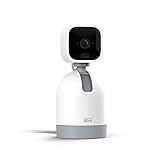
- See what's happening inside any room from corner to corner with 360° coverage from your smartphone, tablet, or compatible Alexa device.
- Pan left and right and tilt up and down from the Blink app to see more of your home with HD day and infrared night view.
- Get real-time motion alerts on your smartphone so you can react and engage from anywhere.
- Choose to save and share clips in the cloud with a free 30-day trial of the Blink Subscription Plan or locally with the Sync Module 2 and USB drive (each sold separately).
- See, hear, and speak to people and pets through the Blink app. Stream live video continuously for up to 90 minutes with a Blink Subscription Plan (sold separately).
Switching between properties in the Blink app
On the app’s Home screen, Blink organizes multiple systems as selectable tabs. Tap or swipe to choose the property you want to view or manage.
- Open the Blink app.
- Go to the Home screen.
- Select the system tab for the desired property.
- Open a camera thumbnail or Live View.
- Use that system’s settings or Arm/Disarm control.
Switching tabs does not move a camera between systems. It only changes the property currently displayed. Check the active system before changing motion settings, schedules, or arming status.
Arming and disarming two locations
Arming is system-oriented. Arming one system affects the cameras assigned to that system; the other system can remain independently armed or disarmed.
For example, you can arm Main Home when leaving, disarm Vacation House when arriving there, and keep the vacation property armed while the main home is occupied. Separate systems are especially useful when the two properties have different schedules or people moving through them.
Notifications across two systems
Motion notifications are generated when the relevant system is armed and motion detection is enabled. Alerts can arrive from either property, so names should identify both the location and the camera:
- Main Home — Front Door
- Main Home — Driveway
- Lake House — Dock
- Lake House — Back Door
Test notifications from both properties. Delivery can be affected by the camera’s connection, the property’s internet service, the phone’s notification permissions, battery-saving settings, and the app or account status. Do not assume alerts will always arrive instantly.
Subscriptions and local storage
Cloud subscriptions
Do not assume that any Blink subscription automatically covers every camera at both properties. Coverage depends on the plan, camera eligibility, purchase channel, country, and current terms.
What’s actually slowing this PC down?
Pick the symptom - the matching free tool is one click away.
Blink’s current U.S. Plus information indicates support for an unlimited number of devices per account and features such as cloud video recording, up to 60 days of cloud video history in the United States, Live View recording, Person Detection on eligible models, Photo Capture on eligible models, and Moments. This makes Plus the plan to investigate when cloud features are needed across many cameras at two locations.
Rank #3

- Mini camera, max performance — Mini 2K+ is our third-generation compact plug-in camera, delivering sharper 2K video resolution and improved audio clarity, so you can see and hear more of what matters.
- See everything, miss nothing — With 2K video resolution, expansive coverage, and up to 4x zoom, you'll capture more detailed footage, even in challenging light conditions.
- Two-way talk that feels natural — Enjoy improved audio with noise cancellation for clearer conversations around your home, making it feel like you're there in person.
- Smarter protection — Receive smart detection like person and vehicle detection with an optional Blink Subscription Plan (sold separately).
- Plug in anywhere — Place or mount indoors, or take it outside with the Weather Resistant Power Adapter (sold separately). Installation takes just minutes.
Basic-style plans may be limited to one device. Blink also says a Basic plan purchased through Blink.com cannot be transferred between devices. Before subscribing, verify:
- Whether the plan is account-wide or device-specific
- Which camera models are eligible
- Whether it was purchased through Blink or Amazon
- Which devices the plan is attached to
- The current terms and availability in your country
See Blink’s subscription information and plan-management guidance. Prices and terms can change, so confirm the displayed offer at signup.
Local storage without a recurring subscription
Subscription-free recording may be possible when the cameras and hub support local storage. Blink says Sync Module 2 can use a compatible USB drive, while Sync Module XR can use a compatible microSD card. Blink lists capacity support up to 256 GB for applicable configurations.
Recommended Free Tools
Local storage is separate at each property. A USB drive or microSD card attached to the second location’s Sync Module remains physically at that location; it is not shared automatically with the first system. Sync Module Core does not support local storage or Clip Backup.
Local storage can reduce recurring fees, but it has trade-offs. If a property loses power or internet, remote access and recording behavior may be affected. Storage may also need to be accessed through the app or removed and connected to a computer, depending on the product and feature. With Sync Module 2, Blink also describes daily cloud clip backups to the USB drive for eligible cloud subscribers. See the Sync Module 2 FAQ.
Wi-Fi, Sync Module placement, and range
Treat each property as its own network and radio environment. Blink recommends placing the Sync Module near the Wi-Fi router, approximately 3 to 10 feet away when practical, but not directly on top of it. Avoid putting it behind a television, inside a closed cabinet, or in a basement. A central position relative to the cameras is generally preferable.
Blink’s typical target is three bars of connectivity for the Sync Module and cameras. Mesh Wi-Fi systems and extenders may help with coverage, but they do not eliminate the need for the cameras and Sync Module to maintain reliable connections.
Outdated Drivers Are Slowing You Down
One free scan finds every outdated or missing driver and matches the right update for your exact hardware.Free scan · exact hardware matchPC Slower Than It Used to Be?
A free scan shows the junk files, broken settings and background clutter dragging Windows down - then fixes them in one click.Free scan · Windows 10 & 11Test each installation
- Install the Sync Module near, but not directly on top of, the router.
- Add the camera to the correct system.
- Open the camera’s More (…) menu.
- Select Device Settings, then General Settings.
- Check the camera-to-Wi-Fi and camera-to-Sync-Module indicators.
- Test Live View.
- Walk through the intended motion-detection area.
- Confirm that a clip or notification arrives.
- Move the camera or Sync Module if the signal is weak.
For detailed placement and signal guidance, see Blink’s Wi-Fi requirements.
Rank #4

- Mini camera, max performance — Mini 2K+ is our third-generation compact plug-in camera, delivering sharper 2K video resolution and improved audio clarity, so you can see and hear more of what matters.
- See everything, miss nothing — With 2K video resolution, expansive coverage, and up to 4x zoom, you'll capture more detailed footage, even in challenging light conditions.
- Two-way talk that feels natural — Enjoy improved audio with noise cancellation for clearer conversations around your home, making it feel like you're there in person.
- Smarter protection — Receive smart detection like person and vehicle detection with an optional Blink Subscription Plan (sold separately).
- Plug in anywhere — Place or mount indoors, or take it outside with the Weather Resistant Power Adapter (sold separately). Installation takes just minutes.
One account or separate accounts?
One account is usually simpler
One account provides one login, one app, easier switching, and centralized subscription management. Blink says family members can use the same account on their own iOS or Android devices, with multi-factor authentication required for account access.
The privacy trade-off is important: anyone using that shared account may be able to view both properties. Blink should not be assumed to provide detailed per-property role permissions unless the current account features specifically confirm them.
When separate accounts make sense
Use separate accounts when access must be isolated—for example, when a tenant should see only one property, a business manager should not access a private home, or different owners control the sites. Separate accounts also keep billing and administration apart, but they require separate logins and less convenient switching.
Common problems and fixes
The second system does not appear
- Confirm that the app is signed in to the intended account email.
- Close and reopen the app.
- Check the systems list in the app’s device or system settings.
- Confirm the new device’s serial number.
- Finish any incomplete setup or verification step.
- Rename the system immediately after setup.
- Restart the Sync Module and router if setup remains incomplete.
The second-location camera is offline
- Check power to the router and Sync Module.
- Confirm that internet service is working.
- Verify 2.4 GHz compatibility.
- Check the camera batteries.
- Review signal strength in Device Settings.
- Move the Sync Module closer to the router or cameras.
- Check whether the router’s SSID or password changed.
- Confirm that the network does not require captive-portal login.
The wrong property was armed
Use full location names rather than labels such as “Home 1” and “Home 2.” Name every camera with the property and area, and check the active system before tapping Arm or Disarm.
Live View works but clips do not
Live View does not by itself confirm that motion clips are being stored. Check whether the camera has an eligible active subscription or a supported local-storage configuration. Also check whether the storage device is present, compatible, and not full. The expected feature may not be supported by the particular camera or Sync Module model.
Can one camera be used at both locations?
No. Blink states that a camera cannot belong to multiple systems or accounts. If you physically move a camera, you must reconfigure it for the new property’s system and Wi-Fi. Repeatedly moving one camera is inconvenient because it may require network changes, setup changes, and battery checks. For permanent coverage at both sites, use separate cameras.
What happens if one property loses internet?
The affected system may become unavailable for remote viewing and cloud-based notifications or recording. The other property’s system remains independently connected if its own power, internet, and Blink hardware continue working. This independence is another reason to configure separate properties as separate systems rather than trying to combine them through one hub.
Do these 3 things before closing this tab:
1Repair Windows errors before they cause bigger problems2Scan for outdated or missing drivers - takes under a minute3Clear out junk files and repair common Windows errorsRecommended setup by use case
| Use case | Recommended structure |
|---|---|
| Two homes with several battery-powered cameras | One account, two systems, one compatible Sync Module and Wi-Fi connection at each home |
| Home and nearby detached building | One system only if all cameras reliably reach the same Wi-Fi and Sync Module; otherwise use two |
| Home and office | Two systems for independent arming, notifications, and organization |
| Only Mini or Mini 2 cameras at two addresses | A Sync Module may not be required, but separate systems remain the clearest arrangement |
| No recurring subscription | Use supported local-storage hardware at each property |
Final recommendation
For two physically separate locations, use one Blink account with one separately named system per property. Give each property its own reliable Wi-Fi connection and, for battery-powered cameras, its own compatible Sync Module. Manage arming, disarming, notifications, and storage independently, and verify the current subscription terms before assuming one plan covers both sites.
Quick Recap
Product prices and availability are accurate as of the date/time indicated and are subject to change. Any price and availability information displayed on Amazon at the time of purchase will apply.


Leave a Reply