Quick wins for a faster PC:
Fix the driver behind crashes, sound loss and screen glitchesFind Drivers →Clear out junk files and repair common Windows errorsFree Scan →Some links on this page are affiliate links: if you buy through them we may earn a commission, at no extra cost to you.
Yes—you can print a poster-size picture on a regular printer by splitting it into multiple Letter- or A4-size sheets and assembling them. The printer produces separate tiles, not one continuous poster sheet. You can tile a PDF in Adobe Acrobat, use a poster-printing option in your printer driver, or turn a JPG or PNG into a tiled PDF with a tool such as Rasterbator.app.
Choose the finished poster size first, check that your image has enough pixels for that size, and print a test before using a full set of paper. Those steps help avoid undersized output, blurry images, and visible gaps at the seams.
What you need
- Your picture file, such as a JPG or PNG, or a PDF containing the picture
- A regular printer and the paper size it supports, commonly US Letter or A4
- Desktop PDF software or a printer driver with a Poster, Tile, or similar feature
- Scissors, a paper trimmer, or a craft knife and cutting mat
- Tape or another way to mount the joined sheets
- Optional: a ruler for checking print scale and aligning seams
Most ordinary printers can print the individual pages needed for a tiled poster, even if they cannot print a poster-sized sheet. The tiling is handled by the software or printer driver. The printer itself still has limits: supported paper sizes vary, and many desktop printers leave a nonprinting margin around each sheet. Microsoft explains that desktop printers have a nonprinting region, so do not assume the printable image reaches every paper edge.
Choose the final size before you print
“Poster size” has no single standard meaning. You might want an 18 × 24-inch or 24 × 36-inch poster, a custom size for a wall, or a smaller classroom display made from a few sheets. Decide the finished width and height first. Then check the image’s shape, estimate how many pages it will take, and decide how close people will stand to view it.
Estimate the number of sheets
A quick planning estimate is:
Pages across = round up (final width ÷ usable page width)
Pages down = round up (final height ÷ usable page height)
#1 Best Overall
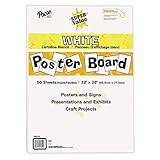
- ECONOMICAL: Great value poster board for use with posters, signs, craft projects, and more; Comes in a reclosable carton for easy storage
- BRIGHT WHITE: White, uncoated poster board will make any presentation or class project look great
- ALL-PURPOSE: Can be used for so much more than presentations such as block printing, stenciling, painting, coloring, vision boards, and more
- USA MADE: Proudly made in America and is acid-free and recyclable
- TRUSTED BRAND: The Pacon brand is part of the Dixon Ticonderoga family of products and is beloved by children, parents, and teachers alike for its bold colors and superior durability
“Usable page width” and “usable page height” are less than the paper’s full dimensions when printer margins or tile overlap are involved. For example, Letter paper measures 8.5 × 11 inches and A4 measures 210 × 297 mm, but neither guarantees that much printable image area on each sheet. A 2-by-2 grid of Letter sheets therefore does not necessarily make a usable 17 × 22-inch image. Legal paper (8.5 × 14 inches) can help with a tall design; Tabloid paper (11 × 17 inches) can reduce seams if your printer supports it.
Use the tiling tool’s preview as the better page-count estimate: its result depends on the selected paper, scale, margins, and overlap. Larger sheets usually mean fewer seams, but only if your printer can feed them.
Recommended Free Tools
Check the image shape and resolution
Compare the image’s width-to-height ratio with the poster’s. If the ratios differ, choose deliberately:
- Crop: Fills the target shape but cuts off part of the image. Choose what to remove before printing.
- Fit: Shows the whole image but may leave blank bands or margins.
- Stretch: Forces the image into the target shape and distorts it. Circles become ovals and people can look unnaturally wide or tall, so avoid this for most pictures.
To estimate sharpness, divide the image’s pixel dimensions by its printed dimensions. For example, a 3,000-pixel-wide image printed 24 inches wide works out to 125 pixels per inch (3,000 ÷ 24). That may look acceptable on a large poster viewed from several feet away, but it can look soft at close range. There is no single resolution number that guarantees good poster quality: source detail, final size, viewing distance, subject, printer, and paper all affect the result.
Rank #2

- LARGE WHITE PREMIUM PAPER - 25 in. x 30 in., 30 Sheets/Pad, 2 Pad/Pack
- INK BLEED-THROUGH RESISTANT PAPER - Large white premium self-stick flip chart paper that resists marker bleed-through to keep great ideas on the page, not on what's under the page
- IDEAL FOR BRAINSTORMING AND MANAGING PROJECTS - Perfect for training or teaching sessions, brainstorming sessions, planning sessions, project management and agile processes, meetings and presentations
- STICKS SECURELY AND HOLDS UP TO 2X LONGER - Easel paper can be repositioned without surface damage. No tape or tacks needed unlike standard flip chart paper. Keep agenda and ideas where everyone can see
- DESIGNED TO FIT MANY EASEL STANDS - Sturdy backcard has a handle to make the easel pad portable and slots to fit most easel stands. Perfect for student activities and training sessions
Starting with more pixels generally helps, but enlarging a small image does not recreate detail that was never in the original. Fine text, diagrams, logos, and line art show softness or jagged edges sooner than many photographs; use vector artwork or a high-resolution original for those when available. Check the image at the distance people will actually view it, and avoid repeatedly resizing and saving a JPEG, which can degrade it further. Rasterbator’s guide also notes that a larger page grid made from the same image can look less sharp; treat any suggested pixel thresholds as guidance rather than a universal print standard.
Method 1: Tile a PDF in Adobe Acrobat
This is a good choice when you already have a PDF or want to control the scale and inspect the page layout before printing. Adobe’s current desktop instructions put the poster controls in the print dialog. See Adobe’s Poster printing instructions.
Free tools Windows power users keep installed
One-click scans. No signup required.
- If you are starting with a JPG or PNG, place or open it in an image or document application and export it as a PDF with the poster’s intended proportions. Set up the page or image crop so it matches the shape you want; do not stretch the picture to fill an incompatible rectangle.
- Open the PDF in the desktop version of Adobe Acrobat and choose Print.
- Under Page Sizing & Handling, select Poster. This divides one large PDF page across multiple sheets.
- Choose the printer and confirm that the paper size in Acrobat and in the printer matches the paper you loaded.
- Adjust Tile Scale to set the printed size. Check the preview as you change it; Adobe’s preview updates to show the tiling and page count.
- Add a modest Overlap if you plan to trim and join the pages. The right amount depends on the printer and how you will align the sheets; it is not the same for every setup.
- Turn on Cut Marks to guide trimming and Labels to help identify each tile, if those controls are available.
- Review the preview for orientation, page count, and image placement. Print a test page or a small section before sending the full job.
Do not mix up the print modes: Poster splits one large page across several sheets. Multiple puts multiple document pages on one sheet. Fit shrinks the document to fit on one sheet. Actual Size prints without automatic scaling. If Acrobat is doing the tiling, use its Poster controls for the scale; do not then apply a second “Fit” scaling operation in the printer dialog.
Method 2: Use the printer’s Poster or Tile setting
Some printer drivers can split an image or document into a grid themselves. The exact label and location vary by manufacturer, model, operating system, and driver. Try this general path:
- Open the image or document and choose Print.
- Open Printer Properties, Preferences, or Page Setup.
- Look for Poster, Tile, Multi-Page, Tiled Printing, or Poster Printing.
- Select a grid size or poster scale, then enable cutting guides or alignment marks if offered.
- Confirm paper size, orientation, and any scale settings, then print a test page.
As one model-specific example, Epson drivers may offer Page Layout > Multi-Page > Poster, with layouts such as 2×2, 3×3, or 4×4 and options for guides or marks. Epson documents one example of the controls; another Epson manual lists 2×1 through 4×4 poster layouts. Those examples do not mean every Epson printer—or every printer brand—has the same feature. Some options may be model- or platform-specific, and a generic driver or mobile print app may omit them.
Rank #3
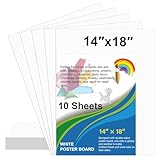
- Package Included: 10 sheets 14 x 18 inches white poster board paper bulk. Ideal for school projects, classroom arts and crafts, displays and signs, sales, promotions, scrapbooking, sports events and office use
- Premium Quality: Our poster cards are made of high quality paper card, thickness is 250gsm, the material is thick and sturdy, not easy to break
- Double-sided poster board design, one side is glossy and the other side is matte. the paper surface is smooth and flat. Blank white poster boards are great for small posters, signs, announcements, charts and art projects
- Make your own poster: Our poster boards are suitable for painting, marking, cutting, stencil printing, woodcut printing, sports event poster, party poster, yard sale sign, etc. You can use your imagination to create different functions
- Wide range of uses: Great for school projects, arts and crafts, displays, promotions, scrapbooking, birthday party decorations, Christmas, Halloween, Easter holiday celebrations, sporting event sign, parade sign, retail store sales sign, vision board and more
If you cannot find the setting, check your printer maker’s full driver and documentation, or use a desktop PDF reader or tiled-PDF tool instead. Do not assume that enlarging an image in an editor will make the printer tile it automatically.
Do these 3 things before closing this tab:
1Fix the driver behind crashes, sound loss and screen glitches2Clear out junk files and repair common Windows errors3Scan for outdated or missing drivers - takes under a minuteMethod 3: Make a tiled PDF from a JPG or PNG
If you have an image but no poster-printing option in your printer driver, a browser-based tiling tool can generate a multi-page PDF. Rasterbator.app says it accepts image files and creates tiled PDFs; its FAQ lists JPG, PNG, and PDF support, along with paper sizes such as Letter, A4, Legal, and Tabloid. It also describes local browser processing, no sign-up, and no watermark. Those are the tool’s own claims, not an independent privacy guarantee.
- Open the tool and upload the image.
- Choose the paper size that matches your printer and loaded paper.
- Set the desired poster dimensions or number of pages across and down.
- Choose plain tiling if you want the picture to remain a normal photograph. A Rasterbator-style halftone effect changes the appearance; it is not required for ordinary poster assembly.
- Review the preview for crop, page count, and orientation, then generate and download the multi-page PDF.
- Open the PDF in a desktop PDF reader and print at 100% / Actual Size. Follow the tool’s labels and marks when assembling.
This method is useful for a one-off poster, but a tiled home print is not the same as a professionally color-managed, single-sheet print. For sensitive images, consider whether a browser tool’s local-processing description meets your needs; for critical color or a seamless print, a local print service may be a better fit.
Print a test before the full poster
A quick test can catch wrong scale, paper settings, orientation, or an awkward seam before you use a whole stack of paper and ink or toner.
Rank #4

- Strong poster board: Our white poster board is 11 inches x 14 inches and is large enough. Made of sturdy double glued paper, it is lightweight, durable and smooth. So you can write or draw as much as you want on the poster board.
- Design: 11in x 14in white poster board has a matte design on both sides, the bright white color will make the design pop. The poster board writes smoothly and is suitable for all kinds of paintbrushes. More options for your DIY poster or display art projects.
- Production and Printing: Large poster board can be printed on the front and back of the poster board using a multifunctional printer or photocopier. The printing is very clear and presents the effect you want. Our poster board can also bring out your unlimited imagination to create your favorite things. Painting DIY, making brochures, photo mats and more.
- Wide Application: Our poster board it suitable for school projects, art, classroom poster displays, craft projects and more. Poster board is also suitable for drawing, marking, printing, posters and other applications, you can let your imagination go wild and create different features. It is the best choice for office, school or home use.
- You Will Get: 18Pack white poster board(11in x 14in), and our 7*24 friendly customer service for peace of mind.
- Print one tile, preferably a corner, or a pair of adjacent pages that make a seam.
- If the file includes a known-size reference such as a 1-inch square, measure it with a ruler. If not, add a temporary scale square to a test version or use another known dimension in the artwork.
- Check that the printer has not quietly shrunk or enlarged the page. Confirm the paper size and select Actual Size, 100%, or No Scaling when printing a pre-tiled PDF.
- Check for clipped content, unexpected white borders, and whether the image lines up across the seam.
- Confirm the page orientation and the selected crop. If the test fails, adjust the scaling or overlap and test again before printing the rest.
Print the complete set
- Use the same paper, paper size, orientation, and print preset for every page. Select one-sided printing.
- For a pre-tiled PDF, print at 100% / Actual Size rather than Fit to Page. Avoid applying more than one layer of scaling: tile in the PDF reader or the printer driver, not both.
- Choose the paper type in the printer driver to match the paper you loaded. Plain paper is inexpensive for a prototype. Matte presentation paper can provide better color with less glare. Use photo paper only if your printer supports that paper’s thickness and feed path.
- Use draft quality for a layout or scale test. For the final set, try standard or higher quality and compare results. “Best” quality is not automatically best on every paper: it can use more ink, take longer, or cause ink to bleed on plain paper.
- Check ink or toner before starting and avoid changing settings between tiles. Let inkjet pages dry before assessing their color or handling them closely.
Trim and assemble the sheets
- Lay the pages on a clean table or floor and arrange them by labels, rows, and columns. Keep the printed sides facing up while checking the sequence.
- Use the crop marks or cutting guides. Typically, you trim the right and bottom edges of selected sheets while leaving the neighboring edges intact to overlap; follow the marks and the tool’s instructions rather than cutting every edge.
- Align the printed image or registration marks, not the outside white paper margins. Printer margins may differ, so paper edges alone are not a reliable alignment guide.
- Use a ruler with a craft knife and cutting mat, or a paper trimmer, for straighter edges. Keep fingers clear of the blade and cut on a suitable surface.
- Join the sheets with small pieces or strips of tape on the back. Check each seam before securing the next one.
- If the poster needs extra support, mount it to backing board or foam board. Choose a wall-safe mounting method if you are attaching it temporarily.
Troubleshoot common poster-printing problems
The poster prints too small
Check for Fit to Page, Shrink oversized pages, or another scaling option in the PDF reader or printer driver. Confirm the loaded paper matches the selected paper size. If a PDF has already been tiled, print it at Actual Size or 100%; do not ask another setting to fit it to a page.
PC Slower Than It Used to Be?
A free scan shows the junk files, broken settings and background clutter dragging Windows down - then fixes them in one click.Free scan · Windows 10 & 11Crashes, No Sound, or Screen Glitches?
Random freezes, missing sound and display glitches usually trace back to one bad driver. Find and replace yours safely.Free scan · under a minuteEdges or important details are cut off
The image may extend into the printer’s nonprinting margin, or the crop may be too tight. Keep important content away from the outer edges, add overlap, use cut marks, or try a larger paper size if the printer supports it. Home printers often require trimming and joining; borderless printing is not universal.
White gaps show between pages
Possible causes include no overlap, trimming the wrong edge, inconsistent scaling, or aligning paper margins rather than the image. Use a modest overlap and alignment marks, trim only the designated edges, and confirm that all tiles printed at the same scale.
The picture looks blurry
Use the highest-resolution original available, reduce the finished size if necessary, and avoid enlarging or re-saving the picture repeatedly. A larger tile grid cannot add source detail. Bold shapes and high-contrast images tend to tolerate enlargement better than fine text or line art; consider recreating a logo or diagram as vector artwork when possible.
Best Value

- Easel pad for work presentations, brainstorming sessions, classroom exercises, and more
- Includes 2 easel pads with 30 sheets of paper per pad (60 sheets total)
- Water-based microsphere adhesive on the back, unsuited to rough walls, easily to smooth surfaces like wood doors, glass, whiteboards,blackboards and metal
- Removes effortlessly from the pad, but remains sticky on surfaces; won't damage surfaces or leave an adhesive residue
- Bleed-through-resistant paper with no curling edges; for use with markers, pens, crayons, and other writing tools
Colors shift between pages
Use the same paper and driver settings throughout, check ink or toner before printing, and avoid changing presets between sheets. Inkjet pages may look different while wet, so allow them to dry before judging. If exact color matching matters, a print shop is the safer choice.
The print has an unwanted dotted or halftone appearance
A halftone or stylized-art effect may have been selected in the tiling tool. Choose plain tiling for a straightforward photograph, or use Acrobat or a printer-driver poster mode.
The Poster option is missing
The driver may not support tiling, the option may be available only in the manufacturer’s full driver, or you may be printing from a mobile app or browser dialog with fewer controls. Check the printer documentation and driver for your operating system, use desktop PDF software, or create a tiled PDF with a separate tool.
When a regular printer is not the right choice
Home tiling is a practical, low-cost way to make a temporary display, classroom visual, craft pattern, or wall decoration. It creates seams and requires trimming and assembly, however. Use a print shop or wide-format service when you need a seamless sheet, very large dimensions, outdoor durability, heavy stock, vinyl, canvas, foam board, or more predictable color. It can also be the better option when a short deadline or a polished commercial display makes the time spent assembling home-printed sheets impractical.
Quick Recap
Product prices and availability are accurate as of the date/time indicated and are subject to change. Any price and availability information displayed on Amazon at the time of purchase will apply.
What’s actually slowing this PC down?
Pick the symptom - the matching free tool is one click away.


Leave a Reply