Free tools Windows power users keep installed
One-click scans. No signup required.
Some links on this page are affiliate links: if you buy through them we may earn a commission, at no extra cost to you.
This project turns a Seeed Studio XIAO ESP32-C6 and a BMP280 barometer into a custom Zigbee pressure sensor for Home Assistant. It reports atmospheric pressure—not air quality, duct pressure, or room-to-room pressure—and the supplied firmware updates its reading about once a minute. It is a worthwhile build if you want to learn Zigbee device development; it is less suitable if you need a ready-to-use, battery-powered, calibrated instrument.
What the project measures—and what it does not
The build measures barometric pressure: the local atmospheric pressure detected by the BMP280 sensor. The original project sends readings to Home Assistant and displays them on an OLED. Its author used a Home Assistant Connect ZBT-1 coordinator and a Zigbee Home Automation setup. The original project and firmware are available on Hackster.io.
Pressure is not a proxy for indoor air quality. A barometer does not measure carbon dioxide, particulate matter, volatile organic compounds, or humidity. Nor is this build a differential-pressure instrument: it has no pair of pressure ports for measuring a pressure difference across a duct, filter, or room boundary. Use a suitable differential-pressure sensor for those applications.
- Good uses: recording local pressure trends, learning to build a Zigbee endpoint, and experimenting with trend-based Home Assistant automations.
- Not established by this build: calibrated or safety-critical measurements, air-quality assessment, HVAC pressure monitoring, or reliable dehumidifier control based on a single pressure value.
Weather services commonly report sea-level-adjusted pressure, while a sensor at your home measures local station pressure. Altitude and local conditions matter, so do not expect the raw reading to match a weather app without checking which pressure convention it uses.
#1 Best Overall

- [5-in-1 Monitoring] Monitor five key environmental metrics with precision: temperature, humidity, air pressure, dew point, and VPD. Delivers ±0.4℉ temperature accuracy, ±2% RH humidity accuracy, and ±0.1 hPa air pressure accuracy to capture even the slightest environmental changes.
- [Triple Smart Alerts] Customize air pressure, temperature, and humidity thresholds to create your ideal comfort range. Receive instant app alerts whenever any value exceeds the preset limit, so you can stay informed of pressure changes and environmental conditions in real time.
- [Long Battery Life] Powered by a CR2477 battery with a low-power design, delivering over 2 years of battery life. Ideal for attics, storage cabinets, basements, and other hard-to-reach locations without frequent battery replacement or recharging.
- [Smart Automation] Create smart scenes triggered independently by changes in air pressure, temperature, or humidity. Automatically control fans, humidifiers, fresh air systems, and other compatible devices for intelligent climate management.
- [Zigbee 3.0 Compatible] Seamlessly integrates with SONOFF gateways, Echo (4th Gen), SmartThings, and Home Assistant (Zigbee2MQTT/ZHA) for versatile smart home setups.
What you need
| Part | Purpose | What to know |
|---|---|---|
| Seeed Studio XIAO ESP32-C6 | Runs the firmware and provides the Zigbee radio. | Use the ESP32-C6 version; the project depends on its Zigbee-capable platform. |
| Grove Barometer Sensor based on BMP280 | Measures atmospheric pressure over I²C. | The project names BMP280 hardware, but its code includes Seeed_BME280.h. Confirm your module and library are compatible rather than assuming the names indicate identical hardware. |
| XIAO Expansion Board | Provides the project’s Grove connection and OLED interface. | Used in the original build; optional if you wire the sensor correctly and do not need that display. |
| USB cable and power source | Flashing and operating the board. | The project gives no battery design, sleep strategy, or battery-life measurements. Treat it as USB-powered unless you redesign the firmware and hardware. |
| Zigbee coordinator | Connects the sensor to Home Assistant’s Zigbee network. | The original build used a ZBT-1. Home Assistant’s current getting-started page lists Connect ZBT-2 among its hardware products; check current compatibility and setup guidance before buying a coordinator. |
| Home Assistant host and Zigbee integration | Receives the sensor and records its readings. | The original materials list Home Assistant Green, but an existing supported Home Assistant installation can serve as the host. |
A case is optional. The Hackster page lists custom parts and enclosures, but the accessible project details do not establish enclosure dimensions or a complete enclosure design.
The XIAO ESP32-C6 is appropriate when the point is a compact, customizable Zigbee device. Seeed’s XIAO ESP32-S3, C3, and C6 comparison describes the C6 as Zigbee/Thread-capable. Board-package and Zigbee API support can change, so the exact software combination matters as much as the board.
How the firmware behaves
The project’s firmware initializes the display and barometer, creates a Zigbee pressure-sensor endpoint numbered 11, starts Zigbee, waits for the device to join a network, then reads and reports pressure while updating the OLED. The endpoint is assigned manufacturer and model strings of Espressif and ZigbeePressureSensor. The code sets a pressure range of 0–10000 and tolerance of 1.
Units and precision
The code divides the sensor library’s pressure value by 100 and casts the result to an unsigned 16-bit integer. If the library returns pascals, that conversion produces hectopascals (hPa), but the cast discards any fractional part. The serial message labels the result in hPa. Confirm the library’s return units for the version you install before relying on the conversion.
Rank #2
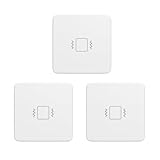
- ZigBee Compatibility: Utilizing the Zigbee 3.0 standard, it is capable of integrating smoothly with a range of Zigbee hubs and devices, including popular Zigbee Echo devices, such as Echo (4th Gen), Echo Plus (1st Gen and 2nd Gen), Echo Show 10 (2nd Gen and 3rd Gen), Echo Studio, Eero 6, Eero Pro 6, SmartThings, Home Assistant (ZHA and Z2M), Hubitat, and Third Reality smart hub Gen2.
- Manually Adjustable Sensitivity: You can easily change the sensitivity levels with 2 physical switches. Featured with four adjustable sensitivity levels, it offering flexibility to cater to a variety of needs and scenarios in your home.Such as garage doors, jewelry drawers, windows, delivery box, etc.
- Siren Alarm with mute switch: Equipped with a 110dB siren alarm for immediate and noticeable alerts. The device also has a physical mute switch that allows for quiet notifications sent directly to your phone, providing adaptable options for different environments and preferences.
- Versatile Usage: Ideal for monitoring various objects and areas in your home such as doors, windows, jewelry drawers, delivery box,, offering a versatile solution for home security and automation.
- Routine Creation: Enables the setup of smart routines when paired with a compatible Zigbee hub, enhancing your smart home experience with automated alerts and notifications. From sending alerts if a window breaks or notifying you when appliances like washing machines or dryers have stopped running. This can contribute to a more efficient and responsive smart home.
Actual update cadence
The task waits three seconds per loop, but it only reads and sends a new pressure value when a counter reaches every twentieth loop. That makes the sensor refresh approximately once every 60 seconds, not every three seconds. The firmware also calls setReporting(0, 30, 1); that call is not proof of a guaranteed 30-second Home Assistant update. The application supplies a new value about once a minute, and the exact reporting behavior depends on the ESP32 Zigbee API version.
Buttons and pairing behavior
The code uses a short boot-button action to request a report and a press longer than three seconds to call Zigbee.factoryReset(). The exact reset and rejoin sequence can vary with the board package and Zigbee stack, so be prepared to restart the board and place the coordinator in join mode again. The firmware waits indefinitely for a Zigbee connection; it has no join timeout or fallback.
Build and flash it
The original page provides source code but does not specify tested Arduino IDE, ESP32 Arduino-core, or library versions, nor a verified set of upload settings. The steps below explain the required configuration without implying that one unrecorded version combination is guaranteed to compile.
Do these 3 things before closing this tab:
1Repair Windows errors before they cause bigger problems2Fix the driver behind crashes, sound loss and screen glitches3Clear out junk files and repair common Windows errors- Assemble the hardware. Seat the XIAO ESP32-C6 on the expansion board and connect the Grove BMP280 module to a compatible Grove/I²C socket. Use USB power. Do not assume sockets are interchangeable; check the expansion board’s pinout. Connect the OLED as intended by the expansion board if you want the original display behavior.
- Install the software prerequisites. Use Arduino IDE with ESP32 board support that exposes Zigbee support for the ESP32-C6. Install the libraries required by the sketch, including the Seeed BME280 library and U8g2 for the display. The project does not identify tested versions, so resolve compilation issues against the documentation for the versions you choose.
- Select the board and Zigbee mode. Select the XIAO ESP32-C6 and configure Zigbee as an end device. The sketch contains a compile-time guard requiring
ZIGBEE_MODE_ED; if the board settings do not offer that mode, the installed board package may not support the sketch’s requirement. - Compile and upload. Keep the project’s endpoint, pressure conversion, and display code intact for an initial reproduction. Open the serial monitor at
115200baud to inspect startup and sensor messages. - Start joining from Home Assistant. Confirm that the coordinator and Zigbee integration are operating and that joining is allowed. Power the sensor near the coordinator for initial pairing. The original author used ZHA with a ZBT-1; menu names and workflows may differ with current Home Assistant releases, coordinators, and integrations.
- Check the result. Look for the device in the Zigbee integration, then inspect its exposed pressure cluster or entity. Allow time for Home Assistant to accumulate history. A paired device is not necessarily a correctly exposed pressure entity.
On a successful startup, the supplied code prints messages such as Starting Zigbee..., Zigbee started successfully!, and Connecting to network. After joining, it prints Successfully connect and Zigbee network!. The project reports pressure history and an OLED display, but it does not provide long-term reliability, calibration, or accuracy results.
Rank #3

- 【High-precision sensors are used to detect pressure】 Featuring high-precision sensors with an approximate 10kg detection threshold, the device installs discreetly under a bedsheet or seat, instantly detecting pressure when someone lies down or sits down, while remaining unaffected by bedding or cushions.
- 【Smart&Scene Linkage】 When lying in bed or sitting in a chair, or when not in bed or on a chair, in the scene mode, the sensor can accurately link the lights to turn on and turn off. As well as other smart devices, making life more convenient and comfortable.
Make readings useful in Home Assistant
Once the integration exposes a pressure value, use Home Assistant’s history or a graph card to examine trends. A roughly one-minute sample cadence is generally more appropriate for observing weather-related changes than capturing fast pressure transients. Check the entity’s unit and compare like with like: station pressure at your location is not automatically equivalent to a weather service’s sea-level-adjusted figure.
For automations, prefer a change over a sustained interval over a single absolute threshold, and add minimum-duration and hysteresis conditions to avoid reacting to noise. If the intended action concerns comfort or moisture, incorporate indoor relative humidity, temperature, dew point, or an appropriate weather source. Barometric pressure alone does not establish that a room needs dehumidification or that its air is unhealthy.
Independent reader supportYour contribution helps us test, update, and keep practical guides available for everyone.Troubleshoot common failures
Compile error: Zigbee end-device mode is not selected
The sketch explicitly checks for ZIGBEE_MODE_ED. Select Zigbee end-device mode in the current ESP32 board settings and compile again. If that setting is missing, check whether the installed board package supports Zigbee mode for the selected ESP32-C6 board.
The serial monitor prints “Device error!”
The sketch prints this when its sensor initialization fails, but does not stop the rest of the program. Check the Grove cable and socket, verify the module is the expected BMP280-compatible I²C sensor, and confirm the library matches it. If you add diagnostics, inspect the I²C bus. Treat readings as invalid until initialization succeeds.
Rank #4

- [ZigBee Compatibility] To use this Zigbee vibration sensor with Apple Home or other smart ecosystems, an Aqara Hub (sold separately) is required. It supports secure 2.4GHz Wi-Fi networks. Each Aqara M2 or M1S Hub can connect up to 64 devices (a repeater like the Aqara Smart Plug or Smart Wall Switch with Neutral wire is recommended for optimal performance). **Requires Aqara Hub, not 3rd-Party
- [Smart Vibration Alerts] Whenever the Aqara Vibration Sensor detects unexpected vibration, it will send alerts to your phone or activate the local alarm on the Aqara Hub—keeping you informed and your home protected.
- [Versatile Movement Detector] More than just vibration sensing, this smart vibration sensor also detects tilt and drop movements. Simply attach it to drawers, class windows, jewelry drawers, delivery boxes, safes, or artwork, and get notified if any movement is detected. A perfect solution to safeguard valuables and monitor fragile or sensitive items. For a stable connection, ensure the motion sensor is placed within 393 inches (10 meters) of the Aqara Zigbee Hub.
- [Home Automation] The Zigbee contact sensor can be made to control and trigger other Aqara connected devices when vibration and or movement is detected.From sending alerts if a window breaks or notifying you when appliances like washing machines or dryers have stopped running. This can contribute to a more efficient and responsive smart home. Zigbee2MQTT and comparable third-party USB dongles are not officially supported by Aqara. Full product functionality may be limited or unavailable.
- [Long Battery Life] Designed with ultra-low power consumption, the vibration sensor offers up to 2 years of battery life. No frequent replacements are needed, making it energy-efficient and convenient. Note: Remove the plastic battery tab before first use. If the device disconnects, please check or replace the battery.
The device stays at “Connecting to network”
Check that the coordinator is online and permitting joins, that the firmware is configured for Zigbee, and that the device is not still associated with another network. Try the project’s long-press factory reset, restart the board, and pair close to the coordinator. The serial monitor runs at 115200 baud. Because the firmware waits indefinitely, continued dots do not distinguish a weak signal from a coordinator or configuration problem.
The device pairs, but Home Assistant has no useful pressure entity
Inspect the integration’s device details and available cluster data rather than assuming pairing guarantees entity discovery. Possible causes include incomplete pressure-cluster support in the selected integration, device recognition behavior, reporting not being triggered, or failed sensor initialization. The custom manufacturer and model strings may also affect discovery.
The value is zero, stale, or implausible
Check the serial output for sensor initialization and periodic update messages, then verify that the task is running and calls setPressure(). Confirm the library returns pascals before applying the divide-by-100 conversion, and remember that the integer cast removes decimals. Check whether you are comparing local station pressure with sea-level-adjusted weather data. The project supplies no calibration or accuracy results, so it does not support treating its readings as a calibrated reference.
PC Slower Than It Used to Be?
A free scan shows the junk files, broken settings and background clutter dragging Windows down - then fixes them in one click.Free scan · Windows 10 & 11Crashes, No Sound, or Screen Glitches?
Random freezes, missing sound and display glitches usually trace back to one bad driver. Find and replace yours safely.Free scan · under a minuteIs this the right approach?
| Approach | Best fit | Main trade-off |
|---|---|---|
| DIY ESP32-C6 Zigbee build | You want custom hardware, firmware control, an OLED, or experience creating a Zigbee device. | Requires compiling, flashing, pairing, and maintaining firmware; the documented build has no battery-life or accuracy data. |
| Finished Zigbee environmental sensor | You want a faster installation, enclosure, and typically a more appliance-like setup. | Less control over sensor choice and firmware; verify that the product measures pressure if that is your requirement. |
| ESPHome or Wi-Fi sensor | You already use ESPHome and want a familiar development and update workflow. | Uses Wi-Fi rather than the project’s Zigbee device path. |
| Online weather integration | You need regional weather trends without building a sensor. | Does not measure pressure at your own location and depends on external weather data. |
| Differential-pressure instrument | You need duct, filter, airflow, or room-pressure measurements. | Requires the appropriate differential sensor and measurement setup; a BMP280 barometer is not a substitute. |
Build this project if the Zigbee and firmware work is part of the goal. Choose a finished device for a more turnkey installation, and choose a sensor designed for the actual physical quantity if you need air-quality or differential-pressure data.
Quick Recap
Product prices and availability are accurate as of the date/time indicated and are subject to change. Any price and availability information displayed on Amazon at the time of purchase will apply.


Leave a Reply