The best copy machine for home use in 2026 is usually a multifunction printer: a printer, scanner, and copier in one unit. For most households, the strongest choice is a refillable ink-tank all-in-one if you print and copy regularly, a monochrome laser all-in-one if you mostly handle black-and-white paperwork, or a low-cost cartridge inkjet only if your volume is very light.
That answer is simple. Getting the purchase right is not. A copier that looks affordable at $79 can become expensive after two years of ink. A fast laser unit can be frustrating if it is wedged into a closed cabinet with no access to the rear paper path. A great wireless printer can feel unreliable if it sits at the far end of the house from the router. On our home office and built-in desk projects, the machine itself is only half the decision. The other half is the work surface, outlet location, ventilation, Wi-Fi or Ethernet, paper storage, lighting, and enough clearance to actually use the scanner lid and document feeder.
If you want the short version: buy by workload first, cost per page second, and room layout third. A copier is not decor. It is a small office appliance with heat, noise, moving parts, consumables, and access requirements. Treat it that way and your home office will work better for years.
Start With the Workload, Not the Brand
Before comparing model numbers, estimate how many pages your household copies and prints in a normal month. Most homeowners guess low because they only think about copying. Add tax records, school forms, shipping labels, return paperwork, insurance documents, recipes, construction permits, medical forms, homework packets, and scanned receipts.
Outdated Drivers Are Slowing You Down
One free scan finds every outdated or missing driver and matches the right update for your exact hardware.Free scan · exact hardware matchPC Slower Than It Used to Be?
A free scan shows the junk files, broken settings and background clutter dragging Windows down - then fixes them in one click.Free scan · Windows 10 & 11#1 Best Overall

- Affordable Versatility - A budget-friendly all-in-one printer perfect for both home users and hybrid workers, offering exceptional value
- Crisp, Vibrant Prints - Experience impressive print quality for both documents and photos, thanks to its 2-cartridge hybrid ink system that delivers sharp text and vivid colors
- Effortless Setup & Use - Get started quickly with easy setup for your smartphone or computer, so you can print, scan, and copy without delay
- Reliable Wireless Connectivity - Enjoy stable and consistent connections with dual-band Wi-Fi (2.4GHz or 5GHz), ensuring smooth printing from anywhere in your home or office
- Scan & Copy Handling - Utilize the device’s integrated scanner for efficient scanning and copying operations
Use these workload ranges as a practical starting point:
- Under 50 pages per month: A compact, inexpensive all-in-one can be acceptable if you understand the ink cost.
- 50 to 300 pages per month: A refillable ink-tank all-in-one is usually the best balance for families and hybrid workers.
- 300+ mostly black-and-white pages per month: A monochrome laser all-in-one is often the cleaner, faster, more dependable choice.
- Frequent color reports or business packets: Consider a color laser all-in-one, but price the full toner set before buying.
- Photos, school projects, labels, envelopes, and mixed media: Stay with inkjet or photo-focused ink-tank models.
There is no single best copier for every home. The right machine for a retired couple printing Medicare forms twice a month is different from the right machine for a real estate agent, homeschool family, bookkeeper, or small contractor working from a spare bedroom.
The Main Home Copier Types Compared
Most home buyers are choosing among four categories: basic cartridge inkjet all-in-ones, refillable ink-tank all-in-ones, monochrome laser all-in-ones, and color laser all-in-ones. The shelf price can be misleading, so compare the full ownership picture.
| Copier Type | Typical 2026 Upfront Cost | Best For | Watch For |
|---|---|---|---|
| Basic cartridge inkjet all-in-one | $45-$150 | Very light use, occasional school forms, compact desks | Replacement ink can make five-year ownership expensive |
| Refillable ink-tank all-in-one | $180-$700 | Families, hybrid workers, regular color printing, mixed documents | Higher upfront cost and occasional maintenance box replacement |
| Monochrome laser all-in-one | $180-$400 | Fast black-and-white text, long idle periods, crisp paperwork | No color output, toner/drum costs vary |
| Color laser all-in-one | $300-$800+ | Business documents, presentations, fast office packets | Expensive toner sets, larger footprint, weaker photo quality than inkjet |
Cartridge Inkjet: Cheap to Buy, Often Expensive to Own
A cartridge inkjet all-in-one can make sense for a guest room desk or an apartment workstation where copies are rare. The problem is long-term cost. A $100 printer using about $70 per year in ink can approach $450 over five years before paper, and that assumes your usage stays modest. If a cartridge dries out or the printer runs cleaning cycles often, the effective cost per usable page climbs.
We only like this category when the homeowner prints under 50 pages per month and needs a small machine more than a low operating cost. If you regularly print school packets, shipping labels, color handouts, or work documents, look harder at ink tanks.
Ink-Tank All-in-One: The Best Fit for Many Homes
Refillable ink-tank printers cost more up front, usually around $180 to $700, but they often have the lowest ongoing ink cost. Black printing can be under 1 cent per page before paper, and color pages often run only a few cents depending on bottle price and rated yield. For a family or hybrid worker printing 50 to 300 pages per month, that difference matters.
An ink-tank all-in-one is usually our first recommendation when the home needs color, scanning, copying, and reasonable operating cost without turning the office into a commercial print room. It is also a good fit for kids’ school projects, basic photos, labels, recipes, travel paperwork, and home business documents.
Monochrome Laser: Best for Serious Paperwork
If your home office is mostly invoices, contracts, tax records, draft plans, forms, reports, and shipping documents, a monochrome laser all-in-one is hard to beat. Toner does not dry out like ink, text is sharp, pages come out dry, and many units are faster than inkjets after they wake up.
The tradeoff is obvious: no color. For many homeowners that is not a problem. A black-and-white laser paired with occasional outside photo printing can be a smart setup. In a small office, a monochrome laser also tends to be more predictable than a bargain inkjet that sits unused for weeks.
Color Laser: Useful, but Do the Toner Math
Color laser all-in-ones are good for homeowners who produce client packets, business forms, flyers, or reports with charts. They are usually faster and cleaner for office-style documents than inkjets. Upfront prices commonly land between $300 and $800+, and replacement toner can be a shock if you buy the machine without checking yield and cartridge cost.
For family photos, a color laser is usually not the right tool. It can print color, but it is not the same as a photo-focused inkjet. If photo quality matters, choose an inkjet or ink-tank photo model.
Features That Actually Matter in a Home Copier
Copier feature lists can get long fast. Most homeowners should focus on the features that change daily use, not the ones that sound impressive on a product page.
Do these 3 things before closing this tab:
1Repair Windows errors before they cause bigger problems2Scan for outdated or missing drivers - takes under a minute3Clear out junk files and repair common Windows errorsRank #2

- BEST FOR SMALL BUSINESSES – Engineered for extraordinary productivity, the Brother DCP-L2640DW Monochrome (Black & White) 3-in-1 combines laser printer, scanner, copier in one compact footprint and delivers high-quality black & white prints
- FAST PRINTER WITH EFFICIENT SCANNING – Produces documents quickly with print speeds up to 36 ppm(2) and scan speeds up to 23.6/7.9 ipm(3) (black/color). A 50-page auto document feeder(4) allows for convenient, time saving multi-page scanning and copying
- FLEXIBLE CONNECTION OPTIONS – Easily navigate the changing demands of your business with secure multi-device connectivity via built-in dual-band wireless (2.4GHz / 5GHz) and Ethernet. Or connect locally to a single computer via USB interface
- BROTHER MOBILE CONNECT APP – Print, scan, and manage your wireless printer anytime, from almost anywhere from your mobile device. Order Brother Genuine Supplies, track toner usage, and complete more work on-the-go(5)
- CHOOSE BROTHER GENUINE TONER – When it’s time to replace your toner, be sure to choose Brother Genuine TN830 or TN830XL replacement toner. And with Refresh EZ Print Subscription Service, you’ll never worry about running out of toner again and you’ll enjoy savings of up to 50%(6) on Brother Genuine Toner. Get started with Refresh today with a Free Trial(1)
Automatic Document Feeder
An automatic document feeder, or ADF, is one of the biggest time savers. If you ever copy or scan multi-page forms, leases, tax documents, medical packets, HOA paperwork, or permit sets, do not buy a flatbed-only unit unless you are truly space constrained. A 35-sheet to 50-sheet ADF is enough for most homes.
Duplex Printing and Duplex Scanning
Duplex printing means automatic two-sided printing. Duplex scanning means scanning both sides of a sheet. Duplex printing saves paper immediately. Duplex scanning is worth paying for if you digitize bank statements, school records, insurance paperwork, signed contracts, or legal documents.
Paper Tray Capacity
A 100-sheet tray works for light use. A 250-sheet tray is better for a real home office because it holds about half a ream of standard copy paper and needs fewer refills. If the printer has only a rear paper feed, confirm you have clearance behind the unit and that the feed path will not hit a wall, backsplash, shelf, or cabinet back.
Wireless, Ethernet, AirPrint, and Mopria
Reliable wireless printing is convenient, especially for phones, tablets, and laptops. Still, if we are building a desk wall, cabinet run, or dedicated office with structured wiring, we like to include Ethernet near the printer zone. A wired network connection prevents many support headaches, especially in larger homes, additions, detached offices, or rooms with weak Wi-Fi.
Quick wins for a faster PC:
Scan for outdated or missing drivers - takes under a minuteDriver Scan →Clear out junk files and repair common Windows errorsFree Scan →For mixed-device households, look for AirPrint and Mopria support. That keeps everyday printing simpler without loading special software on every device.
Scan-to-Email and Scan-to-Cloud
A copier becomes much more useful when it can scan directly to email, a network folder, or cloud storage. This matters for home businesses, insurance claims, tax records, medical documents, and construction paperwork. If your home office handles sensitive files, also think about password protection, local storage settings, and who has access to shared folders.
Replaceable Maintenance Parts
Ink-tank printers may have maintenance boxes. Laser printers may have drums, waste toner boxes, or transfer parts. These are normal consumables, but they affect long-term cost. Before buying, check whether the maintenance box or drum is user-replaceable and what it costs.
How to Calculate the Real Cost Before You Buy
Do not compare copiers by sticker price alone. Compare total cost of ownership. The simple formula is:
What’s actually slowing this PC down?
Pick the symptom - the matching free tool is one click away.
Machine cost + ink or toner + paper + drums or maintenance boxes + subscription fees + expected service life = real cost.
Here is a basic example. A $95 cartridge inkjet that needs $70 per year in ink costs about $445 over five years before paper. A $300 ink-tank all-in-one may feel expensive on day one, but if it prints black pages for under 1 cent each and color for a few cents, it can be cheaper by year three for a household that prints regularly.
Paper matters too. Standard copy paper is often the quiet recurring cost. If you print 200 pages per month, that is 2,400 pages per year, or nearly five reams annually. Duplex printing can reduce that pile by a meaningful amount, especially for drafts, recipes, schoolwork, and internal paperwork.
Before buying, check four numbers:
- Rated page yield: How many pages the bottle, cartridge, or toner is expected to produce.
- Replacement cost: The real price of ink, toner, drums, and waste boxes.
- Your monthly volume: A realistic page count, not a guess based on one quiet week.
- Expected service life: A cheaper printer replaced every two years may cost more than a better unit kept for five.
Where the Copier Should Go in a Home Office
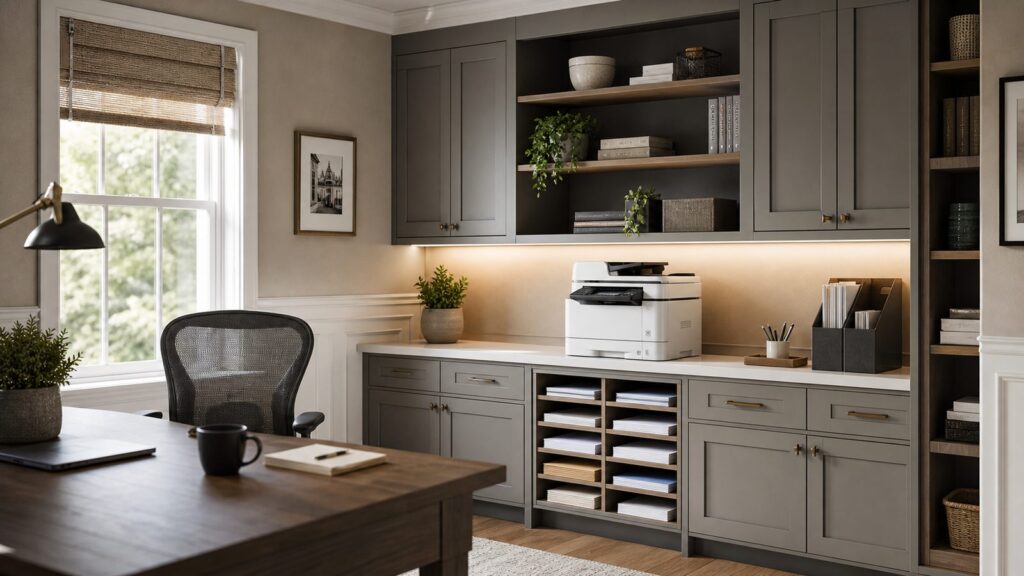
This is where construction planning changes the outcome. A copier needs more than a flat surface. It needs clearances, power, network access, storage, and a landing zone for paper. When we build home office cabinetry, we plan the printer area almost like a small appliance station.
Free tools Windows power users keep installed
One-click scans. No signup required.
Rank #3

Work Surface and Height
A standard desk height is about 29 to 30 inches. That works for many compact printers, but a large all-in-one with a scanner lid may be easier to use on a counter-height surface around 34 to 36 inches if you stand while copying or scanning. For a seated workstation, keep the copier close but not in the main typing area.
Allow enough surface depth. Many home all-in-ones are 14 to 18 inches deep, but paper trays, rear feeds, cords, and scanner lids can require more. A 24-inch-deep countertop is usually more forgiving than a shallow 18-inch shelf. If you are planning built-ins, measure the printer with trays open, not closed.
Clearance for Lids, Trays, and Jams
Leave vertical room above the scanner lid. A copier shelf with only 3 inches of top clearance looks clean until you need to scan from a book or open the lid fully. For most all-in-ones, plan at least 8 to 12 inches of usable space above the lid, more for larger units.
Leave rear and side access. Printers jam. Cords loosen. Paper paths need clearing. For built-ins, we like removable back panels, oversized cord openings, or a pull-out shelf rated for the appliance weight. Do not trap a printer in a cabinet that requires unloading half the office to reach the power plug.
Recommended Free Tools
Paper and Supply Storage
A ream of letter-size paper is roughly 8.5 by 11 inches and about 2 inches thick. Store at least one open ream and one spare ream near the copier. Keep paper flat, dry, and out of direct sunlight. Damp basements, garage shops, and laundry rooms can cause curled paper, misfeeds, and poor print quality.
Ink bottles, cartridges, toner, labels, envelopes, photo paper, and return labels need their own storage. A 15-inch-wide drawer can work for supplies. For a heavier-use office, a 24-inch base cabinet with adjustable shelves is better.
Noise and Daily Workflow
Printers are louder than homeowners expect, especially laser units warming up or feeding a stack through the ADF. Avoid placing a busy copier directly behind a video-call chair or against a bedroom wall if someone works early or late. A better location is often a side wall or short return where the machine is reachable but not in the camera background or conversation zone.
Power, Wiring, and Permit Planning
A home copier does not usually need special power by itself, but the printer is rarely the only load in the office. A real home office may include a computer, monitor or two, router or mesh node, desk lamp, phone charger, shredder, speakers, task lighting, and sometimes a space heater or mini fridge. That is where planning matters.
The Tool Desk
Outbyte Driver Updater FREEFix the driver behind crashes, sound loss and screen glitchesFind Drivers →Outbyte PC Repair FREERepair Windows errors before they cause bigger problemsFix Now →If you are adding a built-in desk, converting a bedroom, finishing a basement, or creating a dedicated office, coordinate outlet locations before drywall and cabinetry. Late electrical changes cost more and can compromise finished trim, backsplashes, paint, or cabinet panels.
Outlet Placement
Put an outlet behind or beside the copier zone, not across the room. Avoid cords stretched across walking paths. For built-ins, use a large enough access opening for plugs and low-voltage cables. A 2-inch grommet may be fine for one cord, but an oversized rectangular access panel is better when power, Ethernet, and USB may all need to pass through.
Surge protection is a good idea for offices handling tax, insurance, business, permit, or legal paperwork. Also consider document backup workflows. A copier helps you digitize records, but those scans need a secure destination.
Circuits, GFCI, and AFCI
Modern residential electrical work must account for current code requirements, including arc-fault and ground-fault protection in many areas of the home. Exact requirements vary by jurisdiction and adopted code cycle. If you are adding outlets or circuits, use a licensed electrician and confirm local requirements before work starts.
Rank #4

- The OfficeJet Pro 8125e is perfect for home offices printing professional-quality color documents like business documents, reports, presentations and flyers. Print speeds up to 10 ppm color, 20 ppm black
- PERFECTLY FORMATTED PRINTS WITH HP AI – Print web pages and emails with precision—no wasted pages or awkward layouts; HP AI easily removes unwanted content, so your prints are just the way you want
- UPGRADED FEATURES – Fast color printing, scan, copy, auto 2-sided printing, auto document feeder, and a 225-sheet input tra
- WIRELESS PRINTING – Stay connected with our most reliable dual-band Wi-Fi, which automatically detects and resolves connection issues
- 3 MONTHS OF INSTANT INK WITH HP+ ACTIVATION – Subscribe to Instant Ink delivery service to get ink delivered directly to your door before you run out. After 3 months, monthly fee applies unless cancelled.
A basic plug-in printer is usually a furnishing decision. Moving an outlet, adding a circuit, opening walls, changing panel capacity, or wiring a built-in office can shift the work into permitted electrical territory. In 2026, home office remodel costs can include building permits around $380 to $1,900, with wall installation around $900 to $2,600 depending on scope, access, finishes, and local labor.
Ventilation, Dust, and Indoor Air Quality
Copiers and printers should not be treated like books on a shelf. They create heat, noise, and, depending on the technology and workload, odors or particles. Indoor particulate matter is a real indoor air quality concern, and high-volume laser printers can contribute to particles and odors during operation.
For ordinary home use, this is usually managed with common-sense placement. Do not put a high-volume laser copier in a tiny unventilated closet and run hundreds of pages at a time. Avoid damp basements, dusty workshops, garages, laundry rooms, and HVAC blasts. Keep paper away from moisture. Keep machines away from direct sun and heavy dust.
If the office is small, choose a copier with acceptable noise and heat output and keep the door open during long print jobs. If you are remodeling, include a supply and return air strategy appropriate to the room. A closed office with electronics, lighting, and a person working all day can get stuffy even without a printer.
Energy Use and Sleep Settings
Look for ENERGY STAR certified imaging equipment when possible and keep sleep settings enabled. Certified printers and copiers are designed to return to sleep mode and wake without making the machine unusable. Disabling sleep just because a printer wakes slowly is usually the wrong fix. Choose a model with a wake time you can live with.
In a home office, the bigger energy issue is often the whole workstation: monitors, chargers, lighting, network gear, and printers left active. Use switched power where appropriate, keep firmware updated, and avoid burying the power strip where it cannot be reached. For built-ins, access matters as much as appearance.
Independent reader supportYour contribution helps us test, update, and keep practical guides available for everyone.Best Copier Recommendations by Homeowner Type
Best for Most Families: Refillable Ink-Tank All-in-One
For a household that prints schoolwork, forms, recipes, shipping labels, color pages, and the occasional photo, choose an ink-tank all-in-one in the $180 to $500 range. Look for an ADF, automatic duplex printing, AirPrint or Mopria, a real paper tray, and user-replaceable maintenance parts.
This is the best general answer because it controls ink cost without giving up color. It also fits the way many homes actually use a copier: a little bit of everything.
Best for Paperwork-Heavy Home Offices: Monochrome Laser All-in-One
If you print mostly text and forms, choose a monochrome laser all-in-one around $180 to $400. Prioritize a 250-sheet paper tray, ADF, duplex printing, Ethernet if available, and a toner system with transparent replacement costs. This is a strong fit for accountants, consultants, remote administrators, teachers, real estate paperwork, and small business records.
Best for Very Light Use: Compact Cartridge Inkjet
If you copy a few pages a month and need the smallest upfront cost, a $45 to $150 cartridge inkjet all-in-one can work. Keep expectations realistic. If it sits idle for months, cartridges can dry or clog. If your volume grows, ink cost can overtake the savings quickly.
Best for Client Packets and Office Color: Color Laser All-in-One
If you routinely produce professional color documents but do not need photo quality, consider a $300 to $800+ color laser all-in-one. Make sure the cabinet or shelf can handle the footprint and weight, and price a full toner replacement set before buying. This is not the category to buy blindly.
When to DIY vs When to Hire a Pro
Buying and setting up a copier is usually a DIY task. Building the office around it may not be. The dividing line is whether you are plugging into an existing, properly located outlet or changing the room itself.
Free tools Windows power users keep installed
One-click scans. No signup required.
Best Value

- FROM AMERICA'S MOST TRUSTED PRINTER BRAND – The Envy 6155 is perfect for homes printing everyday high-quality color documents like homework and borderless photos. Print speeds up to 10 ppm black, 7 ppm color.
- 3 MONTH TRIAL OF INSTANT INK – Subscribe to the Instant Ink delivery service to get ink delivered directly to your door before you run out, and you save up to 50% on ink. After 3 months, a monthly fee applies unless cancelled.
- KEY FEATURES – Color print, copy and scan, plus auto 2-sided printing and a 100-sheet input tray
- HP'S MOST INTUITIVE COLOR TOUCHSCREEN – Smoothly navigate your printer with the easy-to-use 2.4" touchscreen
- WIRELESS PRINTING – Stay connected with our most reliable dual-band Wi-Fi, which automatically detects and resolves connection issues
DIY Is Usually Fine When
- You are placing the copier on an existing desk, credenza, or shelf rated for the weight.
- You have a nearby outlet and do not need extension cords across traffic paths.
- You are connecting by Wi-Fi or an existing Ethernet jack.
- You are adding loose storage bins, a small file cabinet, or a basic paper shelf.
- You can maintain clearances for trays, scanner lid, rear access, and ventilation.
Hire a Pro When
- You need to add, move, or rework electrical outlets.
- You are adding a dedicated circuit or upgrading panel capacity.
- You are building custom cabinets, floating shelves, or a printer pull-out.
- You are converting a basement, attic, garage, or bedroom into a code-compliant office.
- You need sound control, new walls, lighting, HVAC changes, or permit coordination.
On our job sites, the best time to solve printer placement is during layout, not after the cabinets arrive. A copier zone can be simple: a 24-inch-deep counter, an outlet at the back, Ethernet if reliability matters, task lighting, a paper drawer, and enough clearance to open the lid. But if that planning happens late, even simple changes become more expensive.
A Practical Buying Checklist
Before you buy a copy machine for home use, answer these questions:
- How many pages do we print and copy in a normal month?
- Do we need color, or is black-and-white enough?
- Do we scan multi-page documents often enough to require an ADF?
- Do we need duplex scanning or only duplex printing?
- What is the real cost per page, including replacement ink, toner, drums, and maintenance boxes?
- Will the printer fit with trays open and lid raised?
- Is there a nearby outlet, and is the cord path safe?
- Will Wi-Fi be reliable in that location, or should we plan Ethernet?
- Where will paper, labels, toner, ink, and scanned originals land?
- Is the office ventilated enough for the expected print volume?
If you cannot answer the cost-per-page question, pause before buying. If you cannot answer the placement question, measure before buying. A copier that is too large for its shelf or too expensive to feed will irritate you every week.
Bottom Line: The Best Home Copier Is the One That Fits the Work and the Room
For most homeowners in 2026, the best copy machine for home use is a refillable ink-tank all-in-one with an automatic document feeder, duplex printing, reliable mobile printing, and a sensible paper tray. For heavy black-and-white paperwork, a monochrome laser all-in-one is often better. For very light use, a low-cost inkjet can be enough, but only if you accept the ink economics.
The construction side matters just as much. Plan a real copier station with a stable surface, outlet access, cable management, ventilation, paper storage, lighting, and enough clearance for maintenance. If your home office remodel involves wiring, built-ins, walls, HVAC, or permits, bring the printer location into the design conversation early. That is how a simple purchase becomes a home office that actually works.
Frequently Asked Questions
What is the best copy machine for home use in 2026?
For most homes, the best choice is a refillable ink-tank all-in-one printer with copying and scanning. It costs more upfront, often about $180-$700, but usually has much lower ink cost than a cheap cartridge inkjet.
Is an ink-tank printer or laser copier better for a home office?
Choose ink tank for mixed color printing, schoolwork, labels, photos, and regular family use. Choose monochrome laser if your home office mostly prints black-and-white text, forms, invoices, and records.
How much should I spend on a home copier?
Expect about $45-$150 for a basic cartridge inkjet, $180-$700 for an ink-tank all-in-one, $180-$400 for a monochrome laser all-in-one, and $300-$800+ for a color laser all-in-one.
The Tool Desk
Outbyte PC Repair FREEClear out junk files and repair common Windows errorsFree Scan →Outbyte Driver Updater FREEScan for outdated or missing drivers - takes under a minuteDriver Scan →Do I need a permit to add an outlet for a home office printer?
Plugging a copier into an existing outlet usually does not require a permit. Adding or moving outlets, opening walls, adding circuits, or changing panel capacity may require permitted electrical work depending on local code.
Can a laser printer affect indoor air quality?
Laser printers can create heat, odors, and particles, especially during high-volume use. Avoid placing a busy laser copier in a tiny unventilated closet, damp basement, dusty garage, or workshop area.
Where should I place a copier in a home office remodel?
Place it on a stable 24-inch-deep surface when possible, near an outlet, with room for paper trays, scanner lid clearance, rear access, paper storage, ventilation, and either reliable Wi-Fi or Ethernet.
Quick Recap
Product prices and availability are accurate as of the date/time indicated and are subject to change. Any price and availability information displayed on Amazon at the time of purchase will apply.
Quick wins for a faster PC:
Fix the driver behind crashes, sound loss and screen glitchesFind Drivers →Repair Windows errors before they cause bigger problemsFix Now →