Some links on this page are affiliate links: if you buy through them we may earn a commission, at no extra cost to you.
The right app for a current Samsung Wi‑Fi washer is Samsung SmartThings—not the older Samsung Smart Washer app. SmartThings can connect compatible washers, show status, send cycle and error alerts, offer model-dependent remote controls, plan laundry, and install firmware updates. The older Smart Washer/Smart Care app is primarily a camera-based diagnostic tool and does not provide the same Wi‑Fi control.
Compatibility varies by washer model, country, firmware, phone and SmartThings version. Check your model before troubleshooting or buying additional equipment.
| # | Preview | Product | Price | |
|---|---|---|---|---|
| 1 |
|
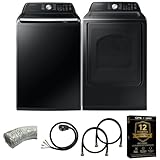
Samsung Smart 4.7 Cu Ft Top Load Washer & 7.4 Cu Ft Electric Dryer, Sensor Stops Overdrying, Low... | $1,588.00 | Buy on Amazon |
| 2 |

|
Samsung WF45T6000WPR White Front Load Laundry Package | $1,657.00 | Buy on Amazon |
SmartThings vs. Samsung Smart Washer/Smart Care
| Name | What it generally does |
|---|---|
| SmartThings | Current Samsung smart-home app for compatible Wi‑Fi washers: status, notifications, supported controls, planning and updates. |
| Samsung Smart Washer/Dryer | Older app mainly associated with Smart Care diagnostics. |
| Smart Washer | Legacy iPhone listing related to Smart Check functions. |
| Smart Care/Smart Check | Camera or manual-entry interpretation of a displayed diagnostic code; it does not use Wi‑Fi. |
| Smart Control/Smart Monitor | Washer-side controls or indicators used by some network-capable models. |
Do not infer SmartThings compatibility from the word “Smart” in a model name or from a Smart Care button. In SmartThings, check Devices → Add (+) → More options (⋮) → View supported devices. The washer manual and control panel may also show a Wi‑Fi symbol, Smart Control or Smart Monitor. See Samsung’s supported-device and washer guidance and Smart Care explanation.
PC Slower Than It Used to Be?
A free scan shows the junk files, broken settings and background clutter dragging Windows down - then fixes them in one click.Free scan · Windows 10 & 11Crashes, No Sound, or Screen Glitches?
Random freezes, missing sound and display glitches usually trace back to one bad driver. Find and replace yours safely.Free scan · under a minuteWhat SmartThings can do
On a compatible washer, SmartThings can:
- Add and identify the appliance and show whether it is online.
- Send cycle-complete, Smart Control and error/information-code notifications.
- Offer supported cycles and options, such as temperature or spin settings.
- Start a supported cycle after the washer is loaded, closed and placed in Smart Control mode.
- Keep the washer connected with Stay Connect on models that provide it.
- Monitor FlexWash sections independently, with Smart Control enabled for each unit.
- Provide Laundry Recipe suggestions and Laundry Planner scheduling on compatible models.
- Offer SmartThings Home Care prompts and washer software updates where supported.
Feature names and availability differ by model, region and software. Samsung’s SmartThings overview and regional SmartThings site are the best current references.
#1 Best Overall
- Exclusive Installation Bundle: Includes 3-Prong and 4-Prong Dryer Power Cords, Washer Hose Set, 8-ft Vent Duct, and 1-Year CPS Protection Plan
- Smart Wi-Fi Enabled: Control washer and dryer remotely via SmartThings app
- 4.7 cu ft capacity Washer with Active WaterJet & vibration reduction tech
- Built-in WaterJet faucet lets you pretreat stains inside the tub
- Self Clean keeps the tub fresh without harsh chemicals
What you need before pairing
- A Samsung washer listed as Wi‑Fi/SmartThings compatible.
- The current SmartThings app for Android or iPhone/iPad.
- A Samsung account and working home Wi‑Fi.
- The washer powered on and within usable router range.
- Phone and SmartThings notification permissions if you want alerts.
Samsung setup documentation commonly specifies a 2.4 GHz network for affected washer models. Weak signal, hidden networks, incorrect passwords, router capacity and incompatible security settings can stop pairing. Some model-specific update paths also require a network name using letters and numbers only. A hotspot can help diagnose a home-network problem, but hotspot firmware updating is not universal; follow the washer’s documentation (troubleshooting and update guidance).
Phone requirements change. For example, the US App Store listing observed on August 18, 2026 specifies iOS 17 or later, iPhone XR or later, and iPad 6 or later. Check the store listing for your country and device rather than relying on old Android 6 or iOS 10 claims.
Connect a Samsung washer to SmartThings
- Install or update SmartThings and sign in to (or create) a Samsung account.
- Turn on the washer and router. Keep the phone near the appliance during direct pairing.
- Open SmartThings and choose Devices → Add (+) → Add device.
- Select Samsung devices, then follow the displayed washer prompts.
- If discovery fails, use Scan QR code, Scan nearby, search the model, or choose the washer category manually.
- Choose the home location and room.
- Put the washer into its model-specific Wi‑Fi pairing mode. On some models, holding Smart Control makes AP appear.
- Select your home Wi‑Fi and enter its password. Distinguish this from your Samsung-account password and any temporary appliance password.
- Wait for registration, then name the washer and confirm its device card shows online.
AP usually means access-point/pairing mode, not an error. Button combinations vary, so the owner’s manual takes priority. Samsung’s general US guide does not require the phone to remain beside the washer after connection, although iOS and model-specific direct-pairing steps may.
Use Samsung’s illustrated connection instructions when the labels on your appliance differ.
Control a wash remotely—within the model’s limits
- Load laundry, detergent and additives.
- Close and latch the door.
- Press or enable Smart Control on the washer.
- In SmartThings, open Devices, choose the relevant location and tap the washer card.
- Choose a supported cycle and options, then tap Start.
A phone cannot bypass an open door, safety lock, appliance error or washer-side control requirement. Opening the door or completing a cycle can turn Smart Control off. Stay Connect, where available, keeps the appliance ready for a subsequent command. An offline washer cannot receive a remote start, and some models support monitoring but not every remote-control function. Never start a load remotely if hoses, drains, the appliance or its surroundings are unsafe. See Samsung’s model-specific Smart Control guidance.
Notifications, Laundry Recipe and Laundry Planner
Notifications
Enable them at SmartThings → Menu → Settings → Notifications. Also check phone-level permissions, battery-saving restrictions, Focus/Do Not Disturb, the washer’s online status and whether the correct Samsung account is signed in. Alerts can cover cycle completion, Smart Control changes and errors.
Laundry Recipe
Open Devices → washer → Laundry Recipe, enter characteristics such as fabric, color and soil level, and review the suggested cycle. Treat it as a suggestion: garment-care labels and the actual mixed load take precedence.
Quick wins for a faster PC:
Clear out junk files and repair common Windows errorsFree Scan →Fix the driver behind crashes, sound loss and screen glitchesFind Drivers →Repair Windows errors before they cause bigger problemsFix Now →Laundry Planner
Open Devices → washer → Laundry Planner and choose a desired end time. The app lists cycles that can fit. Load detergent, close the door and enable Smart Control first. The selected end time is not a guarantee; sensing, water temperature, load balance and pauses can change completion time.
Update washer software
- Open SmartThings and select the washer.
- If prompted, tap Start. Otherwise choose More options (⋮) → Information.
- Choose Firmware Update or Software Update → Update Now, if offered.
Some updates are automatic after connection; not every washer receives firmware updates. Do not press washer buttons, unplug the appliance or interrupt Wi‑Fi while an update is running unless Samsung specifically instructs you. Labels and timing vary by model and region. See Samsung’s update procedure.
Using Smart Care on an older washer
- Install the supported Samsung Smart Washer/Dryer app.
- Open it and select Smart Care.
- Activate Smart Care on the washer; on some models it is under another button such as Soil.
- Align the phone camera with the displayed code, avoiding glare and reflections.
- If scanning fails, enter the code manually and confirm it matches the display.
- Read the suggested troubleshooting steps.
Smart Care-generated codes are not necessarily the washer’s actual information codes. For a genuine code shown by the appliance, use Samsung’s model-specific error-code guide. Smart Care is a diagnostic aid, not a replacement for SmartThings remote monitoring.
Independent reader supportYour contribution helps us test, update, and keep practical guides available for everyone.Samsung washer app troubleshooting
Washer is not discovered
- Update SmartThings and confirm the washer is powered on.
- Connect the phone to the intended Wi‑Fi and move it near the washer.
- Try QR scan, nearby scan or manual model selection.
- Recheck the supported-device list.
- Restart washer, phone and router; try another phone if possible.
- If it still fails, submit an in-app report or contact Samsung.
Password or network problems
Use “show password” and verify the home Wi‑Fi password on another device. Keep separate the Samsung-account password and any temporary direct-appliance credential. Samsung documents 1111122222 for some setup paths only; it is not a universal washer password. If no networks appear, enable appliance Wi‑Fi, move the router closer, ensure the network is not hidden and test another supported network. Strong nearby signal with no networks detected can indicate service is needed.
Recommended Free Tools
Washer repeatedly goes offline
Check for a changed SSID/password, weak signal, incompatible router band/security, app or firmware mismatch, router capacity, disabled Smart Control or an account mismatch. Restore the original network if possible, update software, power-cycle equipment, then remove and re-add the washer only after recording settings.
Used or moved washer belongs to another account
This is an ownership issue, not simply bad Wi‑Fi. Ask the existing owner to transfer control or send an invitation. If unavailable, follow Samsung’s device-ownership support process before repeatedly resetting the router.
SmartThings shows the washer but cannot start
Confirm the door is latched, laundry and detergent are loaded, Smart Control is enabled, no error or pause is active, the device is online, the cycle supports remote use and the intended Samsung account is in use.
Smart Care cannot scan
Reduce glare, change the angle and lighting, align the on-screen markers, or enter the code manually. Confirm it is a Smart Care diagnostic display; use the true information-code guide for a genuine washer fault.
Free tools Windows power users keep installed
One-click scans. No signup required.
Practical limits, privacy and buying implications
Smart functions rely on Wi‑Fi, Samsung account access, cloud services, app support and model compatibility. Physical washer controls remain essential when the internet or app is unavailable. SmartThings permissions can include location, nearby devices, camera, microphone, contacts, local network, Bluetooth, photos and notifications depending on feature and platform; review optional permissions in the Google Play or App Store listing.
For a new purchase, Samsung’s Wi‑Fi washer category is the appropriate starting point. A mesh node or repeater makes sense only when signal testing shows the laundry area is weak; it cannot fix an unsupported model, account ownership problem or failed washer hardware. Samsung support and repair are appropriate when the appliance detects no networks despite adequate signal or continues failing after documented setup steps.
Frequently Asked Questions
Is SmartThings the same as Samsung Smart Washer?
No. SmartThings is the current app for compatible Wi‑Fi washers. Samsung Smart Washer/Smart Care is mainly a legacy diagnostic tool.
Can I use SmartThings with any Samsung washer?
No. Check the model in SmartThings at Devices → Add (+) → More options (⋮) → View supported devices.
Do these 3 things before closing this tab:
1Fix the driver behind crashes, sound loss and screen glitches2Repair Windows errors before they cause bigger problems3Scan for outdated or missing drivers - takes under a minuteDoes Smart Care use Wi‑Fi?
No. It interprets a displayed diagnostic code with the phone camera or manual entry.
Can I start a Samsung washer remotely?
Only on supported models, with the washer online and Smart Control enabled locally, the door closed and the selected cycle eligible for remote use.
Why does my washer say AP?
AP generally indicates access-point pairing mode during setup. The exact button sequence is model-specific.
Can I use a phone hotspot?
A hotspot may help diagnose a home-network problem, but hotspot support for setup or firmware updates varies by model.
How do I transfer a used washer to my account?
The previous owner should transfer control or invite you. Follow Samsung’s ownership-support process if that is impossible.
Does SmartThings cost money?
The US App Store lists SmartThings as free, but compatible hardware, internet service, repairs and optional services can still cost money.
Can I use an iPhone?
Yes, if the iPhone/iPad meets the current regional SmartThings App Store requirements and the washer is compatible.
The Bottom Line
Use SmartThings for a supported Wi‑Fi Samsung washer; use Smart Care only for compatible legacy diagnostics. Confirm model support first, enable Smart Control before expecting remote operation, and treat Wi‑Fi, account ownership and safety conditions as essential—not optional.
The Tool Desk
Outbyte Driver Updater FREEFix the driver behind crashes, sound loss and screen glitchesFind Drivers →Outbyte PC Repair FREERepair Windows errors before they cause bigger problemsFix Now →Quick Recap
Product prices and availability are accurate as of the date/time indicated and are subject to change. Any price and availability information displayed on Amazon at the time of purchase will apply.


Leave a Reply