PC Slower Than It Used to Be?
A free scan shows the junk files, broken settings and background clutter dragging Windows down - then fixes them in one click.Free scan · Windows 10 & 11Outdated Drivers Are Slowing You Down
One free scan finds every outdated or missing driver and matches the right update for your exact hardware.Free scan · exact hardware matchSome links on this page are affiliate links: if you buy through them we may earn a commission, at no extra cost to you.
Yes—if your TV can send audio over Bluetooth and your speaker can receive it. Bluetooth on a TV is not enough by itself: some models use it only for remotes or other accessories. Check the TV’s exact model and sound-output settings. If it has no Bluetooth audio output, a compatible Bluetooth transmitter connected to the TV’s audio port may work. For dependable lip-sync, surround sound, and TV-remote volume control, HDMI ARC/eARC to a soundbar is usually the better choice.
What has to be compatible?
A working setup depends on three things: the TV’s audio-output capability, the speaker’s ability to receive Bluetooth audio, and where the program is playing.
- The TV must transmit its own audio. A TV may use Bluetooth for its remote, keyboard, or other accessories without offering Bluetooth audio output. Look for settings or specifications that say Bluetooth audio output, wireless speaker, Bluetooth headphones, or A2DP. Sony advises checking the model’s A2DP support and the audio device’s compatibility: Sony’s Bluetooth compatibility guidance.
- The speaker must receive Bluetooth audio. Most portable Bluetooth speakers do this, but they must be in pairing mode and not already connected to another device. Pairing, multipoint, party mode, or stereo linking do not automatically mean a speaker can connect to a TV or to another brand’s speaker.
- The sound must pass through the device you pair with. A speaker paired to a streaming box receives audio from that box, not necessarily from every source connected to the TV. Cable or antenna channels, a game console, and other HDMI inputs may need a TV-level audio connection instead.
Bluetooth version numbers alone do not establish compatibility. The TV and speaker need a supported audio profile and a workable connection path.
Check your TV before pairing
- Find the full model number, usually on the back of the TV or in its settings.
- Search the manufacturer’s support page or manual for “Bluetooth audio,” “A2DP,” “wireless speaker,” or “sound output.” Confirm support for sending sound to third-party Bluetooth devices, not just Bluetooth accessories.
- Open the TV’s Settings and look under Sound, Audio, or Sound Output. A Bluetooth or wireless-speaker option is a useful sign, but the manual is the better check if the menu is unclear.
- Check whether the feature supports one or multiple audio devices and whether selecting it disables the TV’s built-in speakers.
Do not rely on the word “Bluetooth” in a product listing or on the presence of a Bluetooth remote: neither proves that the TV can transmit program audio.
#1 Best Overall

- 【𝐈𝐦𝐩𝐚𝐜𝐭𝐟𝐮𝐥 𝐕𝐨𝐥𝐮𝐦𝐞 𝐁𝐨𝐨𝐬𝐭】: Elevate faint sounds to vibrant with automatic loudness boost. Experience immersive sound through 4 versatile placements—horizontal for distortion-free audio, vertical for room-filling sound, tabletop for vibrant clarity, or wall mount for 360° cinematic magic. Transforms your room into a personal theater.
- 【𝐄𝐩𝐢𝐜 𝐂𝐢𝐧𝐞𝐦𝐚 𝐀𝐮𝐝𝐢𝐨】: Powered by 4 high-performance drivers, 80W powerful sound output, it provide richer details, like soft whisper or subtle croon, whether deep thunder or sonorous roar, turn flat audioto vivid, adding weight to music, making the virtual game experience immersive.
- 【𝐓𝐚𝐢𝐥𝐨𝐫𝐞𝐝 𝐒𝐨𝐮𝐧𝐝】: Fine-tune your listening experience with 3 dynamic equalizer modes—movie, music, and news. Enjoy rich, cinematic audio, luxurious melodies, and crystal-clear dialogue, tailored to enhance every scene and soundtrack. Spreading the audio evenly throughout a room, ensures that everyone, regardless of seating position, experiences the full range of sound.
- 【𝐄𝐟𝐟𝐨𝐫𝐭𝐥𝐞𝐬𝐬 𝐔𝐬𝐞】: Enjoy seamless setup with cutting-edge Bluetooth 5.0 or reliable ARC, OPT, and AUX connections. In ARC mode, control your soundbar with ease using your TV remote, guided by our easy-to-follow instructions and video tutorials.
- 【𝐄𝐱𝐜𝐞𝐩𝐭𝐢𝐨𝐧𝐚𝐥 𝐒𝐮𝐩𝐩𝐨𝐫𝐭】: Your satisfaction is our top priority. Enjoy peace of mind with our 18-month warranty and 24/7 online tech support. Our 60-day hassle-free replacement policy, with top-tier assistance whenever you need it.
Pair a speaker directly with the TV
- Turn on the speaker and put it into pairing or discoverable mode. Follow the speaker’s instructions; simply powering it on may not be enough.
- On the TV, open Settings, then the sound or audio-output menu.
- Choose Bluetooth, Wireless Speaker, or the equivalent option.
- Select the speaker from the device list and confirm pairing.
- Play a program. Check sound, volume control, and lip-sync. If the TV provides an audio-delay or synchronization control, adjust it if needed.
Menu names vary by model, region, and software version. When Bluetooth audio is selected, some TVs switch away from their built-in speakers. To return to them, choose TV Speakers or the equivalent sound-output option.
Samsung TVs
On a compatible Samsung TV, put the speaker into pairing mode, then open Settings → Sound → Sound Output and choose the Bluetooth speaker or audio device. Confirm pairing and test playback. Labels differ across model years and software versions, and connecting Bluetooth audio may switch the TV away from its built-in speakers. Samsung also recommends a Bluetooth adapter when the TV itself does not support Bluetooth audio: Samsung’s Bluetooth audio instructions.
LG TVs
For LG TVs from 2021 onward running webOS 6.0 or later, LG lists this path: Settings → All Settings → Sound → Sound Out → Use Wireless Speaker → Bluetooth Devices → Connectable Devices. Choose the speaker and complete pairing. Older models and other software versions may use different labels. See LG’s pairing instructions.
Do these 3 things before closing this tab:
1Fix the driver behind crashes, sound loss and screen glitches2Repair Windows errors before they cause bigger problems3Scan for outdated or missing drivers - takes under a minuteLG Sound Sync Wireless is a separate feature for compatible LG TVs and LG soundbars; it is not a guarantee that every third-party Bluetooth speaker will receive LG-specific synchronization or control features. LG documents that feature and compatible connections here. Support for connecting two Bluetooth headphones on some LG models should not be taken as proof that two arbitrary Bluetooth speakers can be paired.
Rank #2

- Add cinematic sound to your Roku TV or surround sound to your Roku audio system. Requires Roku TV, Roku Streambar, Roku Streambar Pro, or Roku Smart Soundbar—sold separately. Only works with Roku TV or Roku Audio. Roku Streambar SE is not compatible.
- Powerful, premium audio: With high frequencies and dynamic bass, Roku Wireless Speakers are meticulously engineered to deliver full, clear sound and crisp dialogue with seamless audio/video sync to your Roku TV or Roku Smart Soundbar
- Be immersed in your TV: Experience room-filling audio that moves with the action, conversations like you’re in the room, and soundscapes that transport you to another world—it's cinematic sound for your entertainment
- Elevate your music: Listen to your music come to life with clear highs and volume without distortion—simply tune into your favorite music channels or stream via Bluetooth
- Fine-tune your sound: Easily boost the volume of voices with Speech Clarity, lower loud commercials for consistent sound with Volume Leveling, and enjoy your TV without waking the house using Night Mode
Sony Android TV and Google TV
First verify that the specific Sony TV supports A2DP Bluetooth audio. Put the speaker into pairing mode, then open Settings and look under Remotes & accessories or the model’s Bluetooth-device menu. Choose Add accessory or the relevant audio-device option, then select the speaker. If pairing does not change the output automatically, choose the paired device in the sound-output menu. Sony’s guidance stresses checking both TV and device compatibility: Sony support. Sony also notes that delay or choppy sound can occur in some wireless audio configurations; results depend on the equipment and setup.
Roku: distinguish Bluetooth from Roku Wireless Speakers
Roku support for Bluetooth depends on the host device and feature. Roku’s Bluetooth Headphone Mode is documented mainly for headphones, not as a universal way to pair any Bluetooth speaker to every Roku TV. Check the model-specific list and instructions on Roku’s Bluetooth Headphone Mode page.
Roku Wireless Speakers are a separate, proprietary option—not generic Bluetooth speakers. Roku says they work with compatible Roku TVs, Streambar, Streambar Pro, and Smart Soundbar hosts, not arbitrary TVs or ordinary Roku streaming players. For setup, plug in the speakers and use a compatible host; hold Home on the remote for five seconds and select Wireless speakers, or go to Settings → Remotes & devices → Set up a new device. Follow the on-screen placement and channel instructions. Roku says Wi-Fi is required for setup and gives a range of up to about 30 feet with a good wireless signal. When connected to a Roku TV, the wireless speakers disable its built-in speakers. Check Roku’s setup instructions and compatibility troubleshooting for the host requirements.
The Tool Desk
Outbyte Driver Updater FREEFix the driver behind crashes, sound loss and screen glitchesFind Drivers →Outbyte PC Repair FREERepair Windows errors before they cause bigger problemsFix Now →Apple TV 4K as the Bluetooth host
If your TV lacks Bluetooth audio output but you watch through Apple TV 4K, the Apple TV may be able to pair with a compatible Bluetooth audio device. Open Settings → Remotes and Devices → Bluetooth, then choose the discoverable device under Other Devices, as described in Apple’s instructions.
Rank #3

- 【Hearing Every Word】 Say goodbye to muffled dialogue and hello to our soundbar that brings words to life, making you feel like you're part of the conversation.
- 【Compact yet Suitable】At a little over 2.5 inches in height, our sound bar is compact enough to fit in most spaces. You can easily mount it on the wall or place it in front of your TV without worrying about it blocking the bottom edge or IR remote sensor.
- 【DSP&Three Sound Effects】With DSP, sound bar offers three sound modes or presets that cater to different program types, such as movies, music, news. These profiles can optimize the audio settings to suit the specific genre, enhancing your listening experience based on your preferences.
- 【Compatible with Fire TV Remote】Soundbar is compatible with Fire TV remote control. Additional remotes compatible with Roku box or Roku TVs can be provided as per your request.
- 【Hassle-free Installation】We've made the installation steps for the soundbar much simple. Plus, a special vibrant, easy-to-follow installation instructions has been included in the package. In case you still encounter any issues during the sound bar installation process, our dedicated after-sales team is always available to assist you!
This routes Apple TV audio; it does not automatically route every sound the television plays. A console, cable box, antenna channel, or disc player connected to a different TV input may not reach a speaker paired to Apple TV. Compatibility and available features depend on the Apple TV hardware, tvOS version, and accessory.
If your TV does not support Bluetooth audio
Use a Bluetooth transmitter connected to a TV audio output. A transmitter takes sound from the TV and sends it to a Bluetooth speaker. A Bluetooth receiver does the opposite: it accepts sound from a phone or other Bluetooth source and sends it to wired speakers. Some products offer both modes, so confirm that the device has a transmitter mode.
Possible TV connections include optical/TOSLINK, 3.5 mm headphone output, RCA analog output, or HDMI ARC/eARC if the transmitter explicitly supports that connection. Connect the transmitter to the matching output, power it, set the TV’s audio output to that port, and pair it with the speaker. For optical, the TV may call the setting Optical or Digital Audio Out. Manufacturer setup examples from 1Mii and Avantree illustrate the need to select the TV’s matching output before pairing.
- Check the transmitter’s supported input and confirm it operates in transmitter mode.
- Connect it to a compatible TV audio output and power it.
- Set the TV’s sound output to that connection.
- Put both transmitter and speaker into pairing mode and wait for them to connect.
- Test sound and volume. If optical pairing succeeds but there is no audio, try setting the TV’s digital audio format to PCM or stereo if available.
Before choosing a transmitter, check its supported audio formats, codecs, number of simultaneous devices, and volume-control behavior. Optical or Bluetooth setups may not pass Dolby Digital, DTS, Atmos, or multichannel formats; support varies by device. A generic transmitter may not carry TV-remote volume commands, and HDMI ARC/eARC support is not universal. A low-latency codec only helps when both transmitter and speaker support the same relevant codec; it cannot guarantee perfect lip-sync.
Rank #4
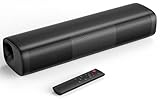
- 【Crystal-Clear, Balanced Audio】Experience rich, well-rounded sound with this sound bar(Powered by an AC Adapter) featuring 48W of peak power and perfectly tuned bass and treble—ideal for movies, music, and gaming without harsh highs or muddy lows.Stereo Shelf Systems.
- 【Compact Design, Big Impact】Measuring just 11.7" x 3.5" x 2.5", this sleek soundbar fits effortlessly under any screen or on tight shelves, making it the perfect space-saving sound bar for smart TV setups.
- 【Triple Connection Options + Sub Out】Connect this soundbar to your TV, computer, or smartphone via Bluetooth, optical, or 3.5mm AUX—and when you’re ready for richer bass, just plug a powered subwoofer into the dedicated sub out to upgrade your sound bar for smart TV setup.
- 【Distraction-Free Viewing Experience】Soft, subtle LED indicators on the right side stay out of sight during movies or shows, so your tv sound bar enhances audio without flashing lights ruining the mood—pure immersion, zero glare.
- 【Smart Standby Mode】The soundbar's red indicator light indicates safe standby mode. It consumes minimal power and will not affect the product's lifespan. You do not need to unplug it when not in use.
Bluetooth speaker or soundbar?
| Need | Better first option |
|---|---|
| One speaker, simple wireless listening, or a portable setup | Direct Bluetooth, if the TV supports audio output |
| Older TV with optical output and an existing speaker | Bluetooth transmitter, after checking format and volume limitations |
| Permanent living-room setup, remote volume, and dependable sync | Soundbar connected by HDMI ARC/eARC |
| Older TV or soundbar without ARC | Optical connection, if both devices support it |
| Surround sound or Atmos | Compatible soundbar or AV receiver over HDMI ARC/eARC |
| Content mostly played through Apple TV | Pairing to Apple TV may work, but covers that source rather than all TV inputs |
| Integrated wireless speakers on a Roku system | Roku Wireless Speakers only with a listed compatible host |
| Late-night private listening | Bluetooth headphones or a suitable low-latency transmitter setup |
Bluetooth is useful for casual, one-speaker listening, a small room, or moving a speaker between rooms. Its trade-offs include possible lip-sync delay, typically stereo rather than a full surround setup, battery charging, range or interference issues, and limited TV-remote volume control. A portable speaker may also have less dialogue focus and stereo imaging than a speaker system designed for television.
For a fixed TV installation, HDMI ARC/eARC to a compatible soundbar is generally more suitable when you want convenient remote-volume control, reliable everyday playback, or supported surround formats. ARC/eARC and CEC must be supported and enabled on the TV and soundbar. Optical can be a useful alternative, but formats and control features are more limited. Wi-Fi and proprietary wireless systems may suit multi-room or integrated setups, but depend on compatible equipment and may require an app, account, or specific host.
Troubleshooting by symptom
The speaker does not appear in the TV’s list
- Make sure the speaker is in pairing mode, not just switched on.
- Disconnect it from a phone, tablet, or computer, then search again near the TV.
- Restart both devices, remove old pairings from the TV, and check for firmware updates.
- Verify that the TV supports Bluetooth audio output and that the speaker supports a compatible audio profile.
LG’s troubleshooting advice also recommends turning Bluetooth off on another device that is connected to the speaker, then searching again from the TV: LG support.
It pairs, but there is no sound
Check that the TV’s selected sound output is the paired device or transmitter, that the speaker is not muted, and that it has not reconnected to another source. For a transmitter, confirm the cable is in an output rather than an input, the TV is set to that port, and the transmitter is powered. If using optical, try PCM or stereo output if the TV offers it and the transmitter does not support the selected format.
Best Value

- HEAR YOUR TV BETTER: Designed with simplicity in mind, the Bose TV Speaker is an all-in-one soundbar that clarifies speech and is a simple fix for better TV sound
- WIDE, NATURAL SOUND: 2 angled full-range drivers deliver a more realistic, spatial audio experience for overall better TV sound from a small soundbar
- ENHANCED DIALOGUE: This sound bar for smart tv is designed to specifically focus on clarifying and elevating vocals and pronunciation
- BLUETOOTH TV SPEAKER: Pair your device to this Bluetooth soundbar to wirelessly stream your favorite music and podcasts. Connect up to 3 devices through the inputs (HDMI, Optical in, and AUX in); the first powered on device will automatically connect
- SIMPLE SETUP: A single connection from this compact soundbar to the TV via an optical audio cable (included) or an HDMI cable (sold separately) has you up and running in minutes
Audio is delayed or choppy
Delay can come from Bluetooth encoding and decoding, TV processing, a codec mismatch, or the source itself. Try the TV’s audio-delay/lip-sync control, reduce picture-processing effects, move devices closer, and avoid simultaneous wired and Bluetooth audio unless the TV specifically synchronizes both. If delay remains distracting, switch to optical or HDMI ARC/eARC. “Low latency” is not a guarantee unless the connected devices share the relevant codec or synchronization system.
Both the TV and speaker play—or only one does
Speaker behavior is model-specific. Many TVs mute their own speakers when Bluetooth is selected; some offer a dual-output or accessibility option. Check the sound menu rather than assuming both can play together. Roku specifically says its Wireless Speakers disable built-in speakers when connected to a Roku TV.
The TV remote will not change speaker volume
A TV may transmit sound without sending volume commands to a generic Bluetooth speaker or transmitter. Use the speaker’s controls, use transmitter controls if provided, or choose a compatible HDMI ARC/eARC soundbar if integrated volume control matters.
The connection drops
Charge the speaker, reduce distance and obstacles, check for wireless interference, and make sure another paired device is not taking over the connection. Also check whether the speaker goes to sleep automatically or the TV has a model-specific Bluetooth limitation.
Two speakers will not connect
Do not assume the TV supports two independent Bluetooth speakers. Multi-device audio is model-specific, and speaker-linking features such as stereo pairing or party mode may require matching products and a particular setup. Check the TV and speaker manuals for the exact combination.
Roku Wireless Speakers are not found
Confirm that the host is a compatible Roku TV, Streambar, Streambar Pro, or Smart Soundbar—not an unrelated TV or standard streaming player. Wi-Fi is required for setup. Roku notes that on some Roku TVs Ethernet may temporarily disable Wi-Fi; disconnecting Ethernet during pairing may help discovery. See Roku’s setup and troubleshooting details.
Quick Recap
Product prices and availability are accurate as of the date/time indicated and are subject to change. Any price and availability information displayed on Amazon at the time of purchase will apply.
Quick wins for a faster PC:
Scan for outdated or missing drivers - takes under a minuteDriver Scan →Clear out junk files and repair common Windows errorsFree Scan →Fix the driver behind crashes, sound loss and screen glitchesFind Drivers →

Leave a Reply